
Signal Hardening Guide
Adjusting Profile Settings
Step 1
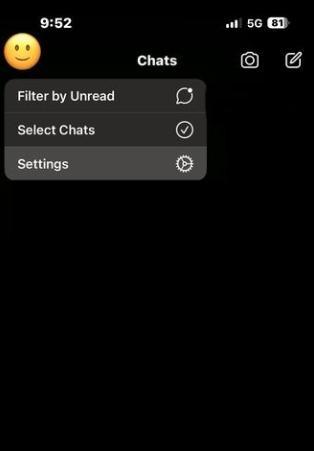
On the top left hand corner of your screen, top on your profile picture, then tap Settings
Step 2
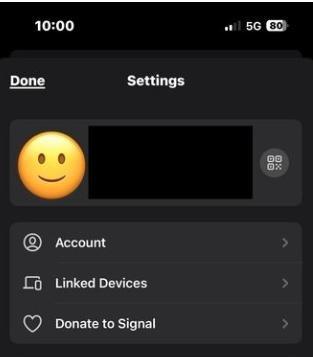
Tap on the tile with your name and profile picture
Step 3
Here, you can edit your name, profile picture and create a username
Enabling Multifactor Authentication
Step 4
Go back to the settings page, and tap on Account
Step 5
You should see this screen. Here, you can create a PIN and set a Registration Lock. You can also download and export your account data and delete your account from here
Adjusting Chat Settings
Step 6
Go back to the Settings page and click Chats
Step 7
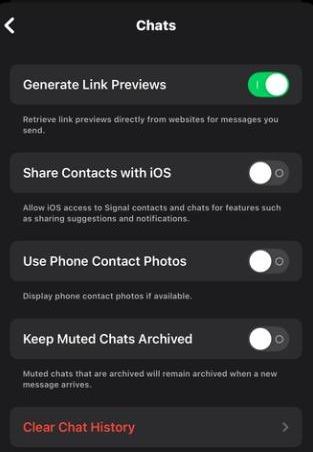
You should see this screen. Here, you can limit access to your device contacts and delete your chat history
Adjusting Notification Settings
Step 8
Go back to the Settings page and click Notifications
Step 9
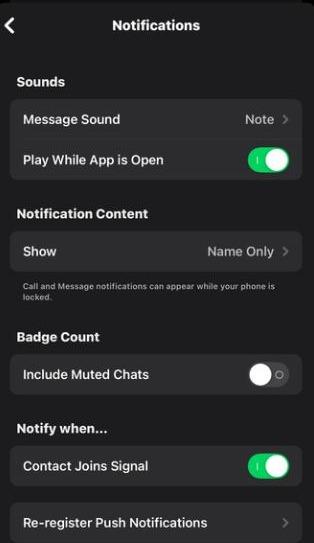
You should see this screen. Here, you can limit the content within a notification to show "Name, Contact, and Actions," "Name Only," or "No Name or Content"
Adjusting Privacy Settings
Step 10
Go back to the Settings page and click Privacy. You should see this screen.
Step 11
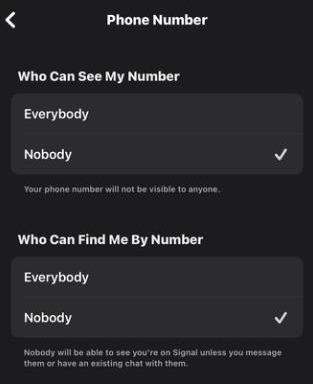
Tap Phone Number at the top of the screen. Here, you can adjust who can see and find you on the Signal app via your phone number
Step 12
Go back to the previous screen. Here, you can update additional settings, such as setting a default for disappearing messages and enabling app security, including when to lock access when leaving the Signal app