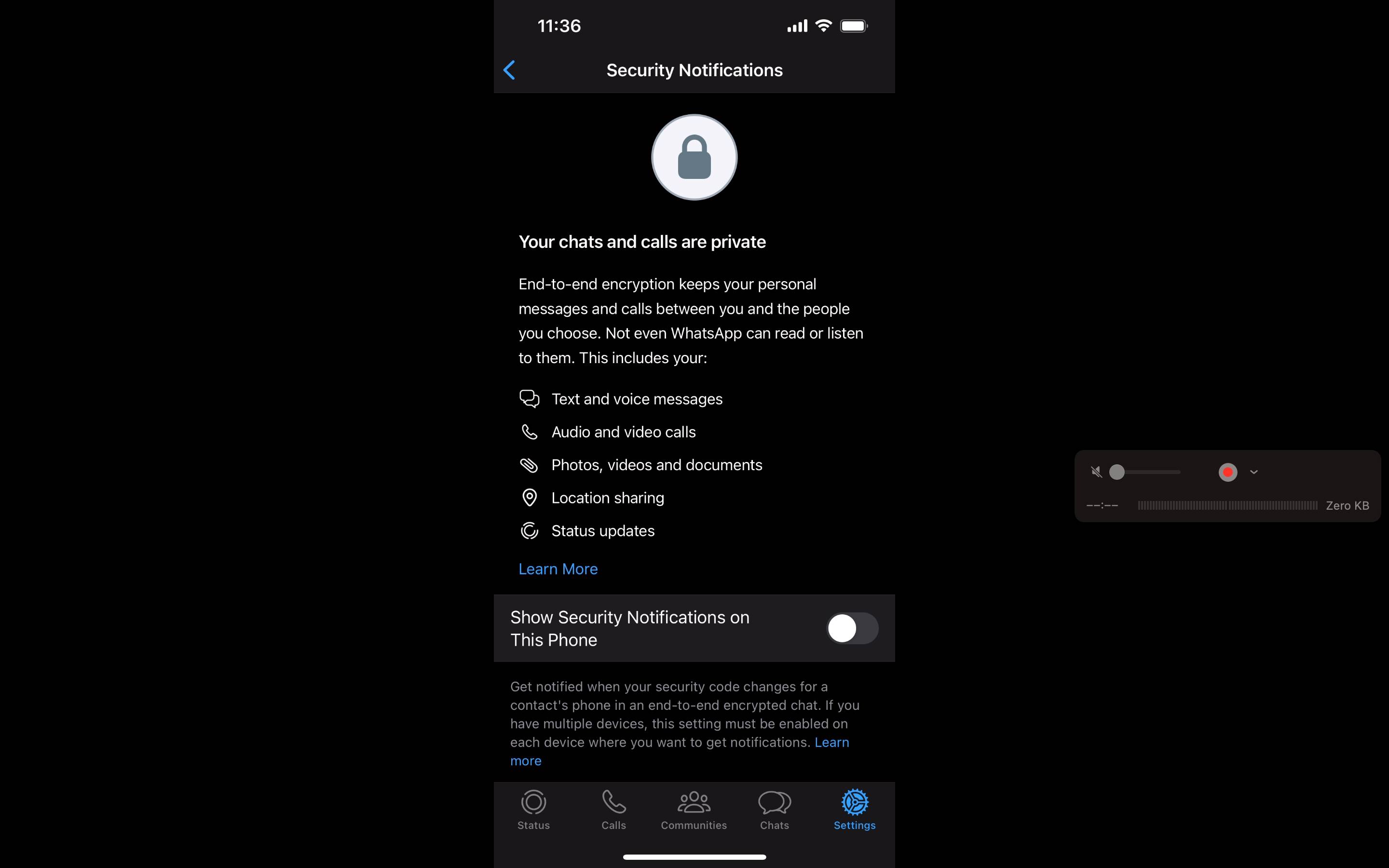
WhatsApp Hardening Guide
Finding Privacy & Security Settings
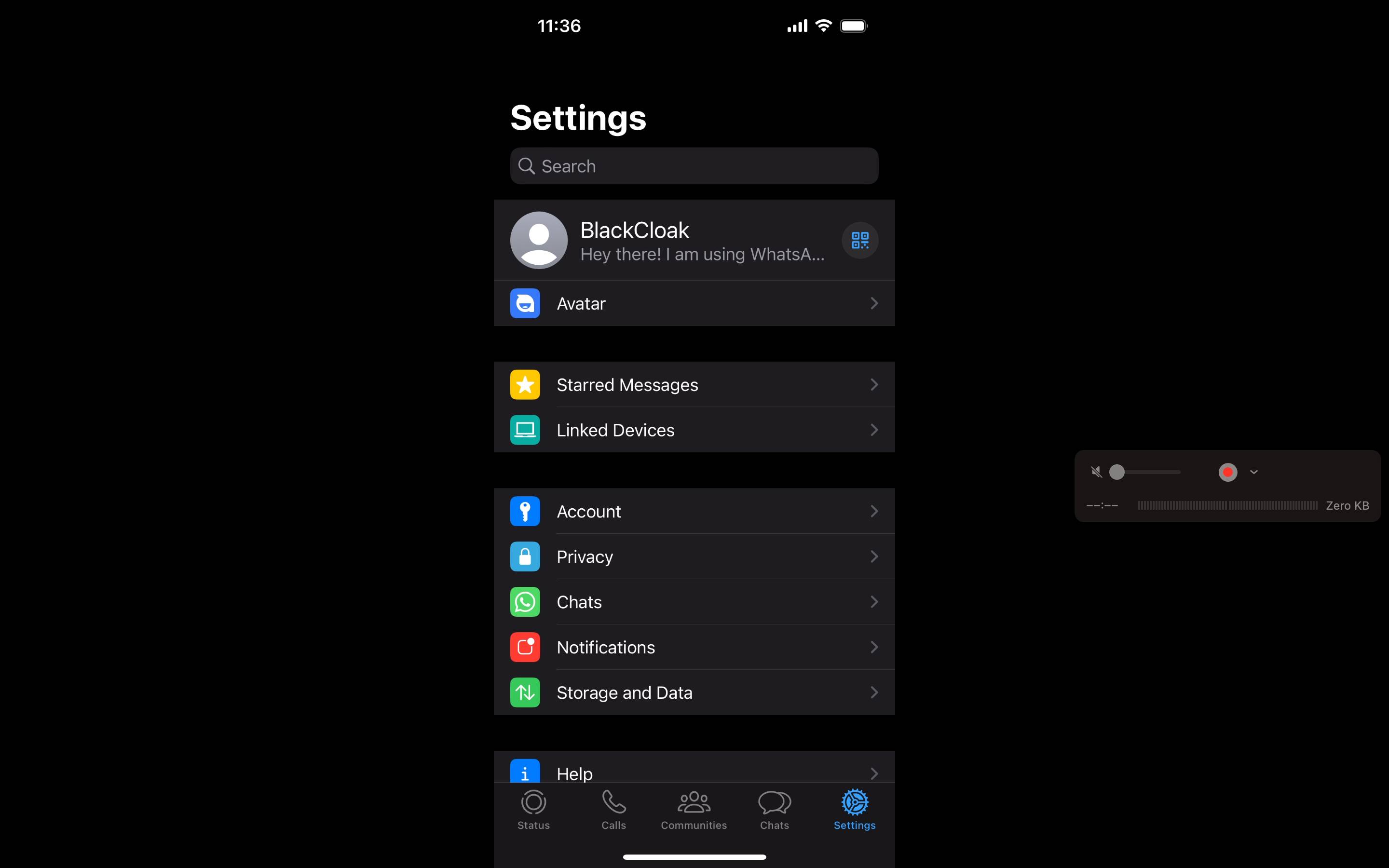
Step 1
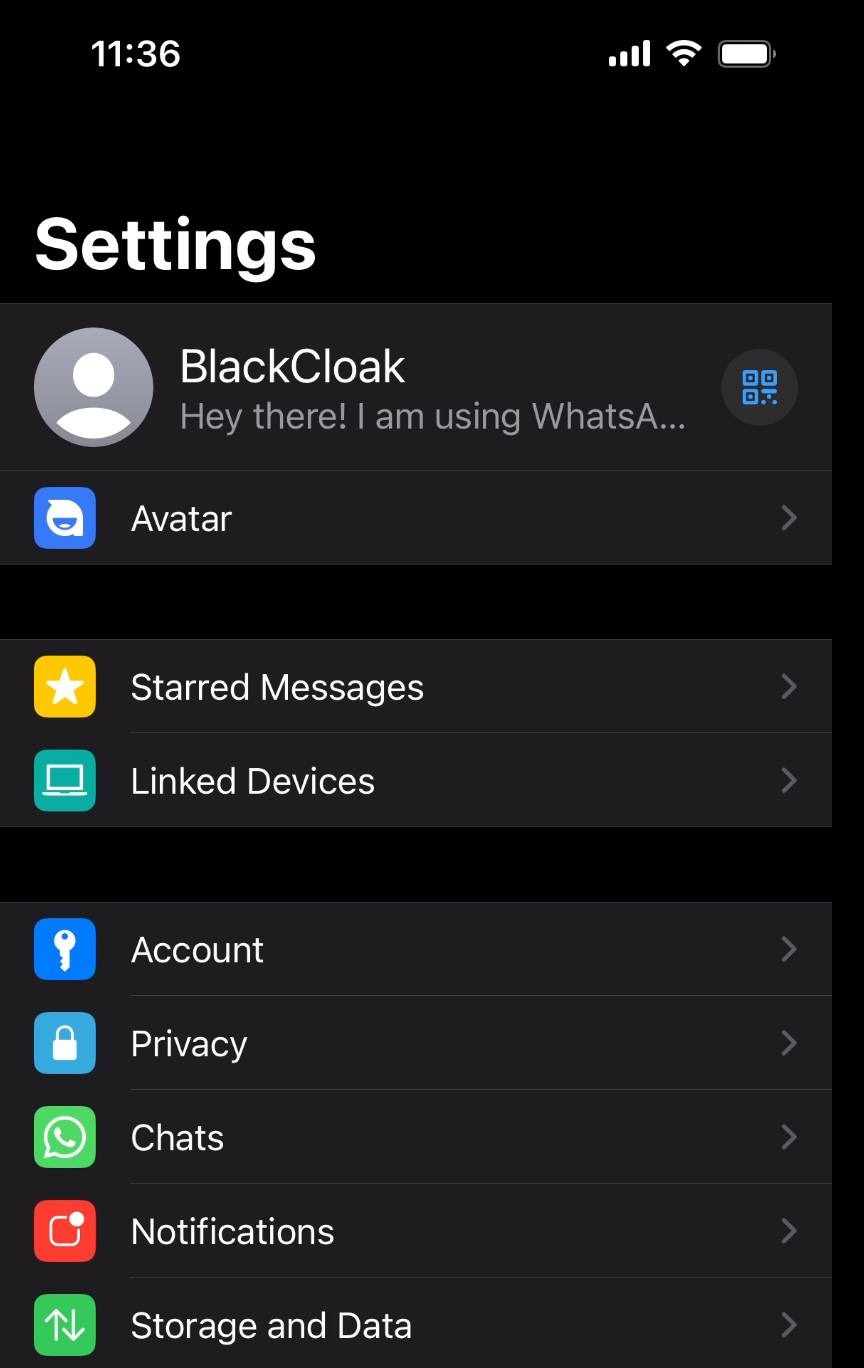
On the bottom right hand corner of the app, click the settings icon
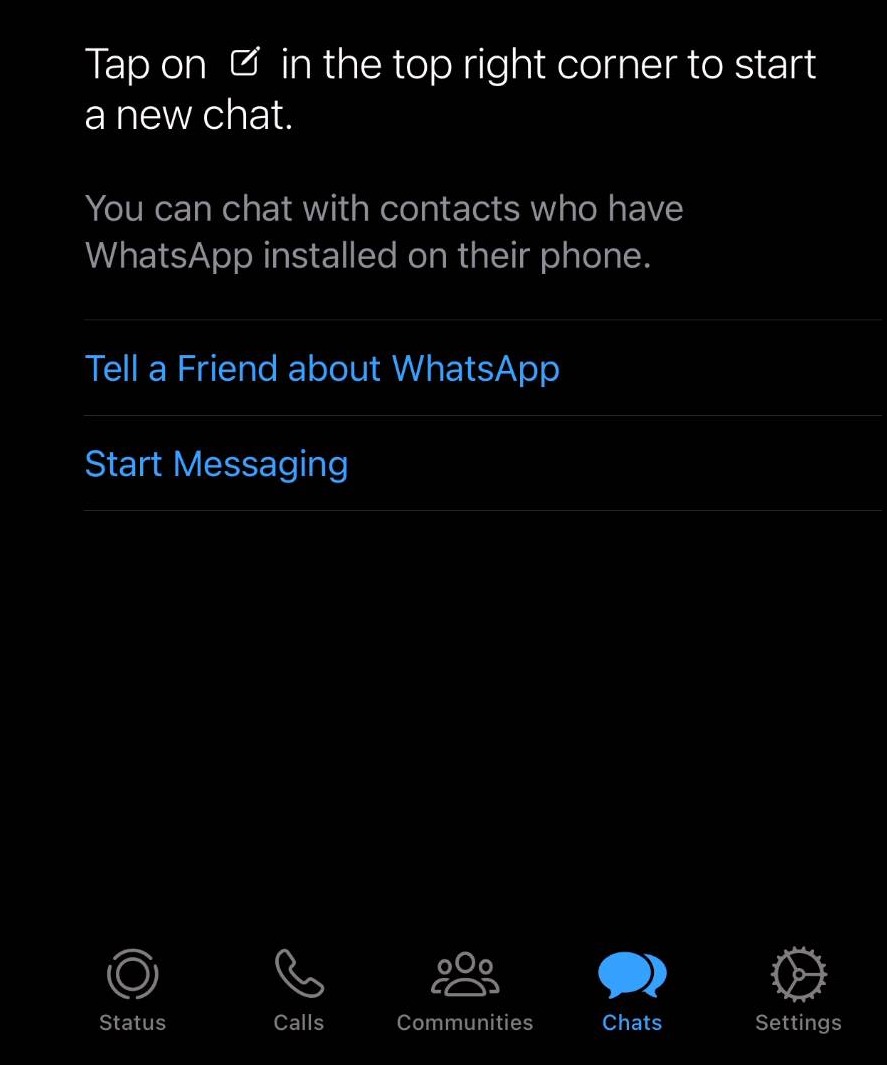
Step 2
Click here:
Step 3
Here, you can find your privacy and security settings
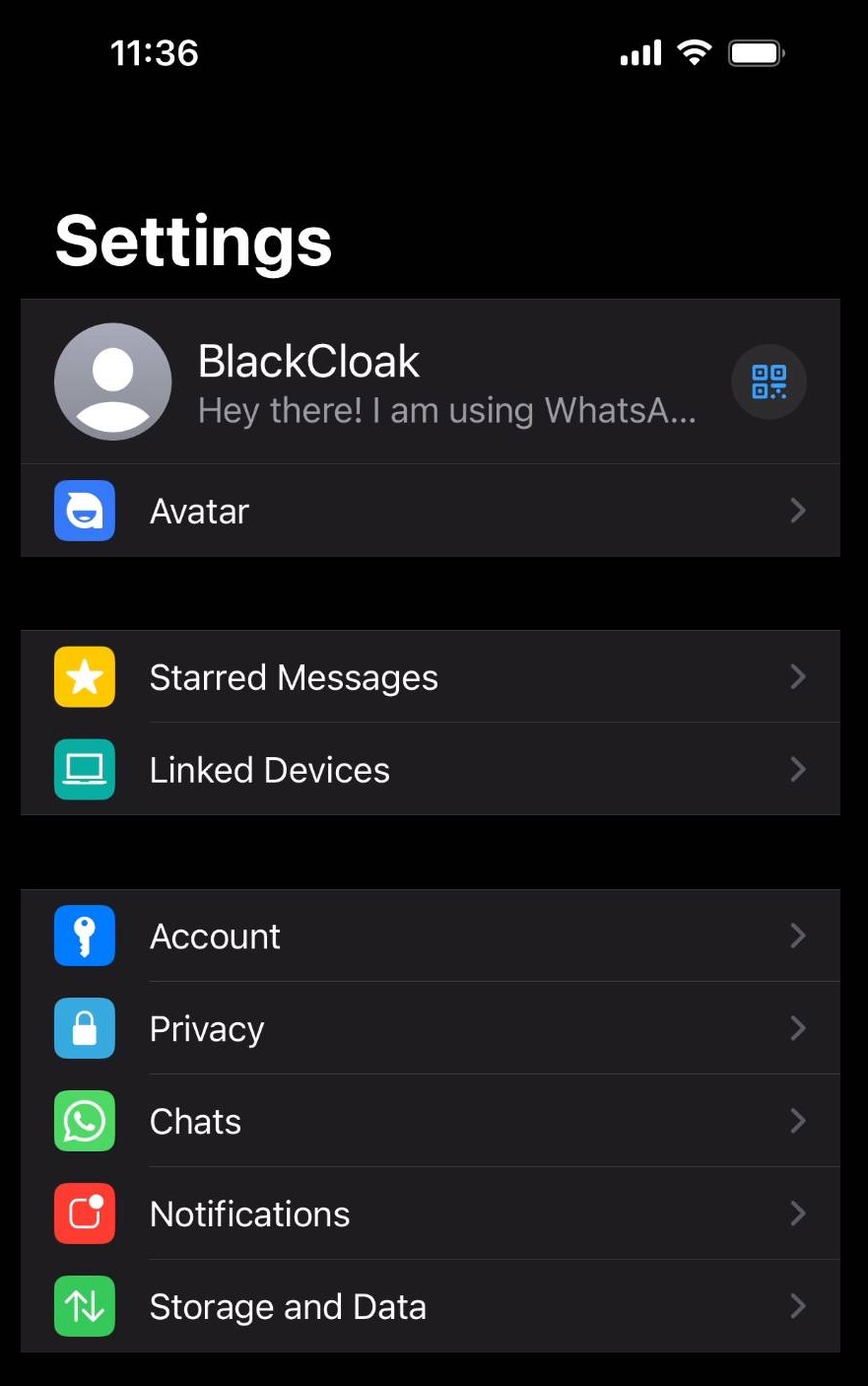
Enabling Two-Factor Authentication
Step 4
Go back to the settings page
Step 5
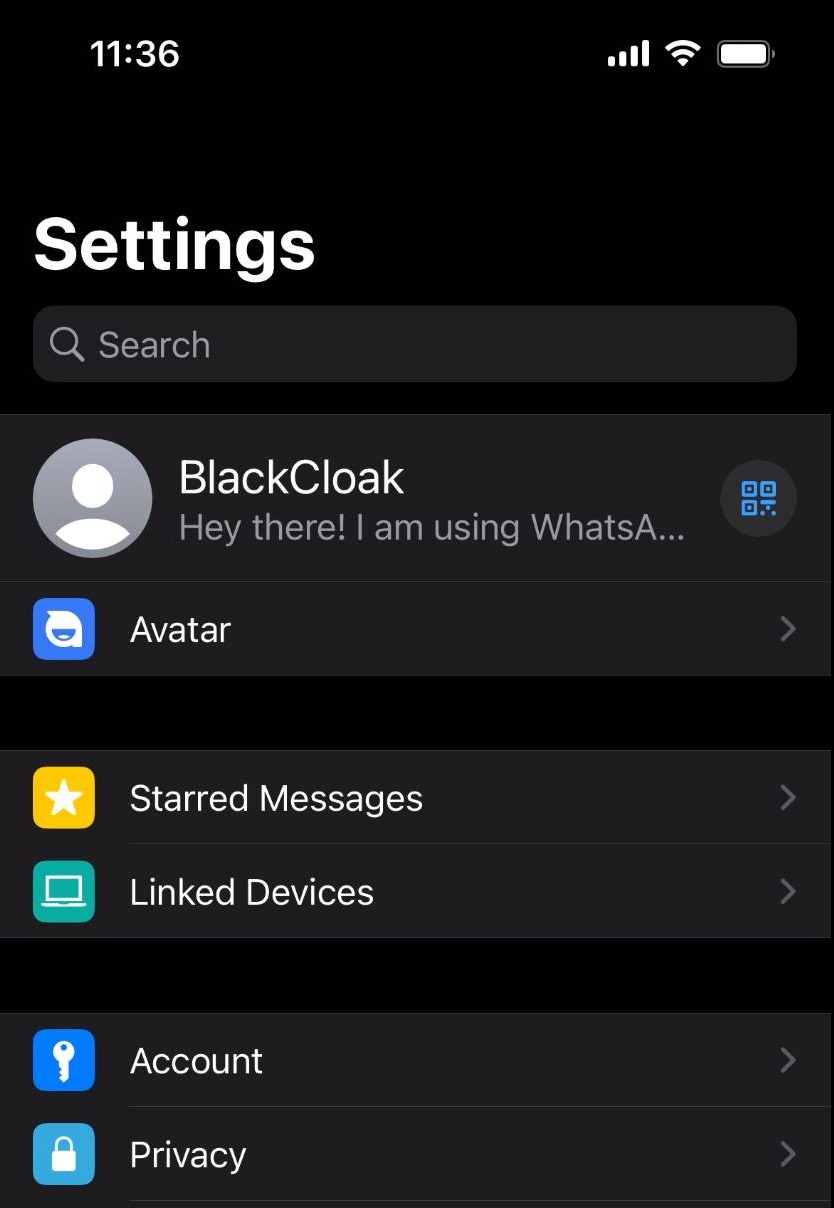
Click account
Step 6
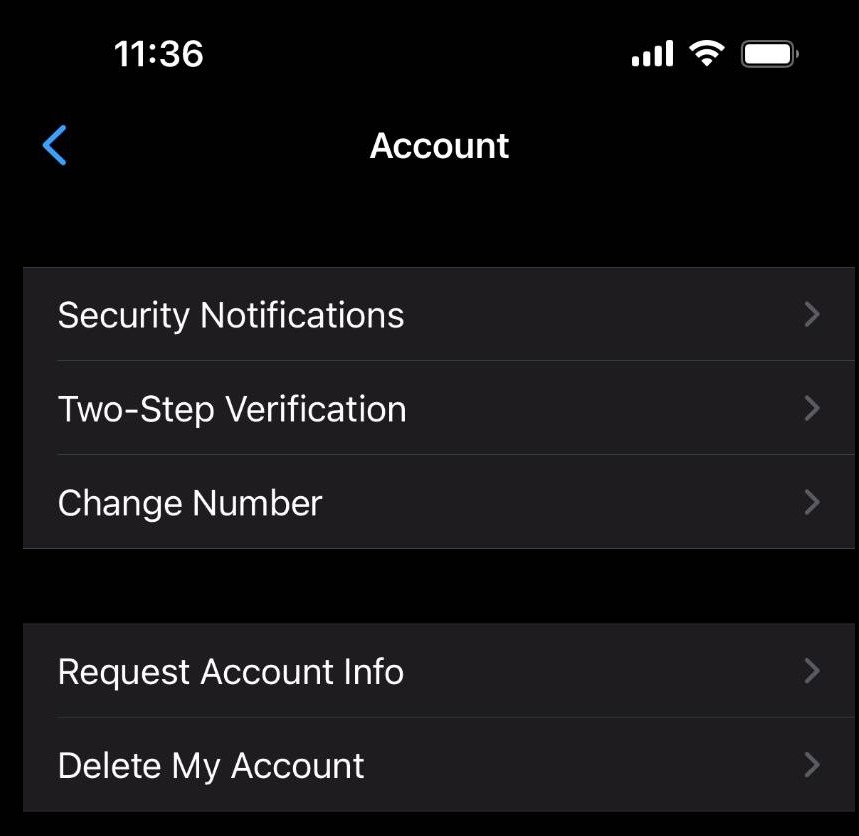
Click two-step verification
Step 7
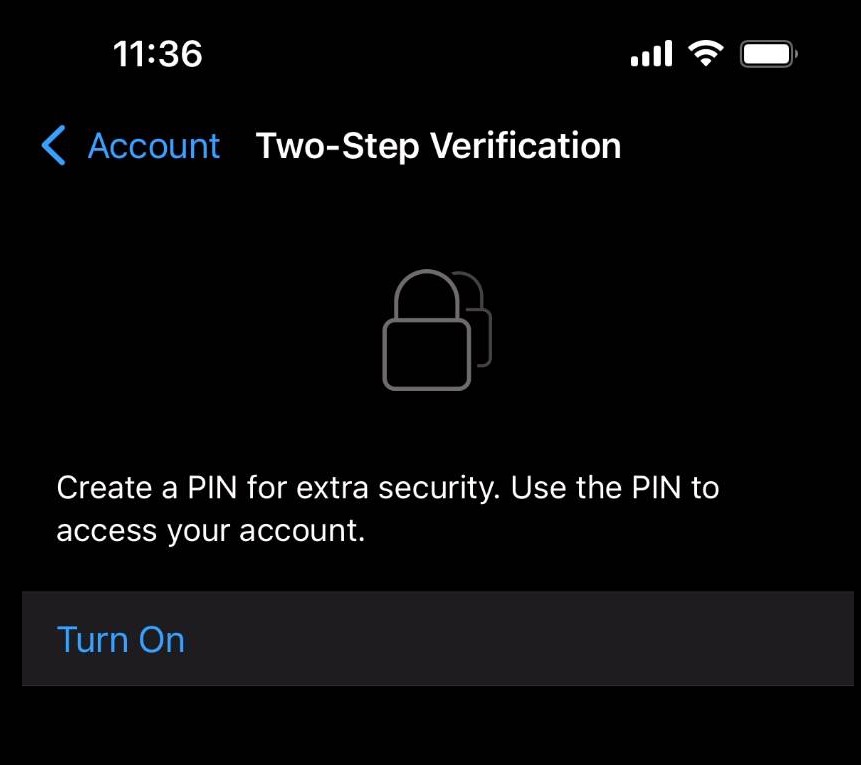
Click turn on
Step 8
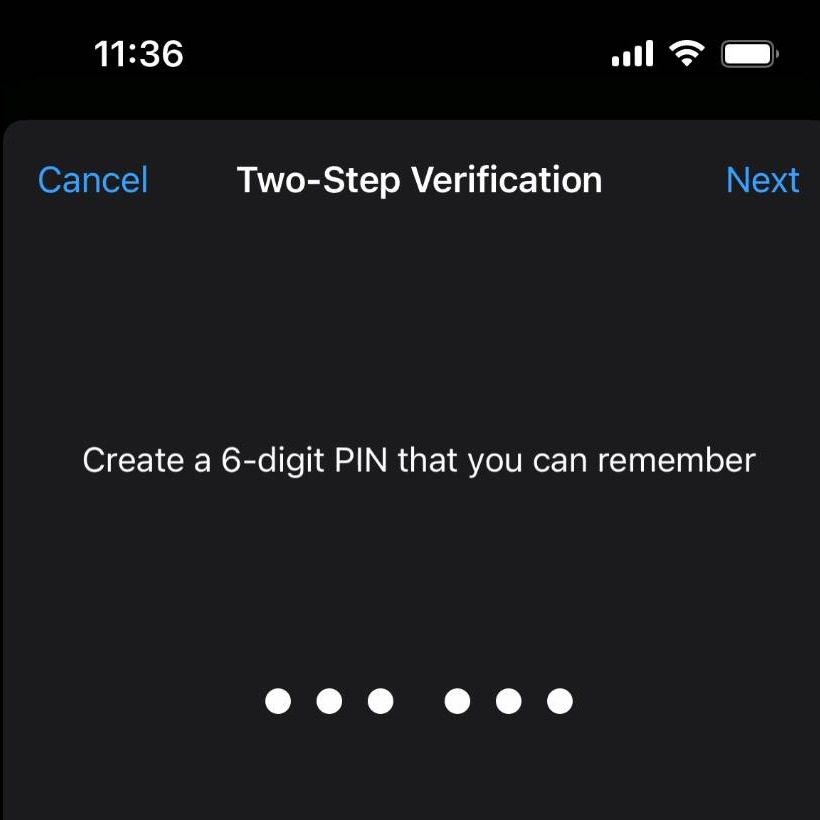
Enter in a six digit PIN for your account, then click next
Step 9
Re-enter your six digit PIN and click next
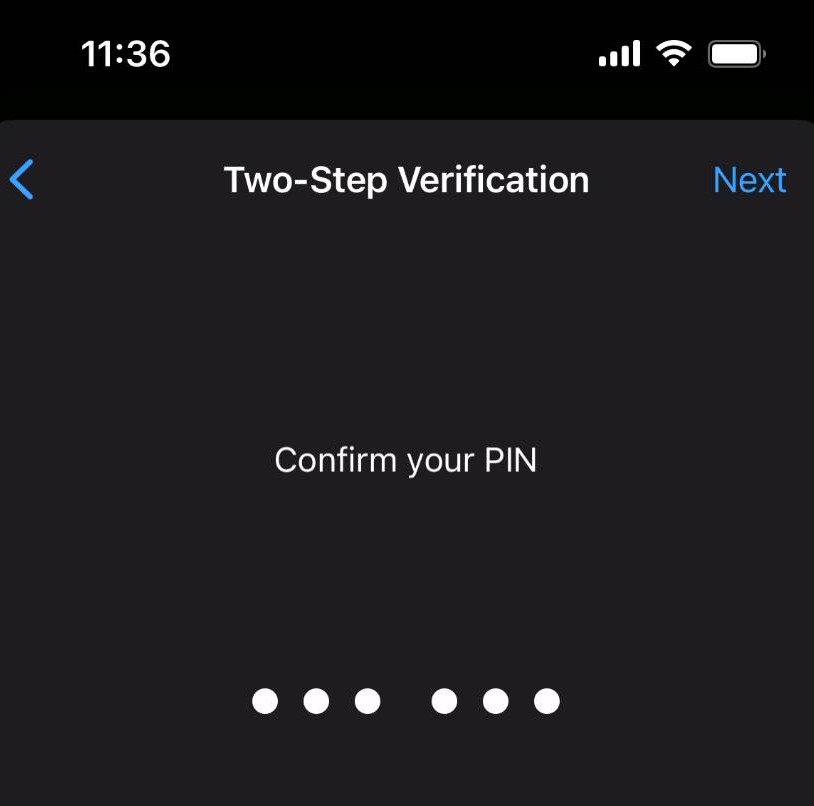
Step 10
Enter an email address you can use to reset your PIN if you forget it
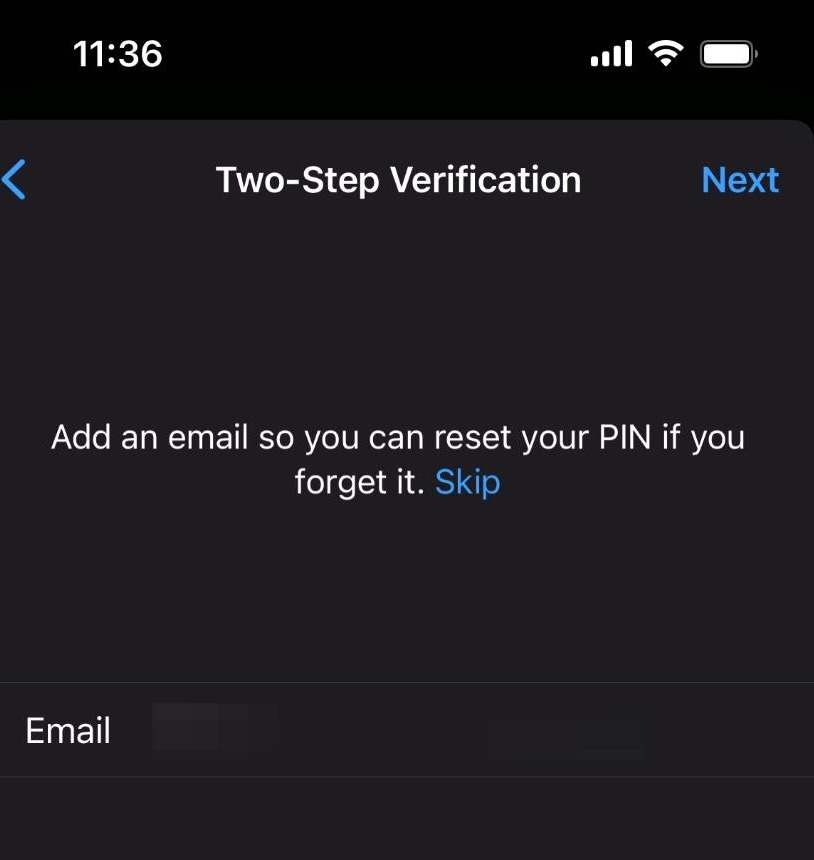
Step 11
Re-enter the email address and click done
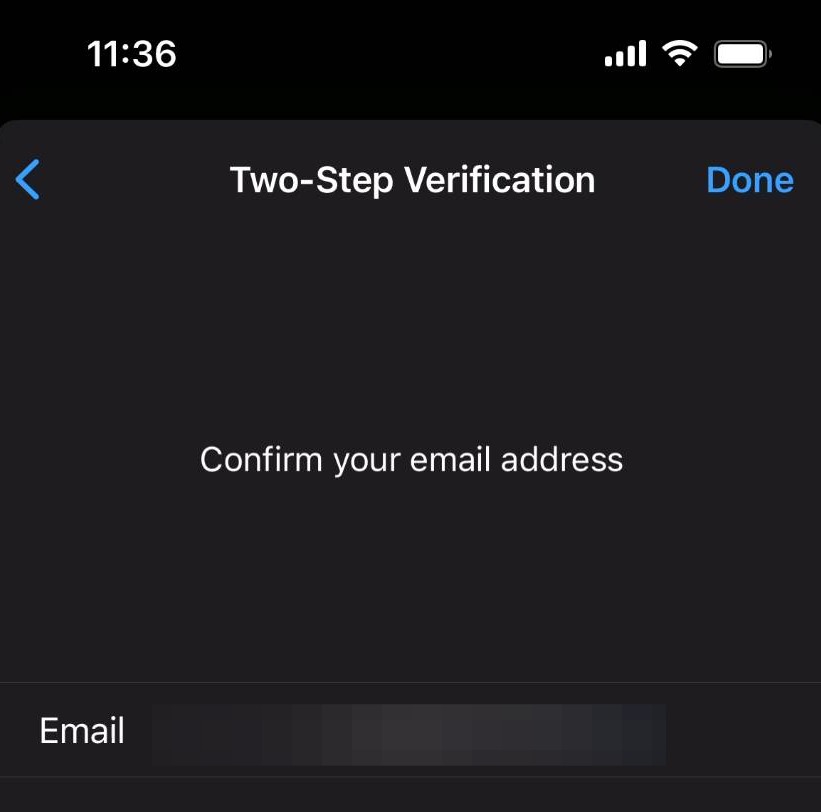
Step 12
On the two factor page, you can change your PIN and email address at any time
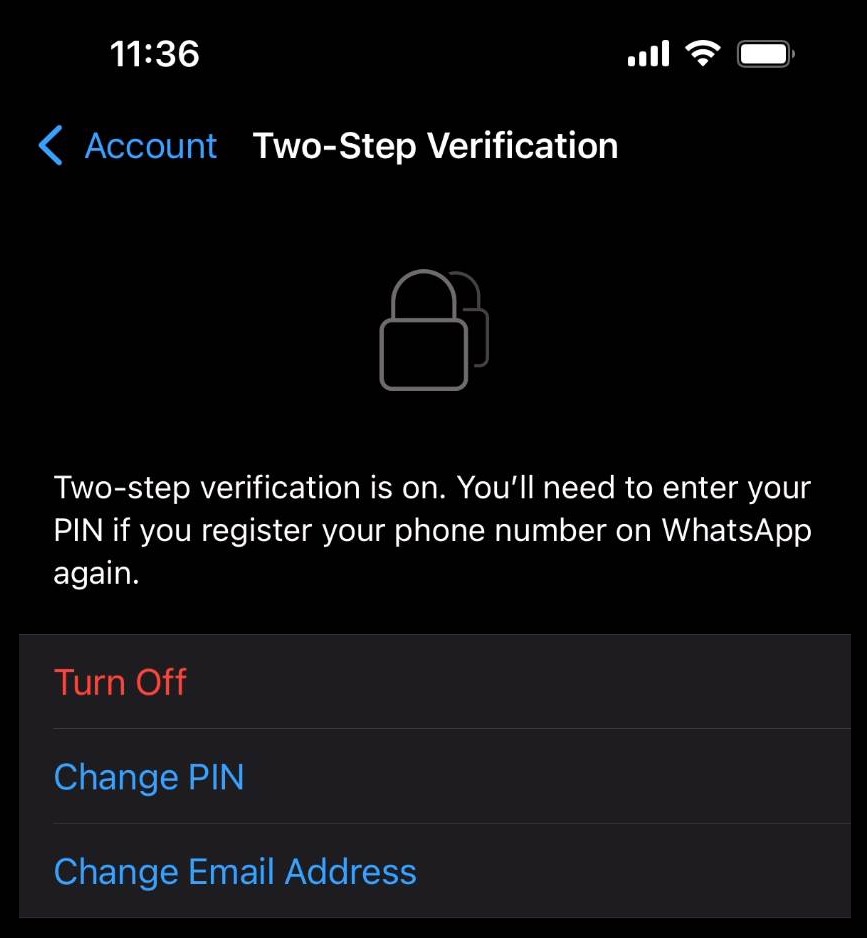
Adjusting Profile Privacy Settings
Step 13
Go back to the settings page
Step 14
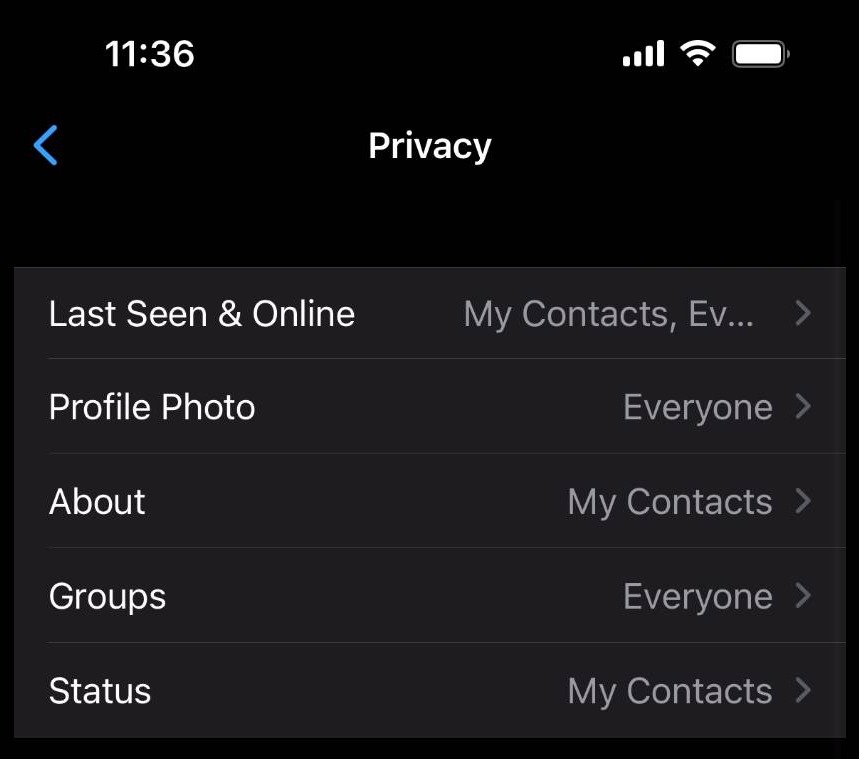
Click privacy
Step 15
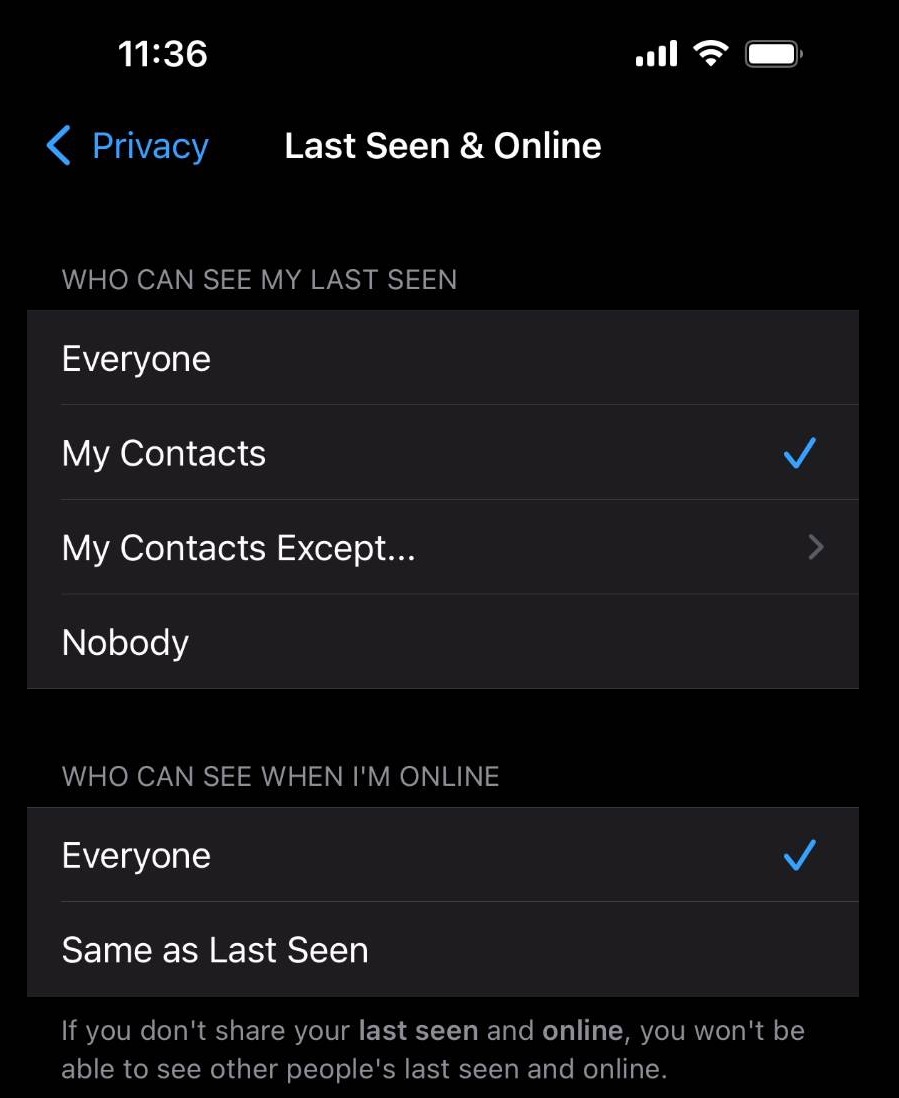
Click last seen & online
Step 16
Here, you can adjust who can see when you are online, and who can see your last seen
Step 17
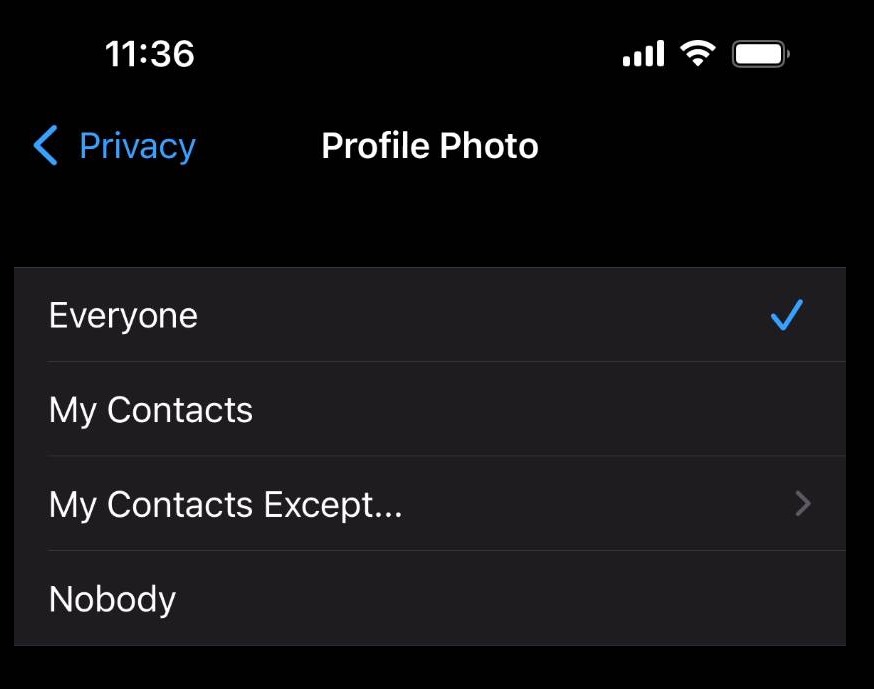
Back on the privacy page, click profile photo
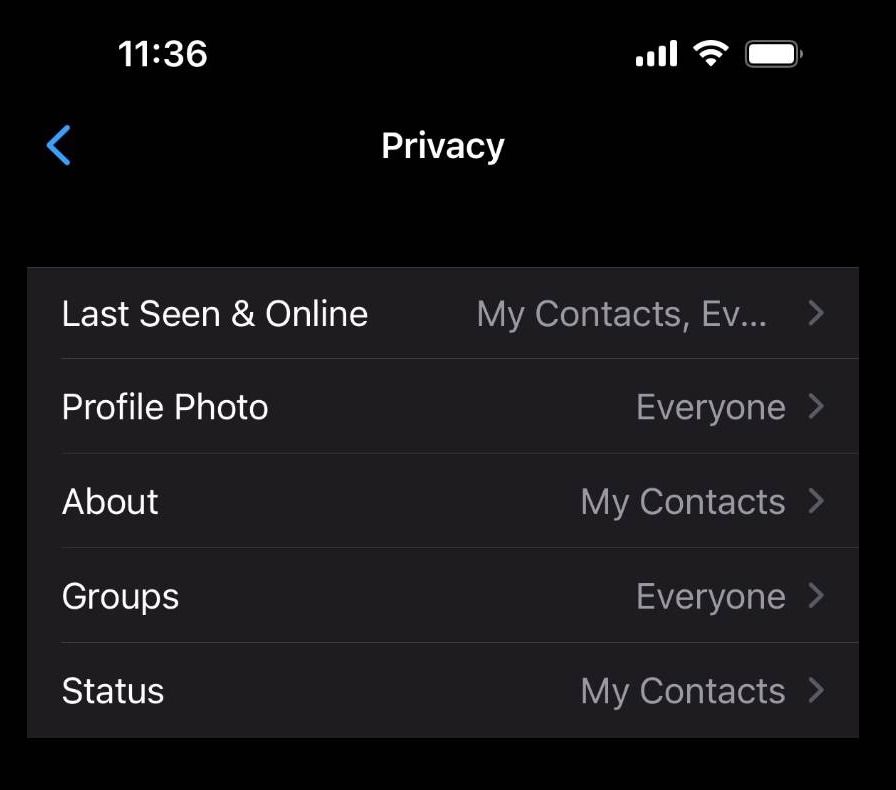
Step 18
Here, you can adjust who can see your profile photo
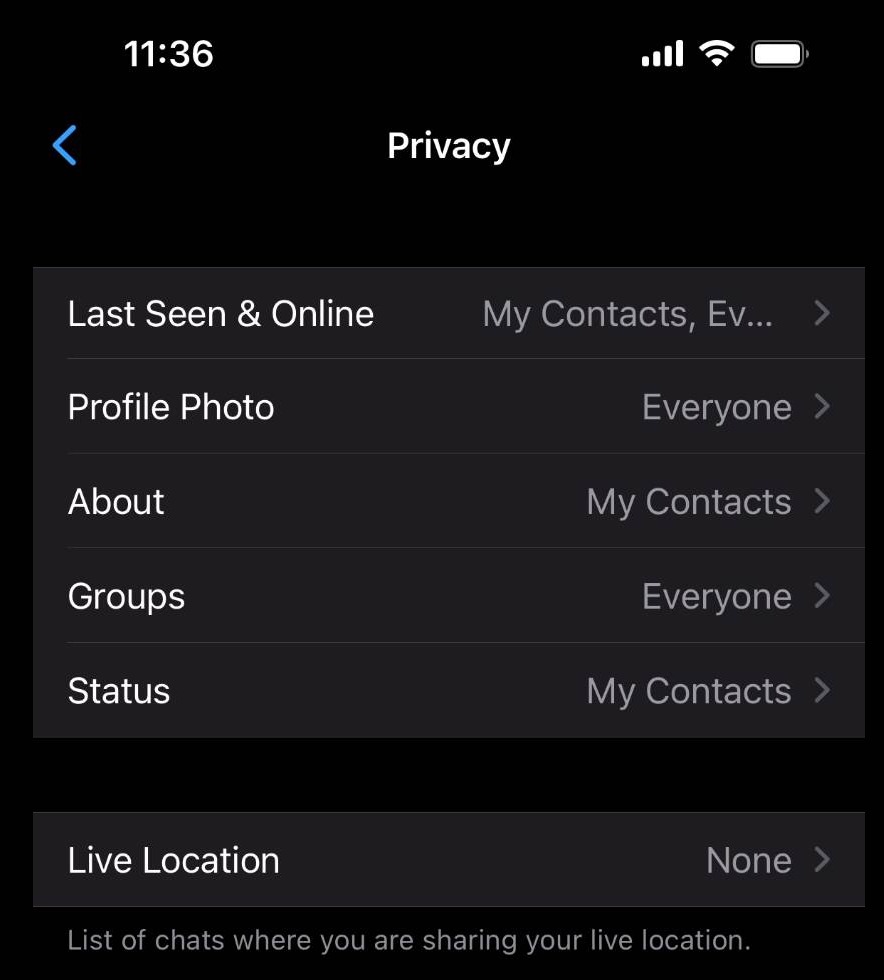
Step 19
Back on the privacy page, click groups
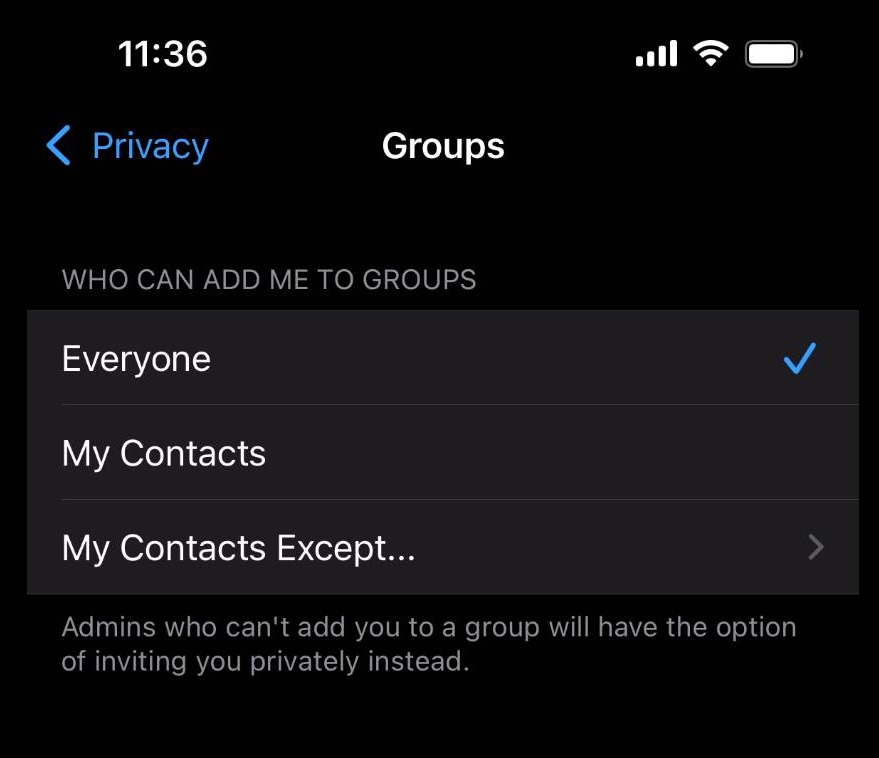
Step 20
Here, you can choose who can add you to groups
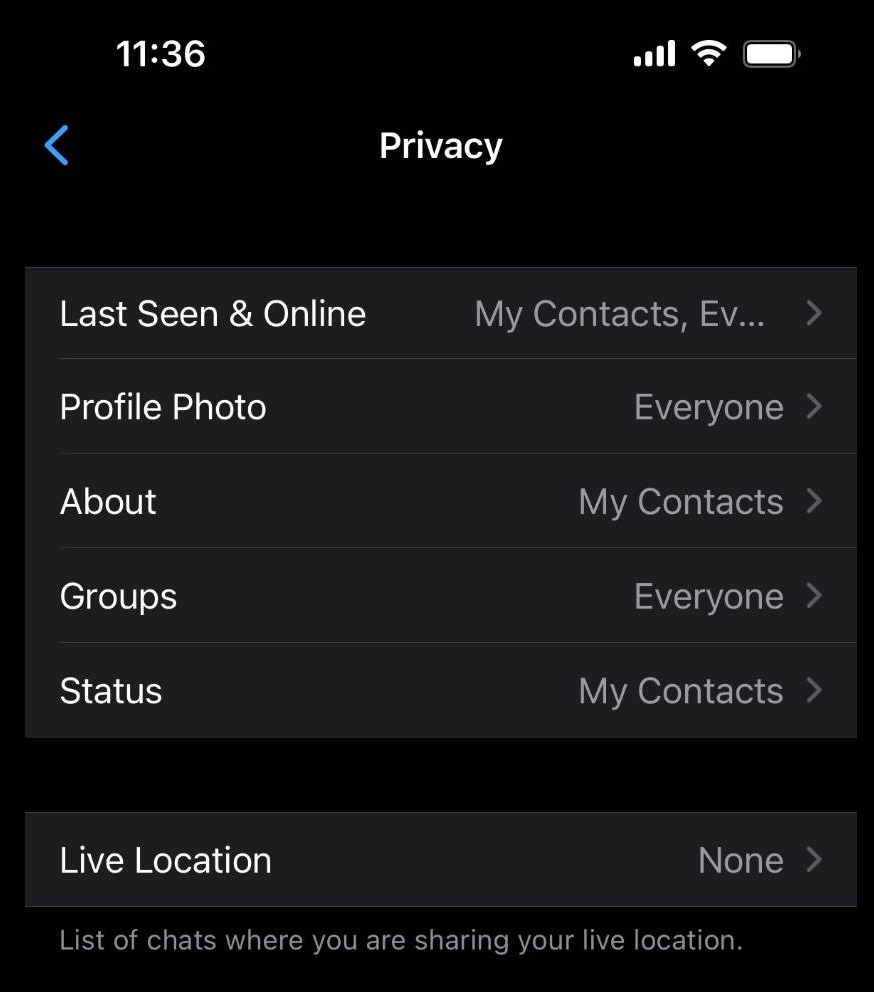
Step 21
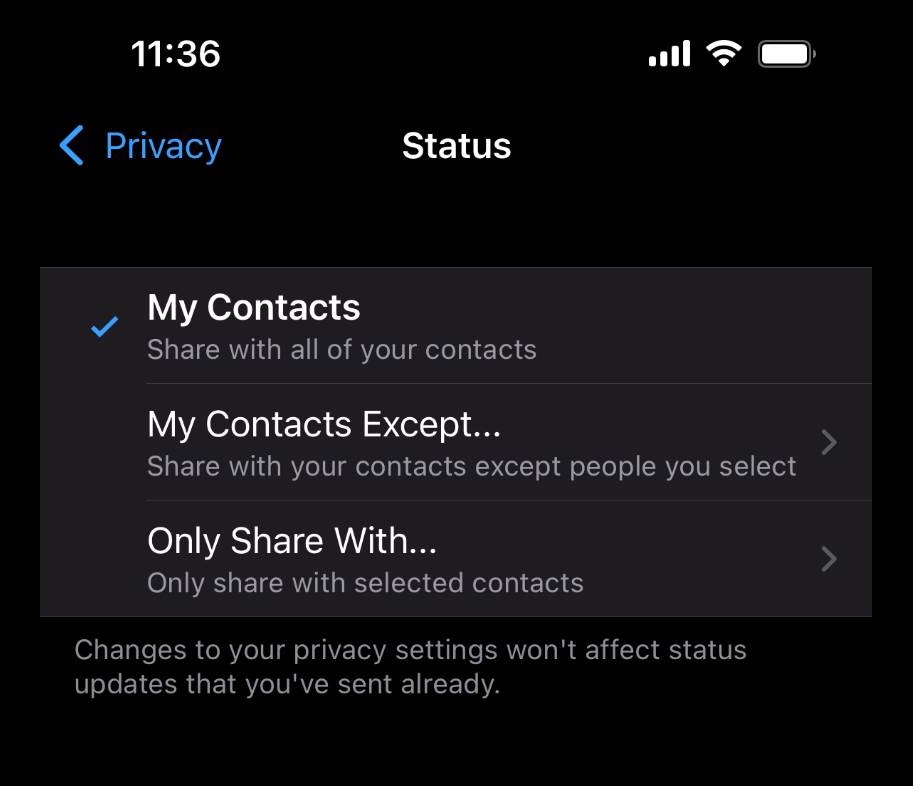
Back on the privacy page, click status
Step 22
Here, you can adjust who can see your status
Adjusting Location Settings
Step 23
In your phone's settings, search WhatsApp and click location
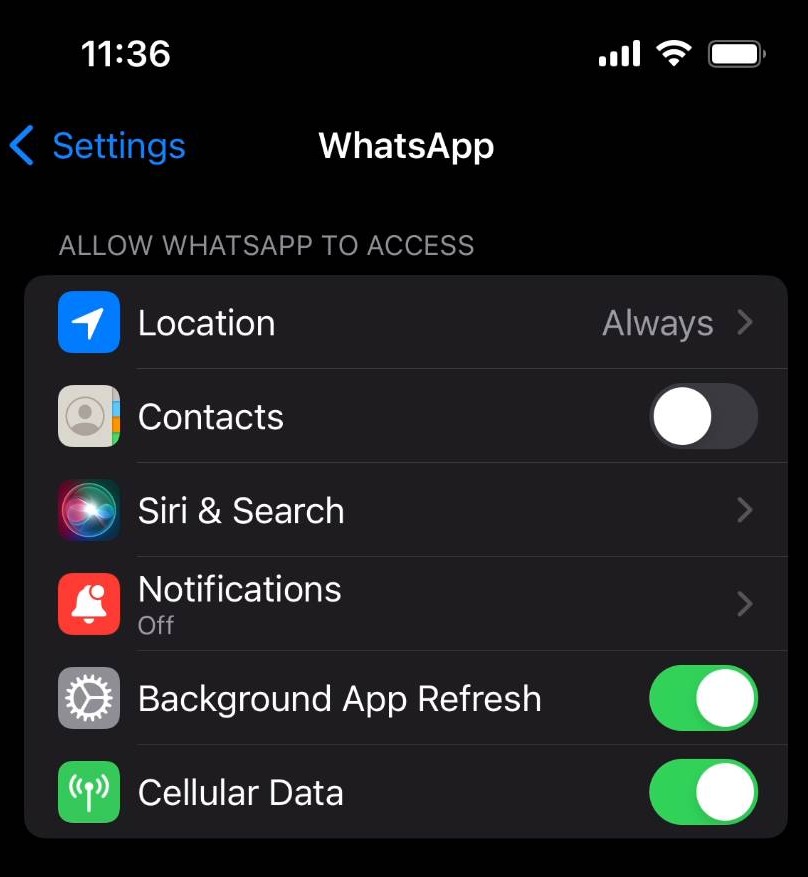
Step 24
Here, you can adjust when WhatsApp can access your location
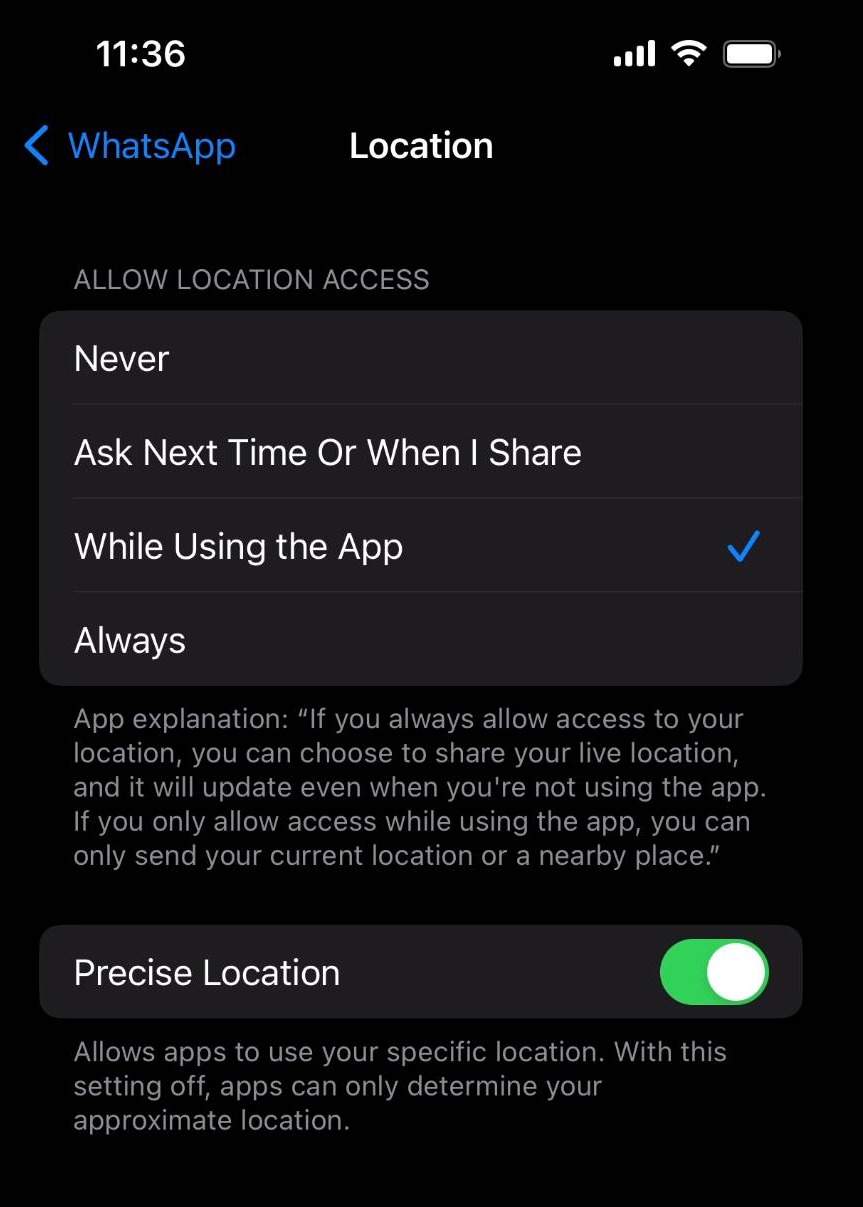
Step 25
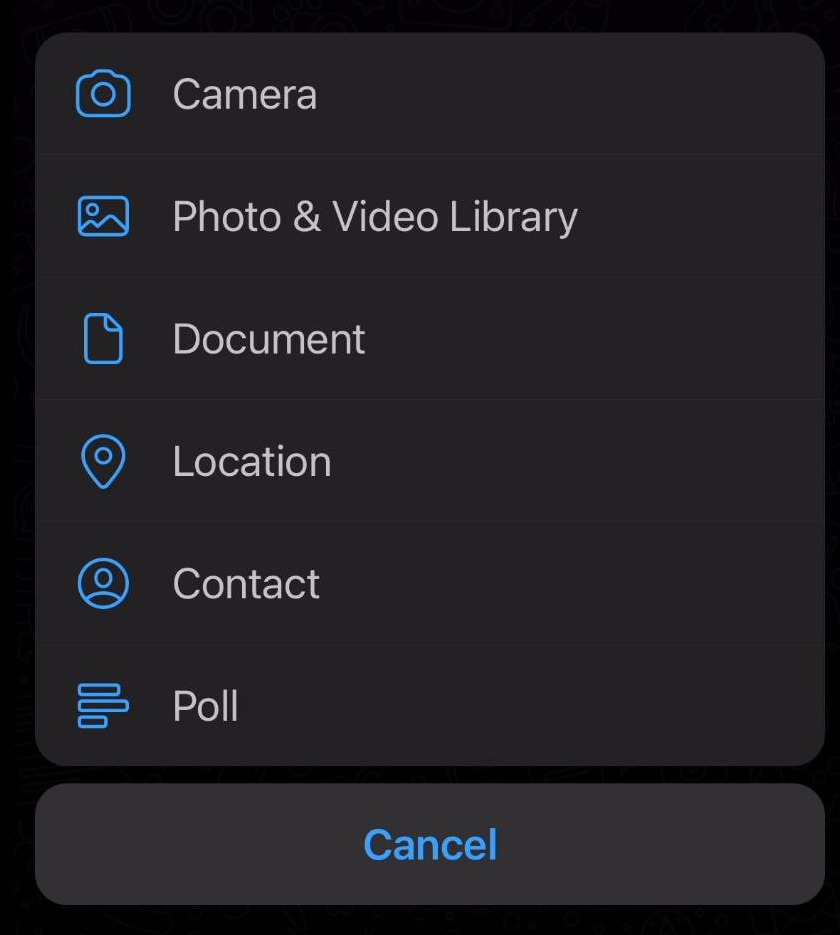
Let's say you allow WhatsApp to access your location. Here's how you can adjust when WhatsApp can access your location in the app. First, click here when you are in a chat
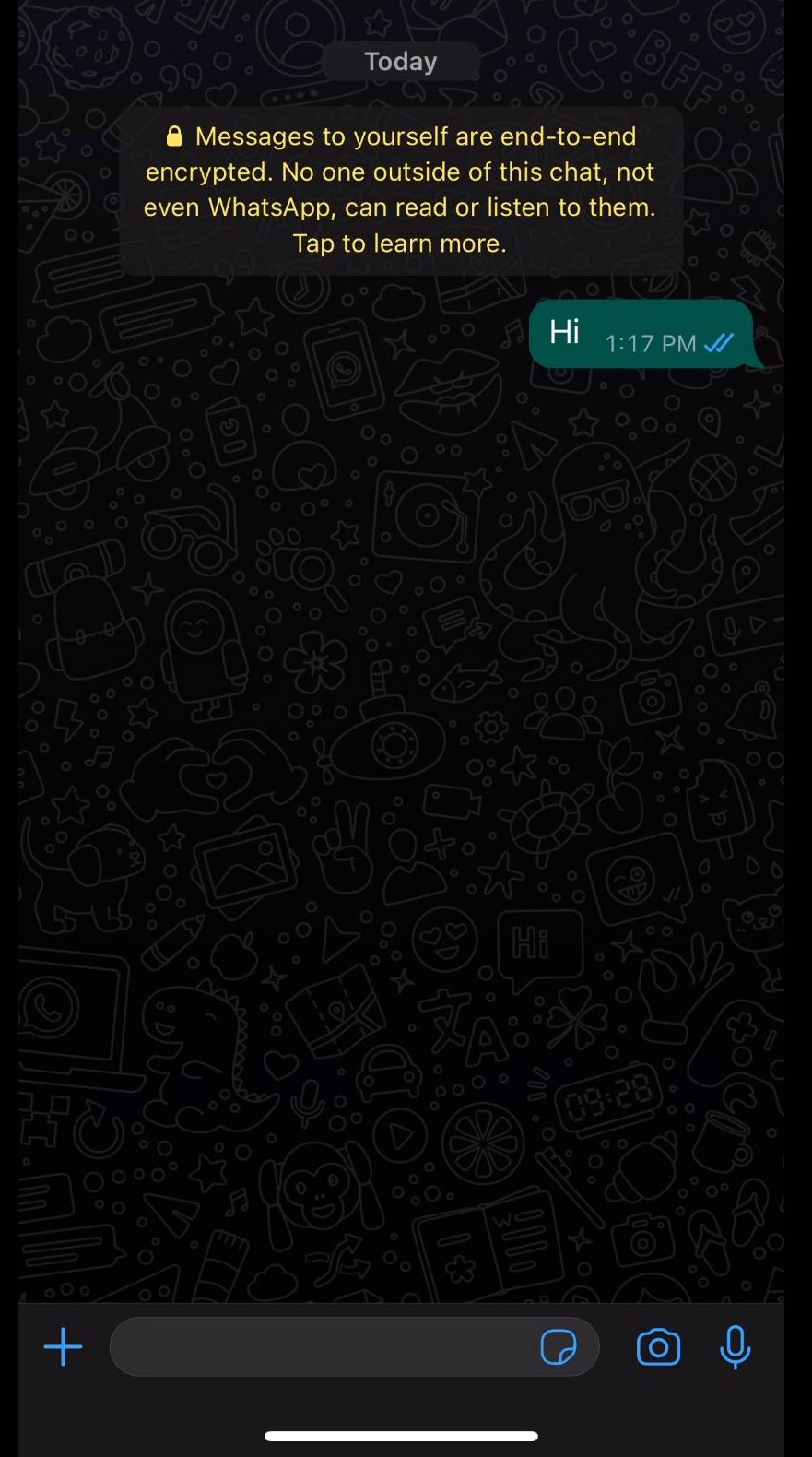
Step 26
Click location
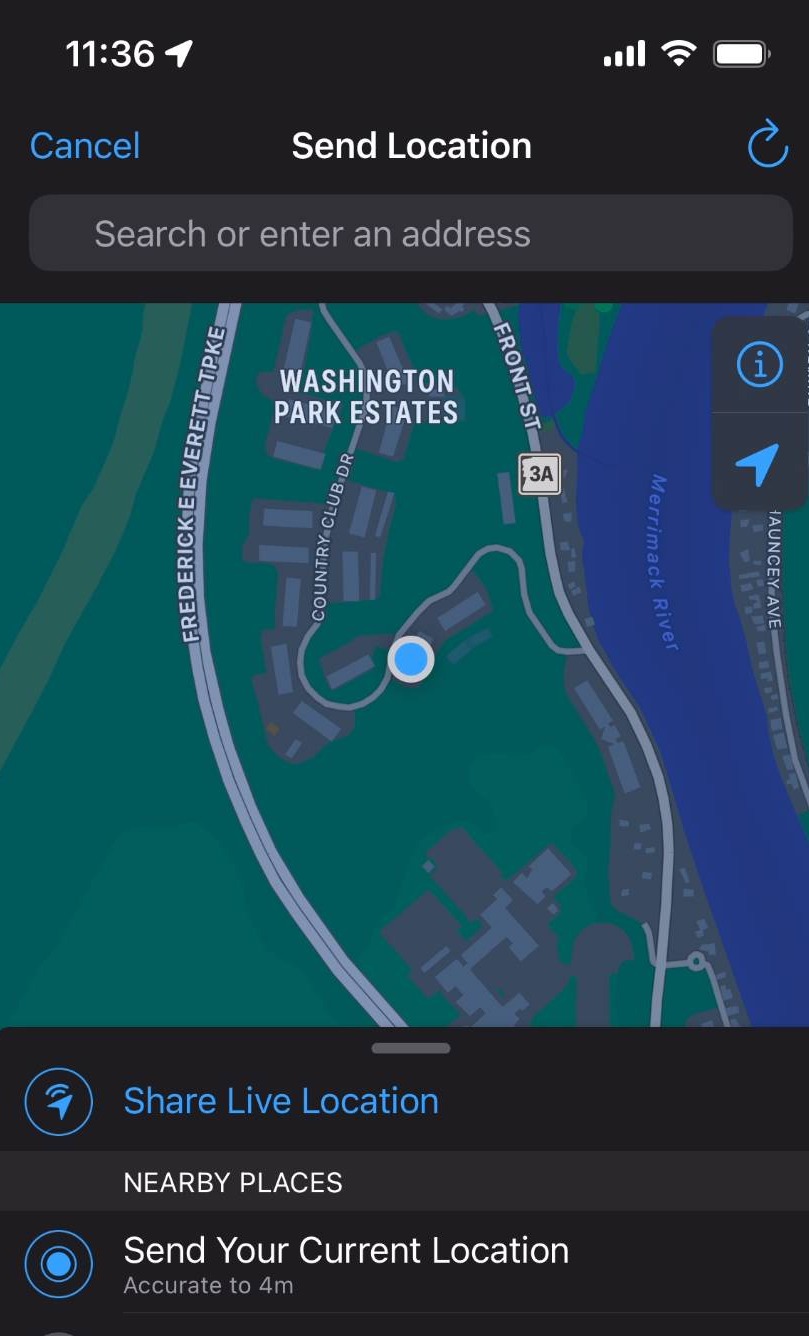
Step 27
Here, you can choose to share your live location for a chat
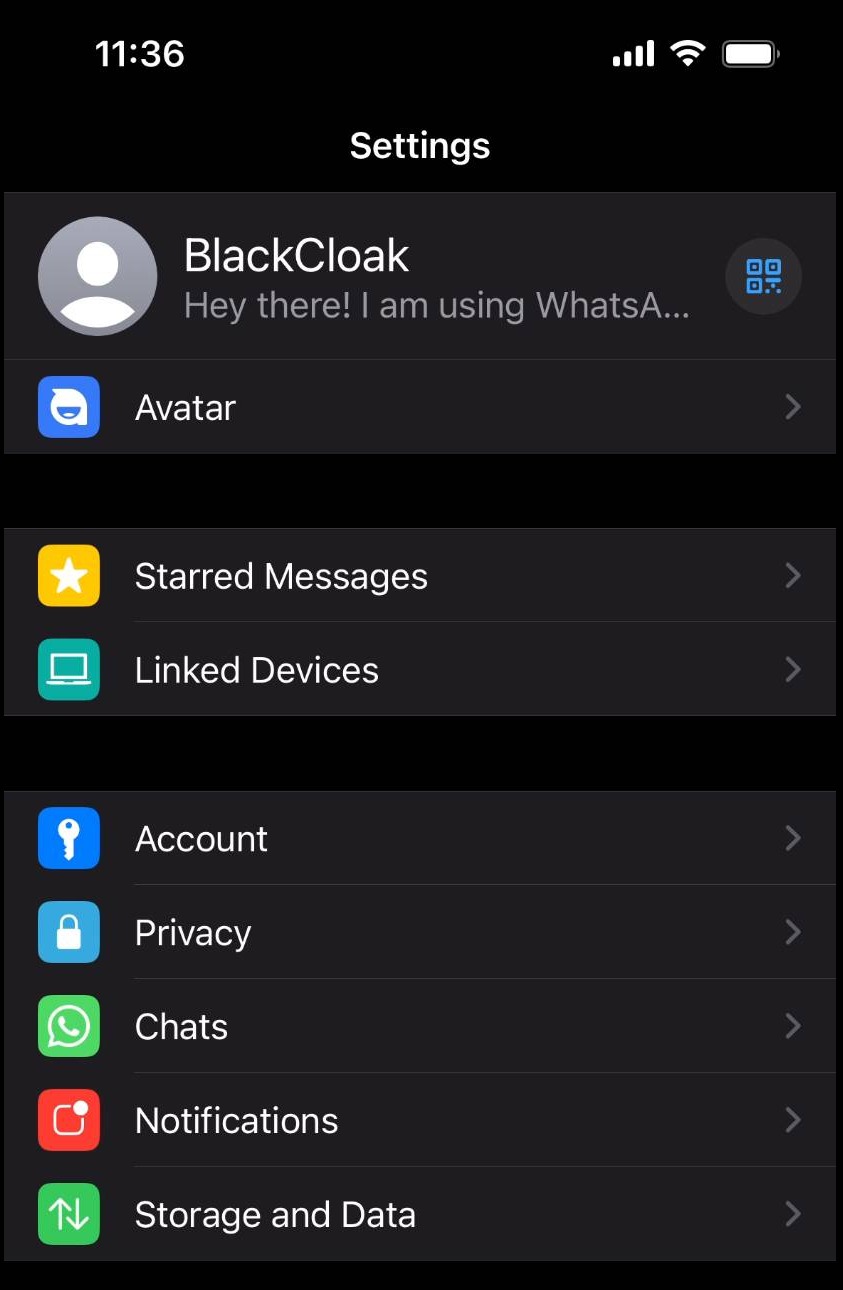
Step 28
Now let's say you no longer want to share your live location. Click privacy
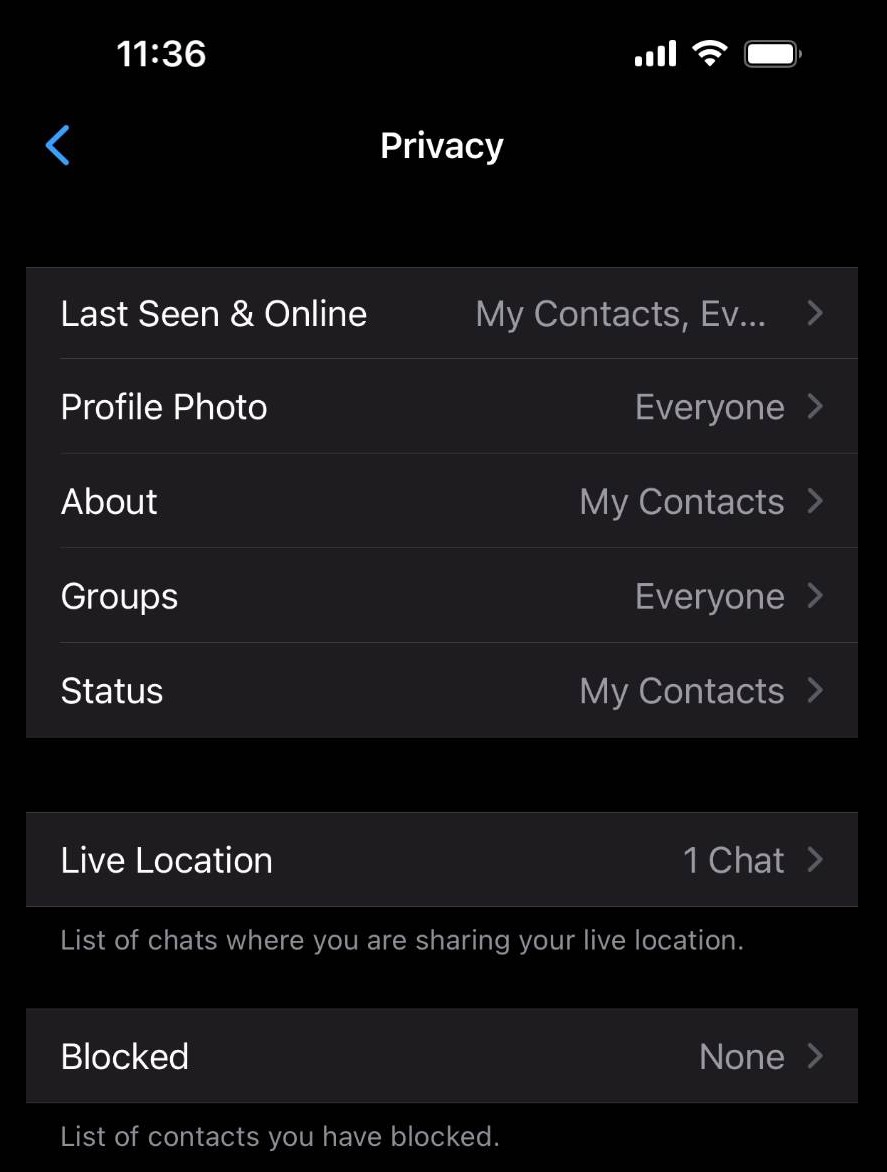
Step 29
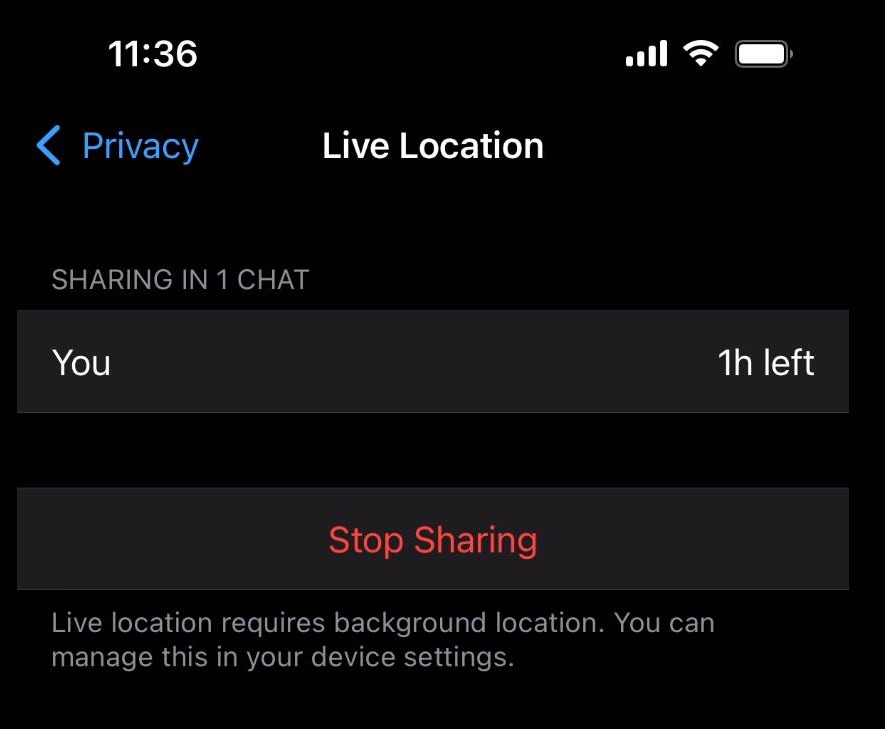
Click live location
Step 30
Click stop sharing to end location sharing
Enabling Security Notifications
Step 31
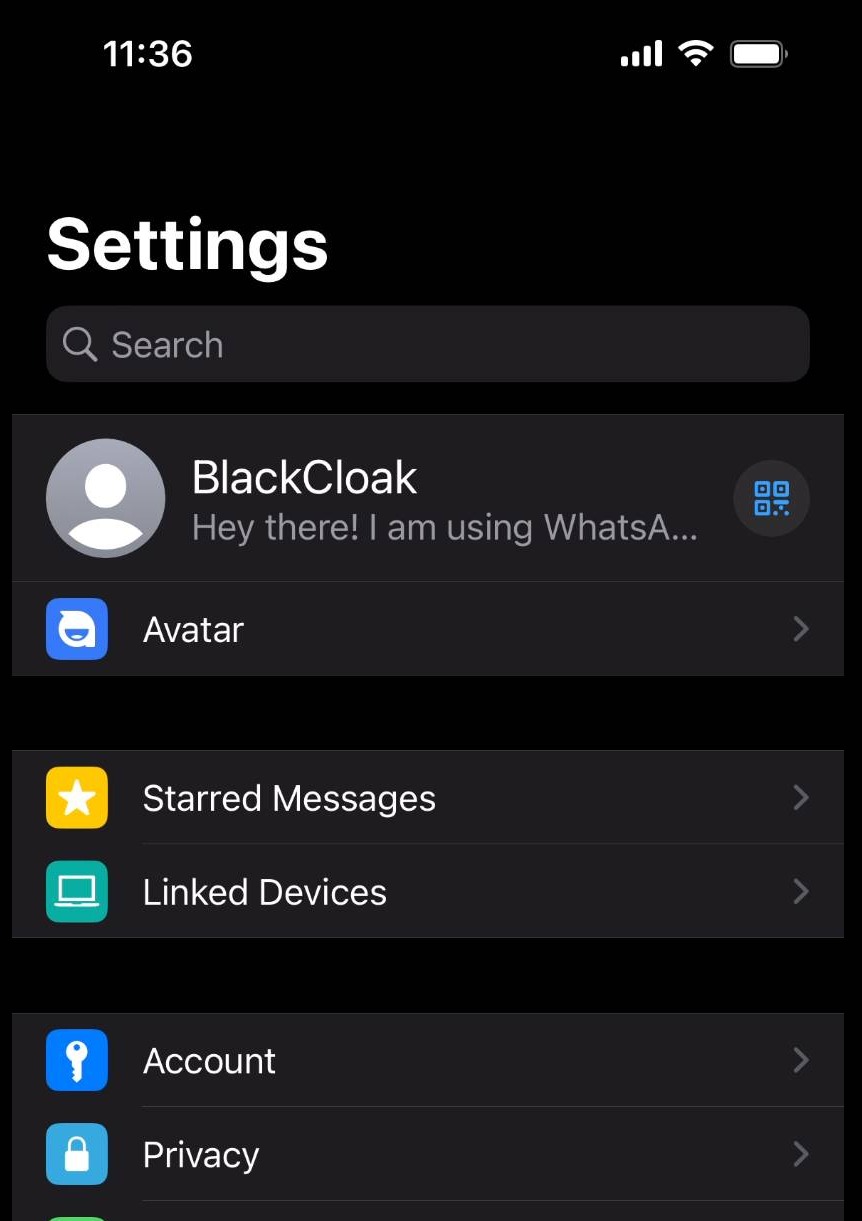
Go back to the settings page
Step 32
Click account
Step 33
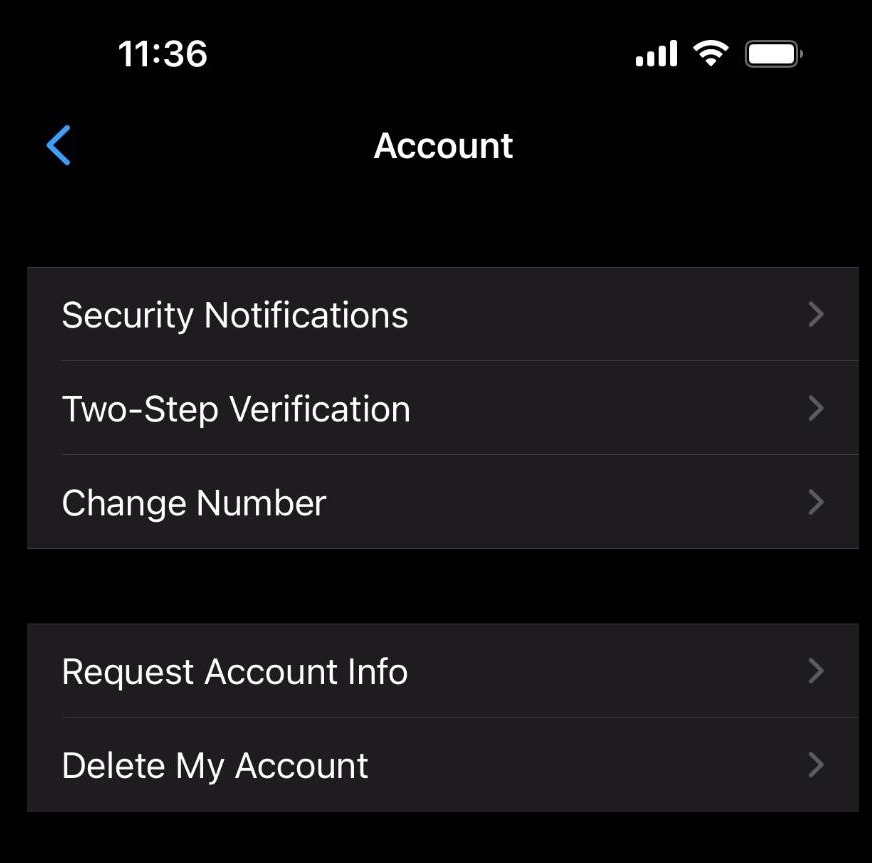
Click security notifications
Step 34
Click here to enable security notifications for your phone. Now, you will be notified when your security code changes for a contact's phone in an end-to-end encrypted chat