TikTok Hardening Guide
Finding Privacy & Security Settings
Step 1
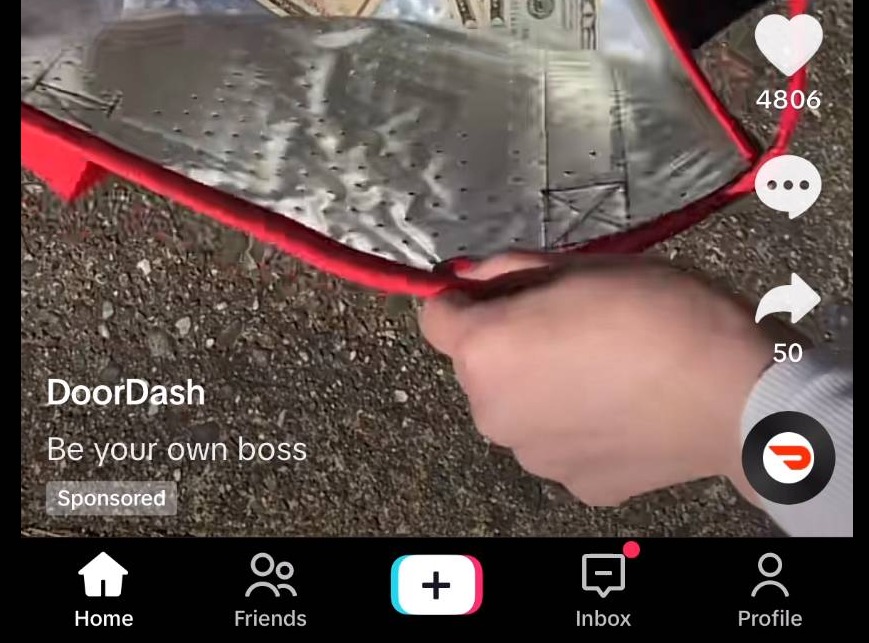
Click your profile icon on the bottom right hand corner of the app
Step 2
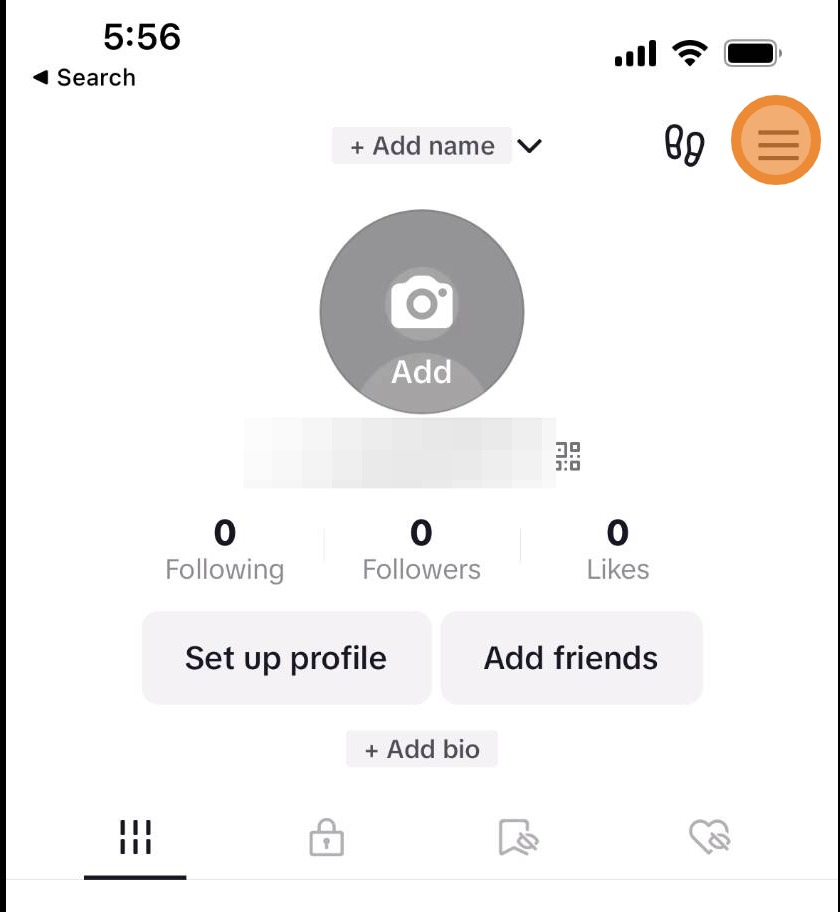
Click this icon
Step 3
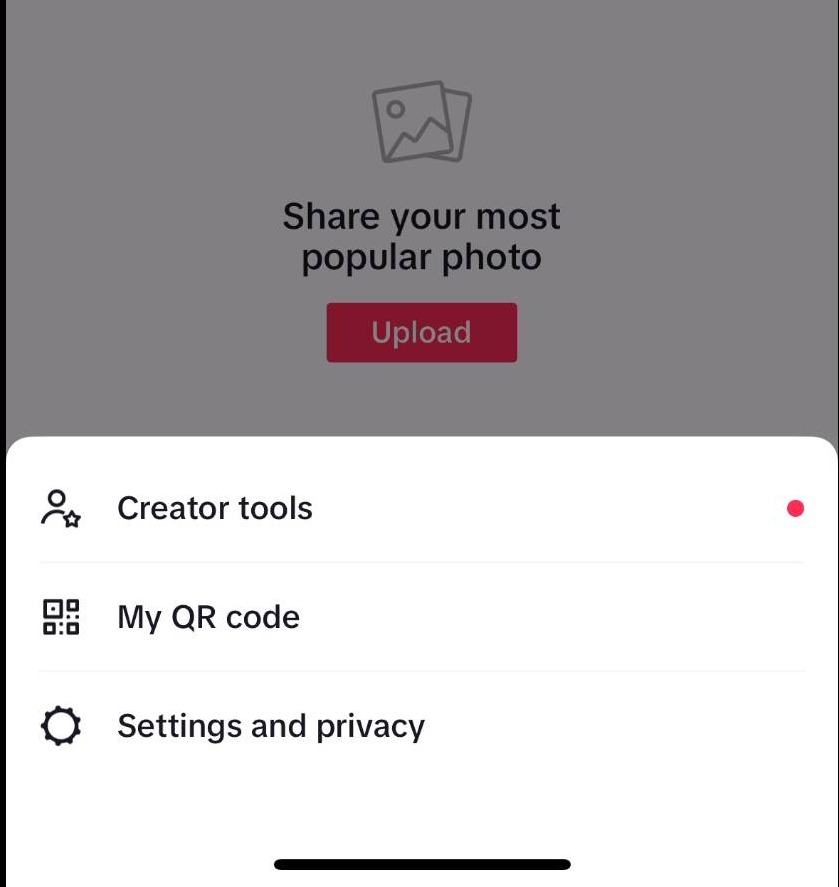
Click settings and privacy
Where to Find Your Personal Information
Step 4
In your profile, click this icon
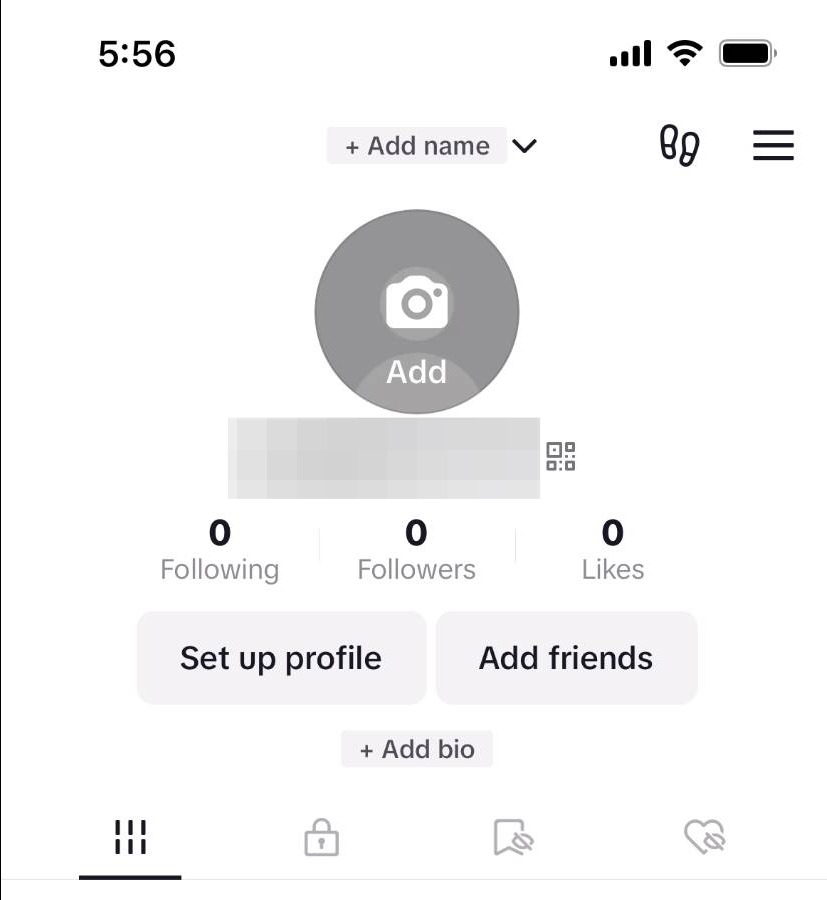
Step 5
Click settings and privacy
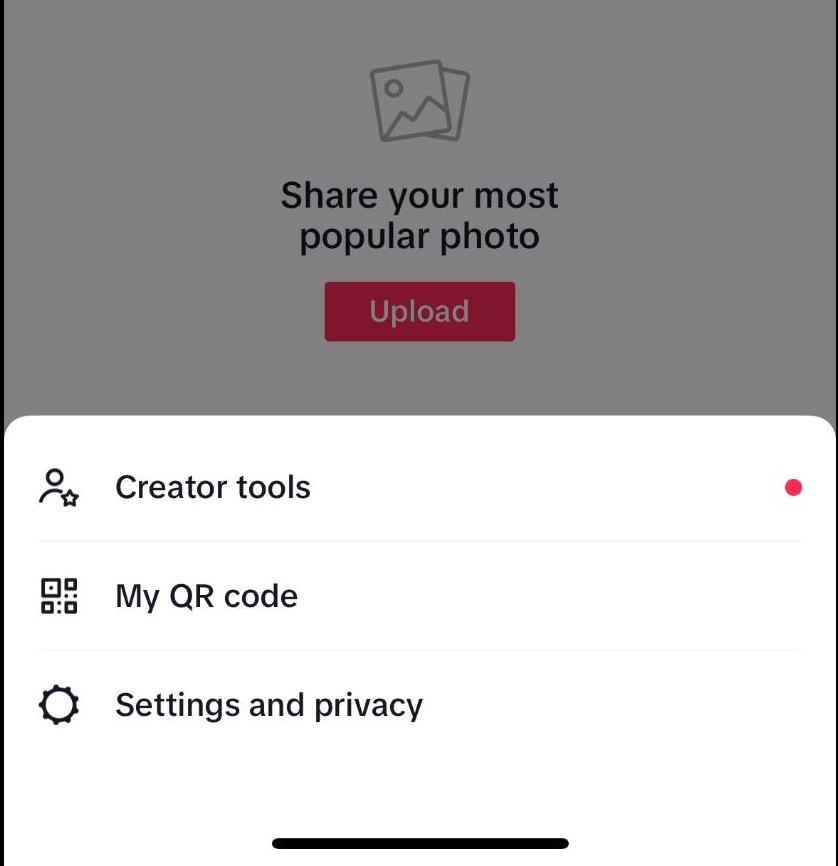
Step 6
Click user information
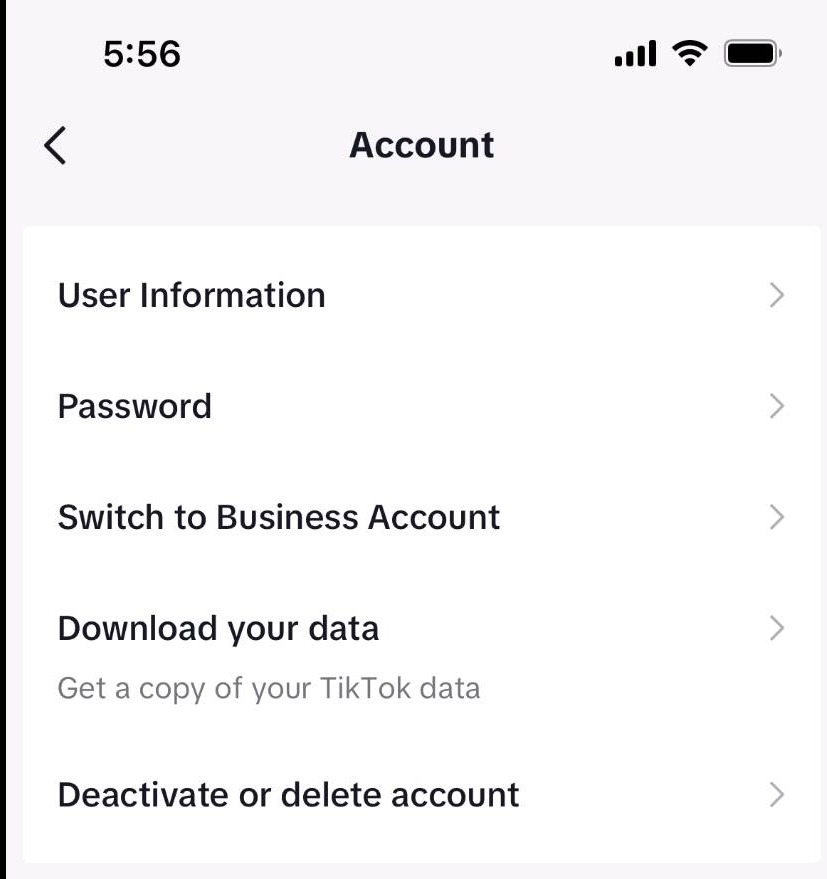
Step 7
Here you can edit your phone number and primary email address
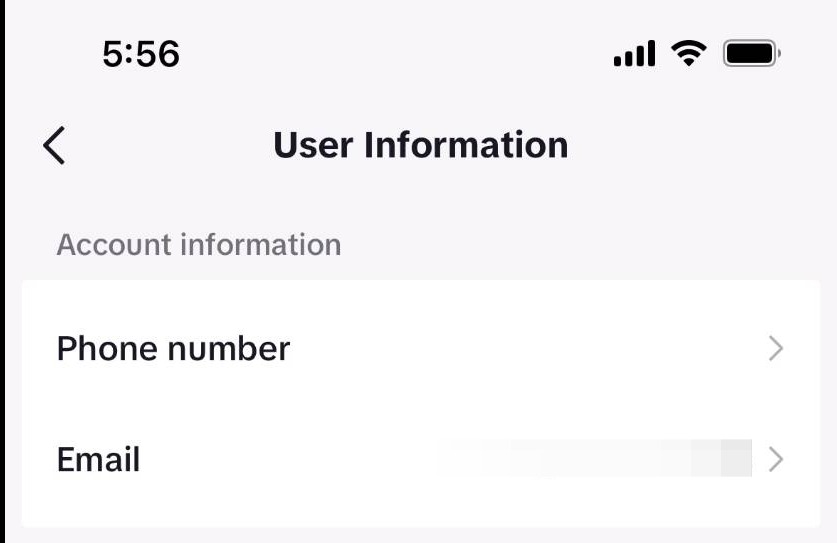
How to Update Your Password
Step 8
Go to the settings and privacy page
Step 9
Click account
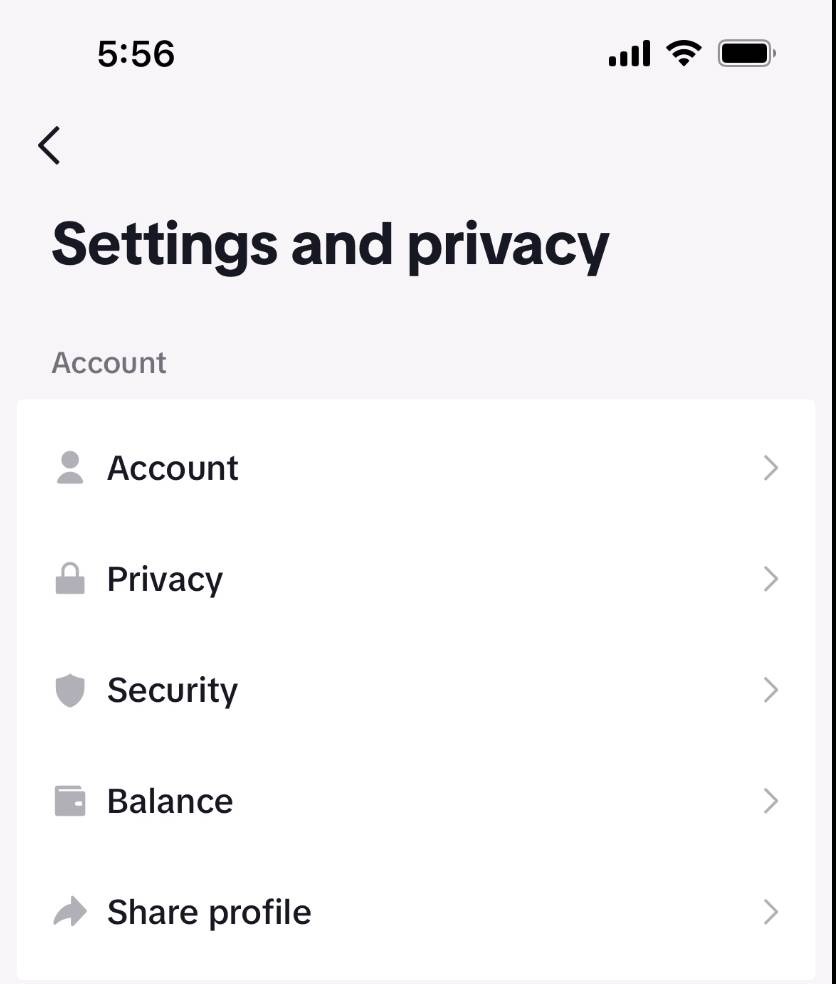
Step 10
Click password
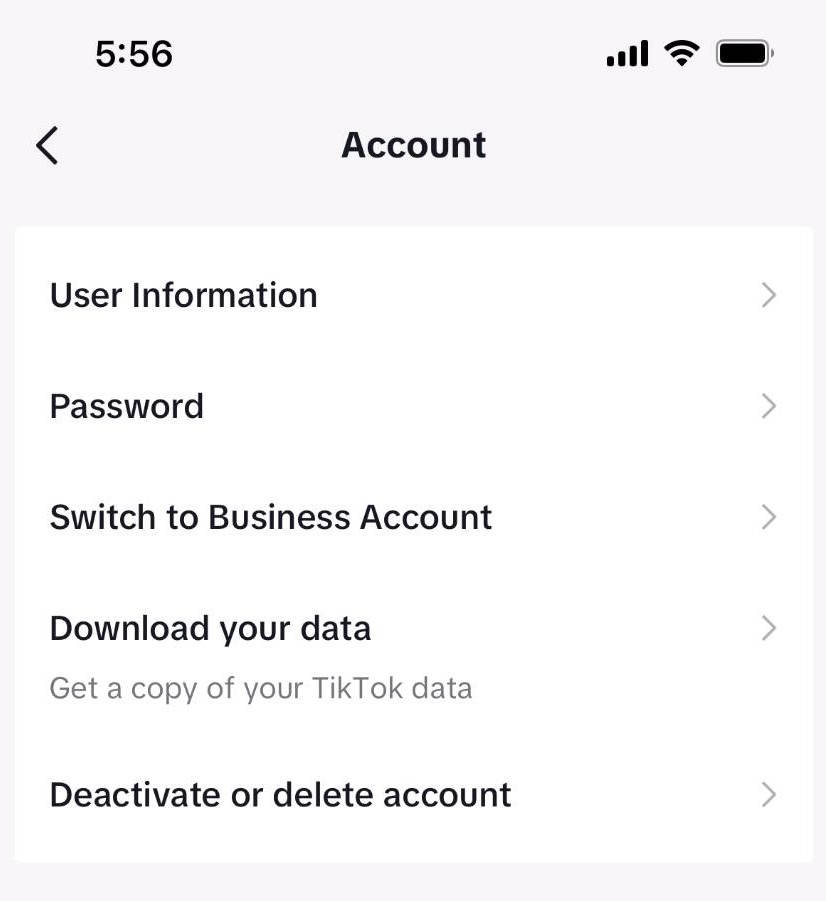
Step 11
A six digit code will be sent to your primary email address. Enter the code in on this screen
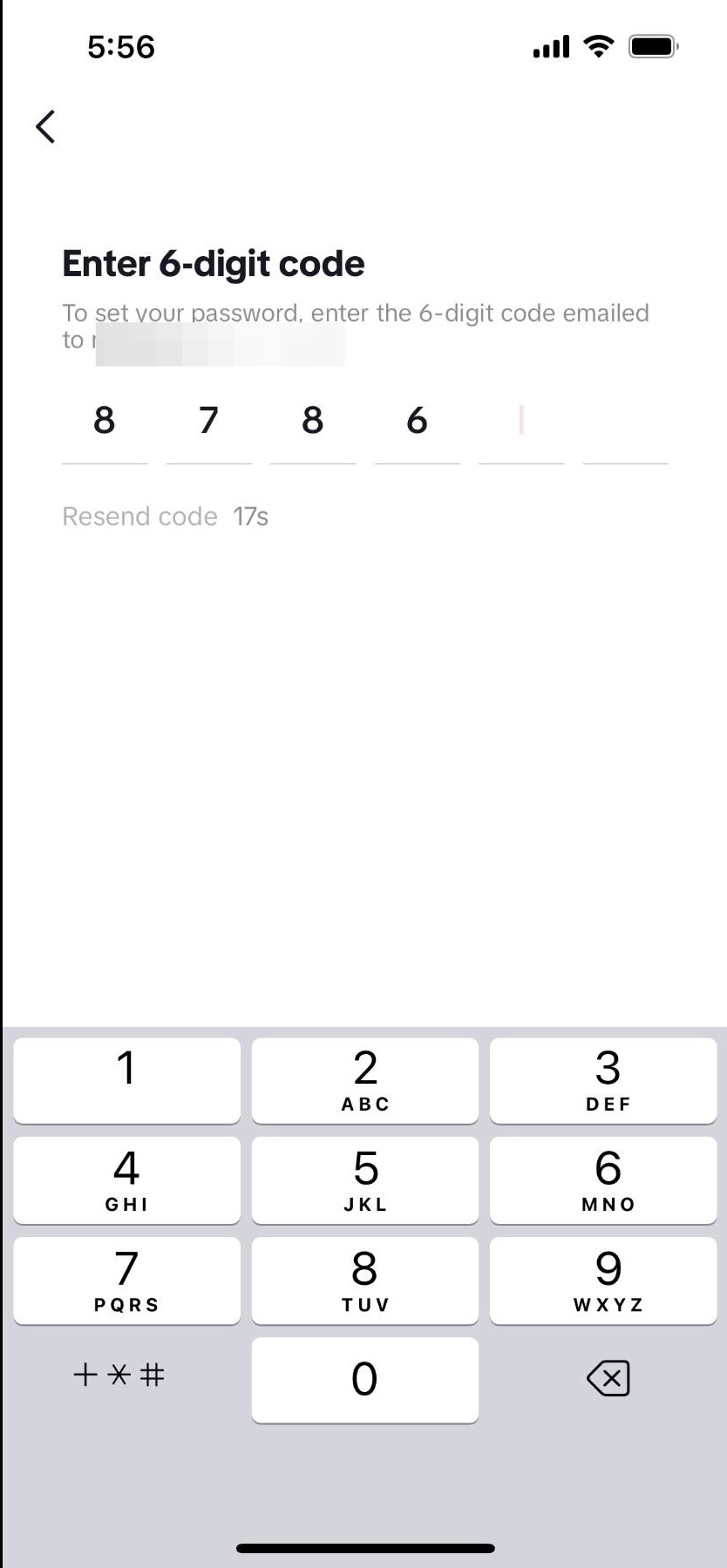
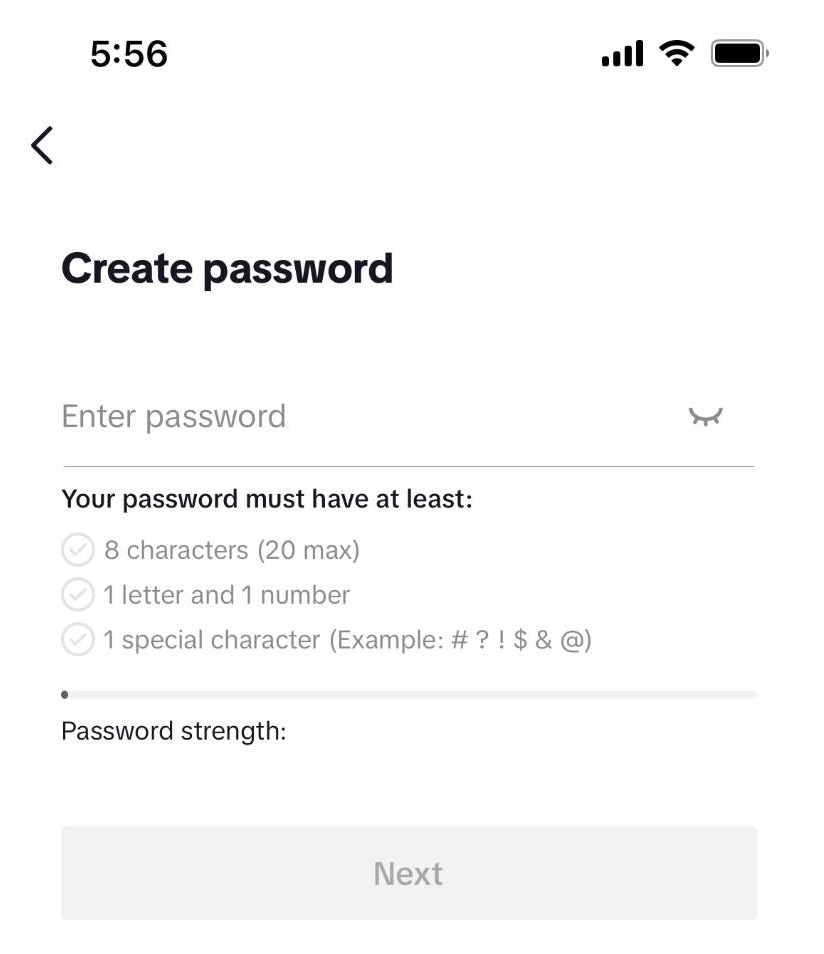
Step 12
Create your new password, ensuring it follows TikTok's requirements. Once you've made your new password, click next
Enabling Two-Factor Authentication
Step 13
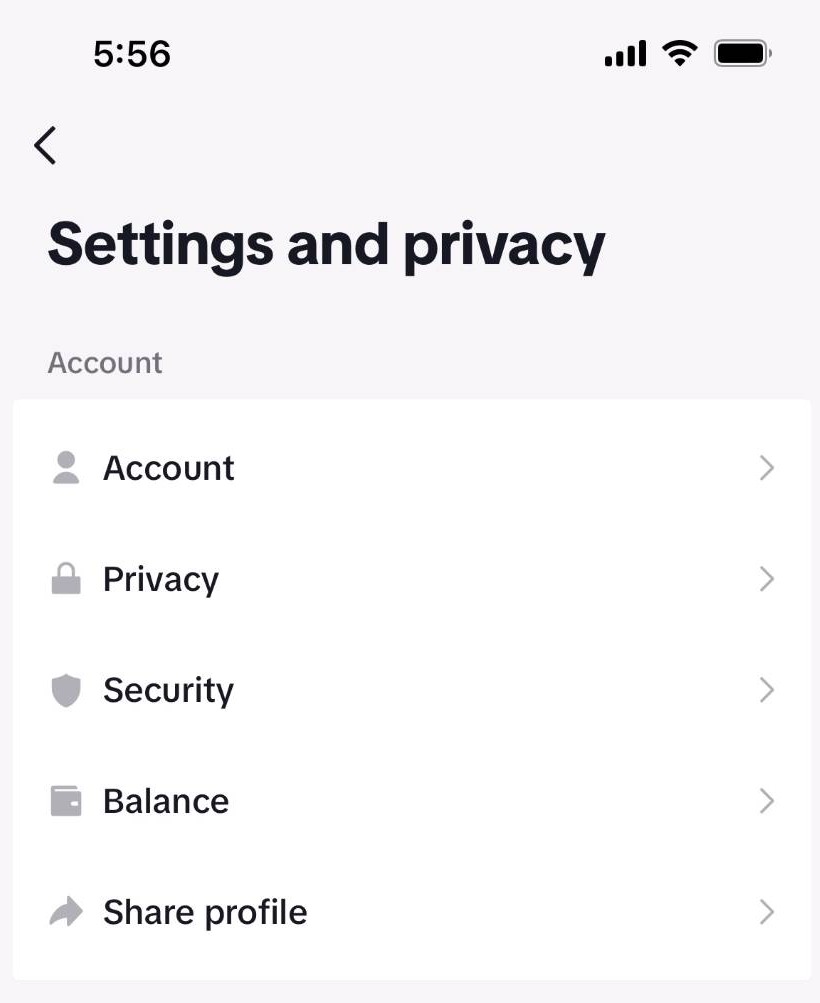
Go back to the settings and privacy page
Step 14
Click security
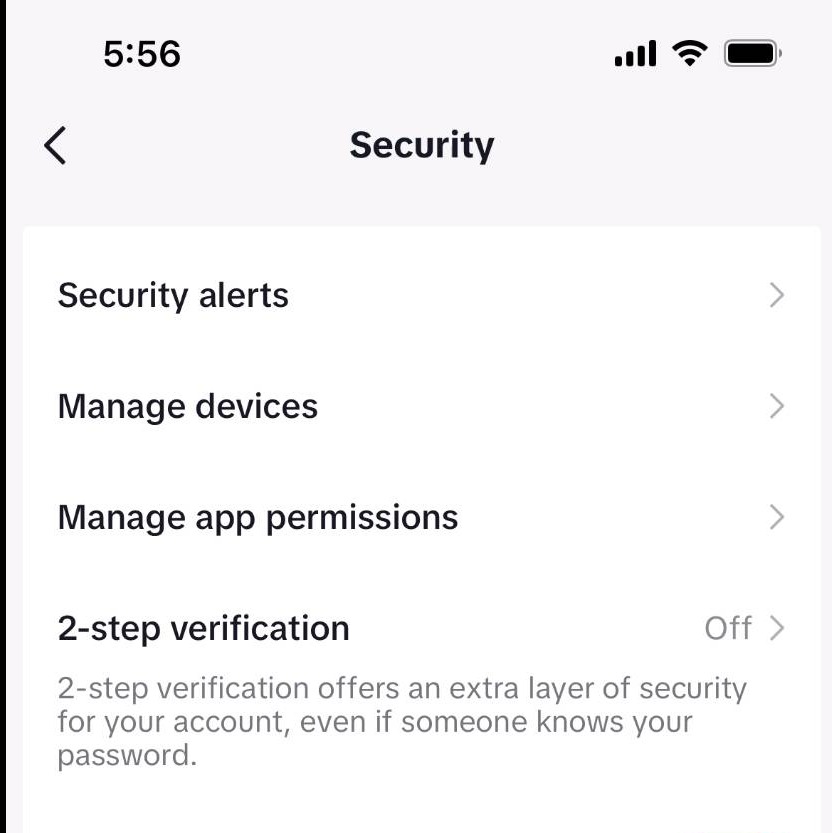
Step 15
Click 2-step verification
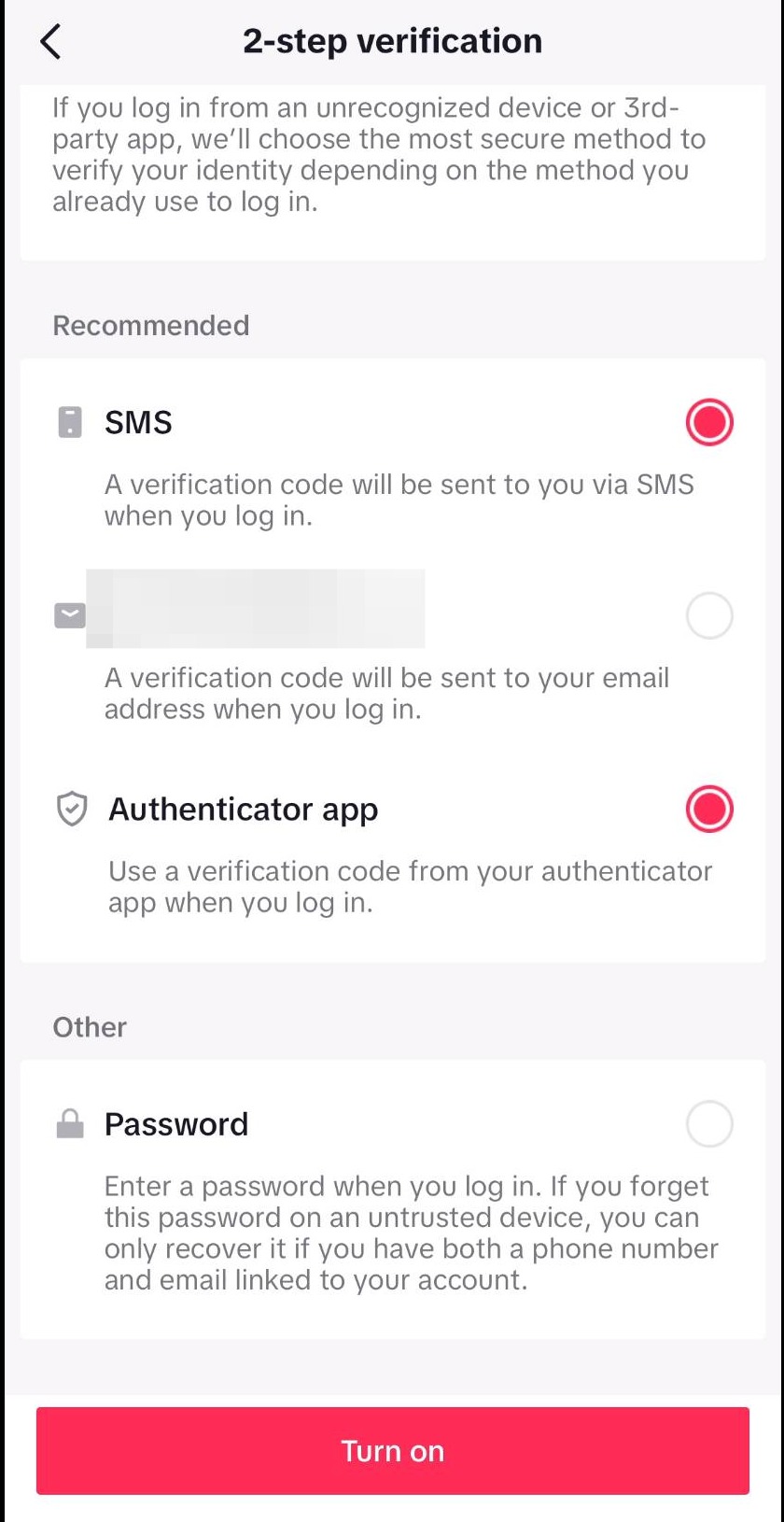
Step 16
TikTok requires you to use two forms of authentication to enable two factor authentication. Select your two options and click turn on. BlackCloak recommends using an authenticator app as one of your options
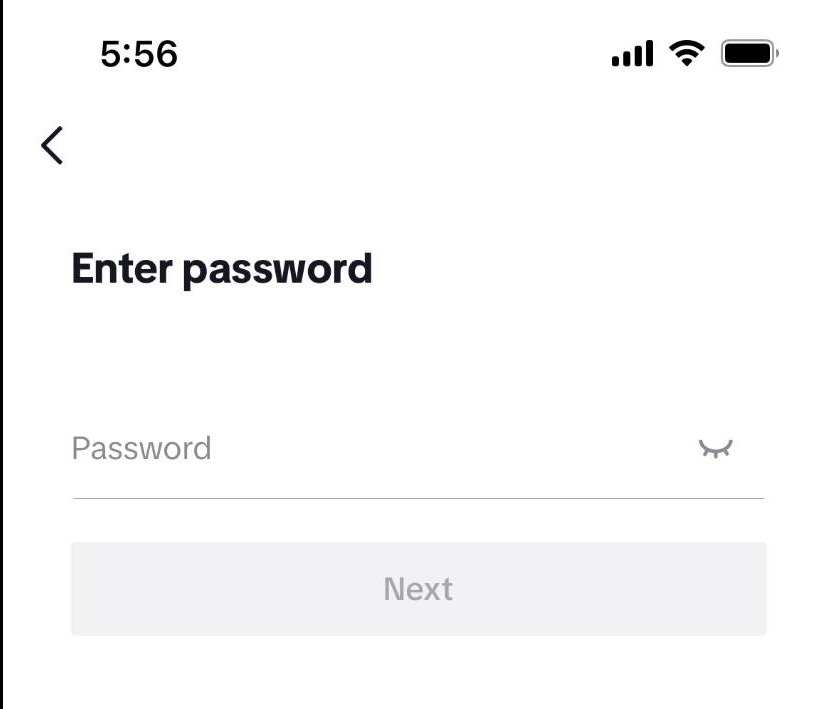
Step 17
Enter your password and click next
Step 18
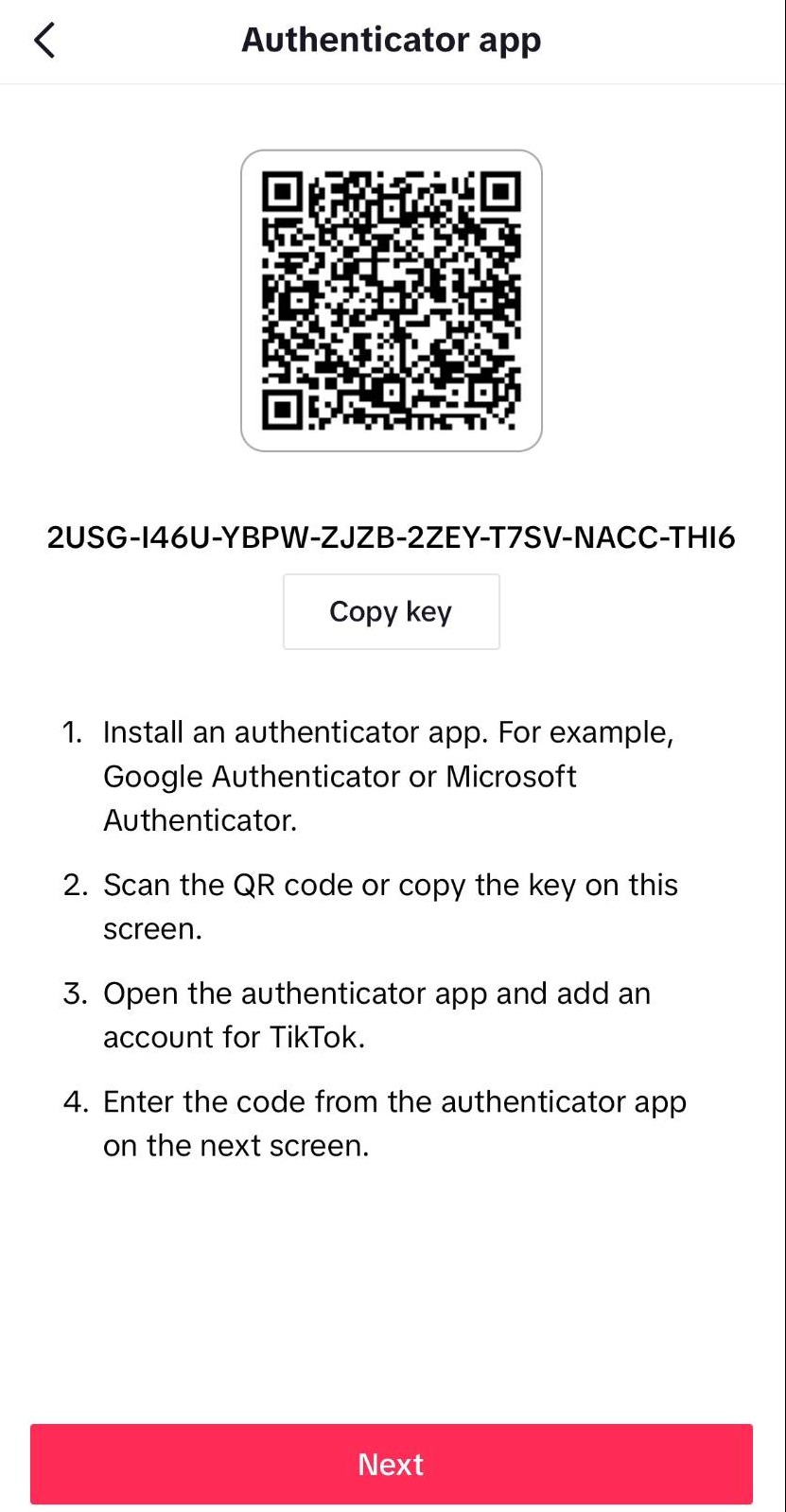
Either scan the QR code or copy the key in your authentication app
Step 19
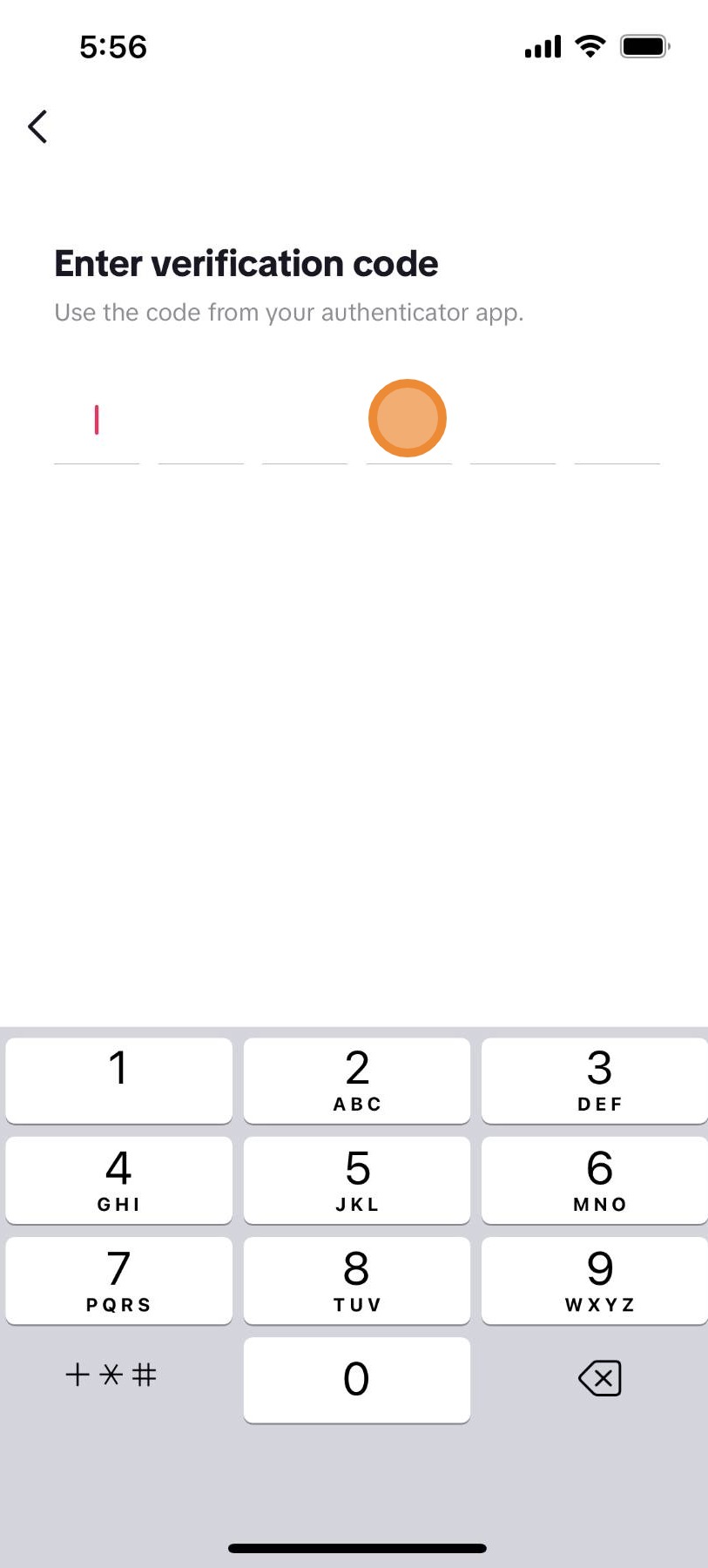
Enter the verification code from your authenticator app
Step 20
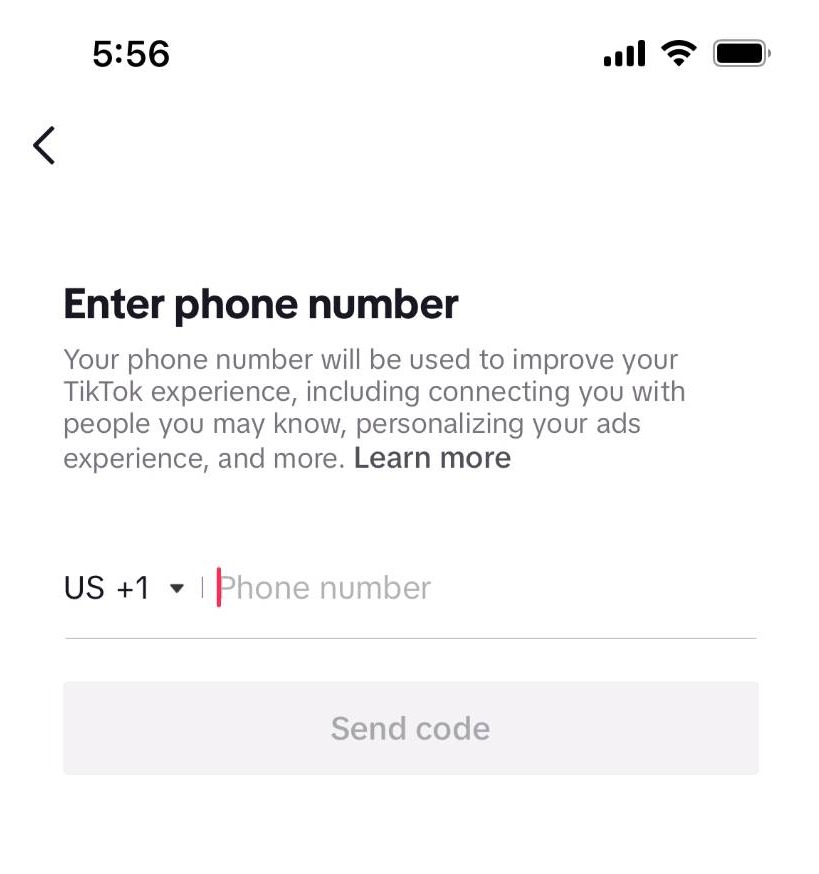
Enter your phone number and click send code to have the second verification measure sent to you
Step 21
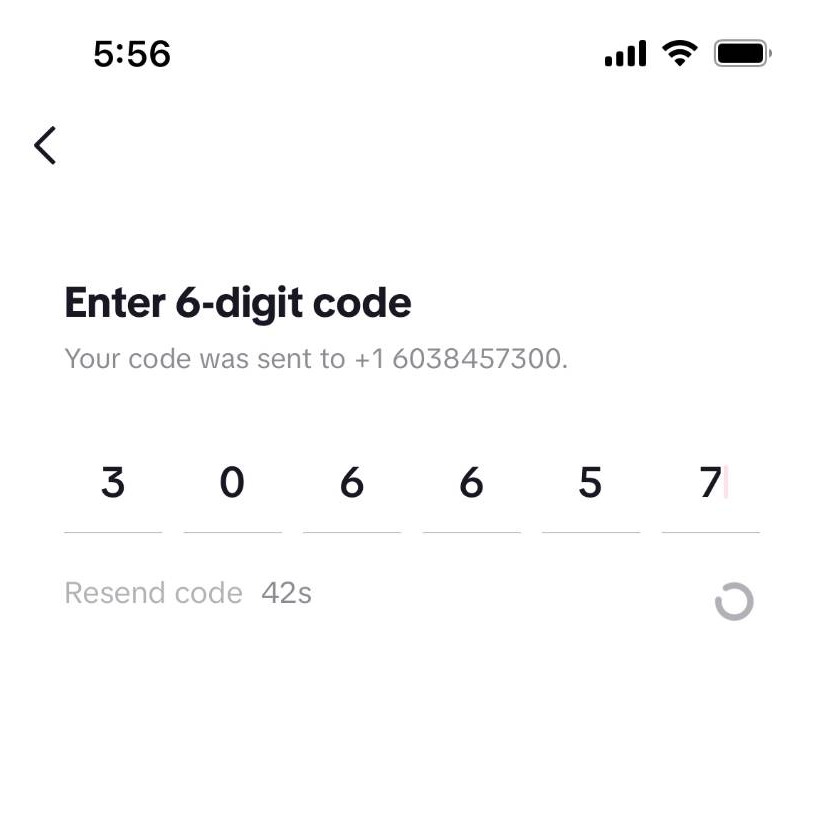
Enter the six digit code sent to your phone to complete the process
Find Devices
Step 22
Go back to the settings and privacy page
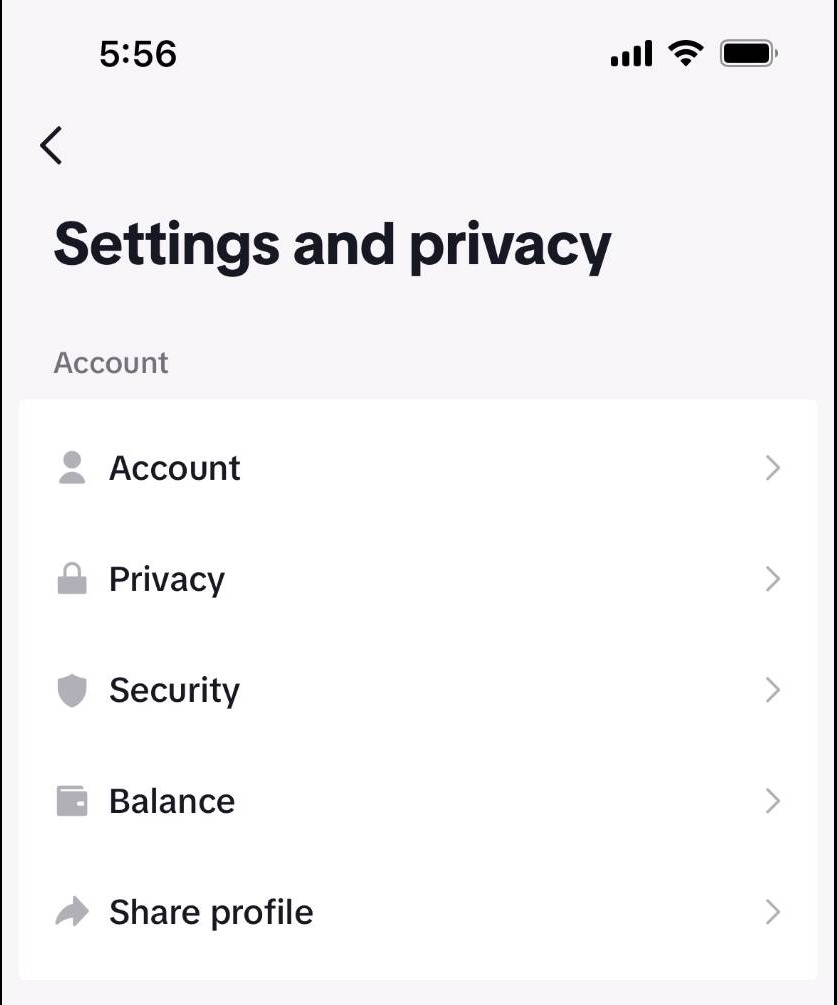
Step 23
Click security
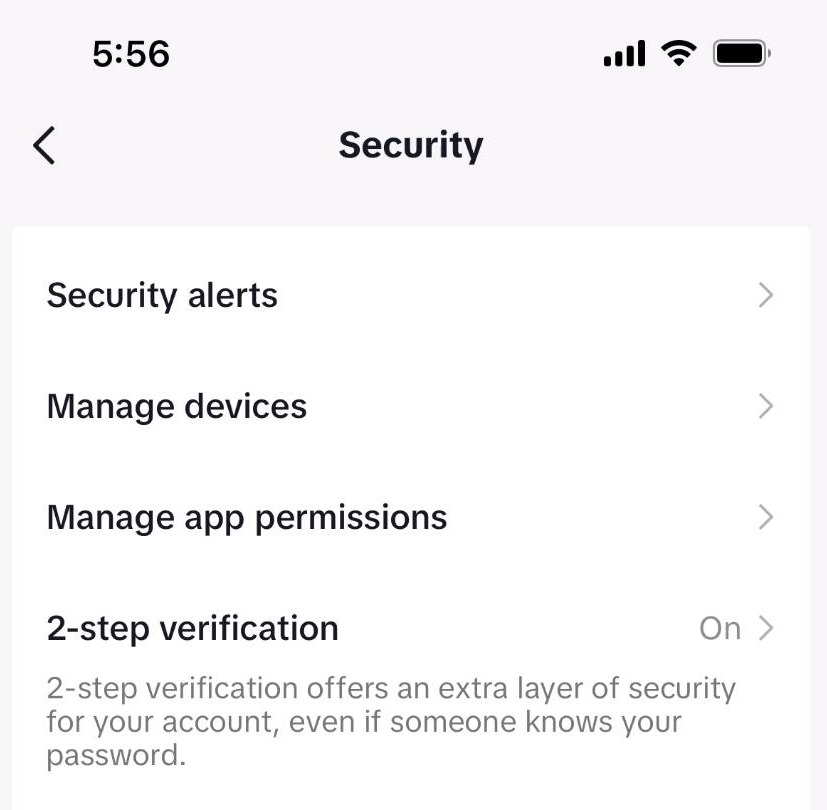
Step 24
Click manage devices
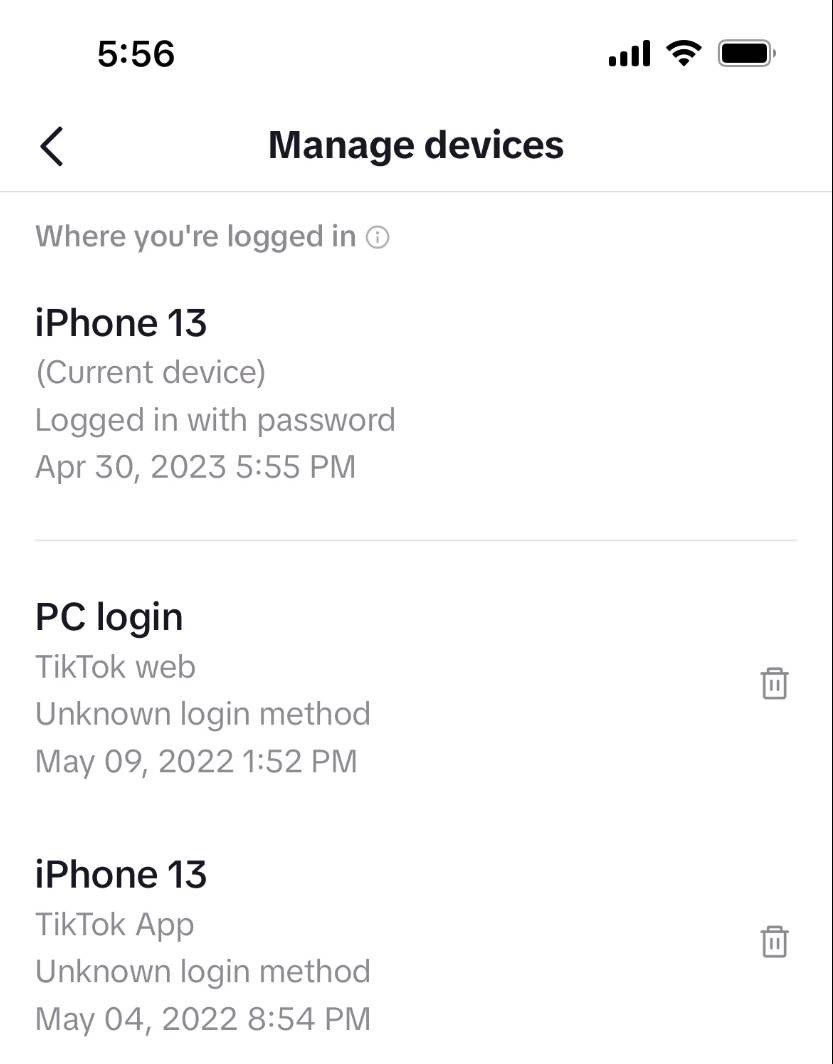
Step 25
Here you can see all the devices you have used to log into TikTok. If any of these are not familiar, click on the trash icon
Adjusting Profile Privacy Settings
Step 26
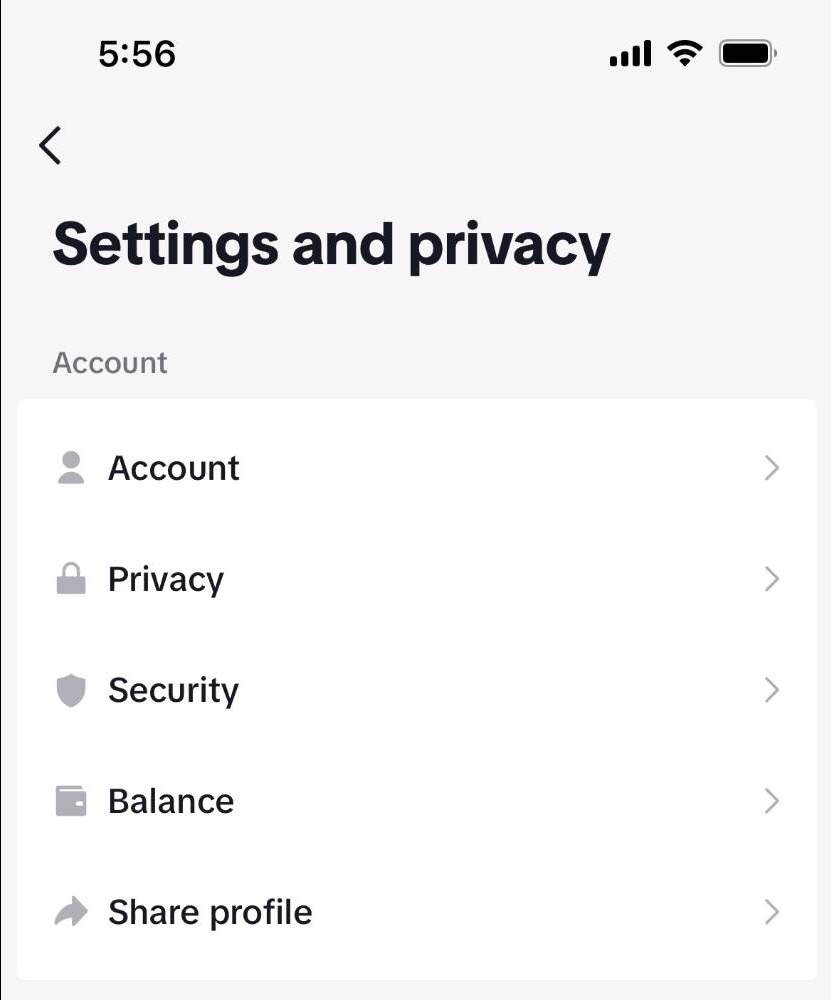
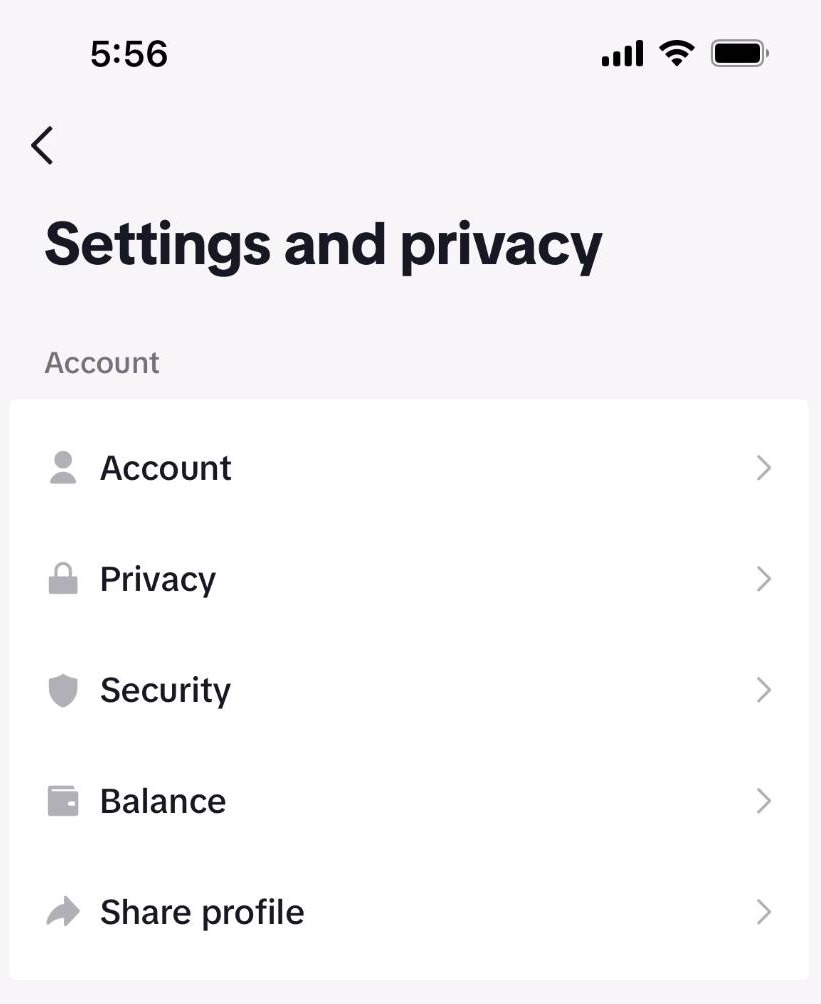
Go to the settings and privacy page
Step 27
Click privacy
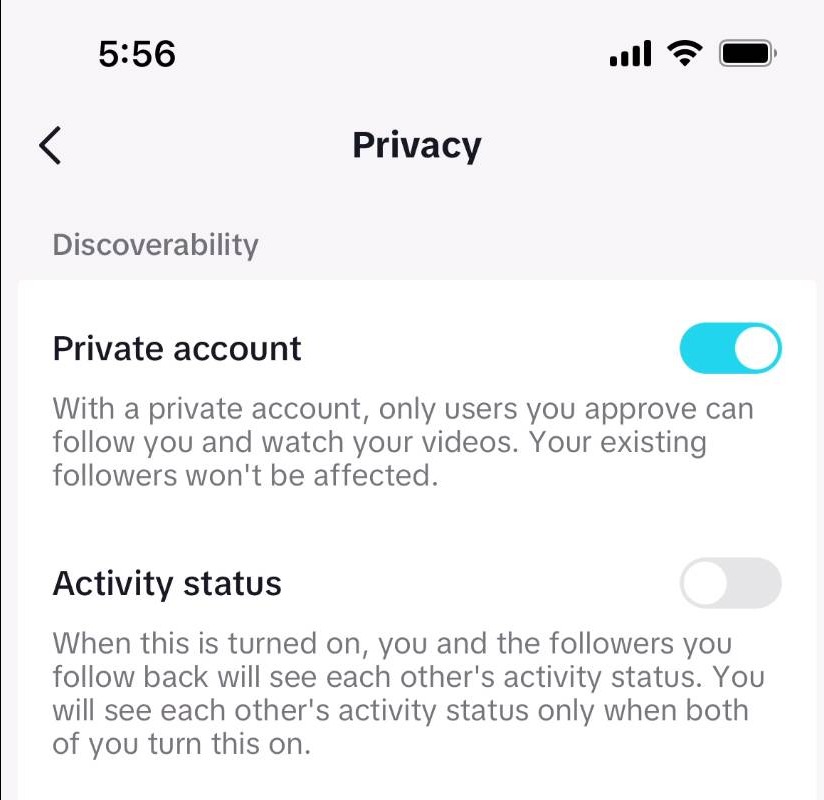
Step 28
Click this button if you wish to make your profile private. Only users you approve can watch your videos
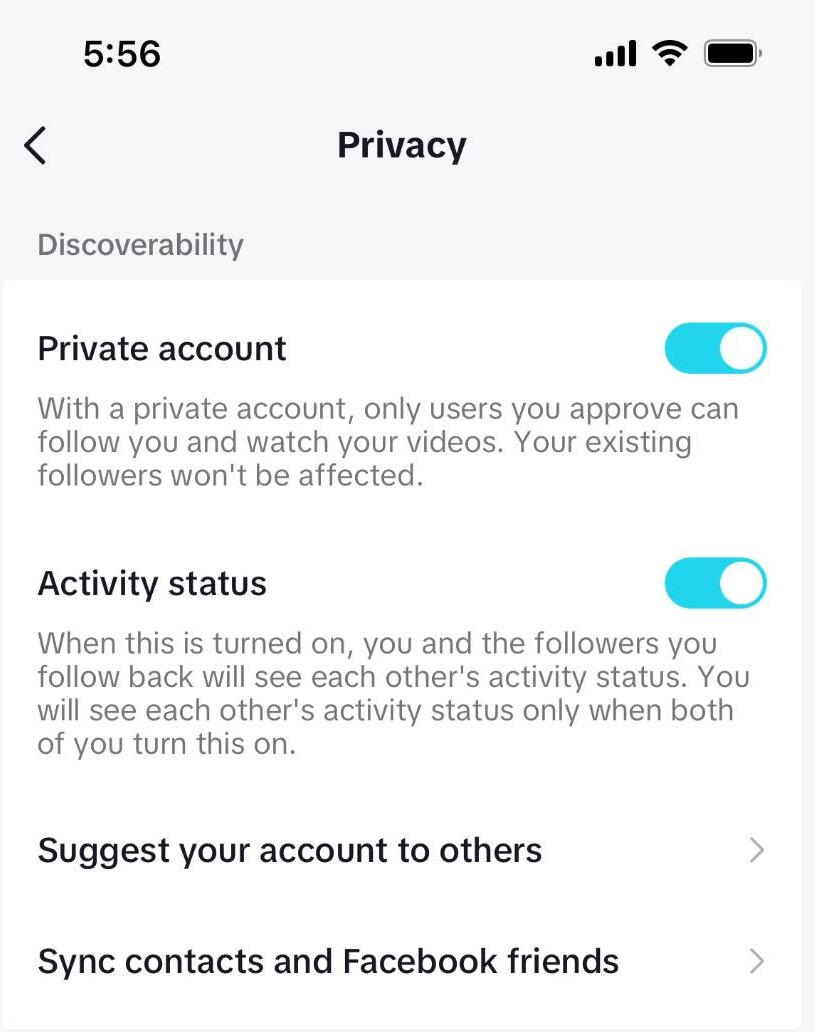
Step 29
By clicking this button, you will be able to see your followers activity status, but only if they have this feature enabled as well
Adjusting Tagging and Direct Message Settings
Step 30
Go back to the settings and privacy page
Step 31
Click privacy
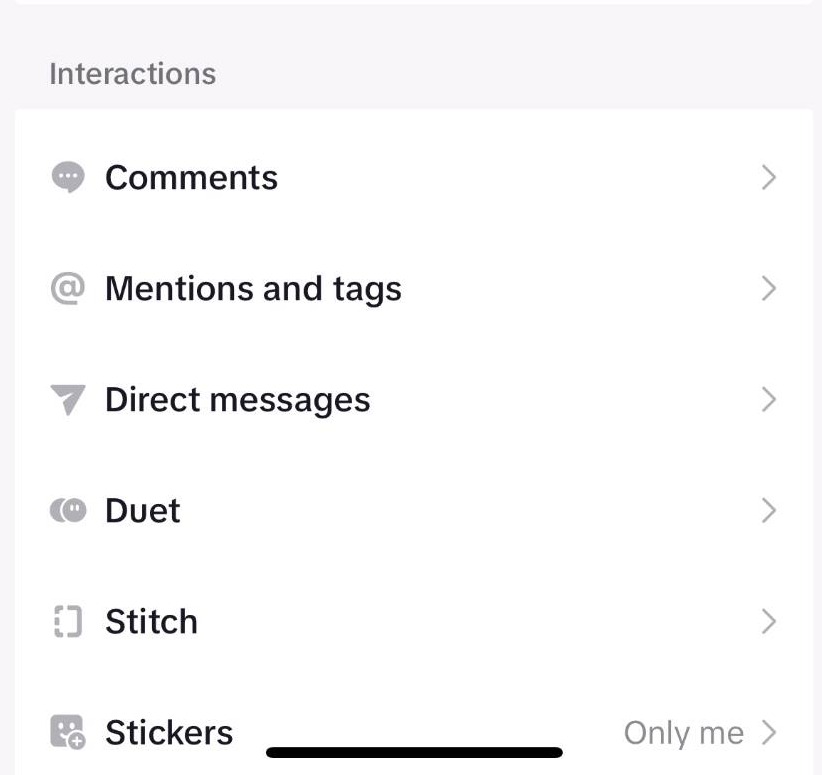
Step 32
Click mentions and tags
Step 33
Click tags
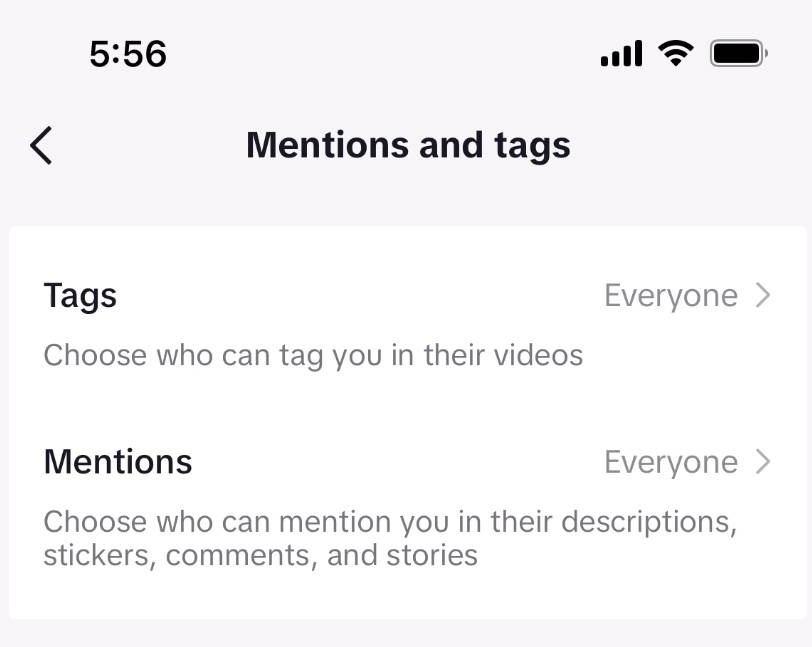
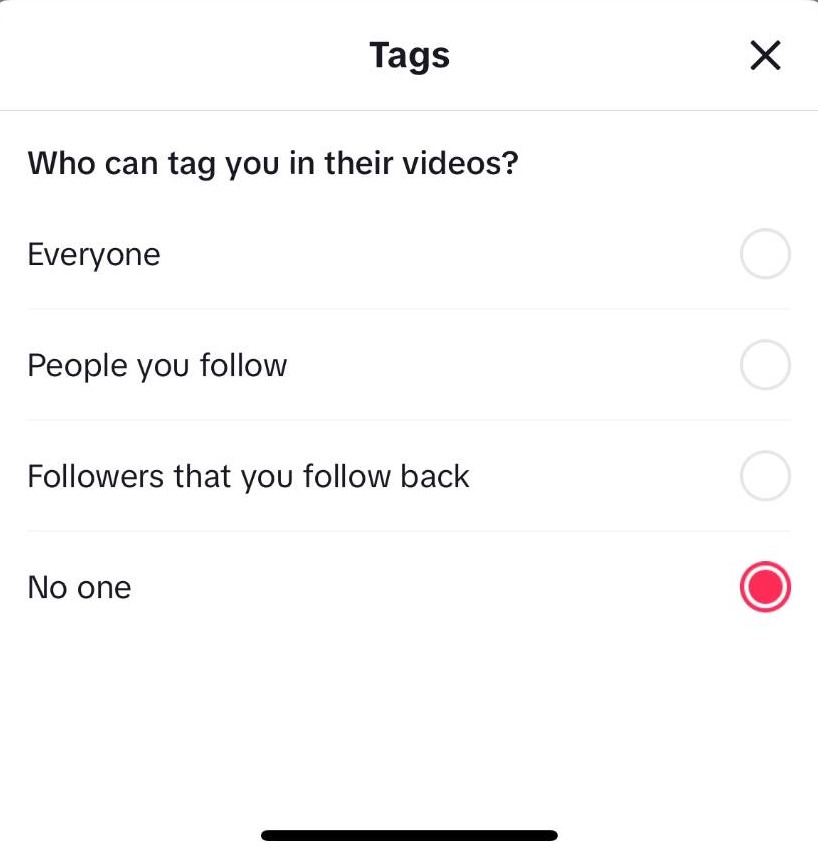
Step 34
Choose who can tag you in their videos. Click the X when you are done
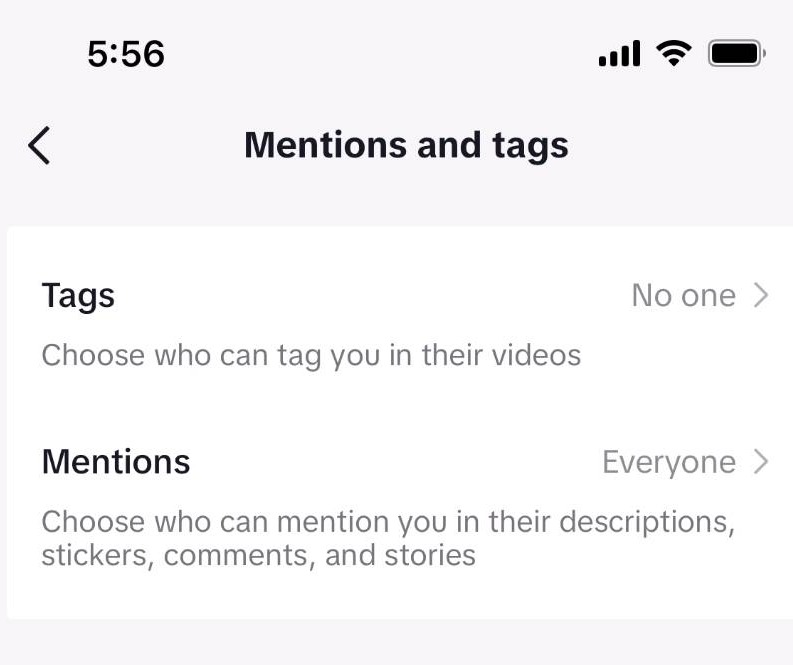
Step 35
Click mentions
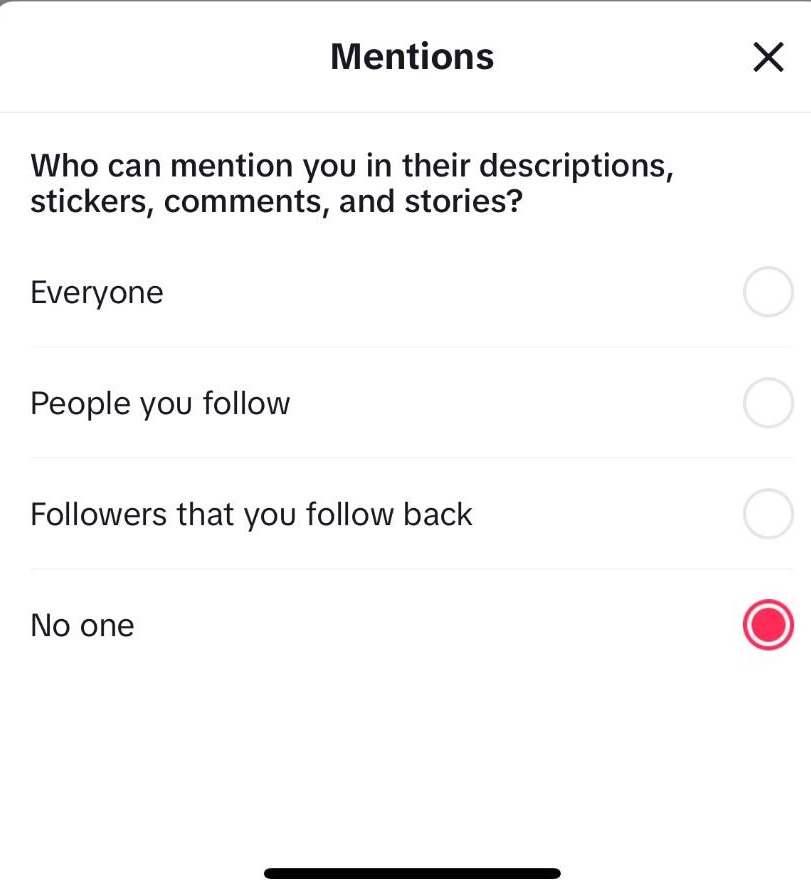
Step 36
Choose who can mention you in their stories, comments, stickers and descriptions. Click X when you are done
Step 37
Back on the privacy page, click direct messages
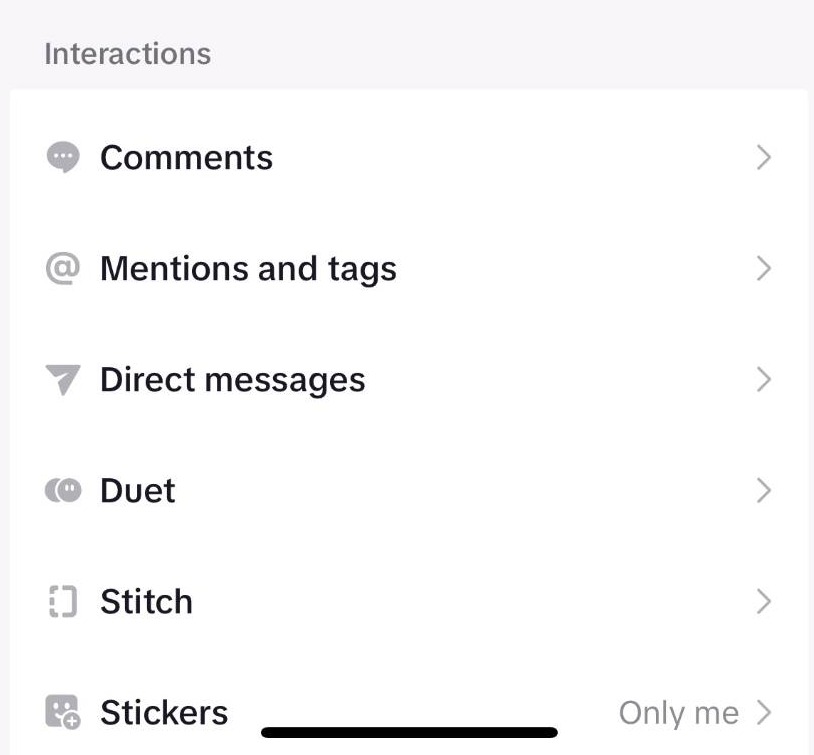
Step 38
Click here
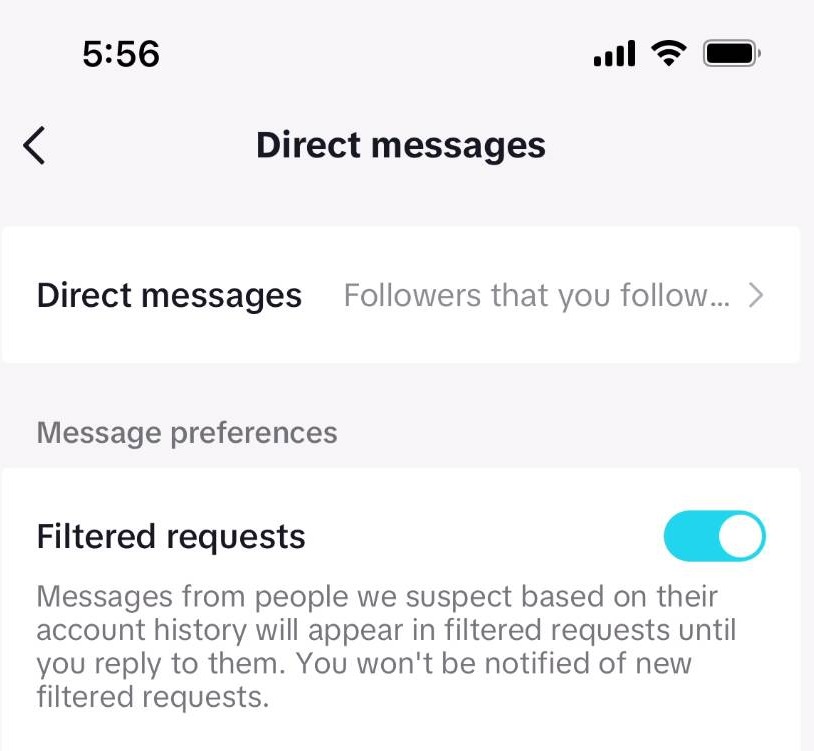
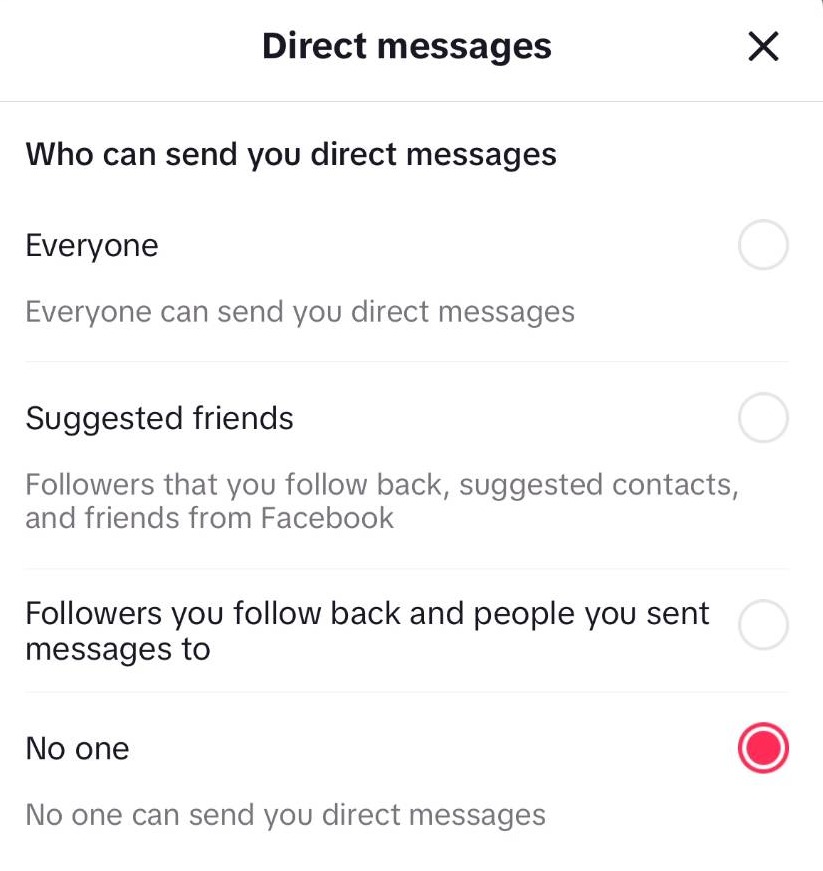
Step 39
Choose who can send you direct messages here
Adjusting Ad Settings
Step 40
Go back to the settings and privacy page
Step 41
Click ads
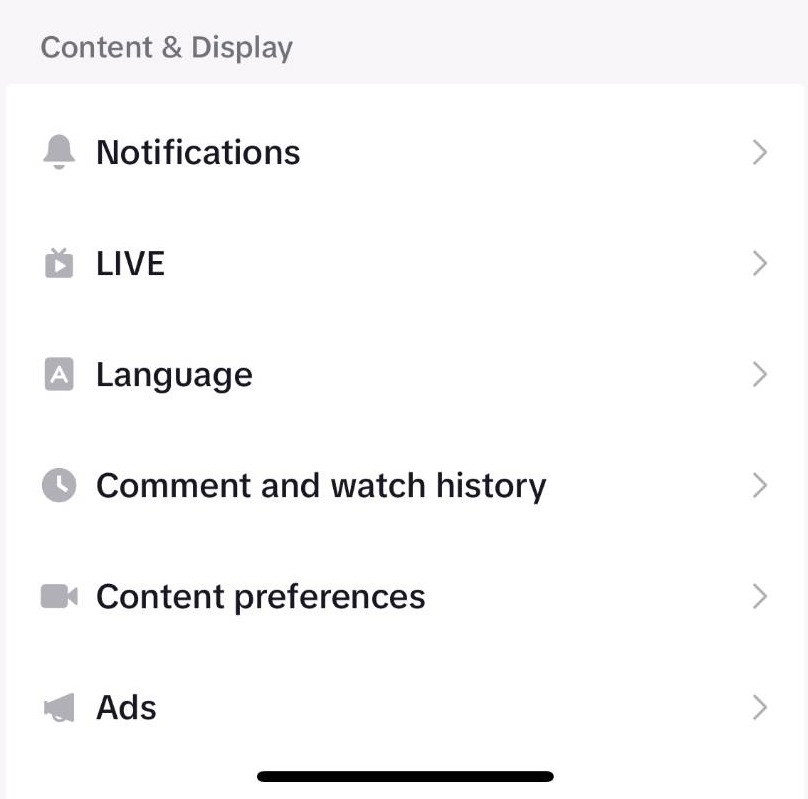
Step 42
Click advertiser settings
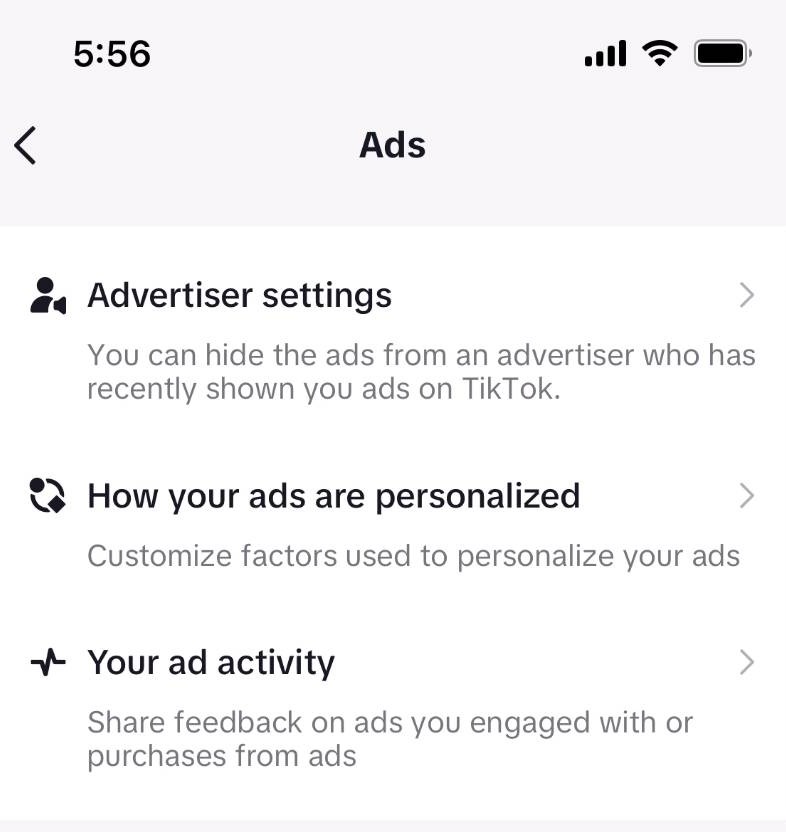
Step 43
Here, you can choose to no longer see ads from anyone who sent you an ad on the platform
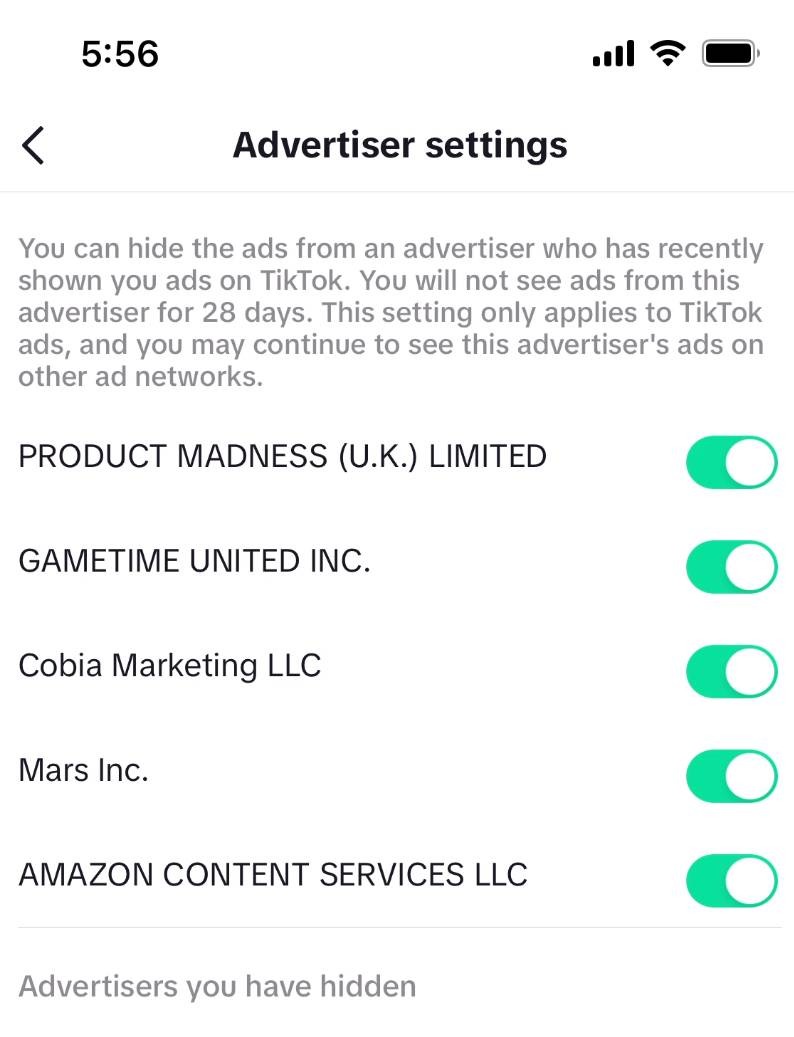
Step 44
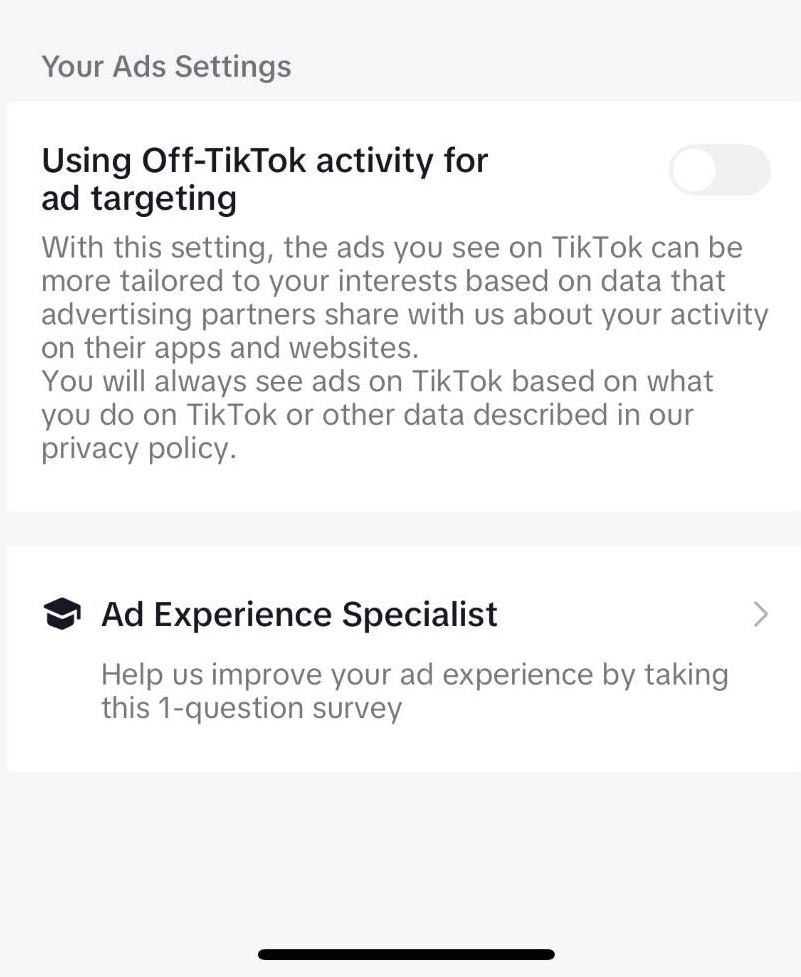
Here, you can choose whether to receive more targeted ads on TikTok