LinkedIn Hardening Guide
Finding Privacy & Security Settings
Step 1
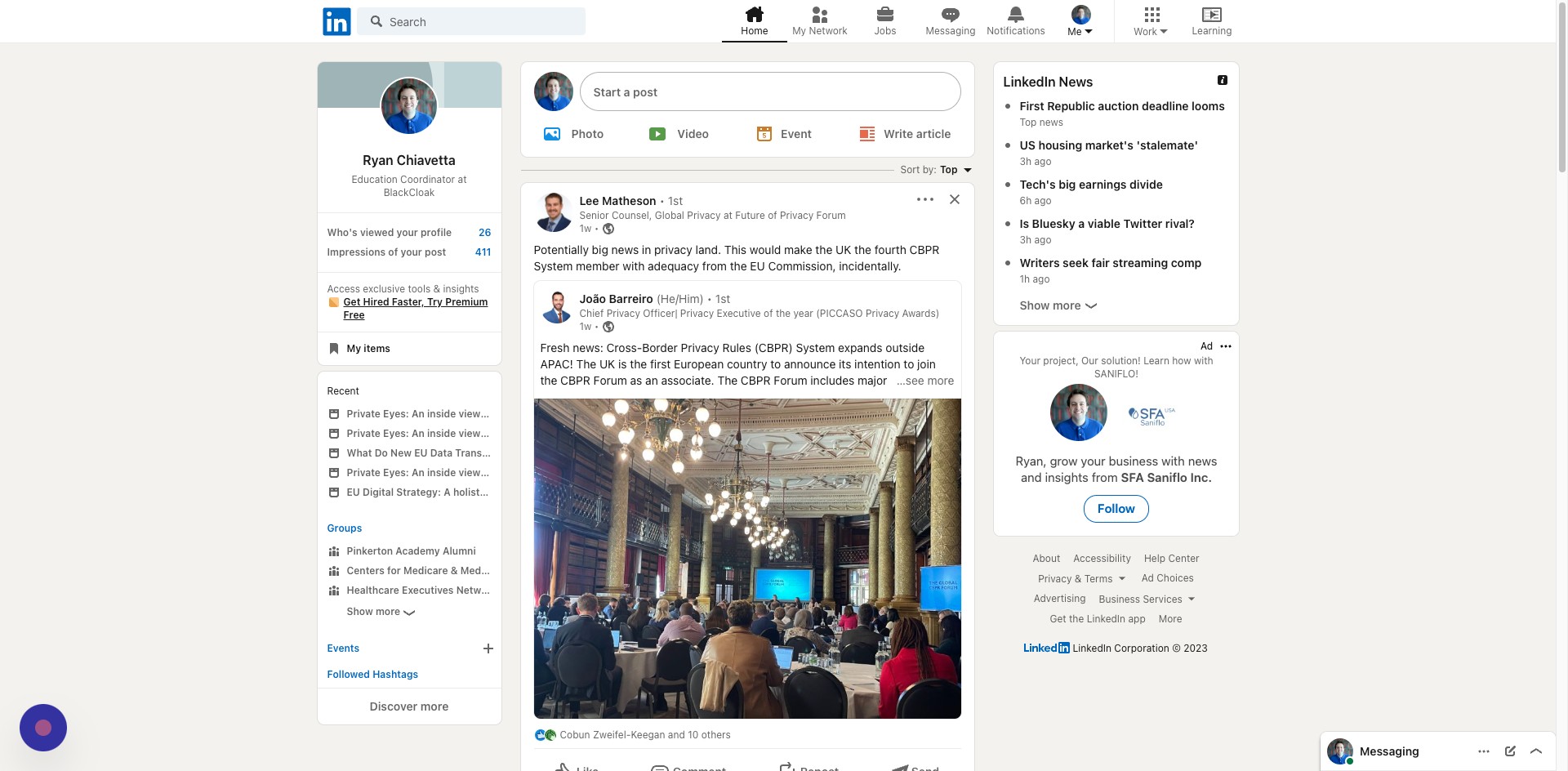
Navigate to [https://www.linkedin.com/feed/](https://www.linkedin.com/feed/)
Step 2
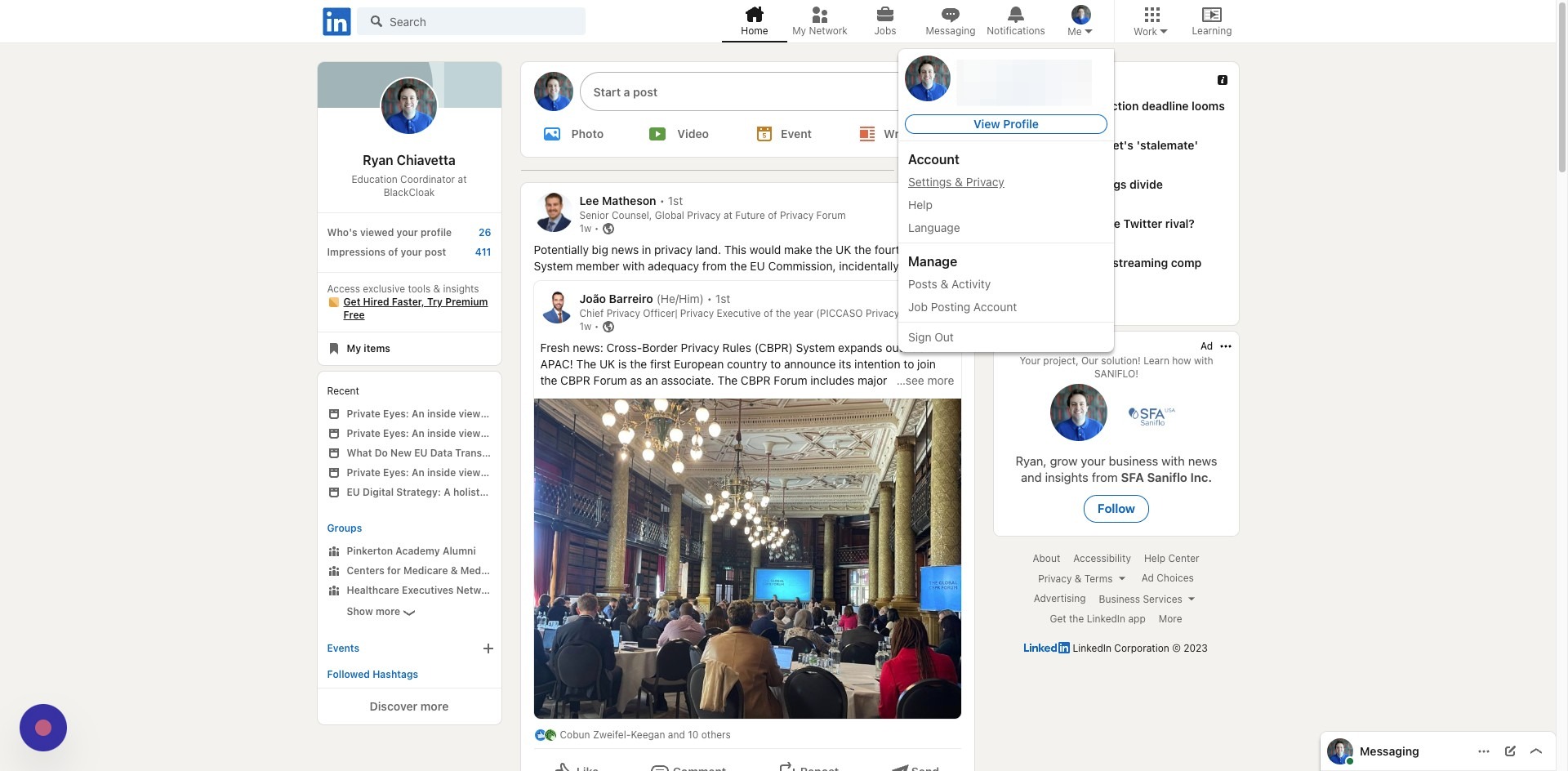
Click your profile icon
Step 3
Click Settings & Privacy
Where to Find Your Personal Information
Step 4
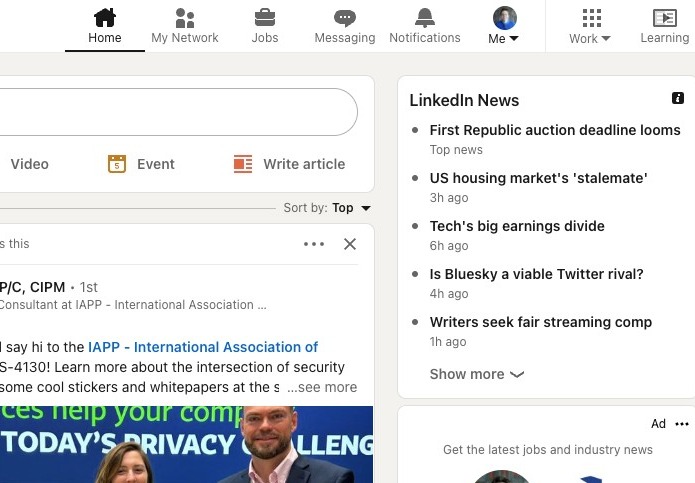
Click your profile icon
Step 5
Click Settings & Privacy
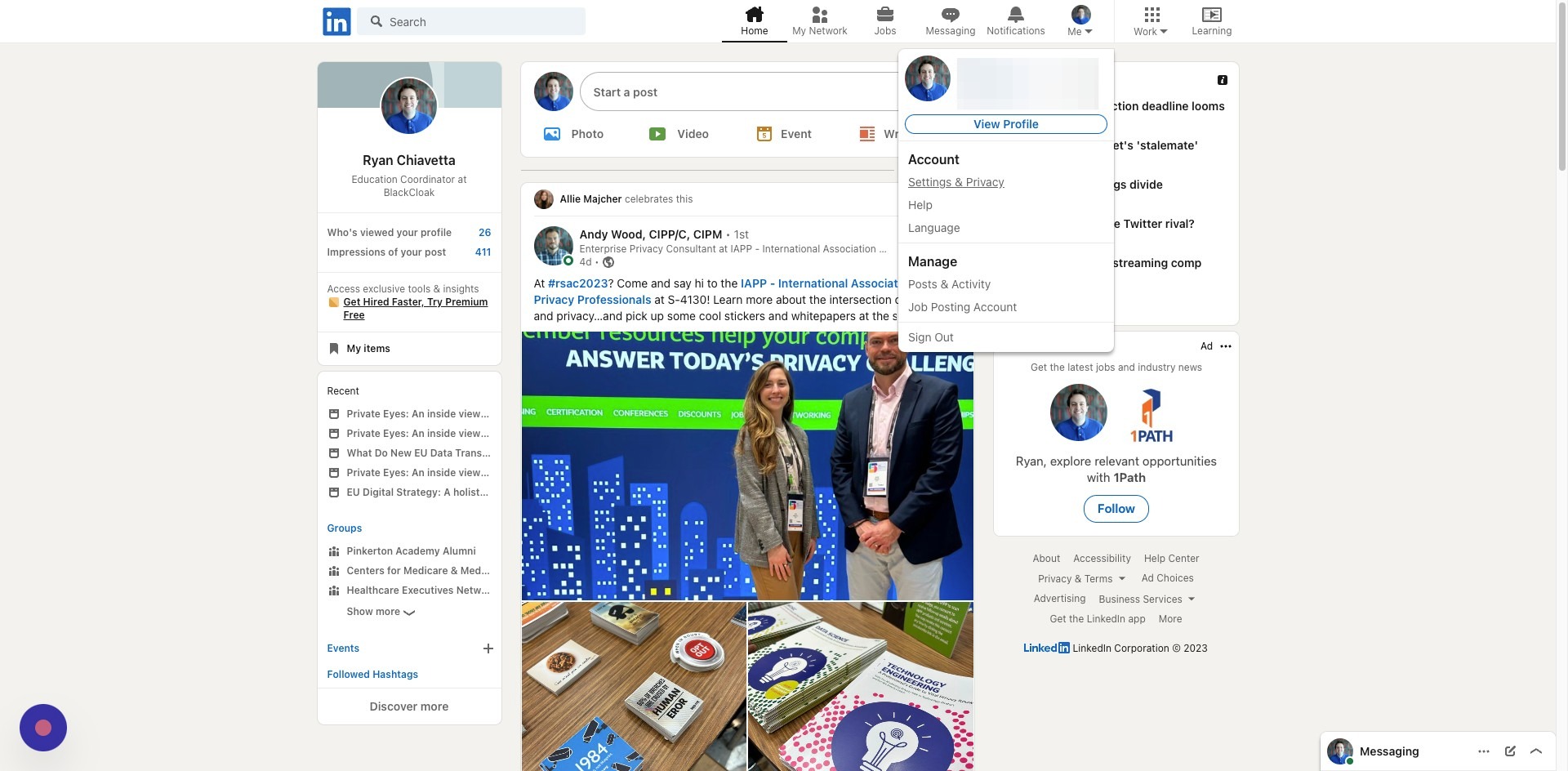
Step 6
Click Name, location, and industry
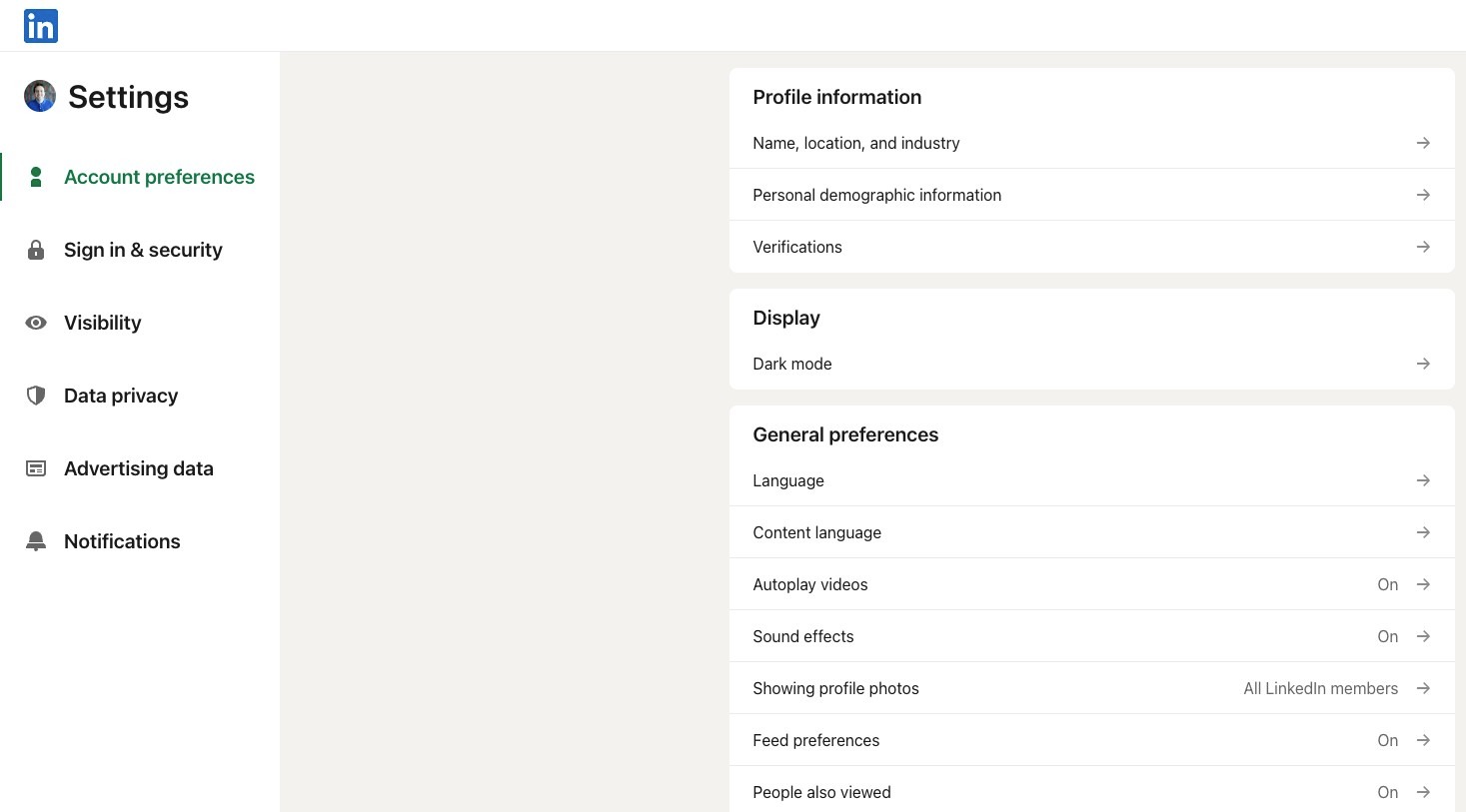
Step 7
Here, you can edit the information that will appear on your profile, including your name, and current job
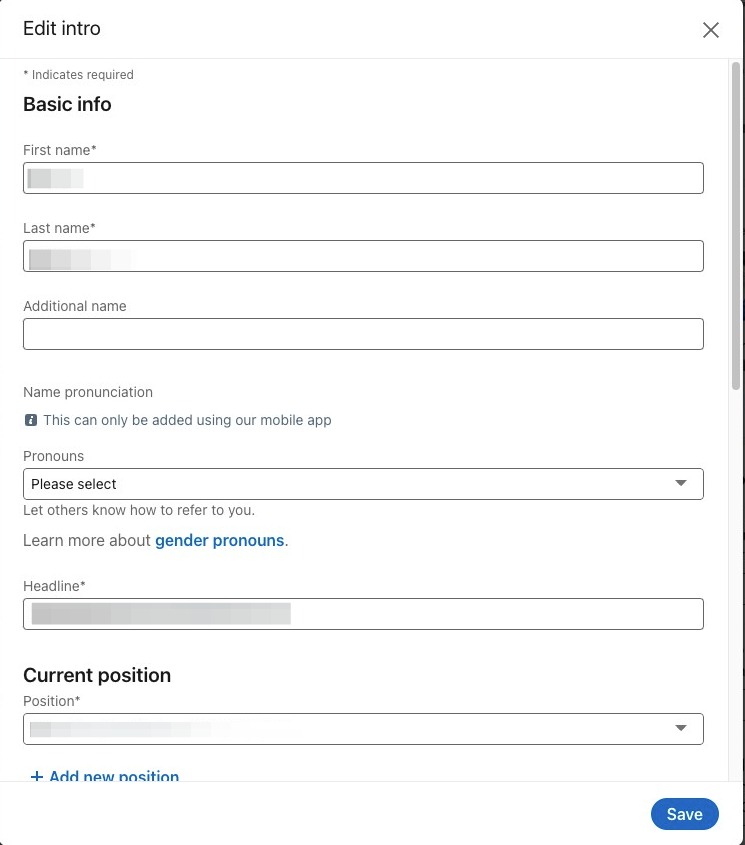
Step 8
You can also edit your education and current location. Click save when you are done. Then, click edit contact info
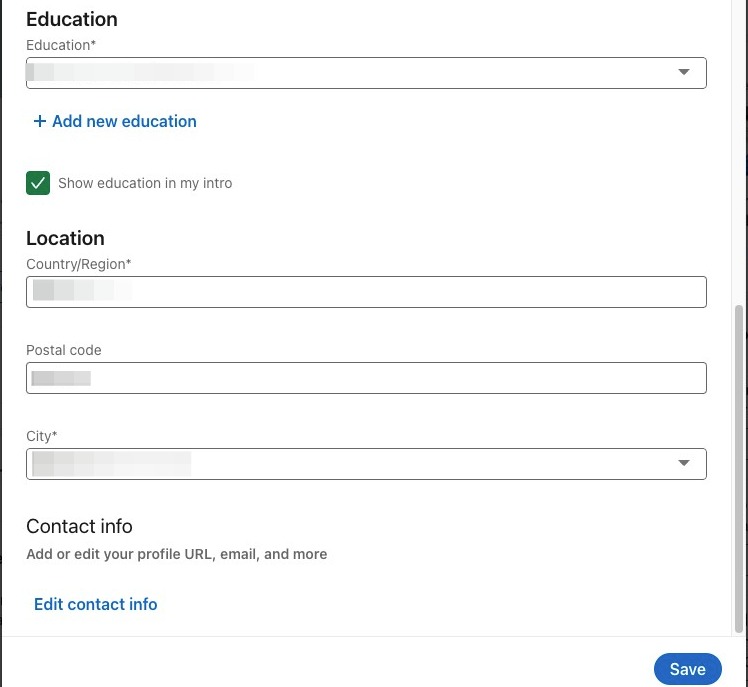
Step 9
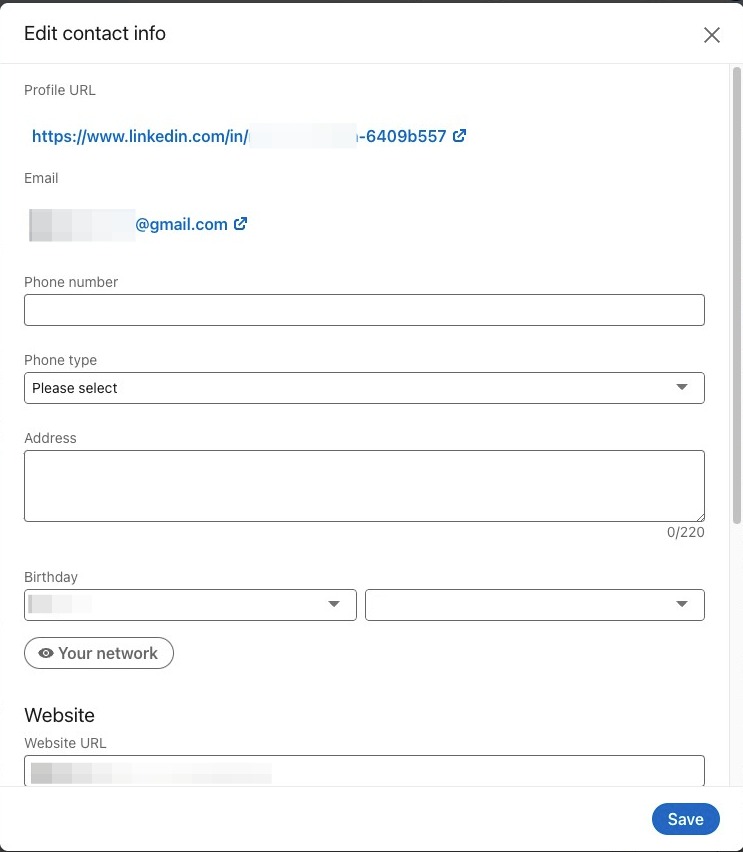
You can also change your profile URL, change your primary email, add a phone number, adjust your birthday, and add any other websites you'd wish to link to
How to Update Your Password
Step 10
Go back to the settings page
Step 11
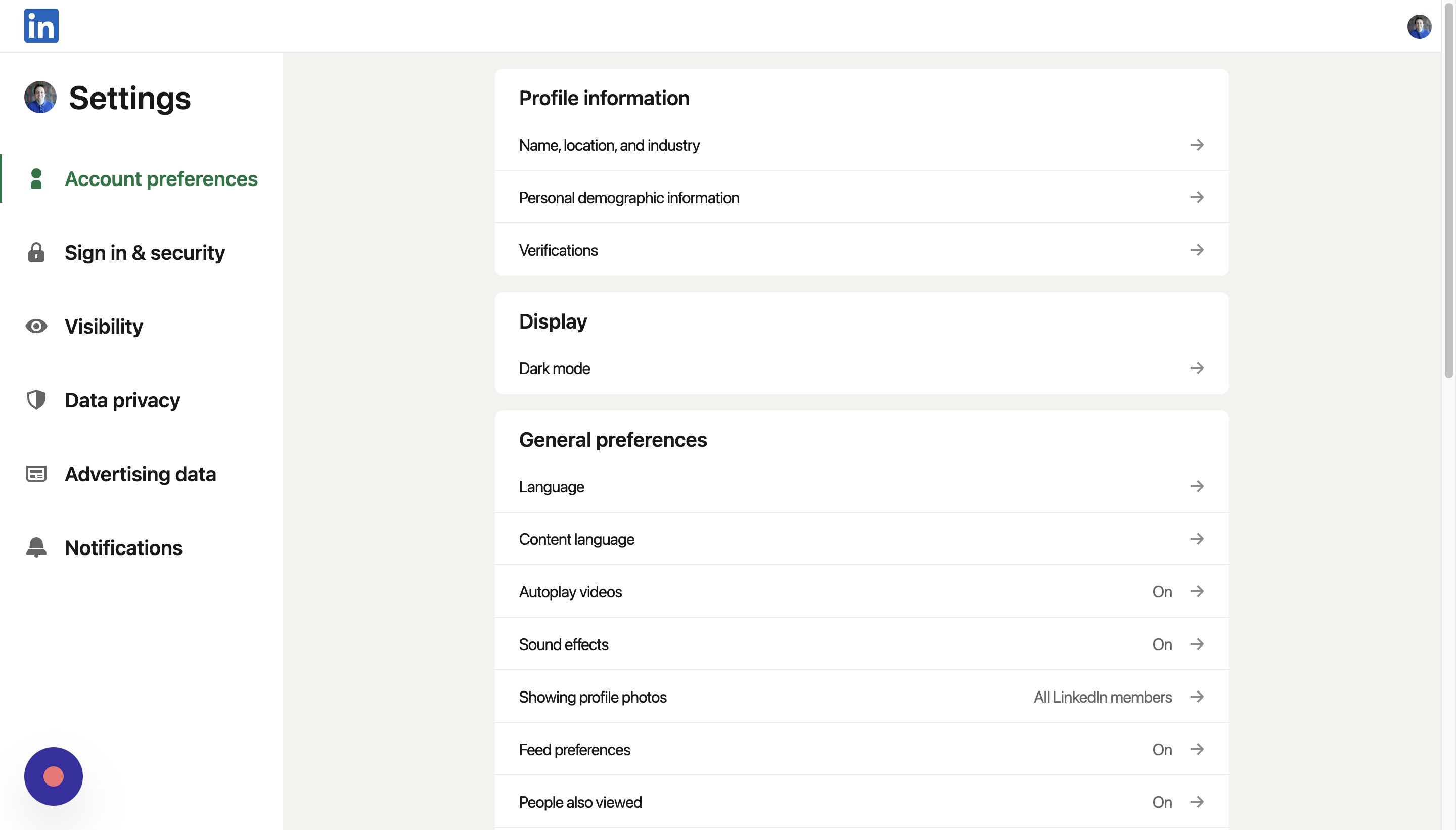
Click Sign in & security
Step 12
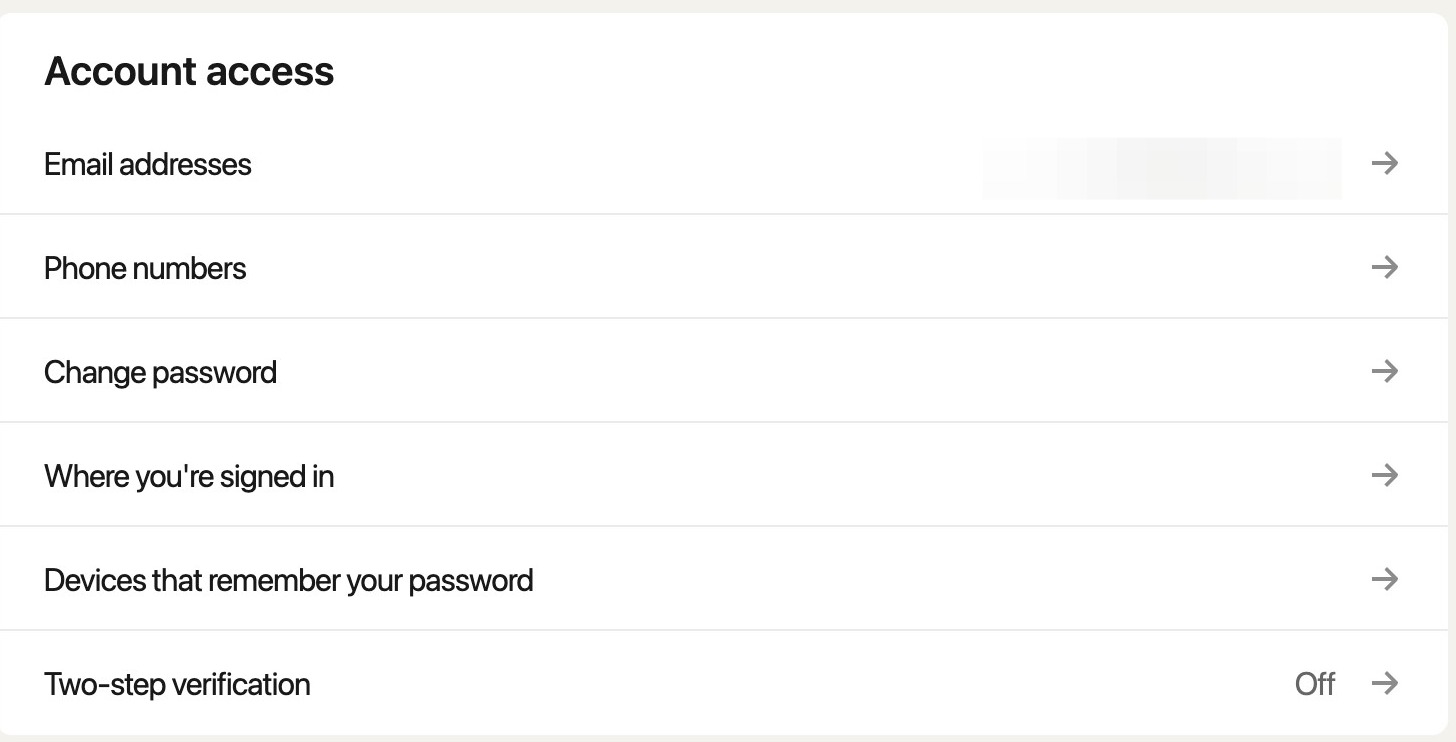
Click Change password
Step 13
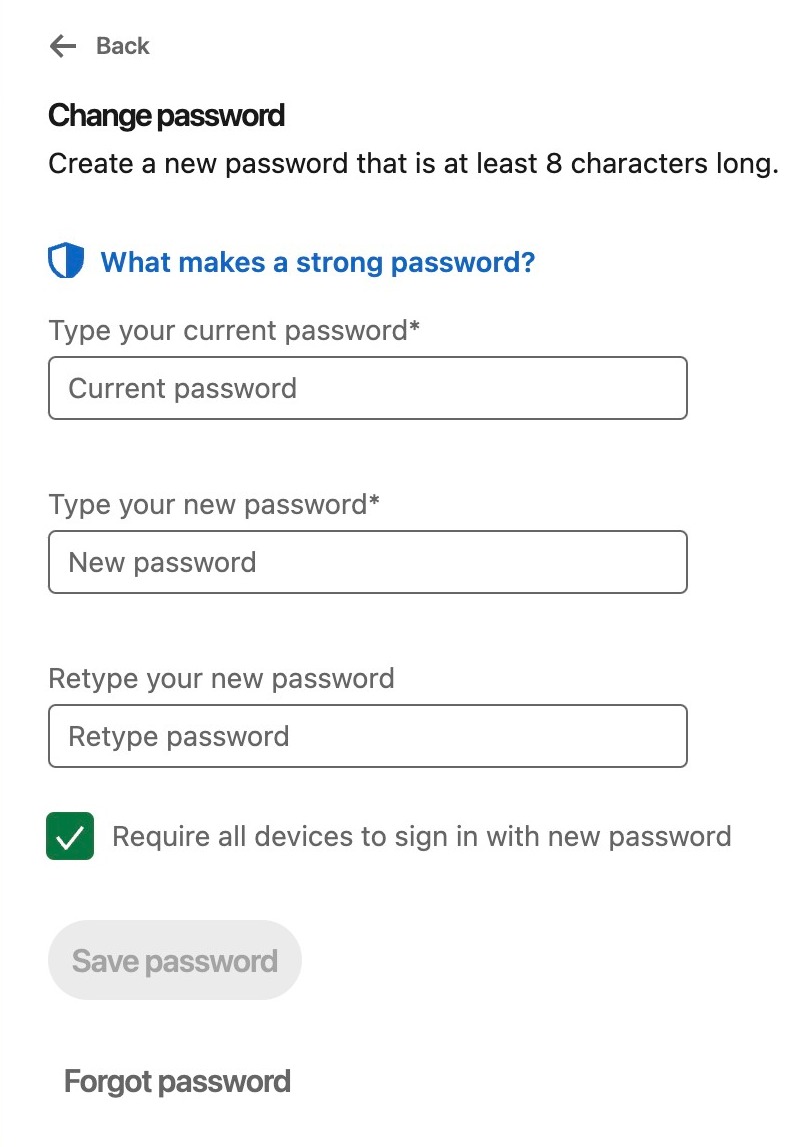
Enter your old password and create a new one. Re-type your ned password and hit save password
Enabling Two-Factor Authentication
Step 14
Go back to the settings page
Step 15
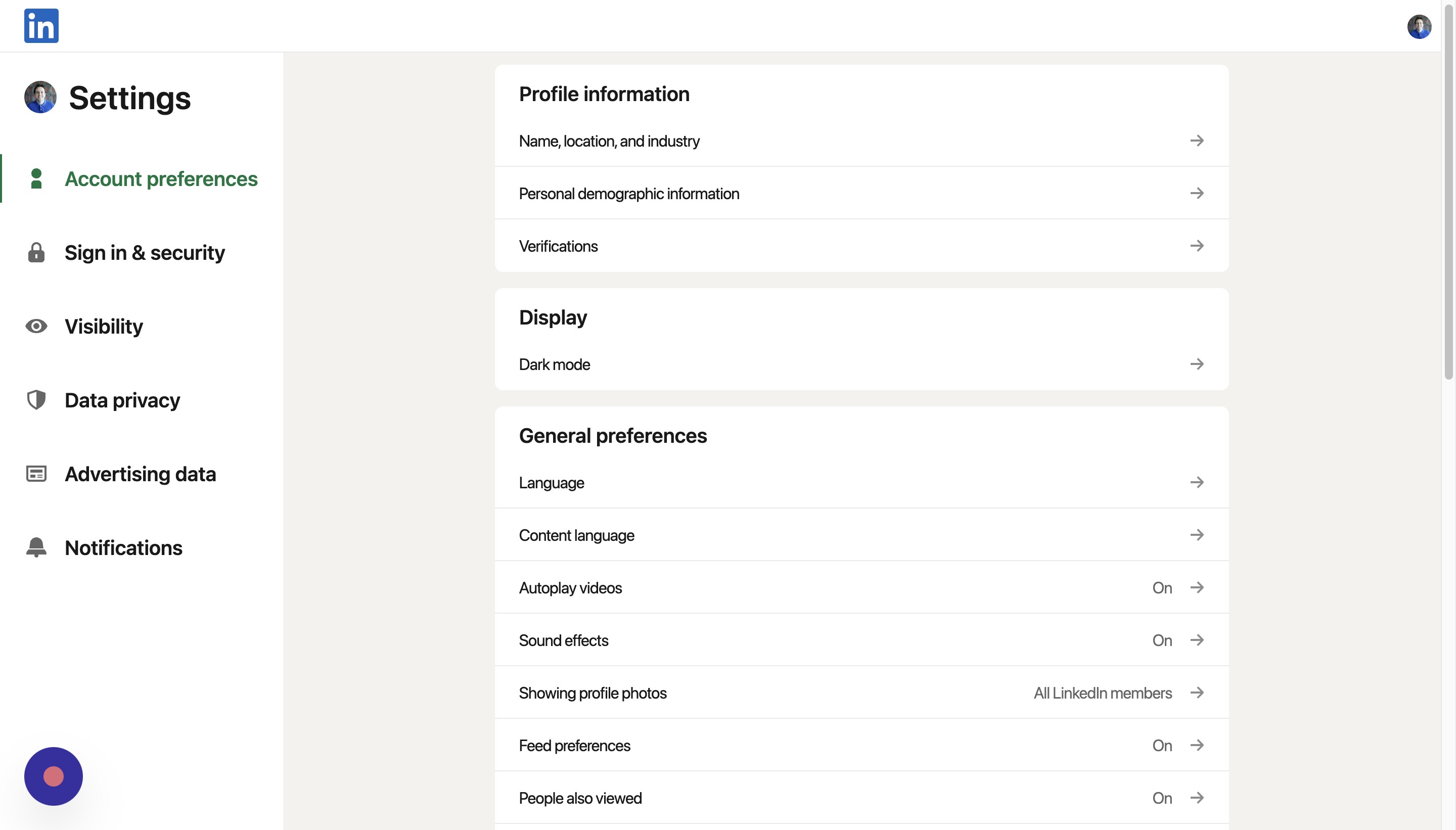
Click Sign in & security
Step 16
Click Two-step verification
Step 17
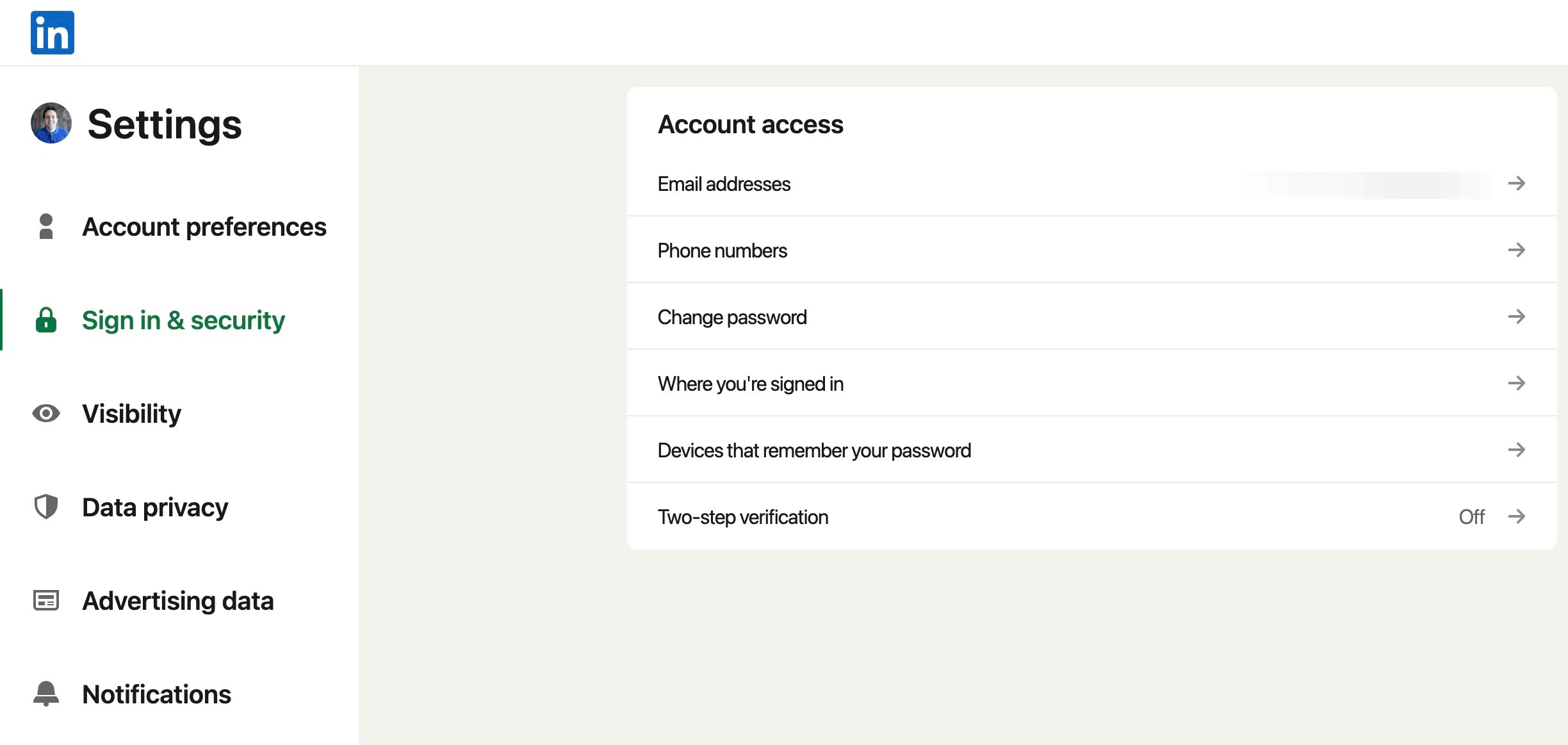
Click Set up
Step 18
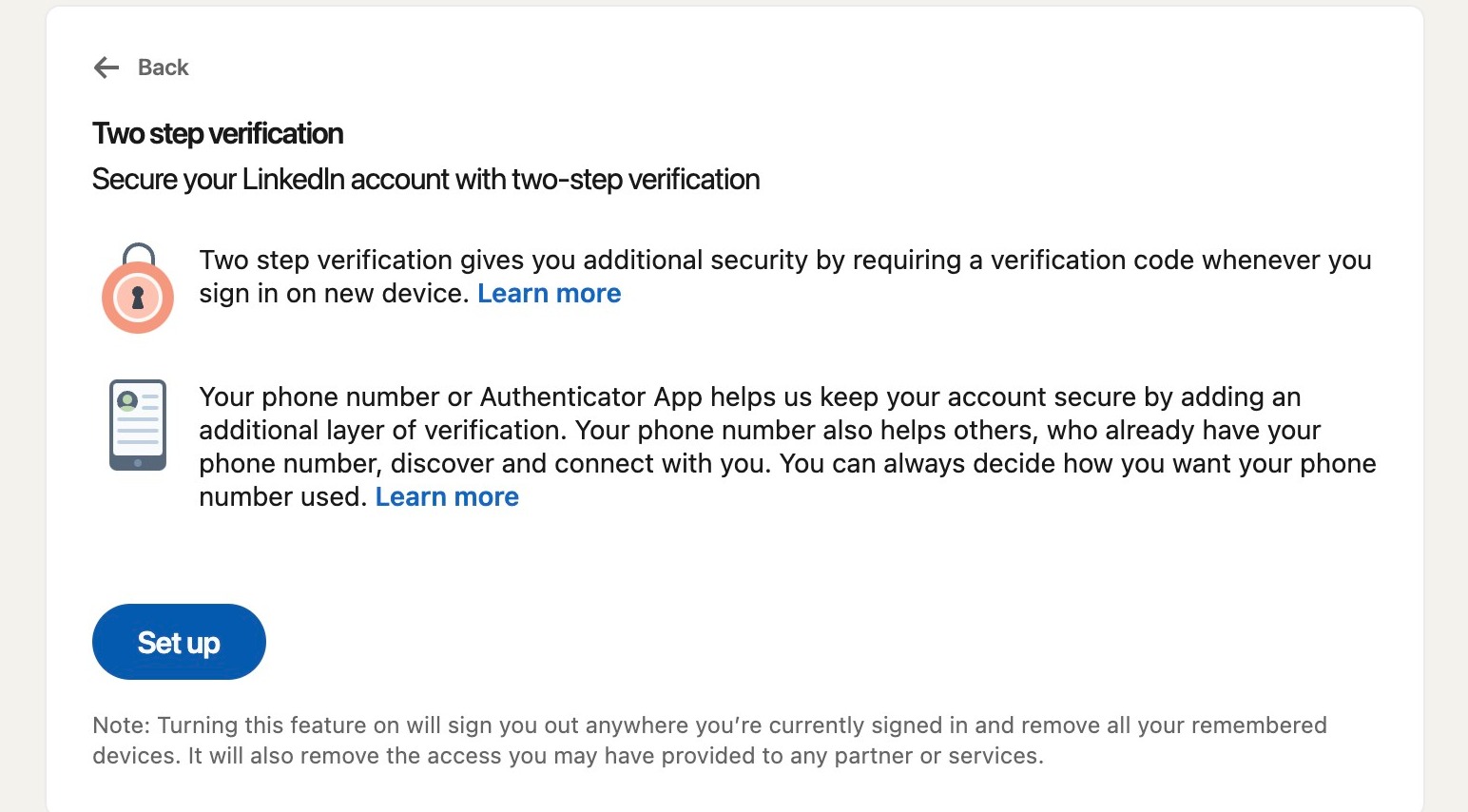
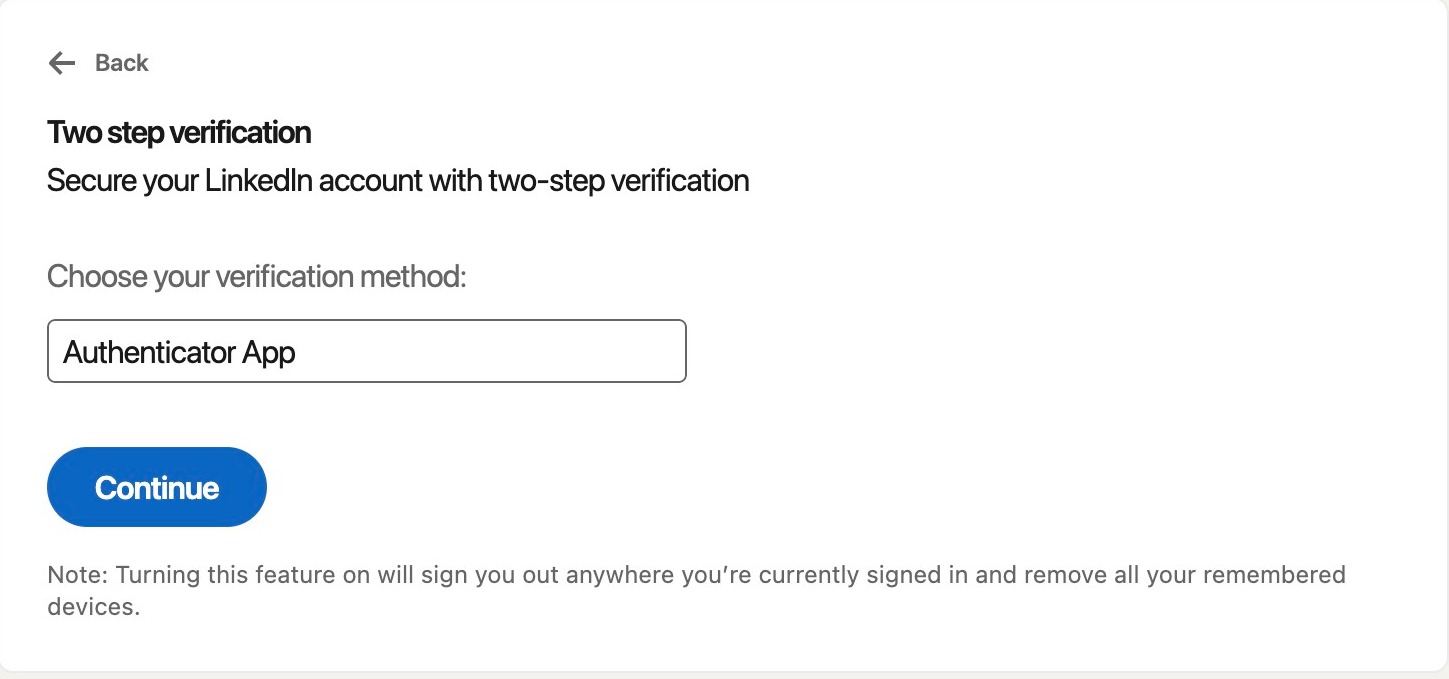
Select your authentication method and hit continue. BlackCloak recommends using an authentication app
Step 19
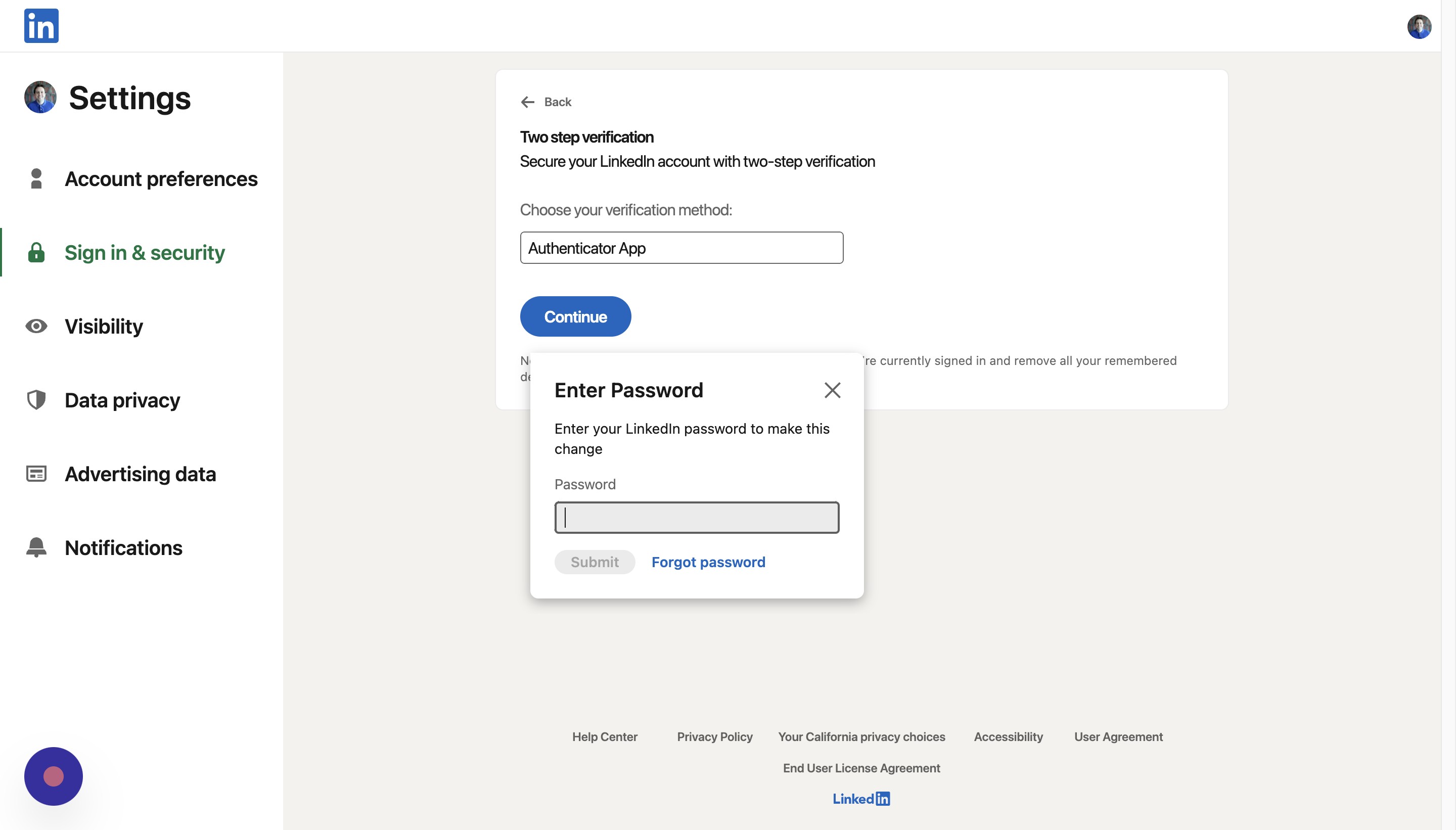
Enter your account password and hit submit
Step 20
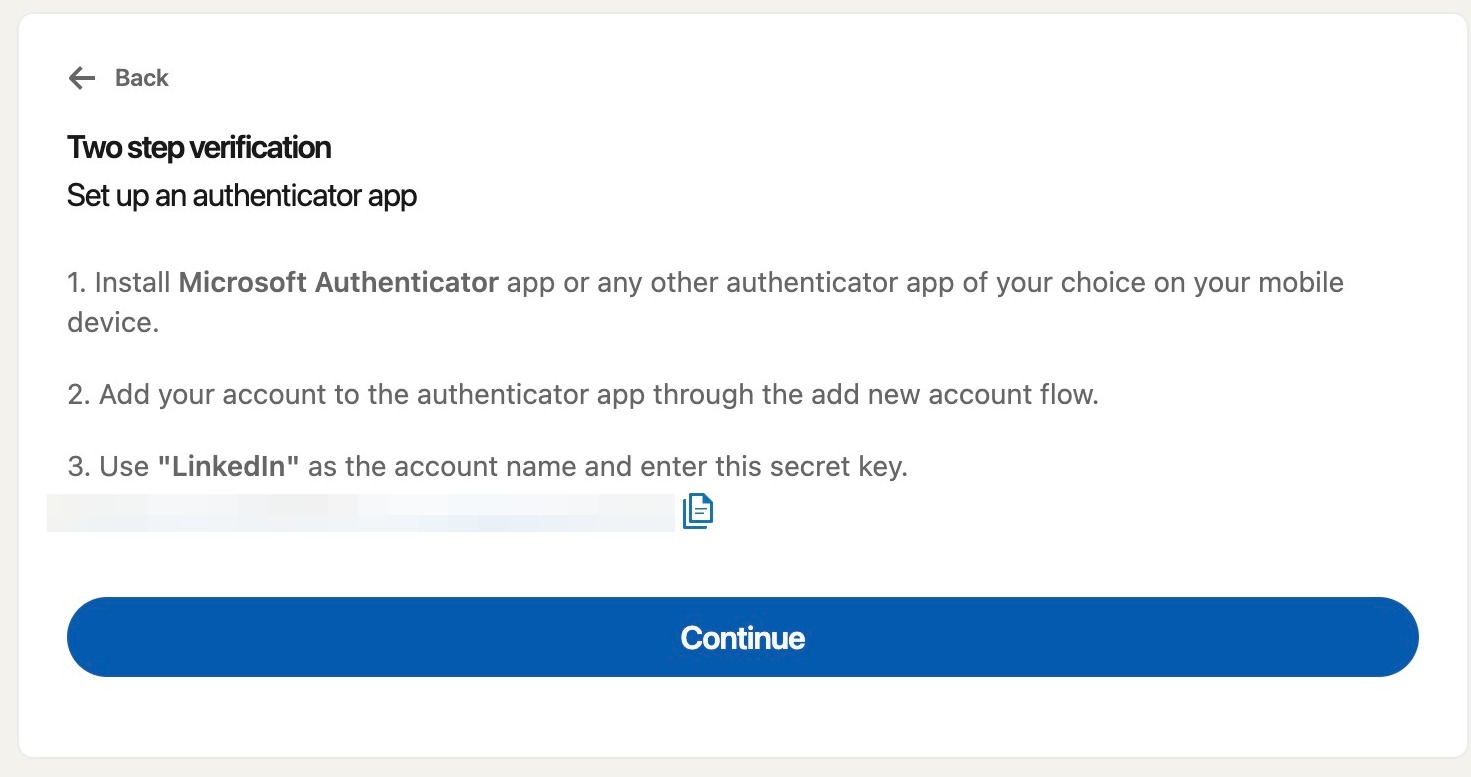
Open your authenticator app and enter in the key provided by LinkedIn. Then hit continue
Step 21
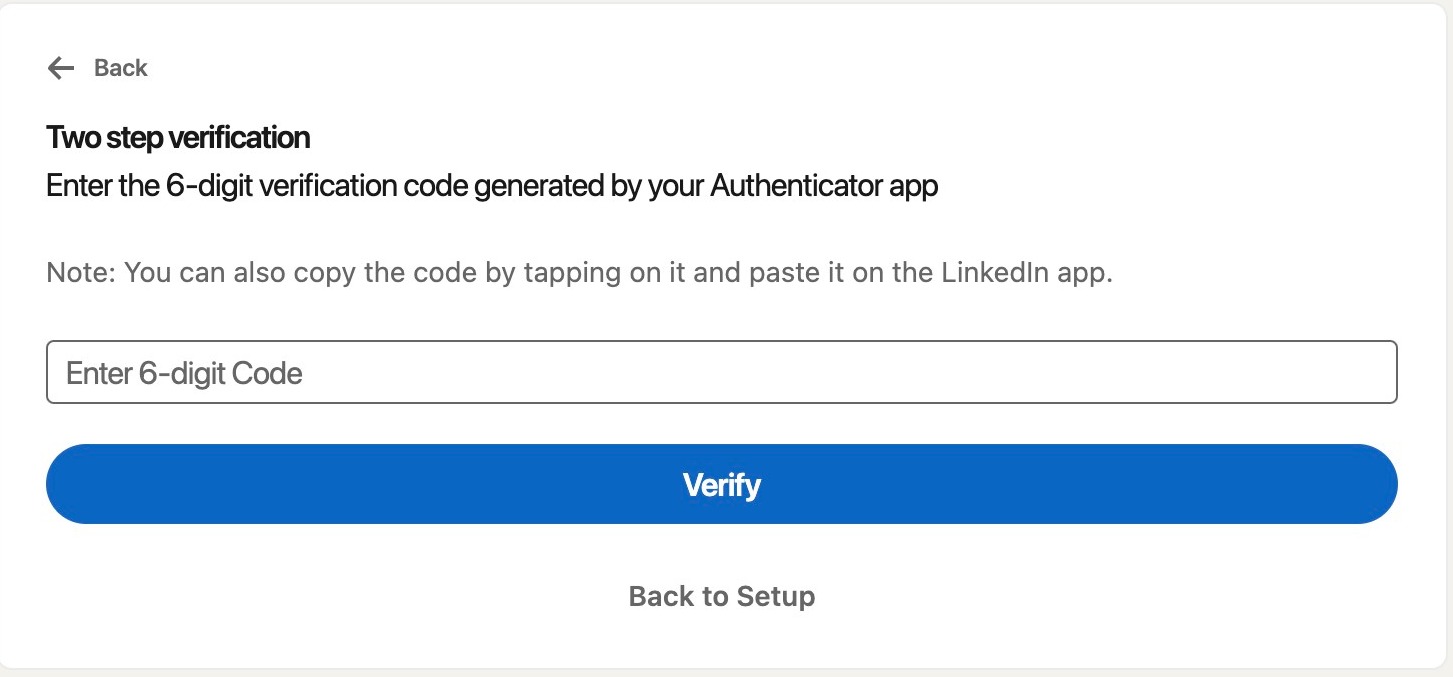
Once you enter in the key, enter the six digit code provided by the authenticator app, and hit verify to complete the process
See Active Sessions
Step 22
Go back to the settings page
Step 23
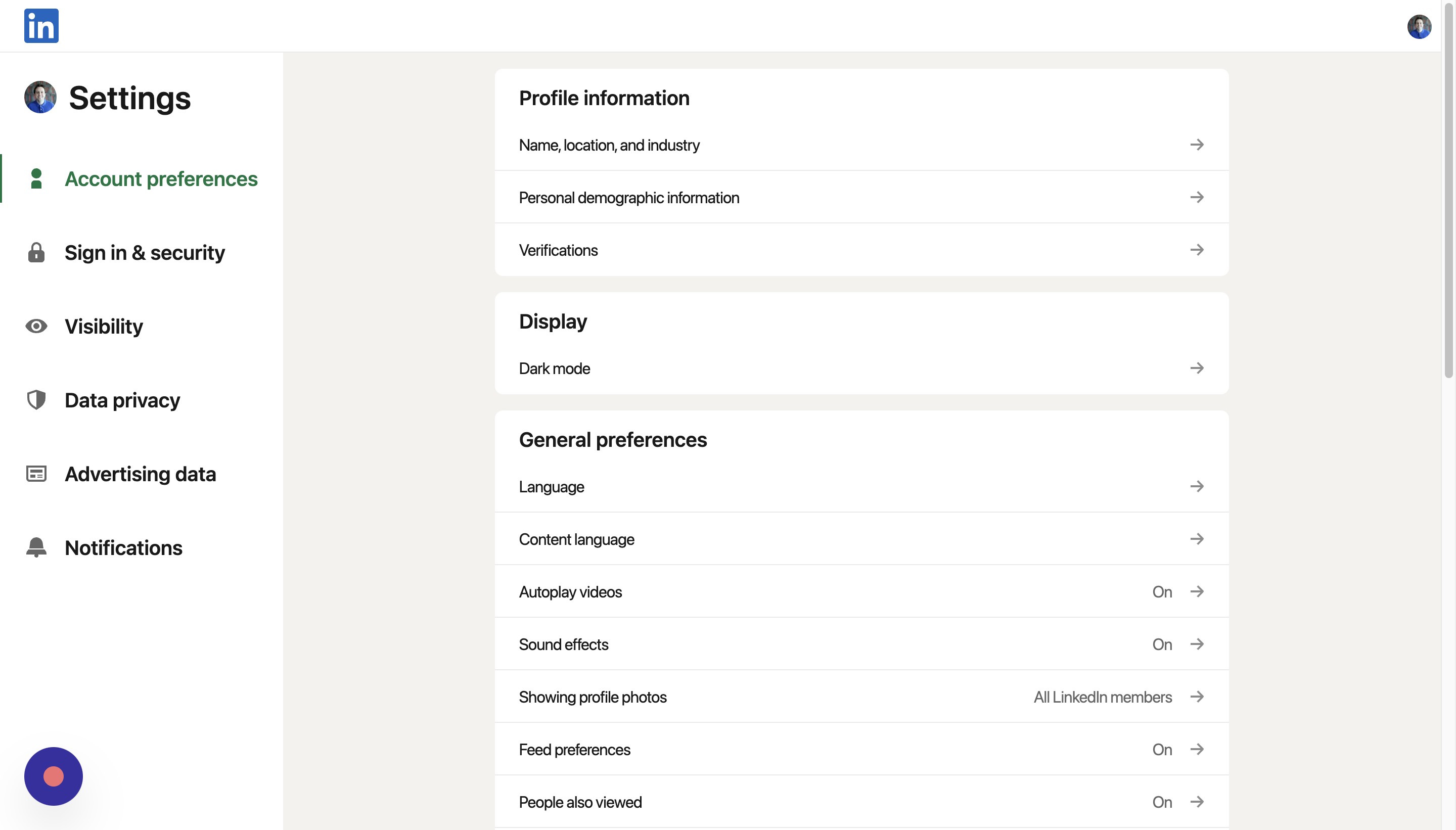
Click Sign in & security
Step 24
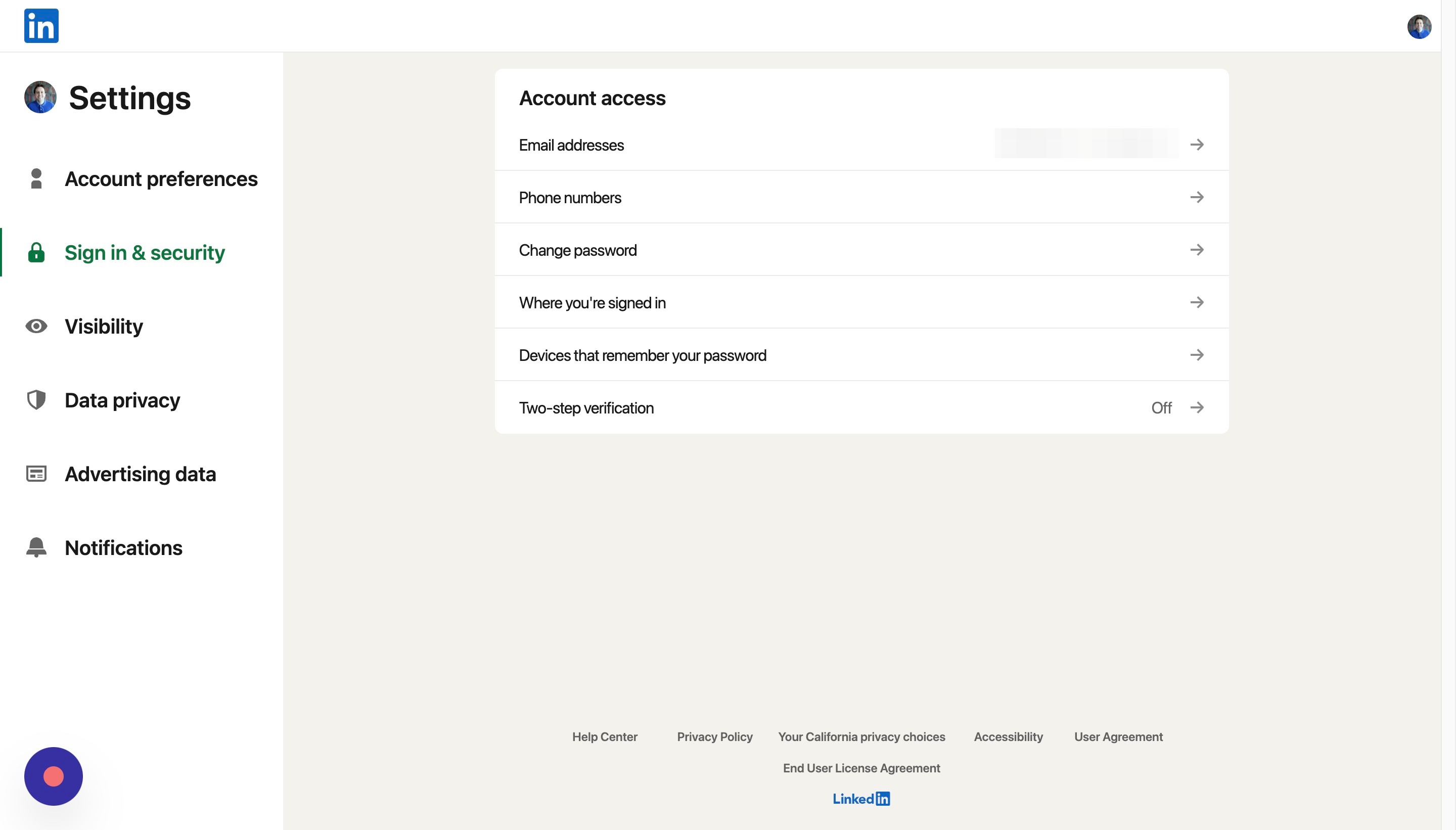
Click Where you're signed in
Step 25
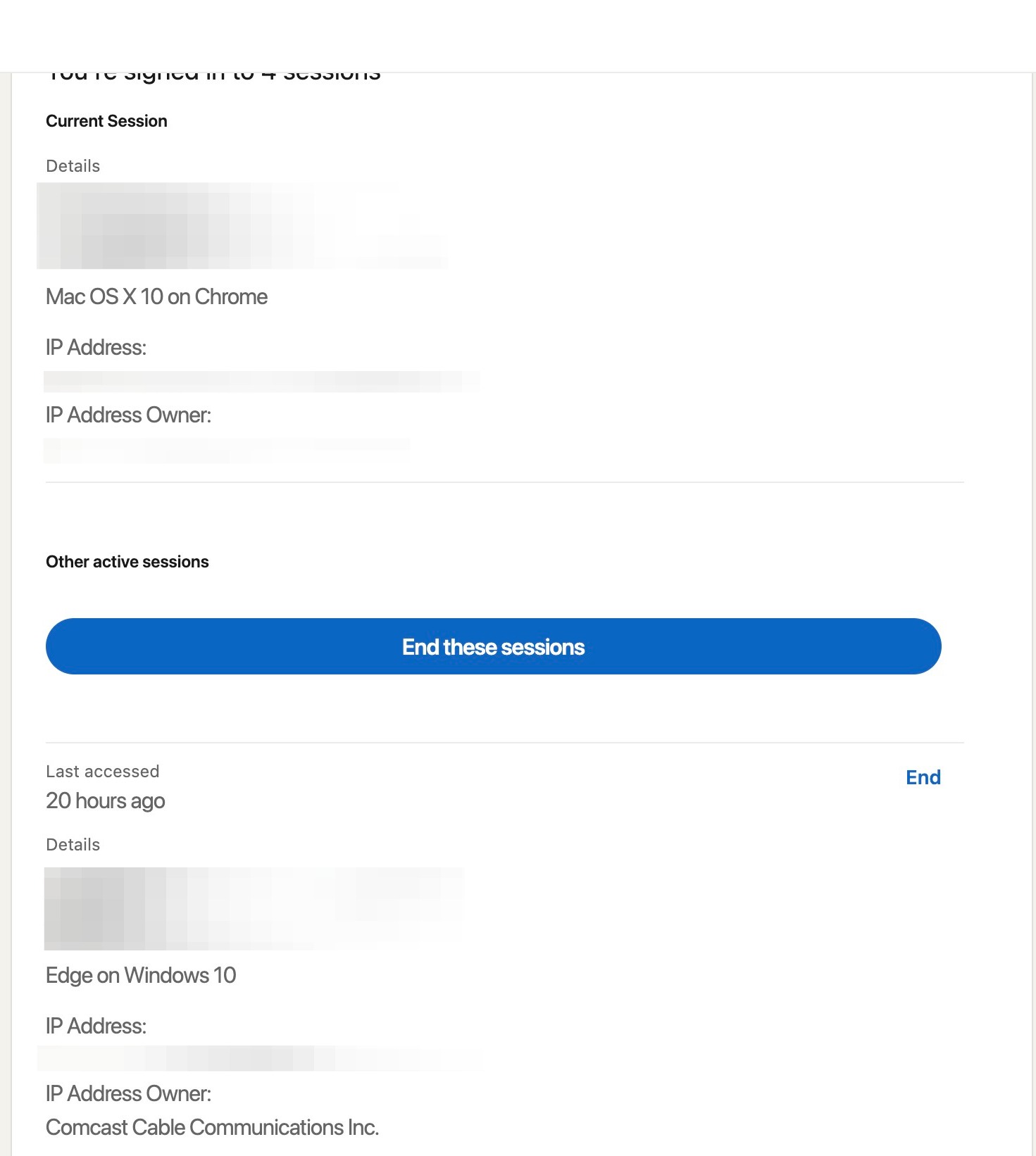
Here, you can see all of the locations where you've logged into your LinkedIn account. If any of these do not look familiar, click end these sessions
Adjusting Profile Privacy Settings
Step 26
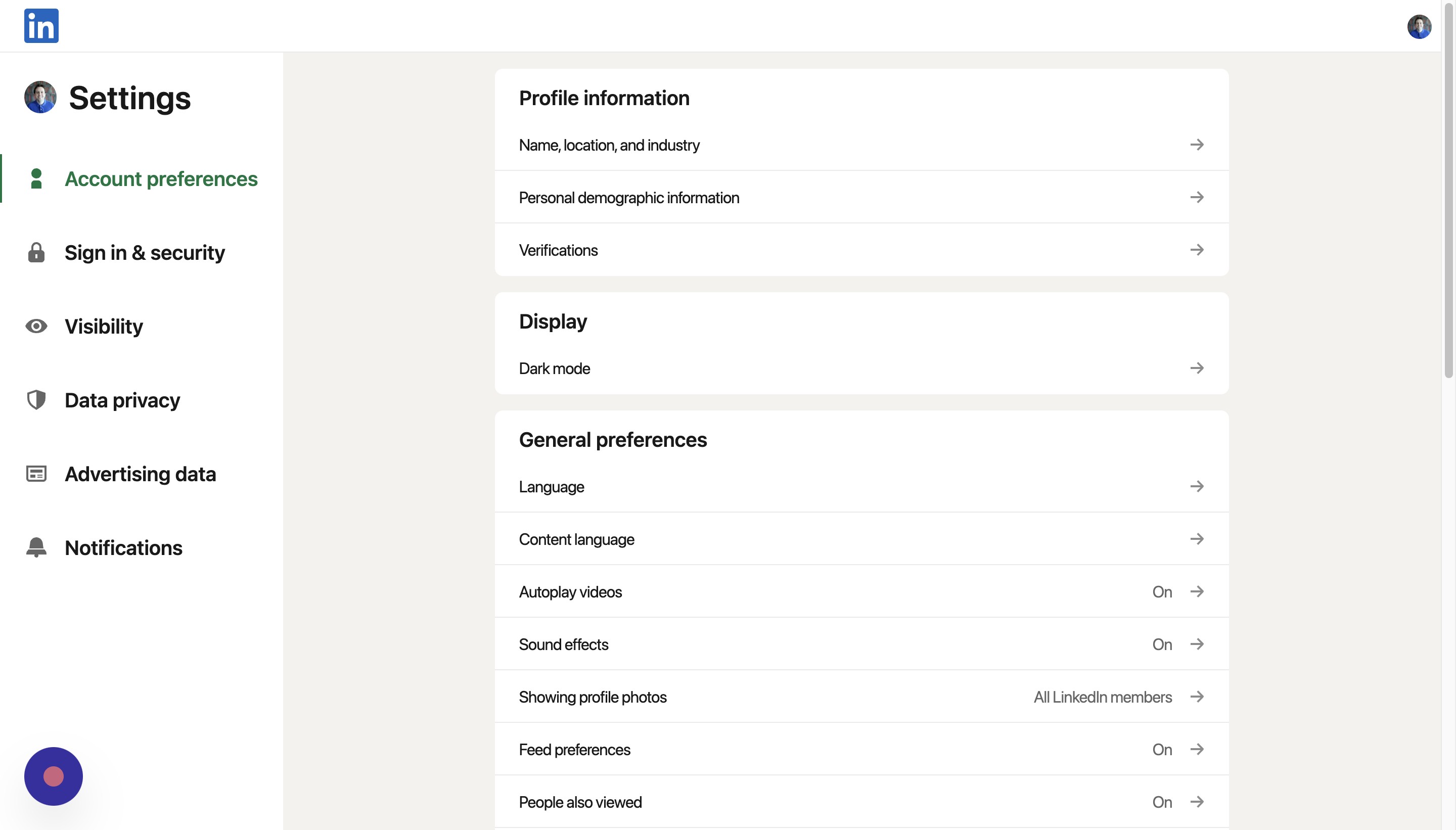
Go back to the settings page
Step 27
Click Visibility
Step 28
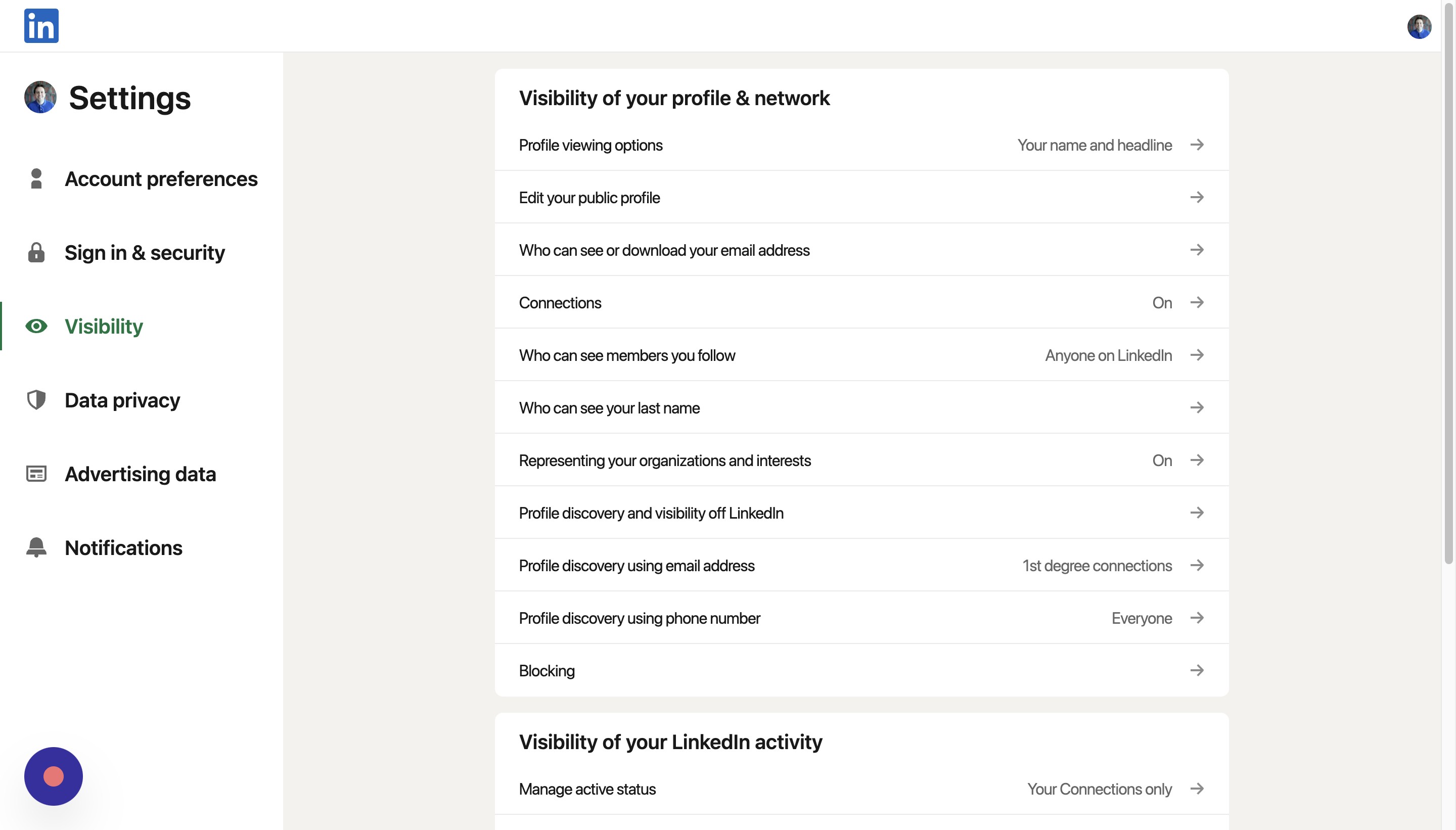
Click Profile viewing options
Step 29
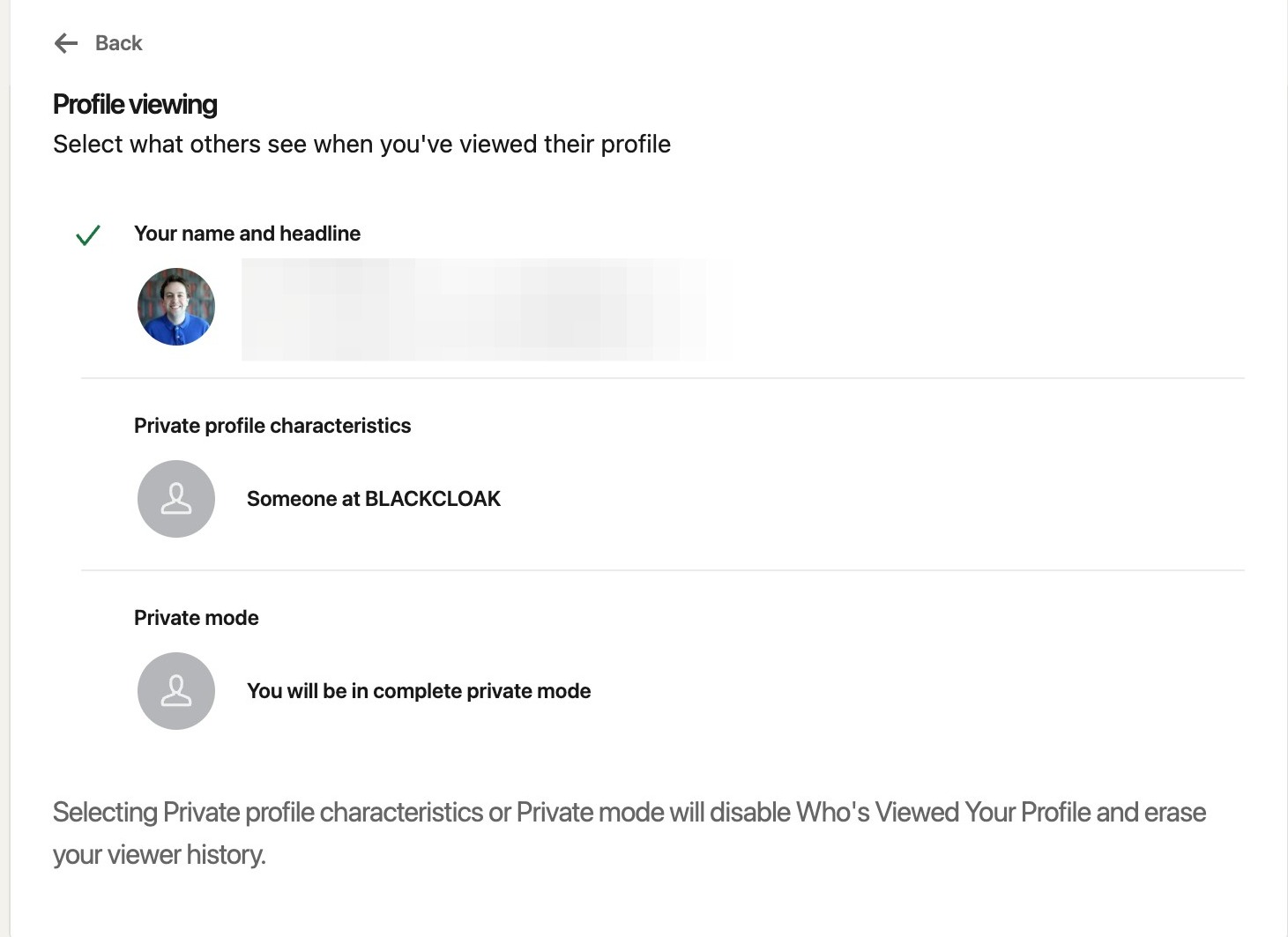
Here, you can adjust what people can see when they view your profile. It can either be your name and title, only the place where you work, or you will be in complete private mode
Step 30
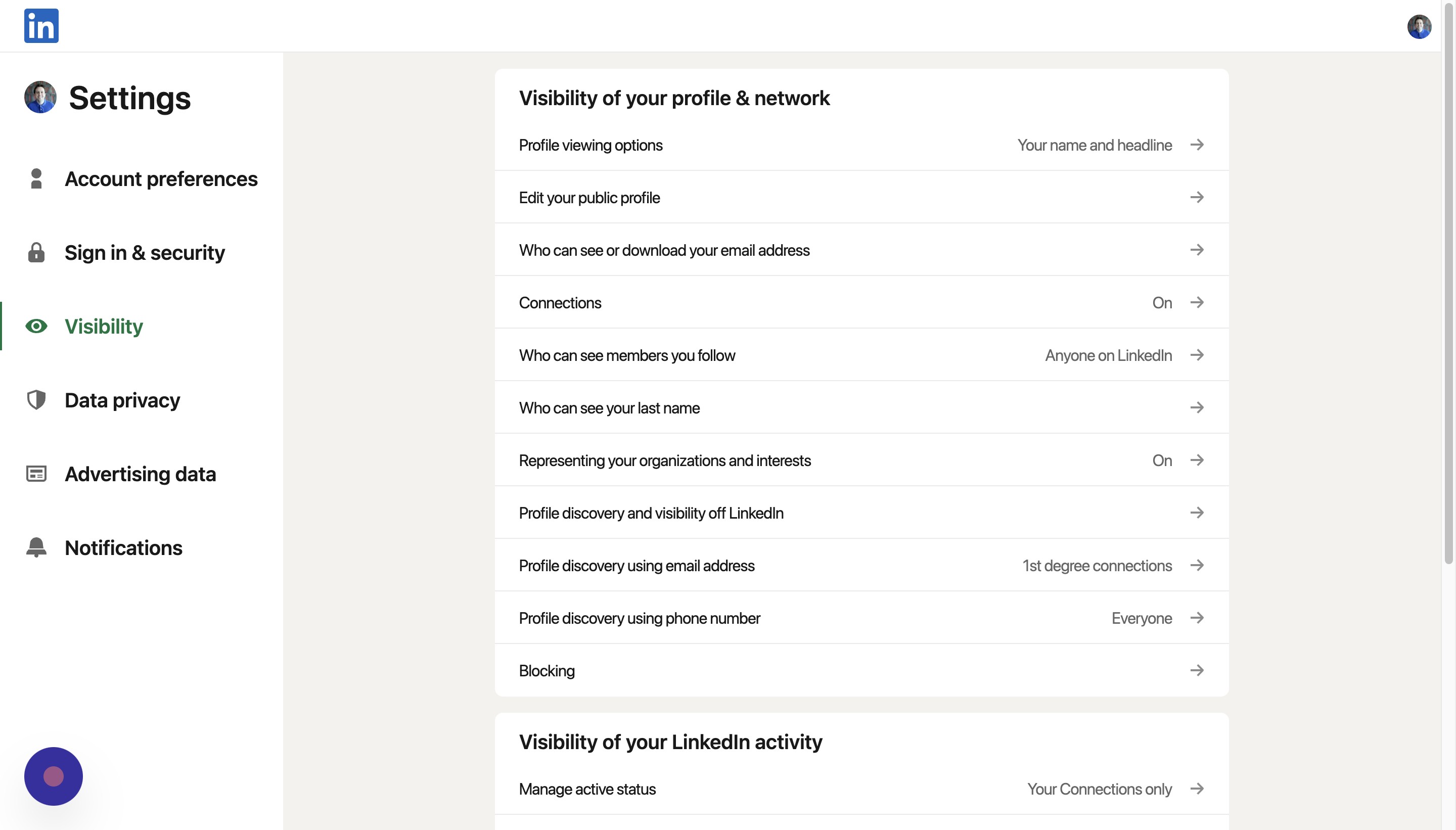
Back on the visibility page, click edit your public profile
Step 31
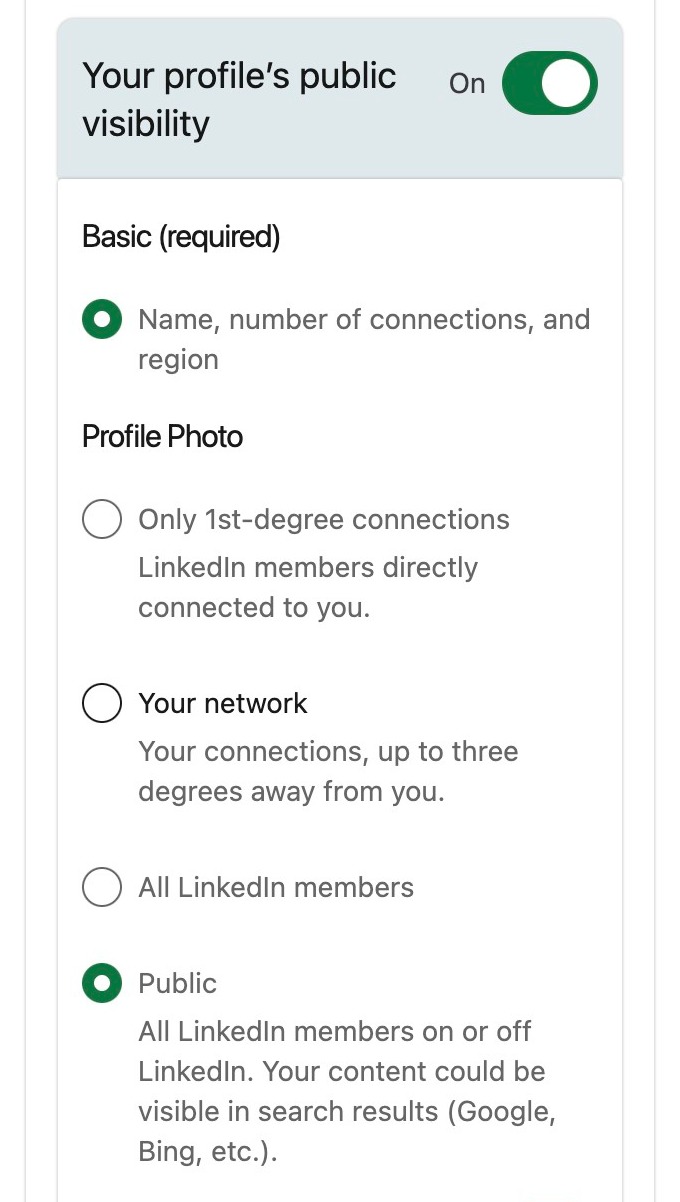
On the right hand side, you'll be able to choose whether your profile will be public. You can also determine who can see your profile photo
Step 32
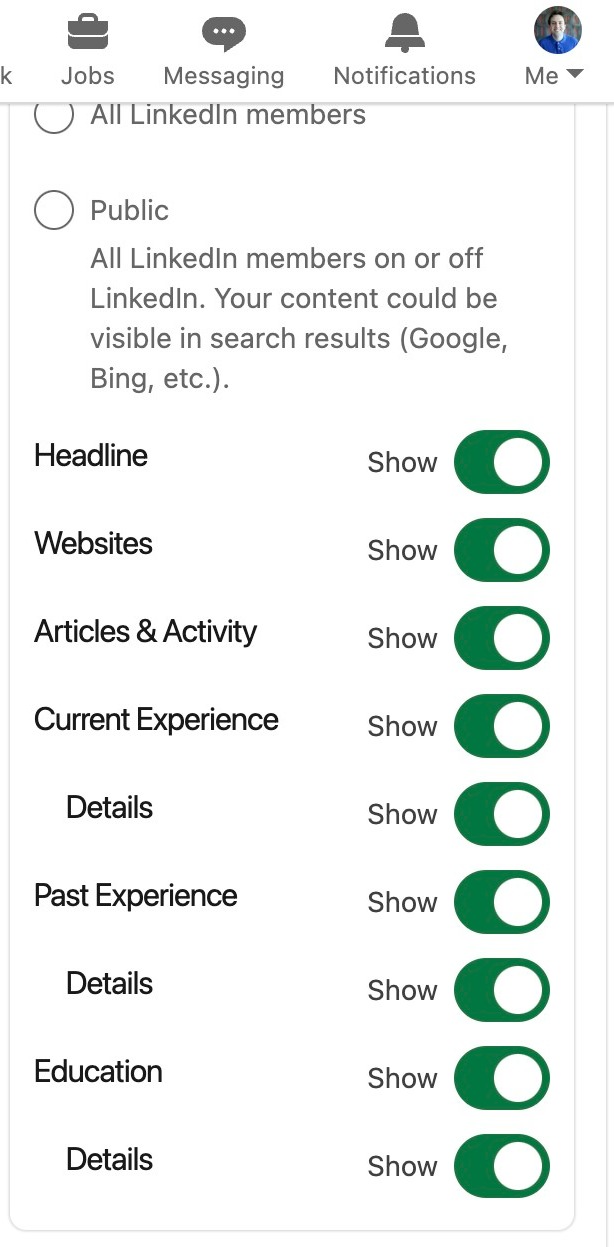
Further down, you can also choose whether anyone can see any of these pieces of information
Step 33
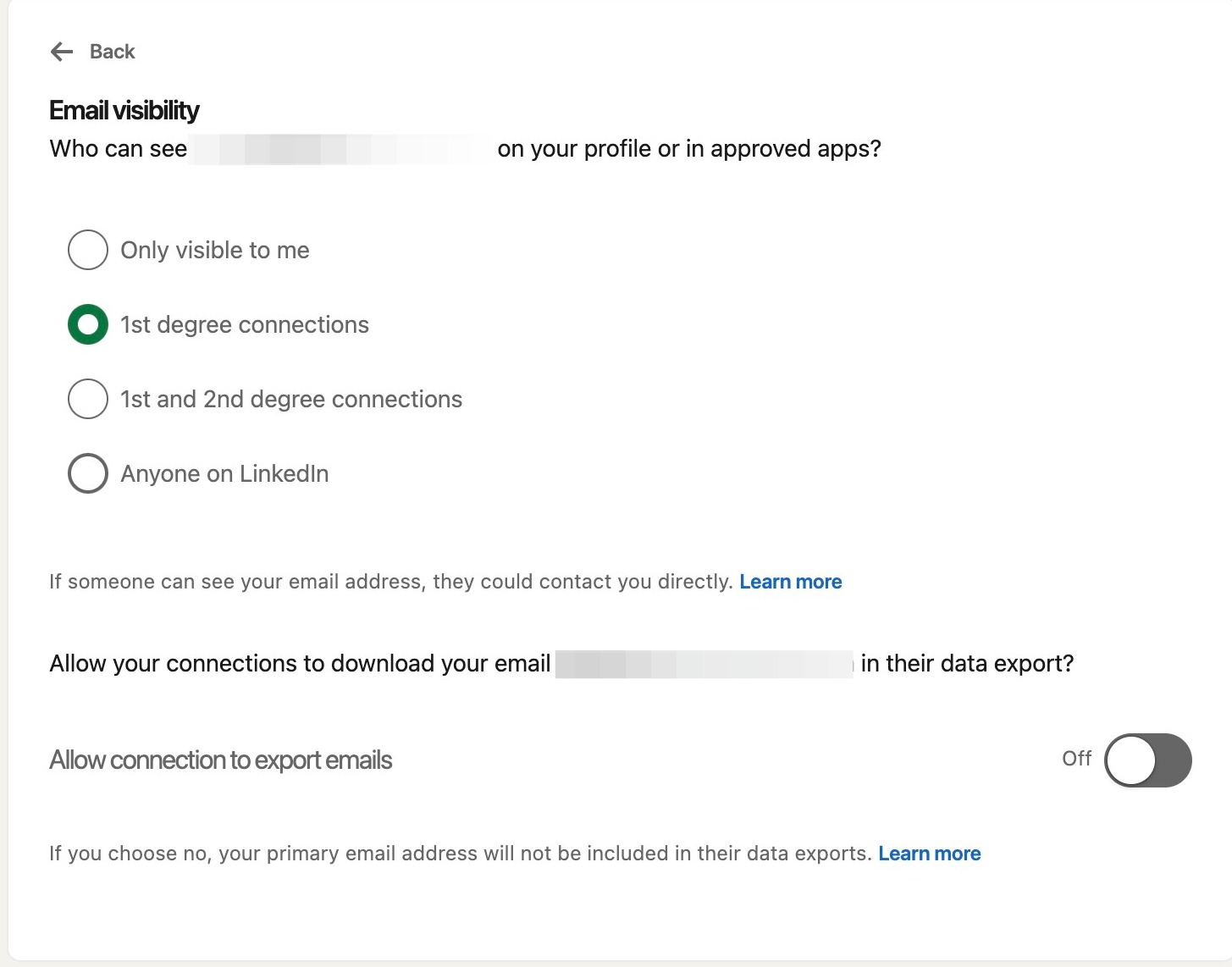
Back on the visibility page, click who can see or download your email address
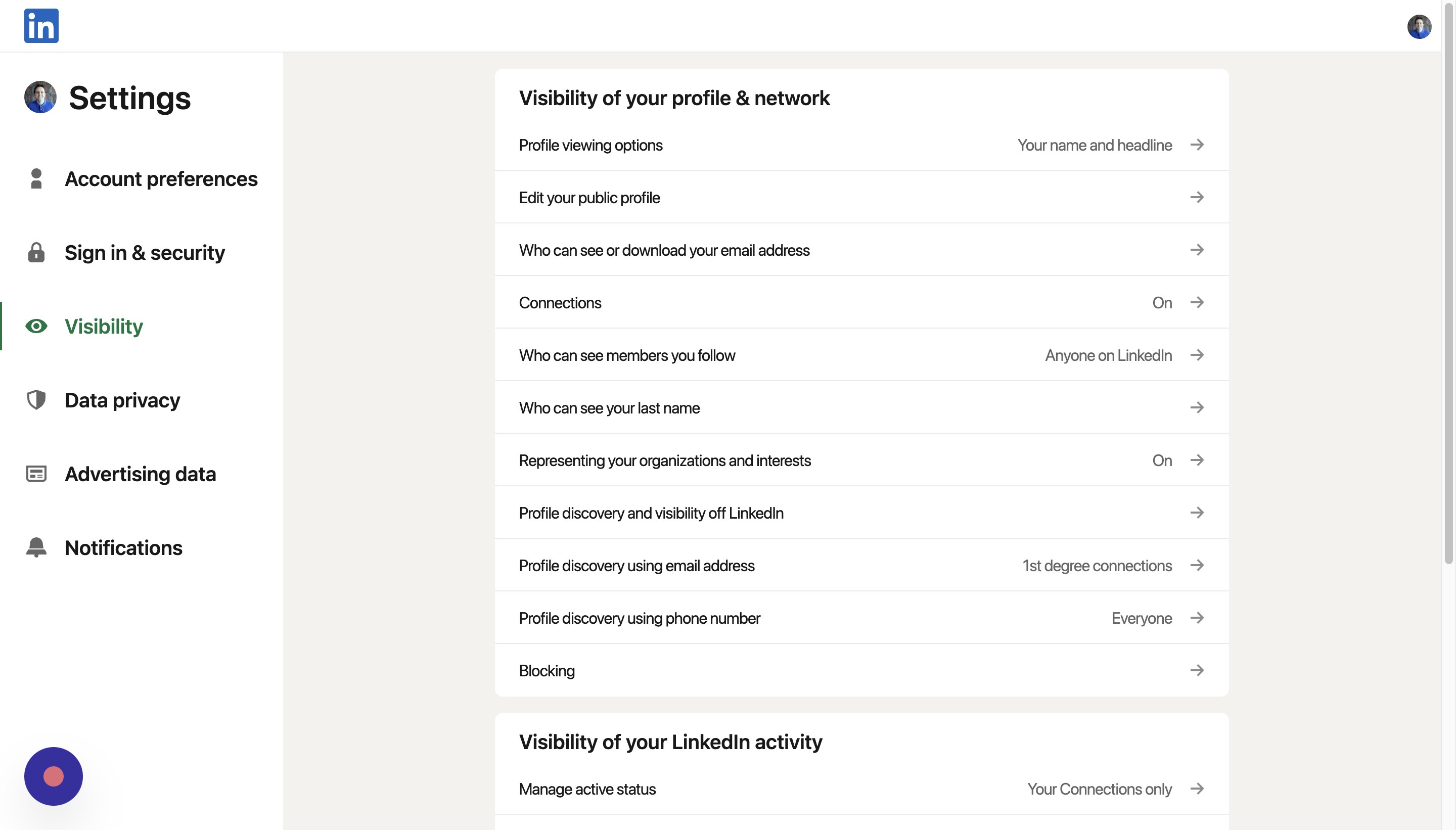
Step 34
Here you can choose who can see your email address in your profile
Step 35
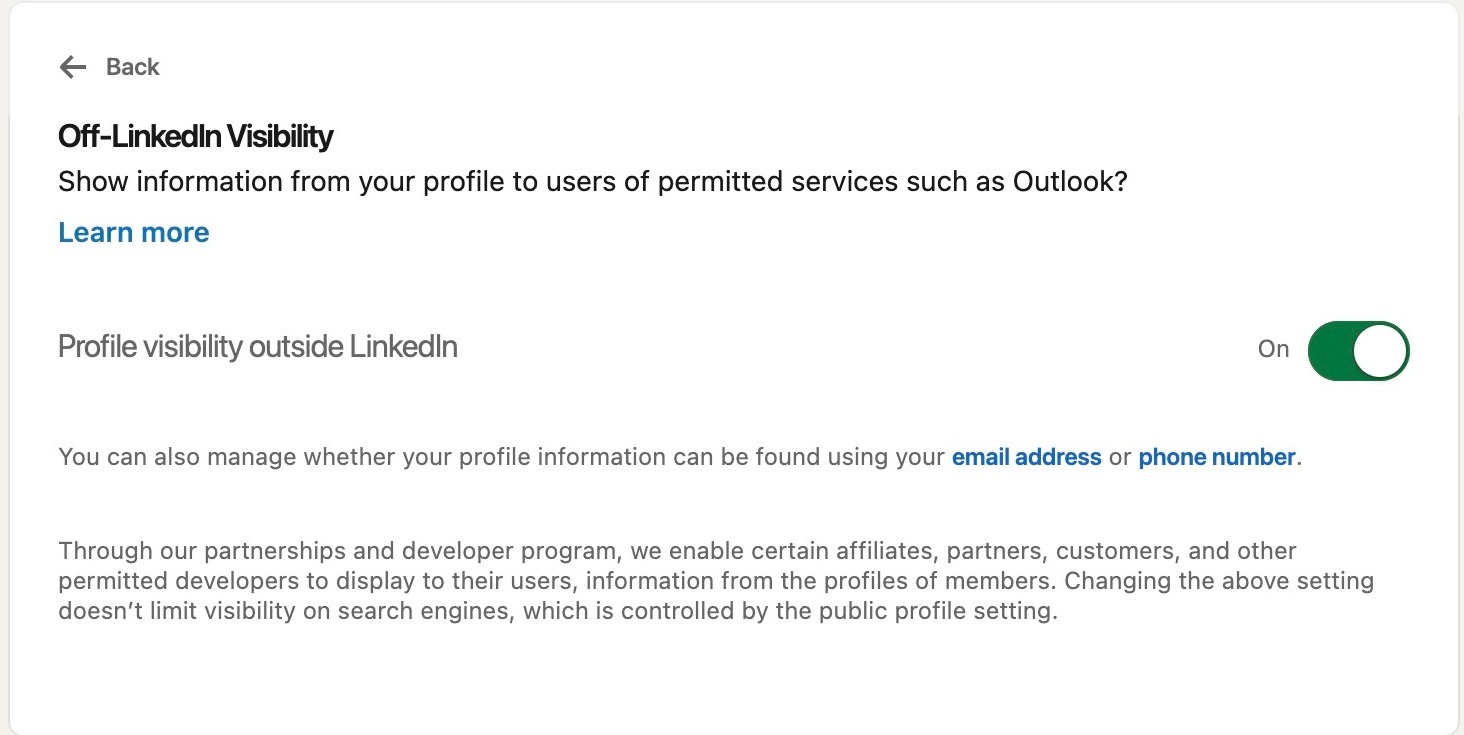
Back on the visibility page, click Profile discovery and visibility off LinkedIn
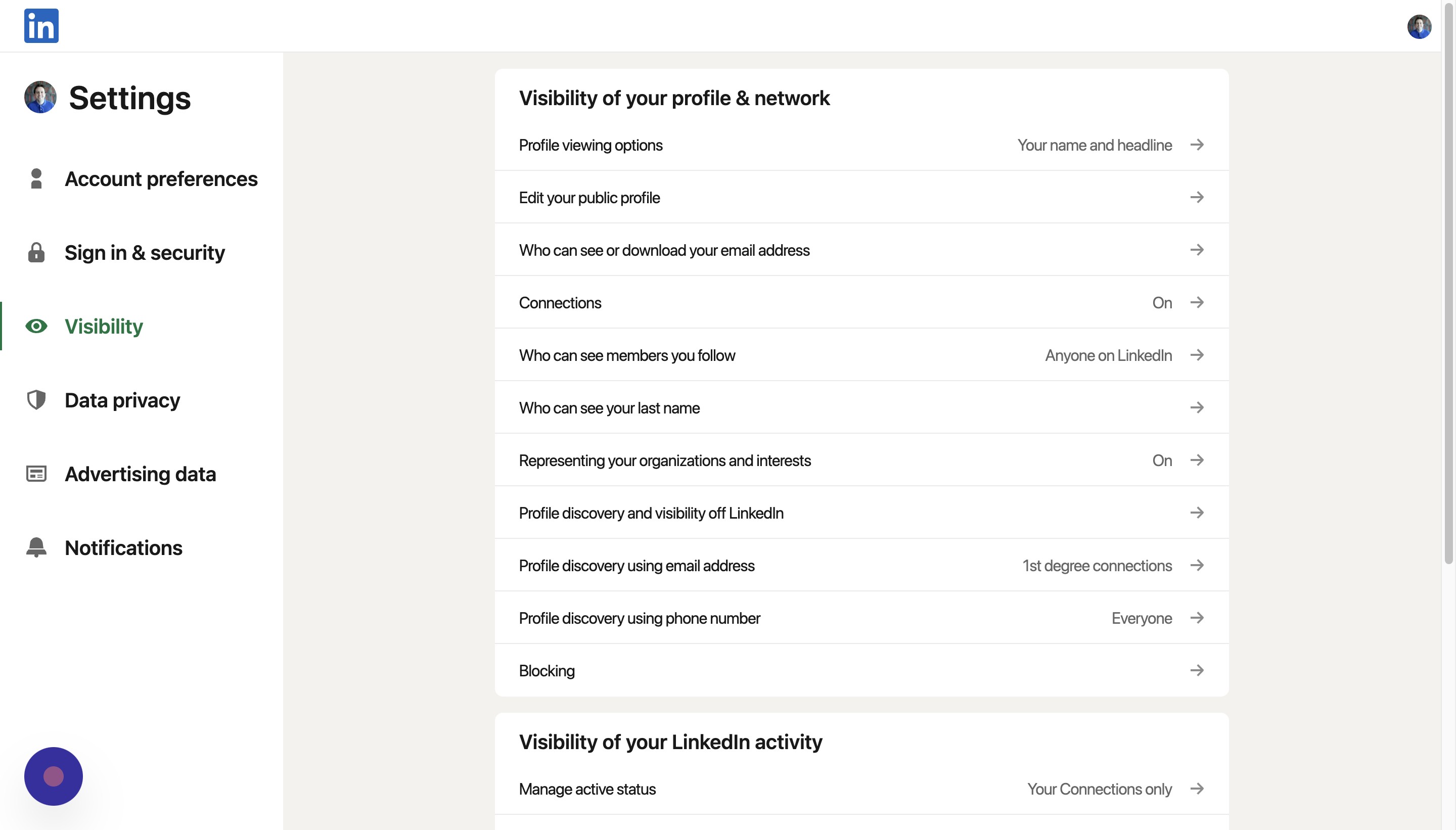
Step 36
Here, you can choose whether people that use certain permitted services can view your profile
Step 37
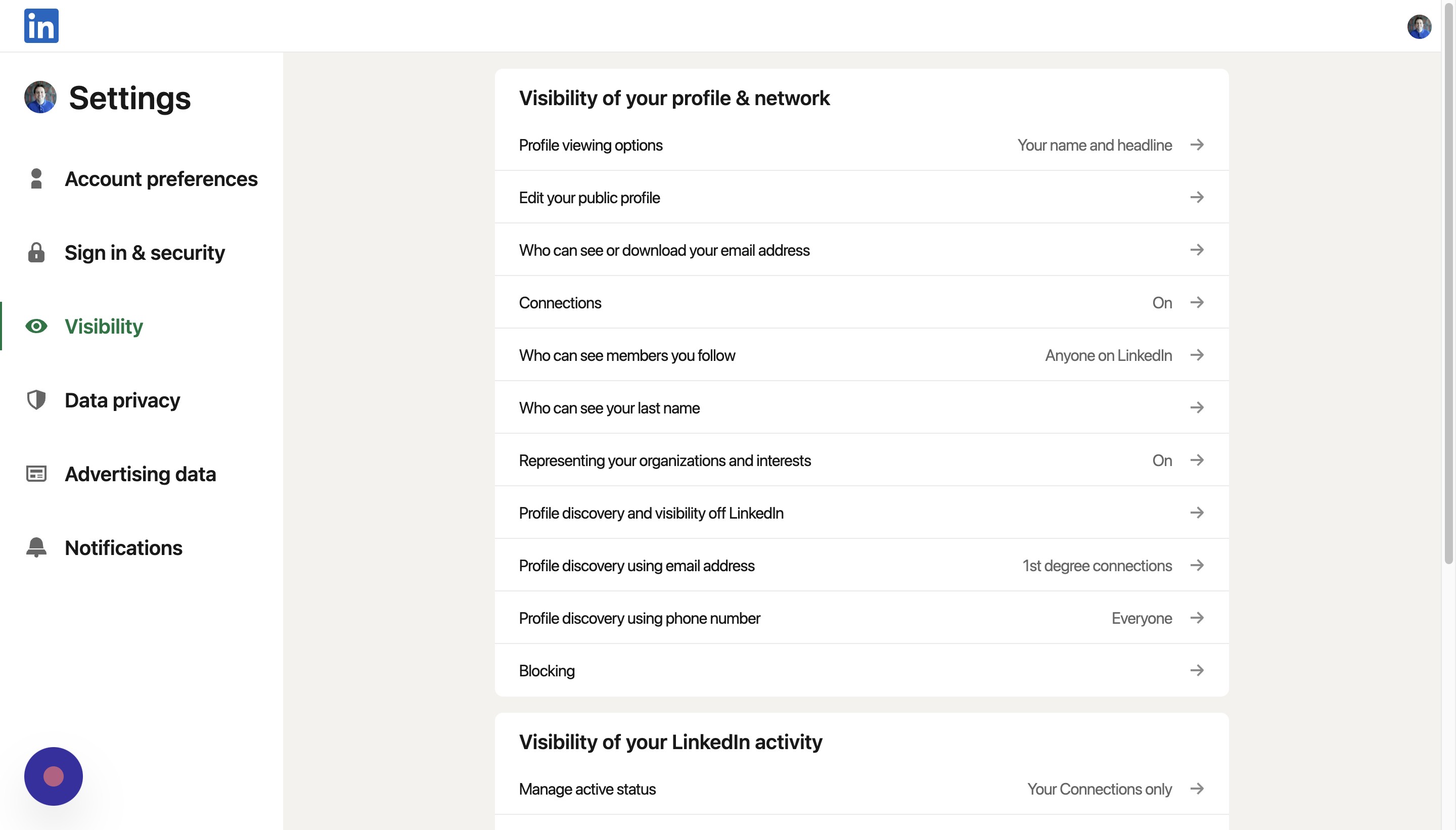
Back on the visibility page, click Profile discovery using email address
Step 38
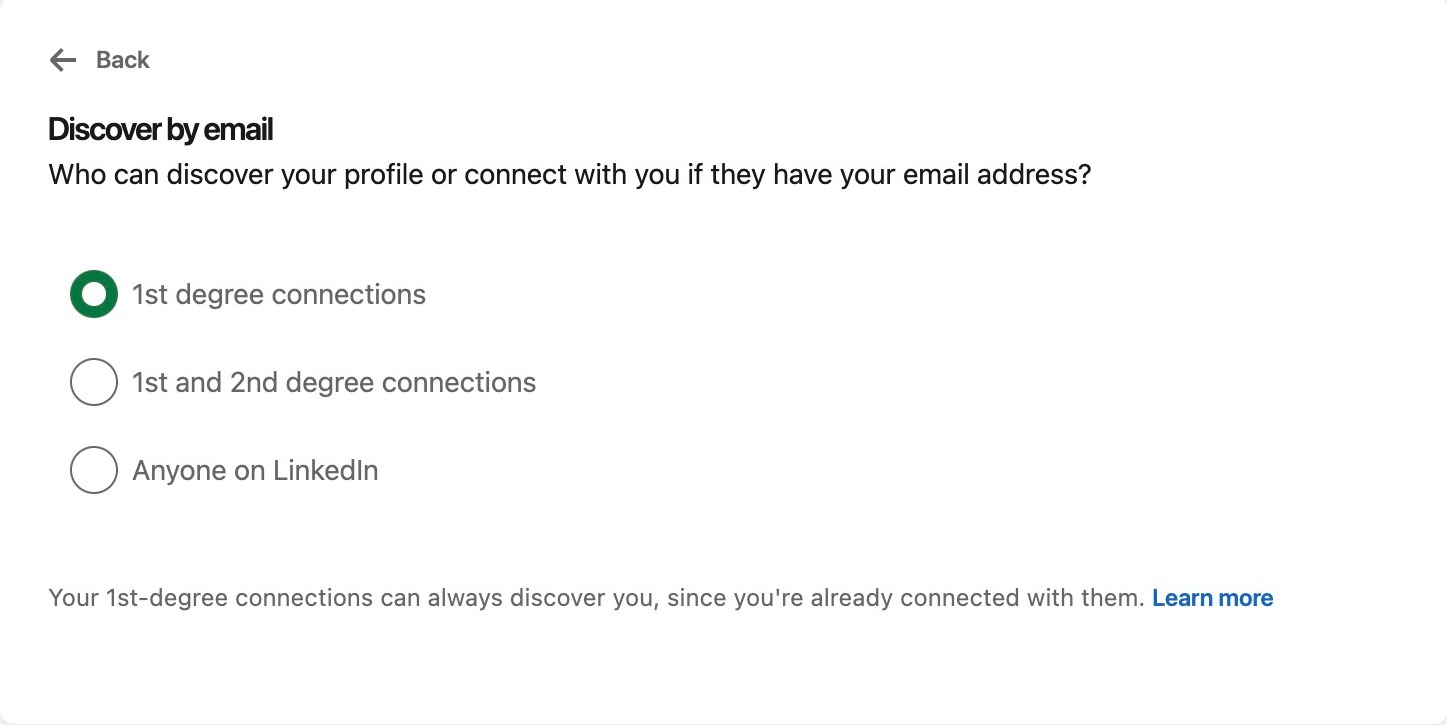
Here, you can choose who can discover your profile or connect with you if they have your email address
Step 39
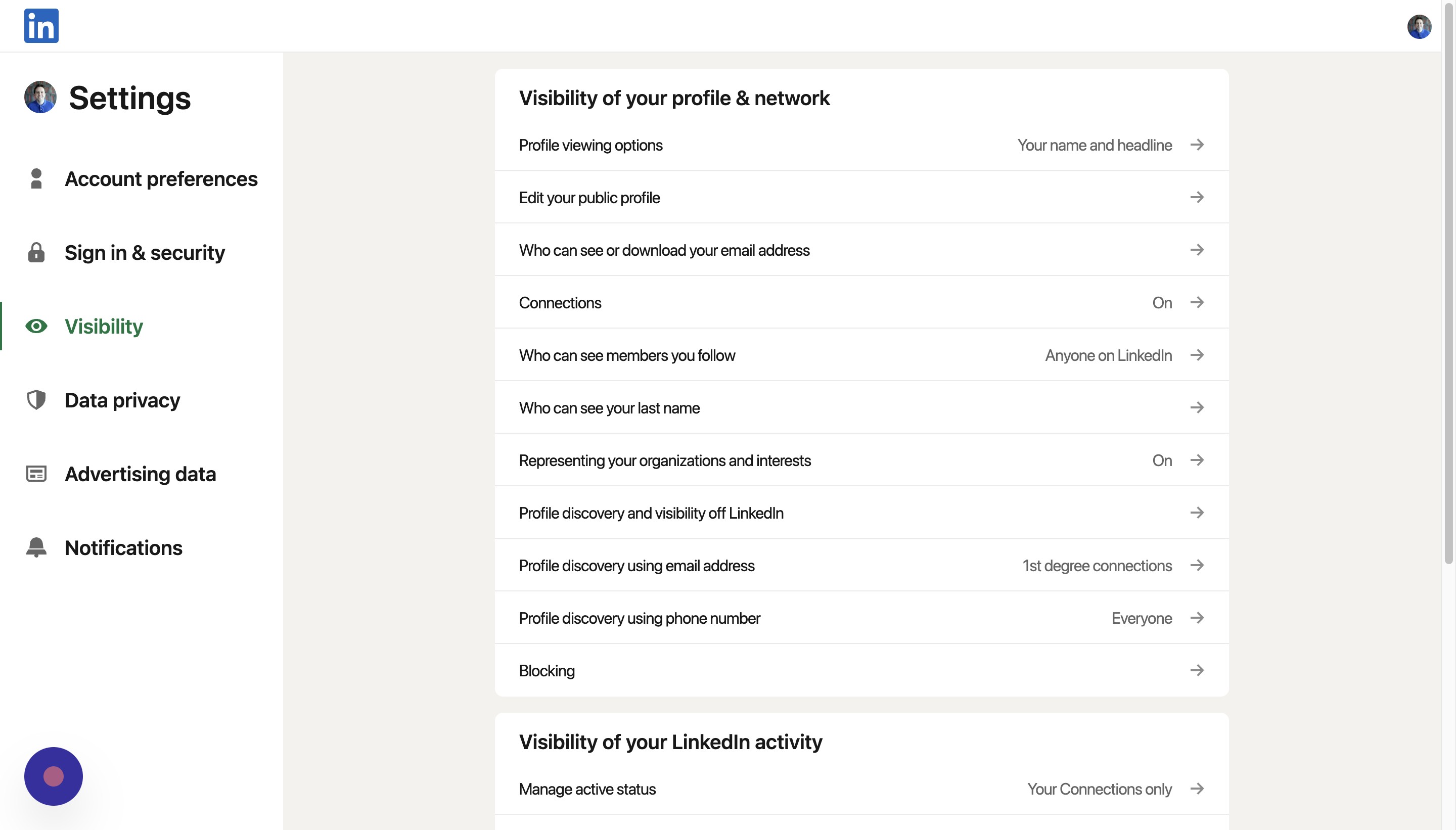
On the visibility page, click Profile discovery using phone number
Step 40
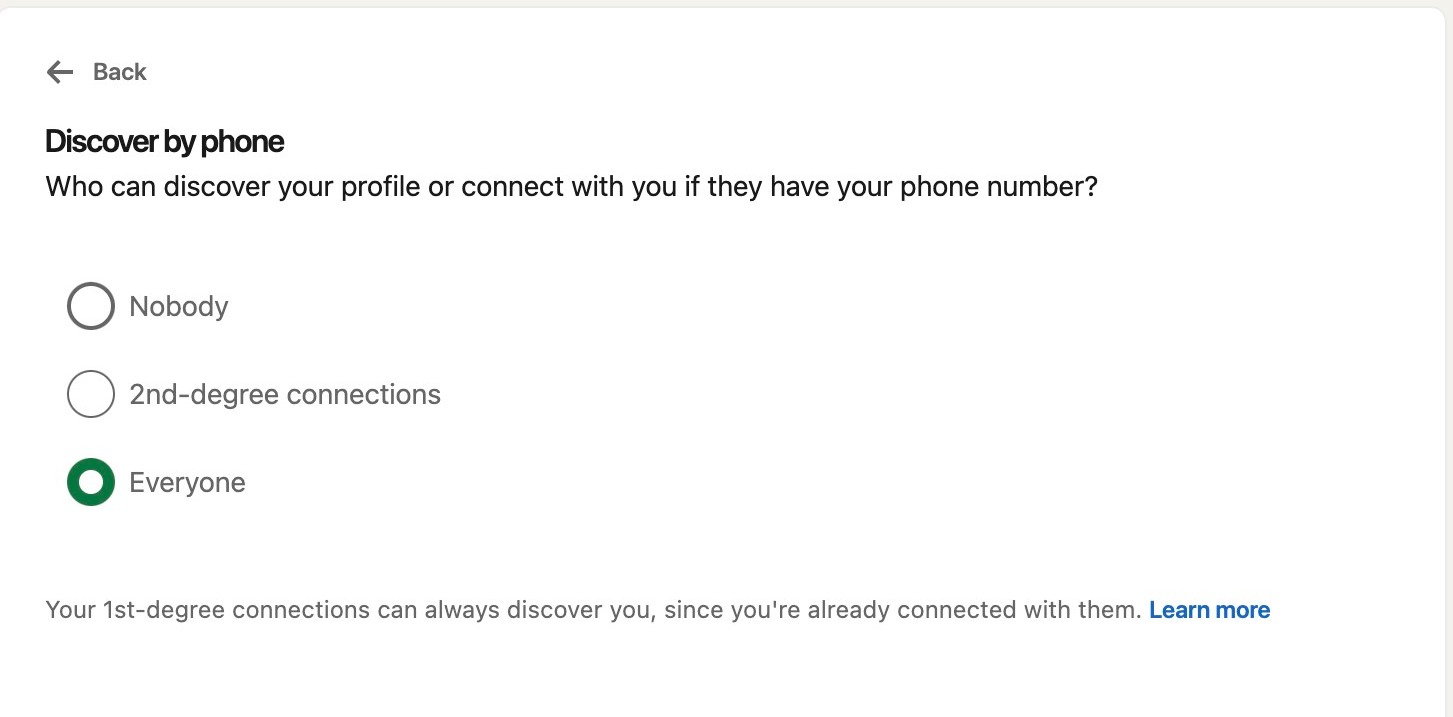
Here, you can choose who can discover your profile or connect with you if they have your phone number
Managing Post Privacy
Step 41
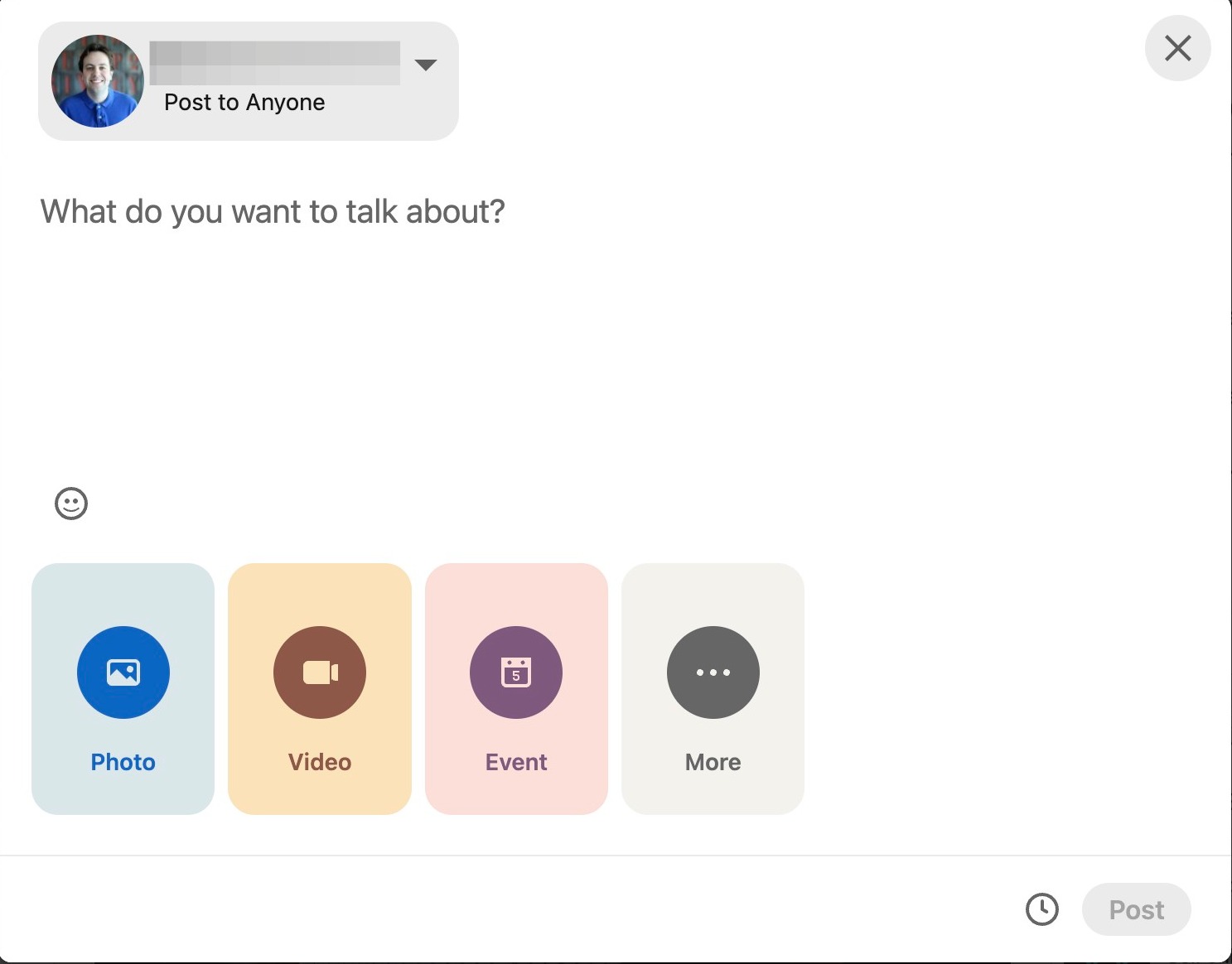
When you are going to post, click on the box that says your name
Step 42
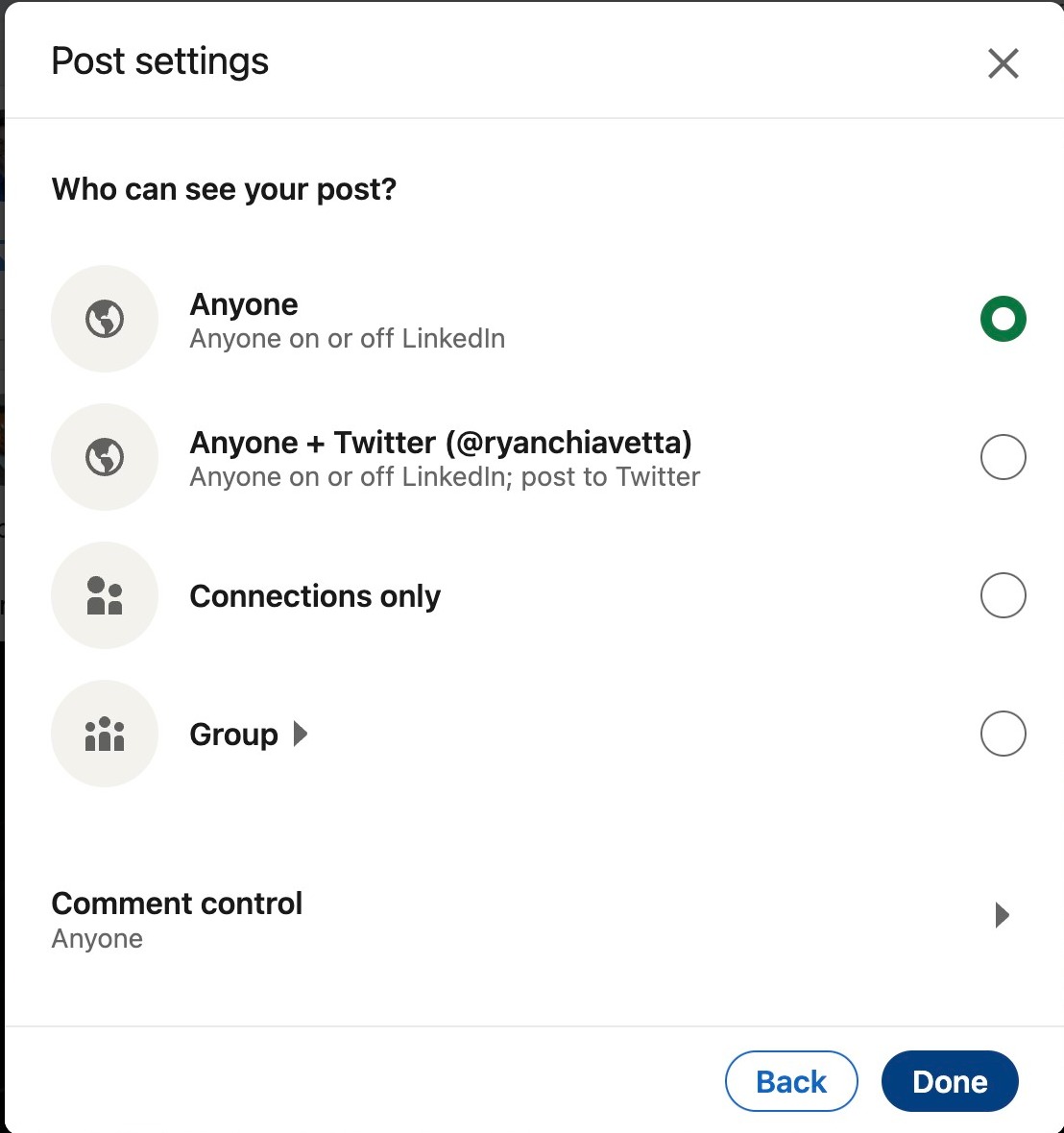
Here you can choose whether your post can be seen by anyone on LinkedIn or only by your connections. You can also choose to send your post to any linked social media platforms, or certain groups you have joined. After you made your decision, click done
Managing Tagging Settings and Active Status
Step 43
Go back to the settings page
Step 44
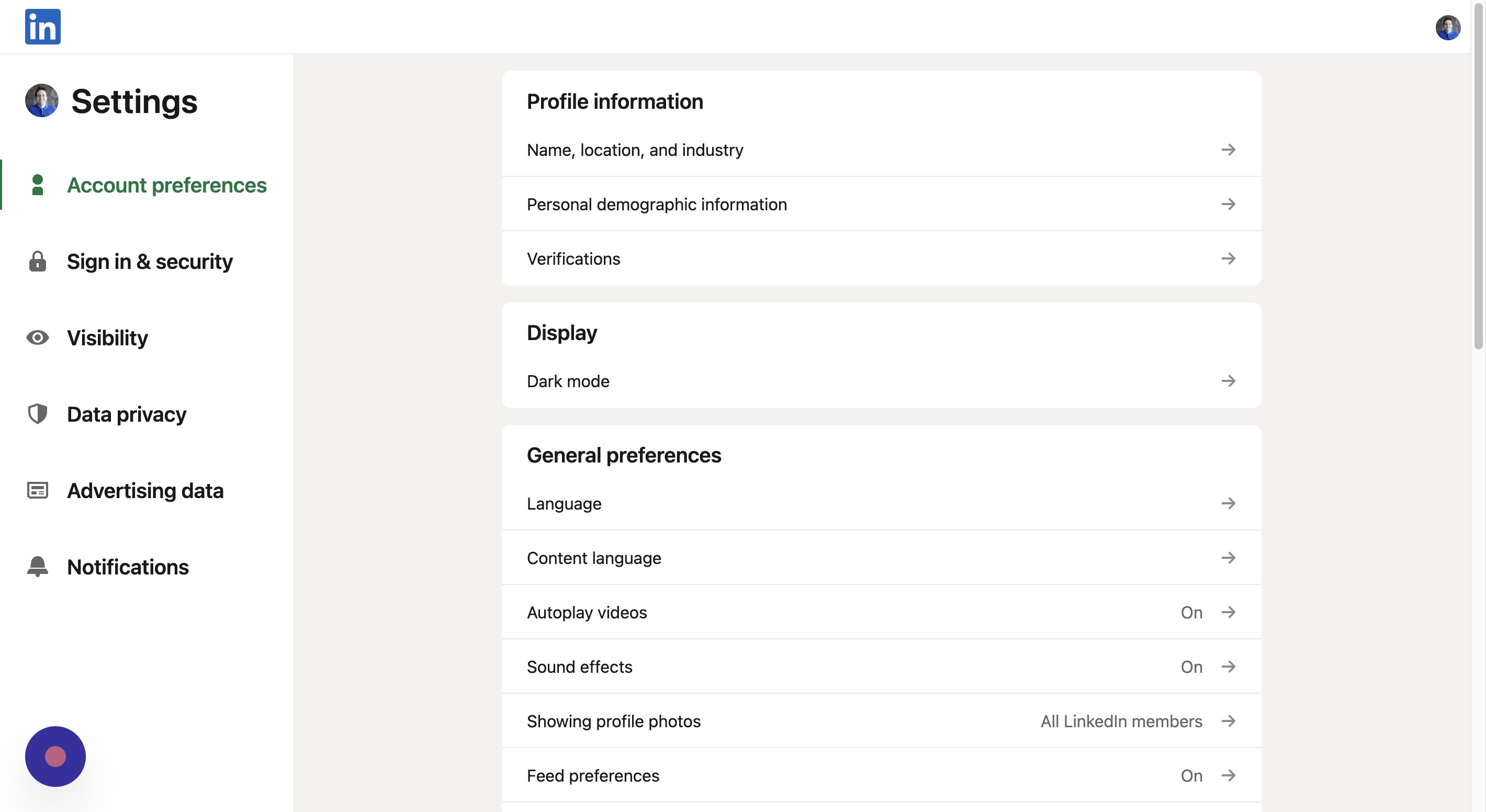
Click Visibility
Step 45
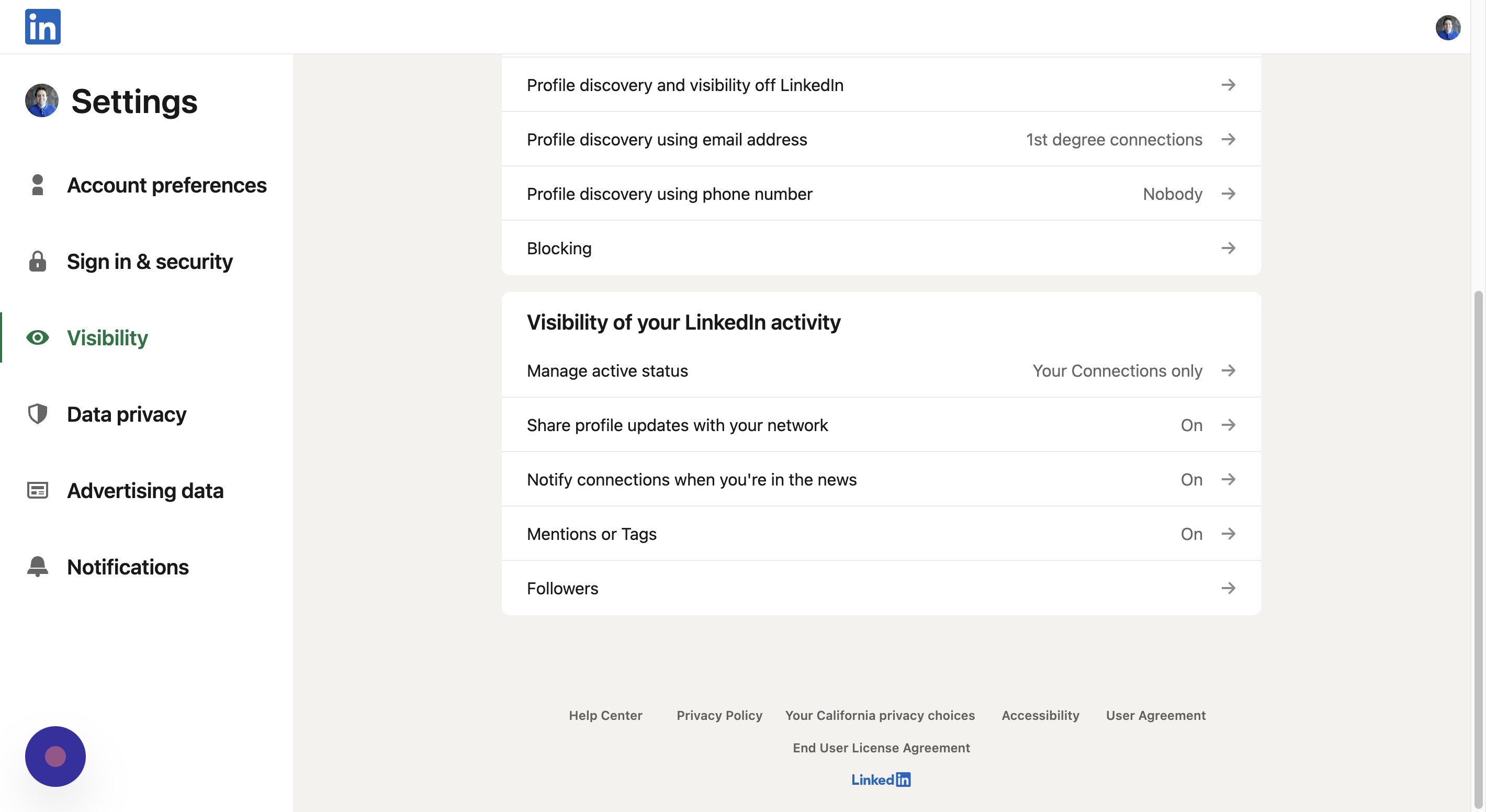
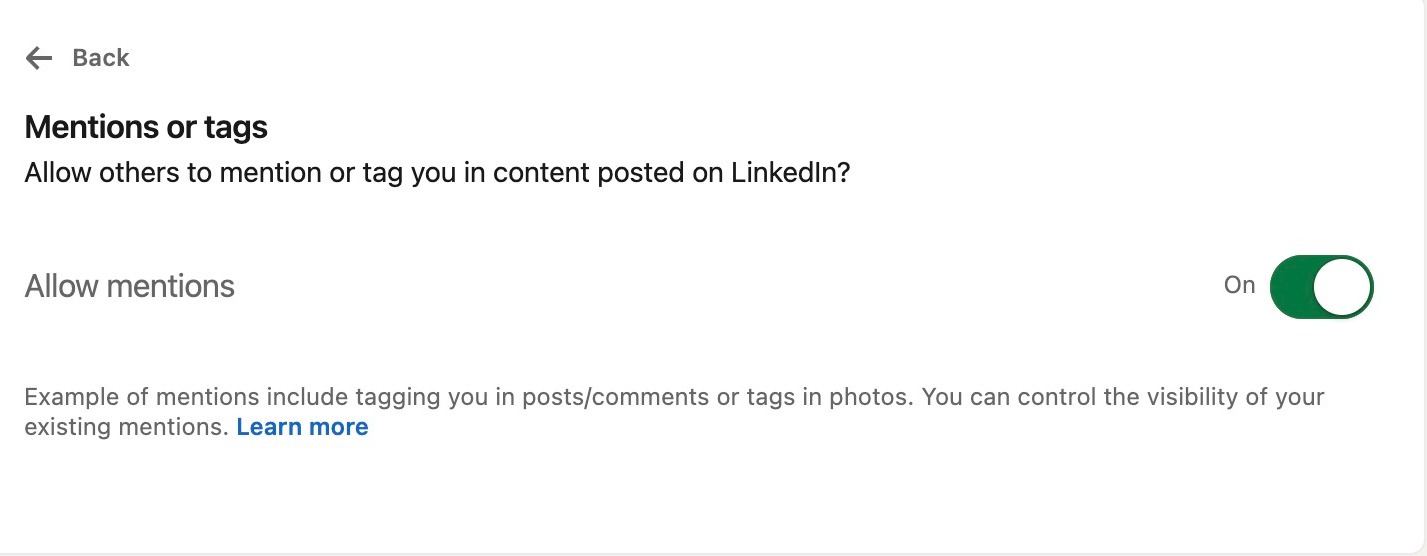
Scroll down and click Mentions or Tags
Step 46
Click this button if you want to allow other LinkedIn users to tag you in content posted to the platform
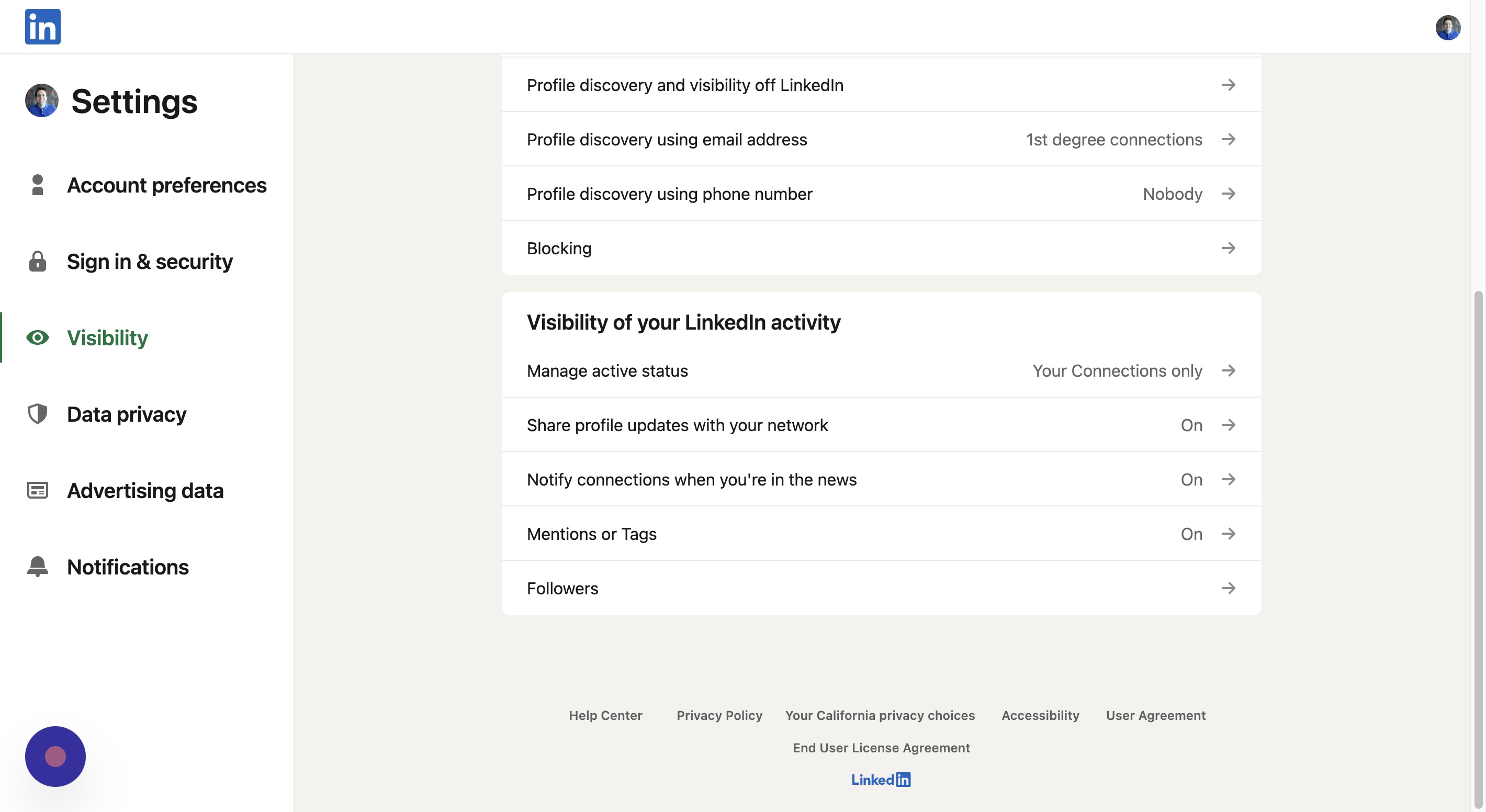
Step 47
On the visibility page, click manage active status
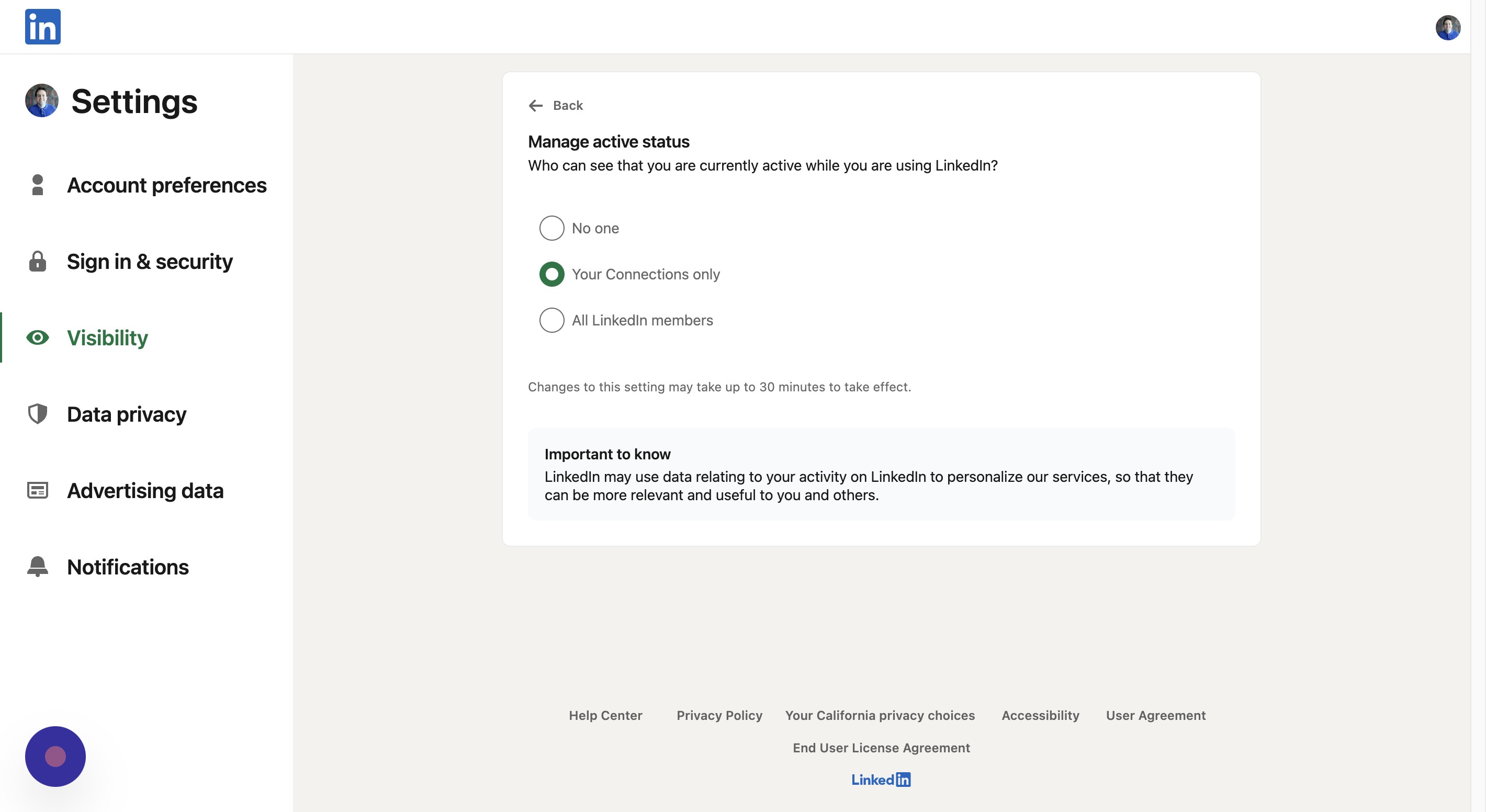
Step 48
Here, you can choose who can see that you are currently active on LinkedIn
Step 49
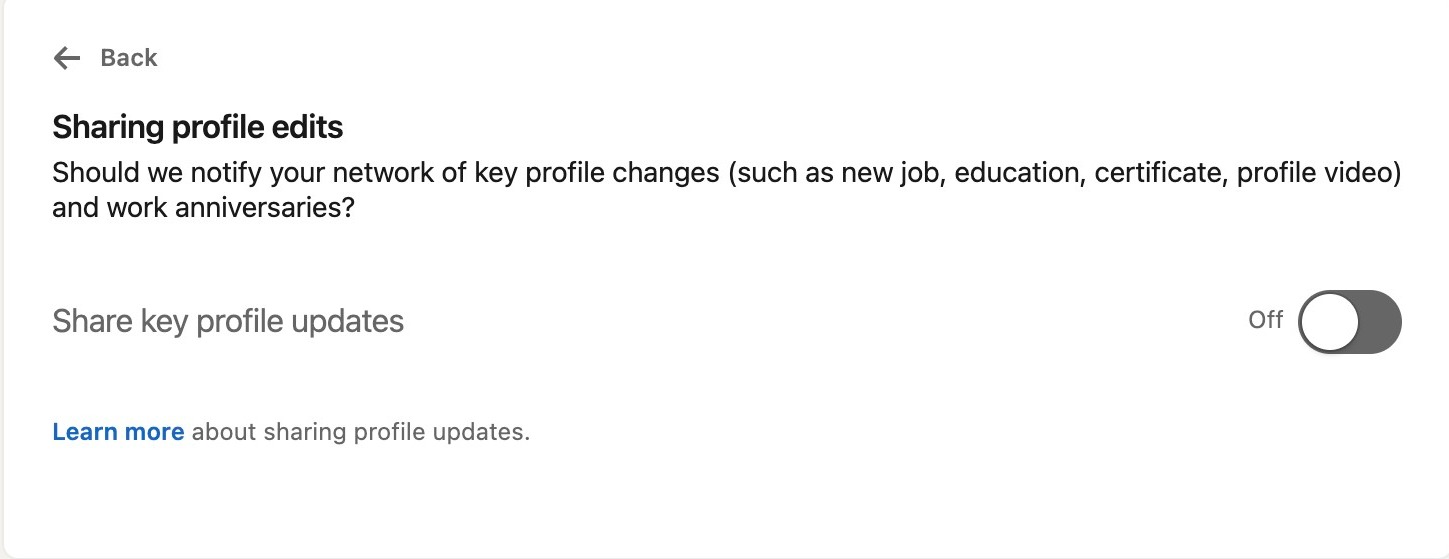
On the visibility page, click Share profile updates with your network
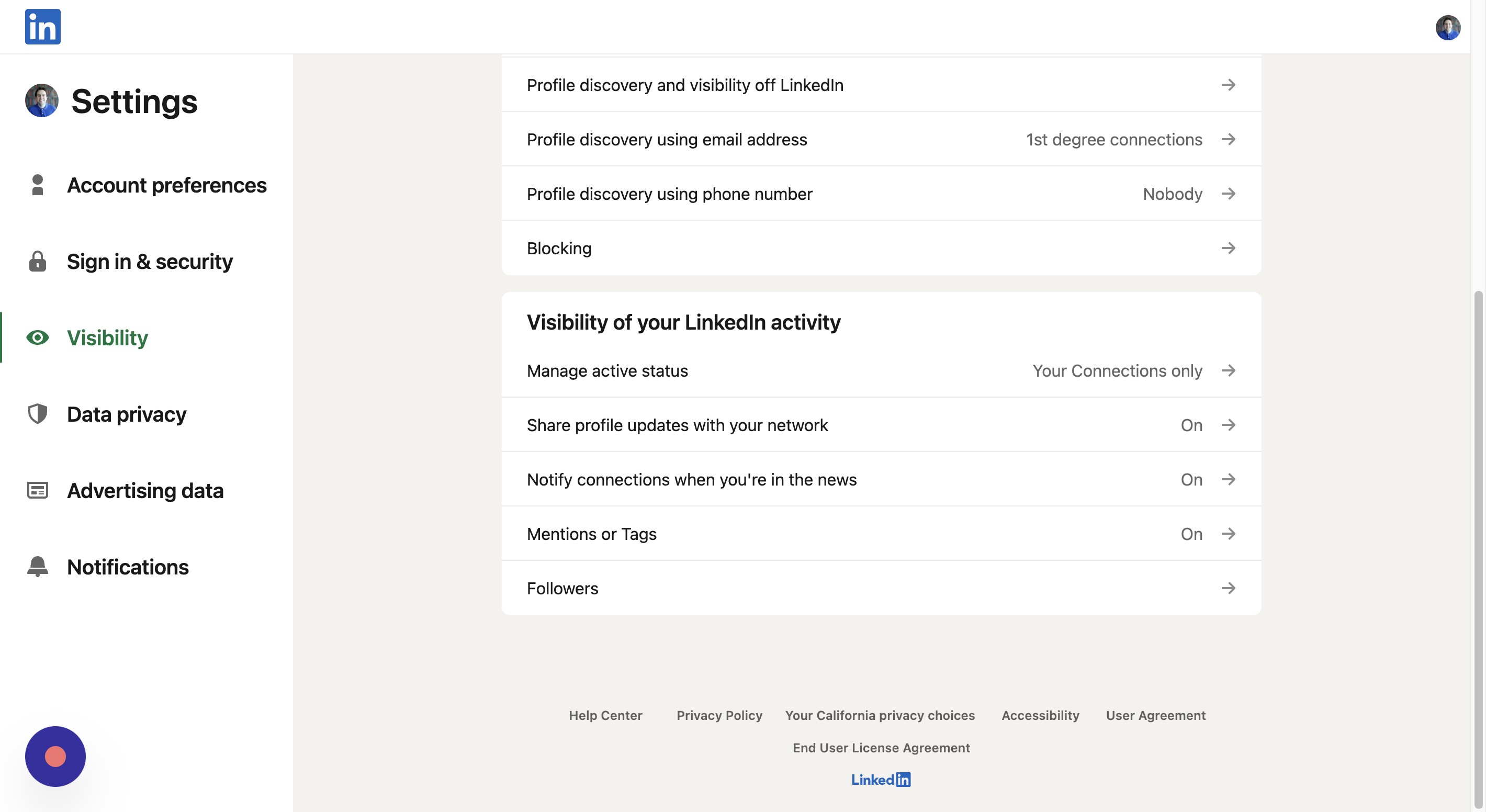
Step 50
Here, you can choose whether any profile edits will be made public to other members in your network
Adjusting Ad Preferences
Step 51
Go back to the settings page
Step 52
Navigate to [https://www.linkedin.com/mypreferences/d/categories/account](https://www.linkedin.com/mypreferences/d/categories/account)
Step 53
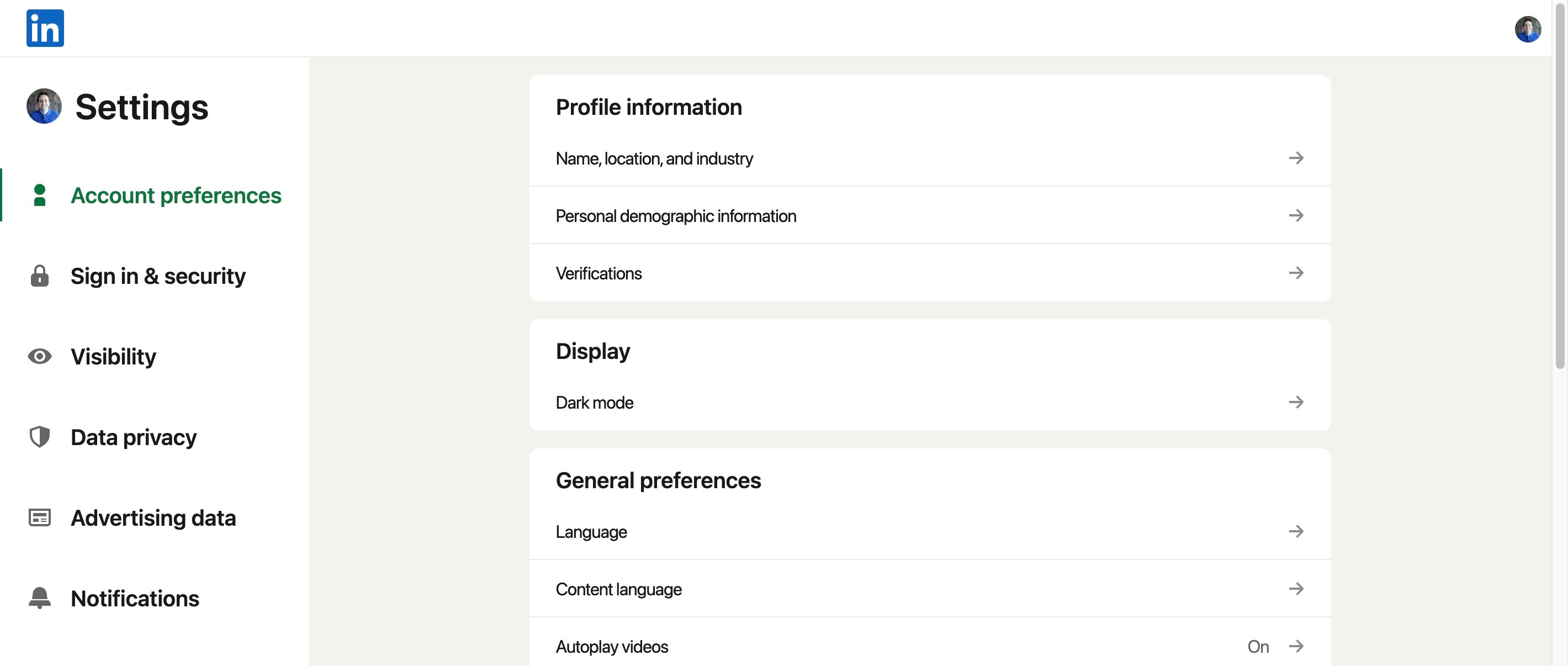
Click Advertising data
Step 54
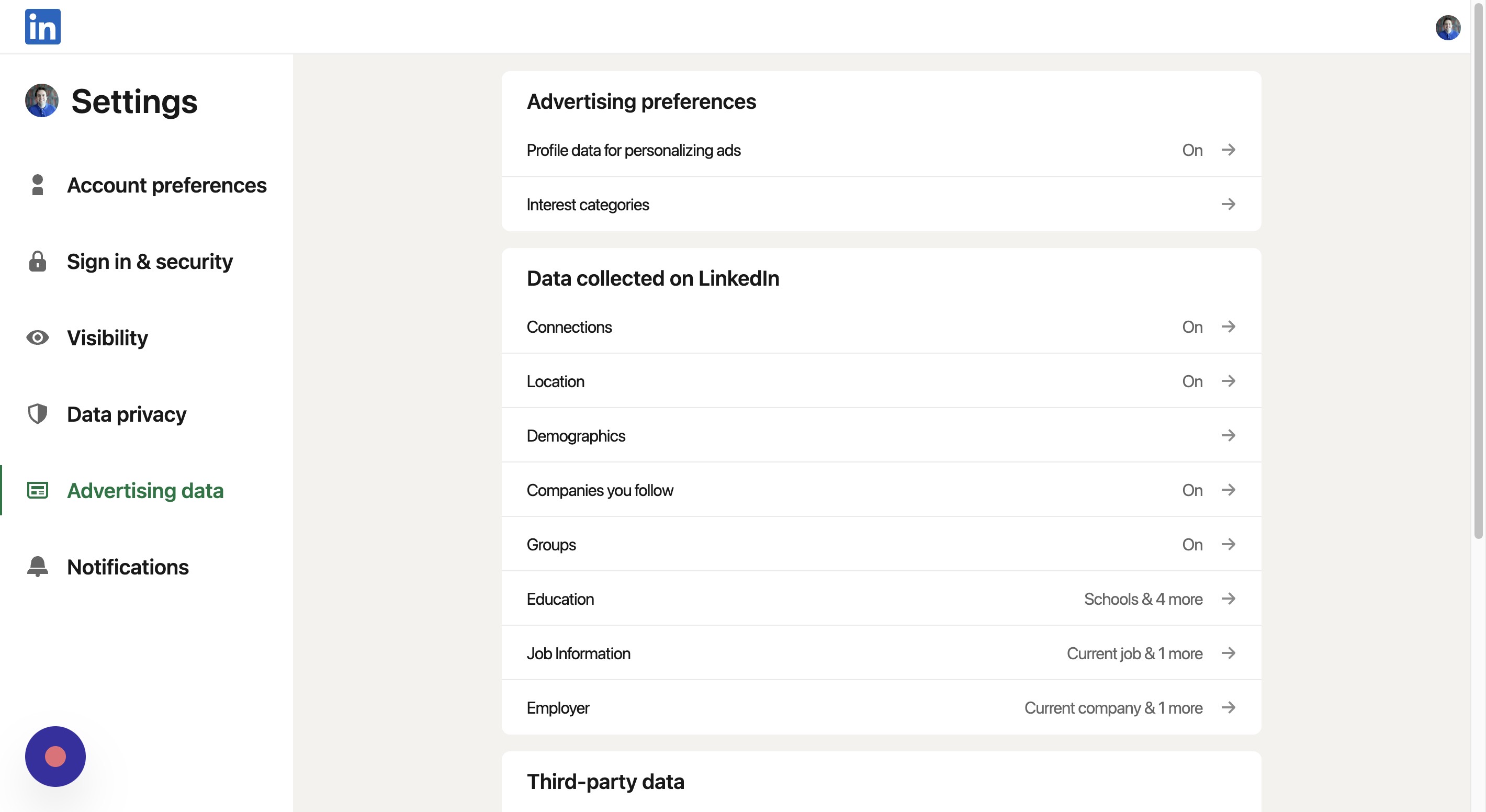
Click Profile data for personalizing ads
Step 55
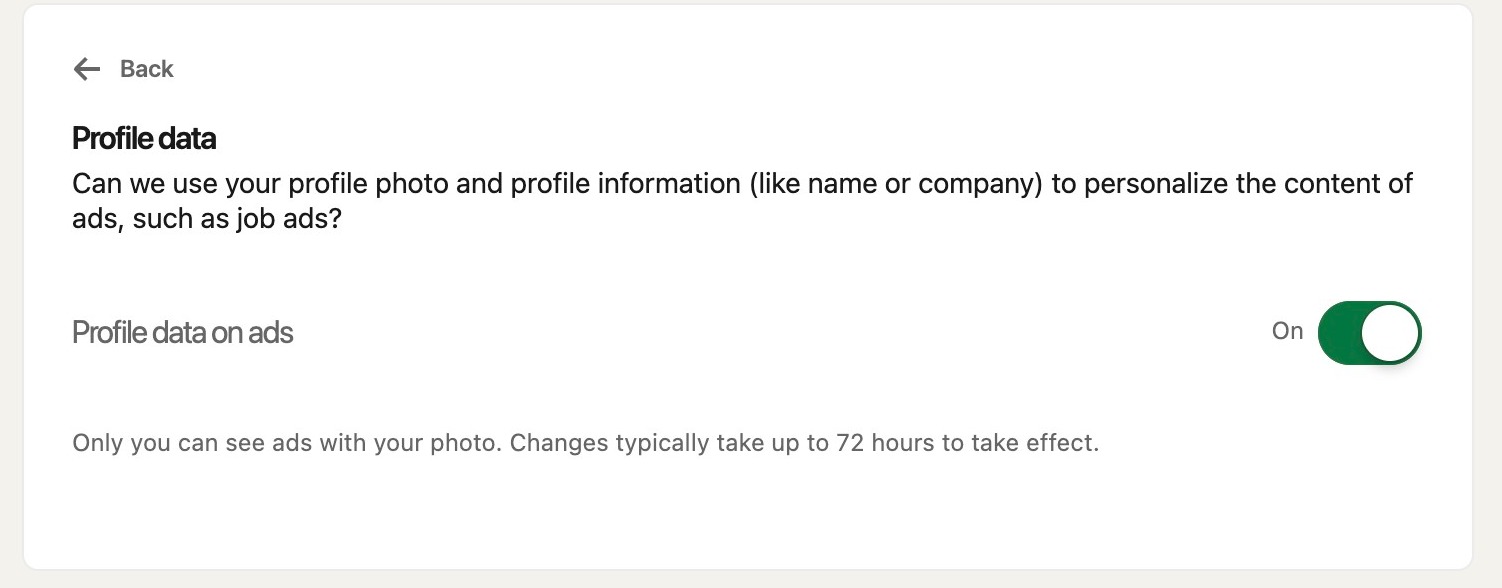
Click this button if you don't want LinkedIn to use your data to send targeted ads
Step 56
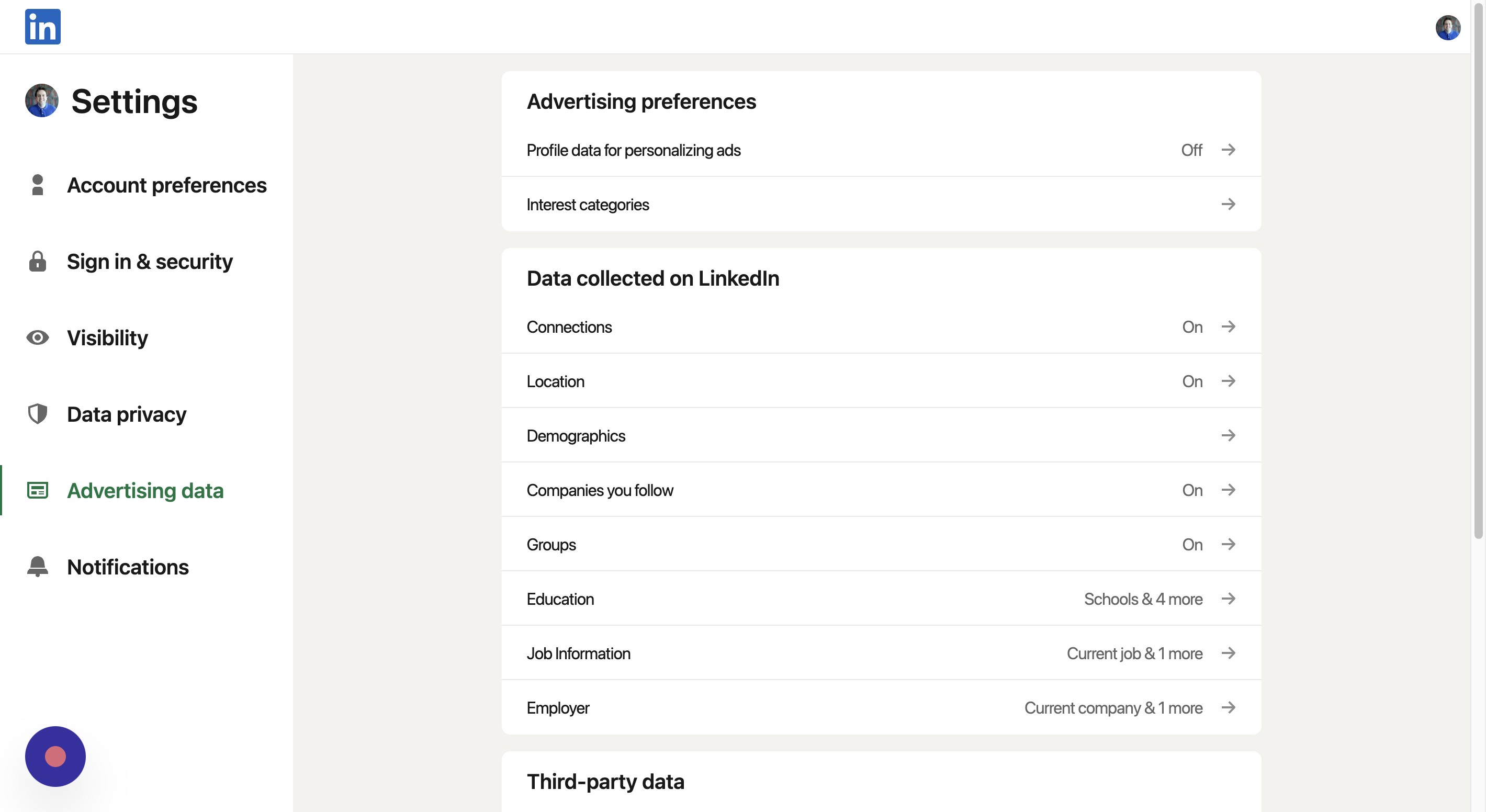
Back on the advertising data page, click interest categories
Step 57
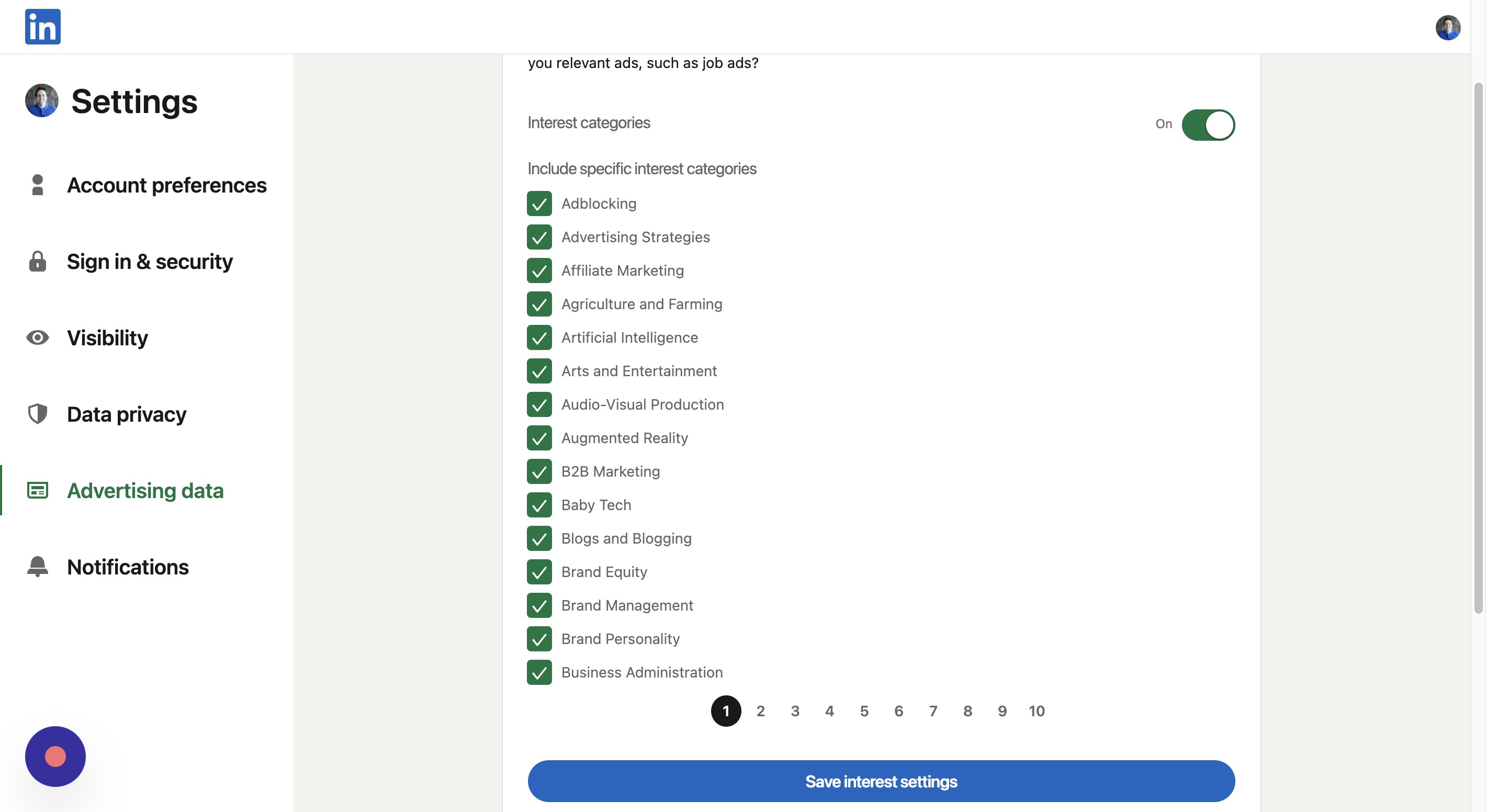
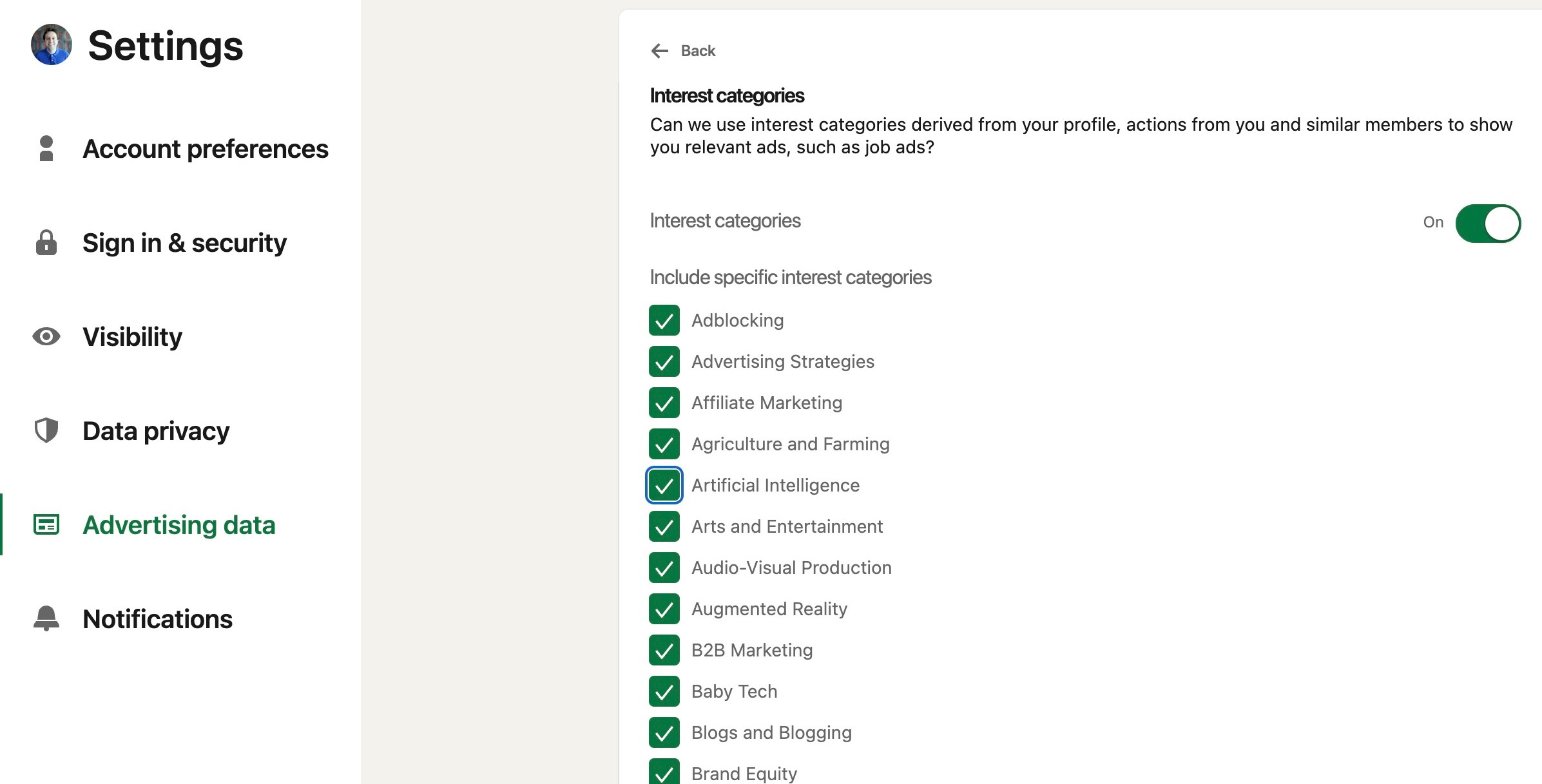
Click "Artificial Intelligence"
Step 58
Here, you can chose whether you want to receive ads based on certain categories. If you do not want to receive any such ads, click this button
Adjusting Location Settings
Step 59
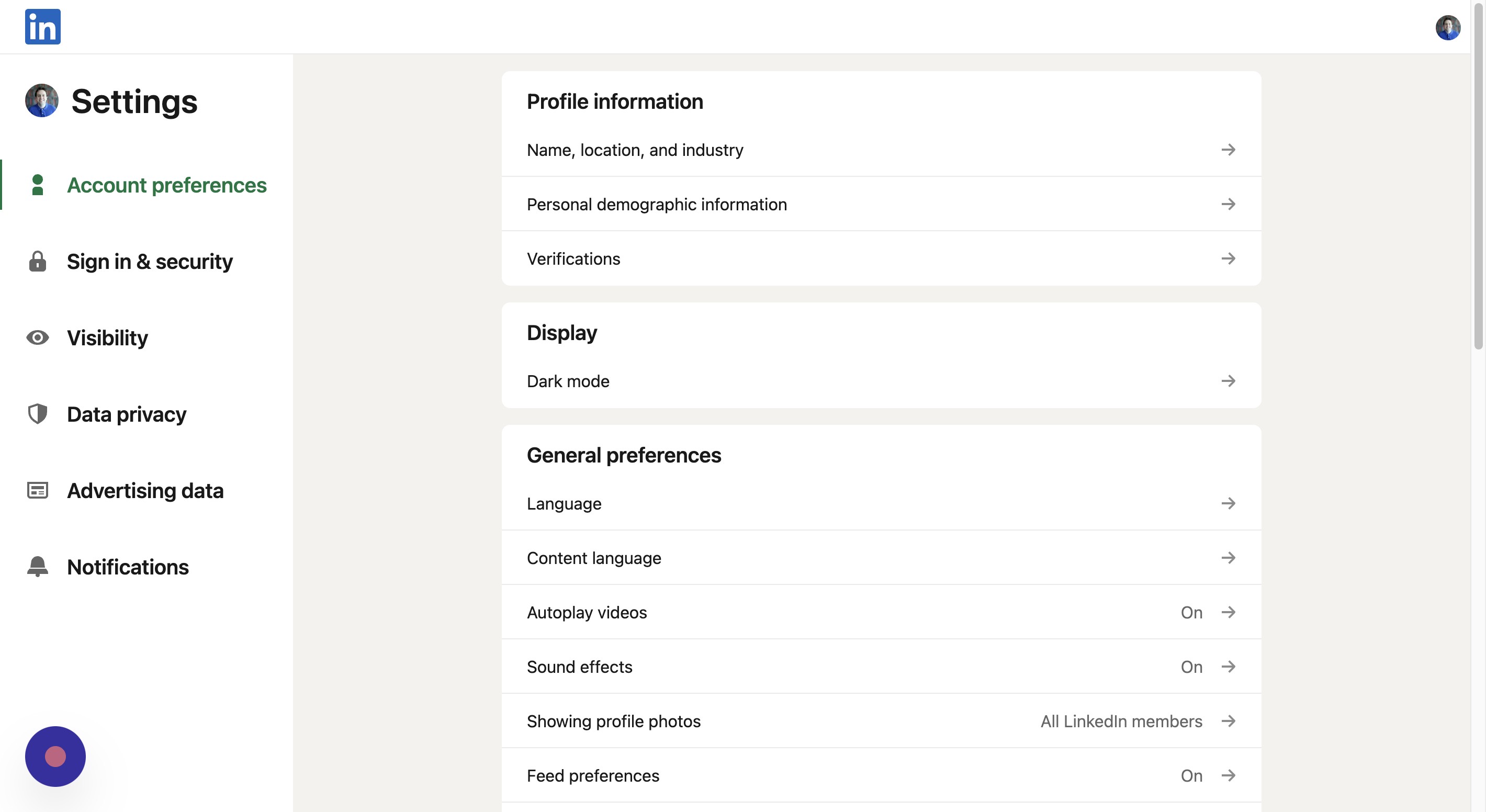
Go back to the settings page
Step 60
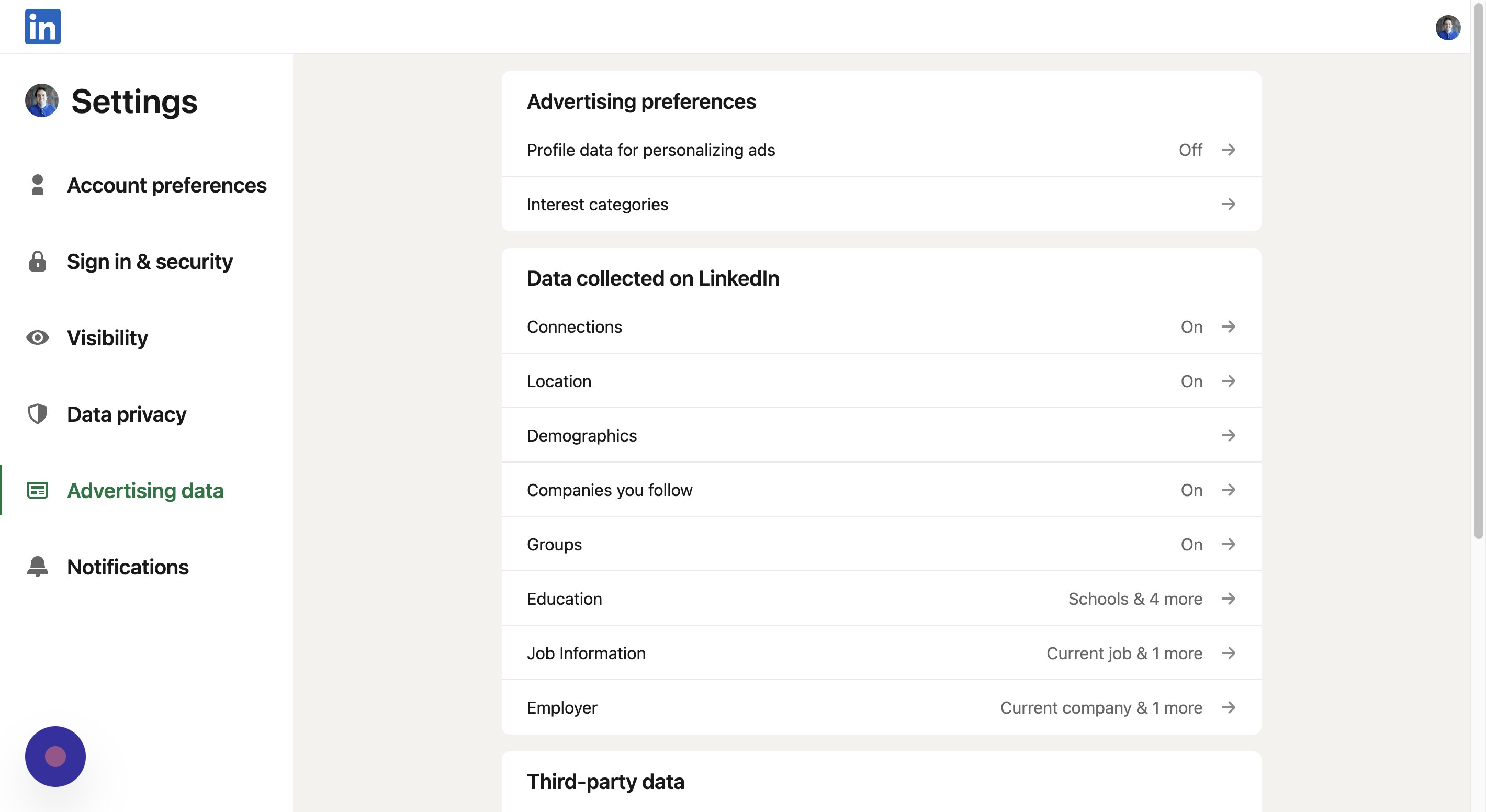
Click Advertising data
Step 61
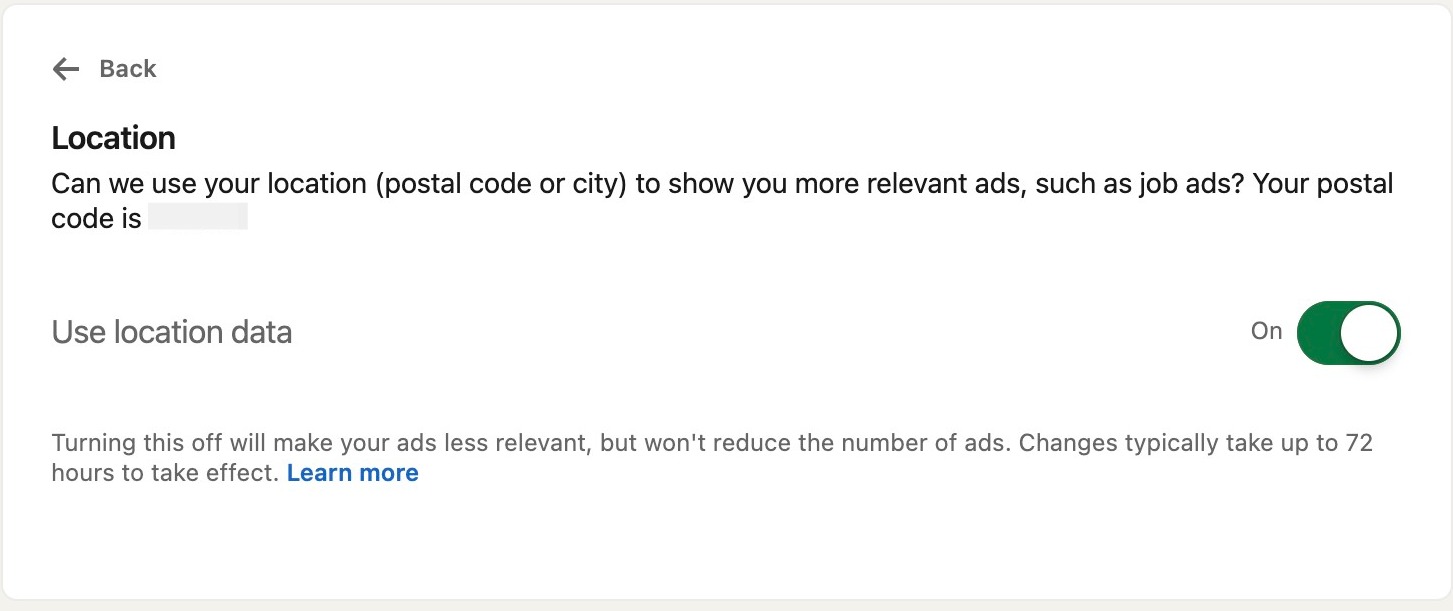
Click Location
Step 62
Click this button if you don't want LinkedIn to send you targeted ads based on your location