Facebook Hardening Guide
Finding Privacy & Security Settings
Step 1
Click the profile icon on the bottom right hand corner of the screen
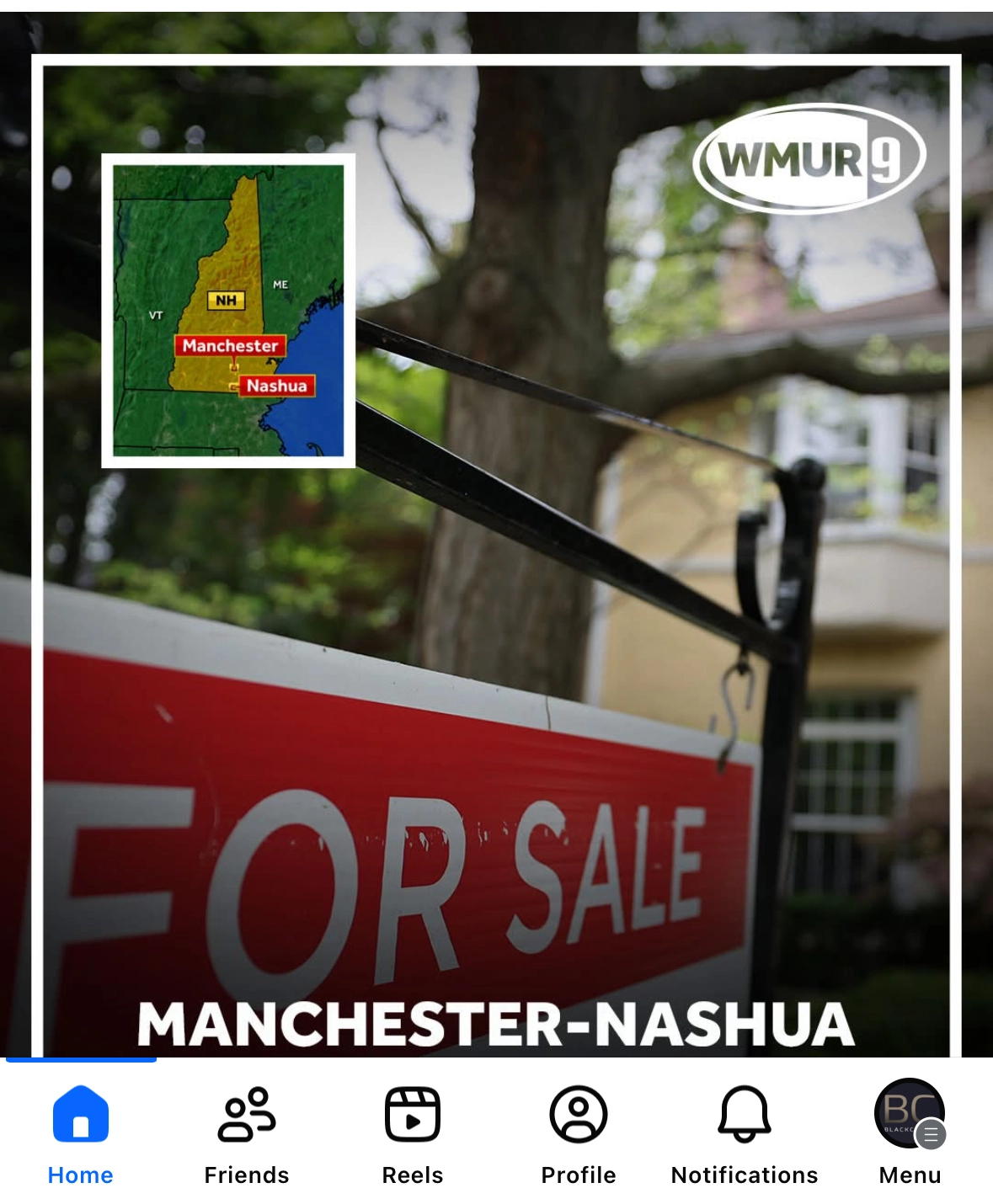
Step 2
Click Settings & privacy
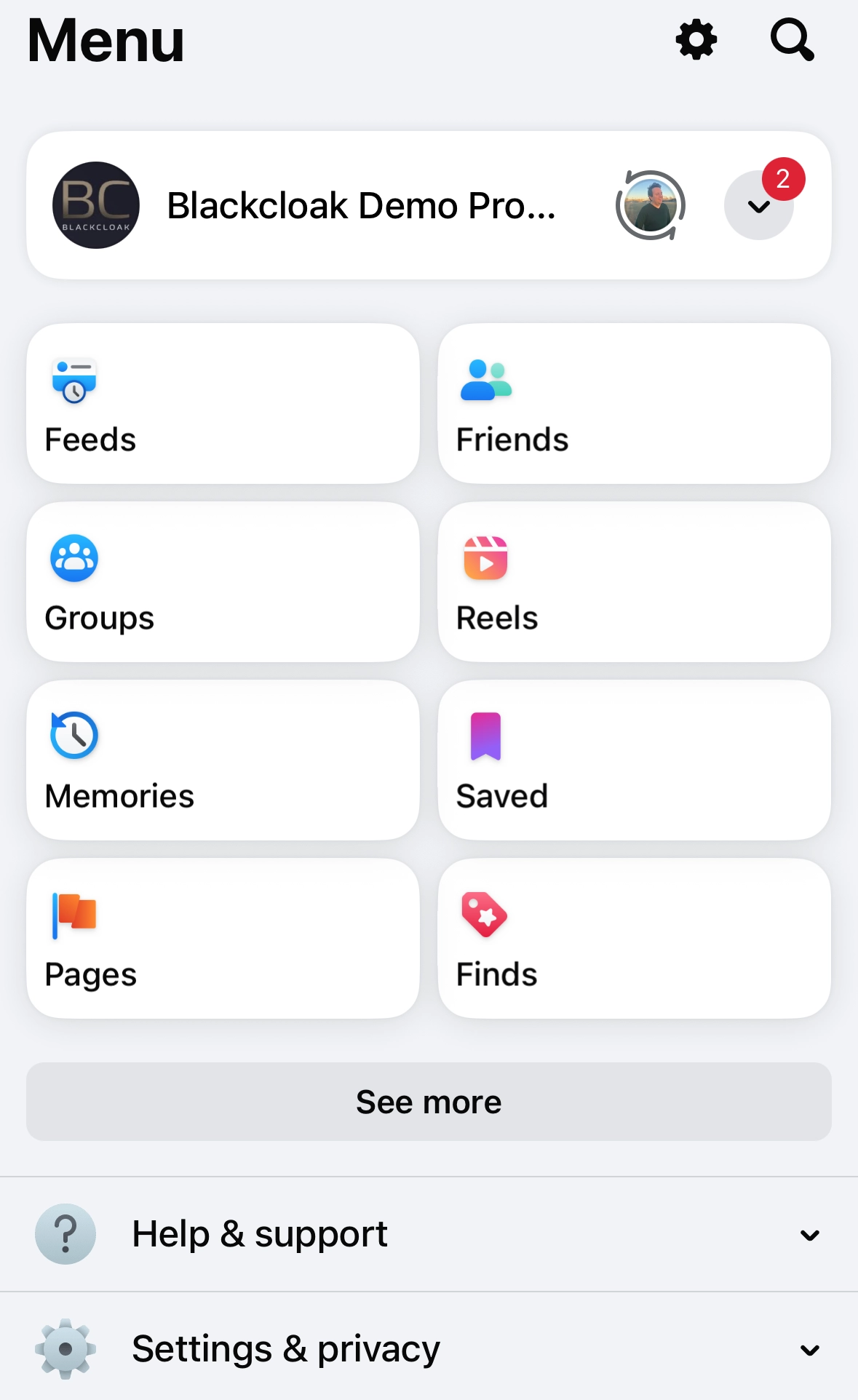
Step 3
Click Settings
Where to Find Your Personal Information
Step 4
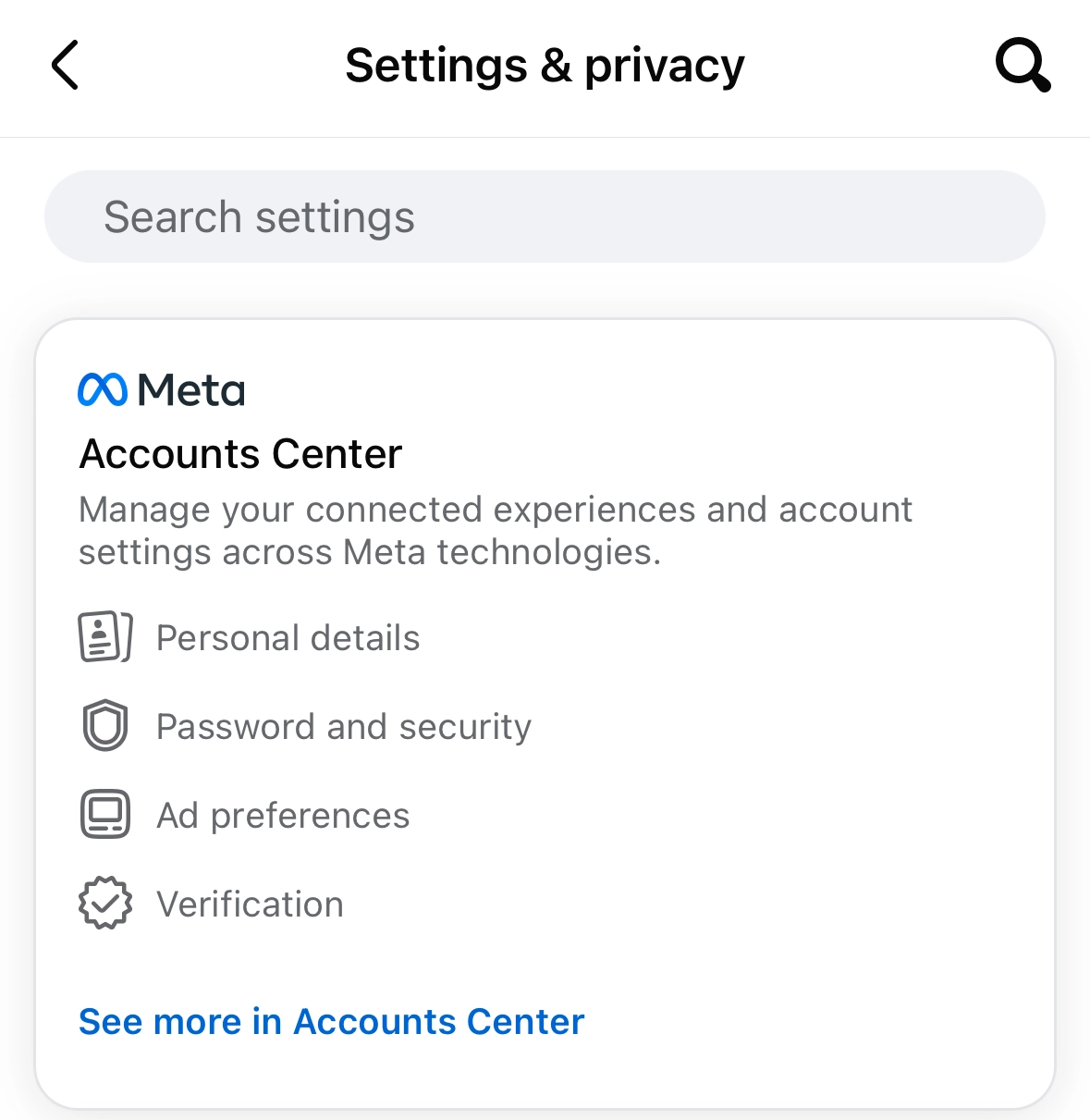
Follow the steps above and then click Accounts Center
Step 5
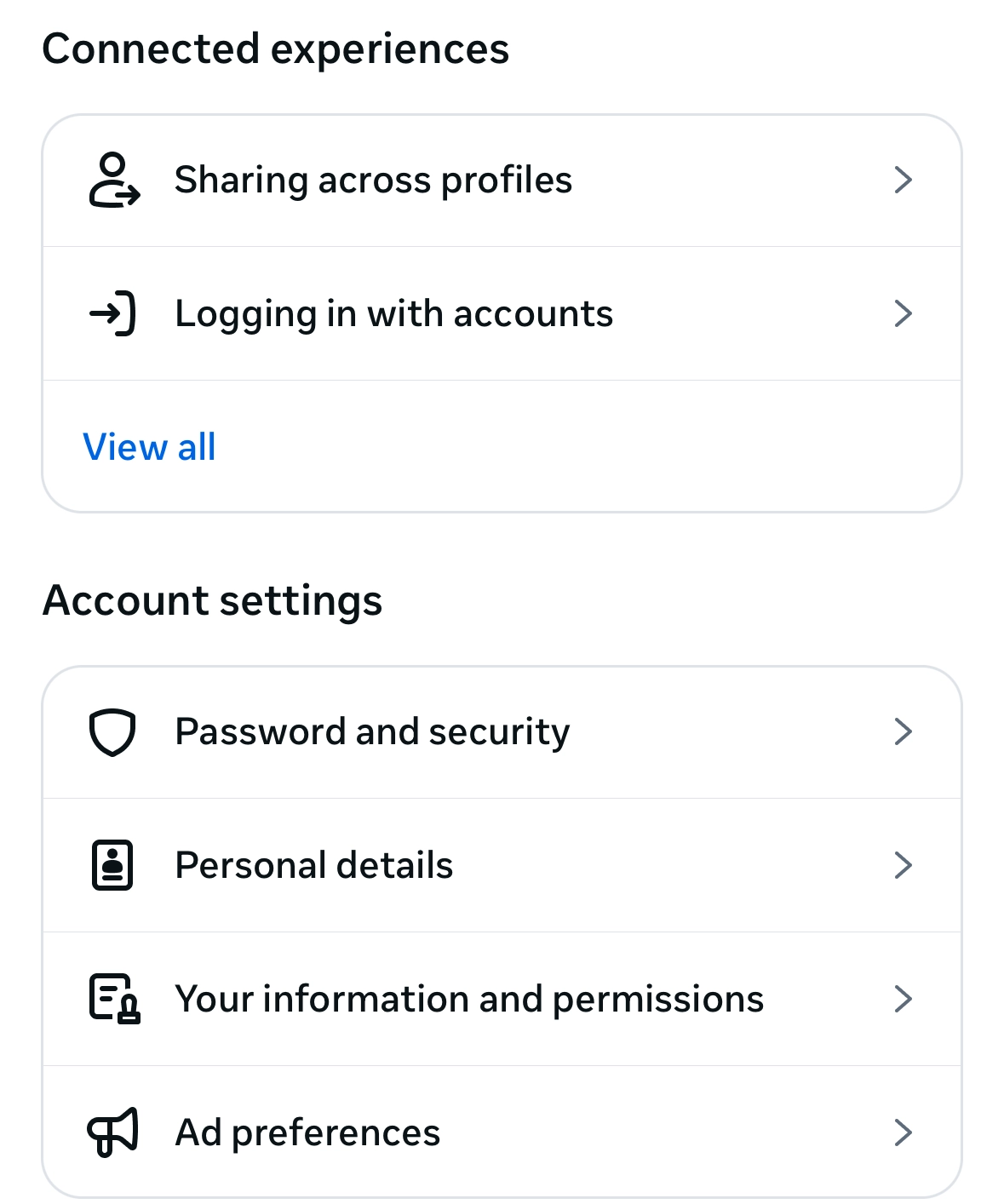
Click Personal Details
Step 6
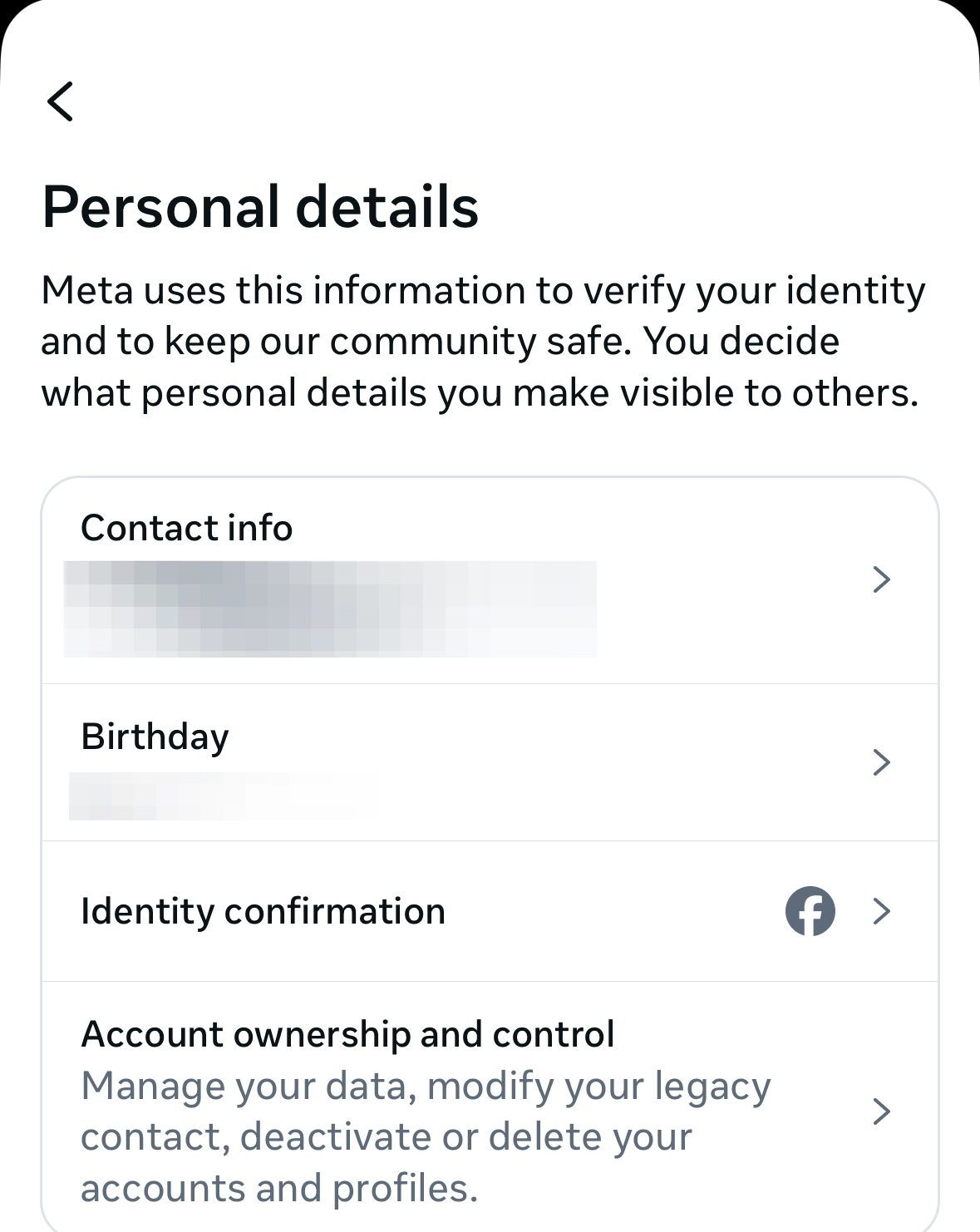
On this screen, you can view and modify your contact information and your birthday. You also have the ability to manage your data.
Step 7
You can also determine what would happen to your account in the event of a passing, and deactivate and delete your account.
How to Update Your Password
Step 8
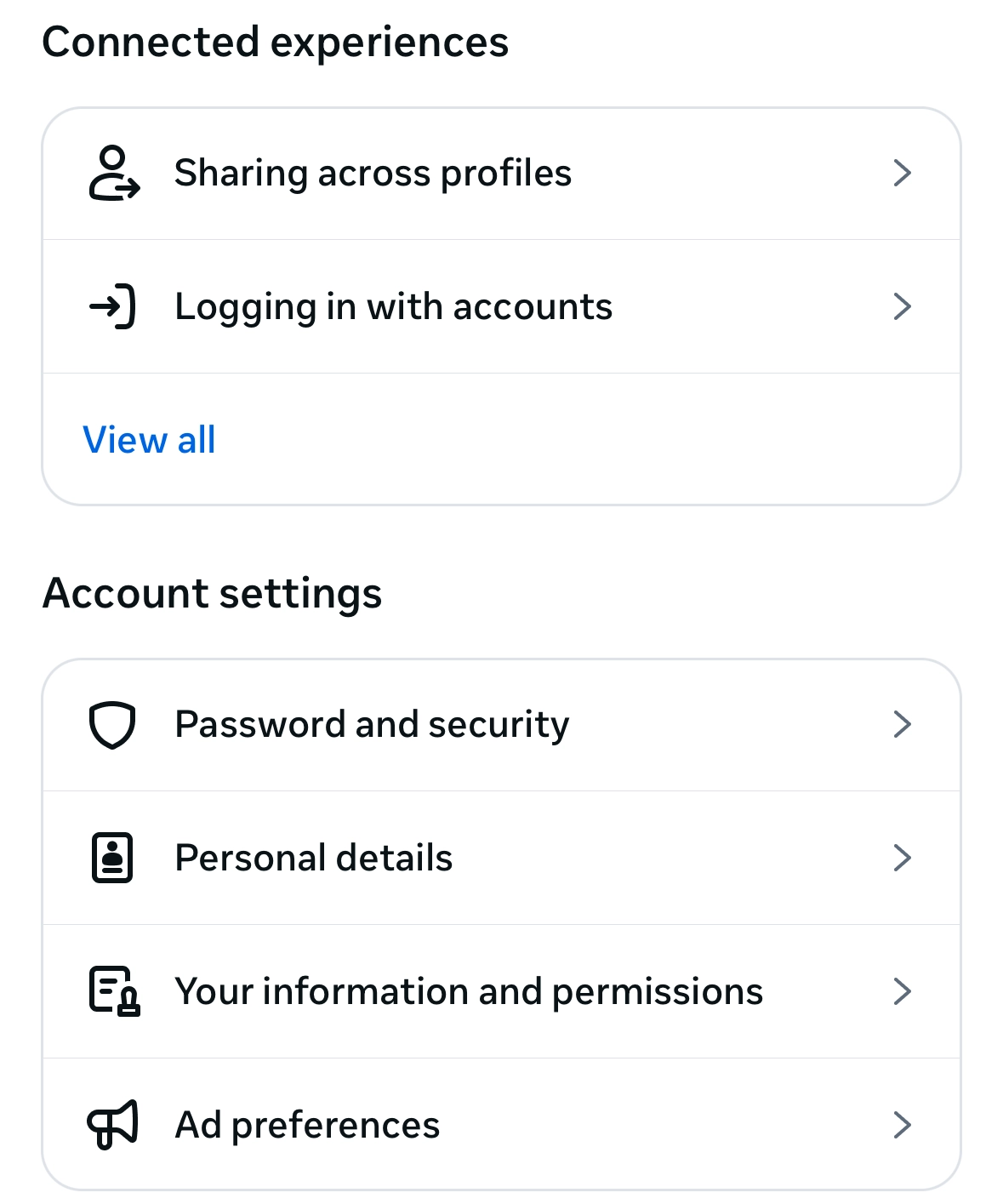
Go back to the Accounts Center and click Password and Security
Step 9
Click Change Password
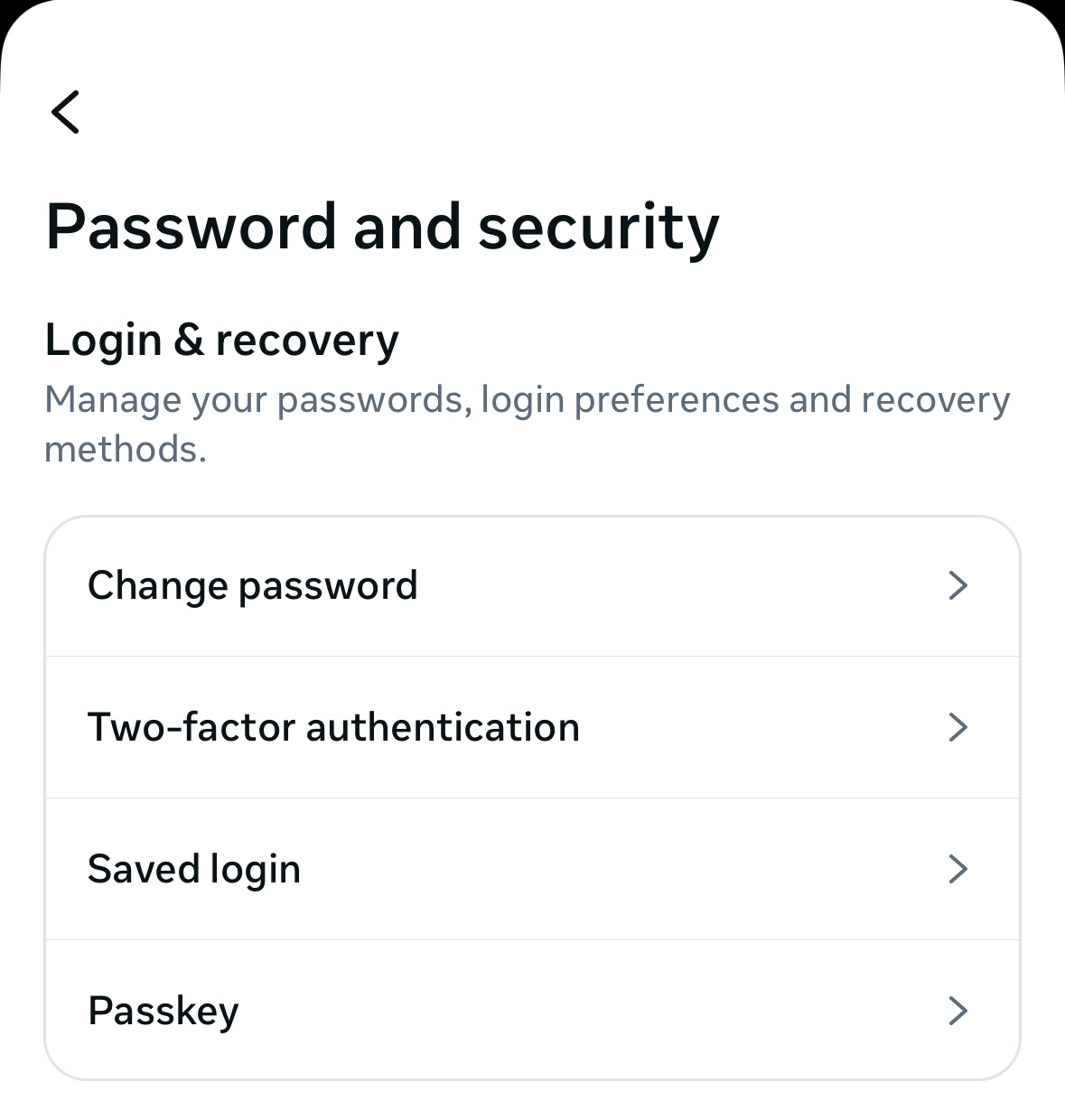
Step 10
Choose your Facebook account
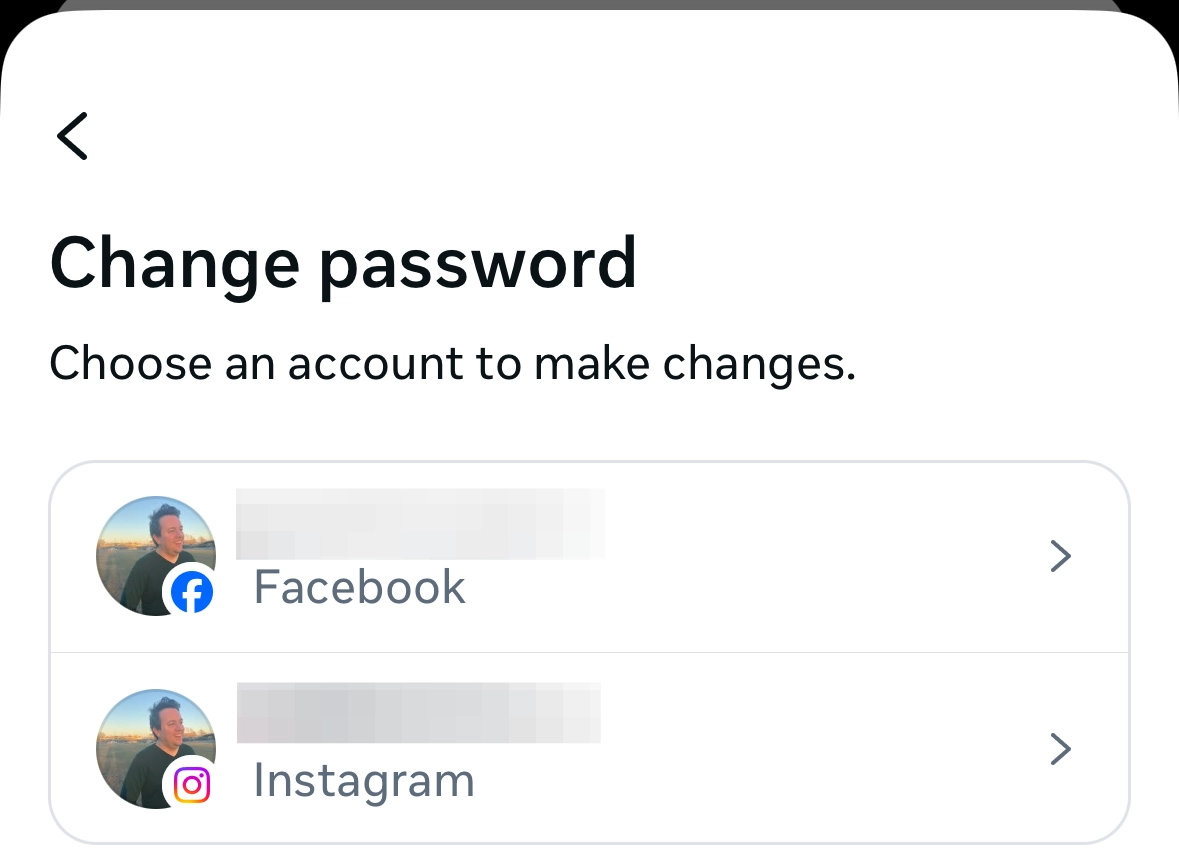
Step 11
Enter your current password and your new password. Re-type your password in the third field and hit change password to complete the process. Make sure to have the blue box checked off to ensure you are logged out of other devices, especially if someone else used your account.
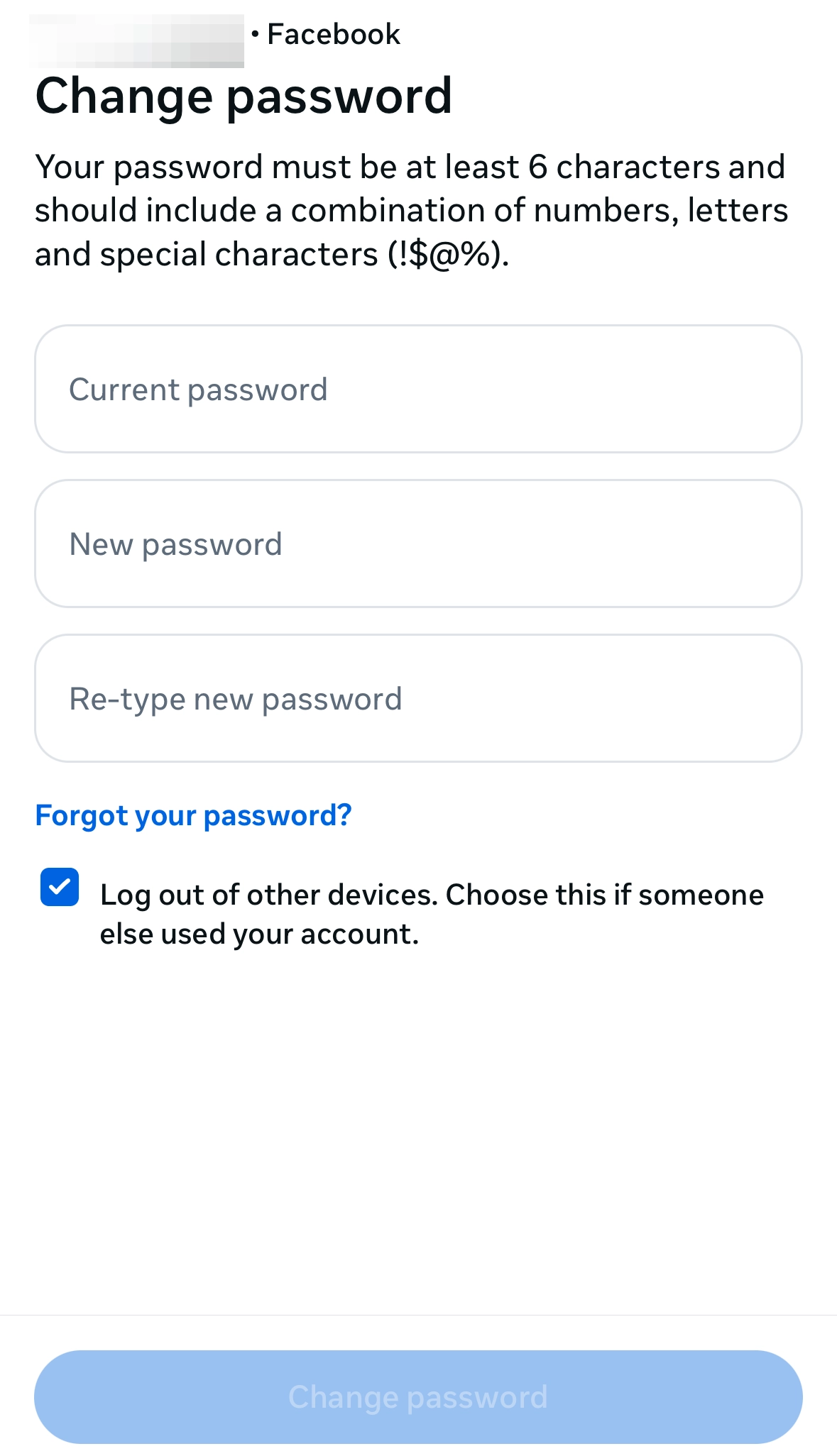
Enabling Two-Factor Authentication
Step 12
Go back to the Meta Accounts Center and click Password and Security again
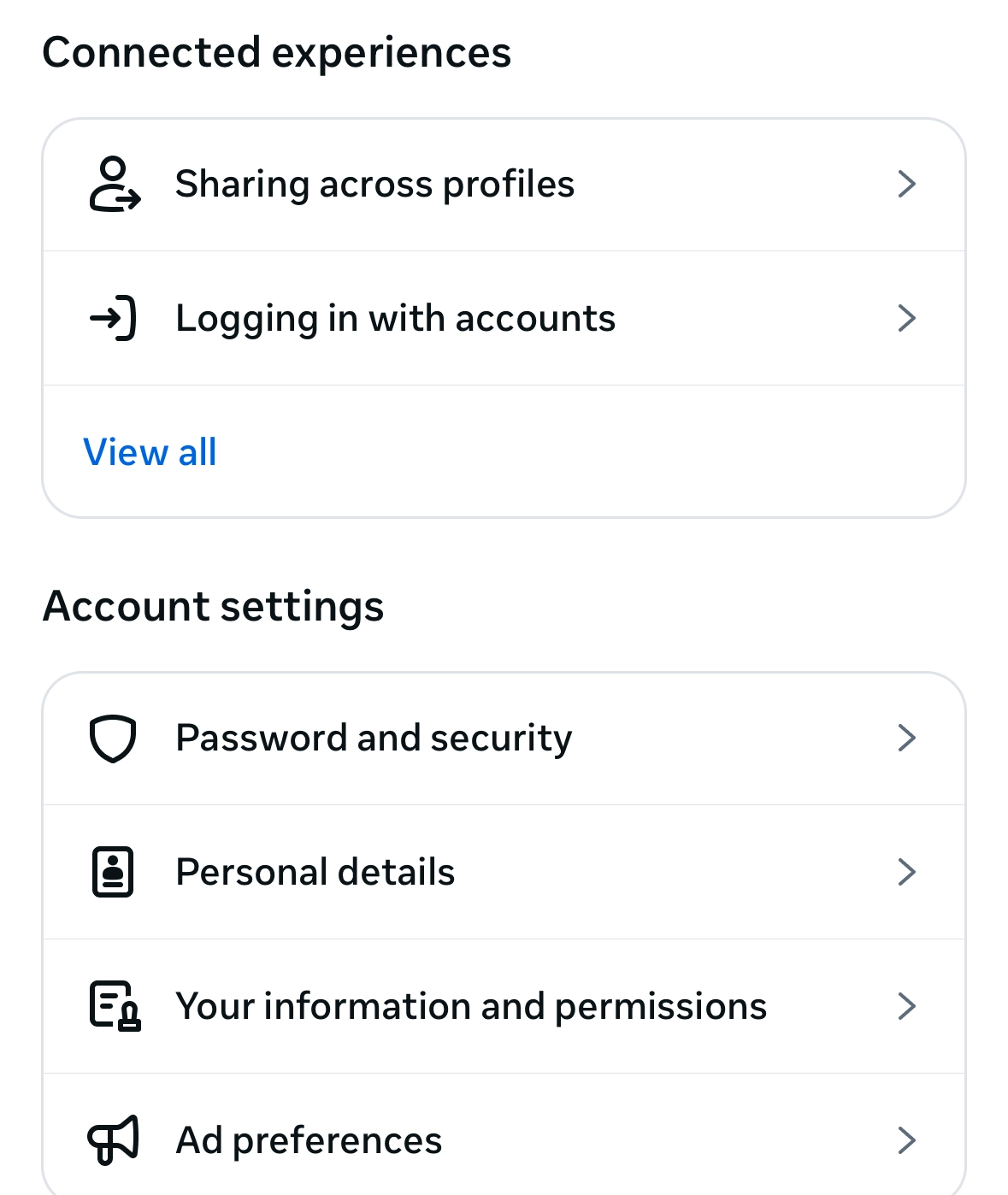
Step 13
Click Two-factor authentication
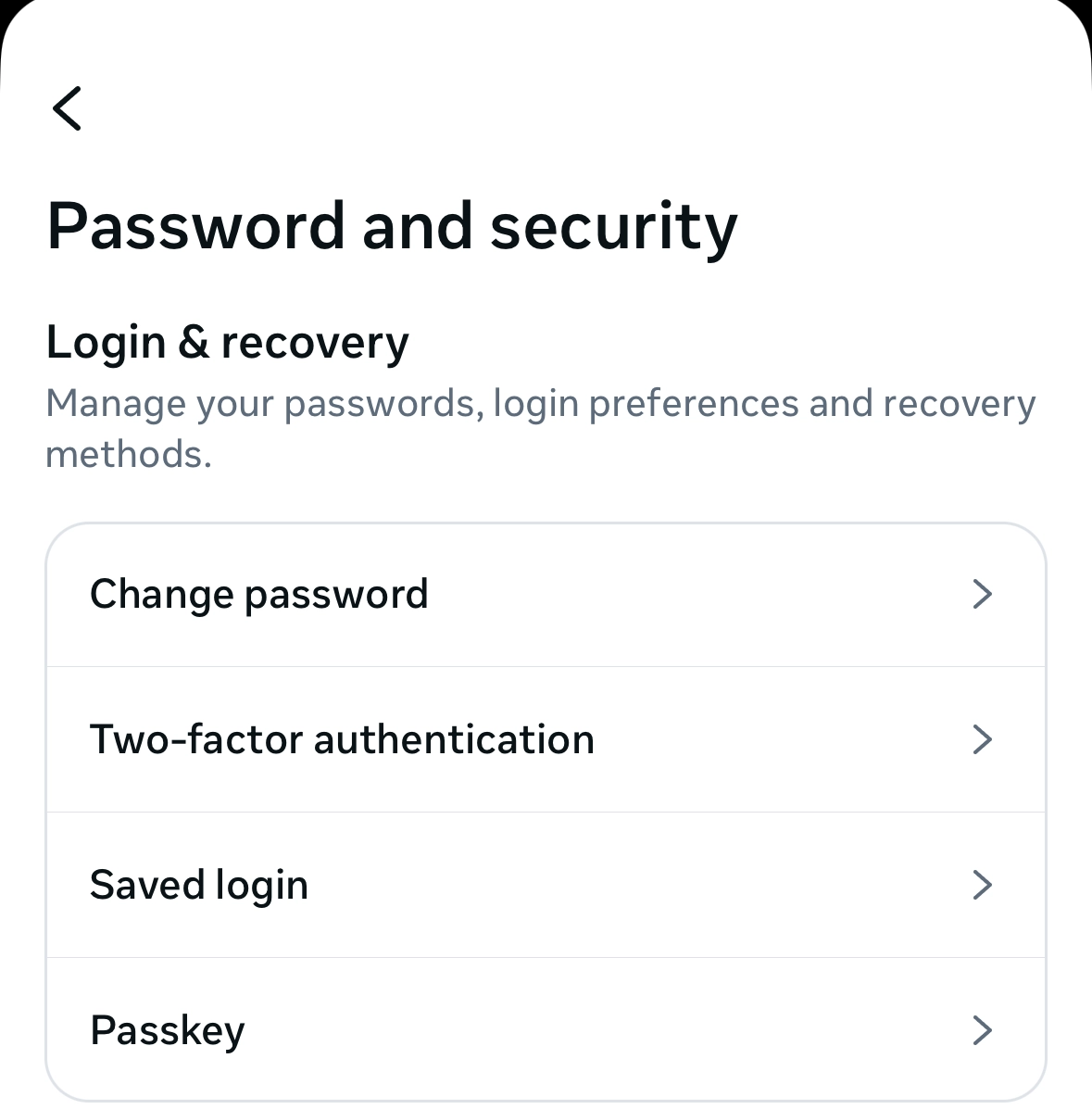
Step 14
Choose your Facebook account
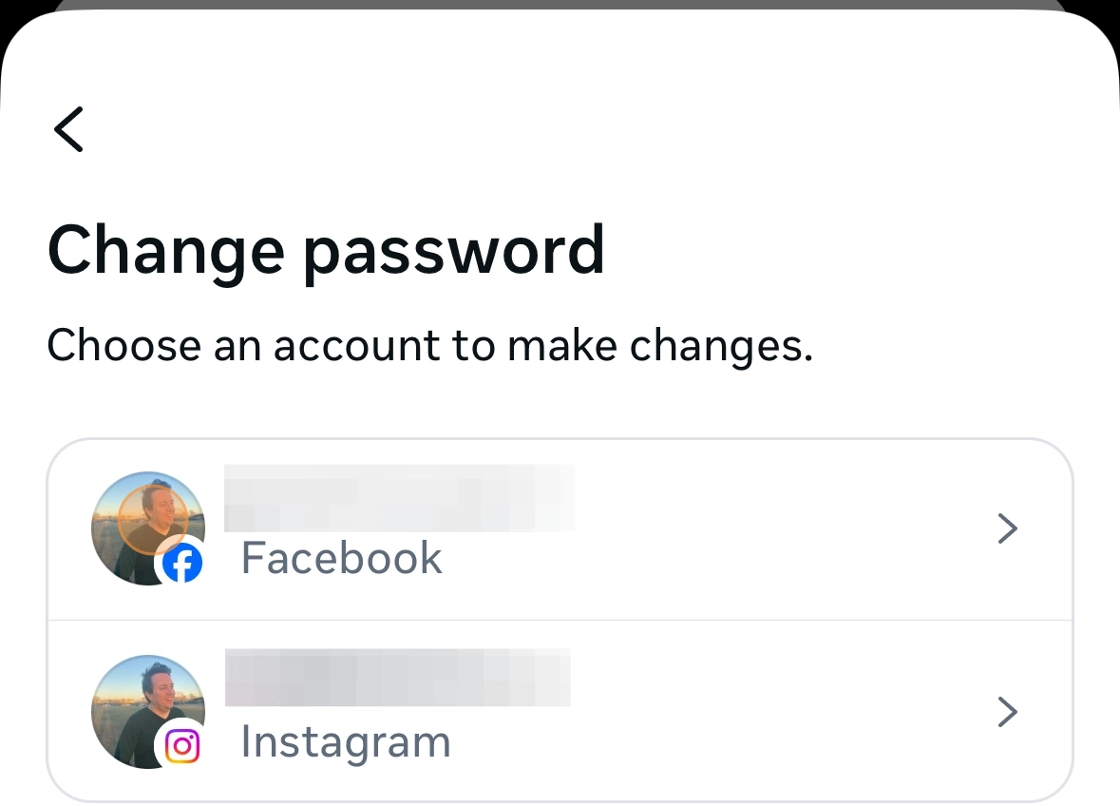
Step 15
Choose your authentication method and select next. BlackCloak recommends using an authentication app
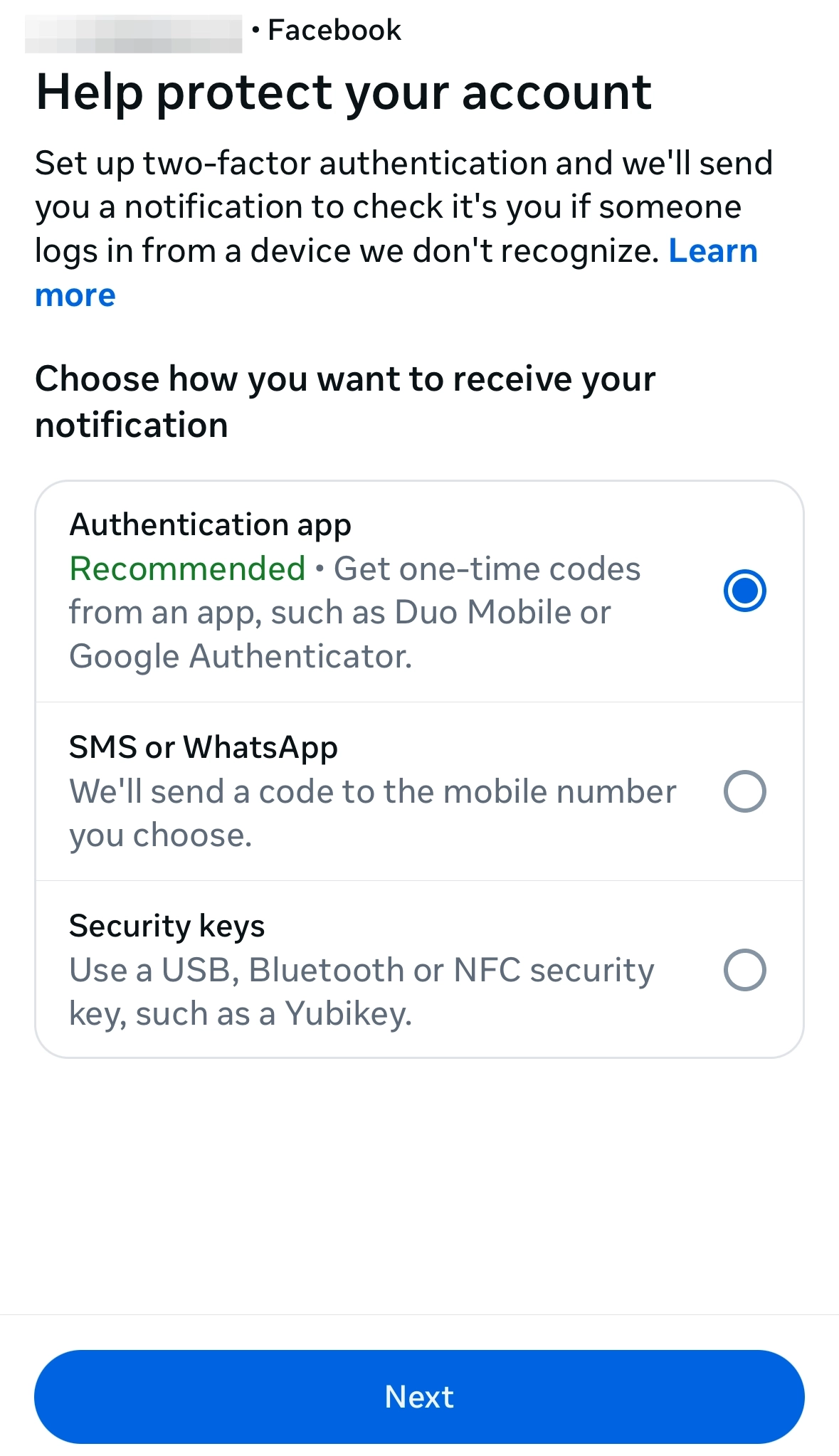
Step 16
After downloading the authentication app, scan the QR code or copy the randomly generated key, then click next
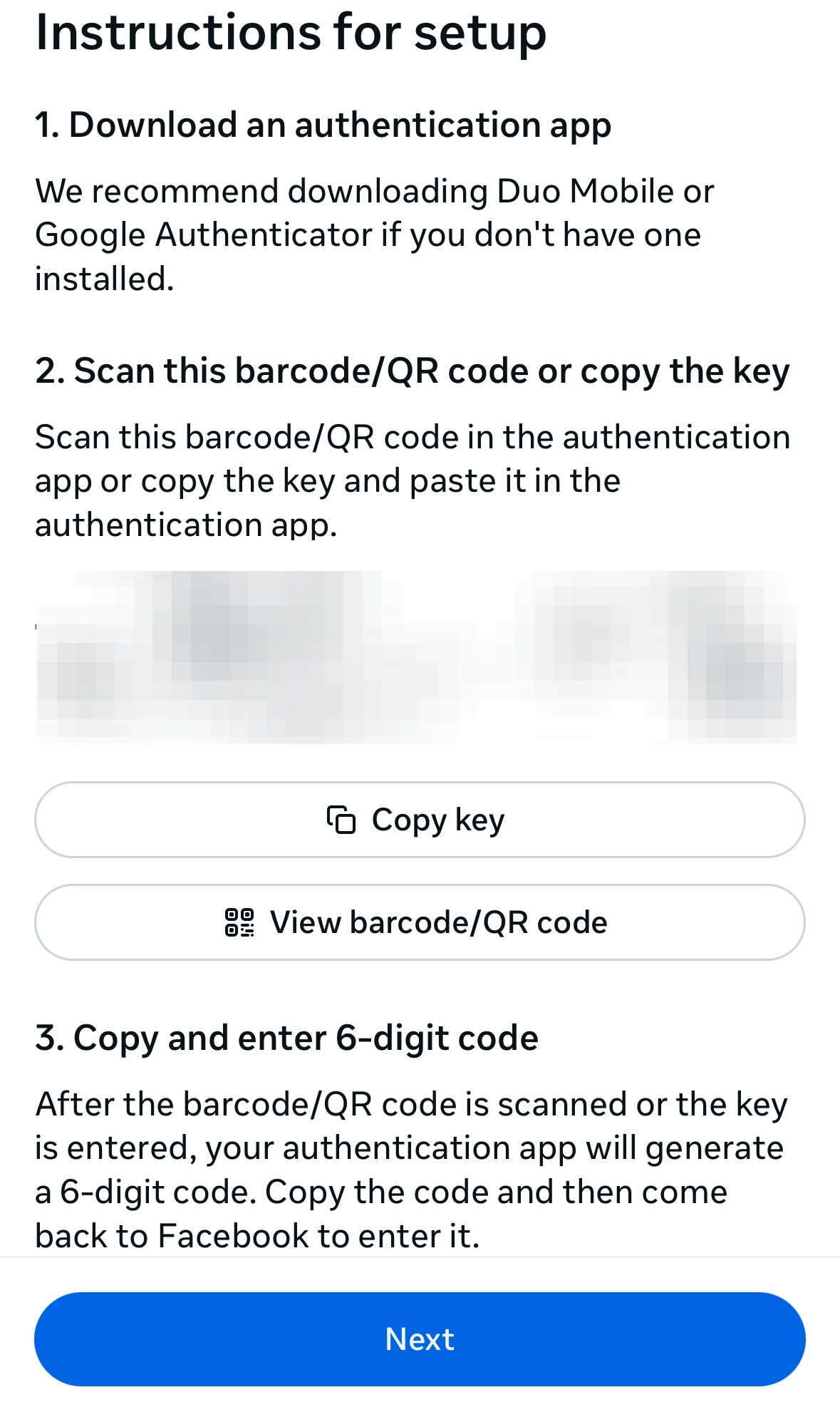
Step 17
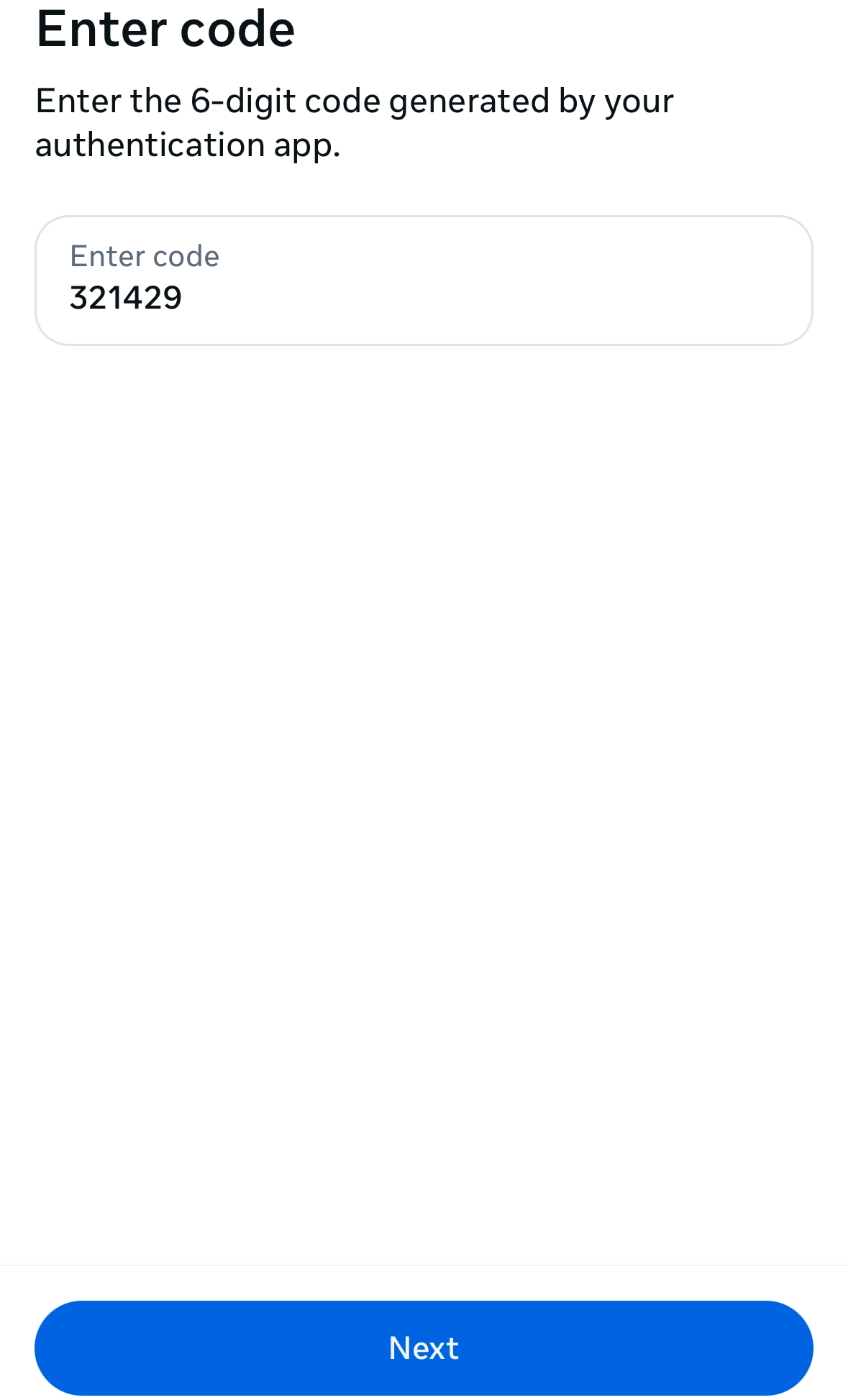
Enter the six digit code from the authentication app
Step 18
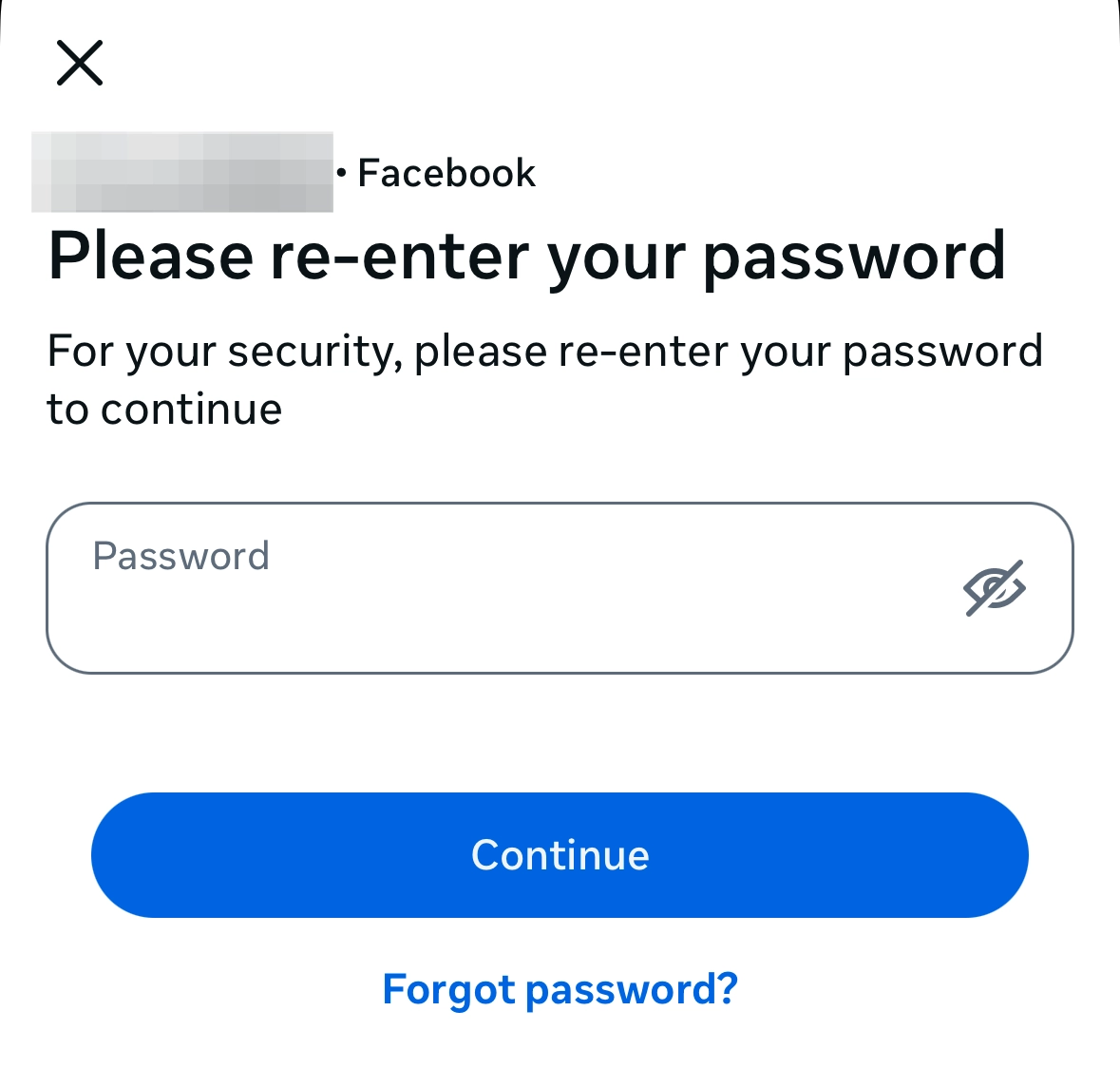
NOTE: You may be asked to re-enter your password to complete the process. Once you do, click Continue
Step 19
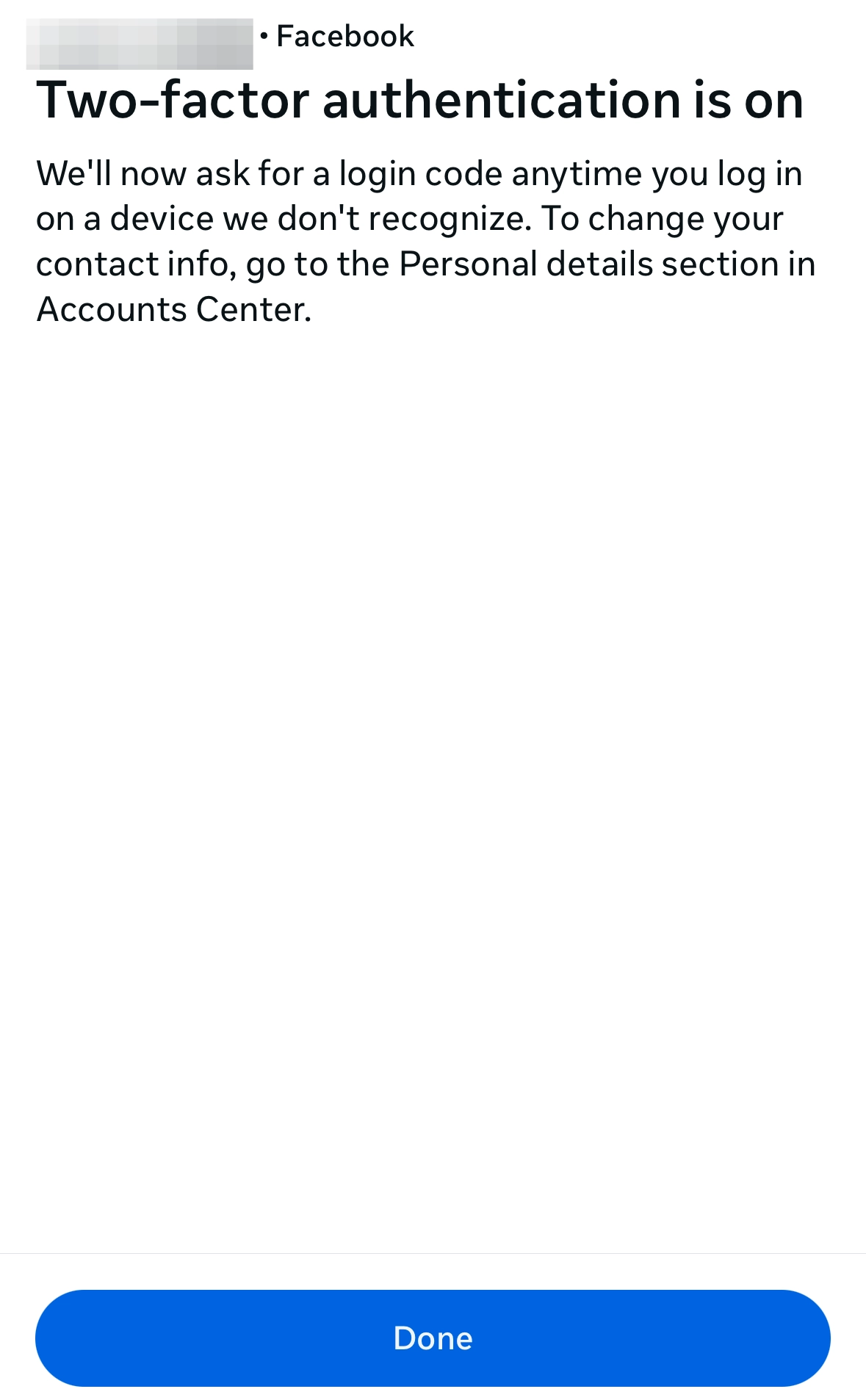
After that, the process will be completed. Click Done
Finding Authorized Logins
Step 20
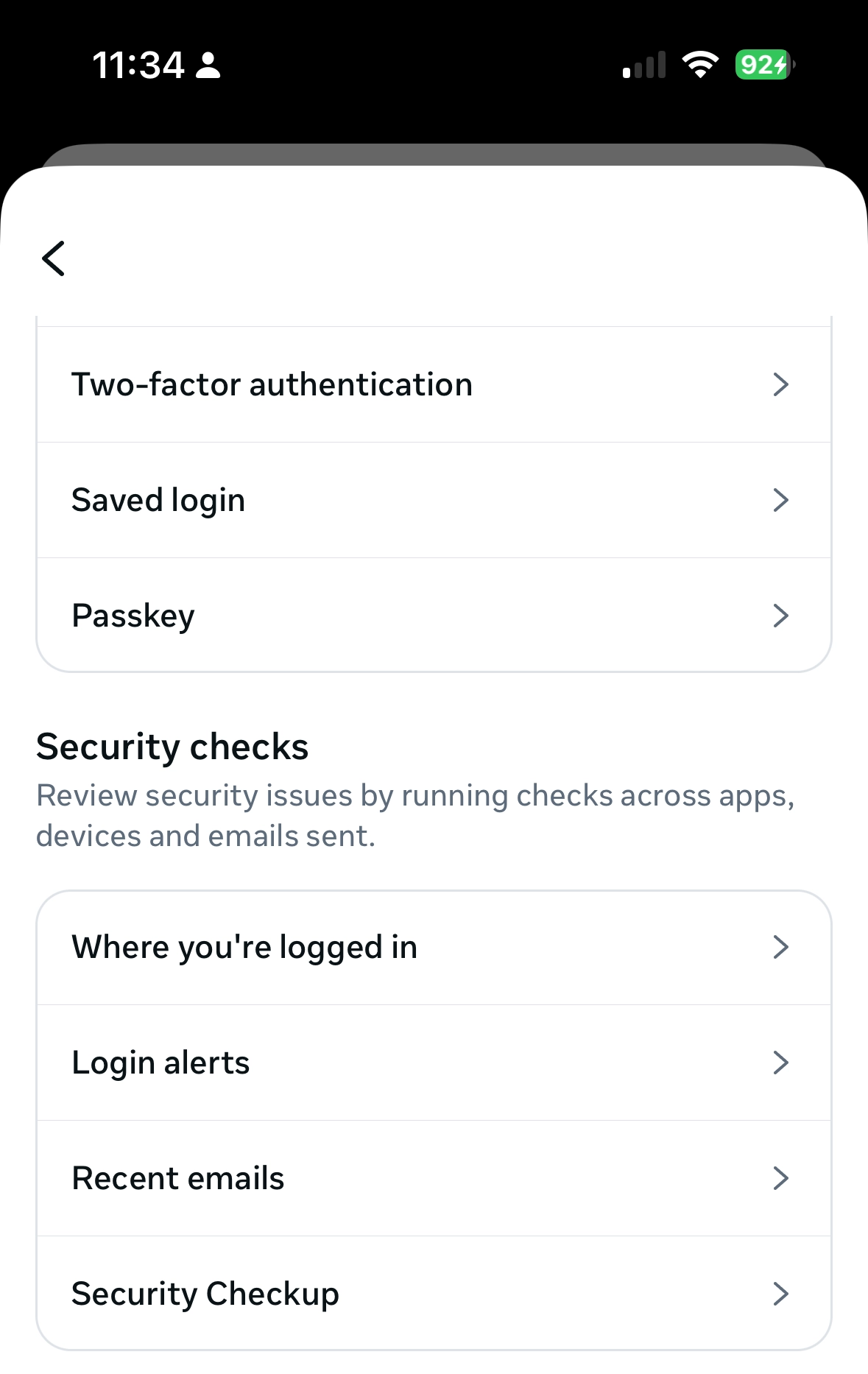
Go back to the Password and Security section of the Accounts Center. Under Security Checks, click Where you're logged in
Step 21
Here, you'll see every device that has logged into your account. If you see a result that does not look familiar, click on it
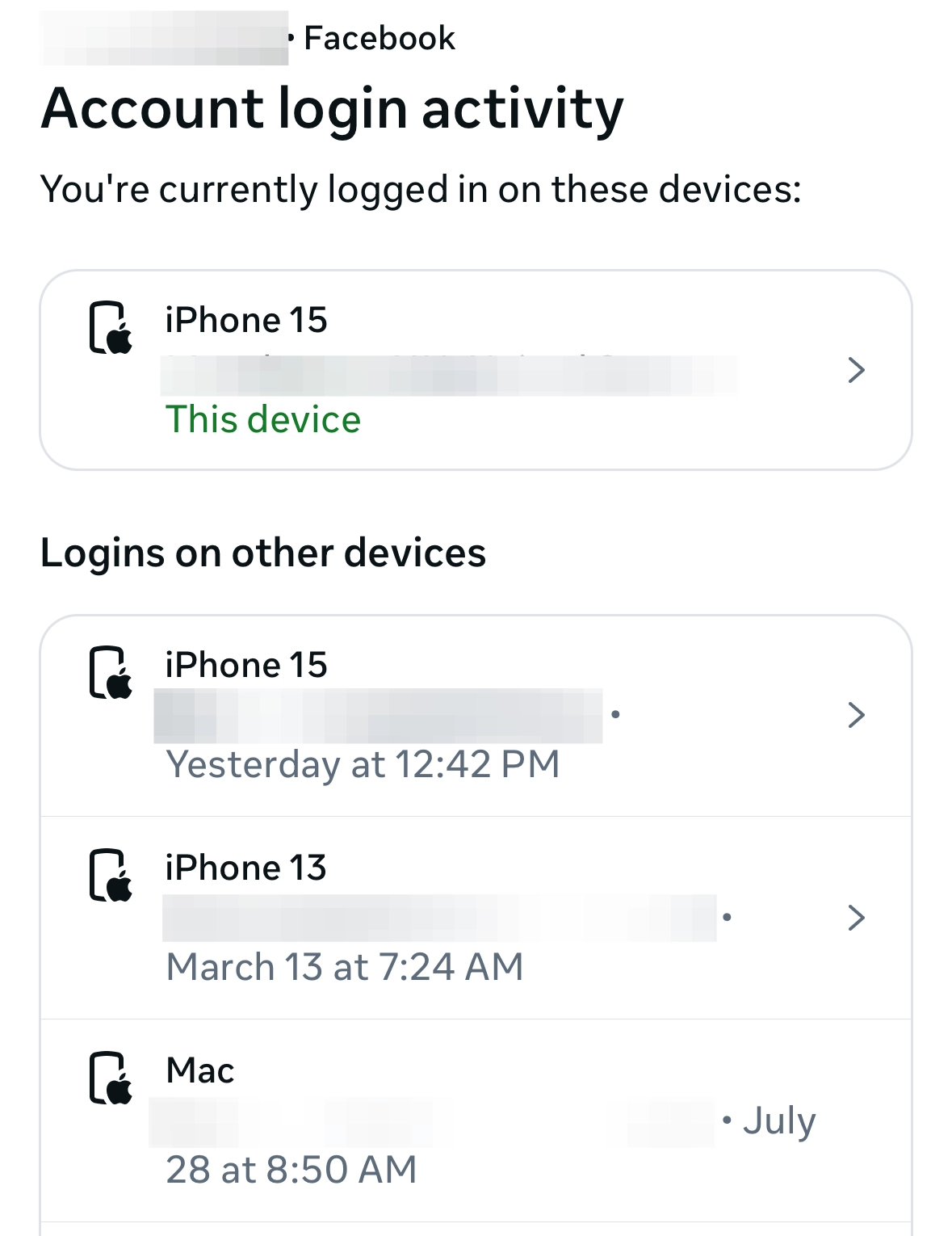
Step 22
Click Log out
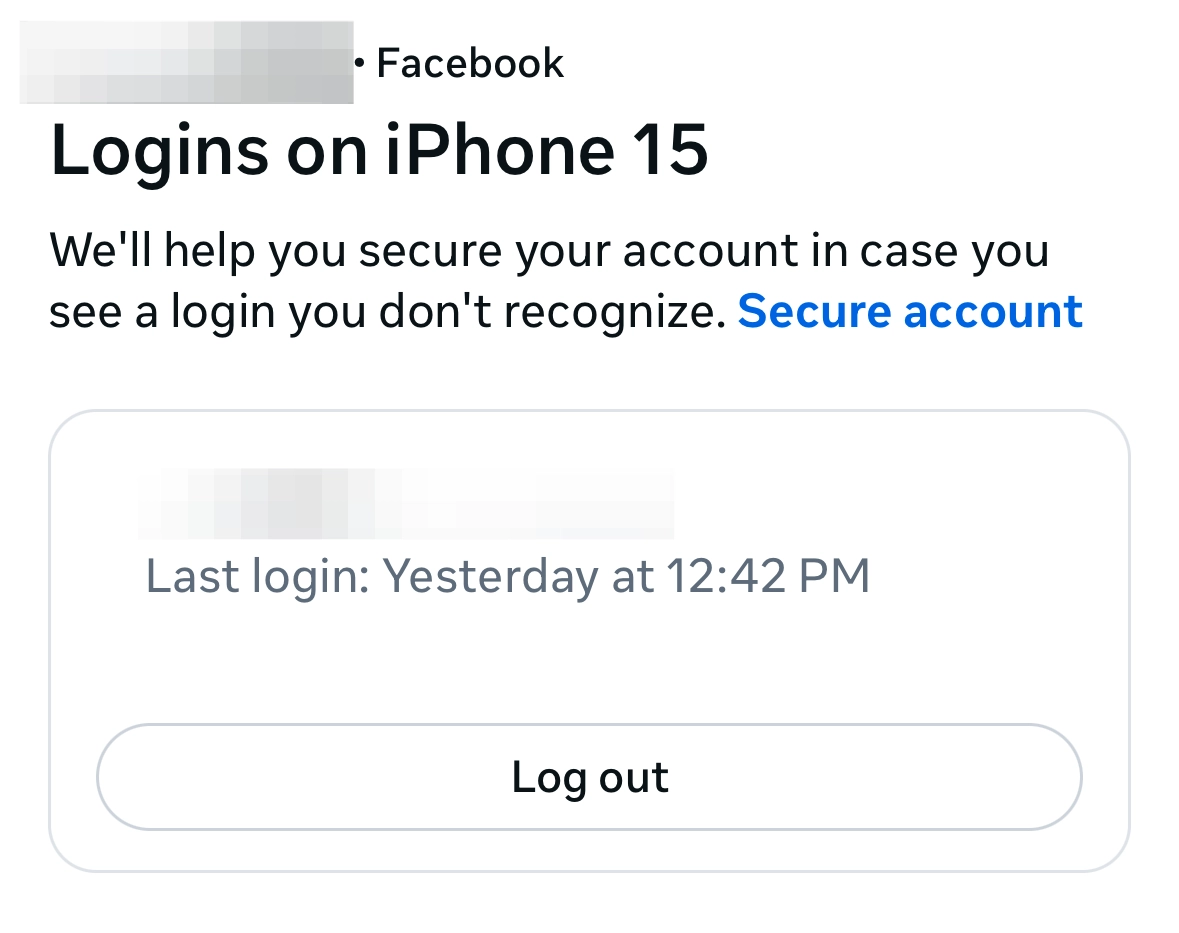
Step 23
If you want to log out of multiple devices at once, scroll down and click Select devices to log out
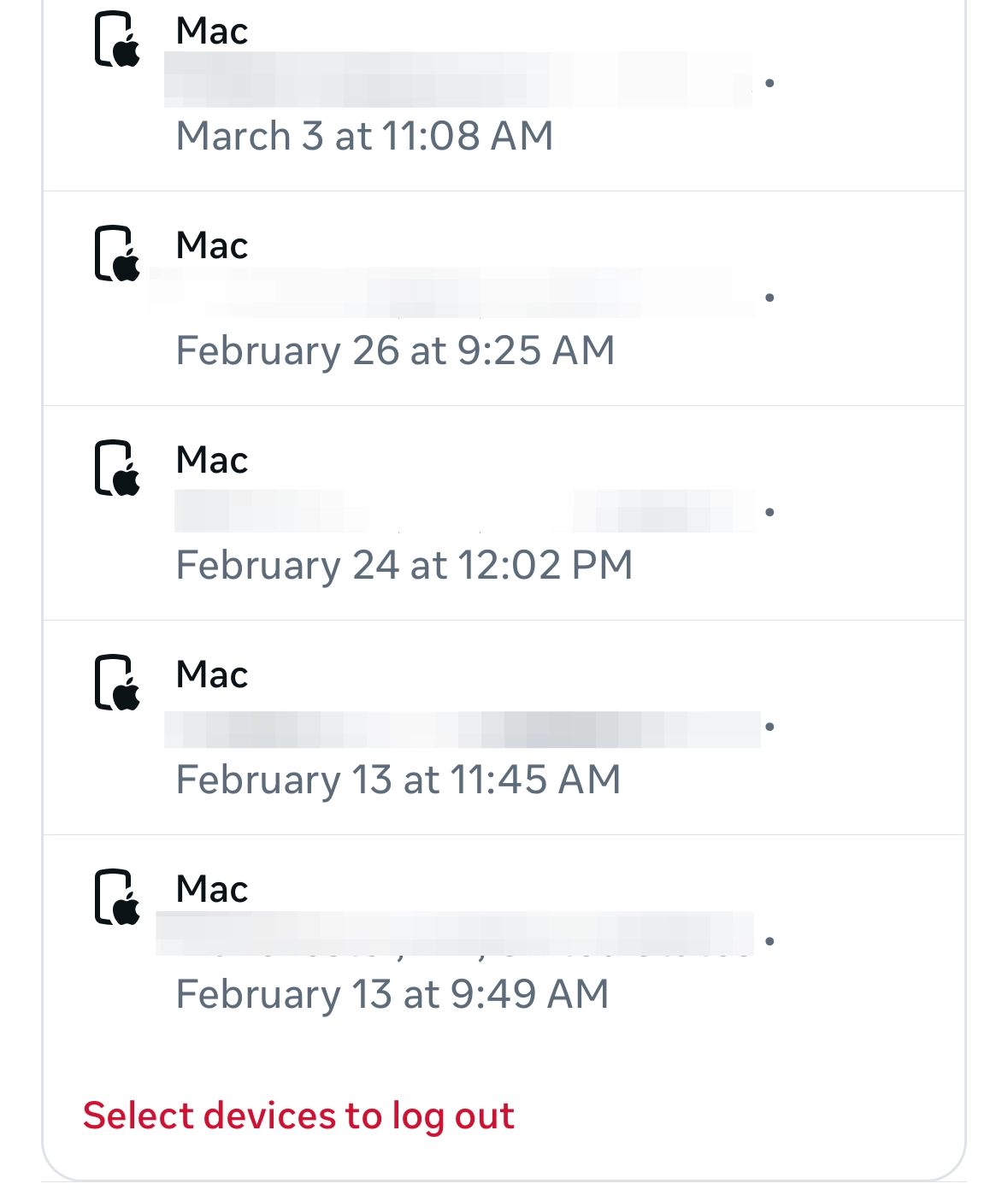
Step 24
Click on all the devices you want to log out of and click here
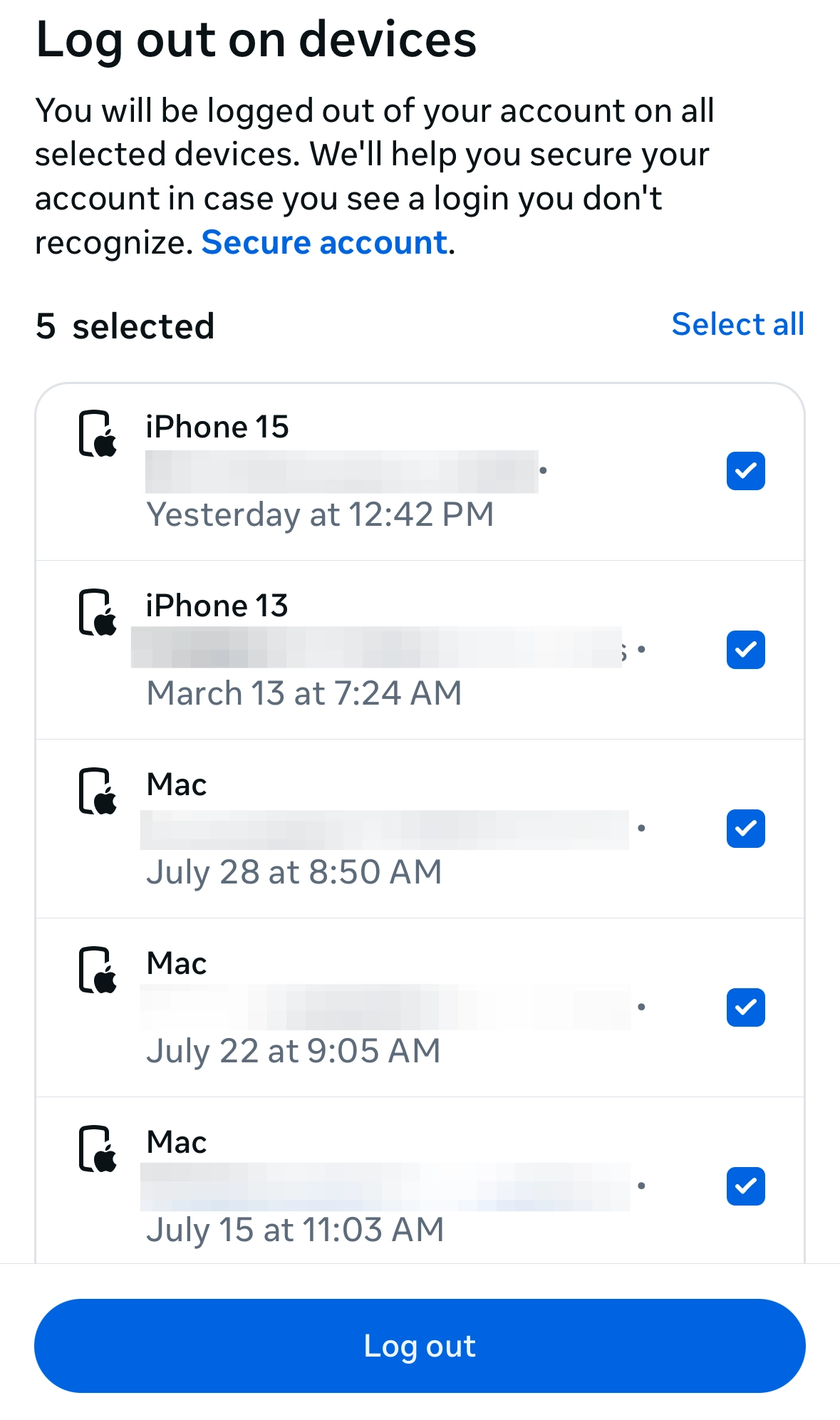
Adjusting Profile Privacy
Step 25
Go back to the Settings and Privacy page and click Privacy Checkup
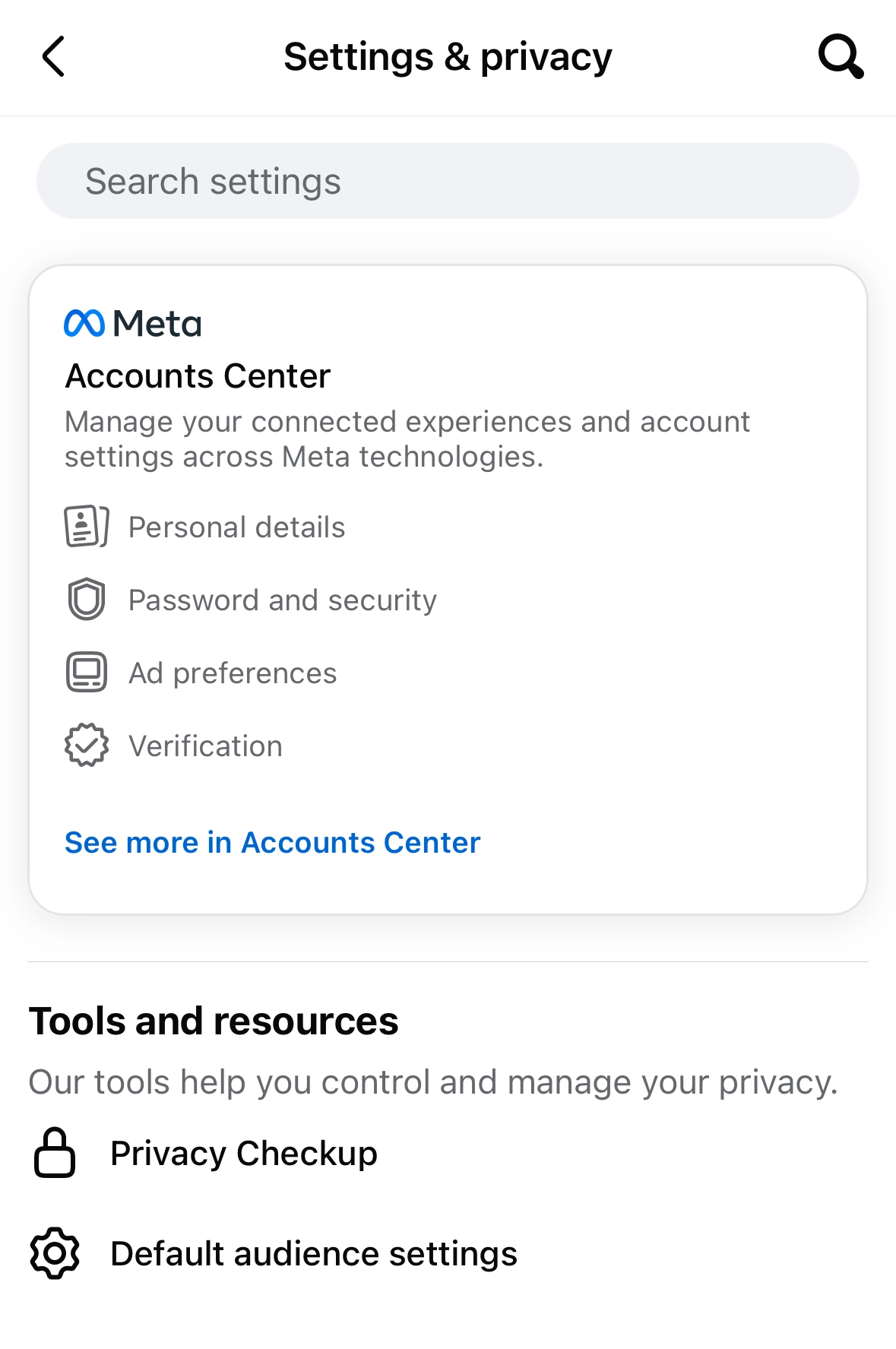
Step 26
Click How People Can Find You on Facebook
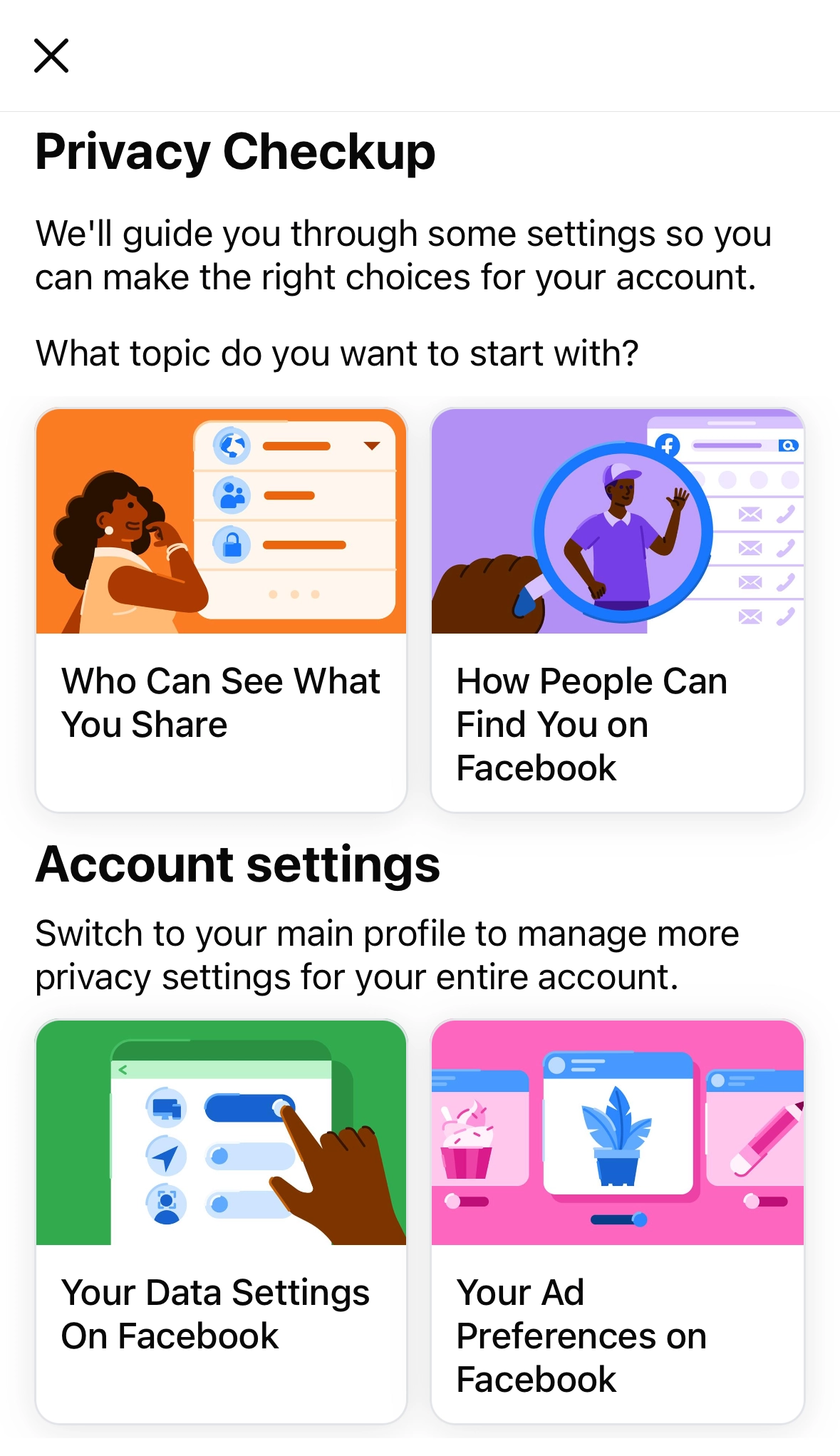
Step 27
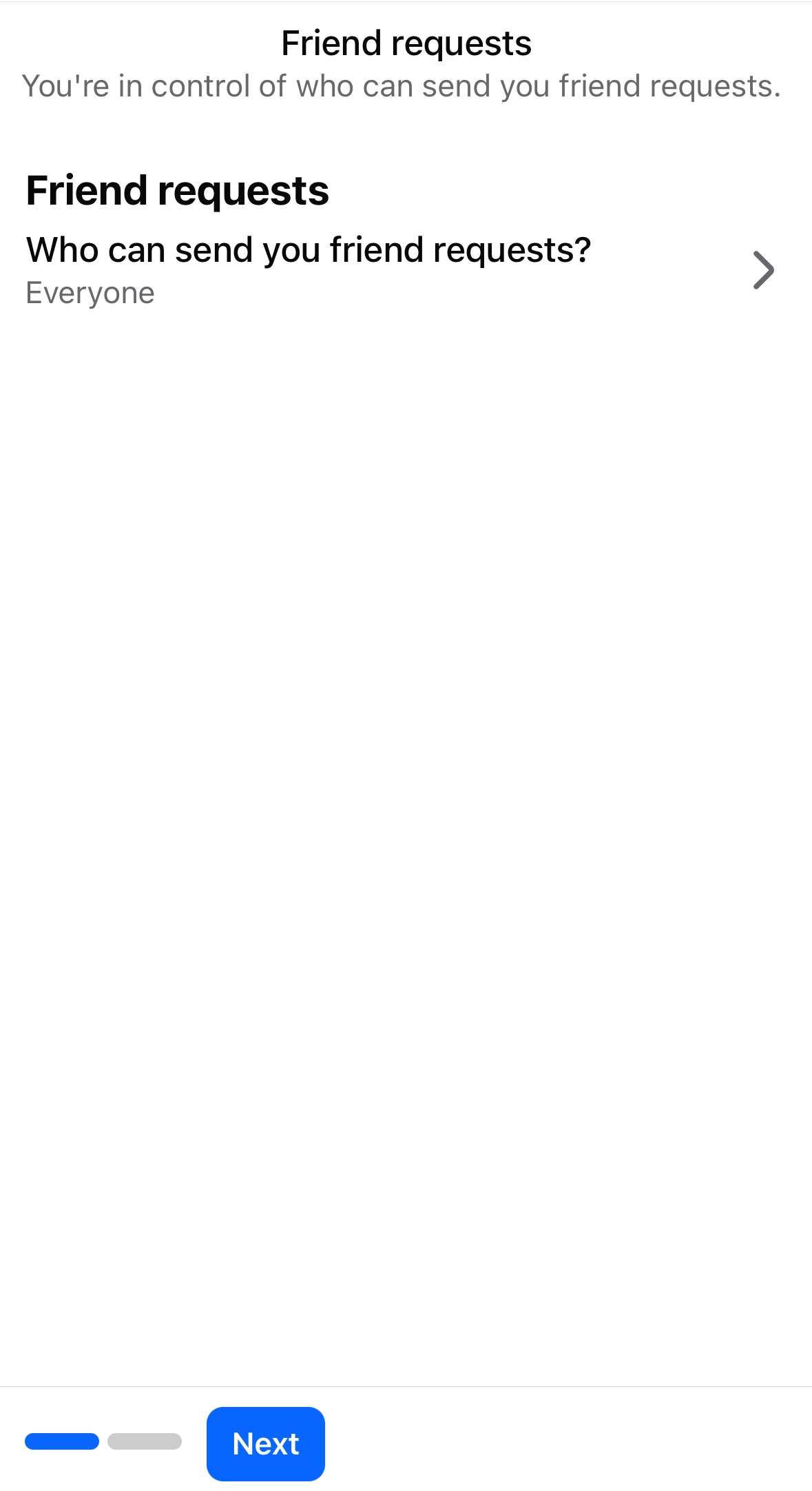
Here, you can begin to adjust your profile privacy settings. You can choose who can send you friend requests and whether you appear in search engines. Click continue
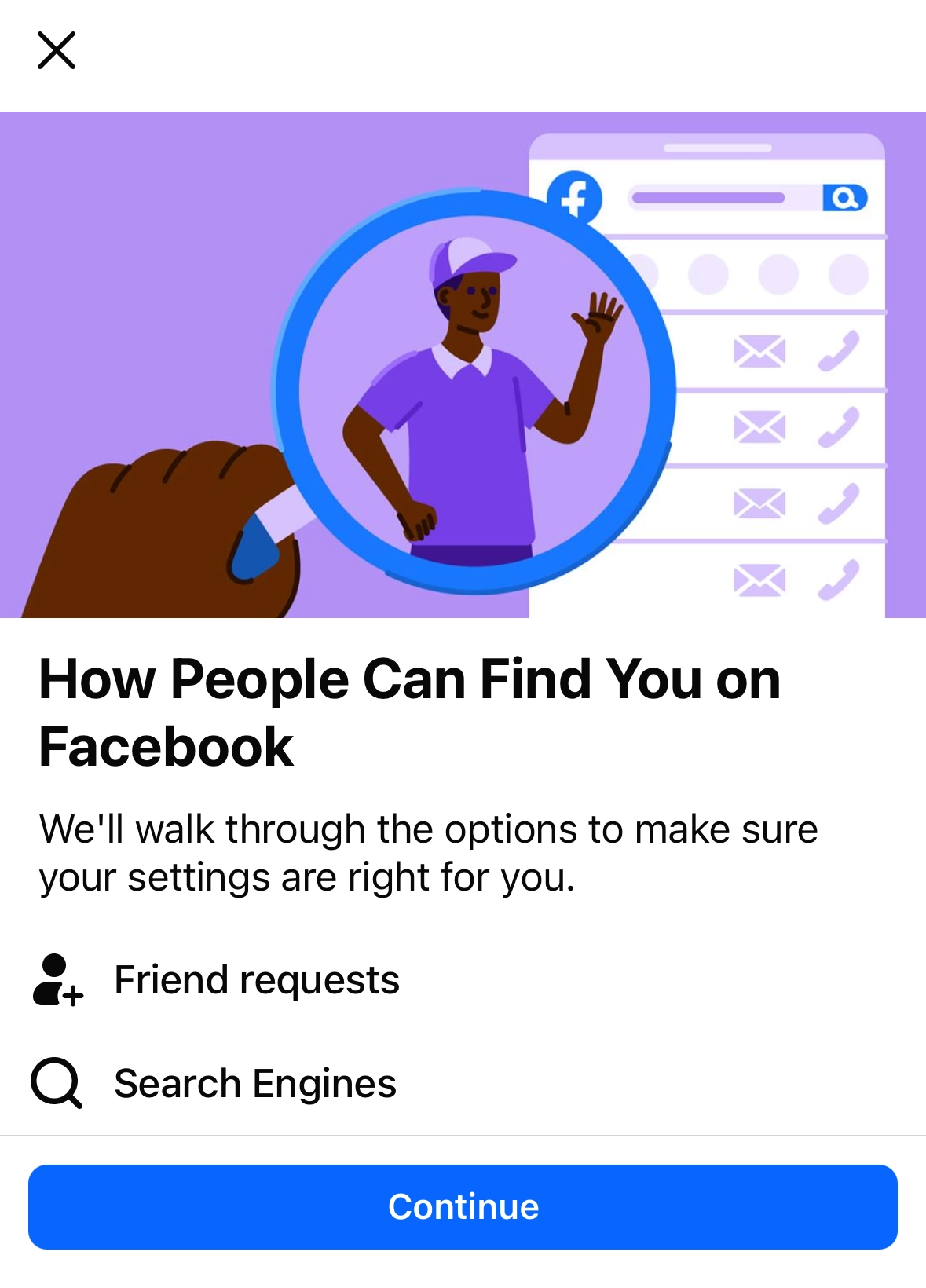
Step 28
Click here
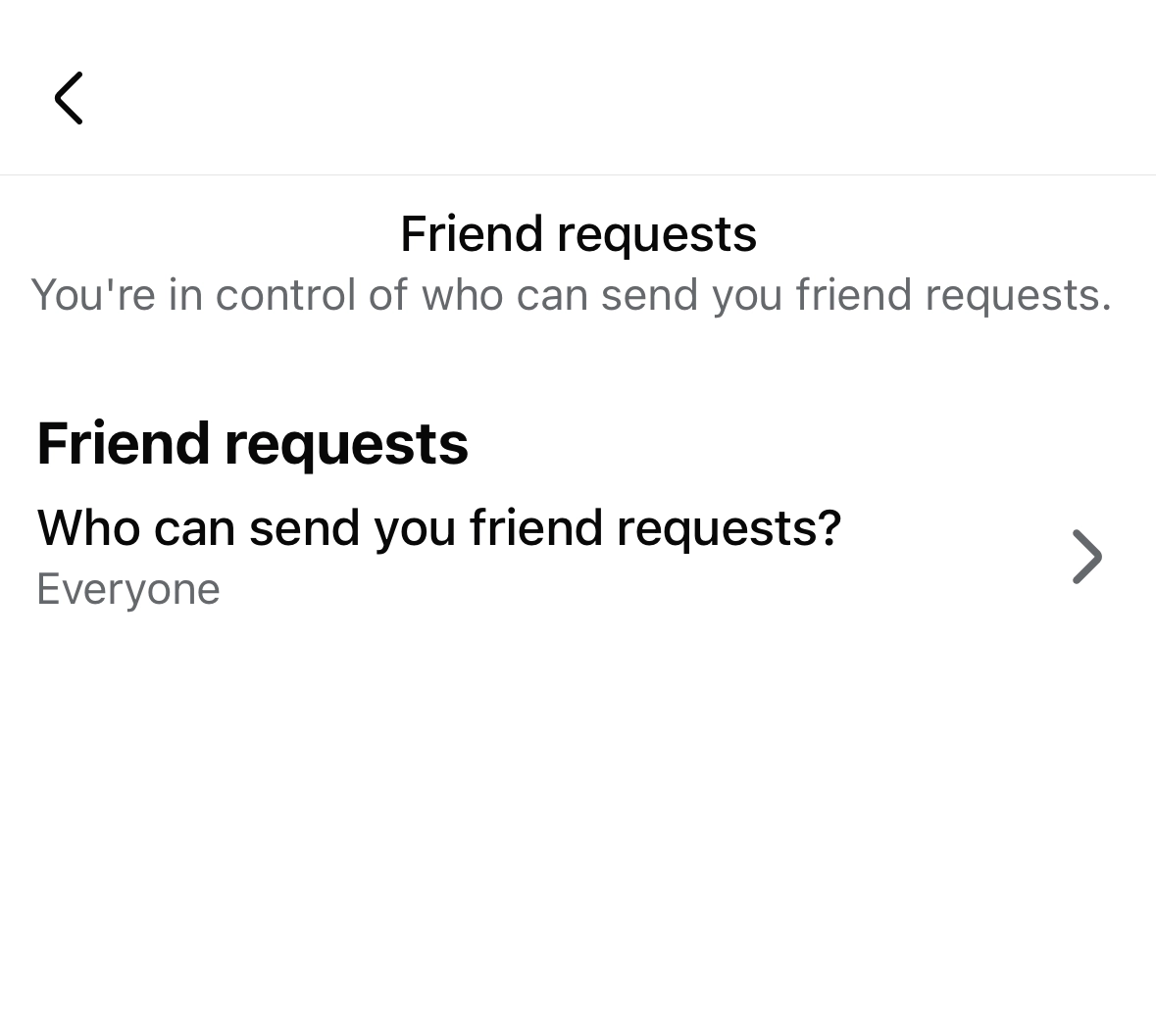
Step 29
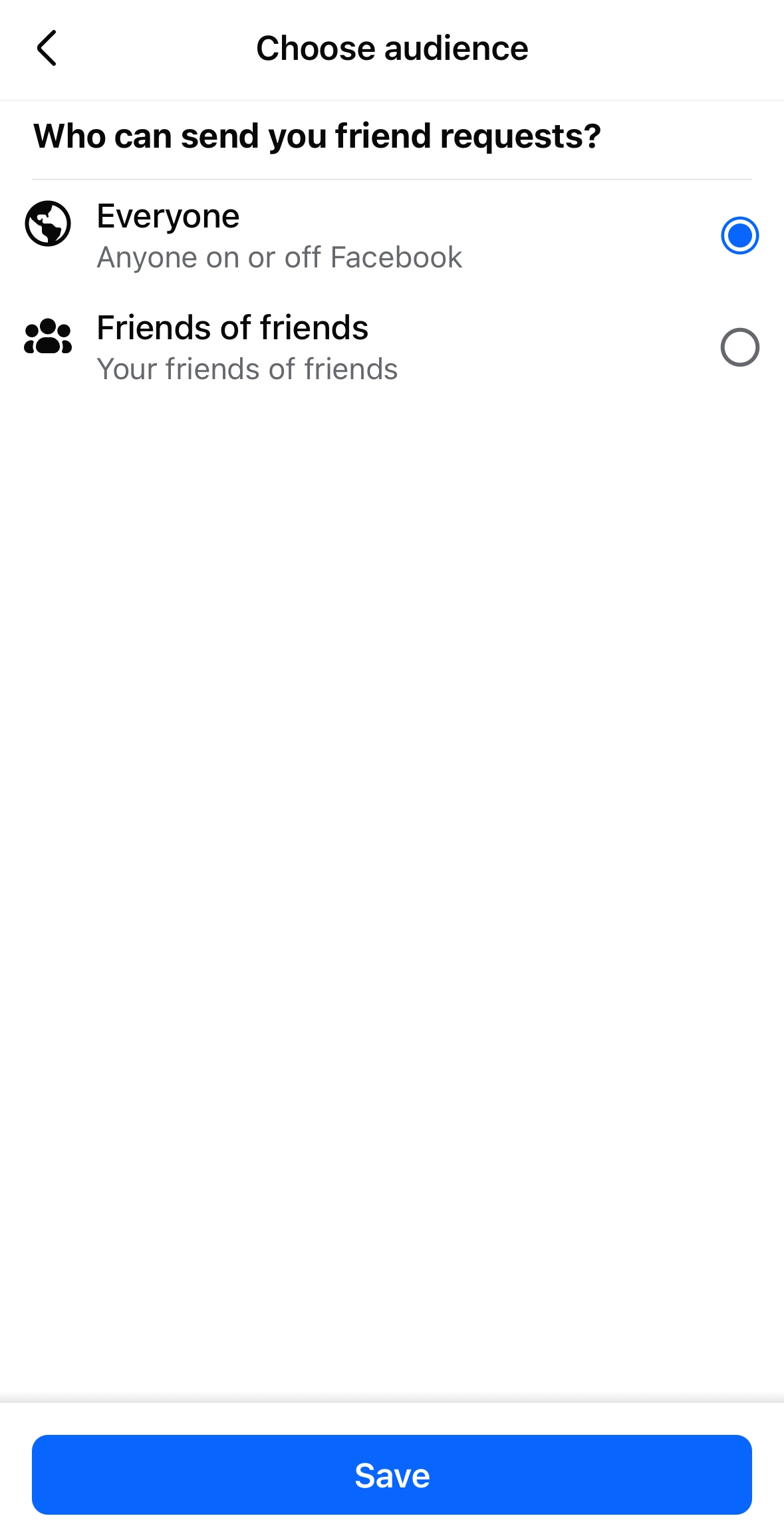
On this page, you can adjust who can send you a friend request, whether it's anyone on Facebook, or only people who are friends of your friends. Make your selection and click Save
Step 30
Click Next
Step 31
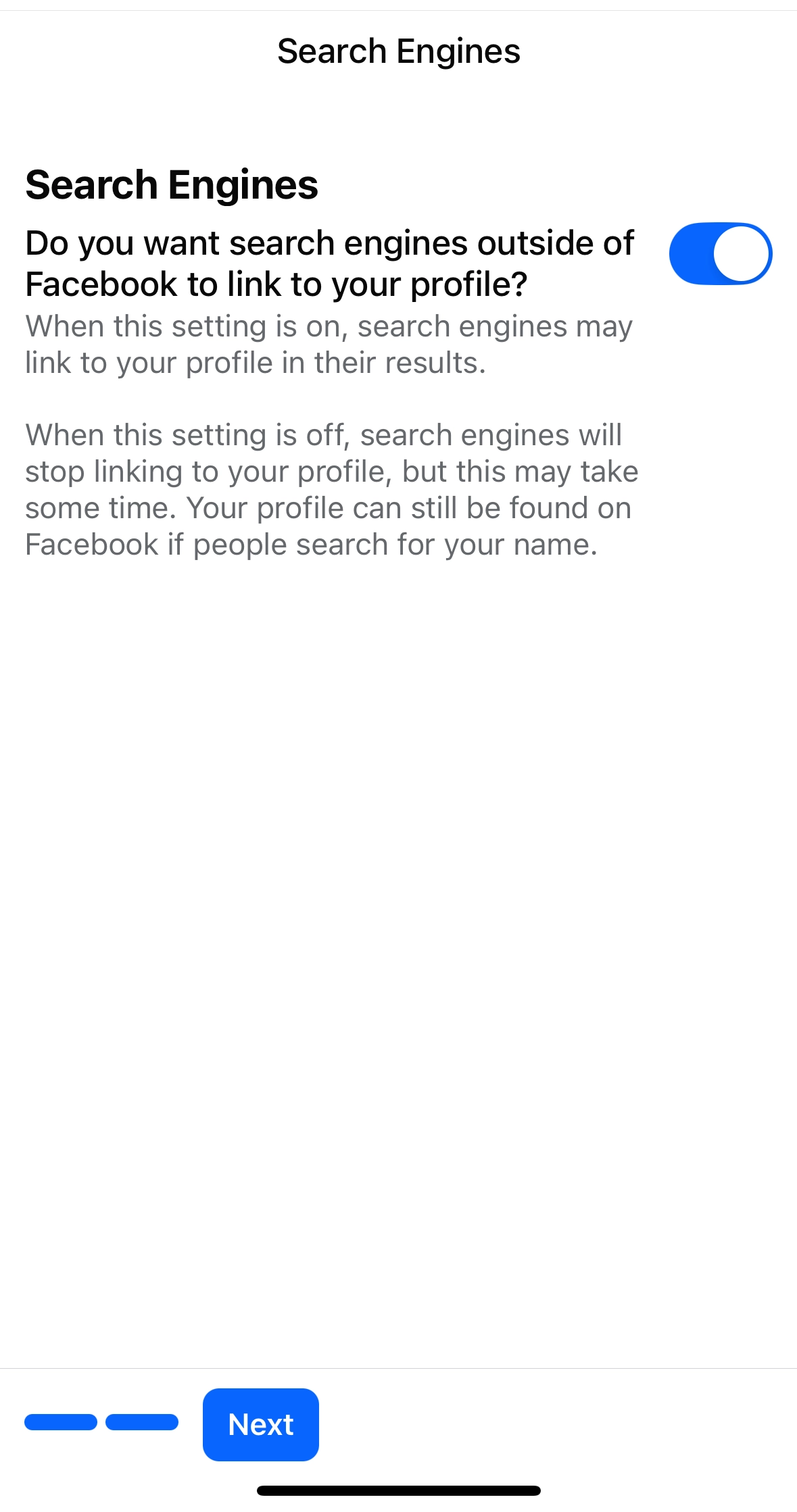
Click this button if you do not want your account to be shown in search engine results. Click Next to complete the process
Step 32
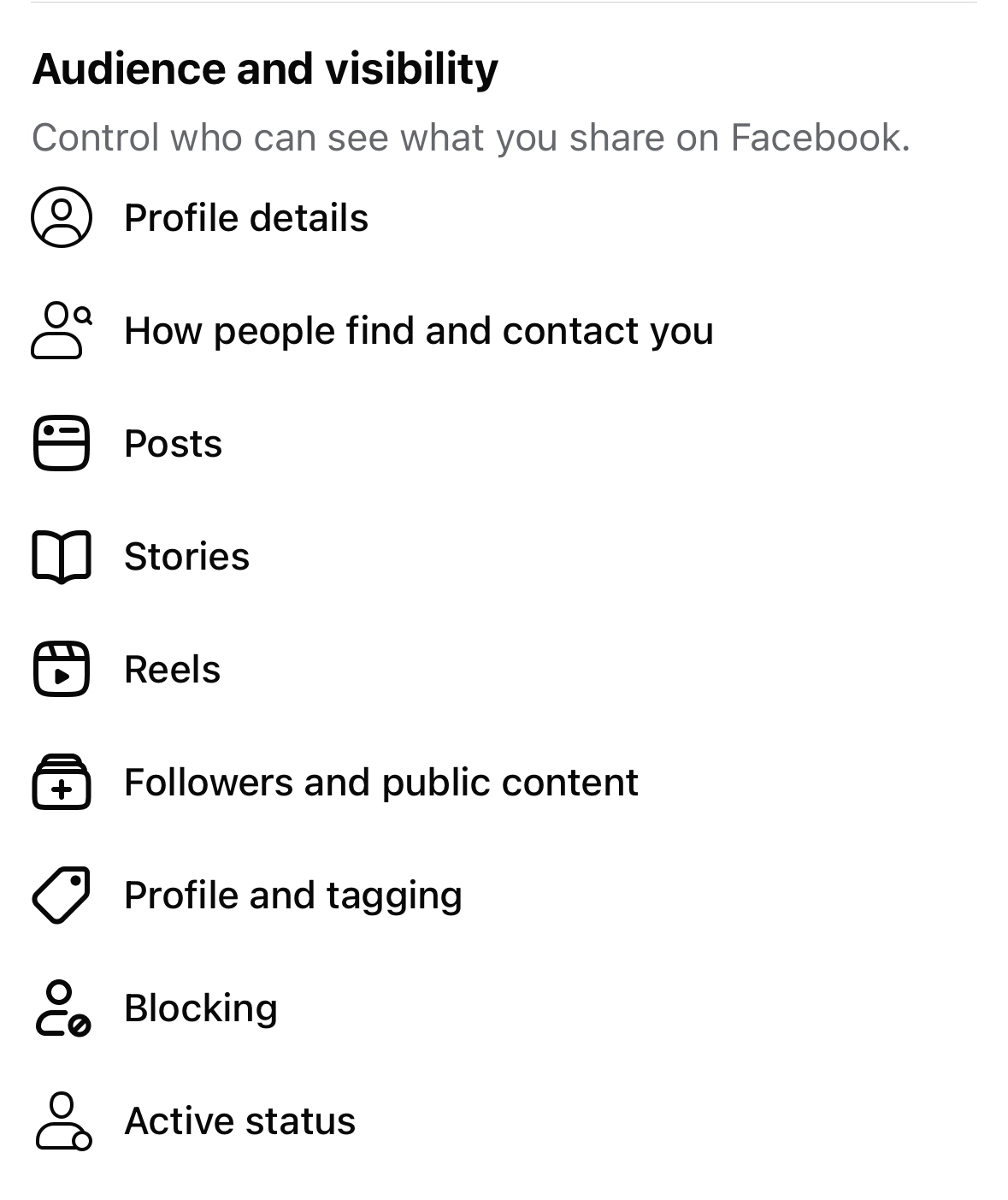
You can also find these options in the Settings & Privacy page. Scroll down to Audience and visibility and click How people find and contact you
Step 33
This page will also allow you to adjust who can send you friend requests and whether your profile will appear in search engine results
Adjusting Who Can See What You Share
Step 34
Go back to the Settings and Privacy page and click Privacy Checkup
Step 35
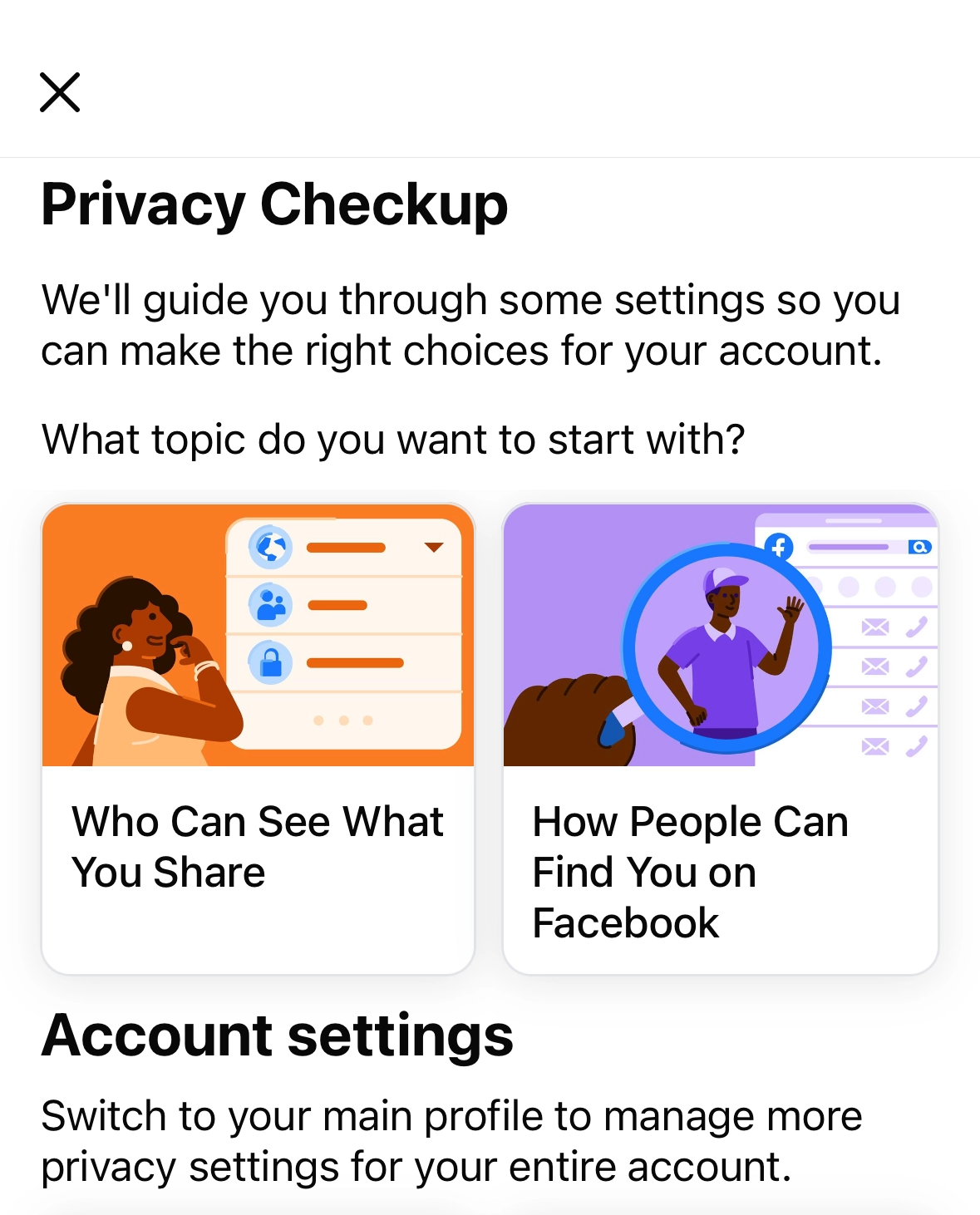
This time, let's click Who Can See What You Share
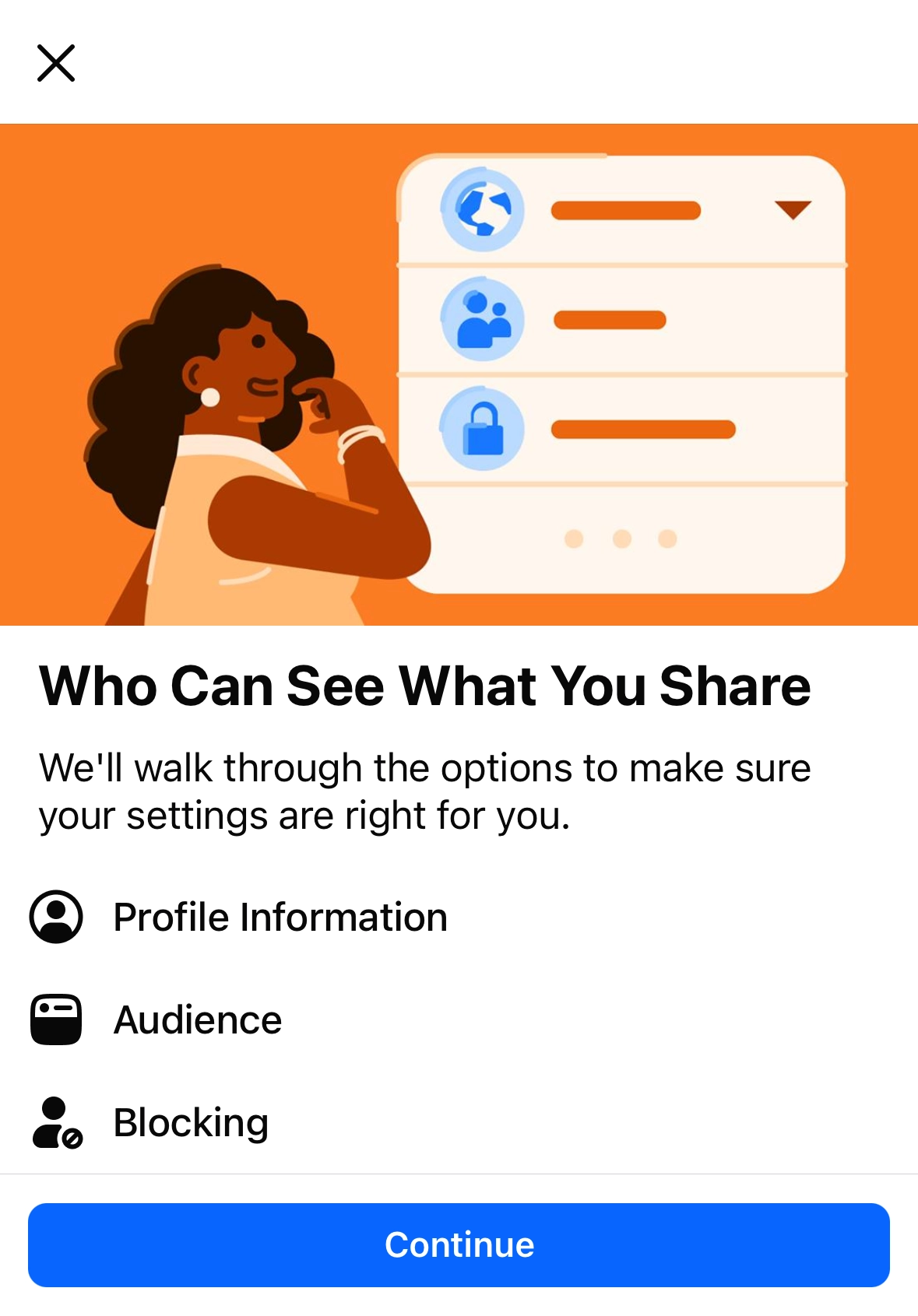
Step 36
Click Continue
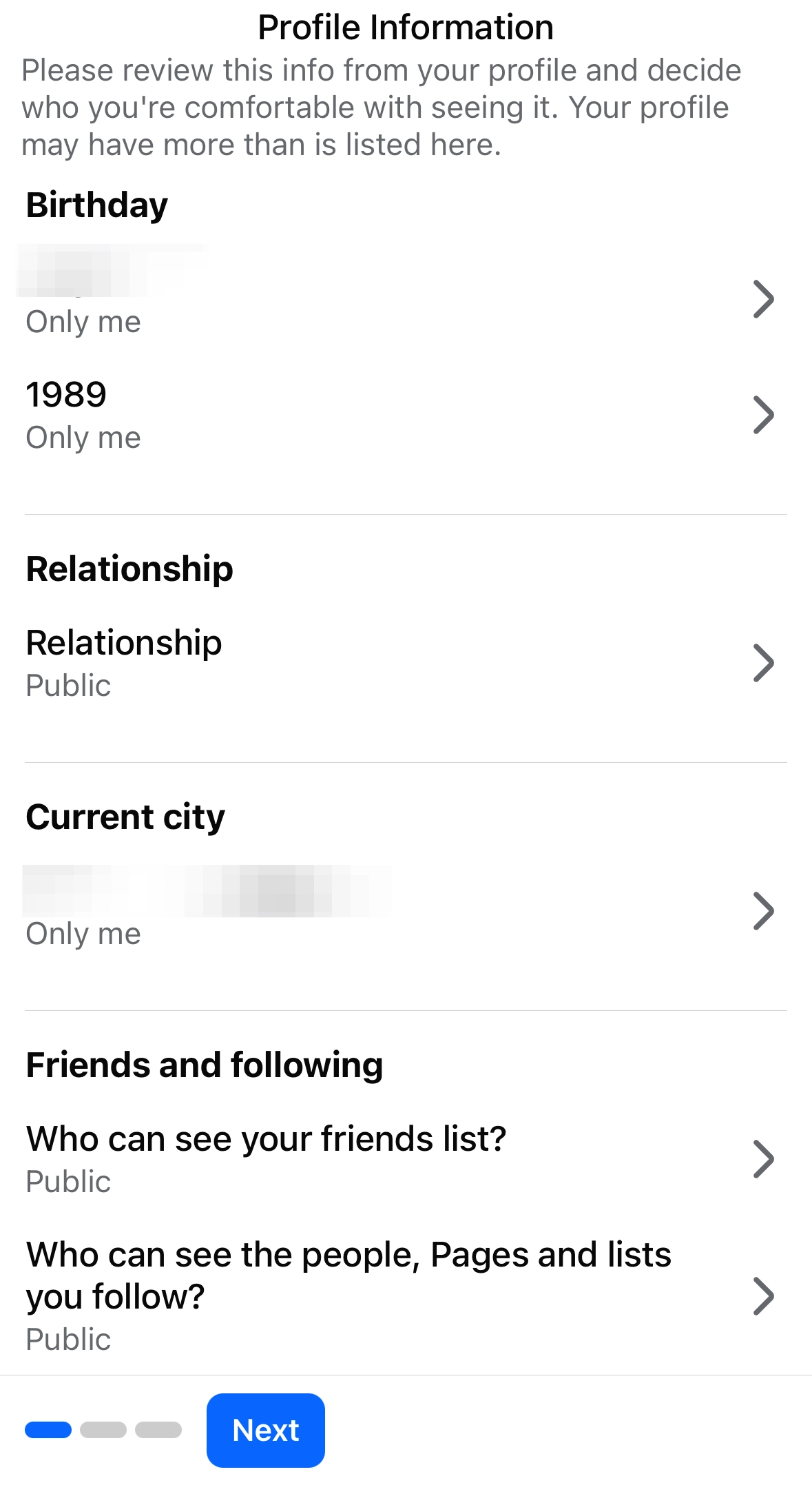
Step 37
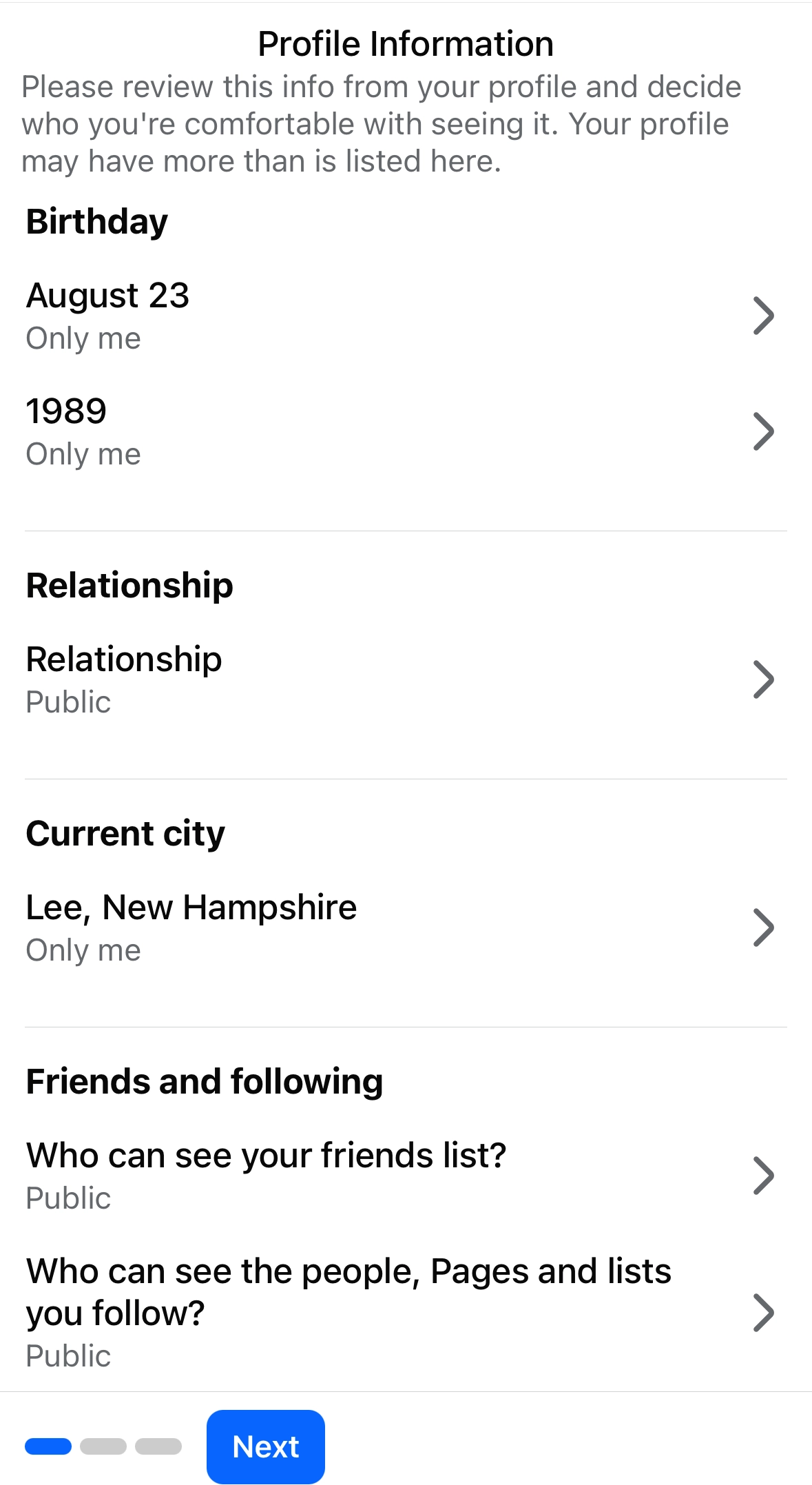
You can adjust what profile information can be viewed by whom, including your birthday, relationship status, current city and your friend list.
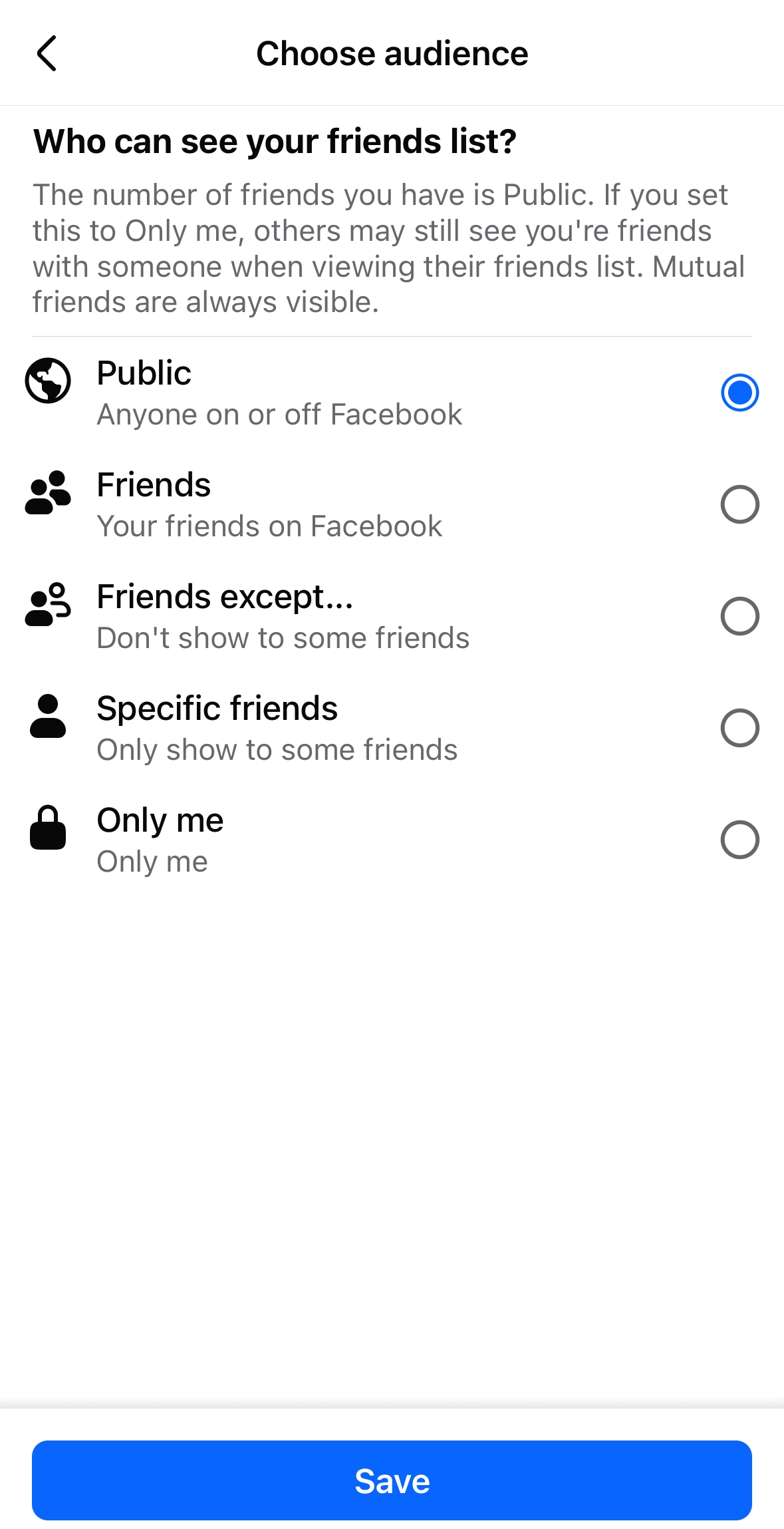
Step 38
You can choose whether each piece of data can be seen by anyone, your entire friends list, or you can adjust it so only select friends can access the information. You can also make it private by selecting Only me. Once you've made your choice, click Save
Step 39
Once you are done on this screen, click Next
Step 40
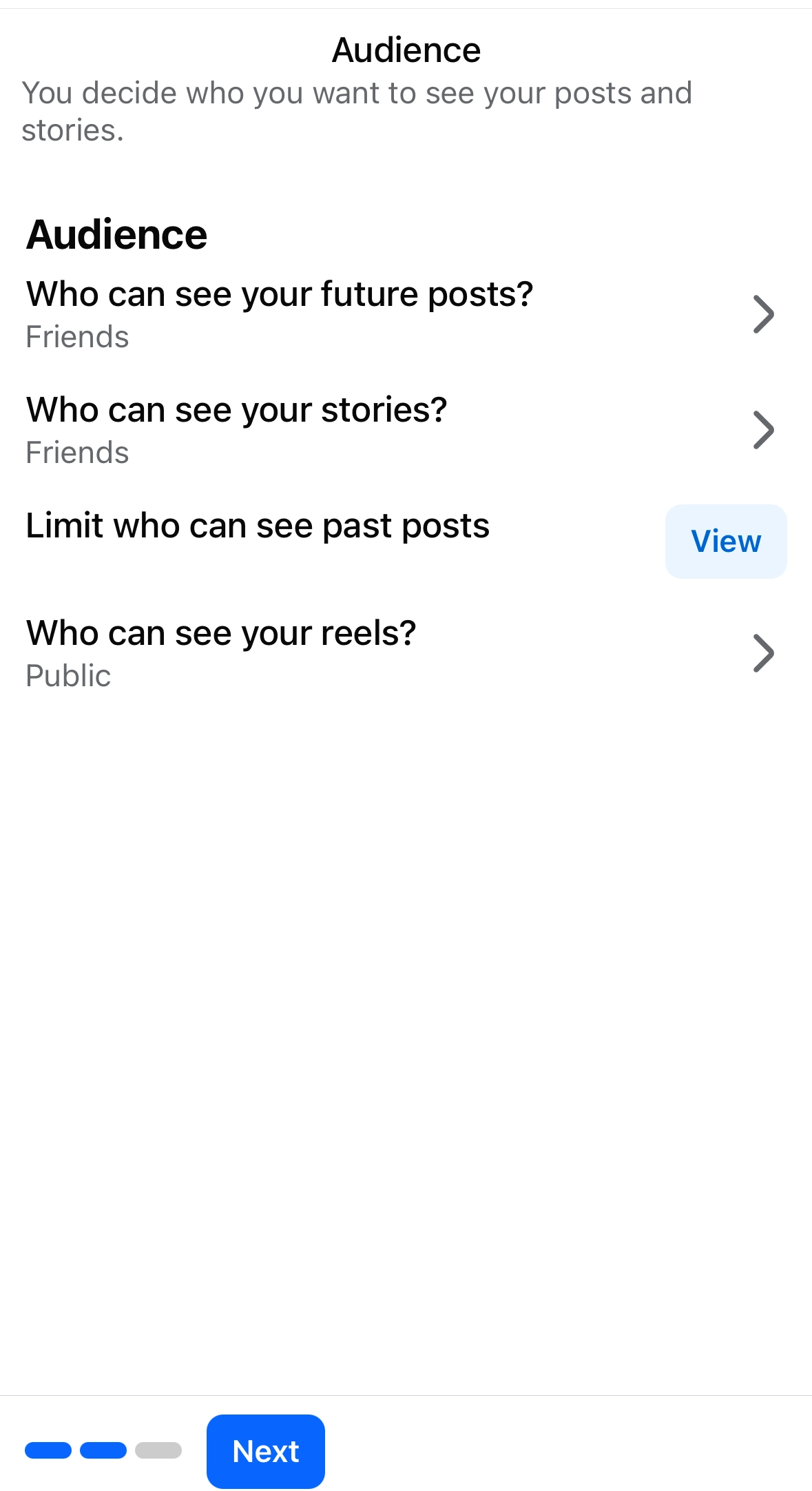
On this screen, you can choose who can see your posts, stories, past posts and reels
Step 41
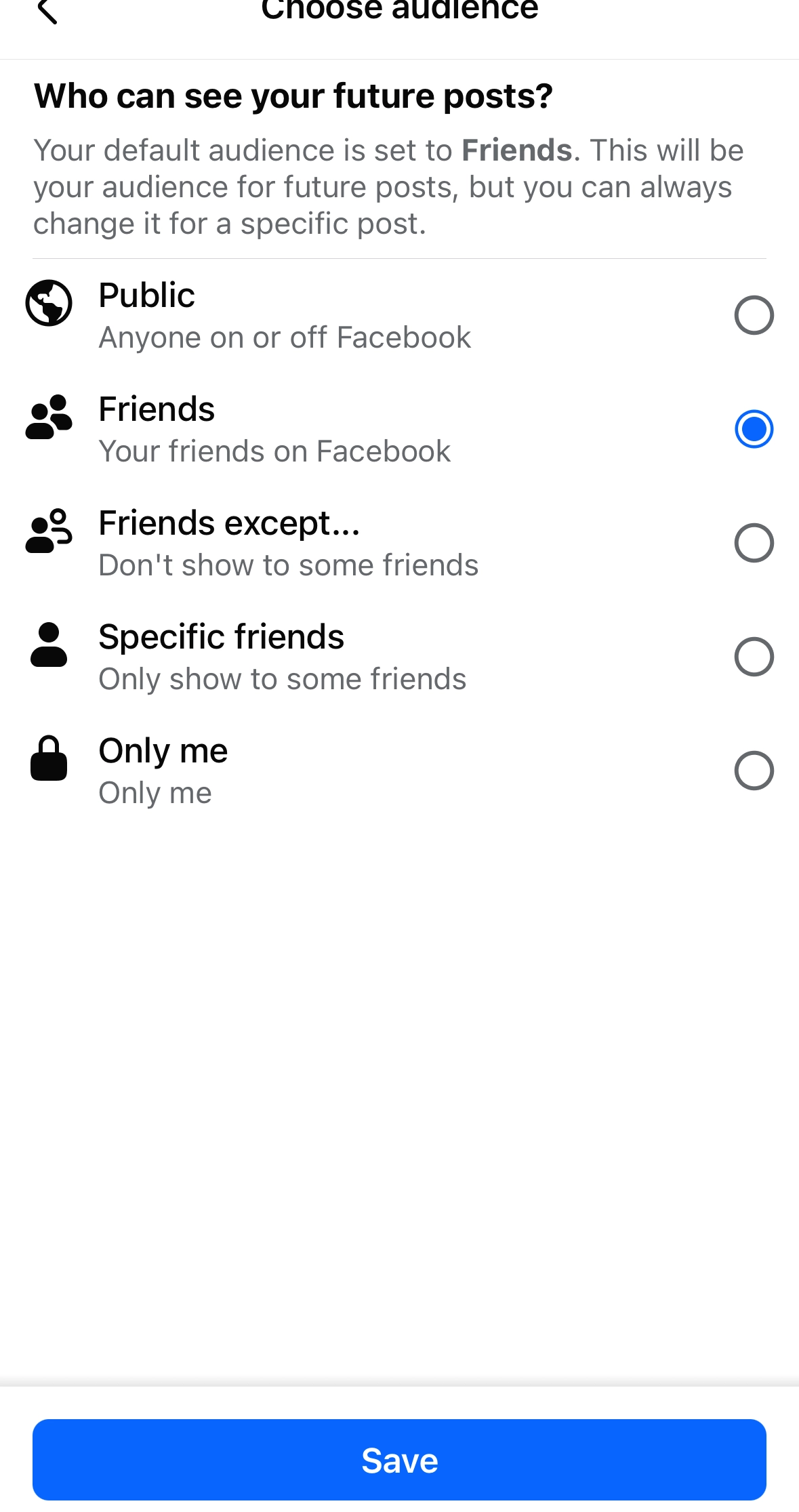
For all forms of content you post, you can choose to have anyone on Facebook see it, your friends, or friends that you choose. If you want a piece of content to be private, click Only me. Once you've made your choice, click Save
Step 42
After you are done adjusting these settings, click Next
Step 43
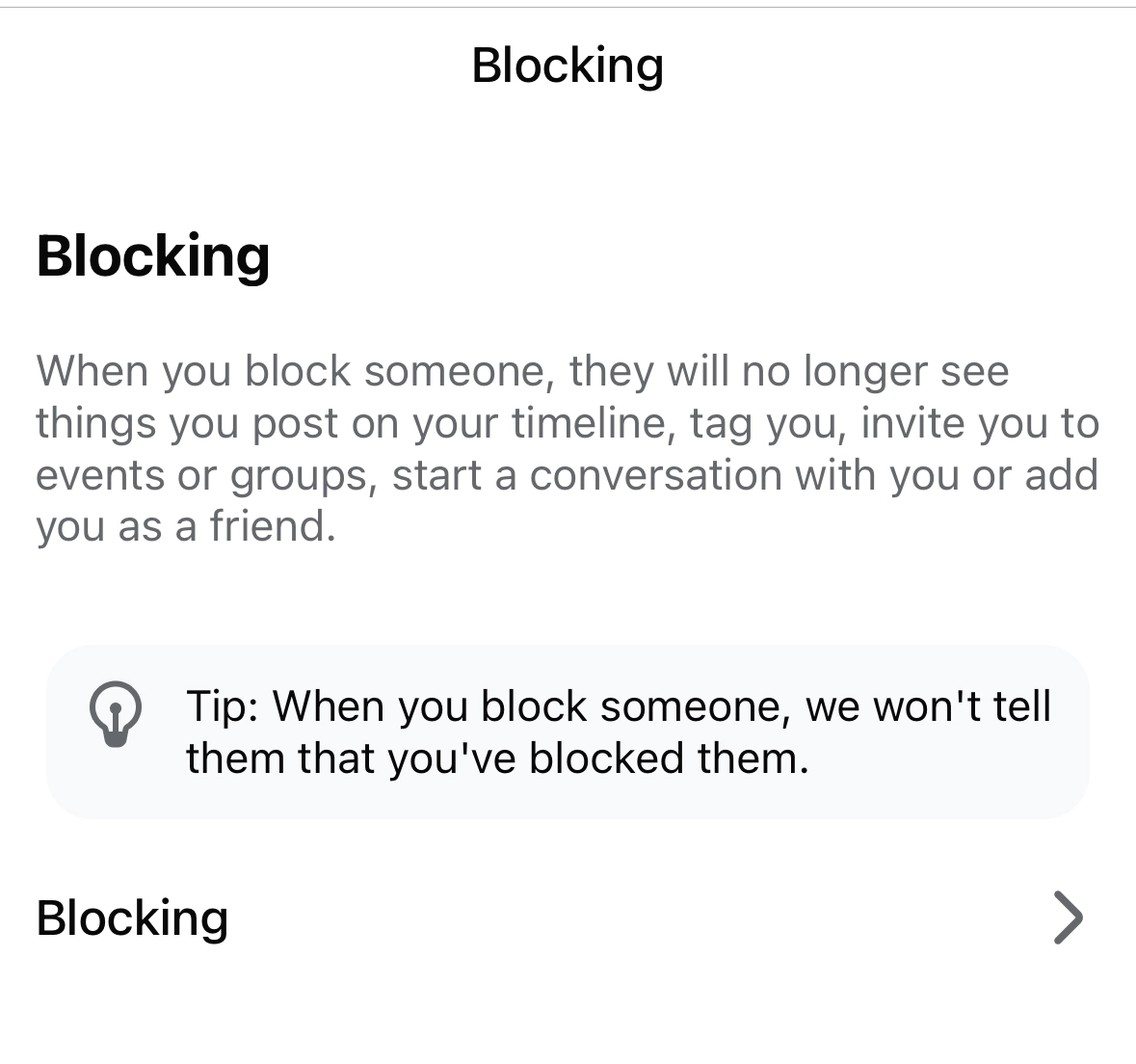
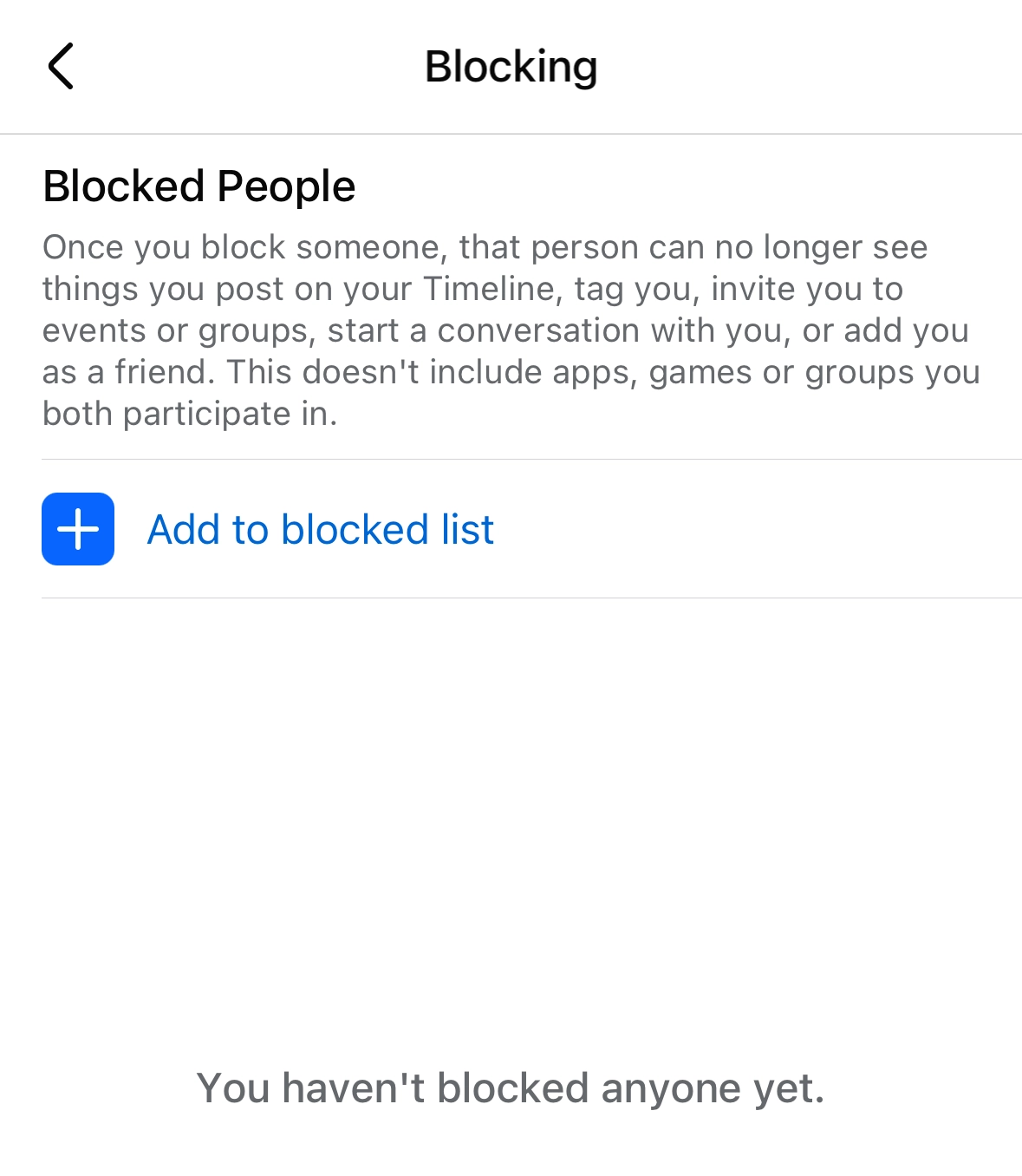
Next, you'll view any accounts that you've blocked. If there are specific accounts you want to block, click here
Step 44
Click Add to blocked list
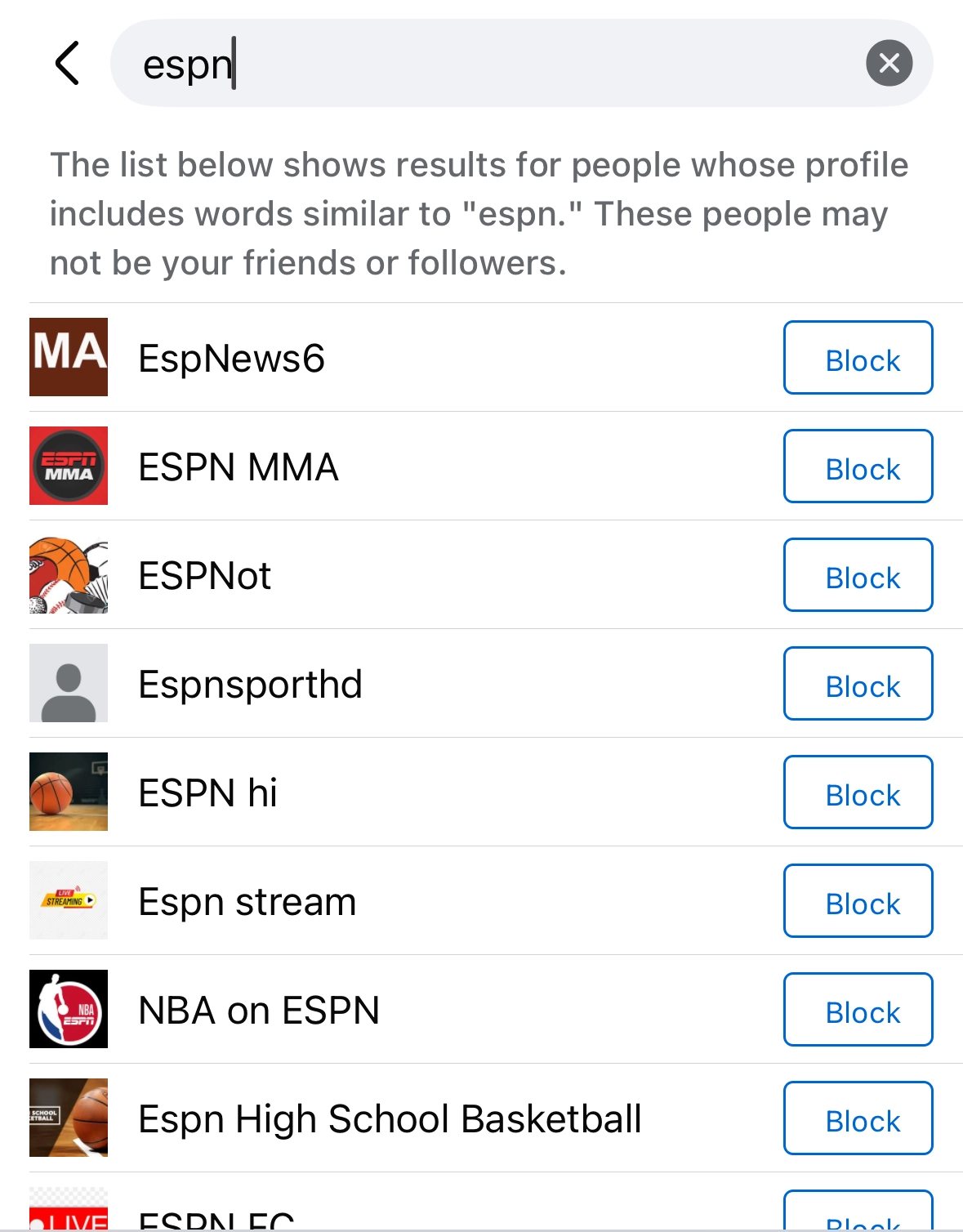
Step 45
Look up any person/page you want to block. Once the correct option appears, click this button to block them
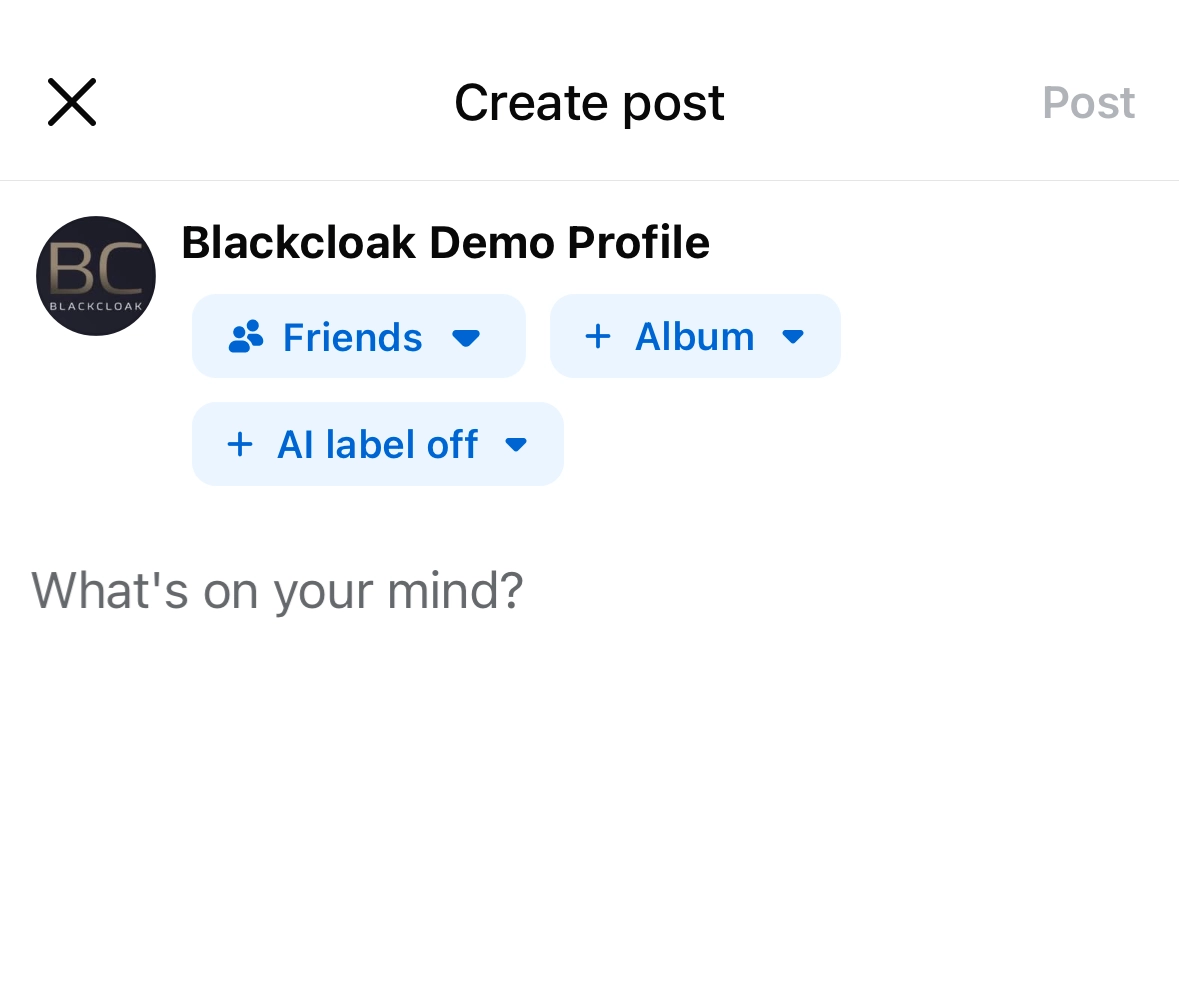
Adjusting Post Privacy Settings
Step 46
When you are going to post, click on this box
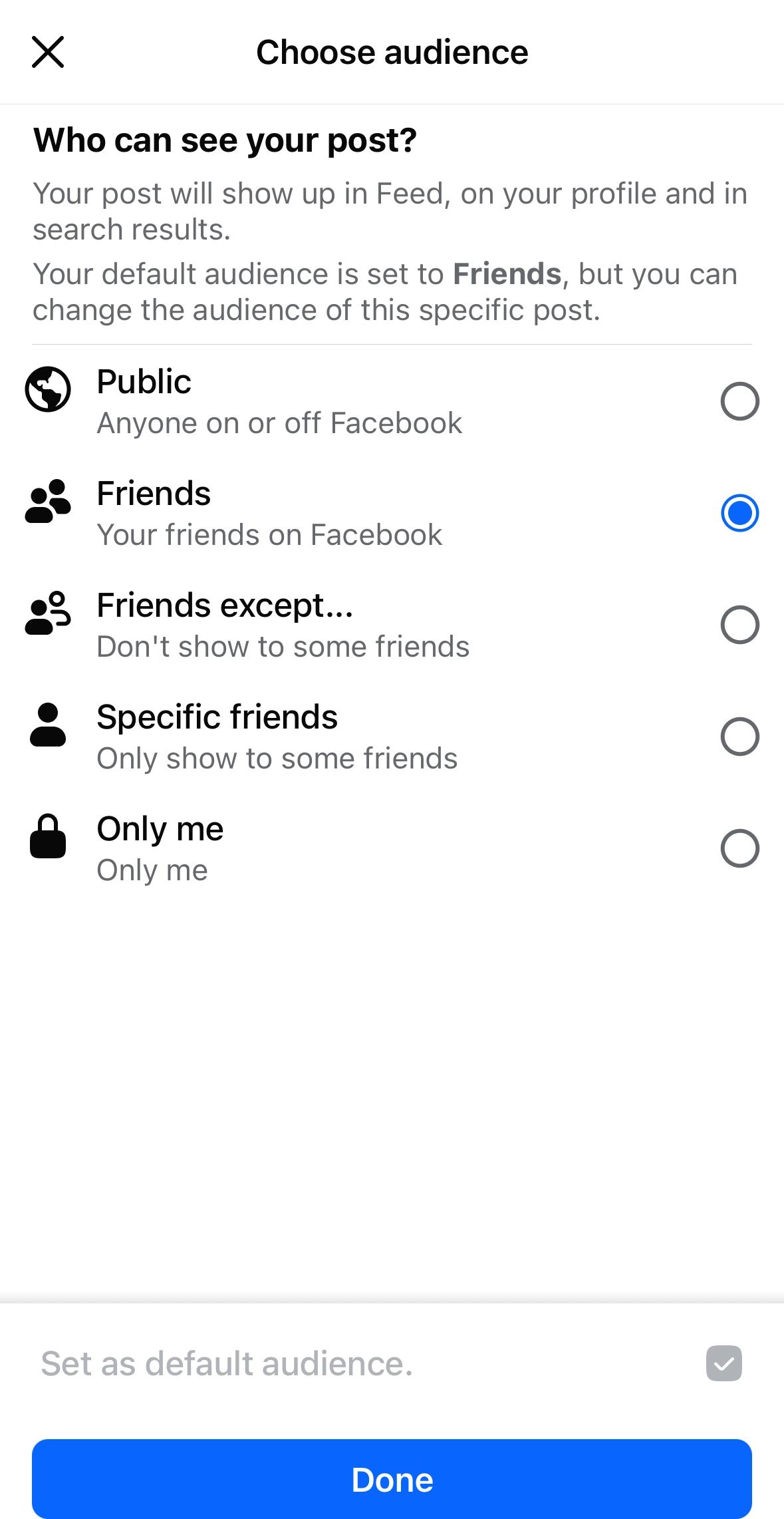
Step 47
Here, you can adjust your settings to determine who can see your post. Make your selection and click done
Adjusting Profile and Tagging Settings
Step 48
In the Settings & Privacy section, scroll down to Audience and Visibility and click Profile and tagging
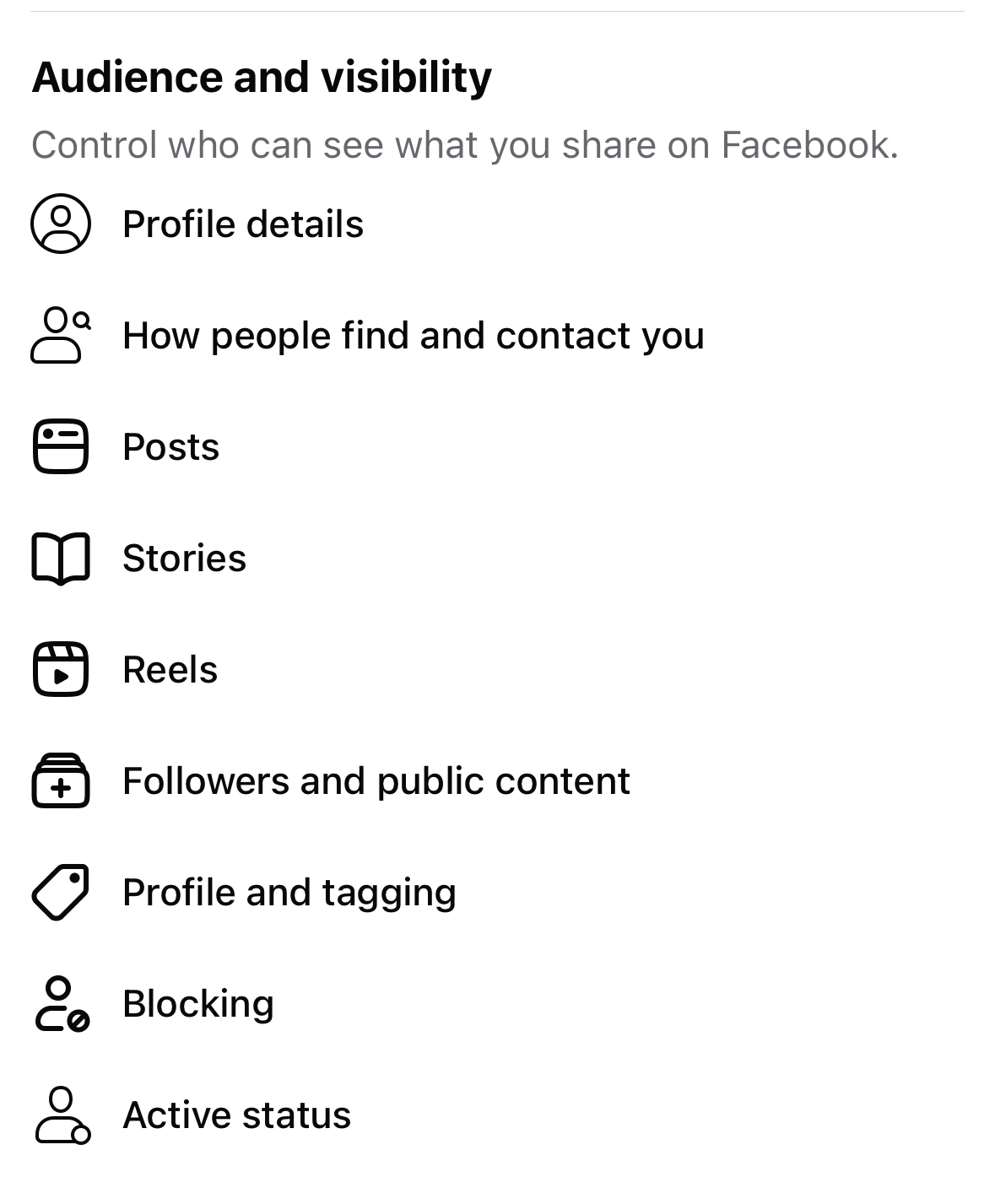
Step 49
On this page, you can adjust who can post on your profile and who can tag you. Click here
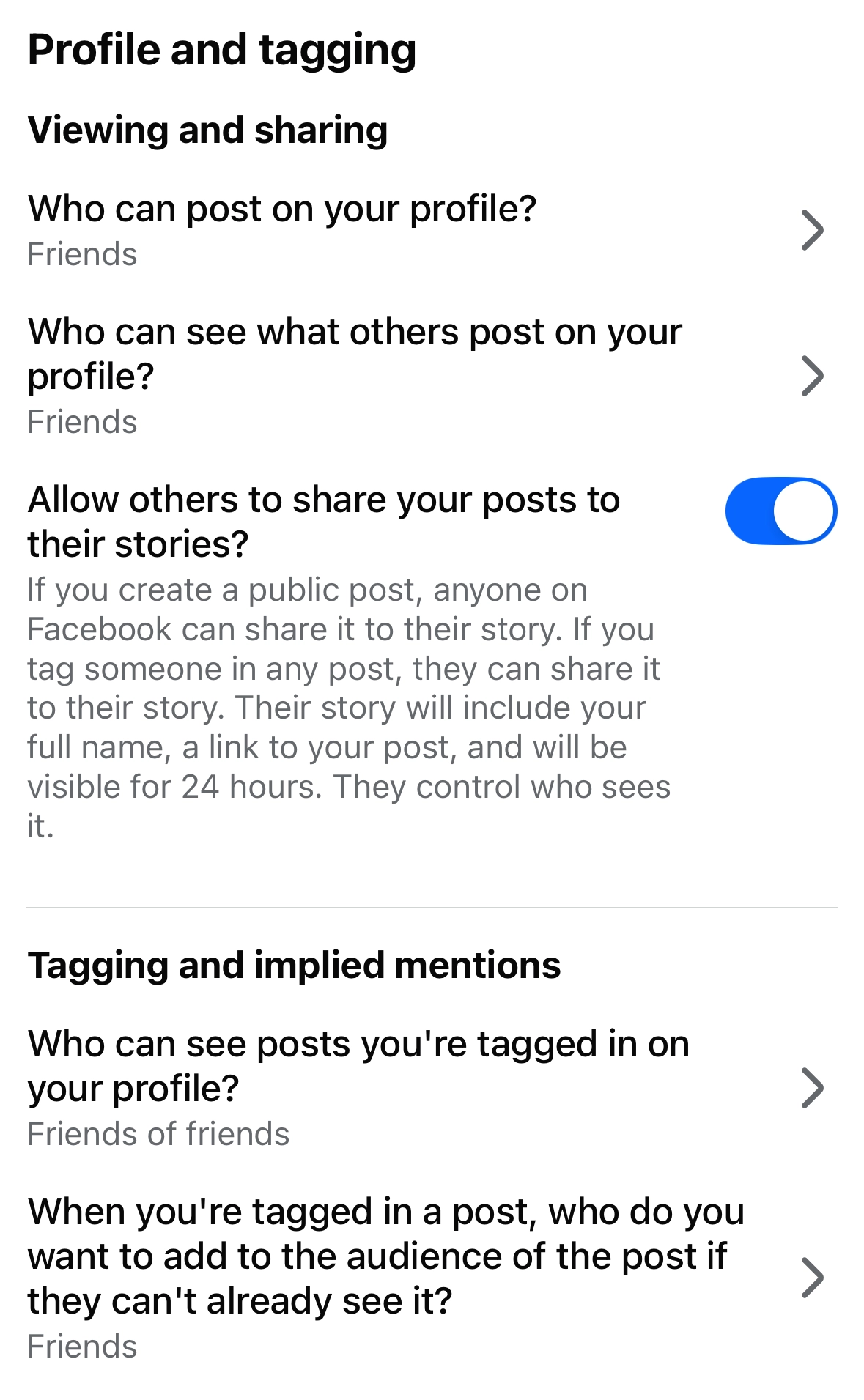
Step 50
Choose whether your friends can post on your profile, or if only you can do so. Make your choice and click Save
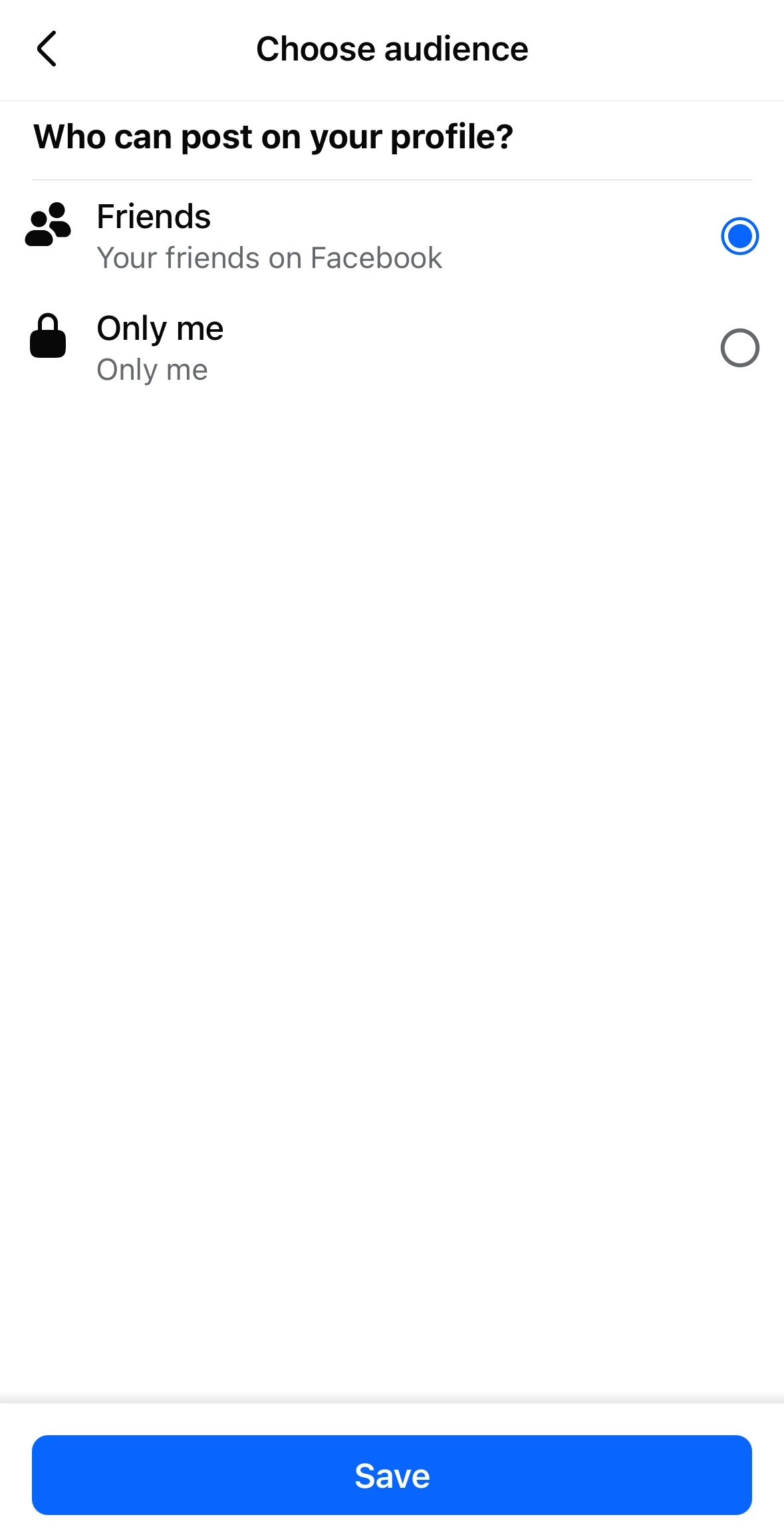
Step 51
Now click here
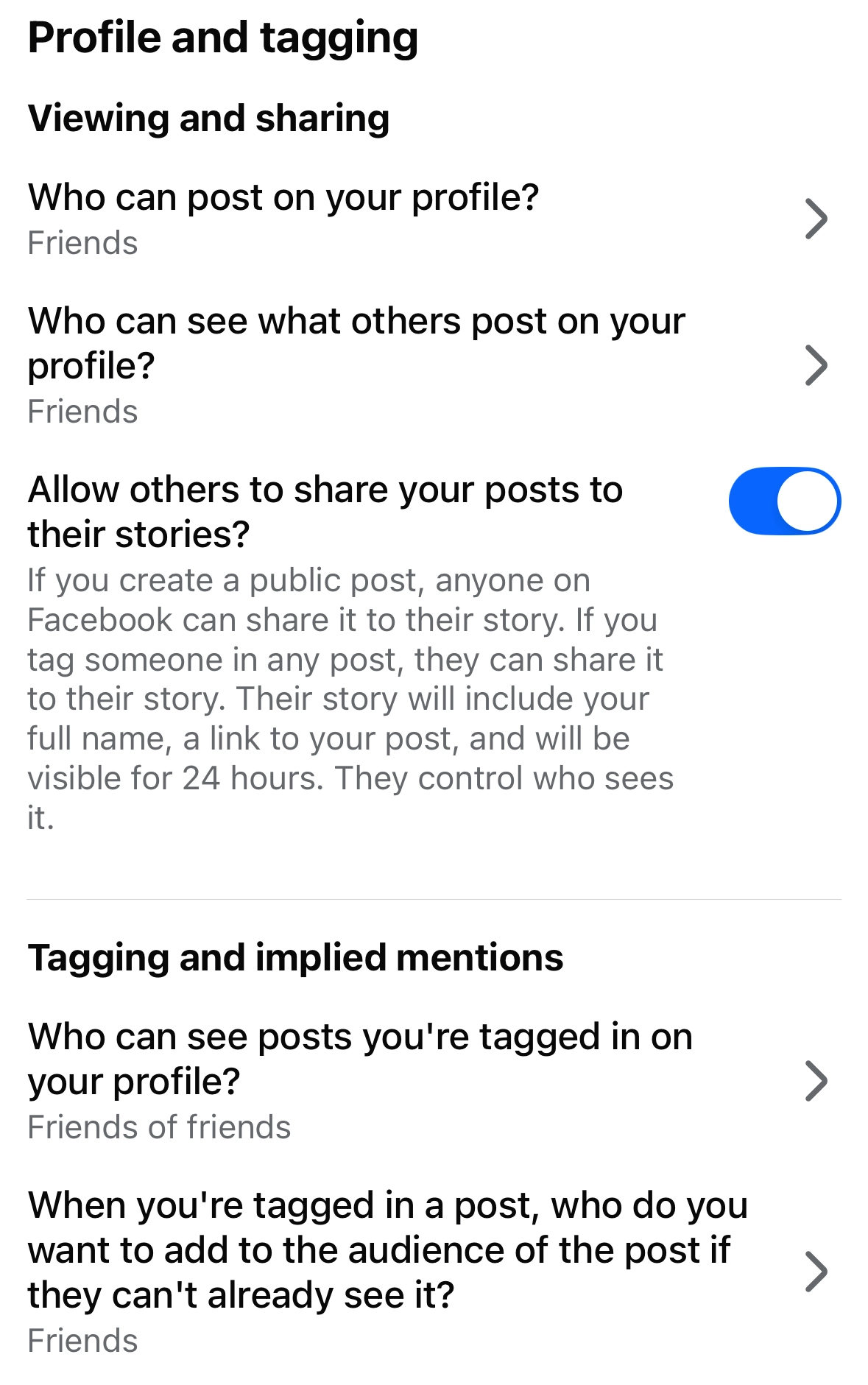
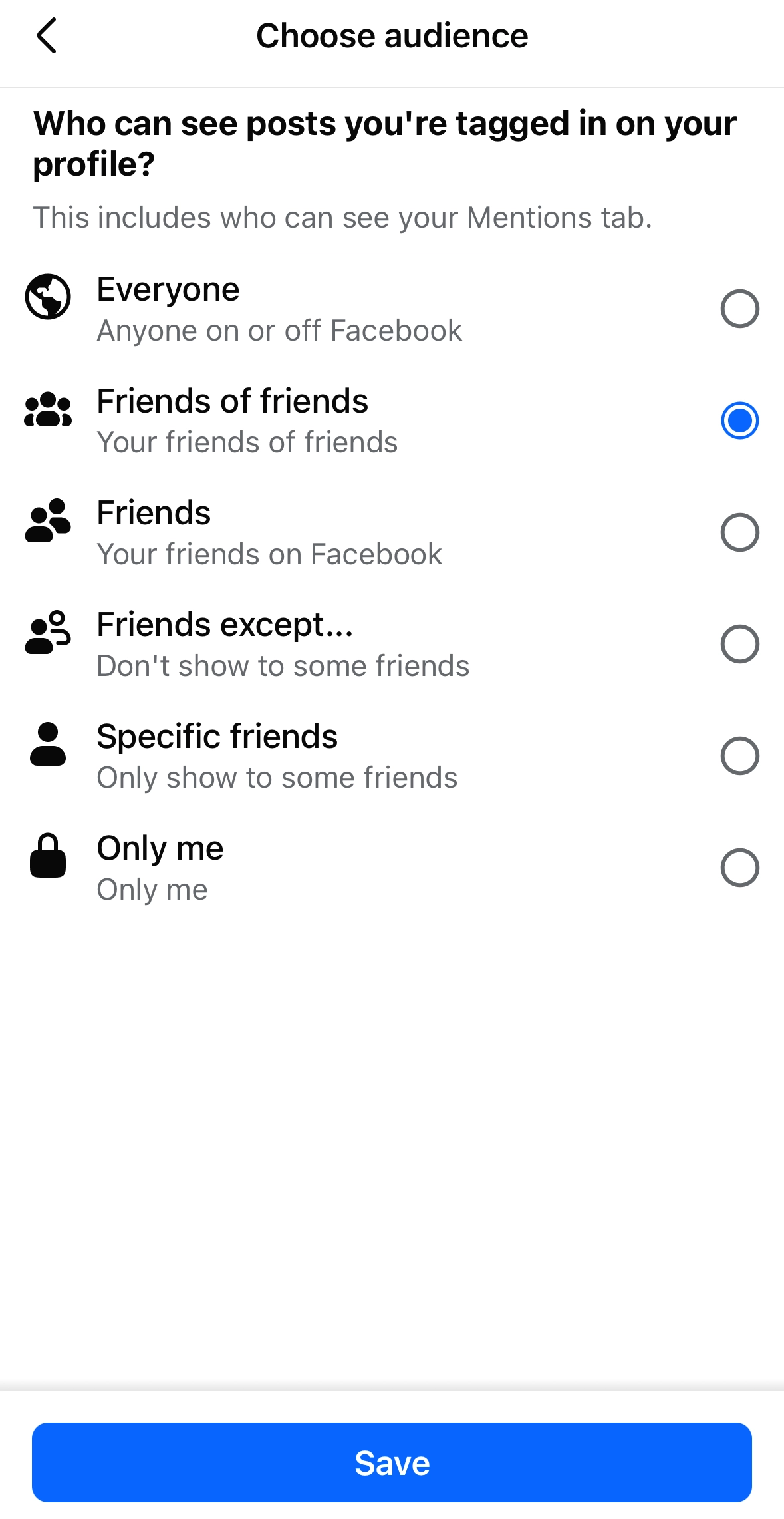
Step 52
You can choose who can see posts you are tagged in on your profile. Make your selection and click save
Adjusting Location Services
Step 53
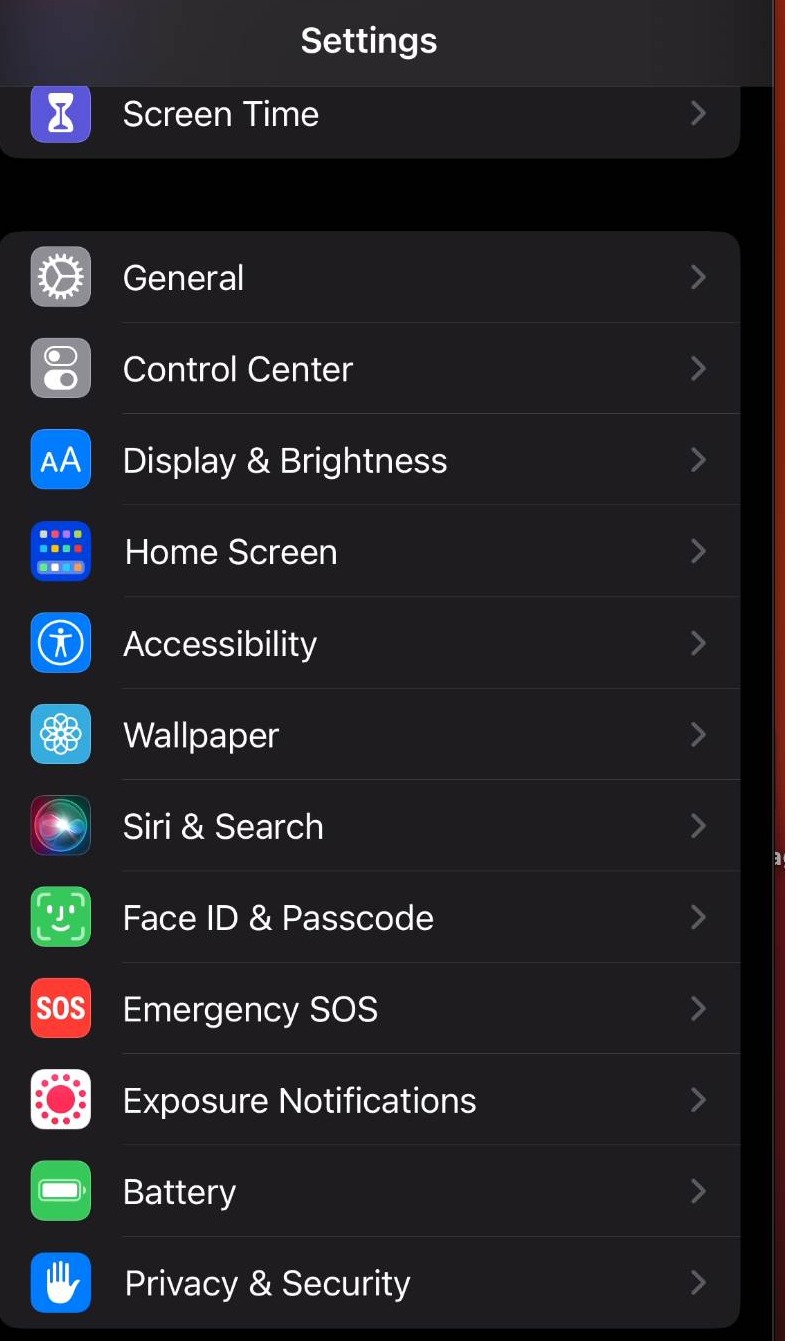
In your phone's settings, select privacy and security
Step 54
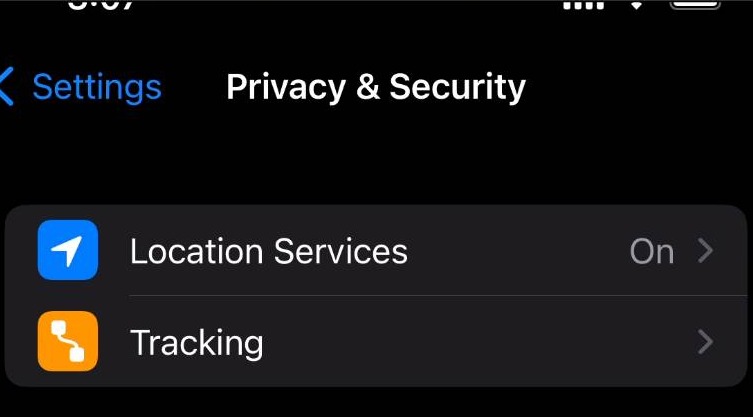
Click location services
Step 55
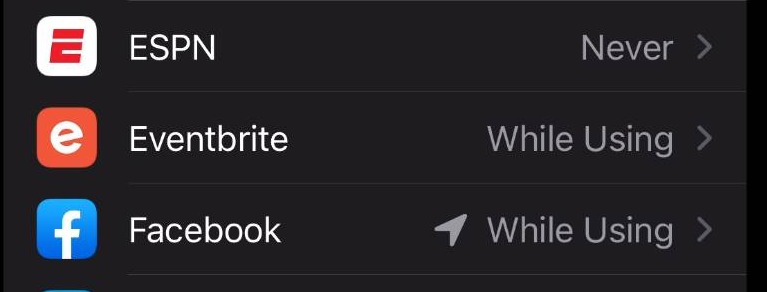
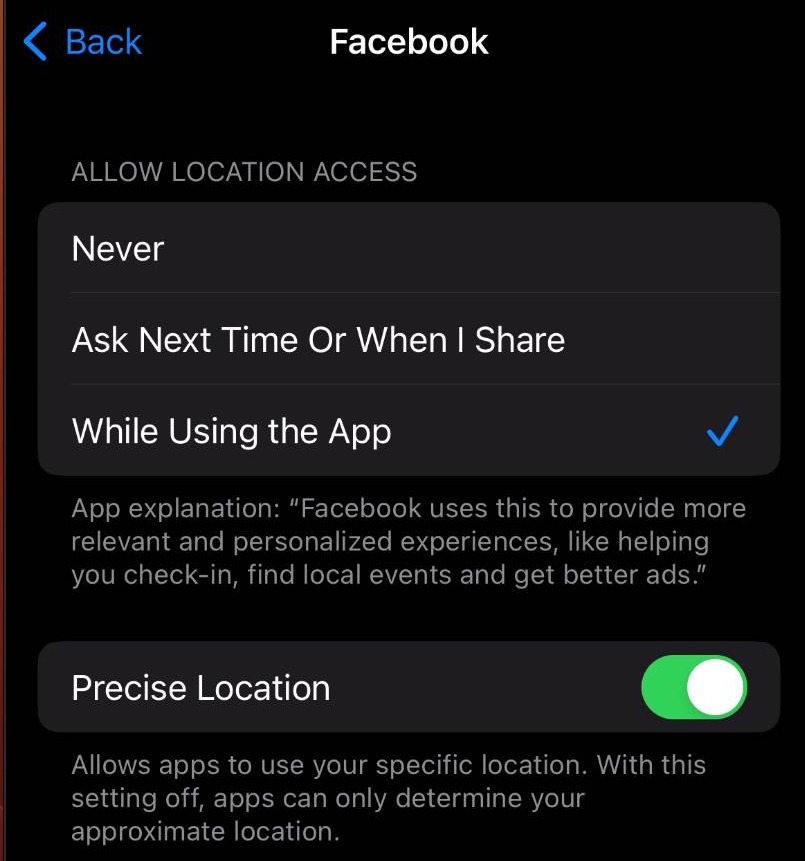
Find the Facebook app
Step 56
Here, you can adjust when the Facebook app can access location services, as well as if it can access your precise location
Adjusting Ad Preferences
Step 57
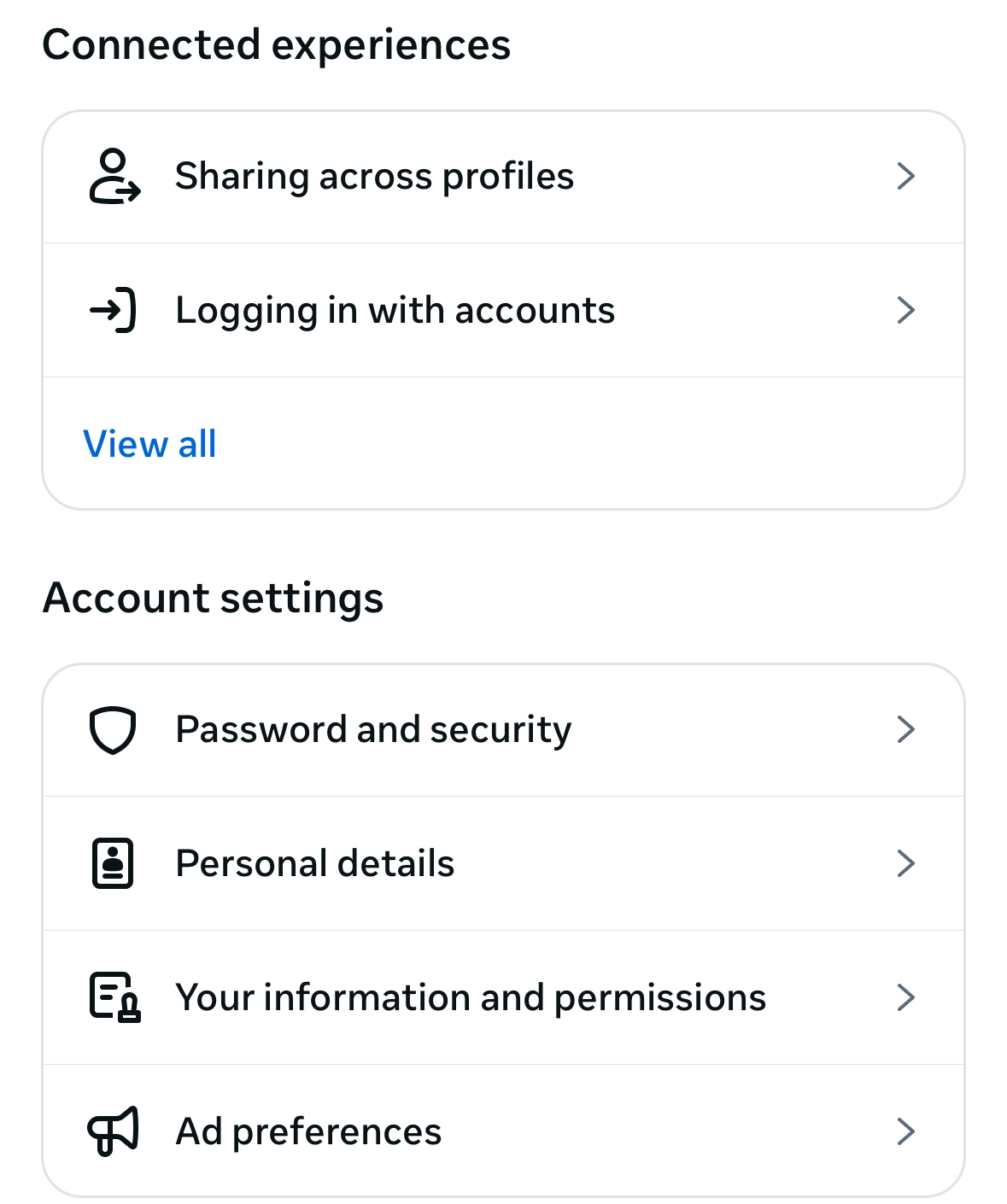
Go to the Accounts Center and click Ad Preferences
Step 58
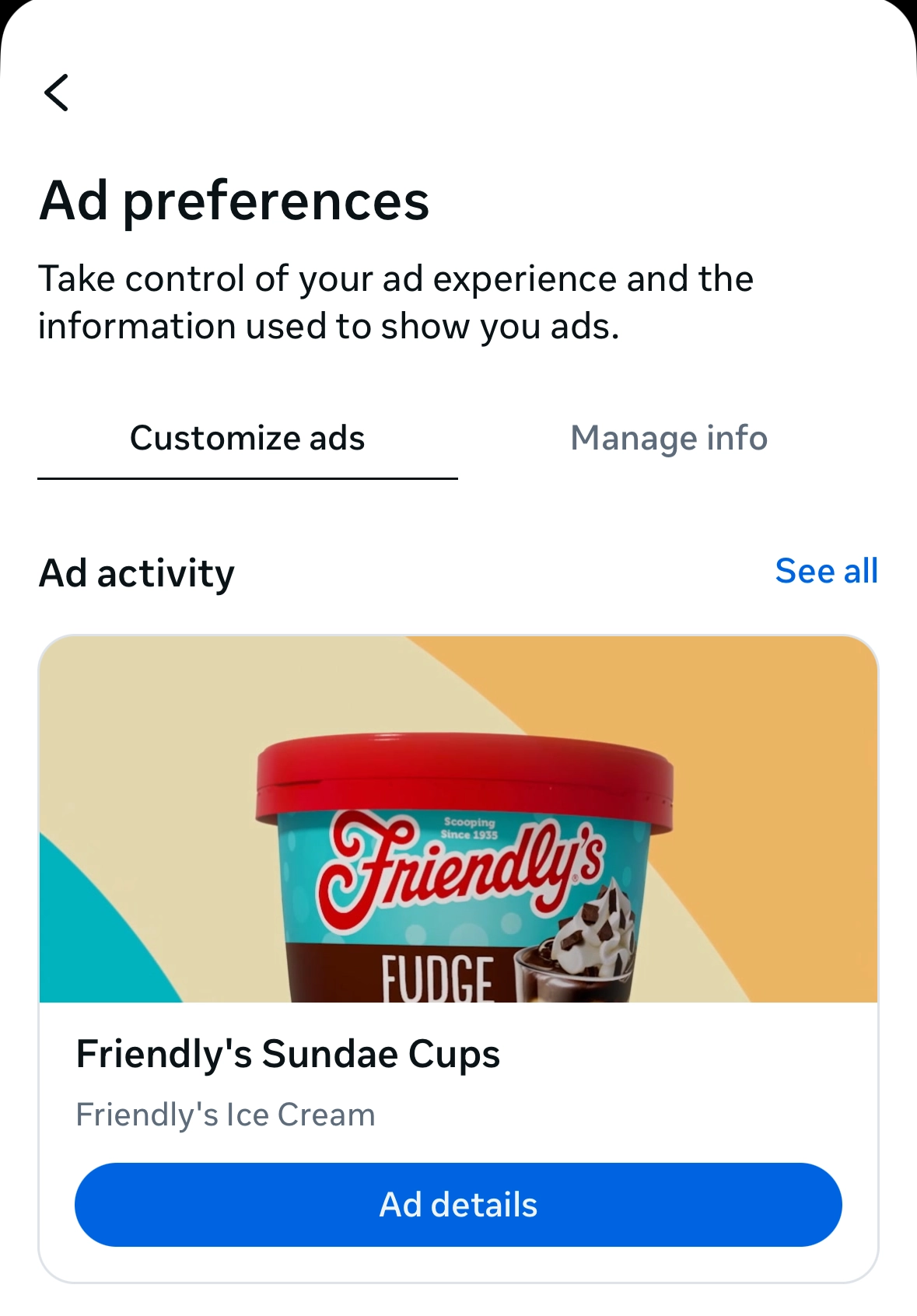
Click Manage Info
Step 59
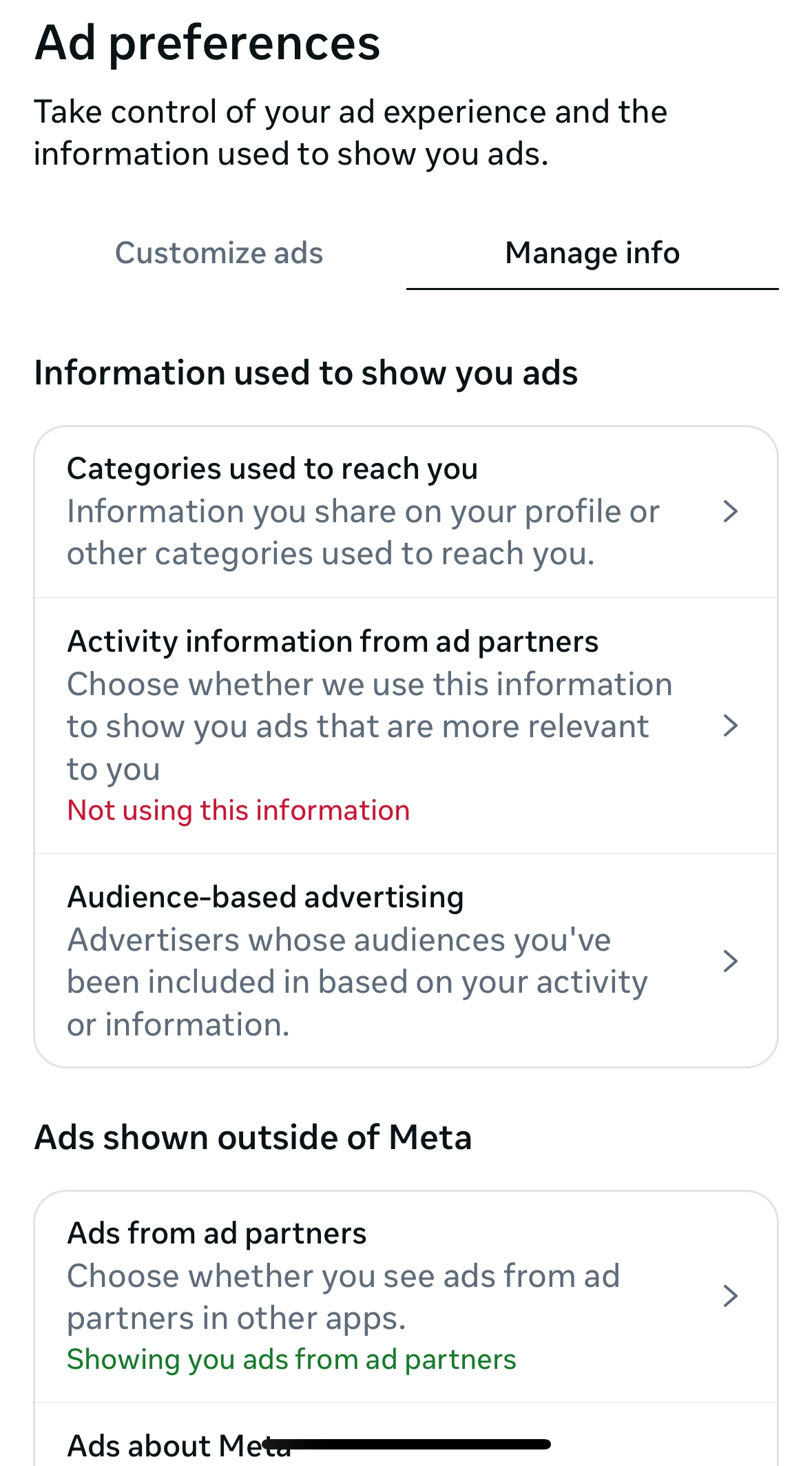
Click here
Step 60
Here, you can adjust settings on your profile to ensure advertisers can, or cannot, use your activity information to send targeted ads
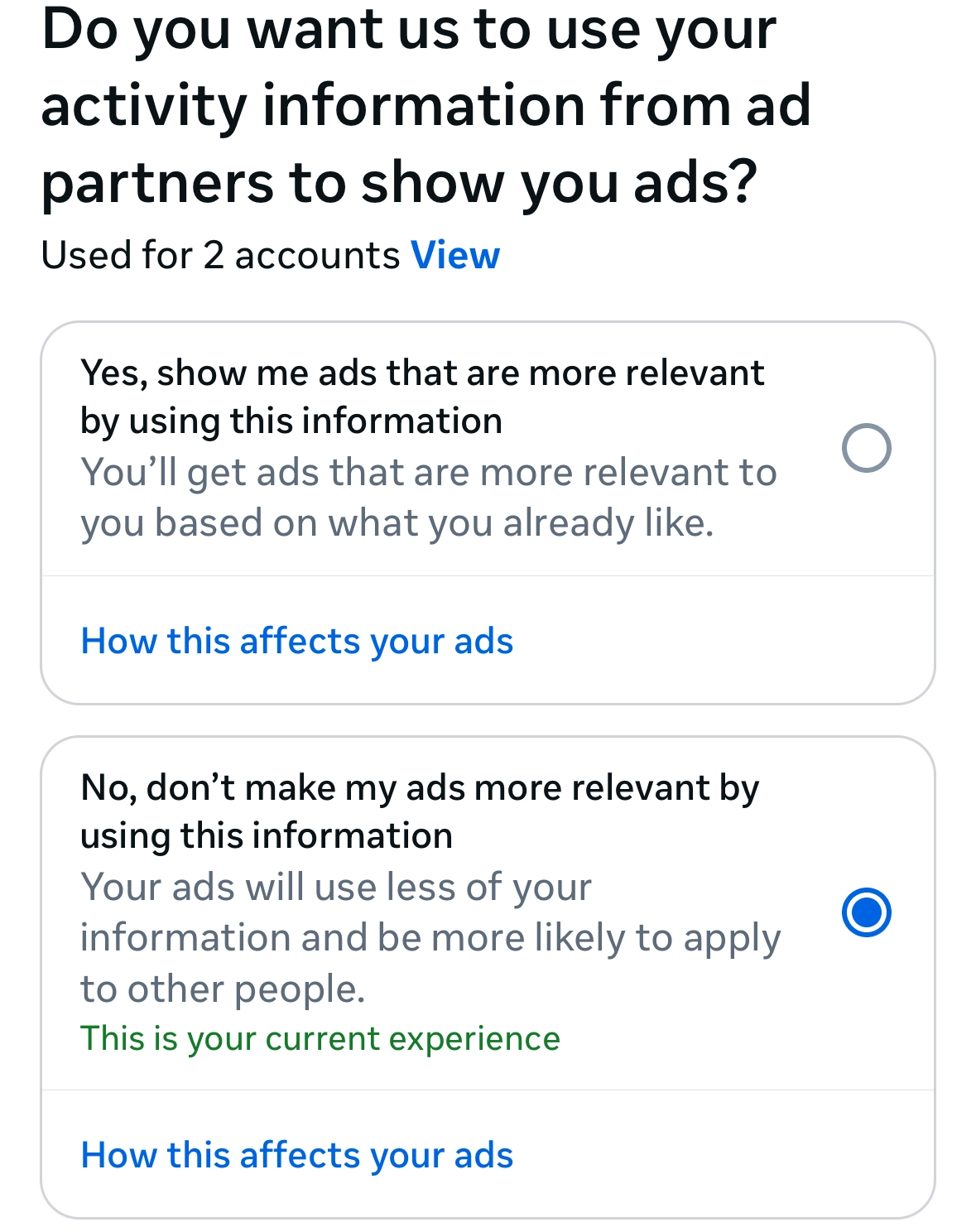
Step 61
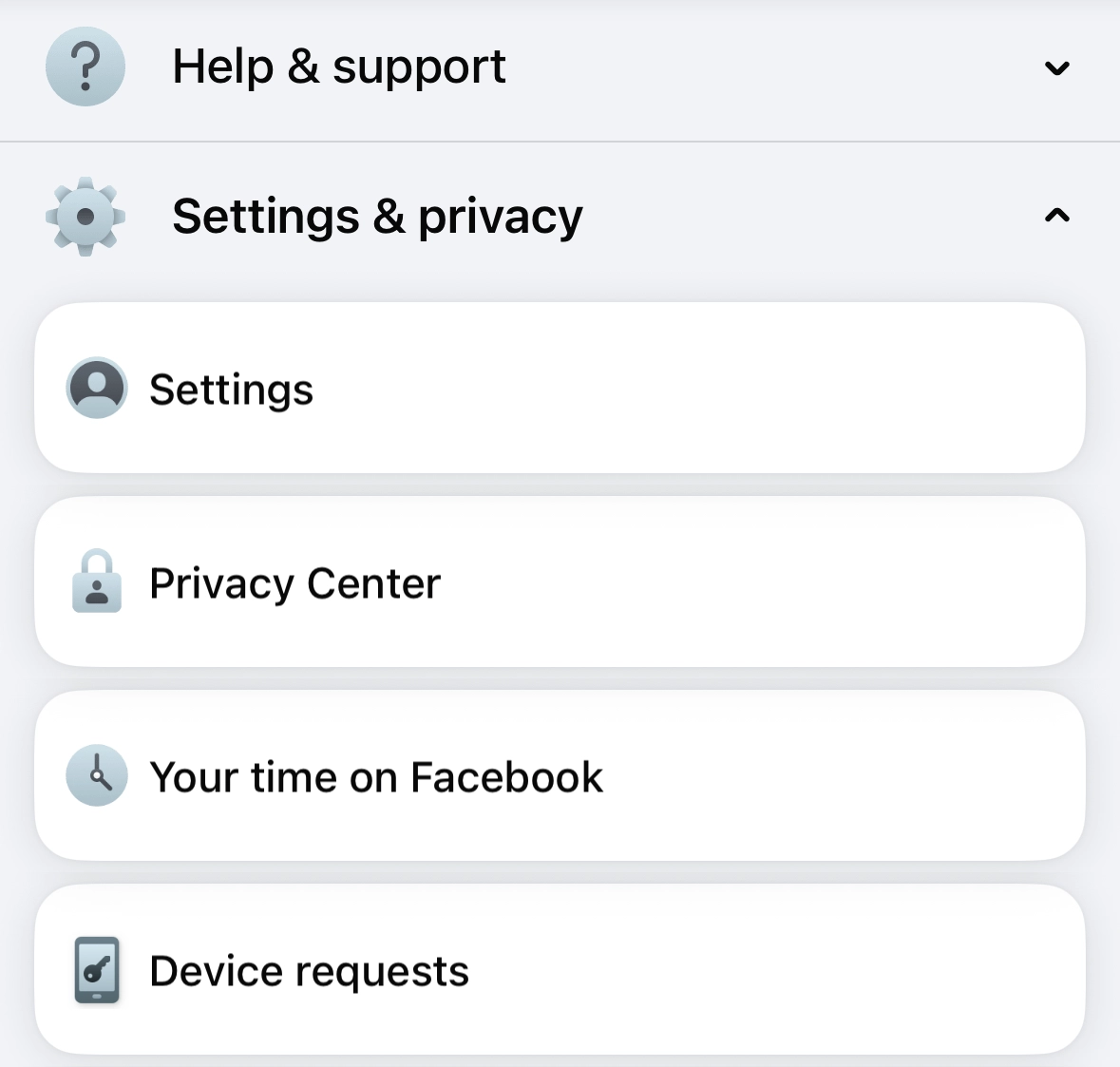
On the previous page, click here
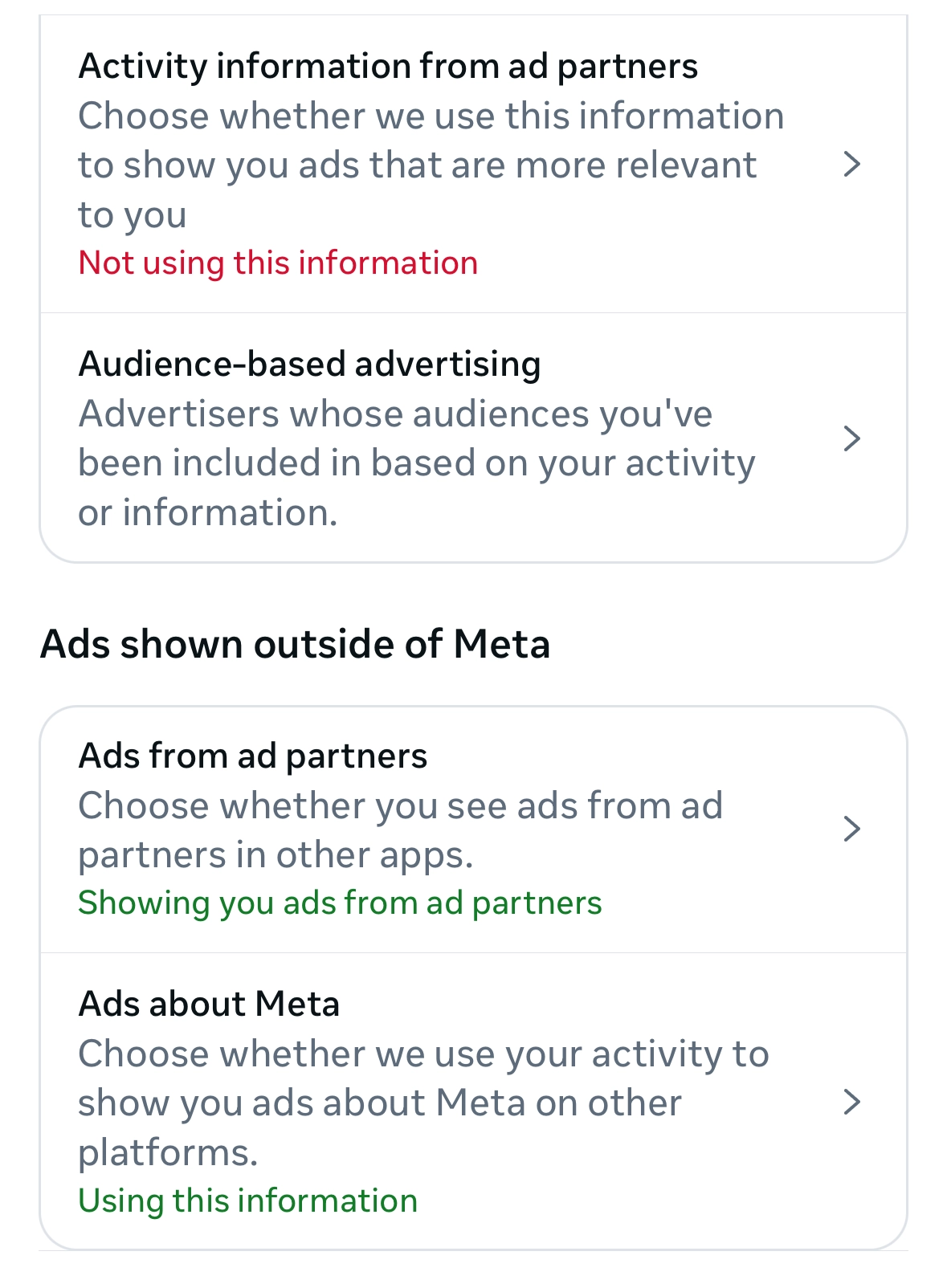
Step 62
Click here if you do not want Meta to use your activity information to show you ads about Meta on other platforms