iOS Hardening Guide
Step 1
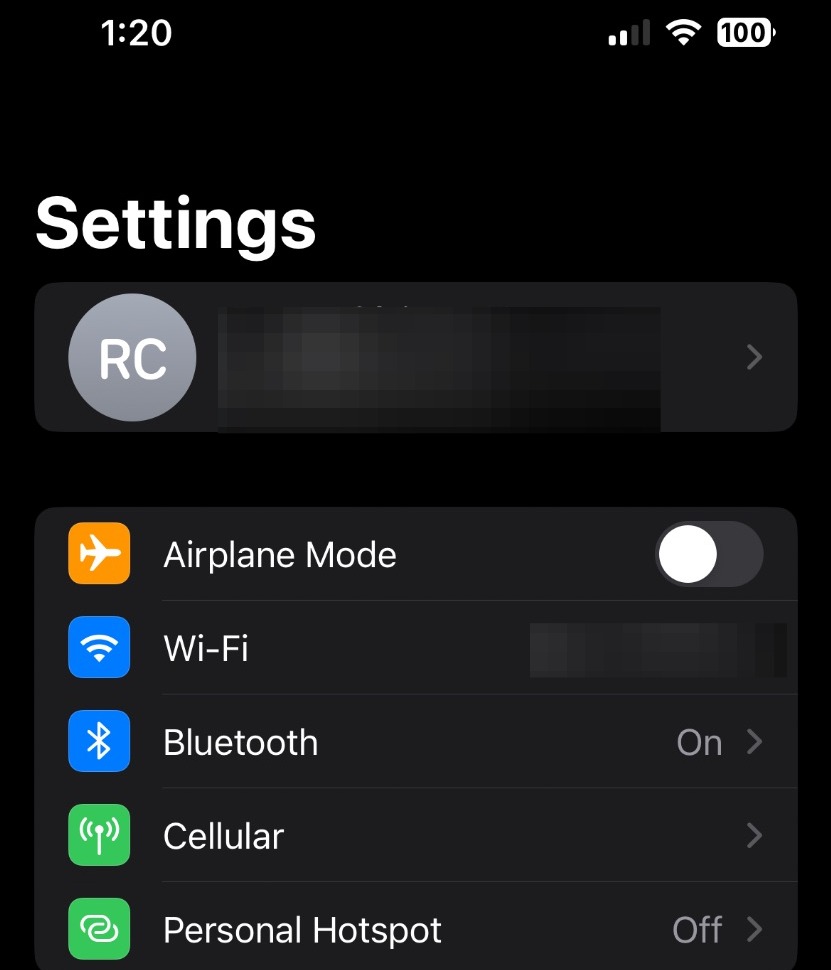
In your settings app, click on your profile
Step 2
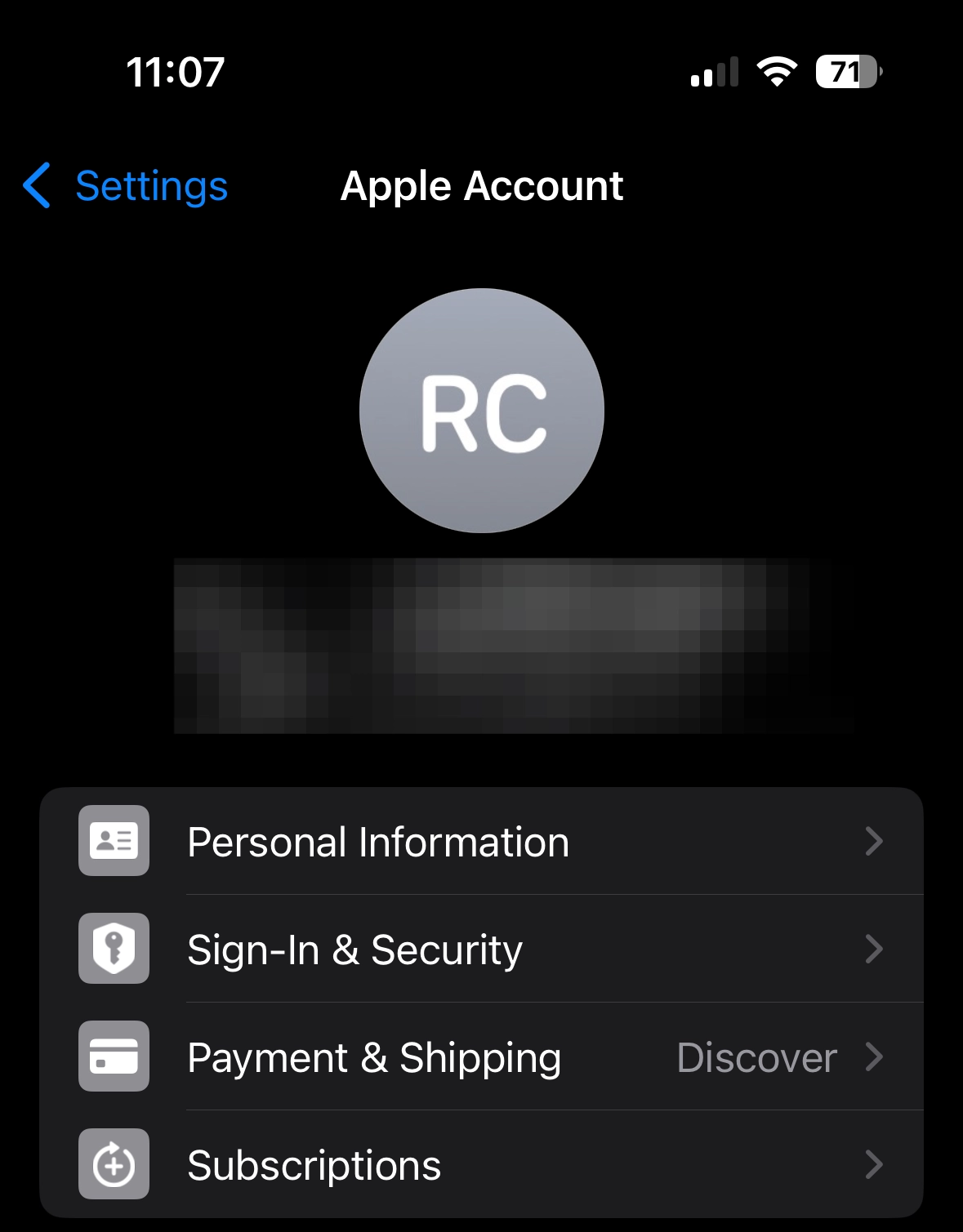
Click Sign-In & Security
Changing Password
Step 3
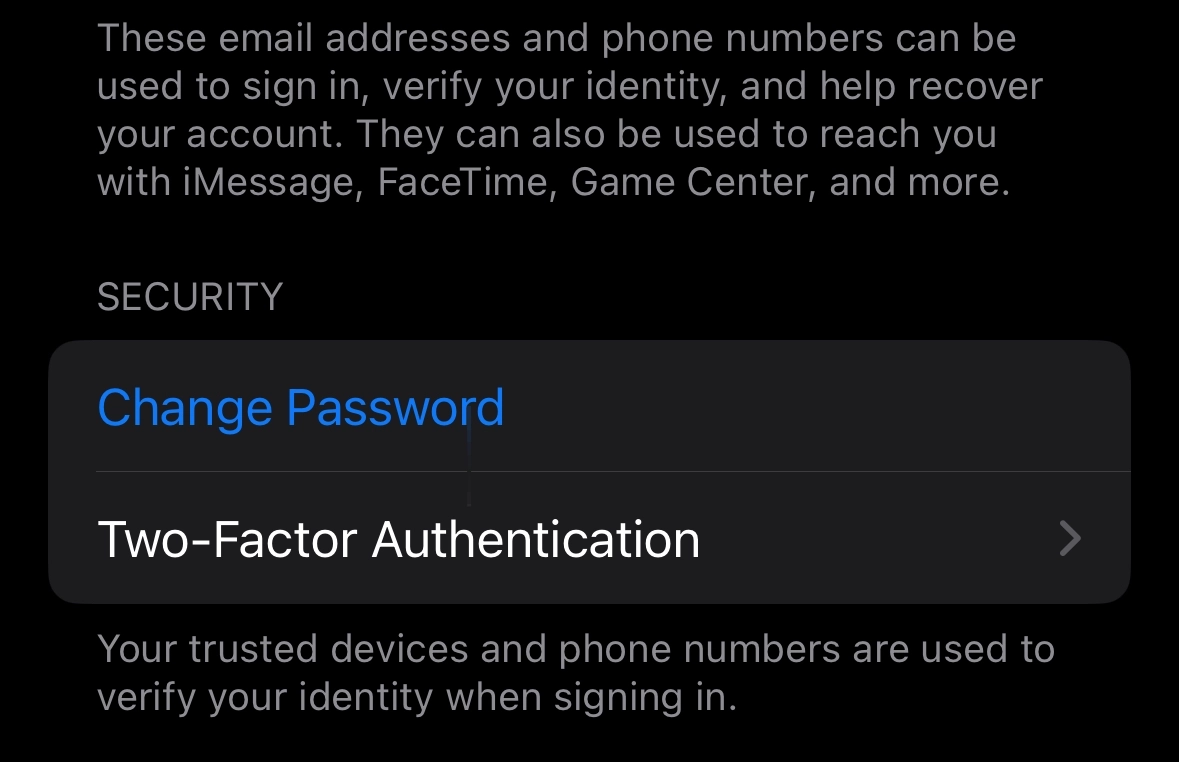
In the Sign-In & Security page, scroll down and click Change Password
Step 4
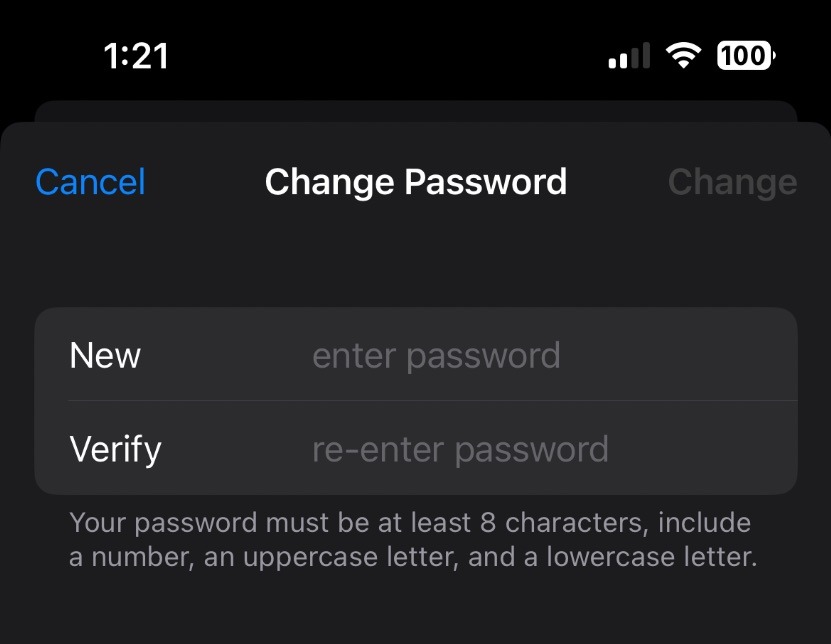
Enter and verify your new password or passphrase, then hit change to complete the process
Adding Security Keys
Step 5
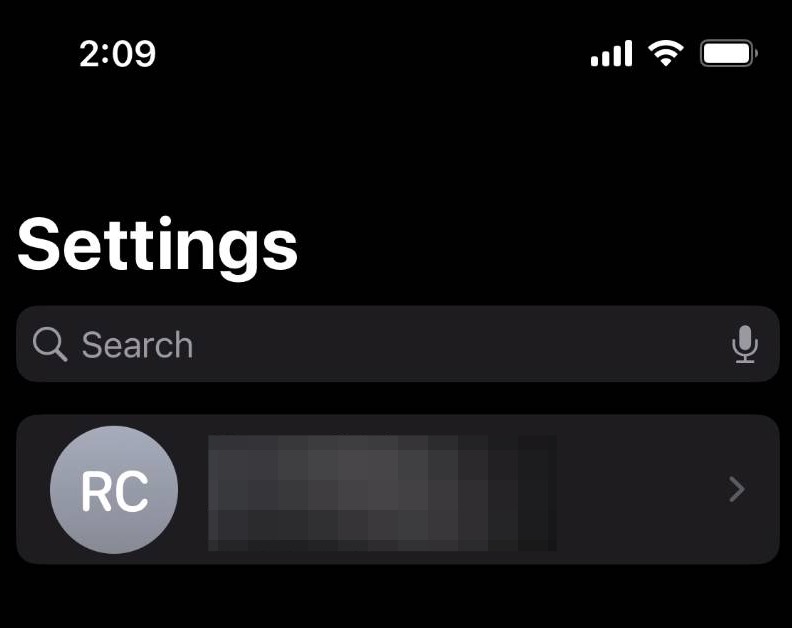
Click your profile
Step 6
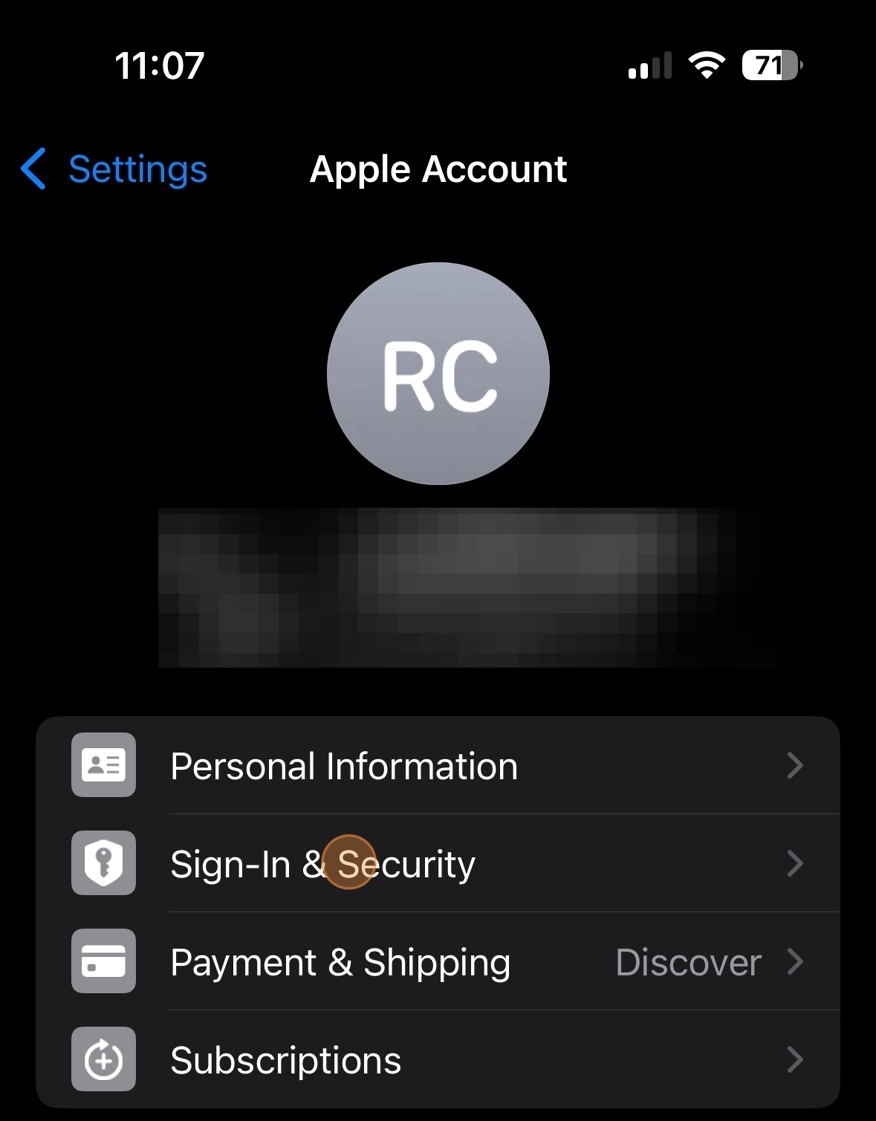
Click Sign-In and Security
Step 7
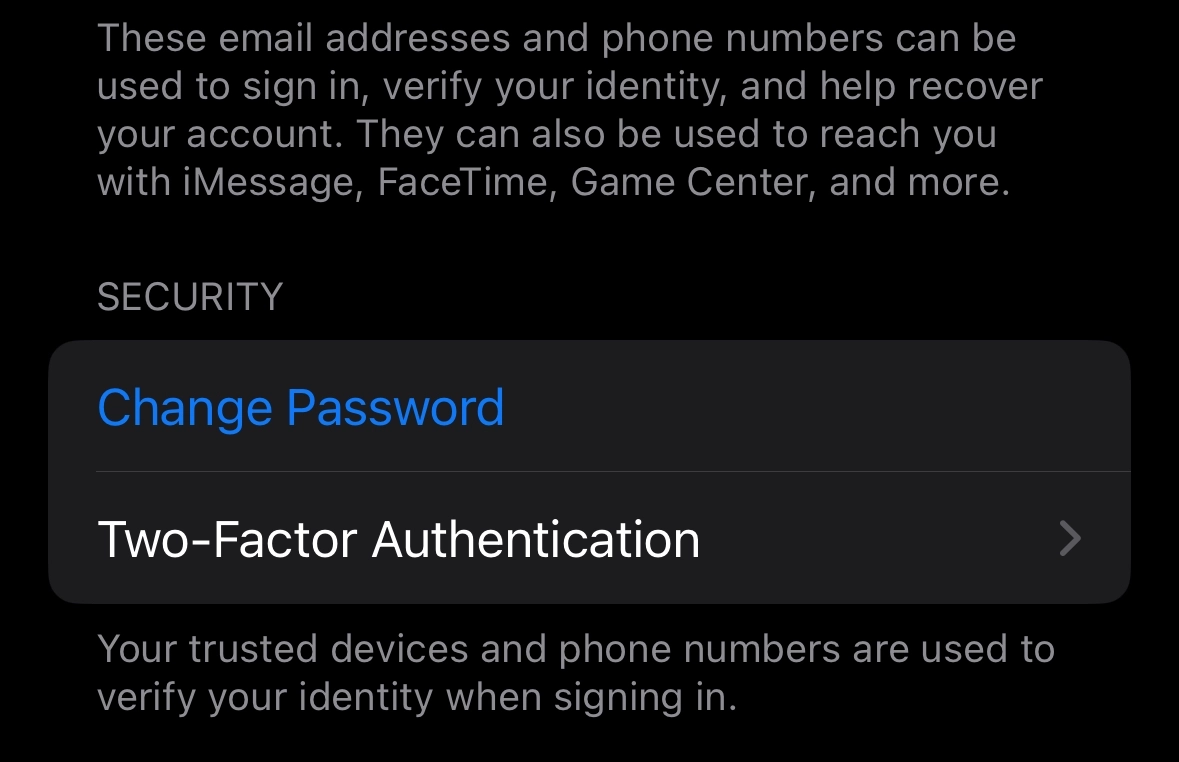
Click Two-Factor Authentication
Step 8
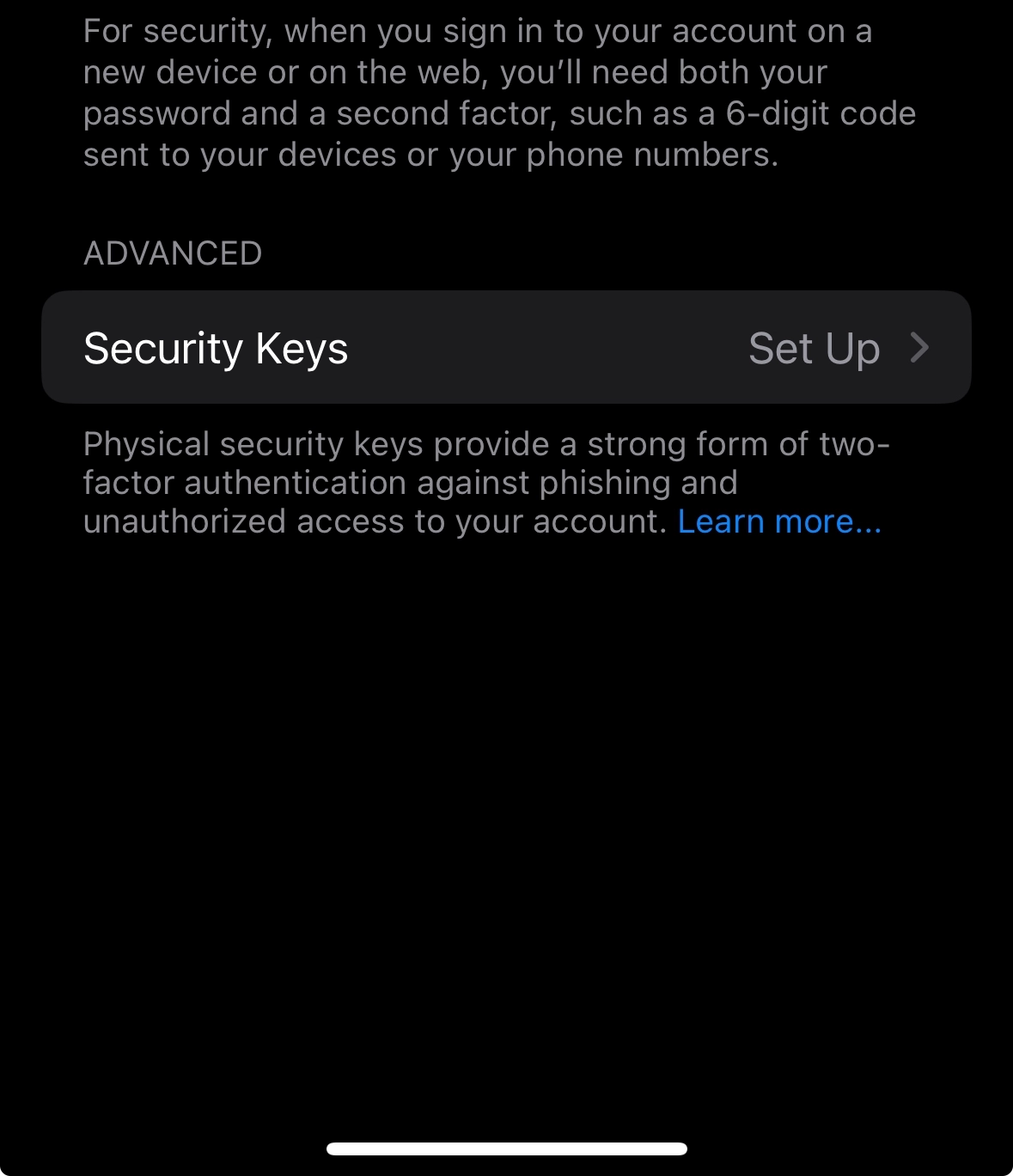
Under Advanced, click Security Keys
Step 9
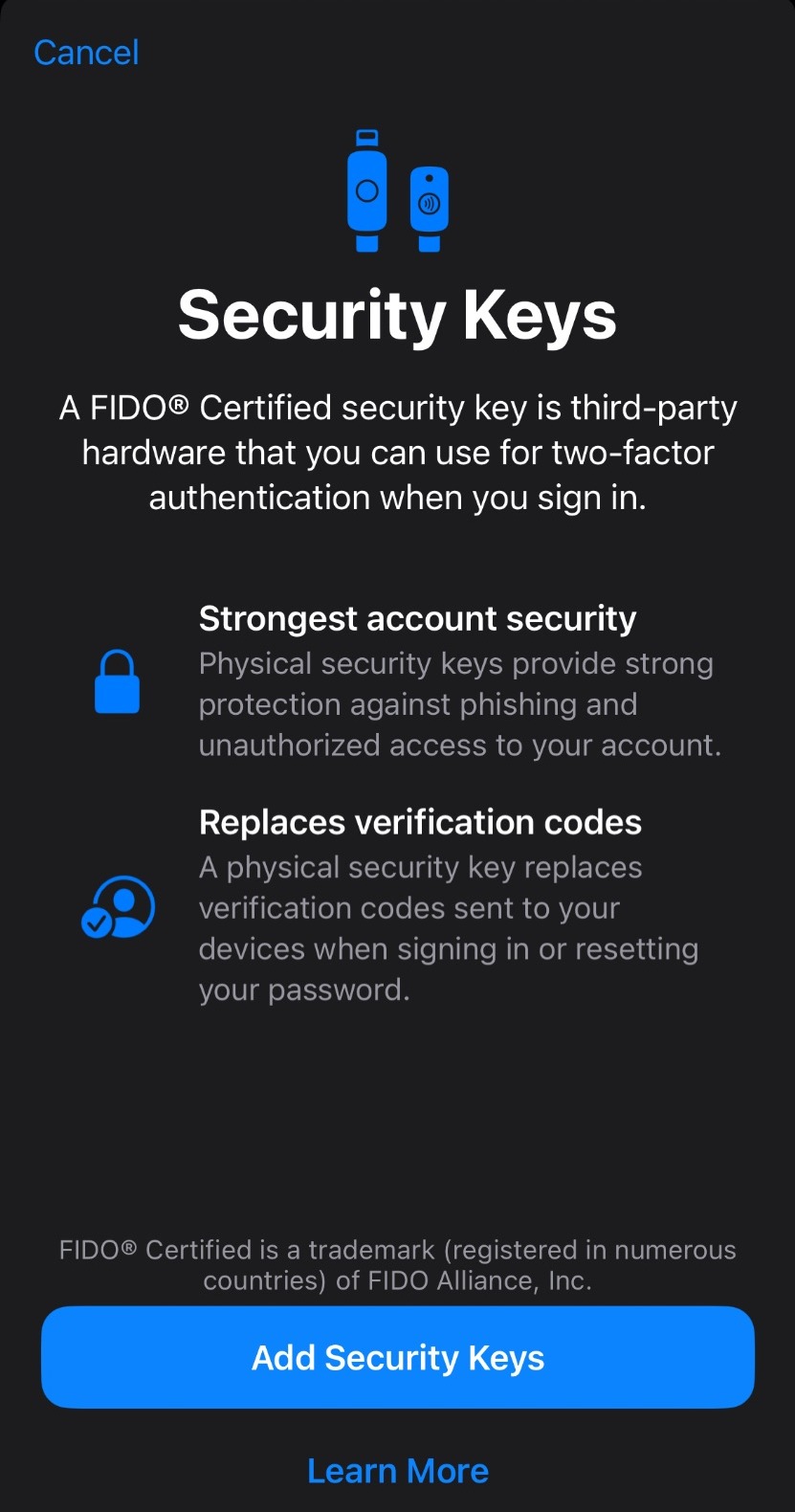
Click Add Security Keys
Step 10
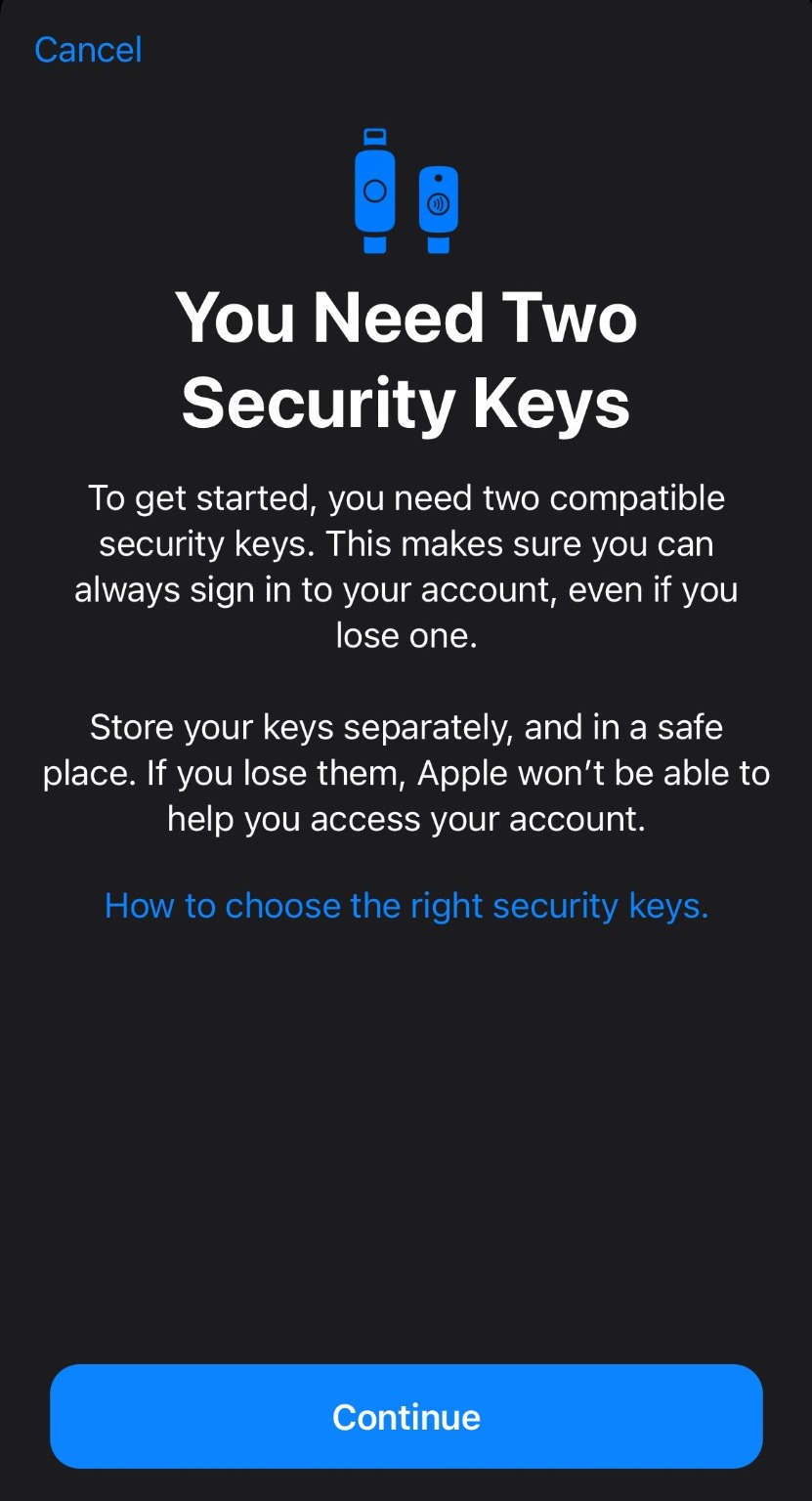
Click Continue
Step 11
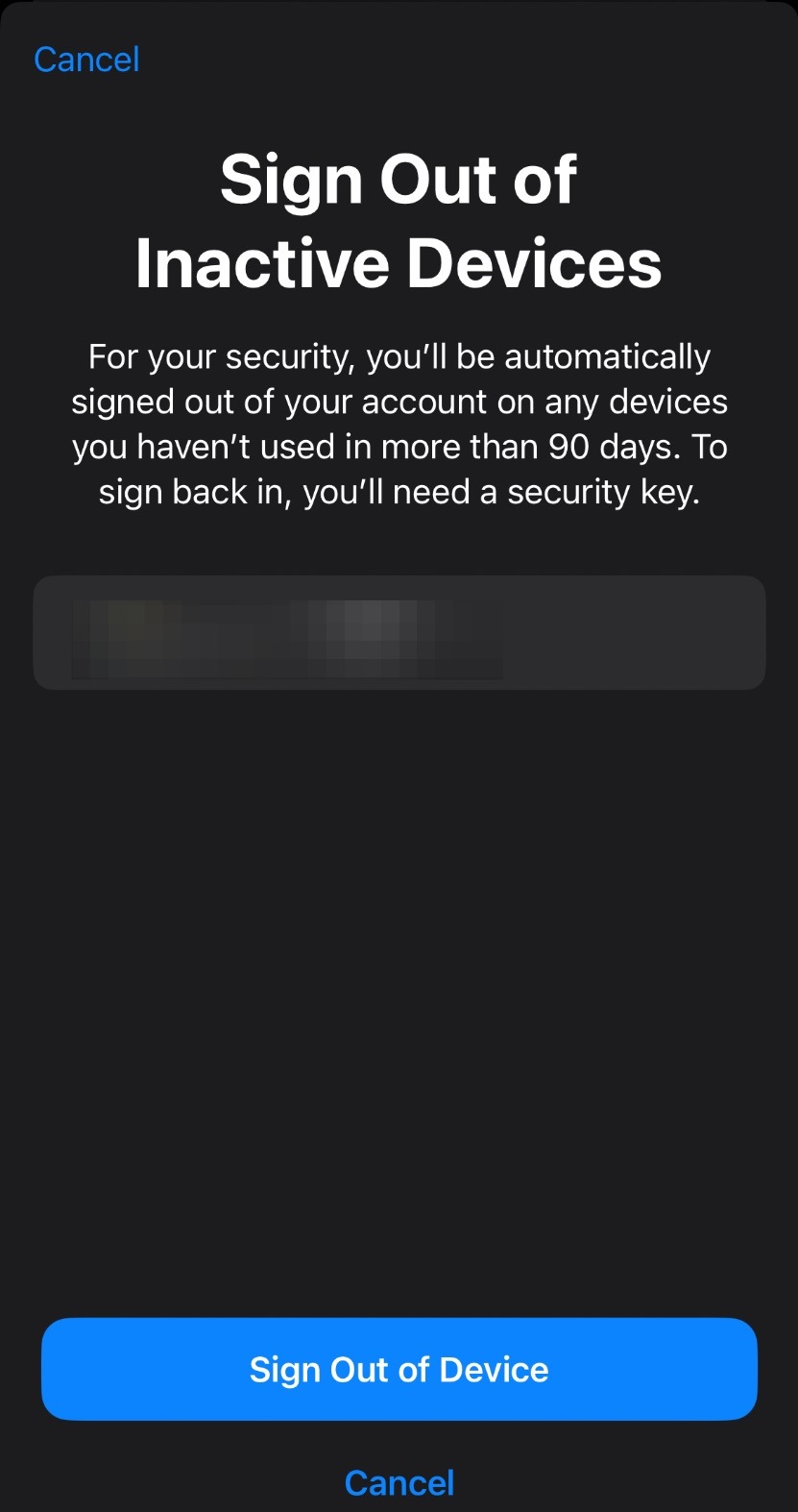
Next, you'll see a screen of devices you haven't signed into for more than 90 days. You should click Sign Out of Devices for any device you no longer use
Step 12
Enter your iPhone passcode
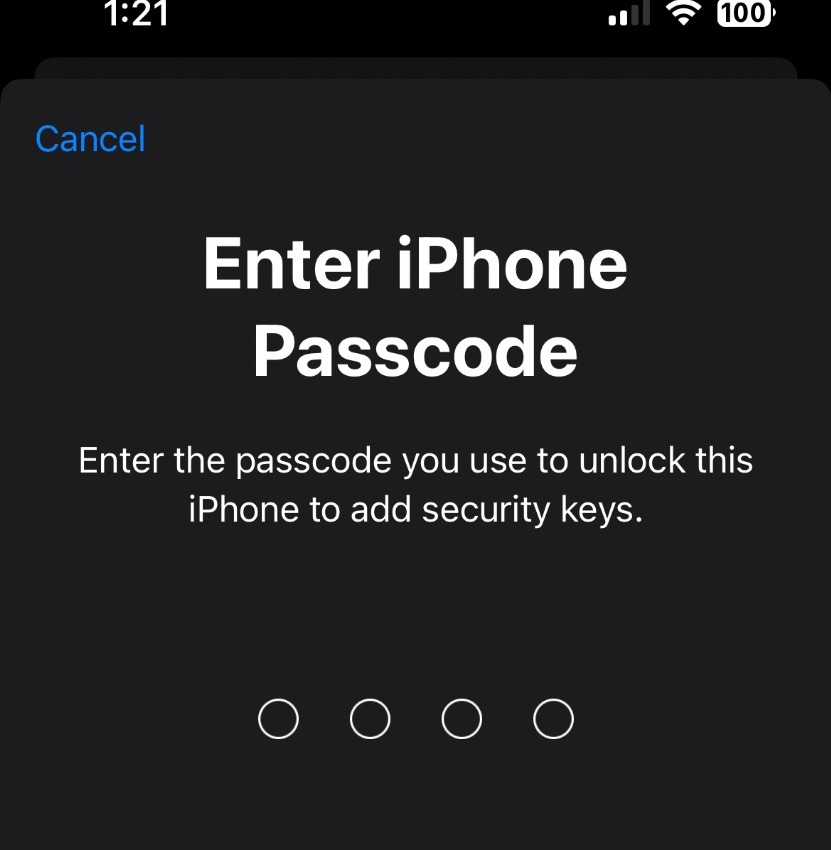
Step 13
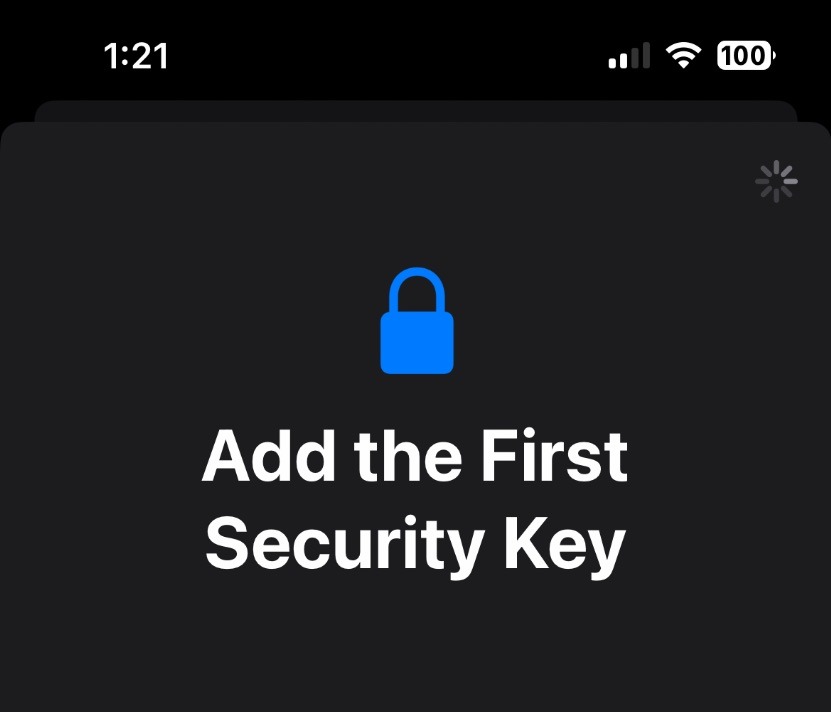
Now, follow the steps Apple lays out to add your security keys. NOTE: Apple requires you to add two security keys to complete the process
Add Recovery Key
Step 14
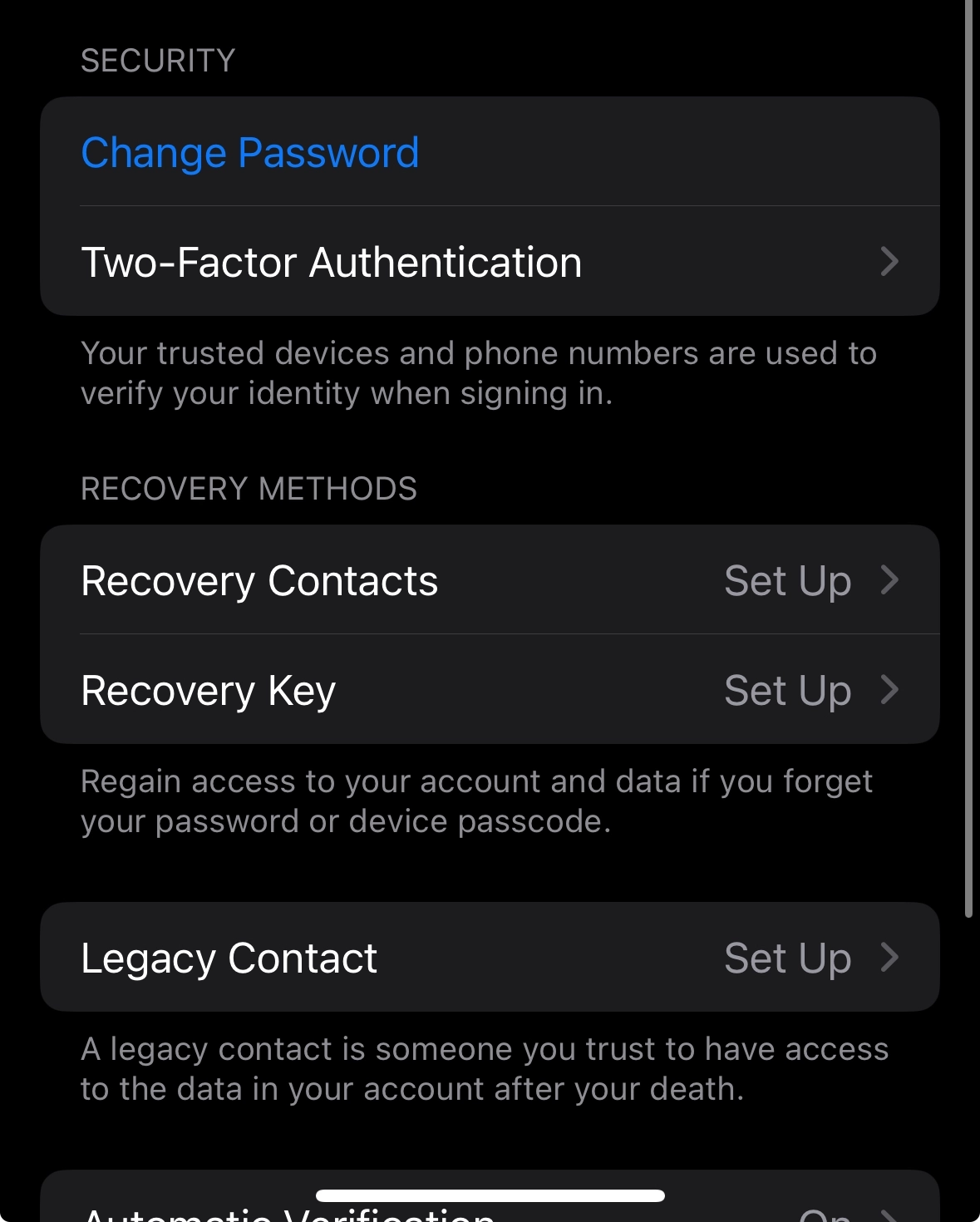
Go back to the Sign-in and Security page. Scroll down and click Recovery Key
Step 15
Enter your device passcode
Step 16
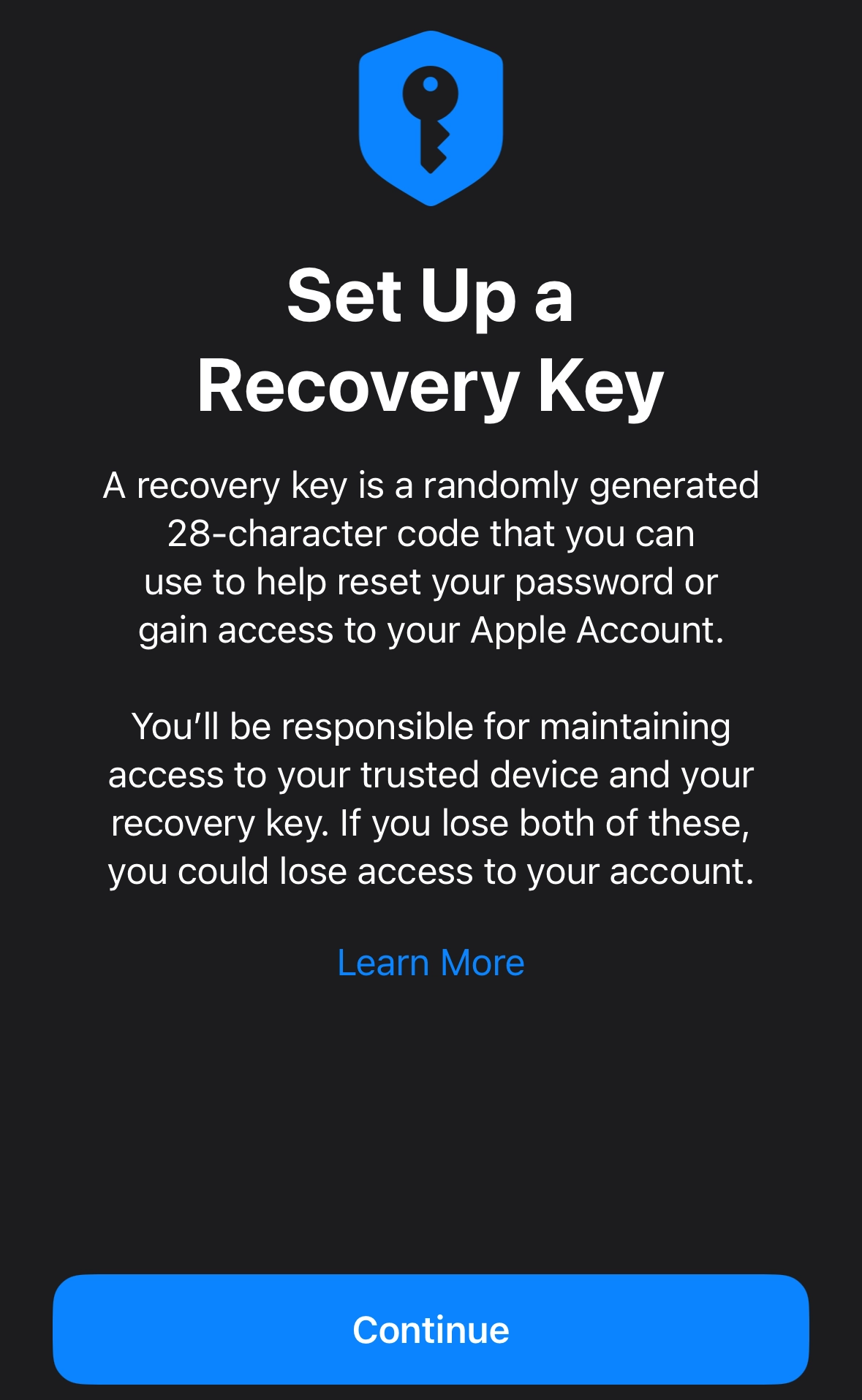
On the next screen, click Continue
Step 17
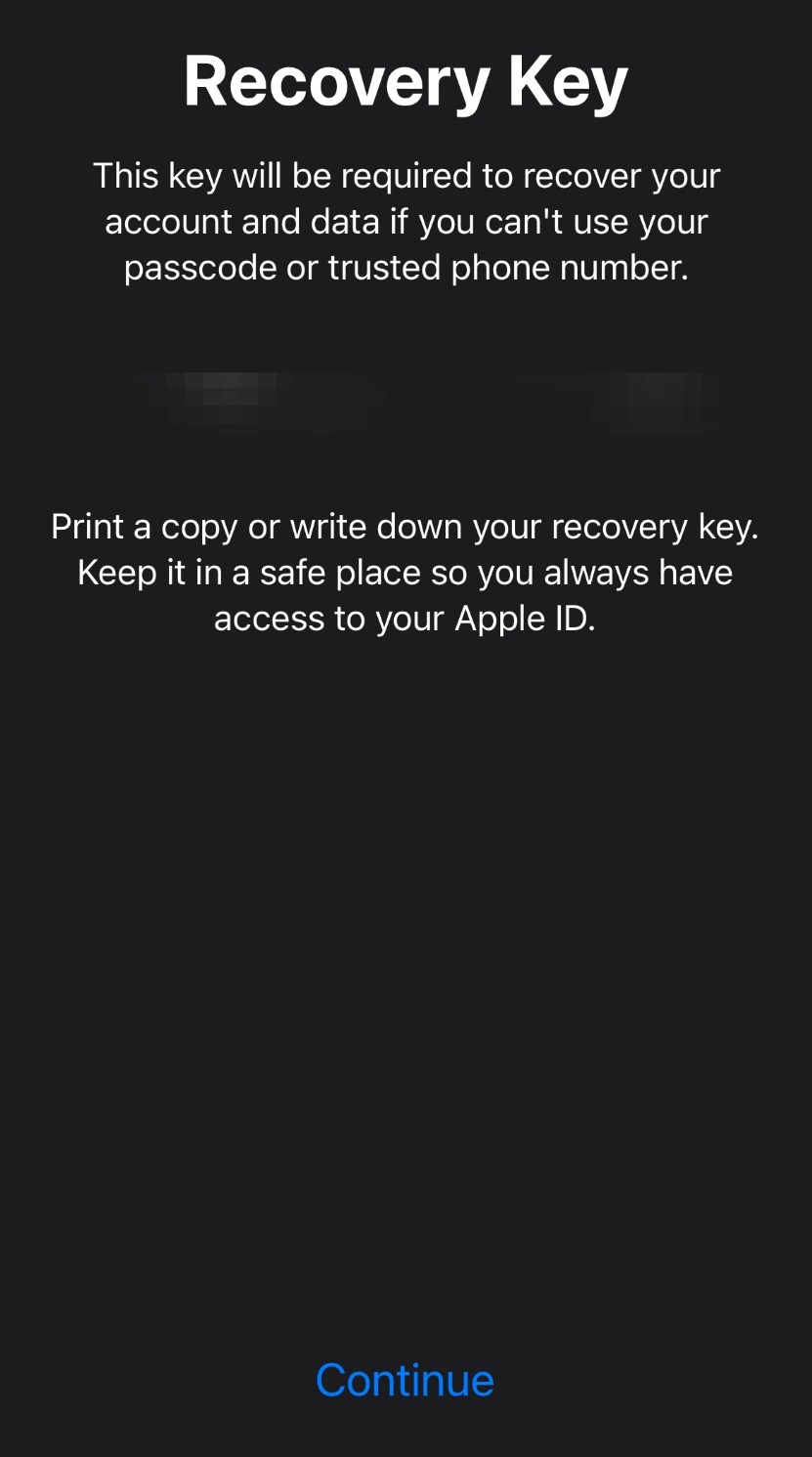
Here, you will see your recovery key. Write it down, or print a copy, and store it in a safe space. Then click continue
Step 18
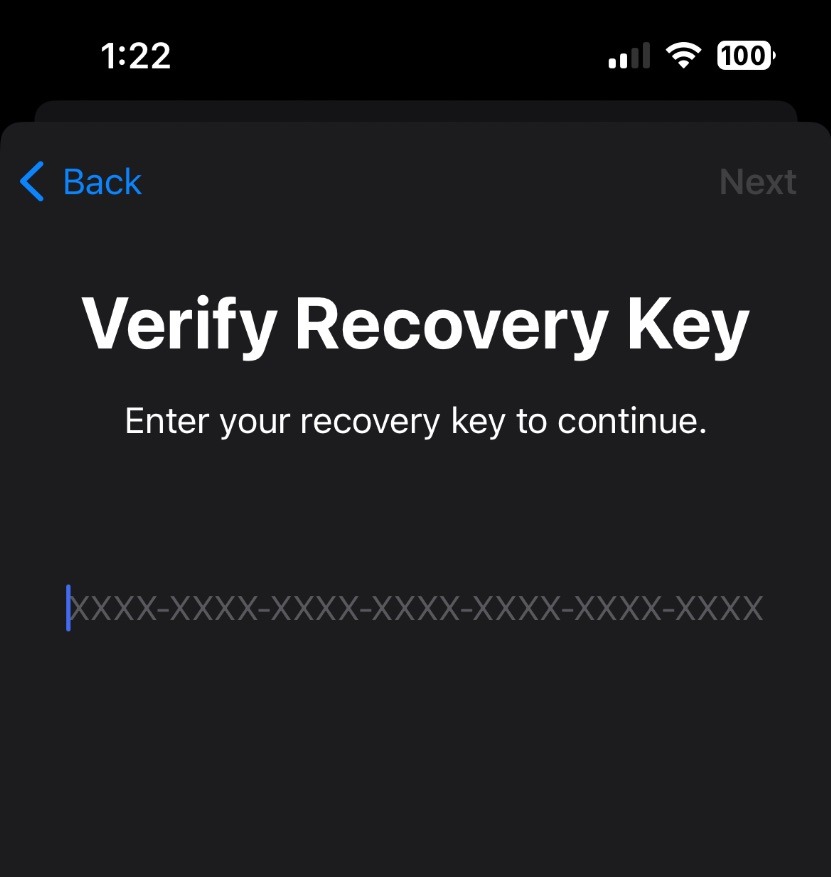
Enter the recovery key and click next to complete the process
Adjusting Location Settings
Step 19
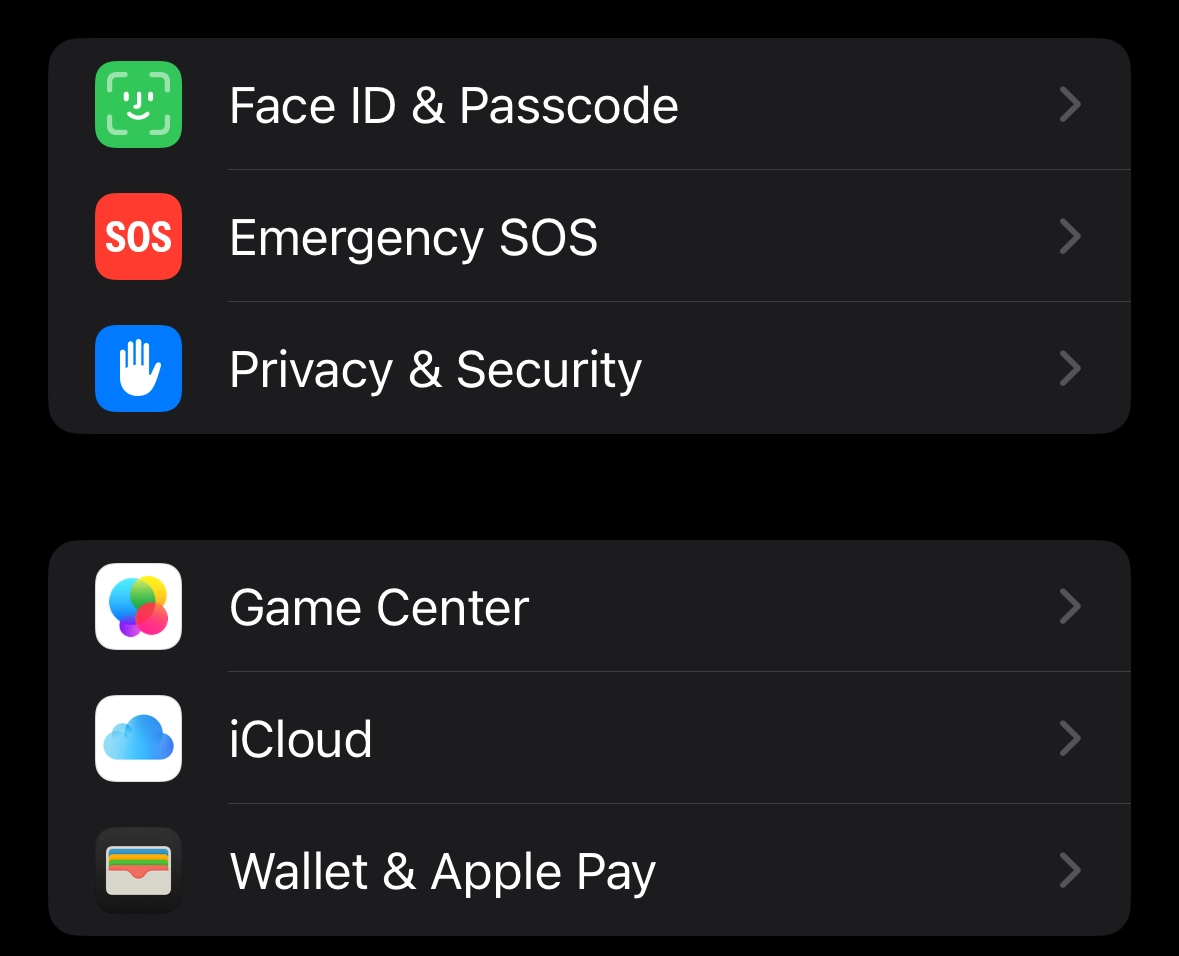
Back on the main Settings screen, scroll down and click Privacy & Security
Step 20
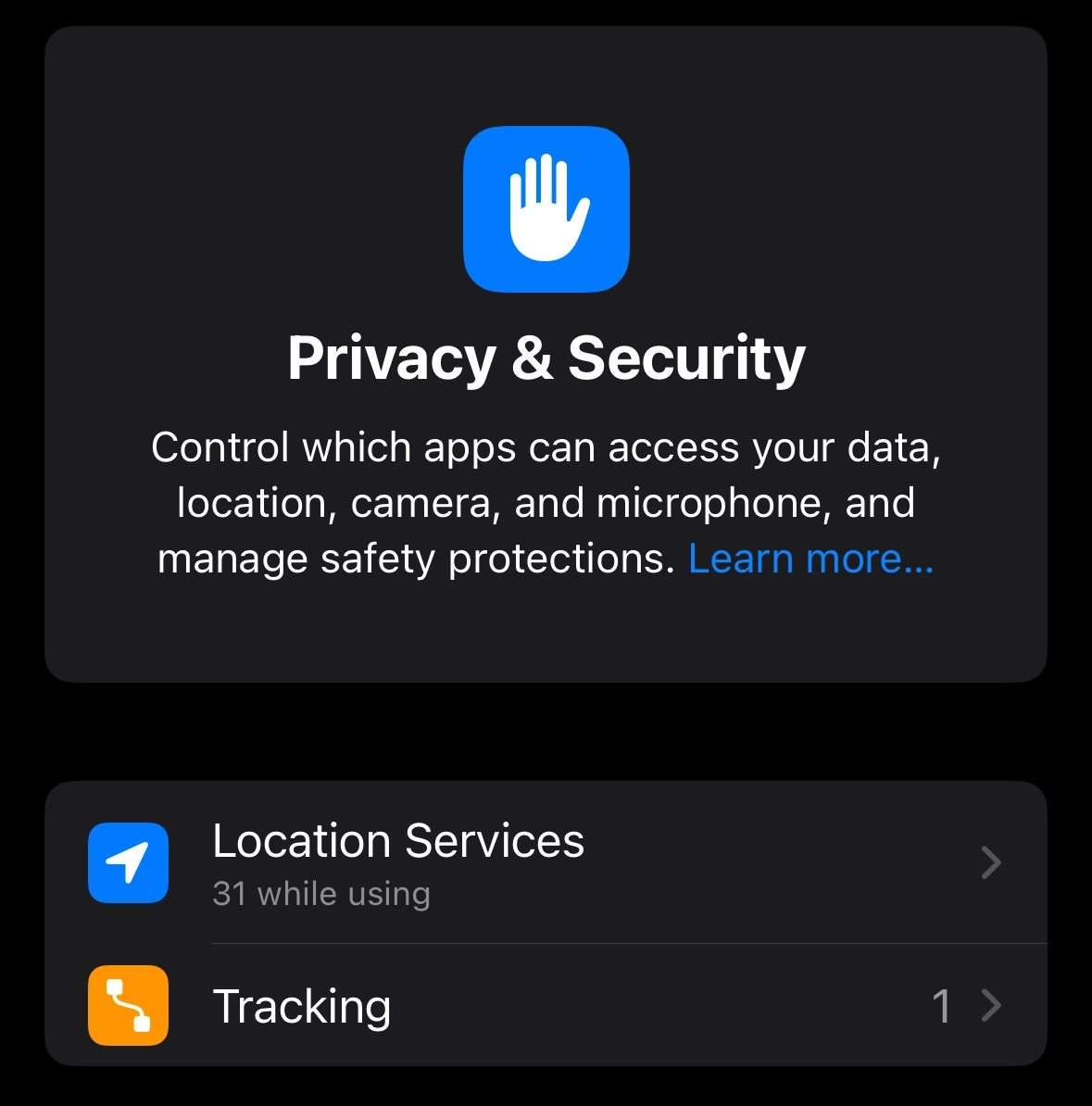
Click Location Services
Step 21
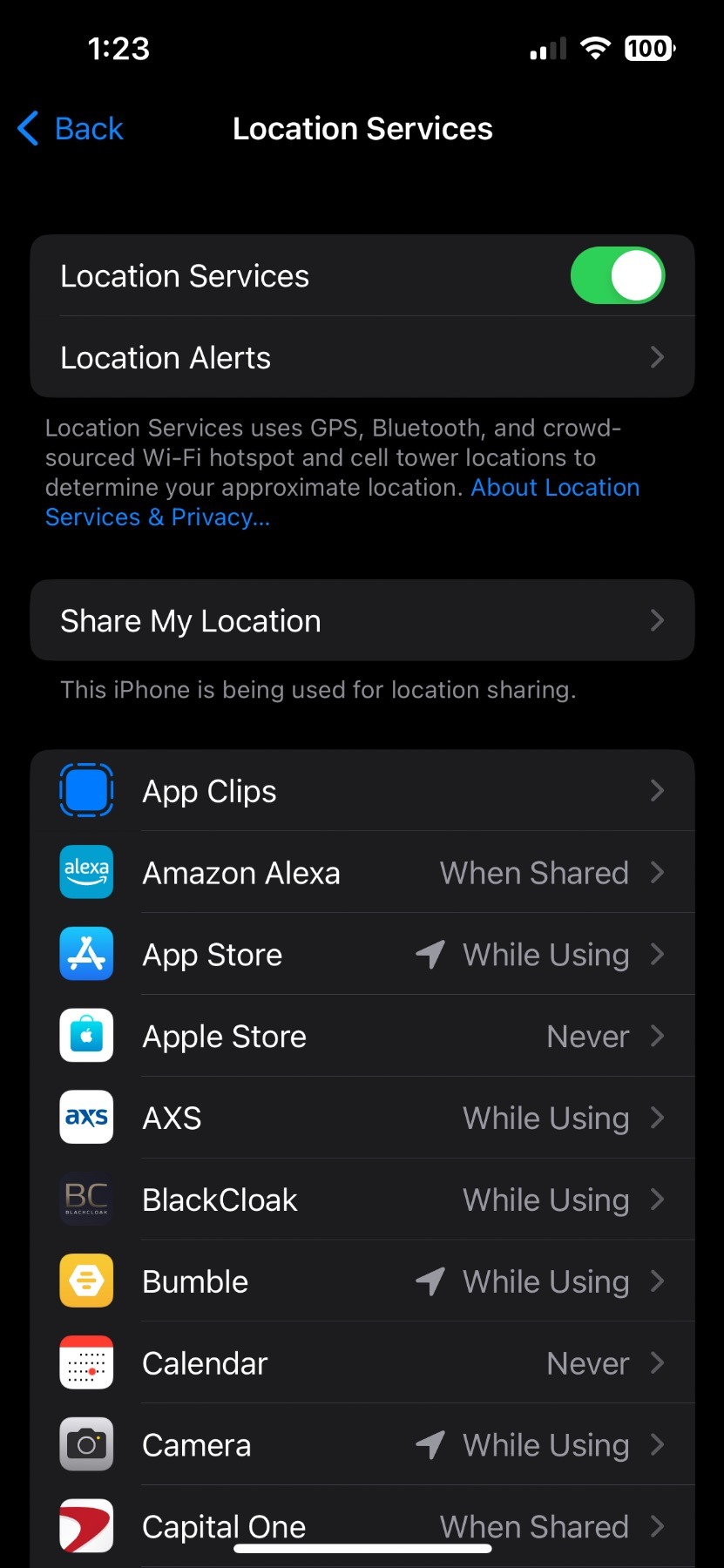
On this screen, you can toggle off using all location services by clicking here. You can also adjust how each app uses location settings on this screen as well.
Step 22
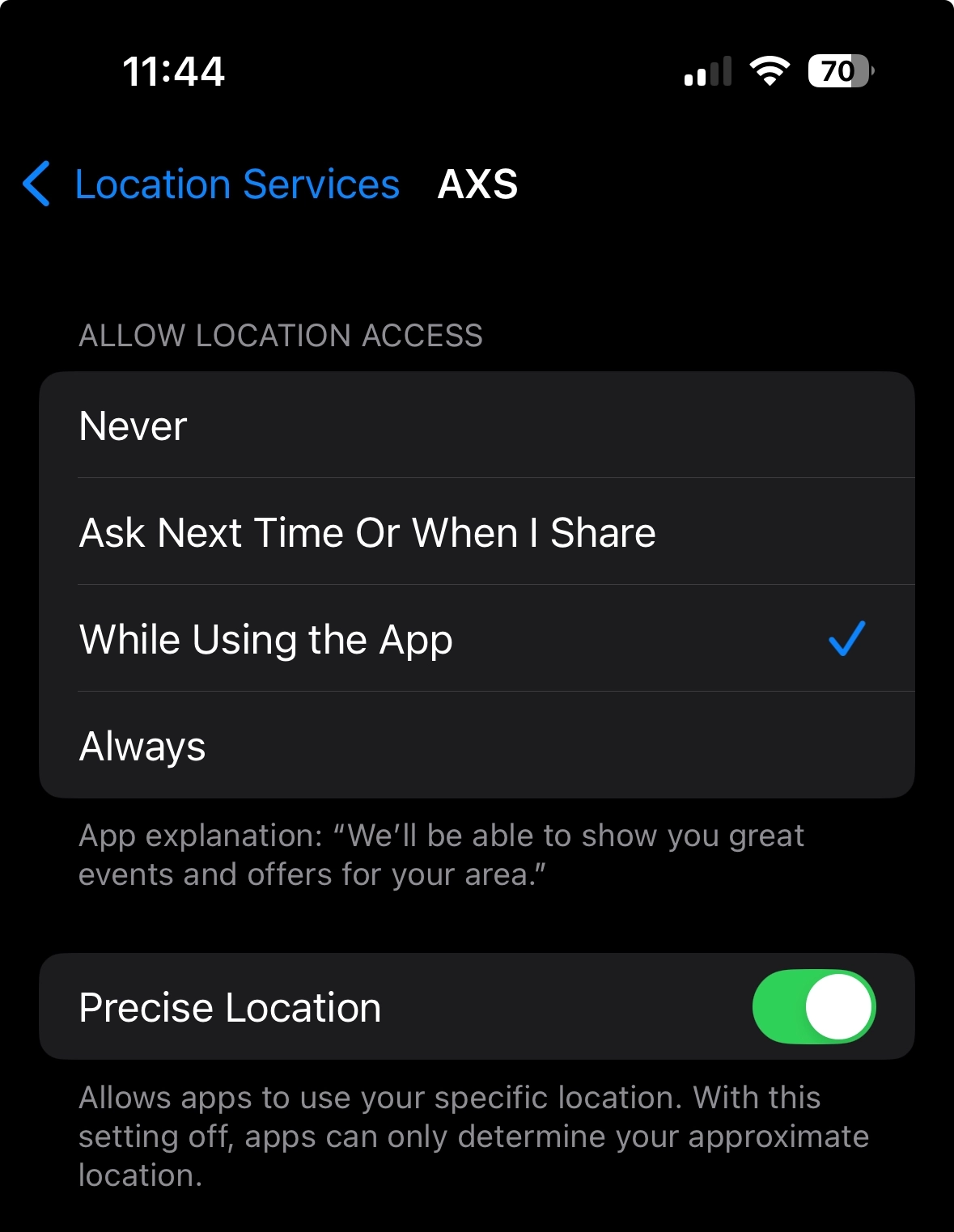
For example, here you can see whether an app has access to location services. You can choose whether an app has no access to location, whether they can access location while they use it, or to ask next time you use the app. You can also choose to have location services always access an app at all times. You can also determine whether an app can access your exact location. For some apps, such as ridesharing apps, it's helpful to have precise location on for drivers to know exactly where to pick you up.
Step 23
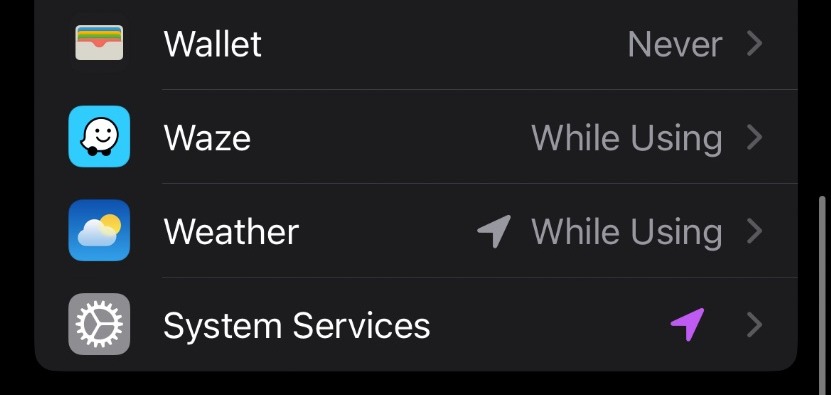
At the bottom of the Location Services page, scroll down and click System Services
Step 24
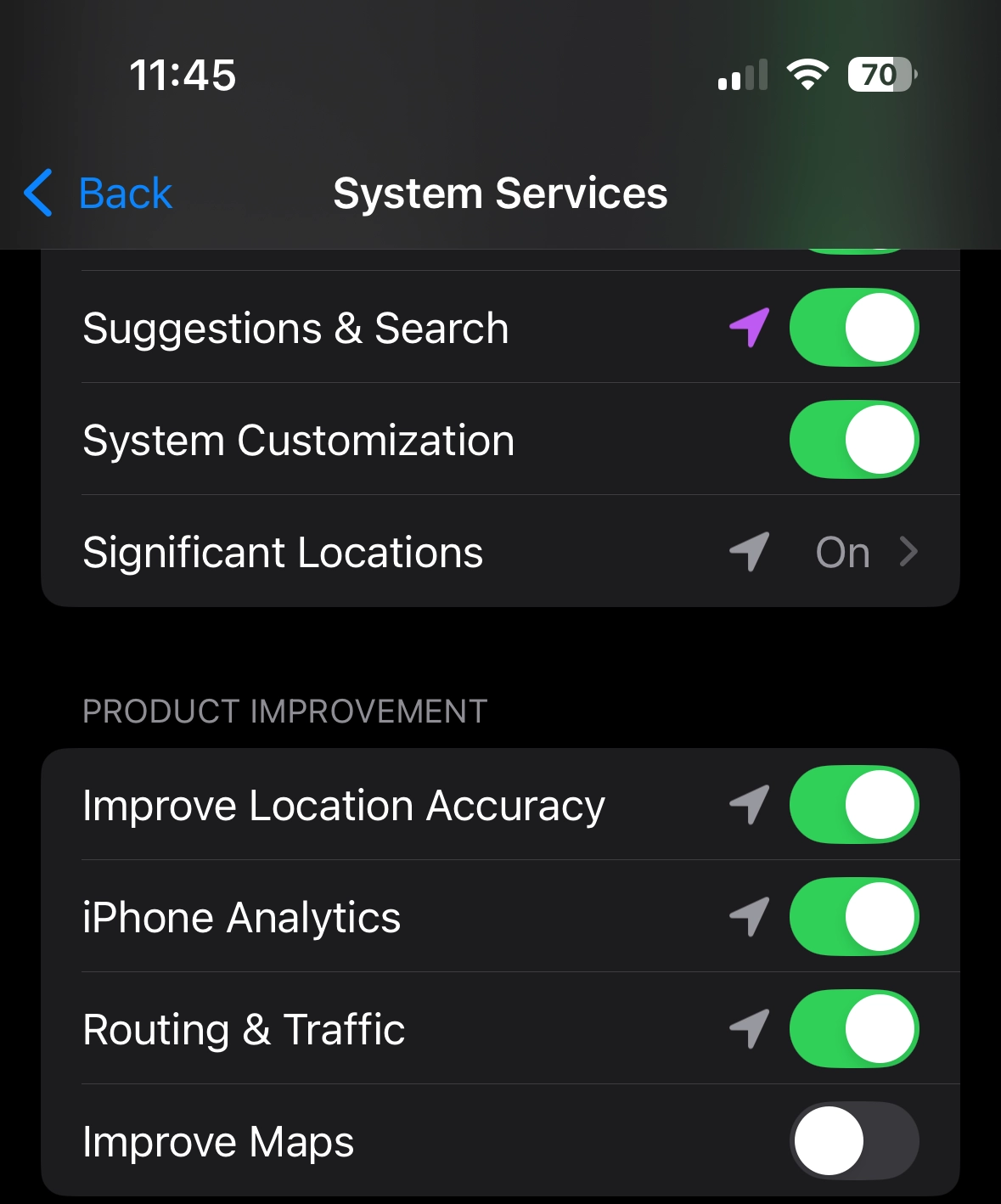
Here, you can adjust whether you want to receive location-based alerts and services. Next, let's click on Significant Locations
Step 25
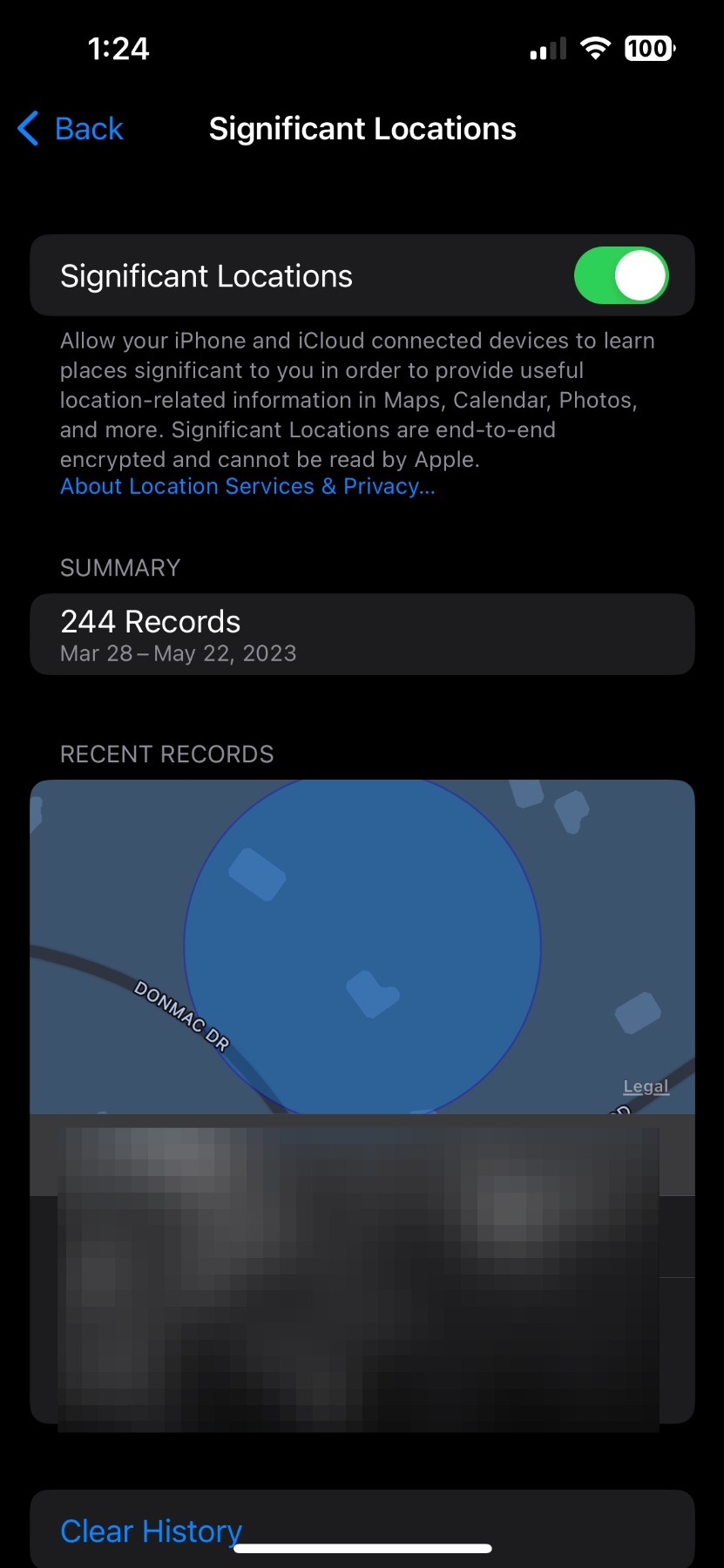
Here, you can choose whether you want your device and iCloud to learn places it deems significant to you to provide location-based information in Maps, Calendar, Photos and more. If you have this service on and want to erase all the locations your device has collected, click Clear History at the bottom of the screen
Step 26
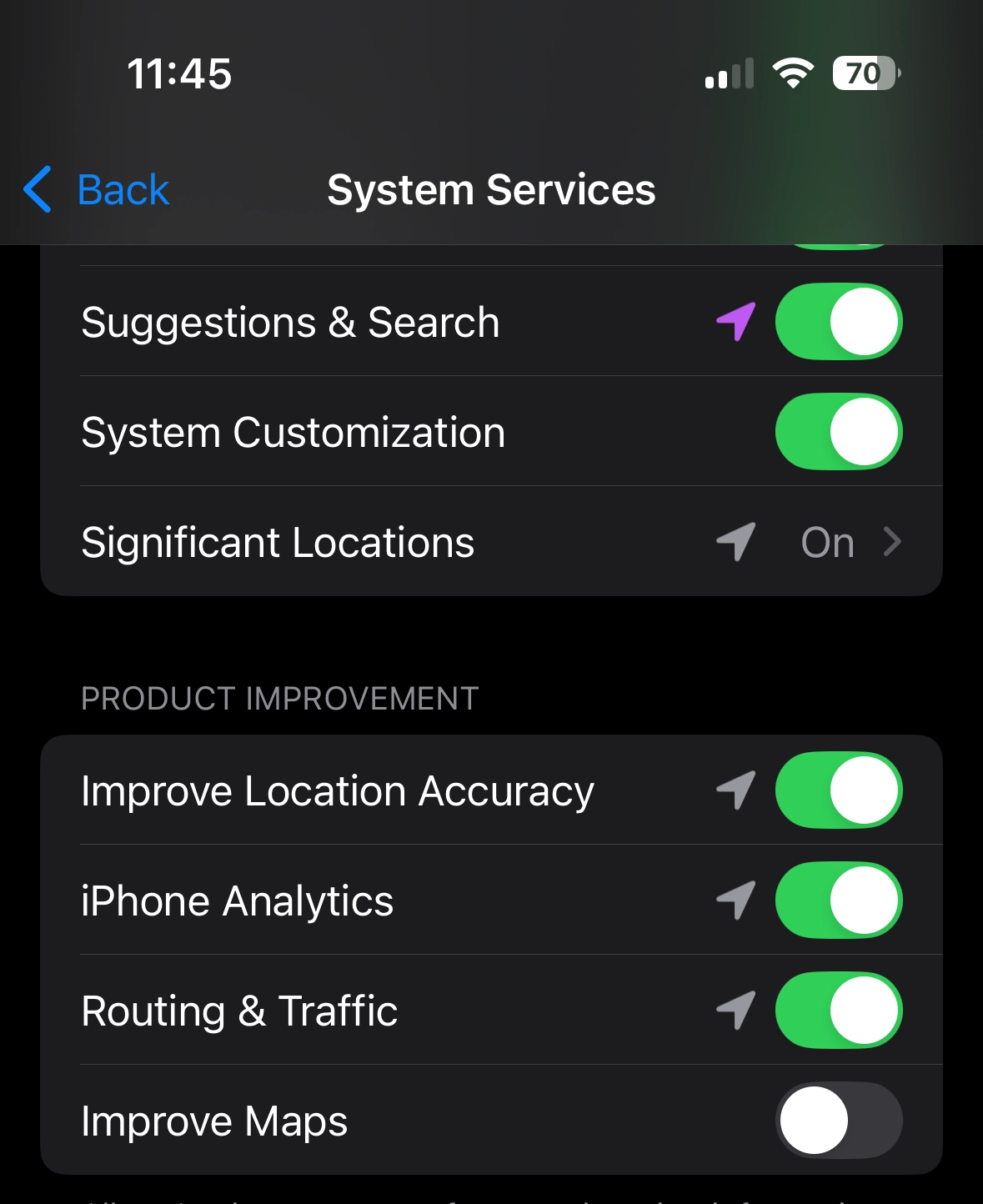
Back on the System Services page, it's recommended that you turn off the iPhone analytics and Routing and Traffic features if you are more privacy conscious
Adjusting App Tracking Permissions
Step 27
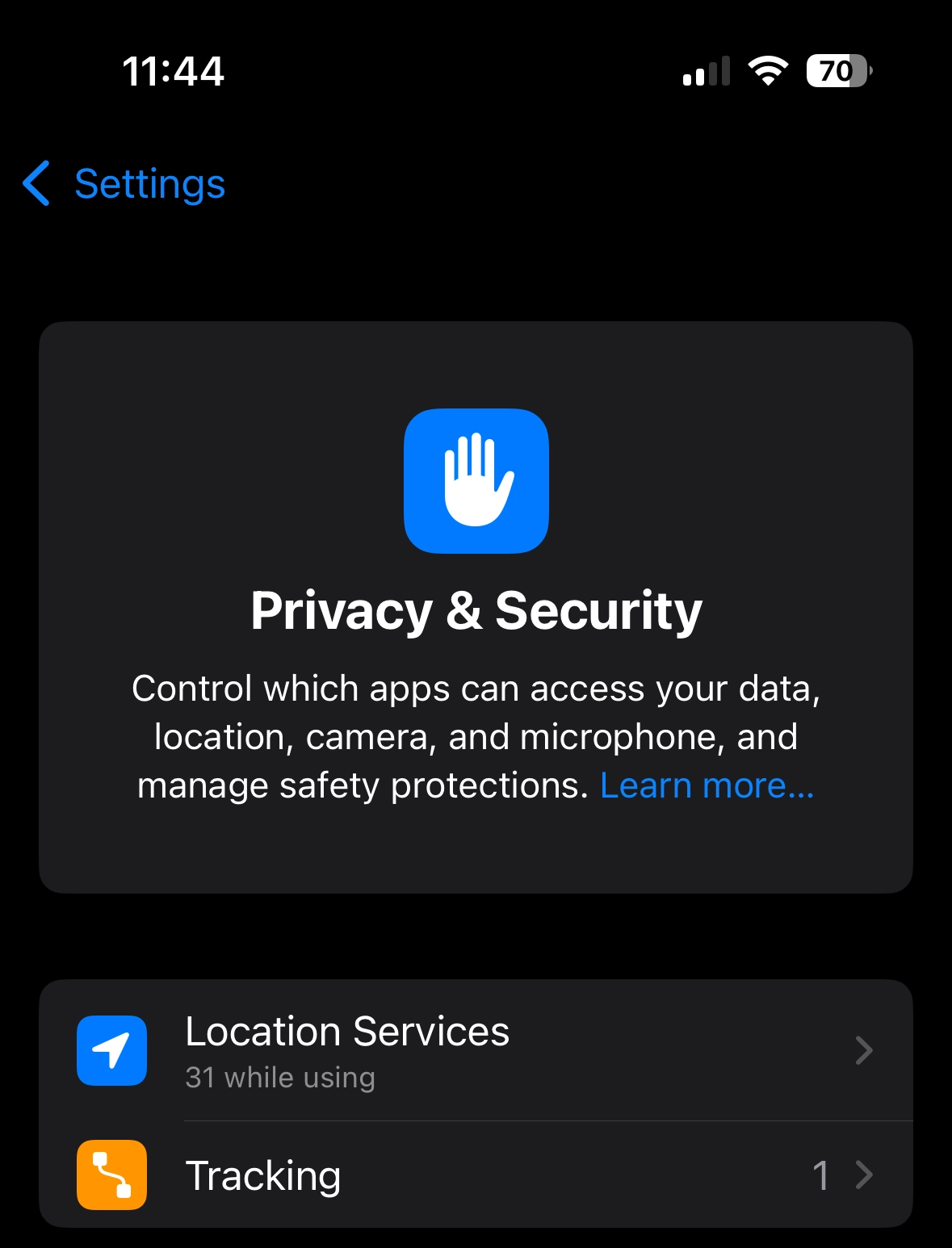
Back on the Privacy & Security page, click Tracking
Step 28
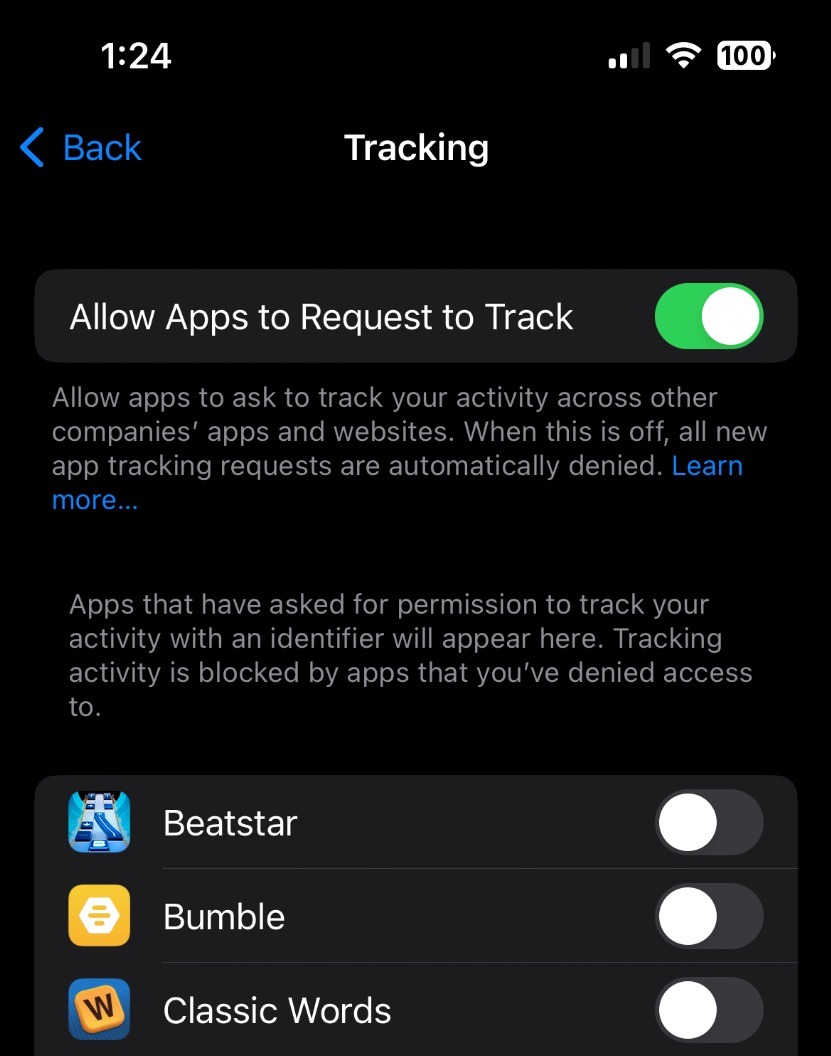
Here, you can choose which apps are allowed to track your activity across other companies' apps and websites. If you don't want any app to track your activity, click here
Adjusting Analytics & Improvements Settings
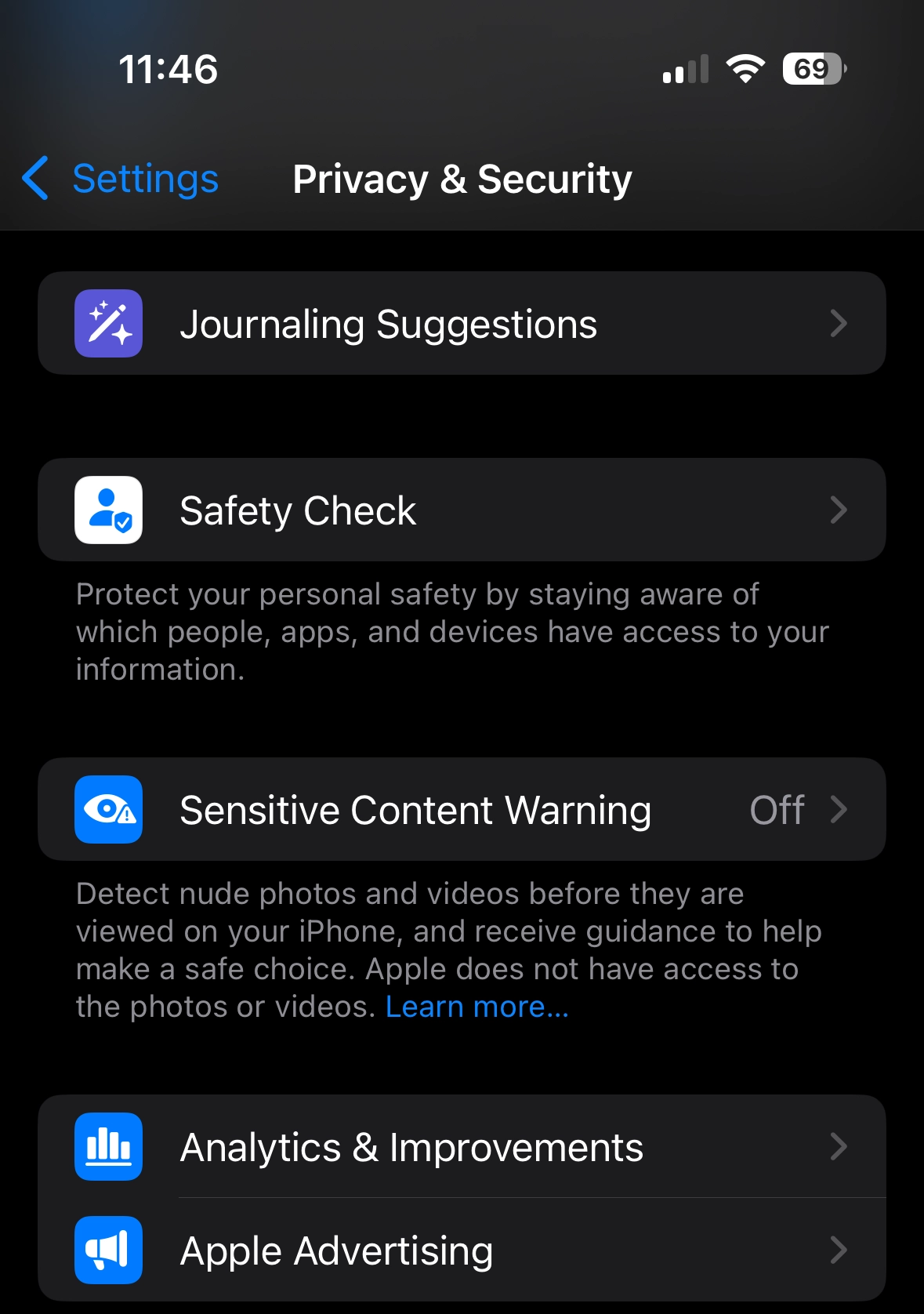
Step 29
Back on the Privacy & Security page, click Analytics & Improvements
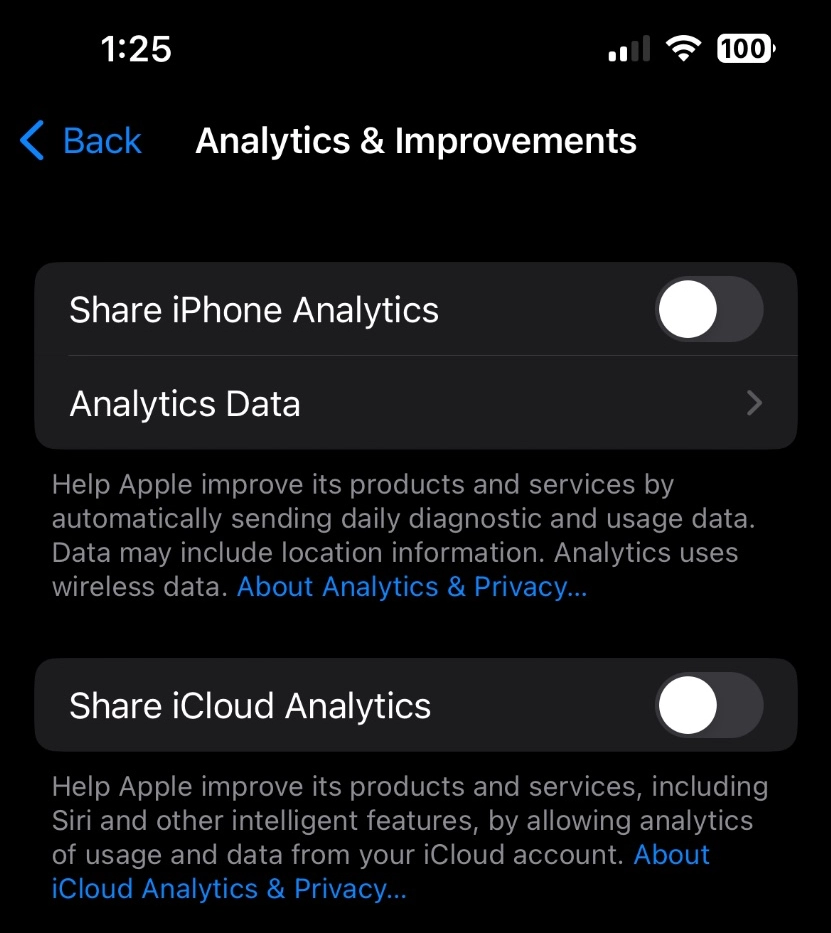
Step 30
Here, you can choose whether you want to share your iPhone or iCloud analytics data and your safety data
Adjusting Targeted Ad Settings
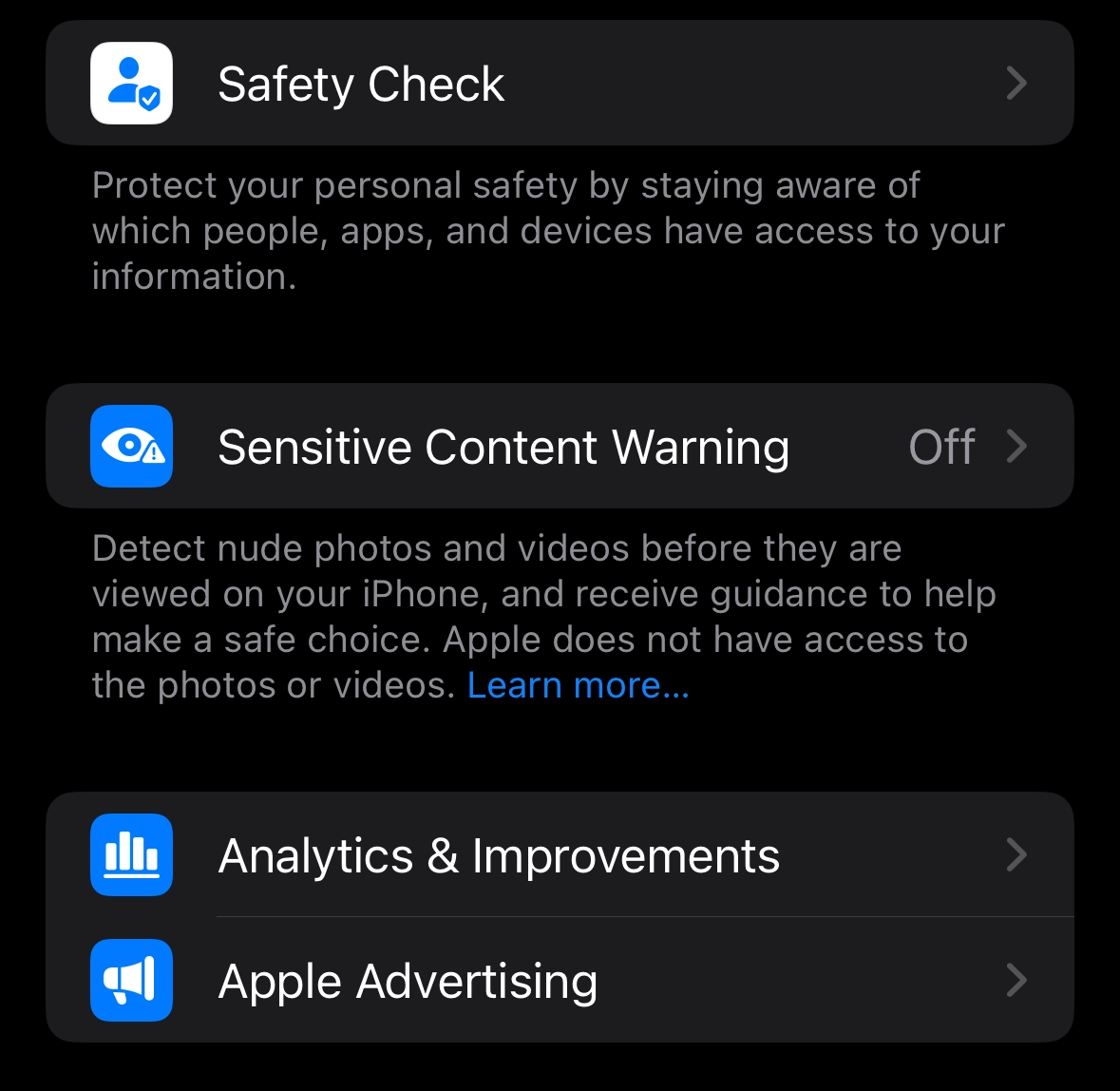
Step 31
Back on the Privacy & Security page, scroll down and click Apple Advertising
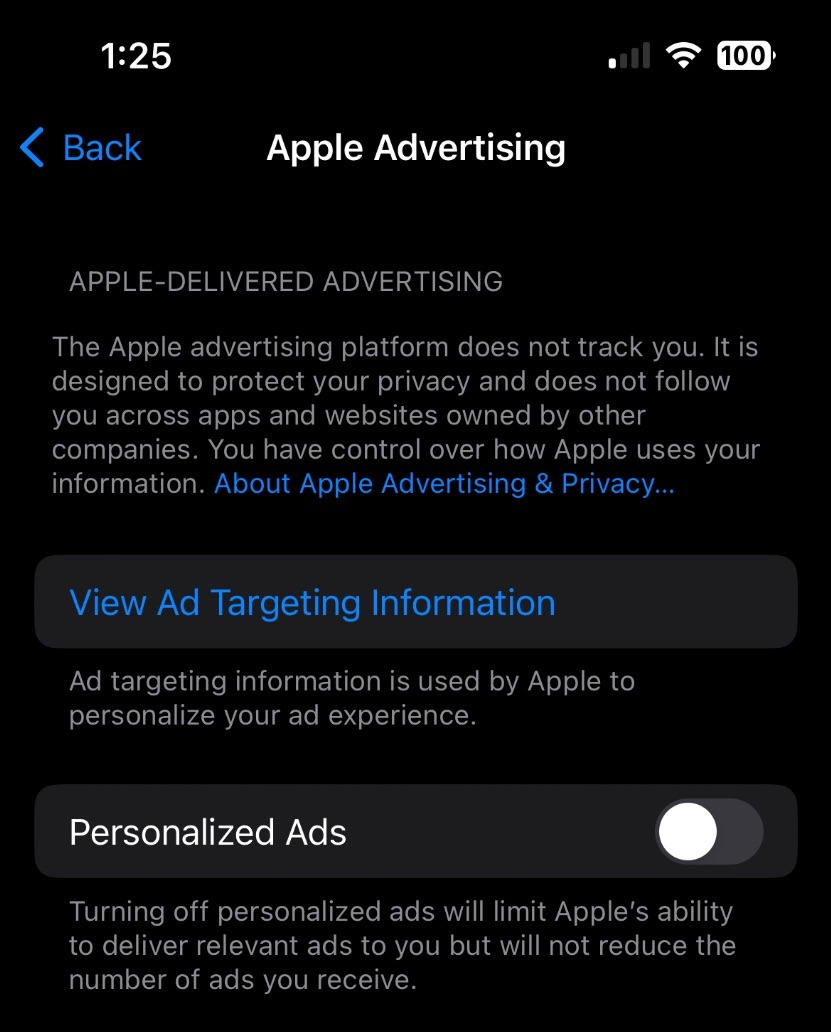
Step 32
Click here if you do not want to receive targeted advertisements
How to View the App Privacy Report
Step 33
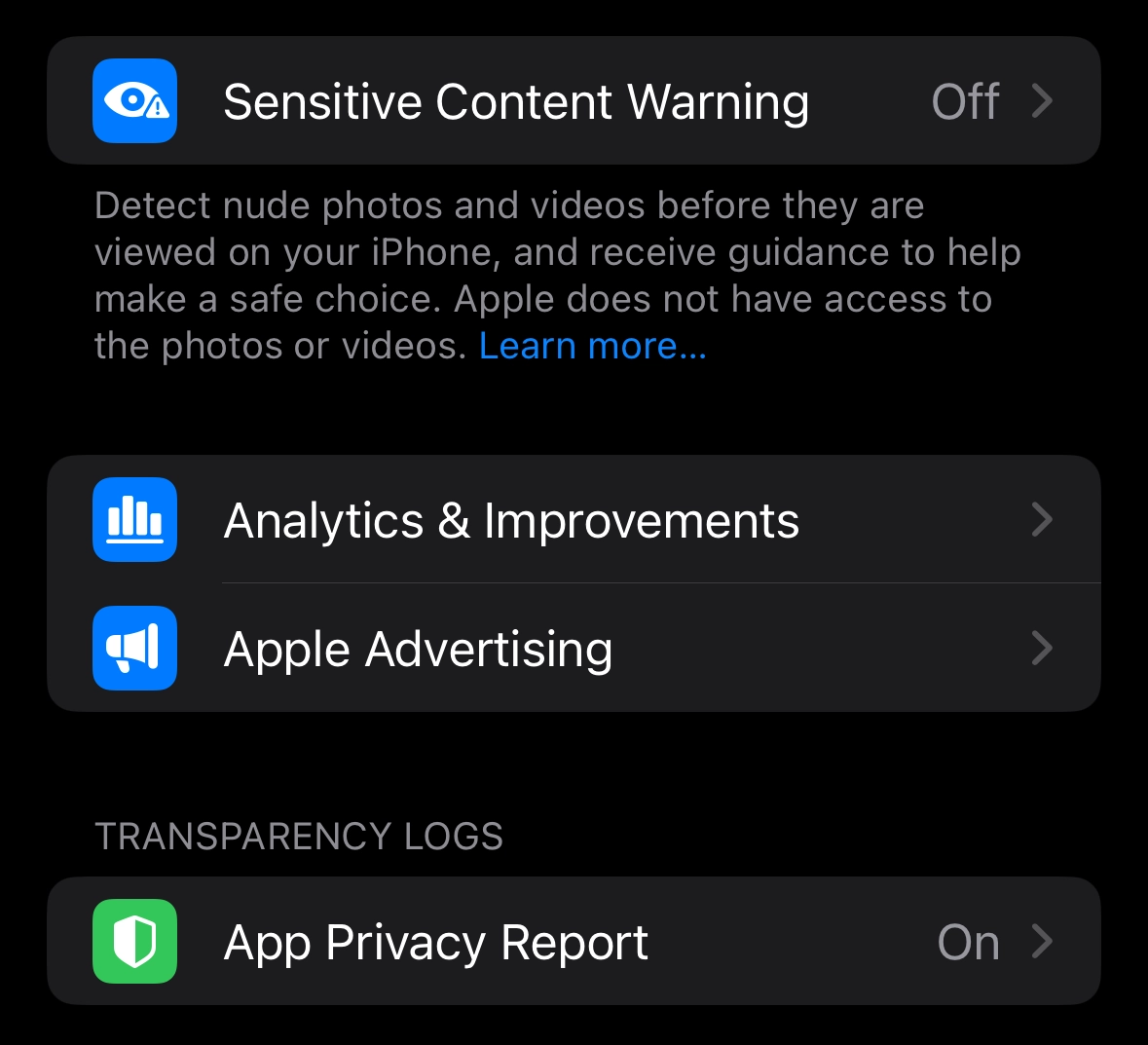
Back on the Privacy & Security page, click App Privacy Report
Step 34
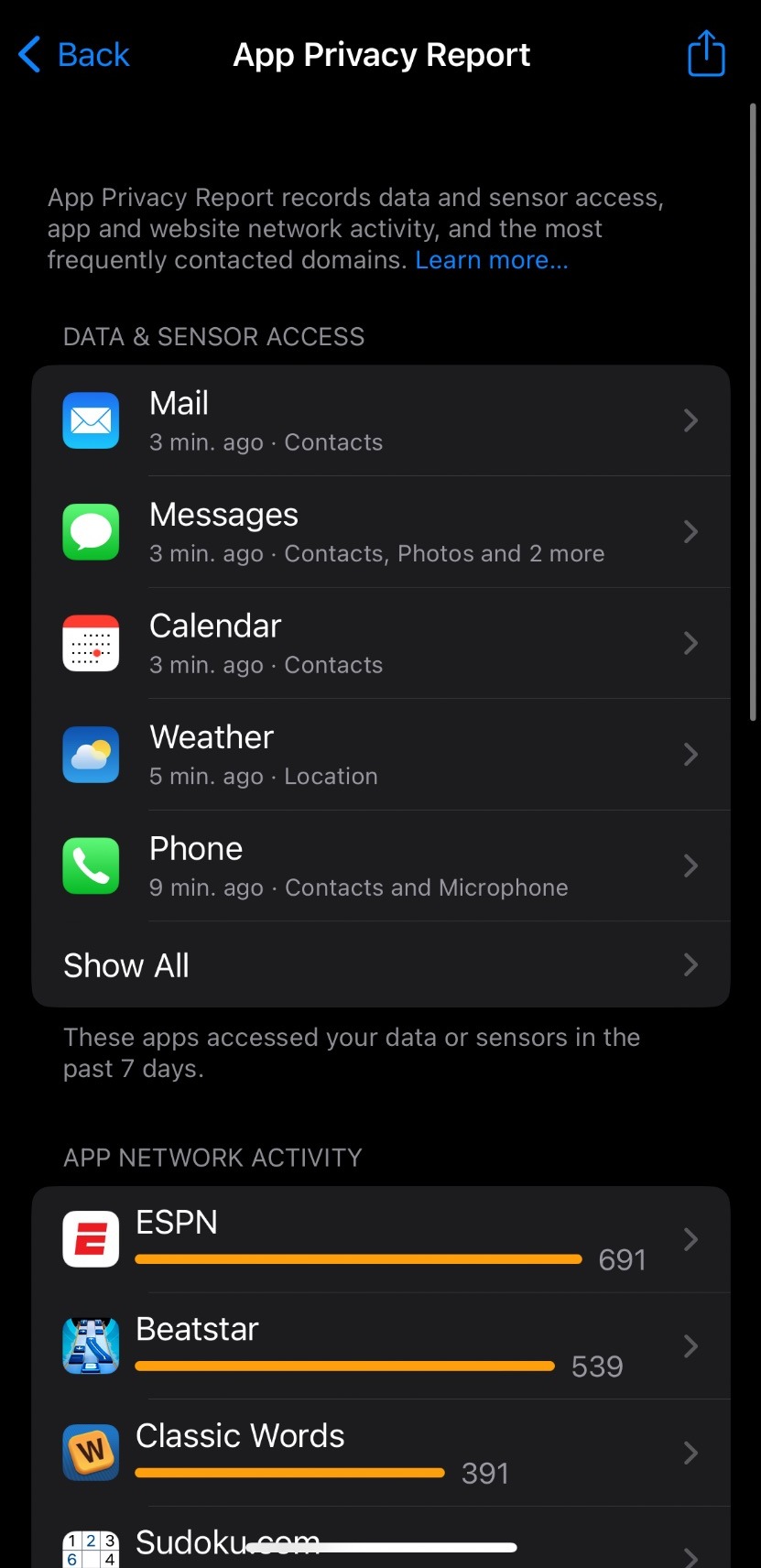
Here, you can see how often apps access your data and their network activity over the past seven days. This gives you a more complete overview of how apps treat your data and make an educated decision whether to keep uninstall an app if it is accessing too much of your data.
How to Turn on Lockdown Mode
Step 35
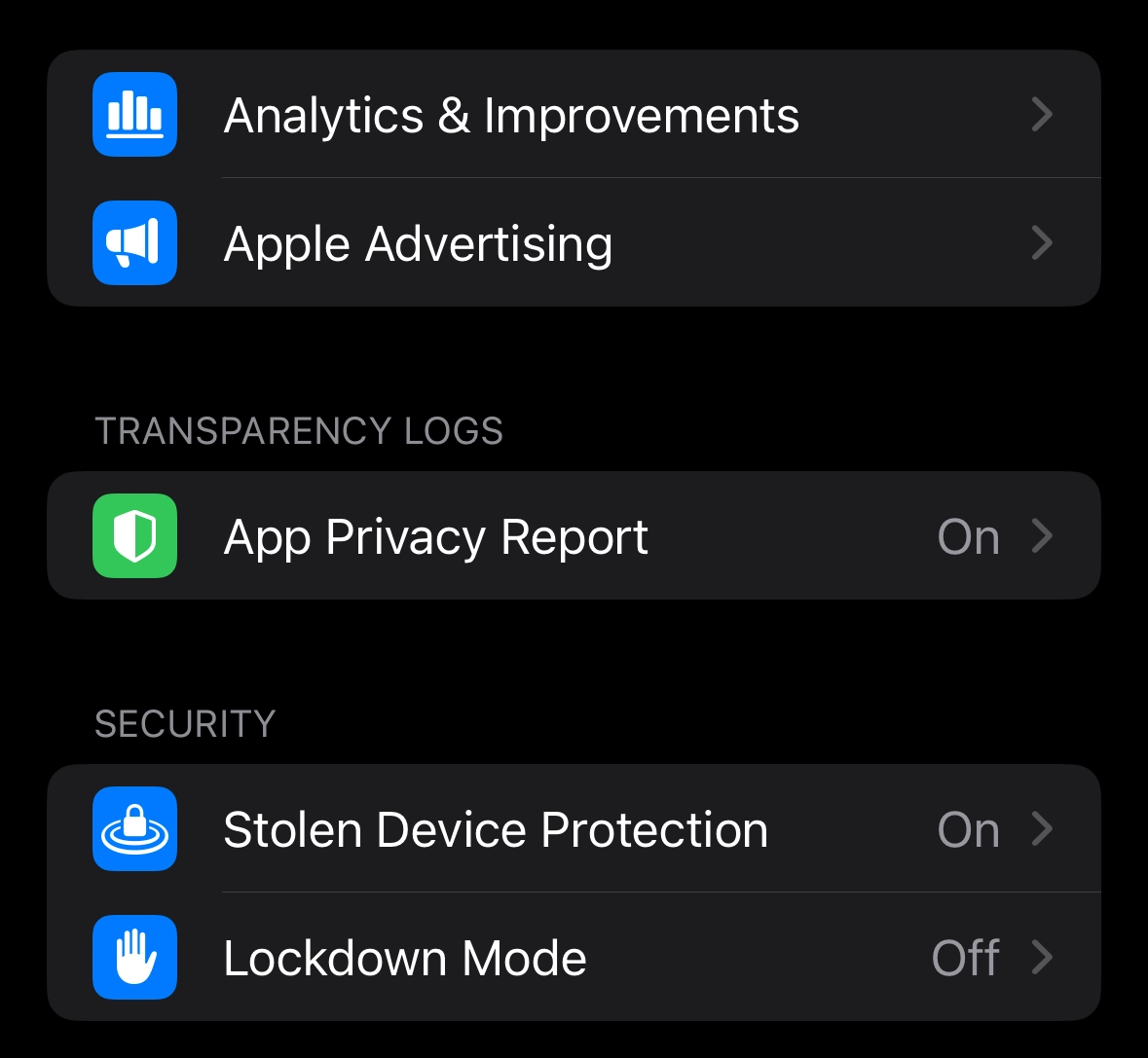
Back on the Privacy & Security page, click Lockdown Mode
Step 36
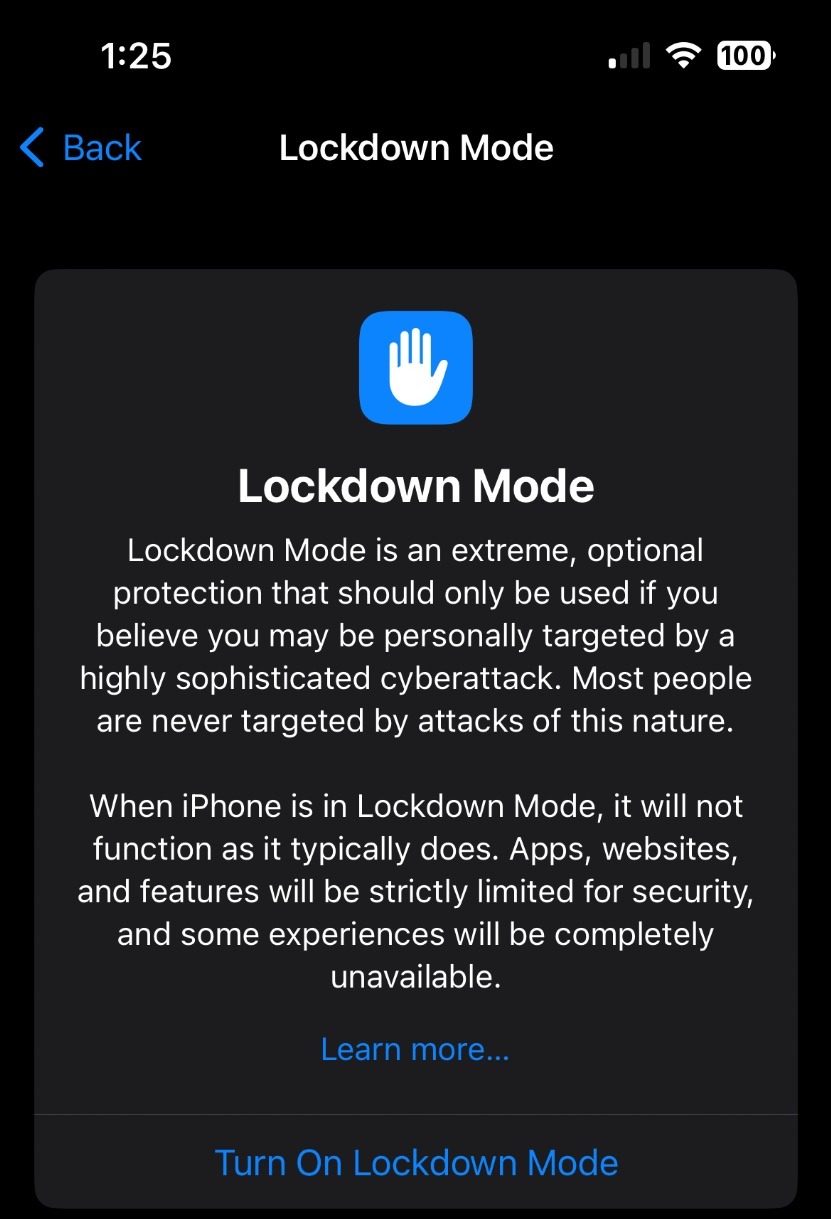
Here, you can turn on Lockdown Mode. Apple considers this to be a last resort of sorts. If you believe you have been personally targeted in a cyberattack, you can turn on lockdown mode. When you do, your device will not function as normal. You will not be able to use most of your apps and messages and FaceTime functionality will be severely limited.
Blocking Email Trackers
Step 37
On the main Settings screen, scroll down and click Apps
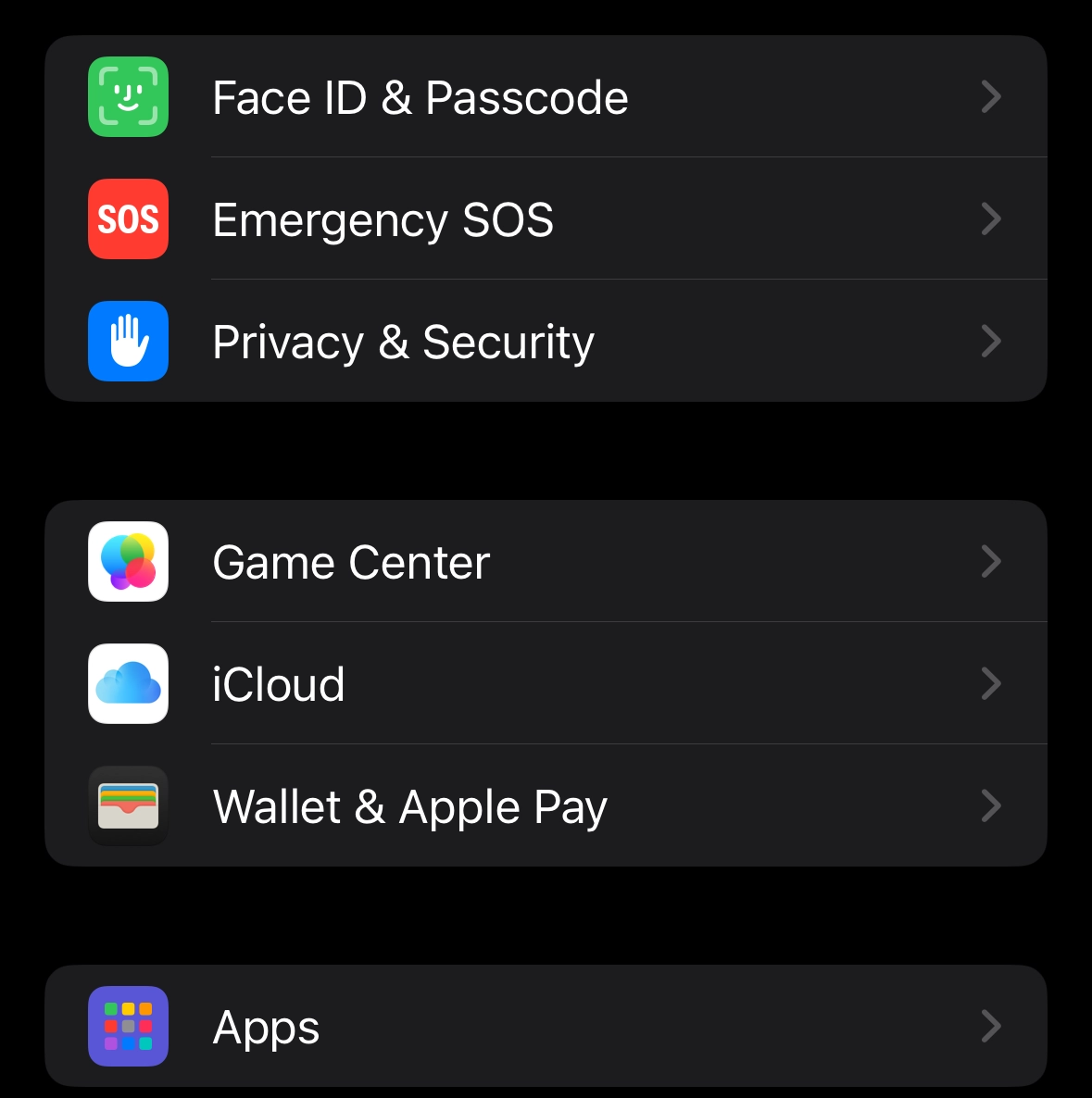
Step 38
Scroll down and click on Mail
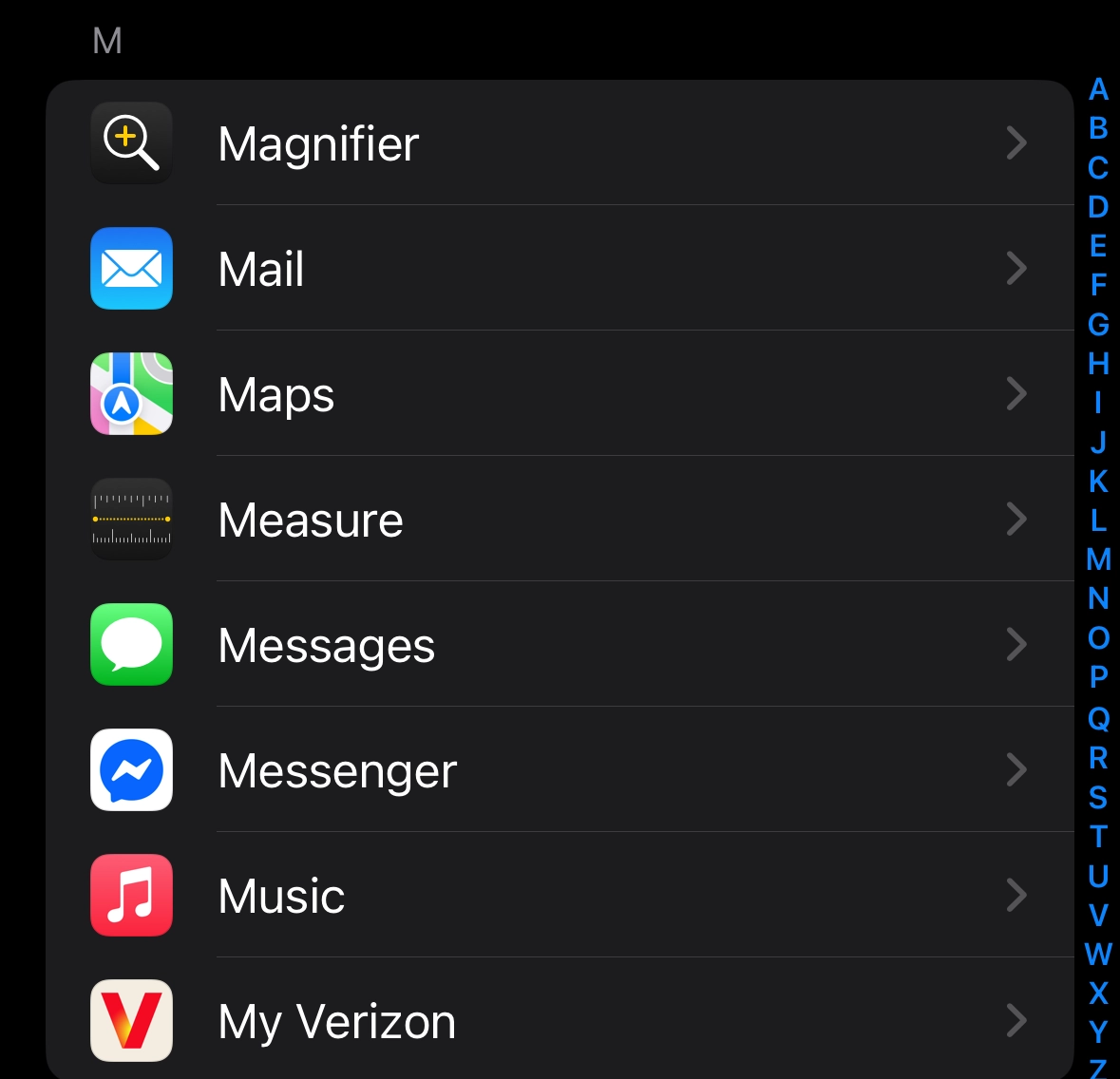
Step 39
Scroll down and click Privacy Protection
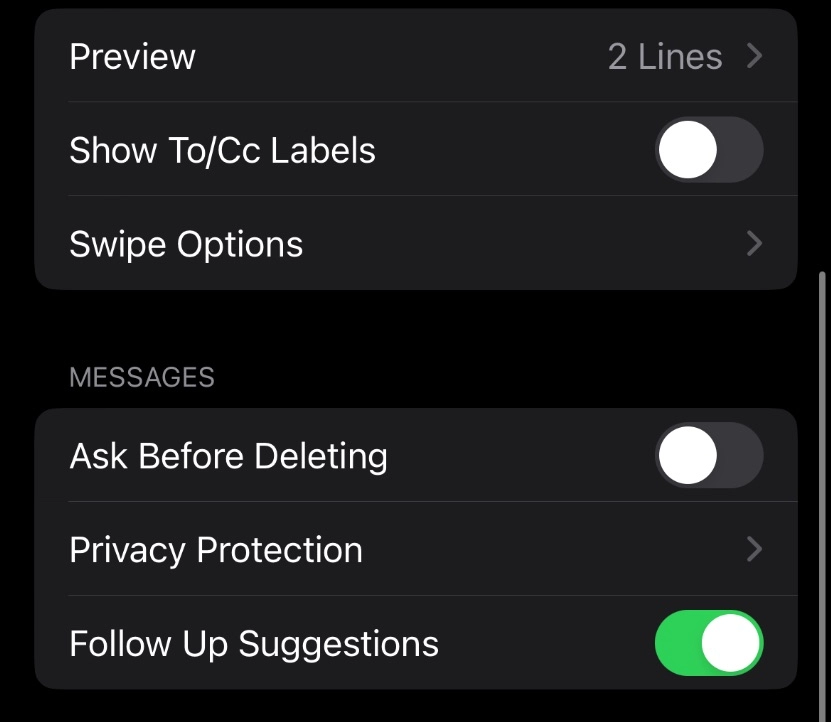
Step 40
Click here if you want to hide your IP address from email senders whenever a message is opened
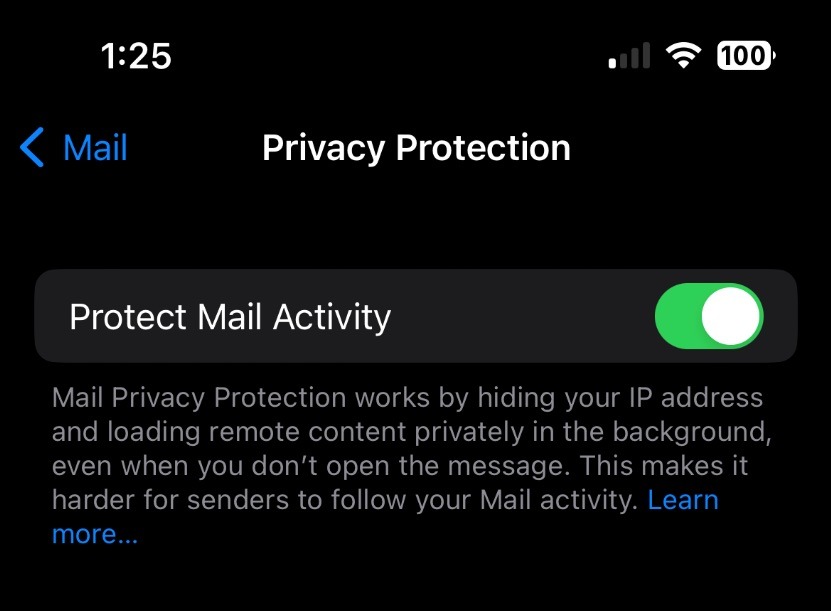
Adjusting Safari Privacy Settings
Step 41
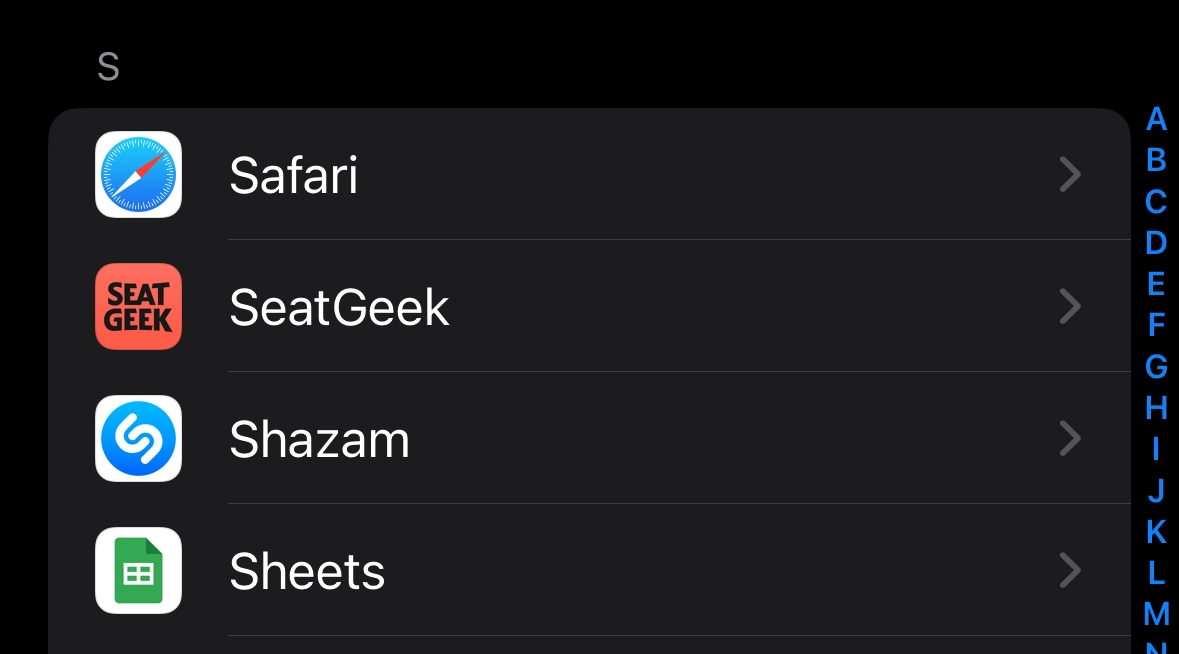
Go back to the Apps page. Scroll down and click Safari
Step 42
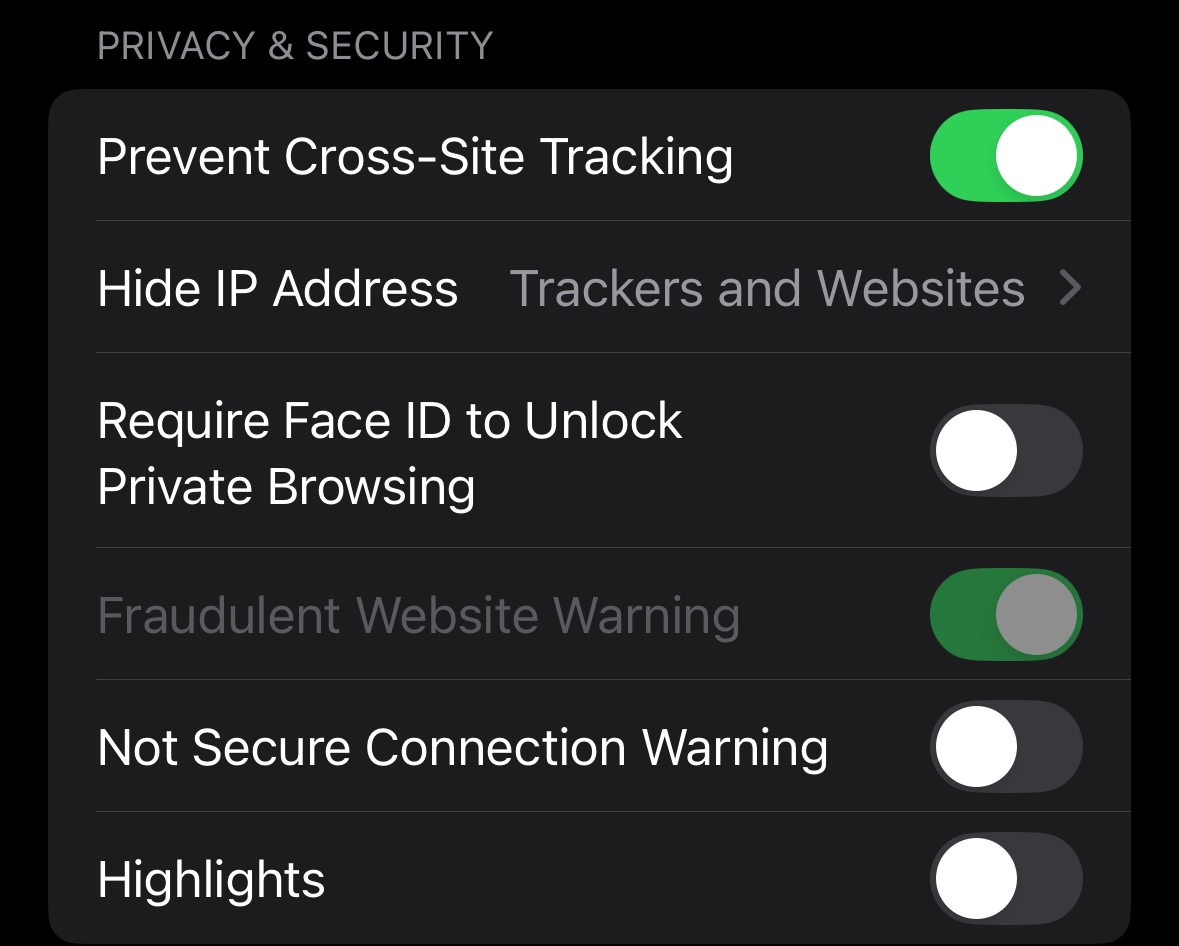
Scroll down until you see these features. Here, make sure “prevent cross-site tracking” is turned on. This prevents third parties from tracking your activity across multiple websites. You can also hide your IP address from trackers and websites by clicking here
Step 43
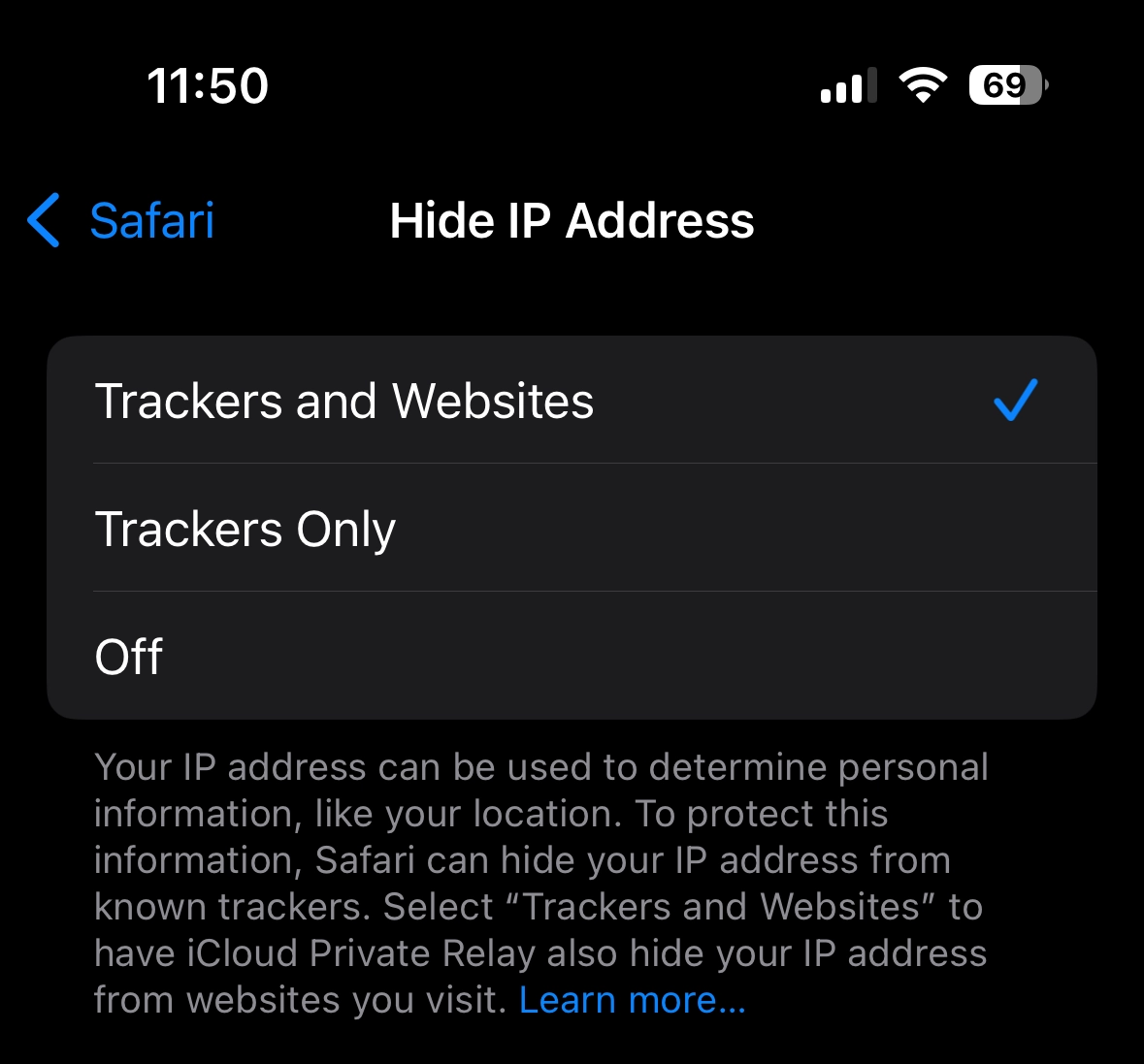
On this screen, make sure Trackers and Websites is checked
Apple Stolen Device Protection
Step 44
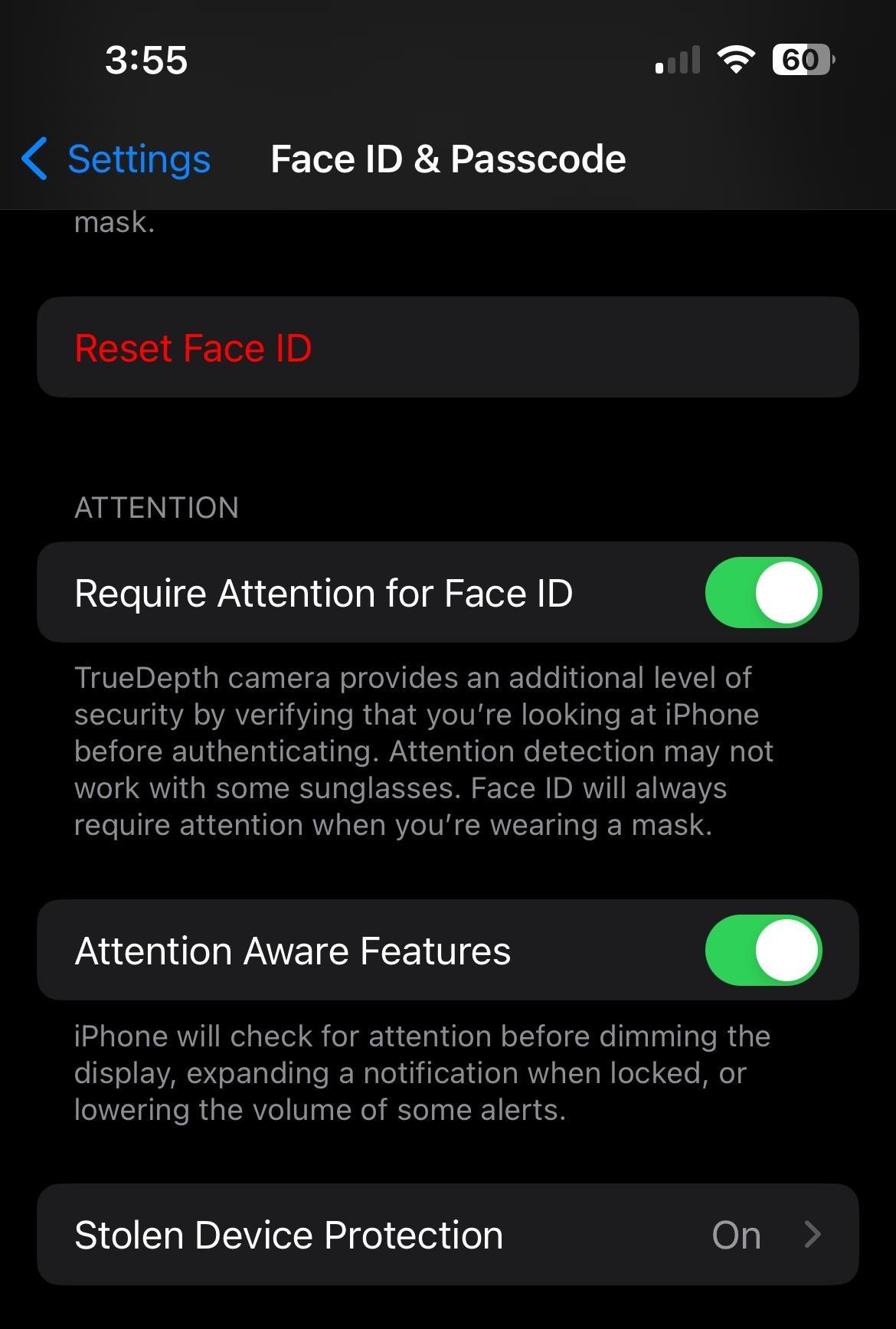
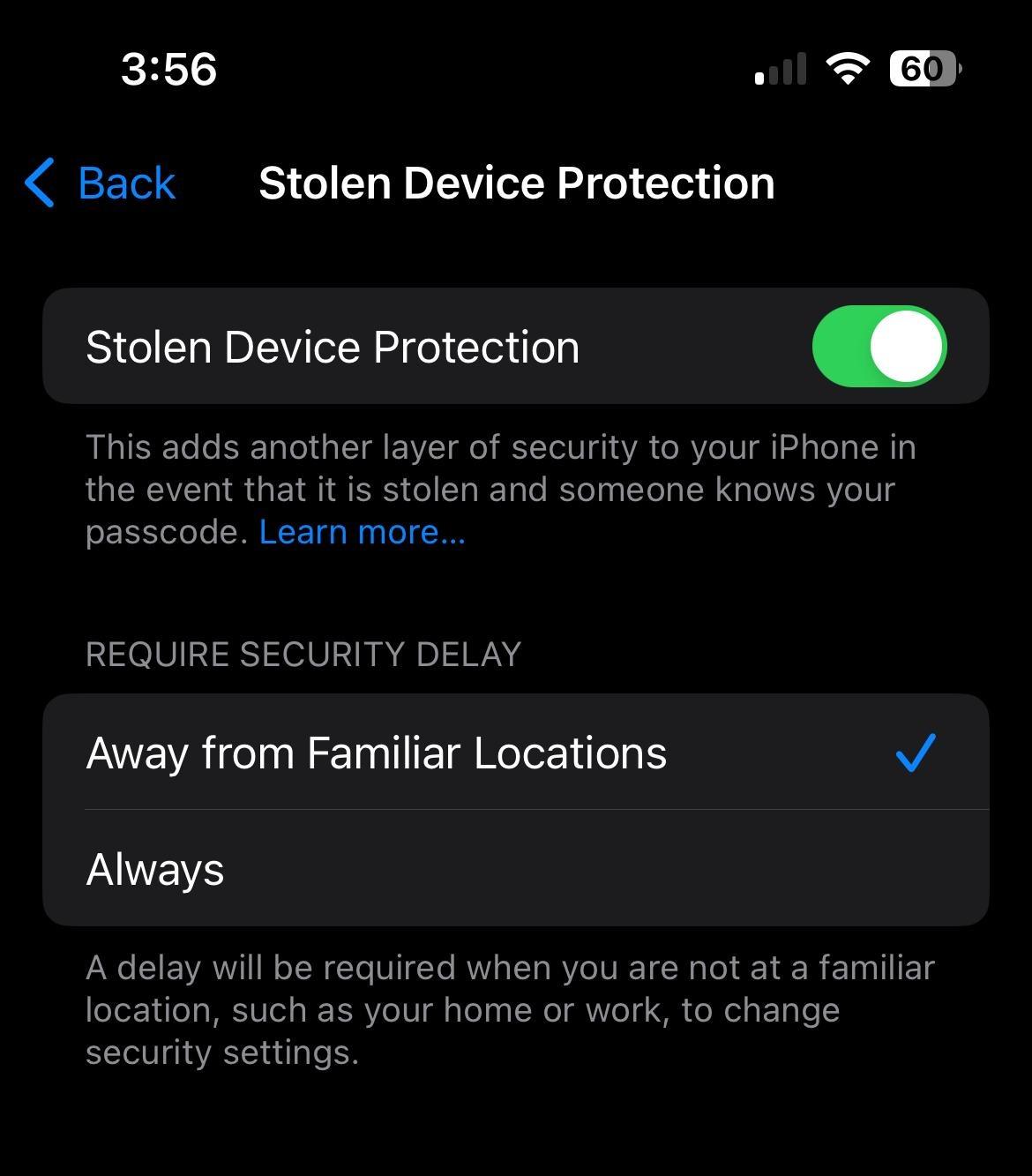
Stolen Device Protection adds a layer of security when your iPhone is away from familiar locations, such as home or work, and helps protect your accounts and personal information in case your iPhone is ever stolen. NOTE: This feature will not work if Significant Locations is turned OFF.
Step 45
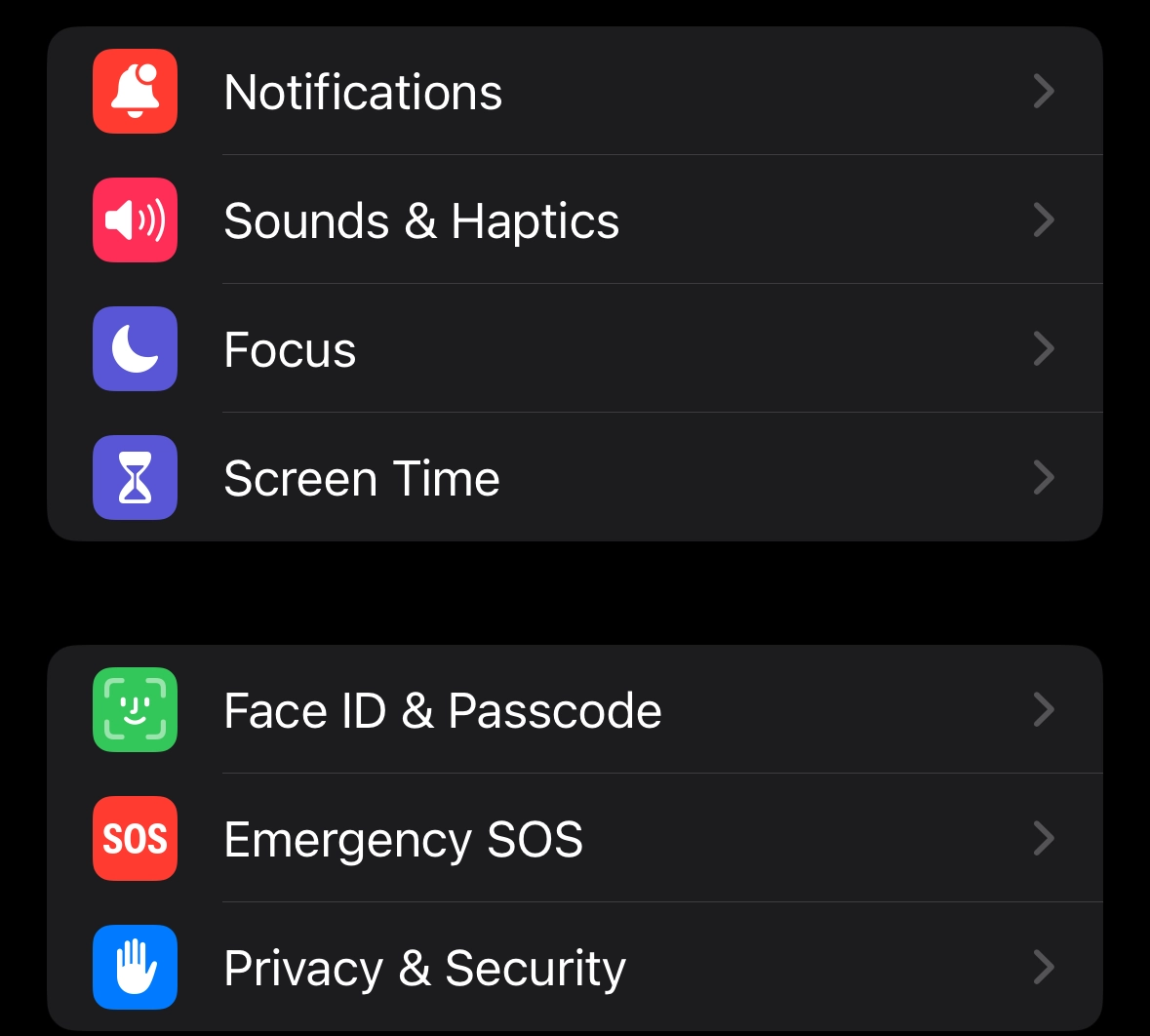
Under Settings click Face ID & Passcode
Step 46
Enter your passcode NOTE: Even if someone knows your passcode , if you are away from home, additional biometric identification will be needed (touch ID/Face ID) to change settings or access stored passwords.
Step 47
Click Stolen Device Protection
Step 48
Click this button
Safety Check
Step 49
If your personal safety is at risk, you can use Safety Check on iPhone to quickly stop sharing your information, or to review and update sharing with individual people and apps.
Step 50
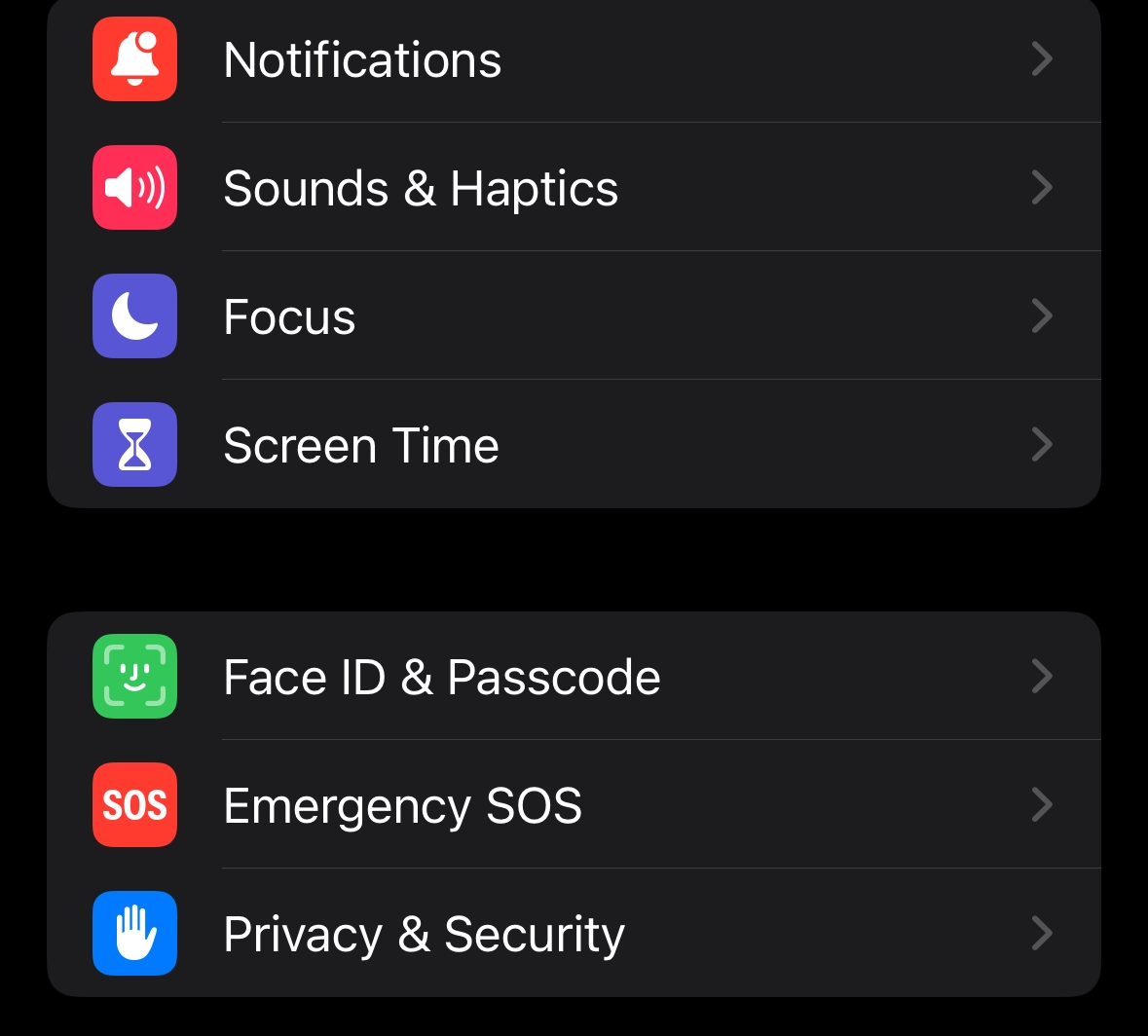
Under Settings, click Privacy & Security
Step 51
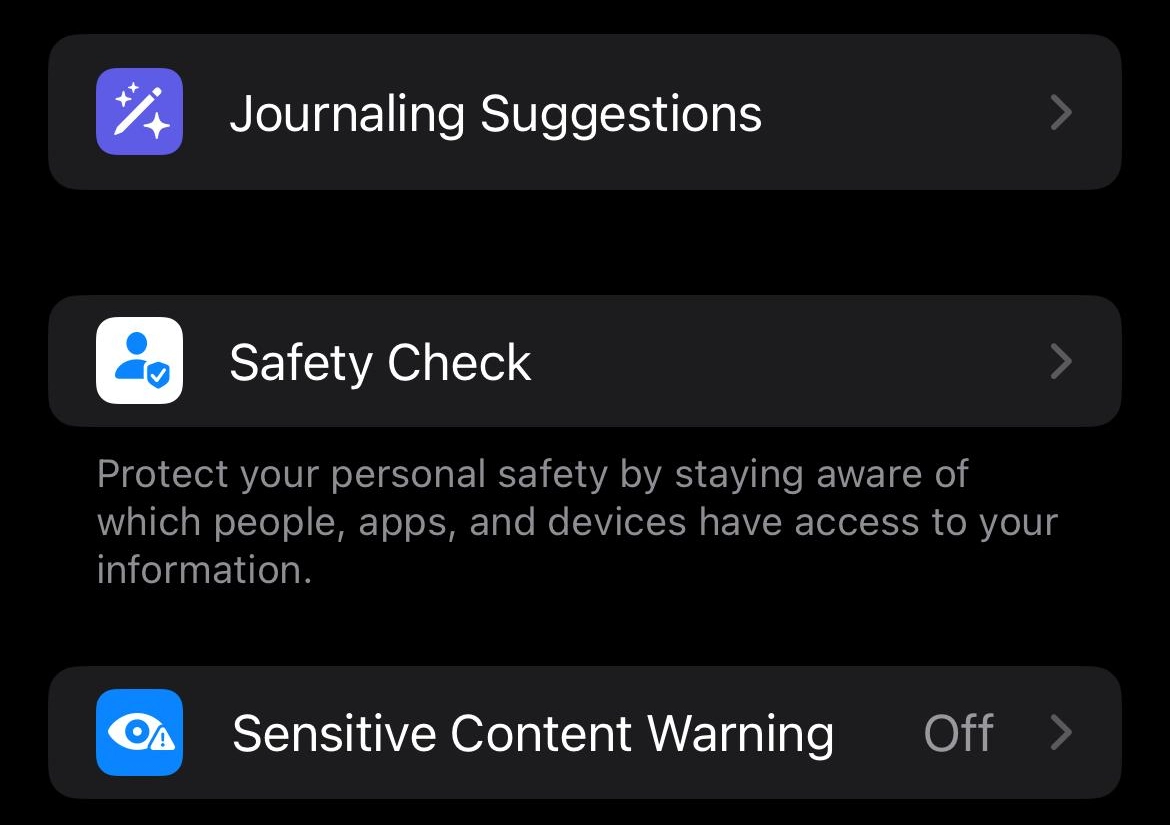
Scroll down and click Safety Check
Step 52
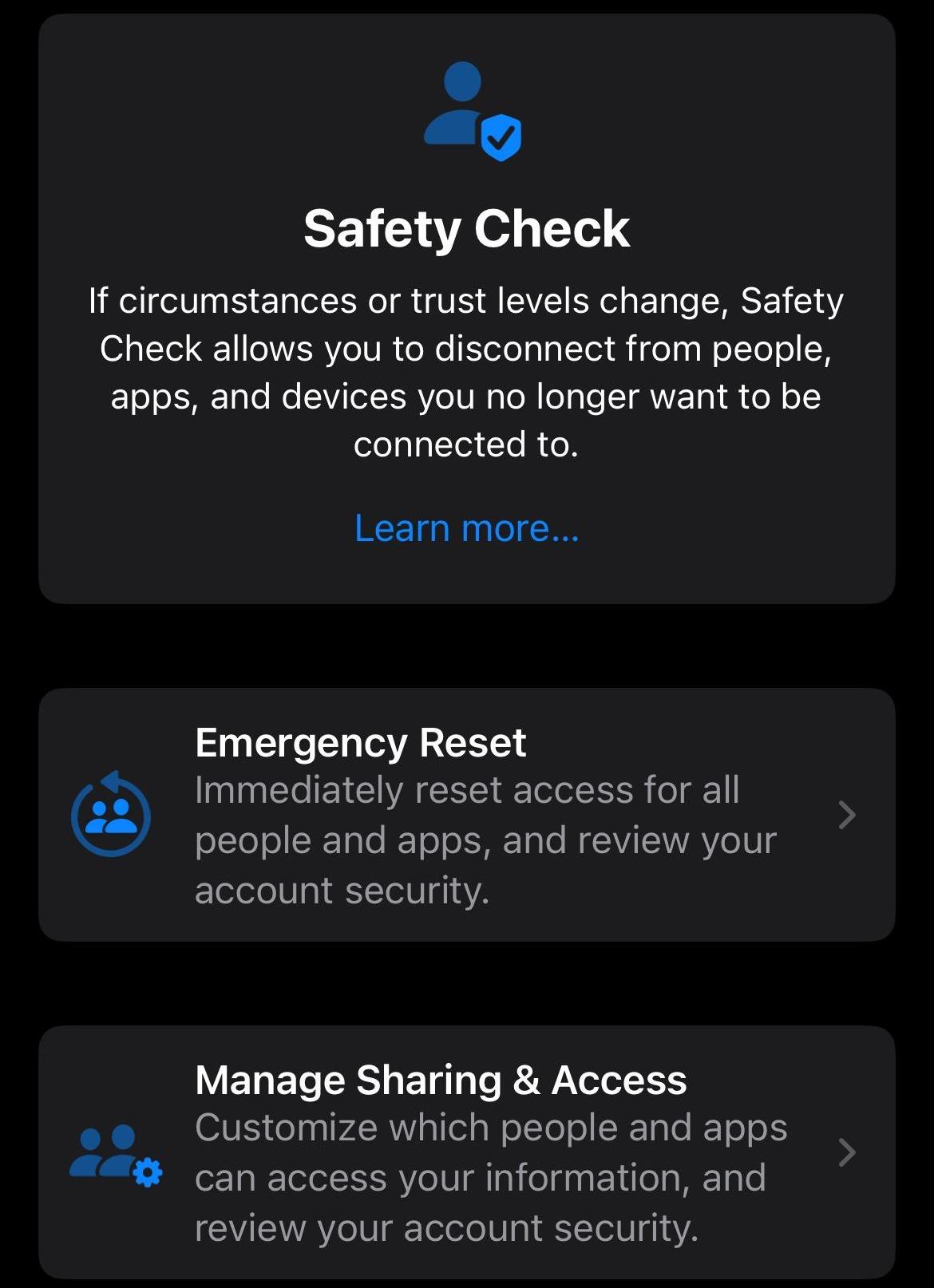
Here, you'll have the choice between Emergency Reset and Manage Sharing & Access. First, click Emergency Reset
Step 53
Enter your passcode
Step 54
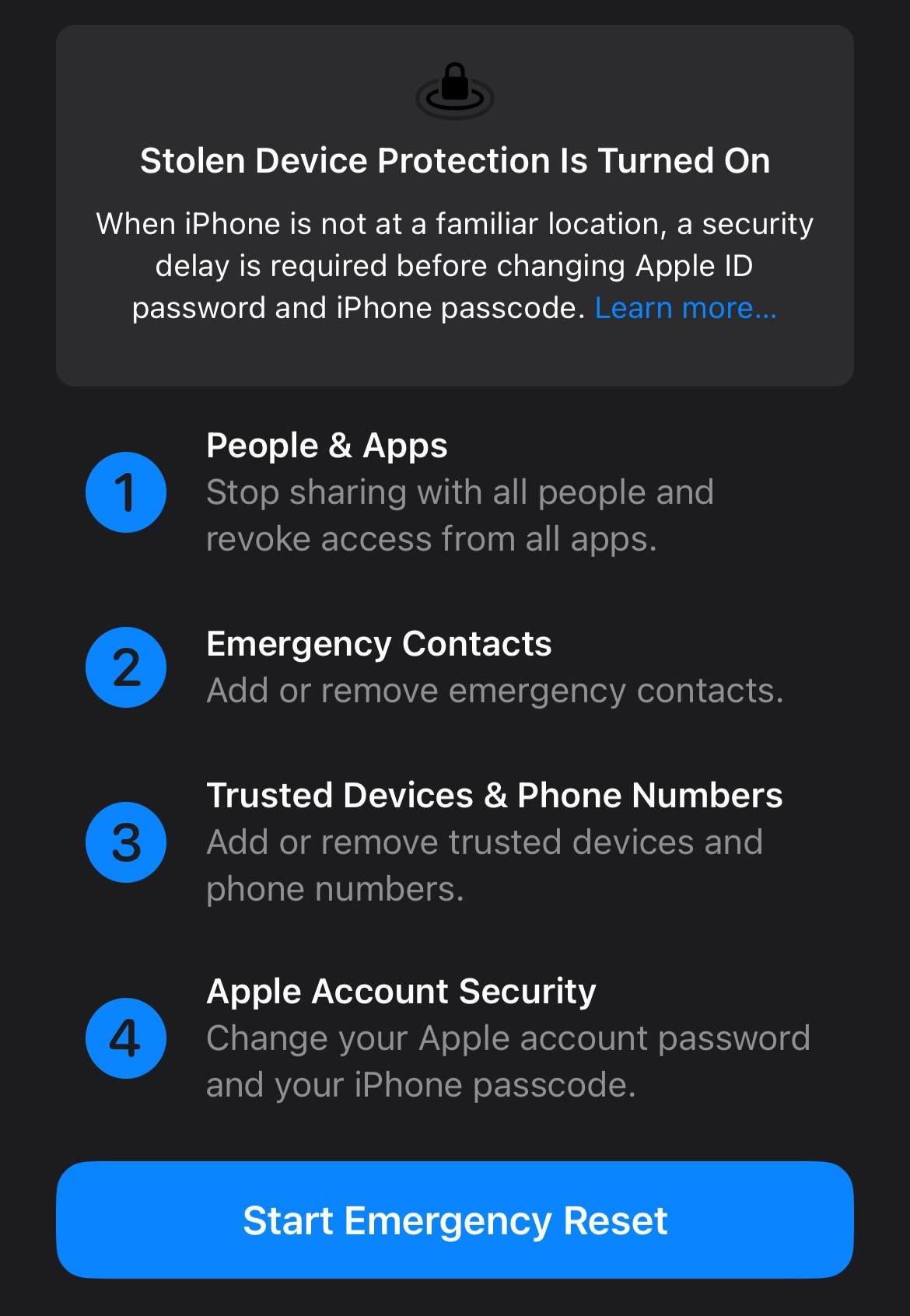
Here, you will see the four steps of the Emergency Reset. You'll be able to stop sharing data with people and revoke access from all apps on your phone, add or remove emergency contacts, trusted devices and phone numbers and change your Apple account passwords and your iPhone passcodes. Click this button.
Step 55
If you want to reset all of your settings for sharing information with people and apps, click reset. If you want to do it for certain apps and people, click Manage Sharing & Access. Repeat for the other three steps as well.
Step 56
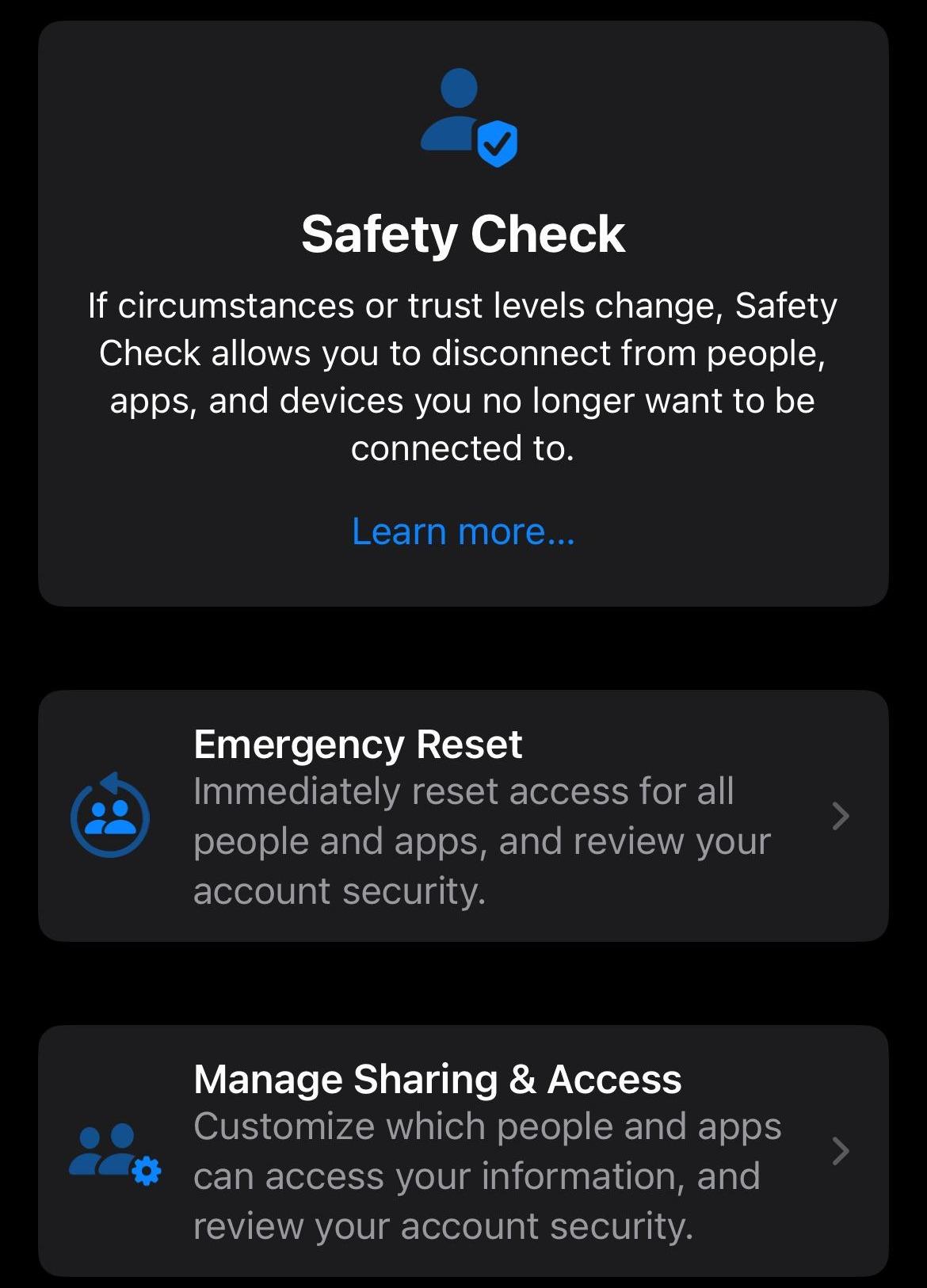
Back on the Safety Check page, let's click Manage Sharing & Access
Step 57
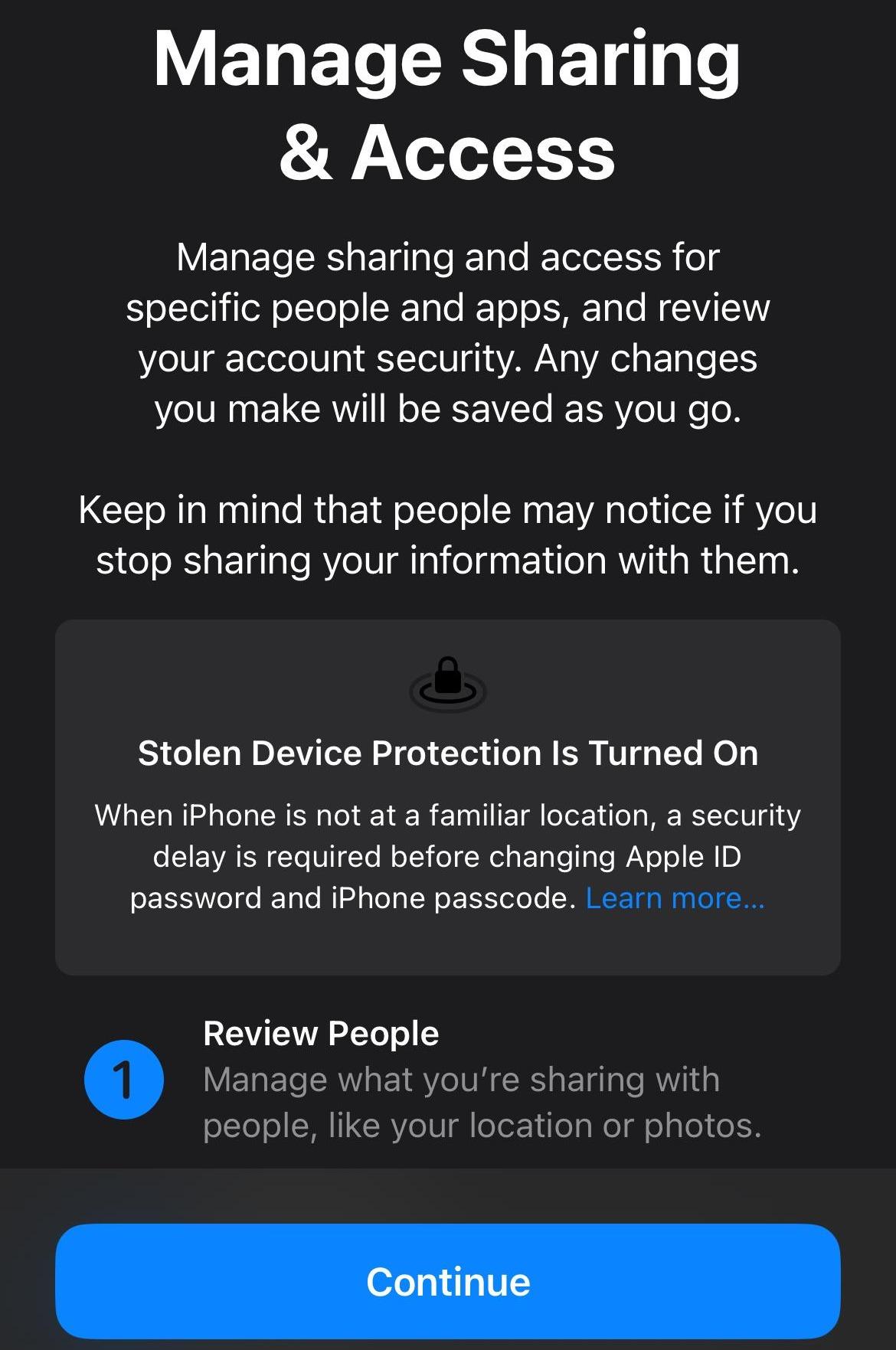
On the next screen, click Continue
Step 58
On this screen, you can see who you are sharing information with and make the decision whether you want to continue sharing with that person. Once you are done, click continue.
Step 59
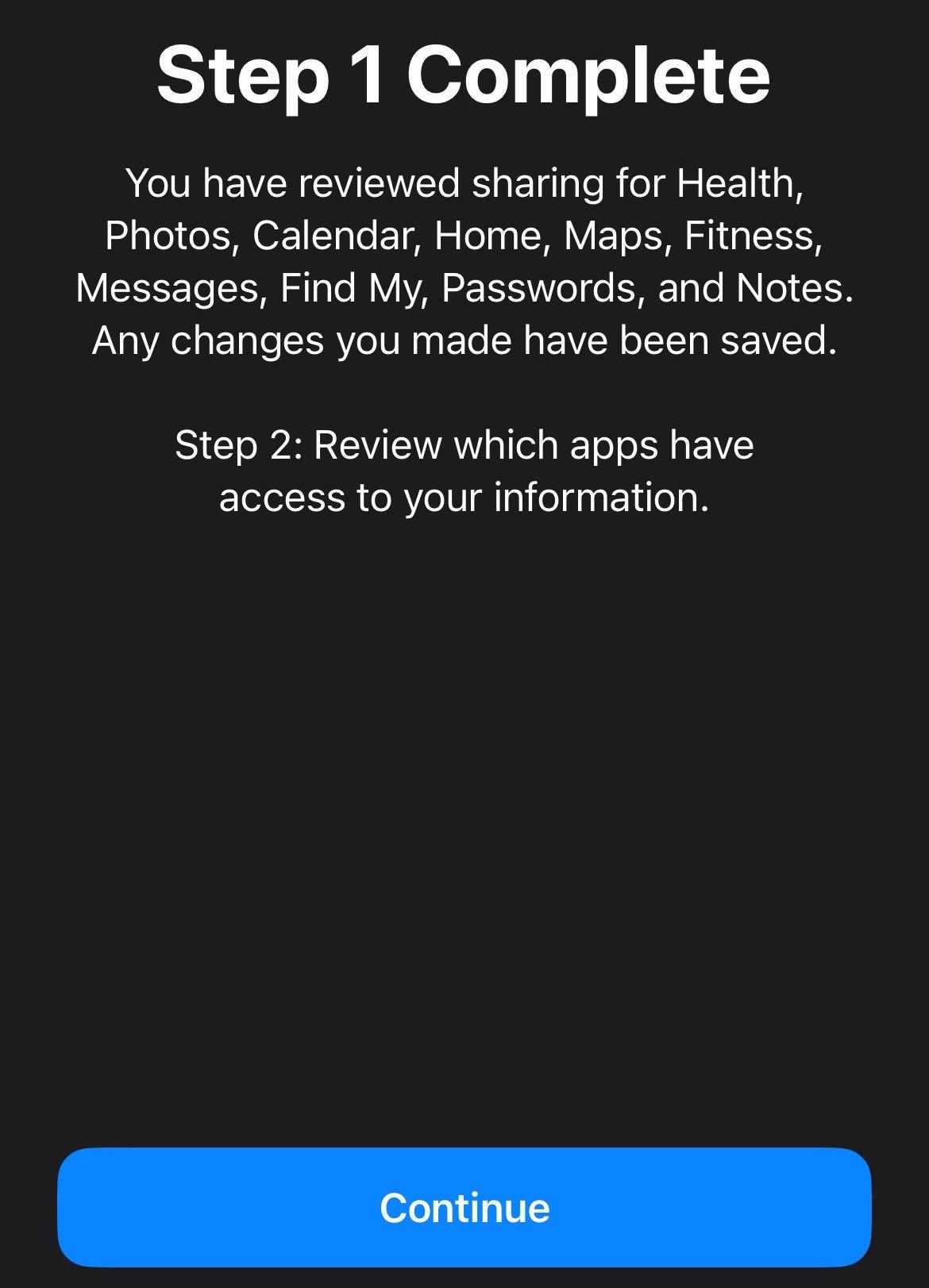
You are done with step 1. Click continue.
Step 60
Here, you can adjust which apps have access to your information and decide whether you want them to continue having access to your data. You can also click Select All & Stop Access if you want to stop all apps at once.
Step 61
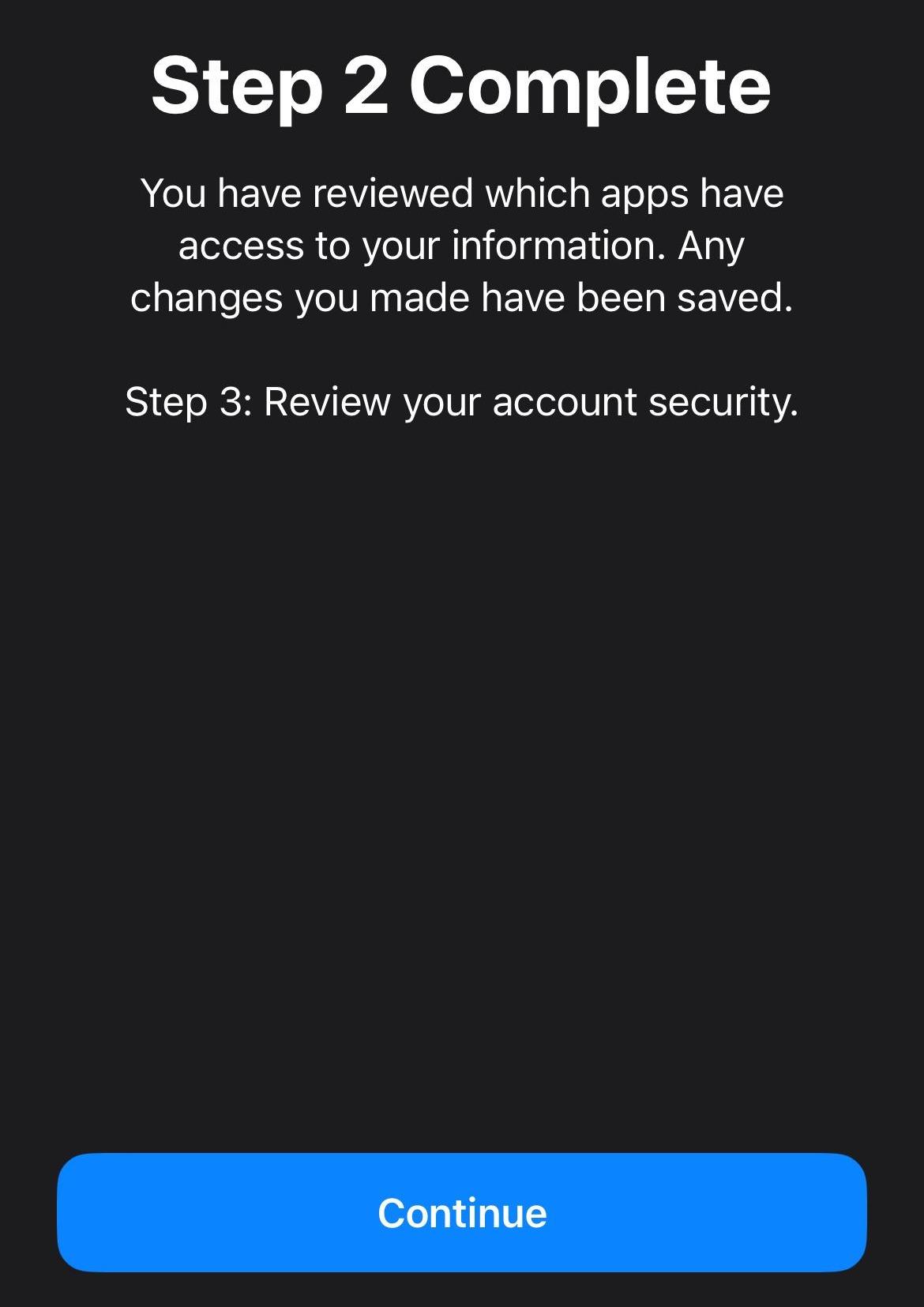
You are done with step 2. Click continue
Step 62
Here, you can add an Emergency SOS contact. After you have done so, click continue.
Step 63
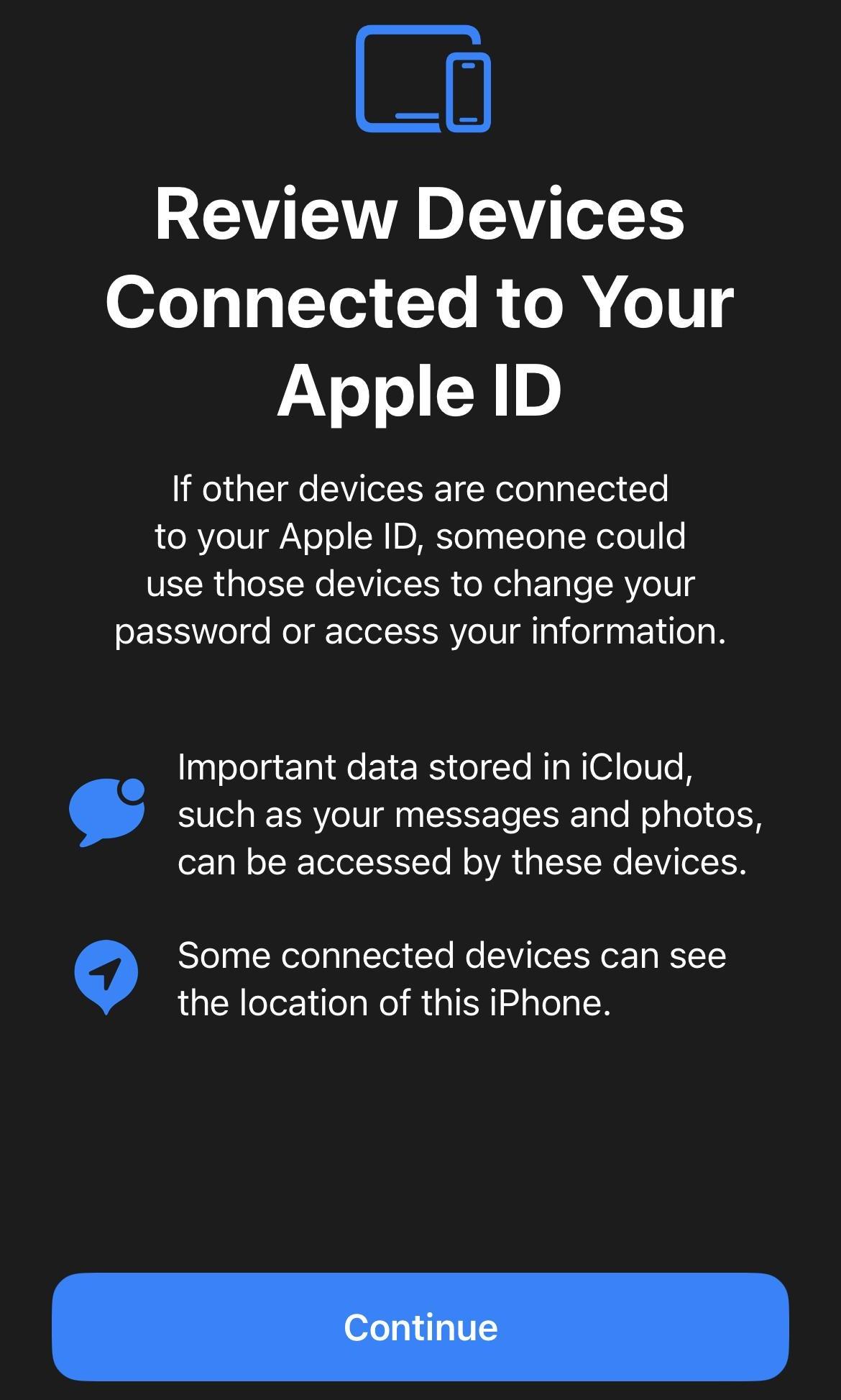
Next, you'll be able to review any device connected to your Apple ID. Click continue
Step 64
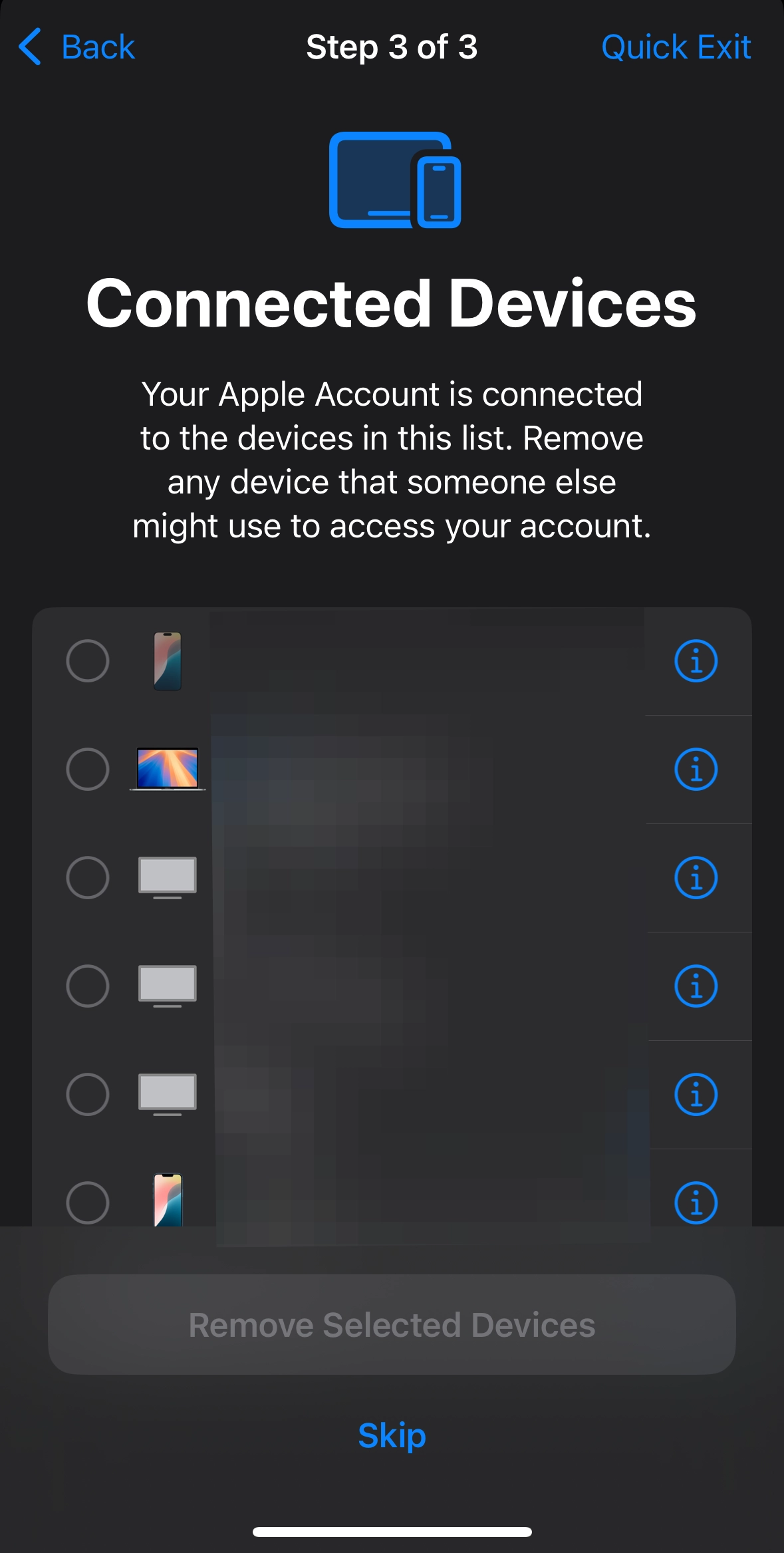
On this screen, you can see which devices are connected to your Apple ID. Choose which devices you no longer wish to have linked to your Apple ID and select Remove Selected Devices.
Step 65
You can then choose to update your Apple ID password now by clicking the blue button, or choose to update it later in Settings to move onto the next screen.
Step 66
On the next screen, you'll be given the same choice for updating your device passcode.
Step 67
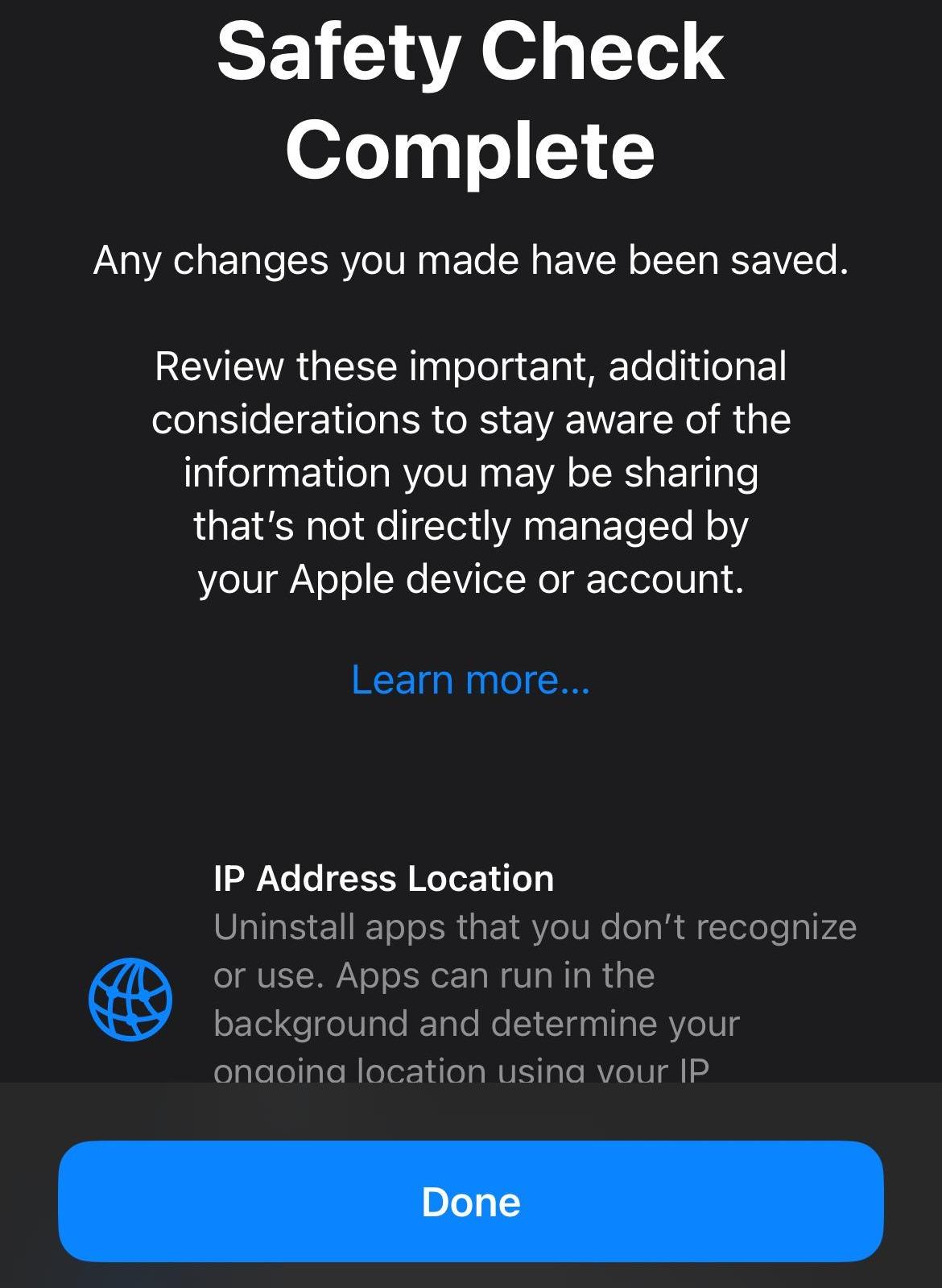
You are finished. Click done.