
How to Secure Your Steam Account
Adding Steam Guard to Your Account
Step 1
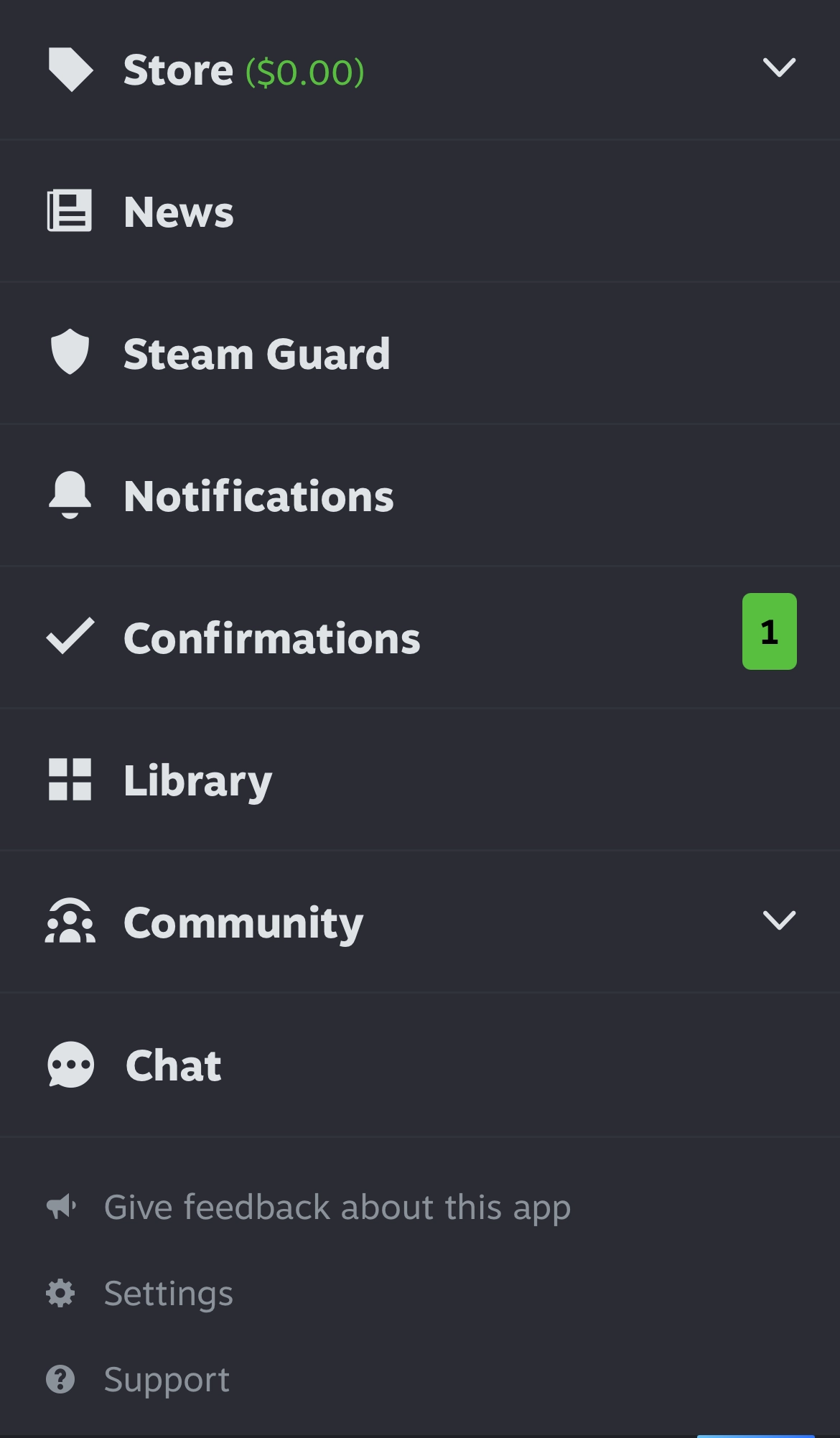
Steam Guard is the platform's built-in multifactor authentication process. To activate it, click on the settings menu in the bottom right hand corner of the mobile app.

Step 2
Click Steam Guard
Step 3
Click Add authenticator

Step 4
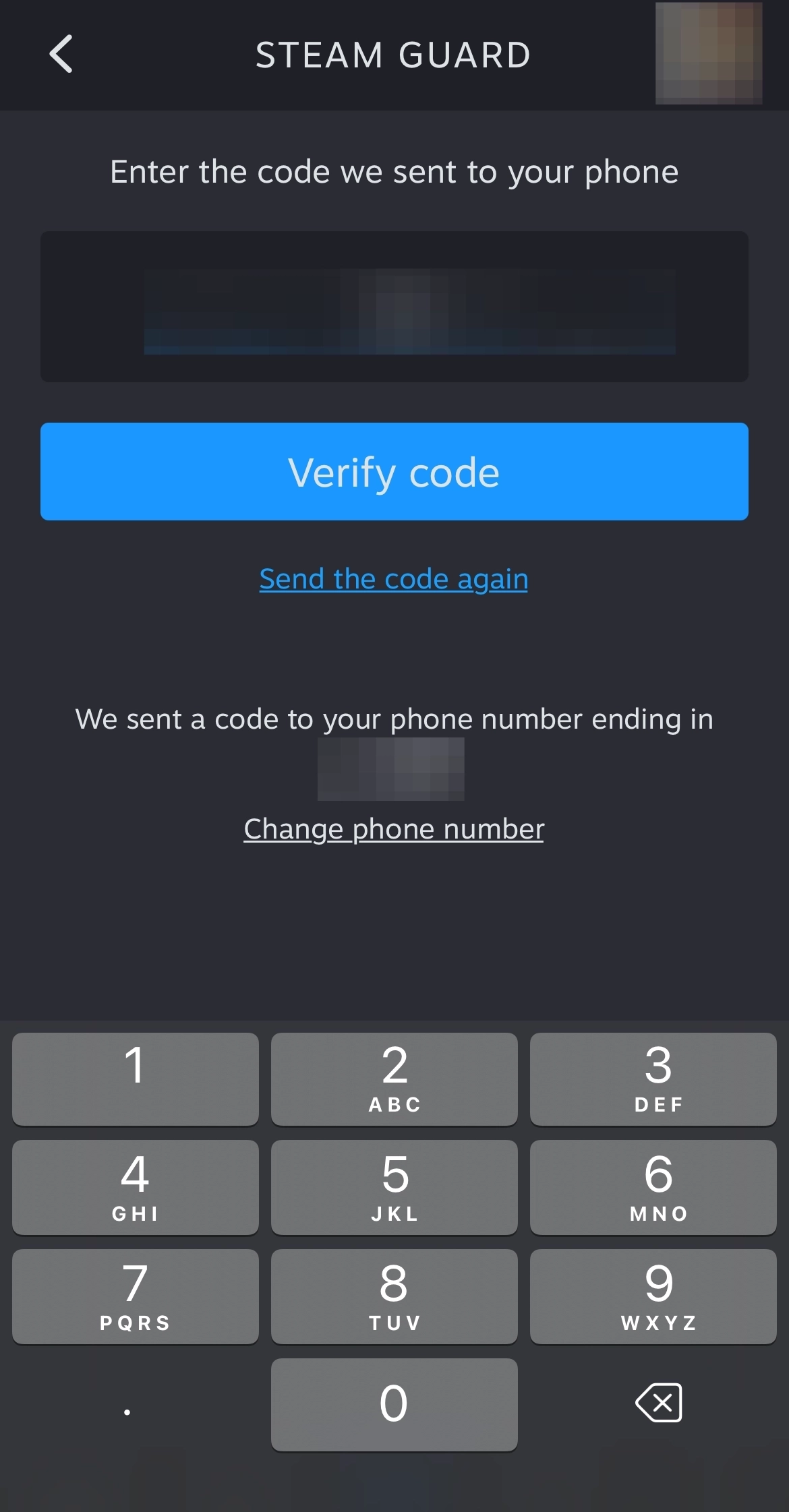
A code will be sent to the phone number you have tied to your account. Enter it in and click Verify code
Step 5
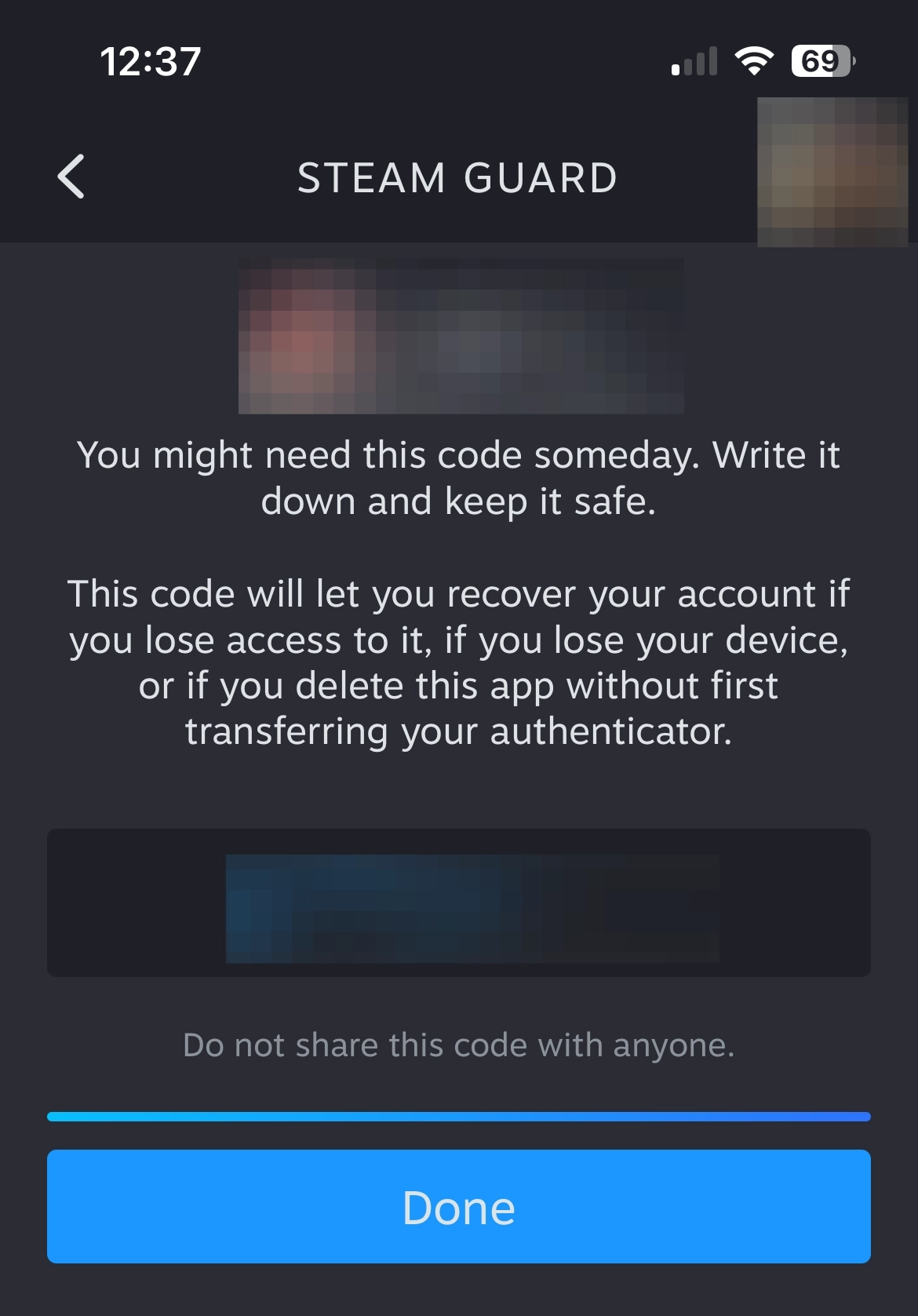
You will then be given a backup code you can use in the event you lose access to your account, if you lose your device, or if you delete the Steam app before transferring the authenticator. Be sure to save this code in a password manager, and never share it with anyone.
Step 6
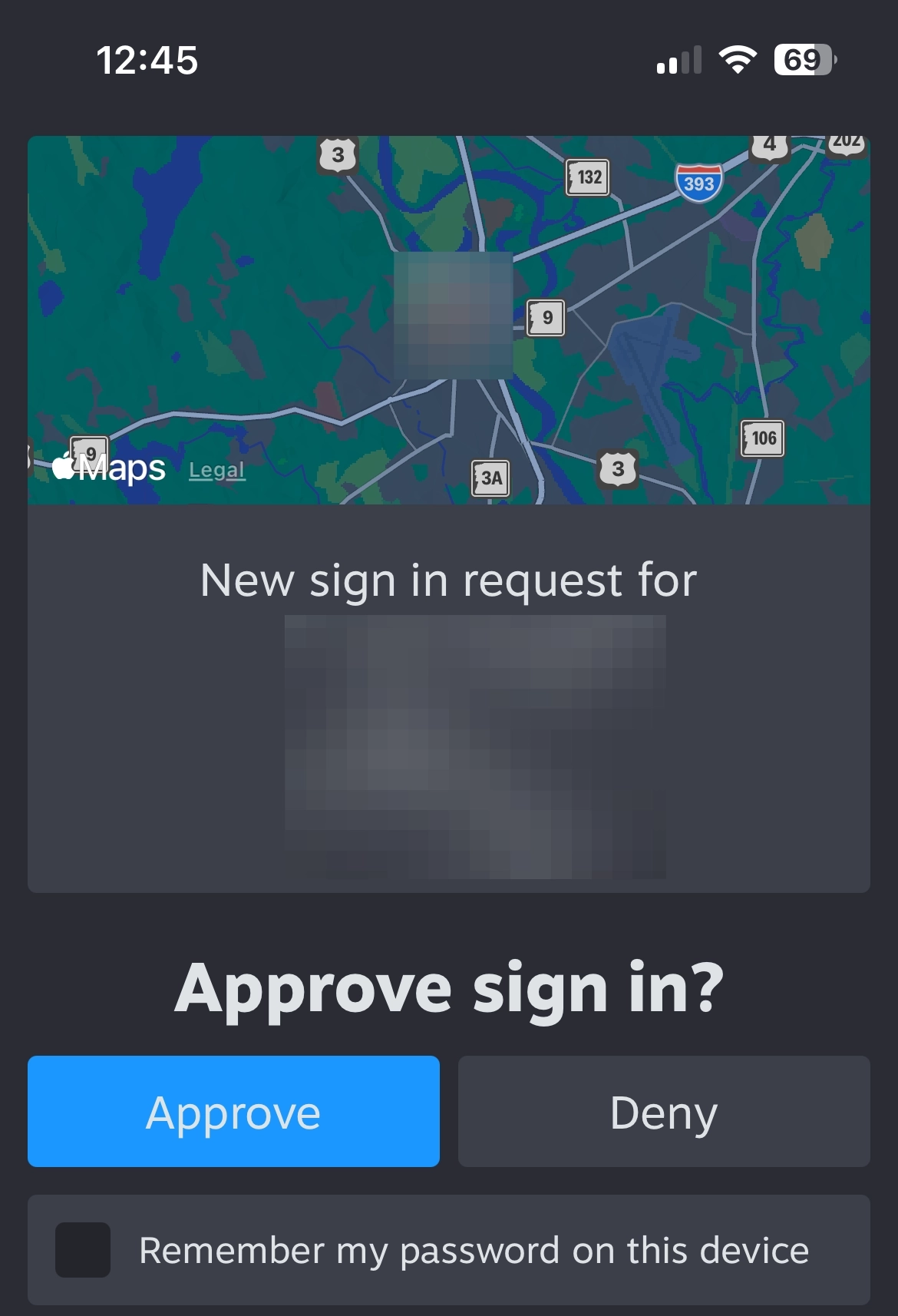
Now, if you were to sign into your Steam account, you will see this message pop up. Go into your Steam mobile account
Step 7
You will see the sign in request. If the information is correct, click Approve
Transferring Steam Guard
Step 8
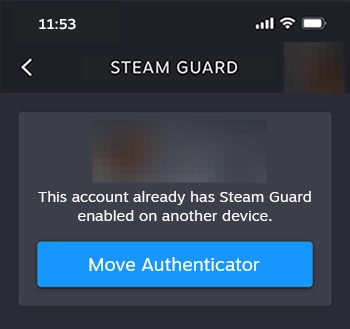
To transfer Steam Guard onto a new device, download the Steam app and follow the steps highlighted above. You should see this screen. Click Move Authenticator
Step 9
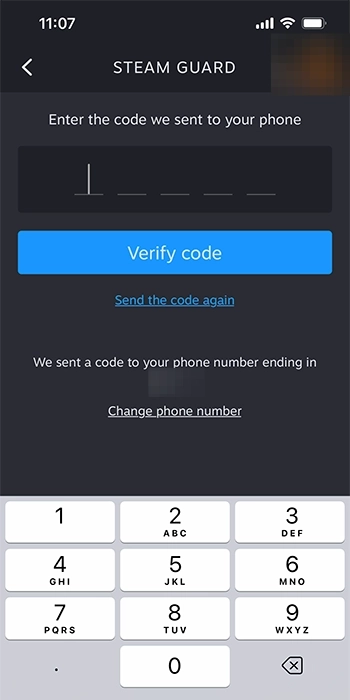
A code will be sent to your number on file, enter it and click Verify code
Step 10
Again, you'll be given your recovery code. Store it in a secure place and click done

Changing Passwords on Steam
Step 11
On a separate device, log in to your Steam account and click on your profile in the top right corner

Step 12
On the drop down, click Account details

Step 13
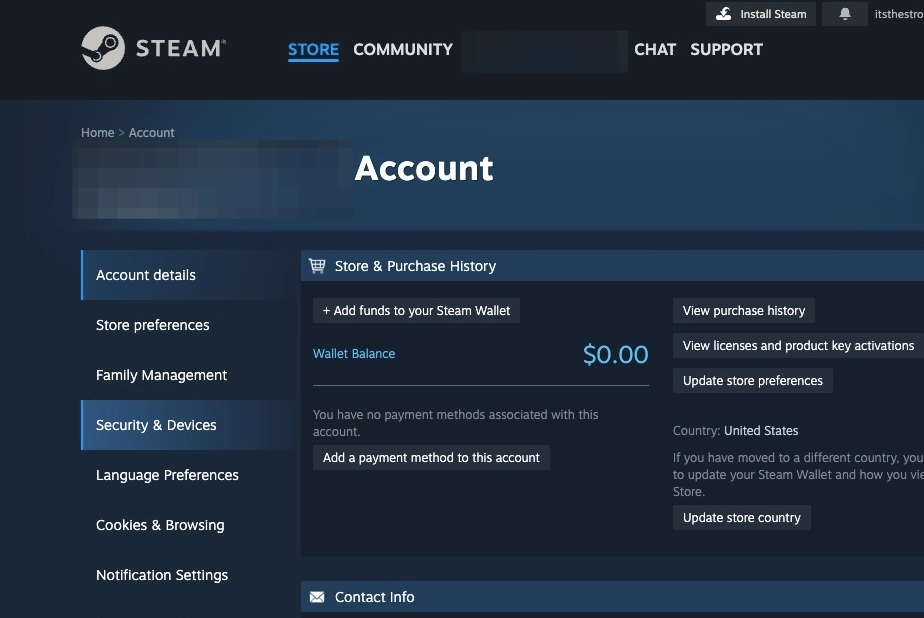
Click Security and Devices
Step 14
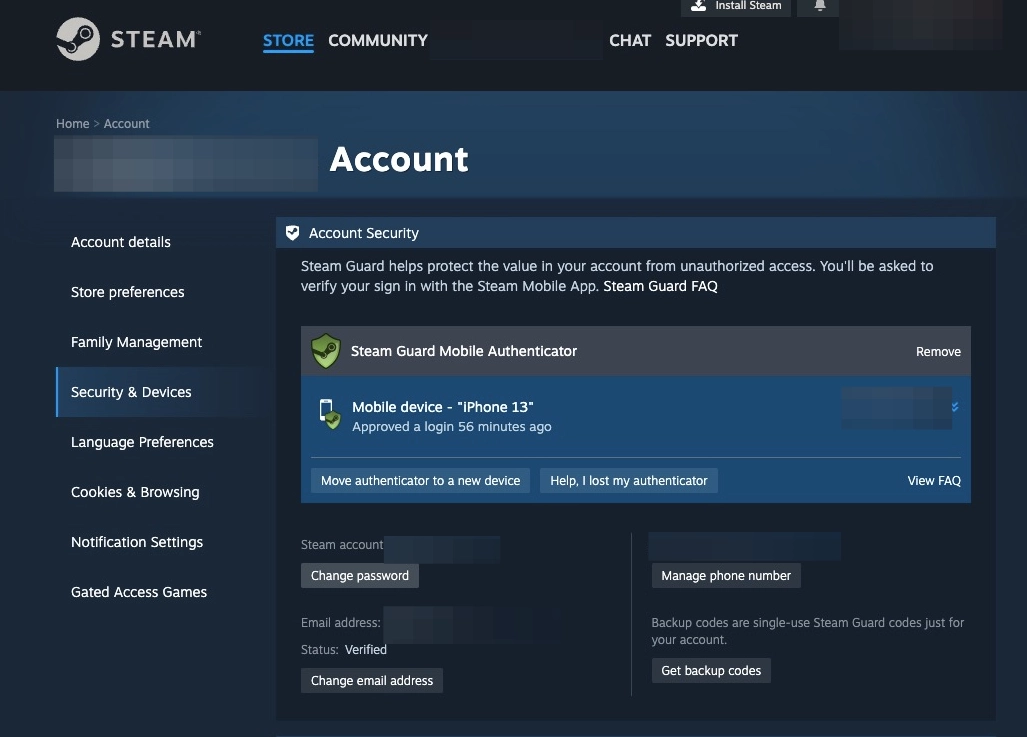
Click Change password
Step 15
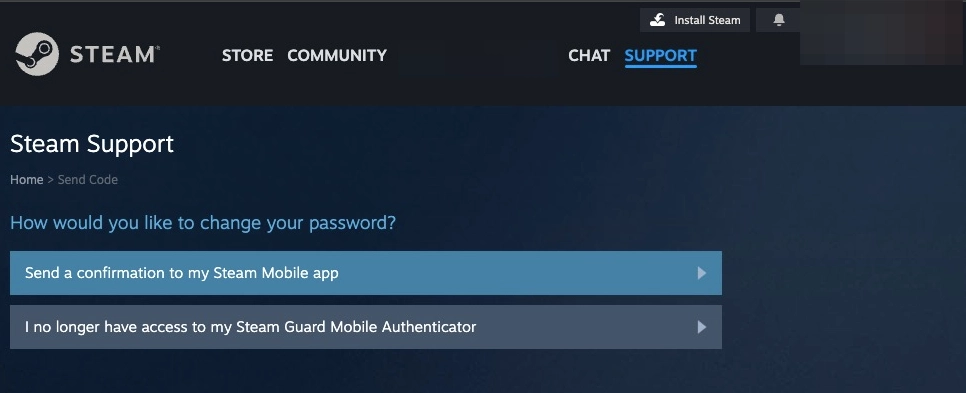
Click here to send a confirmation to your Steam Mobile app
Step 16
You will see a five digit number appear. Now, open your Steam mobile application

Step 17
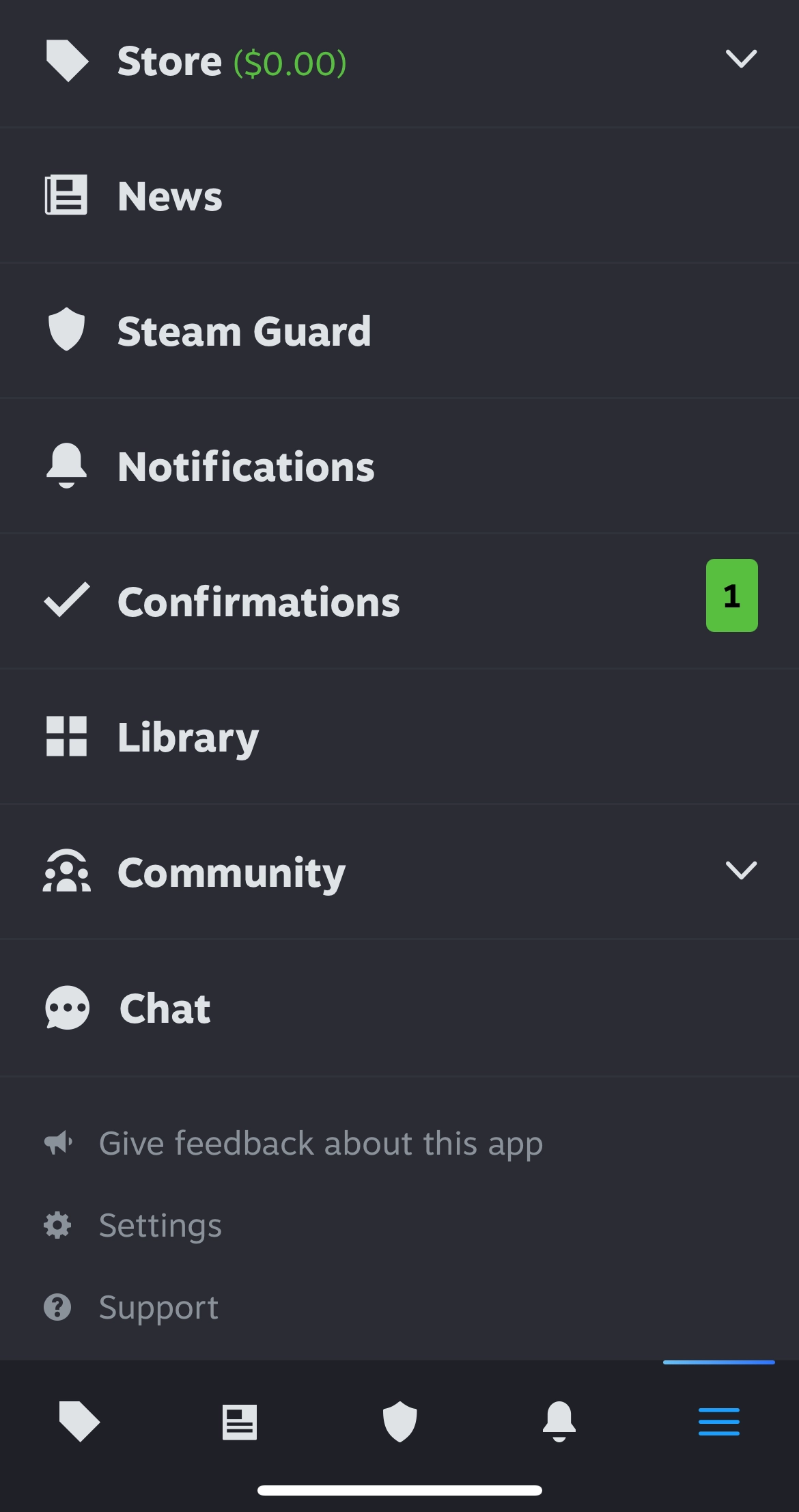
In your Steam mobile app, click the Settings page at the bottom right hand corner

Step 18
On the next screen, click Confirmations
Step 19
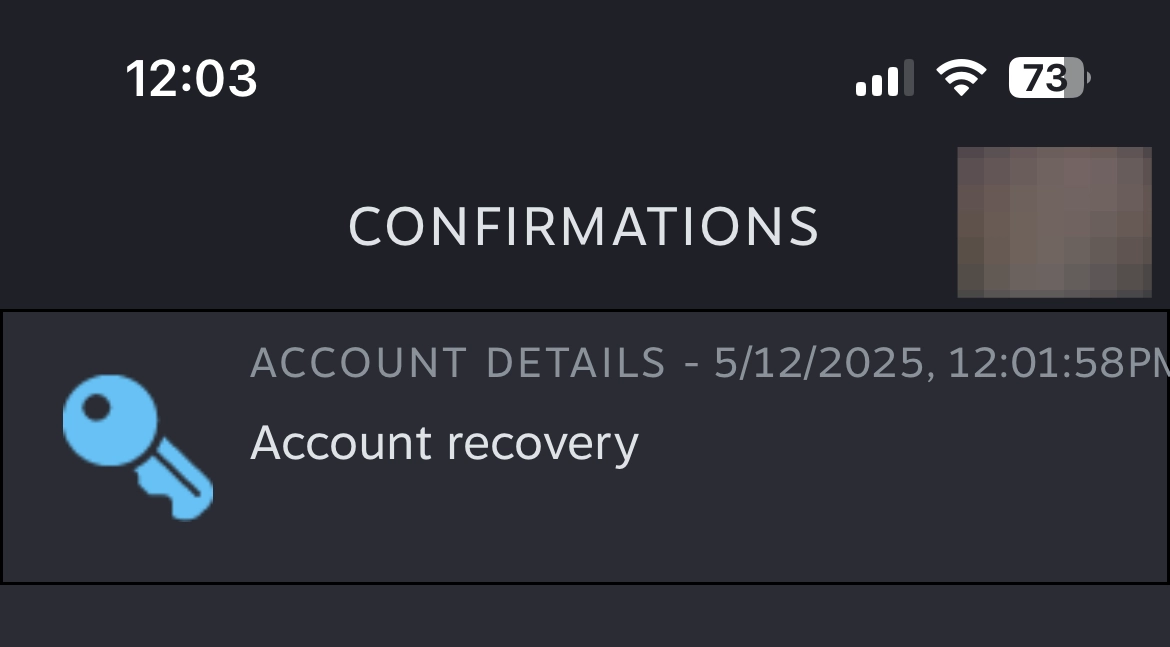
Click Account recovery
Step 20
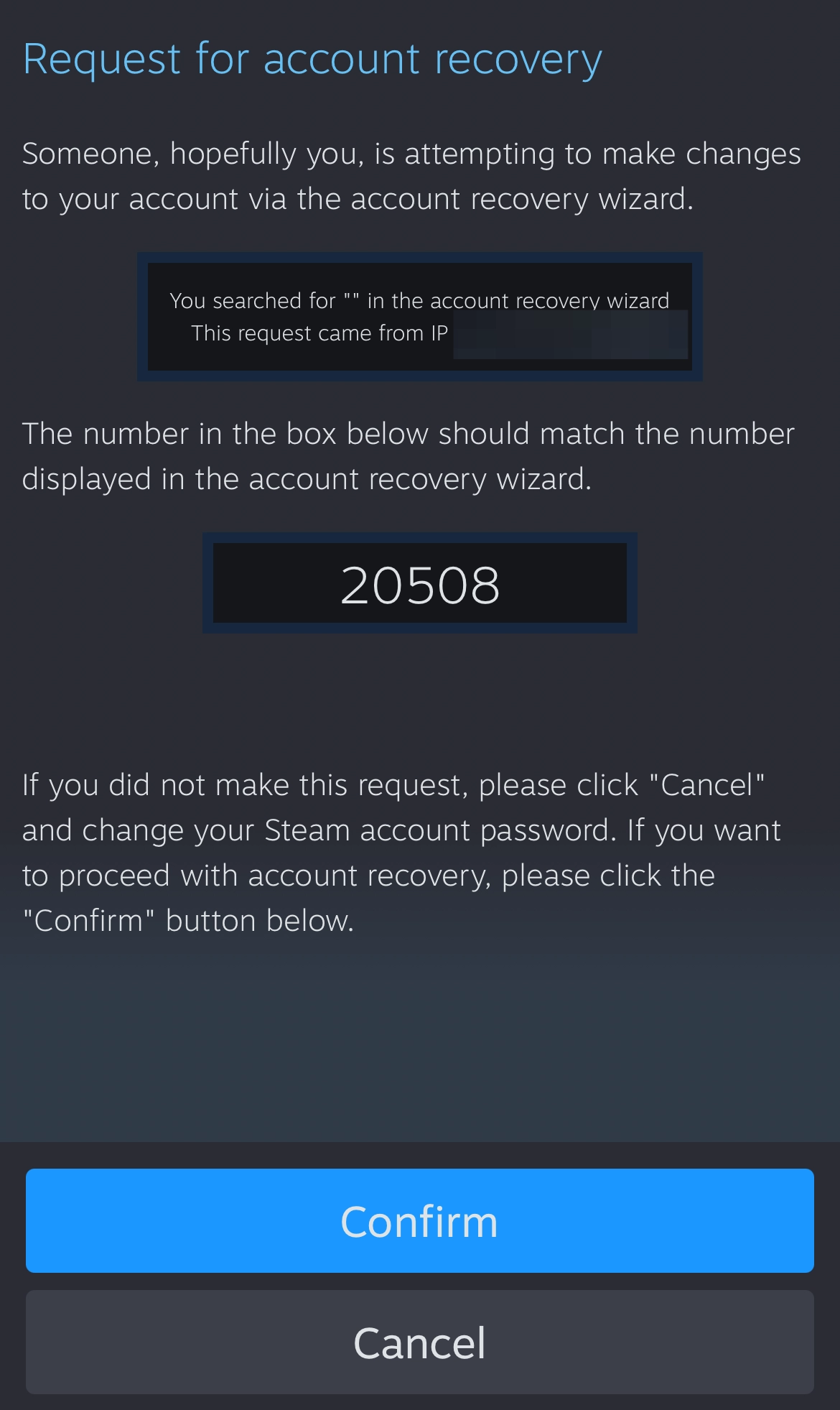
Check to see that the five digit numbers matches the original. If it does, click continue, then go back to the original device where you made a request
Step 21
Back on the device where you first made your request, change your password and reenter it. Ensure that the password is unique and complex. Do not reuse passwords under any circumstance

Step 22
After you enter and reenter your password, click Change password to complete the process
