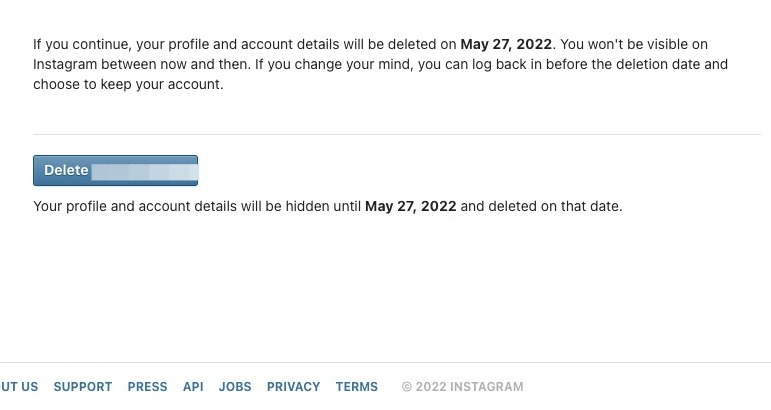
How to Deactivate and Delete Your Instagram Account
Step 1
Please note that instagram will not let you deactivate your account via the app, you must visit their website via your browser and follow the same steps as desktop below.
Temporarily Deactivating Instagram via Desktop
Step 2
To temporarily deactivate your Instagram account, navigate to [https://www.instagram.com/](https://www.instagram.com/)
Step 3
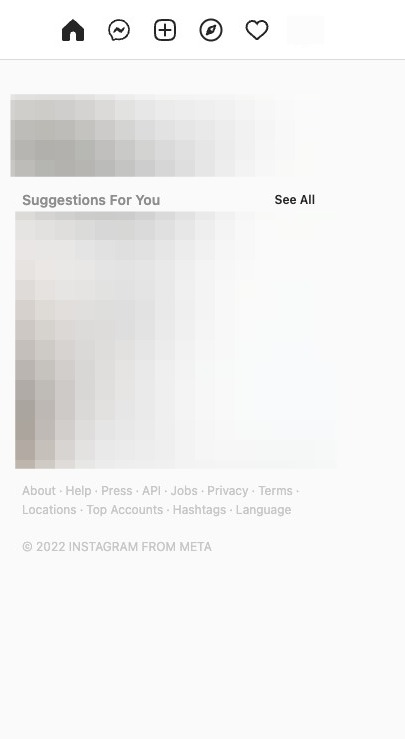
Click your profile icon on the top right corner of the screen. NOTE: Instagram deactivation can only be done on the desktop app
Step 4
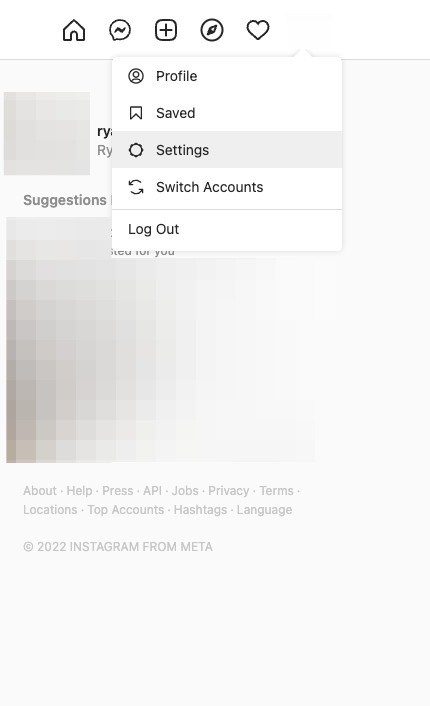
Click "Settings"
Step 5
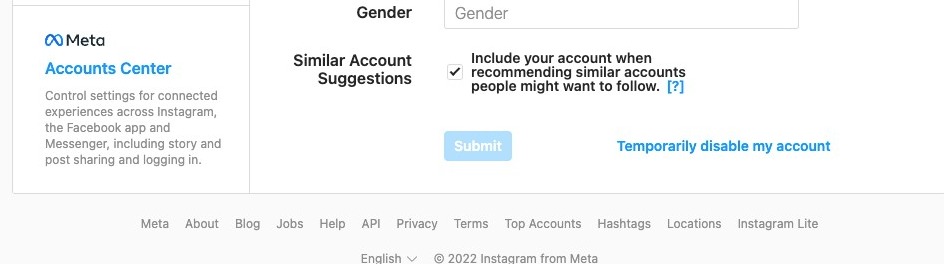
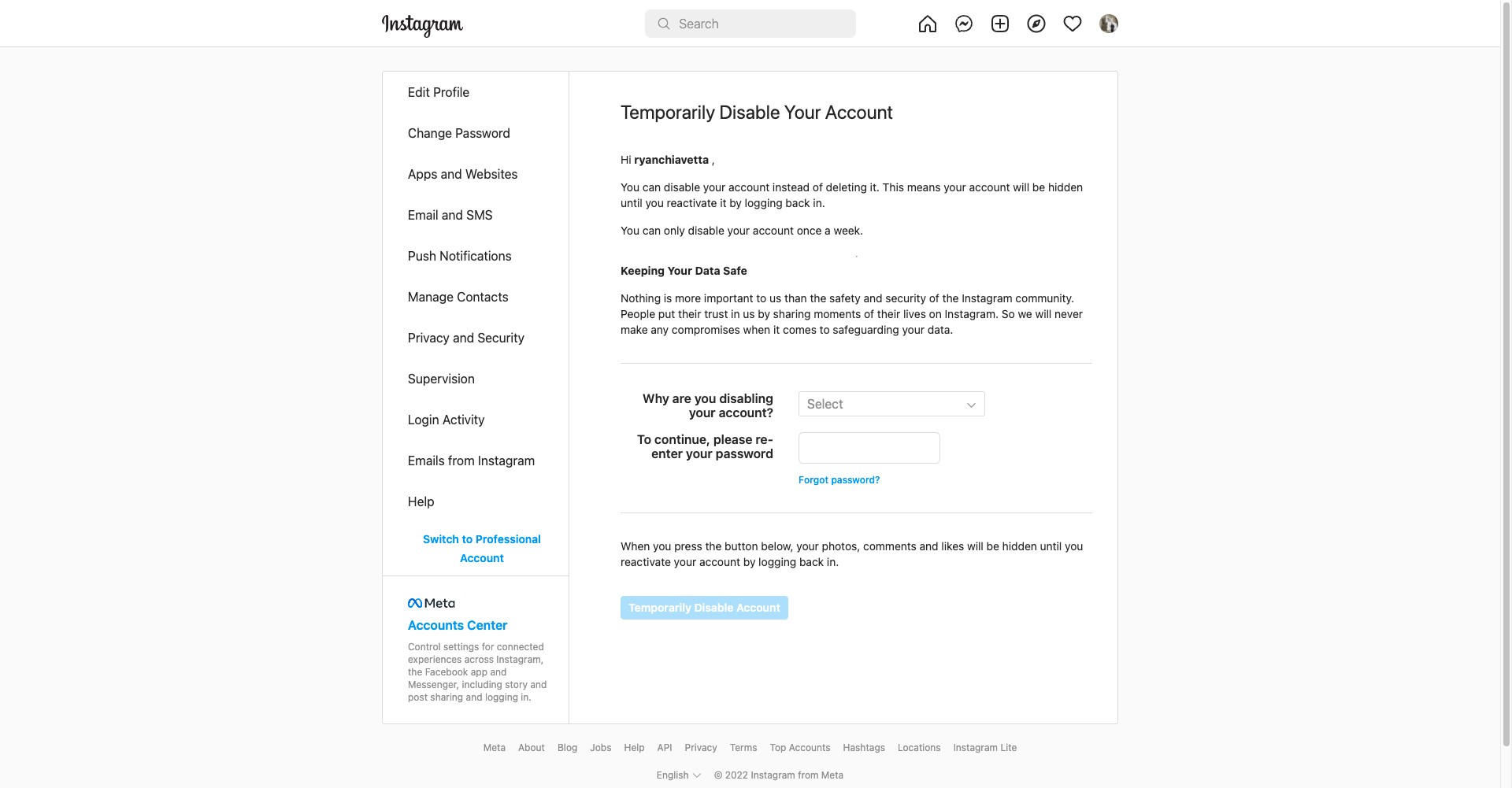
Click "Temporarily disable my account" on the bottom right hand corner of the next screen.
Step 6
Select the reason for why you are deactivating your account.
Step 7
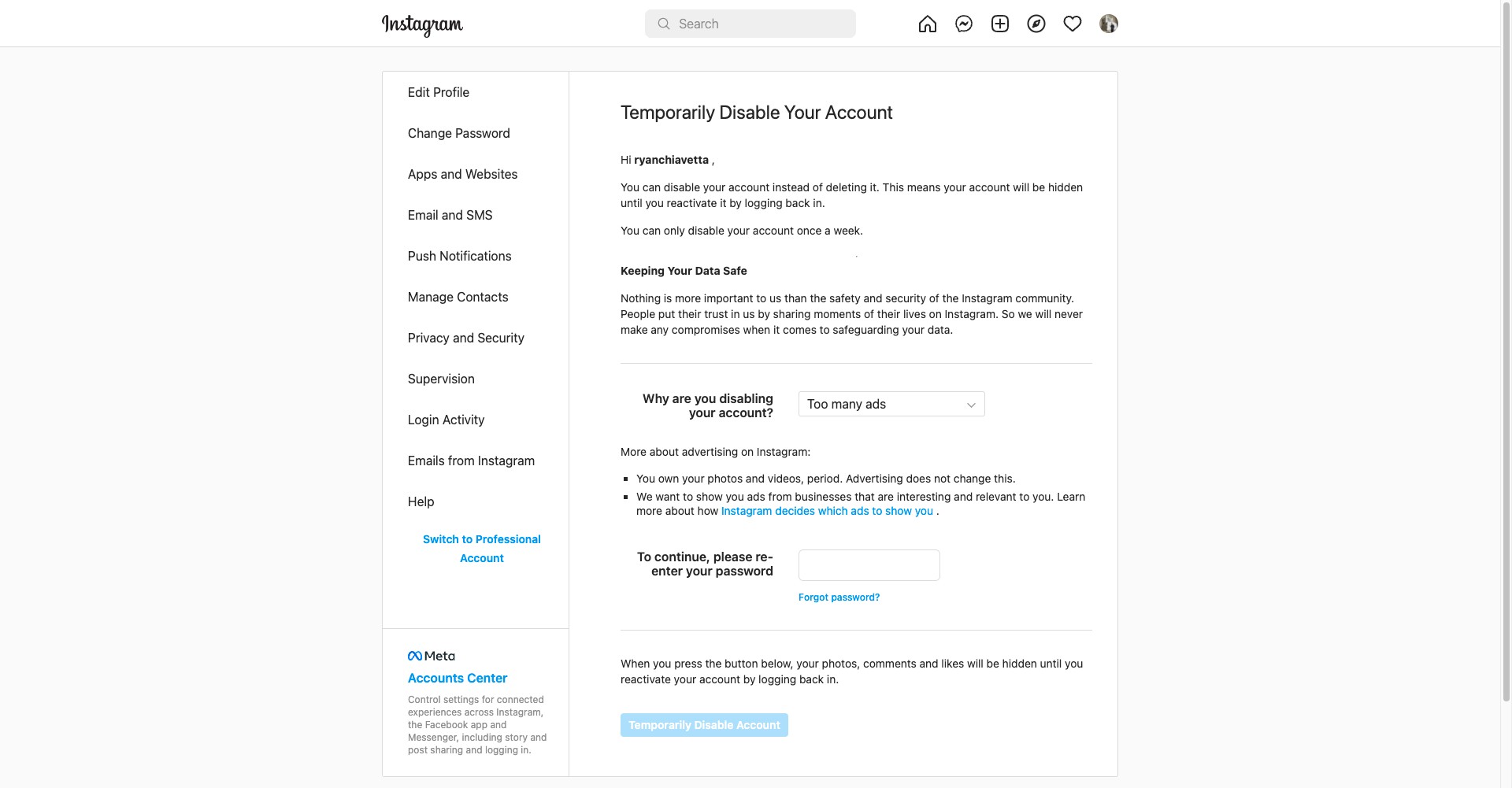
Re-enter your password.
Step 8
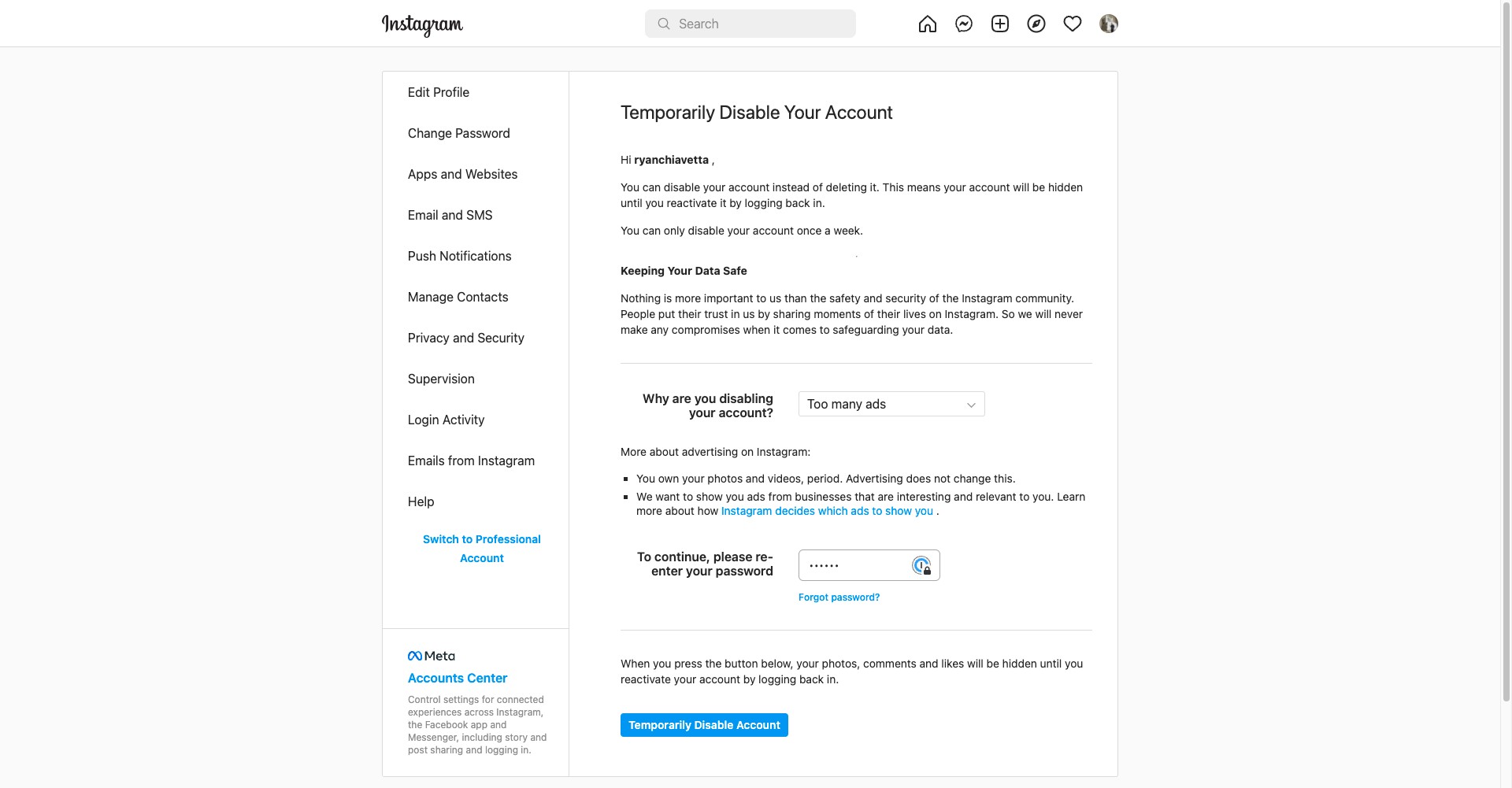
Click "Temporarily Disable Account" to complete the process.
Permanently Deleting Your Instagram Account
Step 9
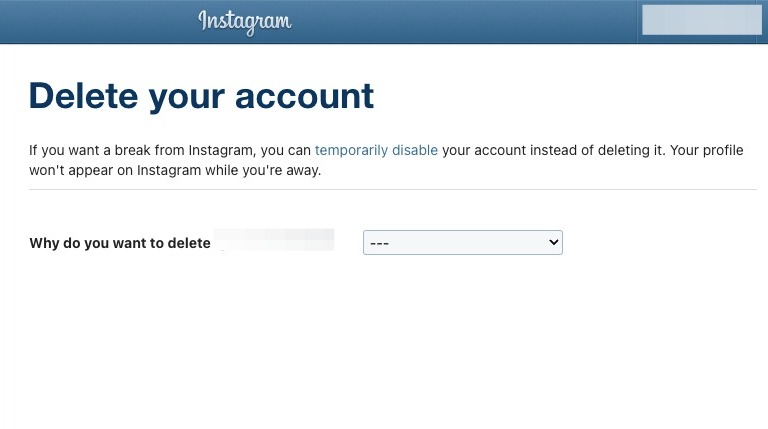
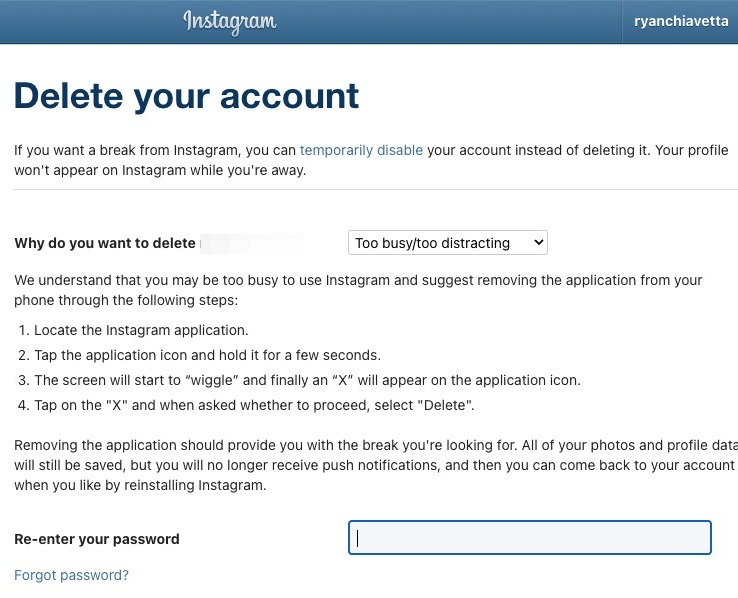
To permanently delete your account, navigate to [https://www.instagram.com/accounts/remove/request/permanent/](https://www.instagram.com/accounts/remove/request/permanent/)
Step 10
Select a reason for deleting your account
Step 11
Re-enter your password
Step 12
Click on this button. NOTE: You will have 30 days to reactivate your account, which you can do by logging in normally.