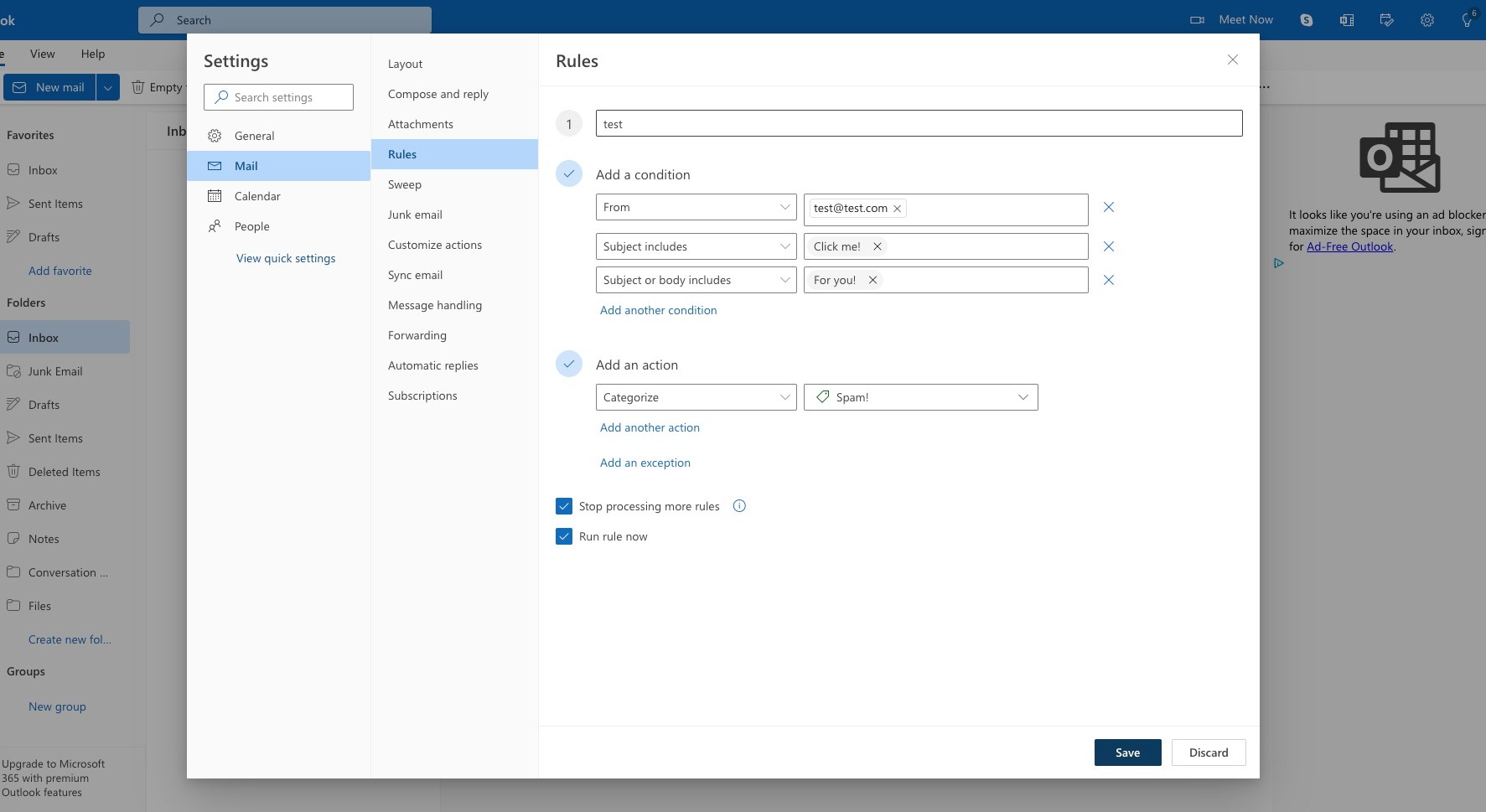
How to Create Email Filters
Creating Filters in Gmail
Step 1
Navigate to [https://mail.google.com/mail/u/0/#inbox](https://mail.google.com/mail/u/0/#inbox)
Step 2
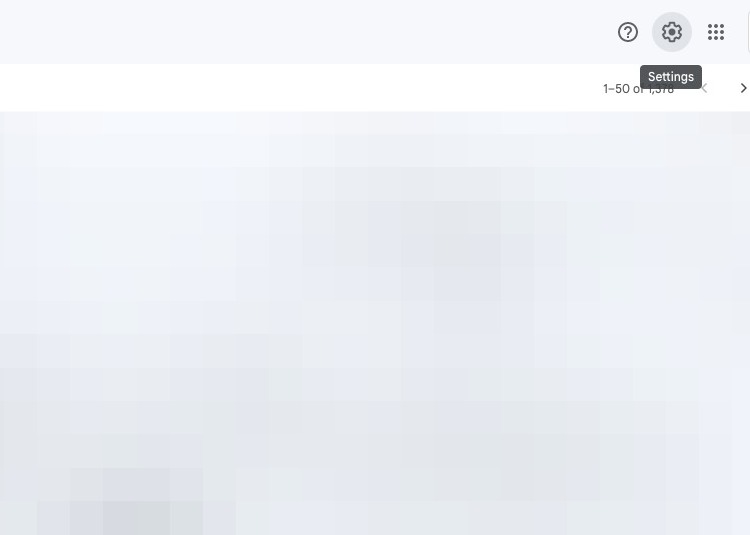
Click the settings icon in the top right.
Step 3
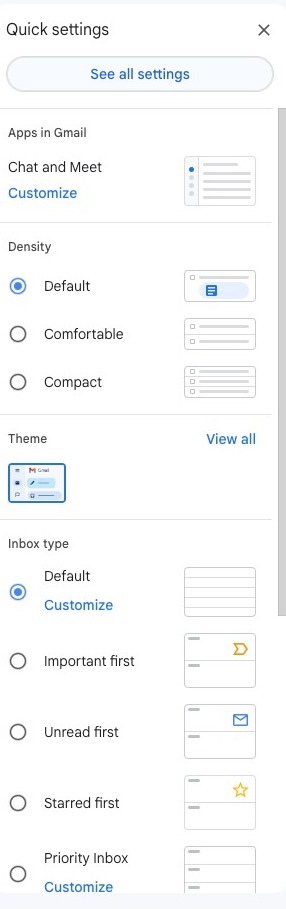
Click "See all settings"
Step 4
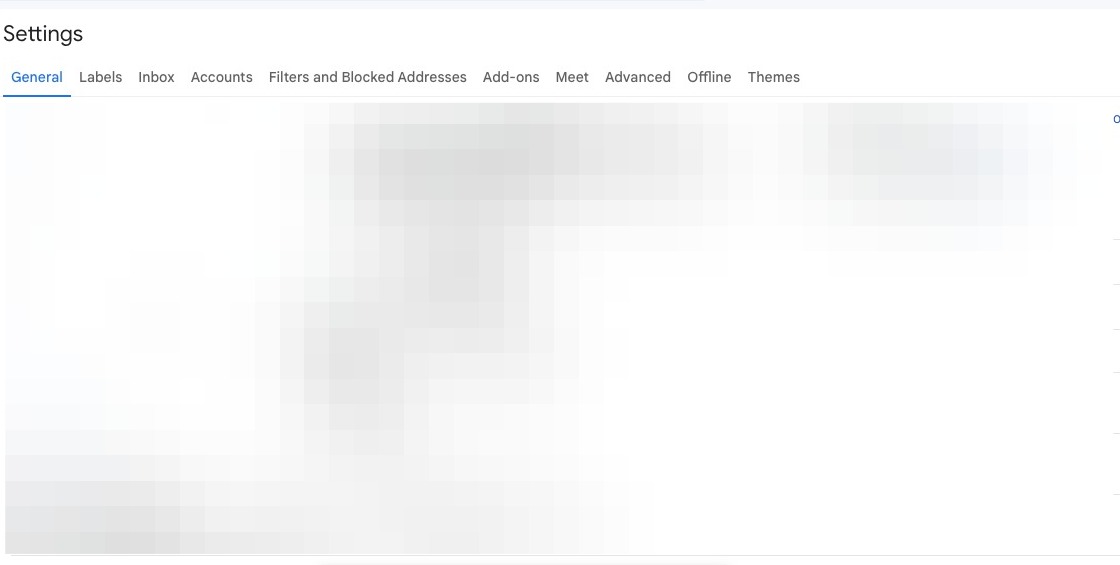
Click "Filters and Blocked Addresses"
Step 5
Click "Create a new filter"
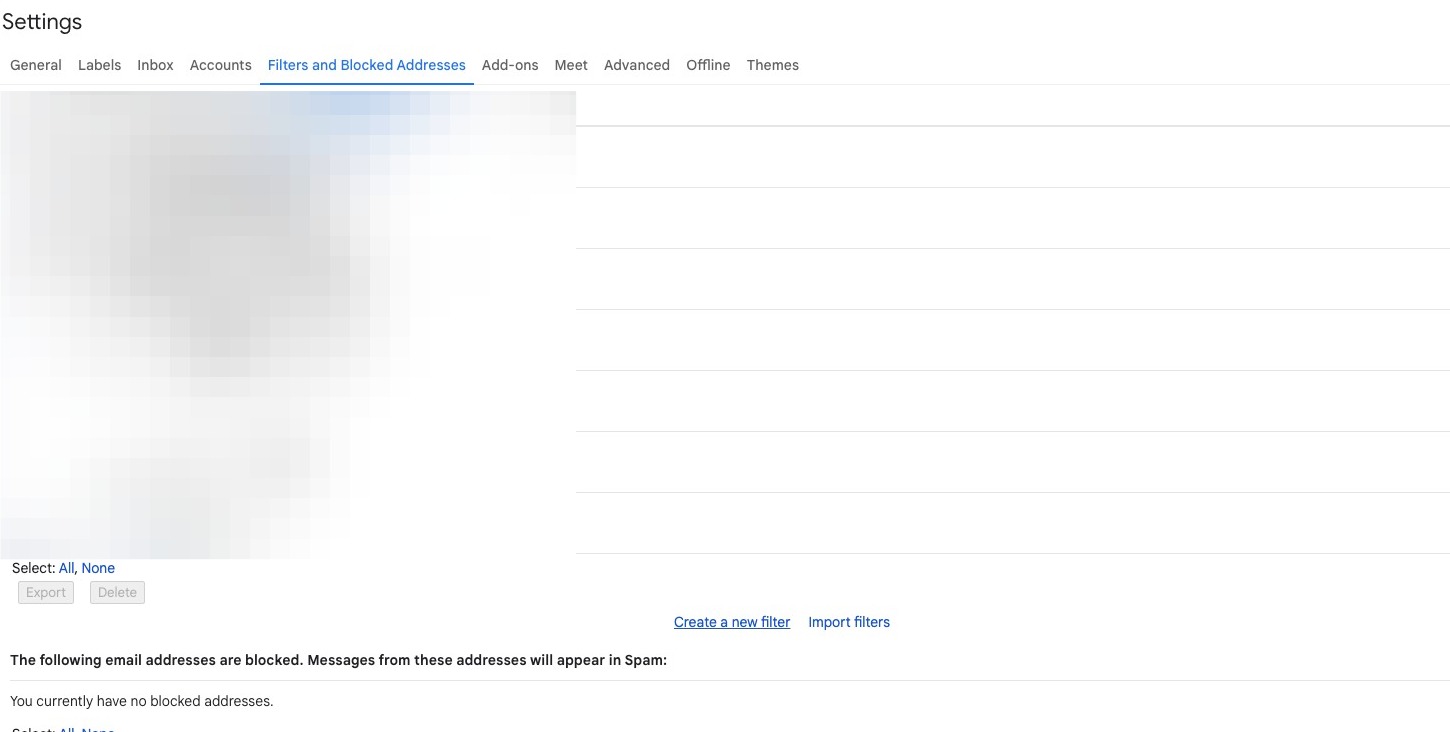
Step 6
Click the "From" field.
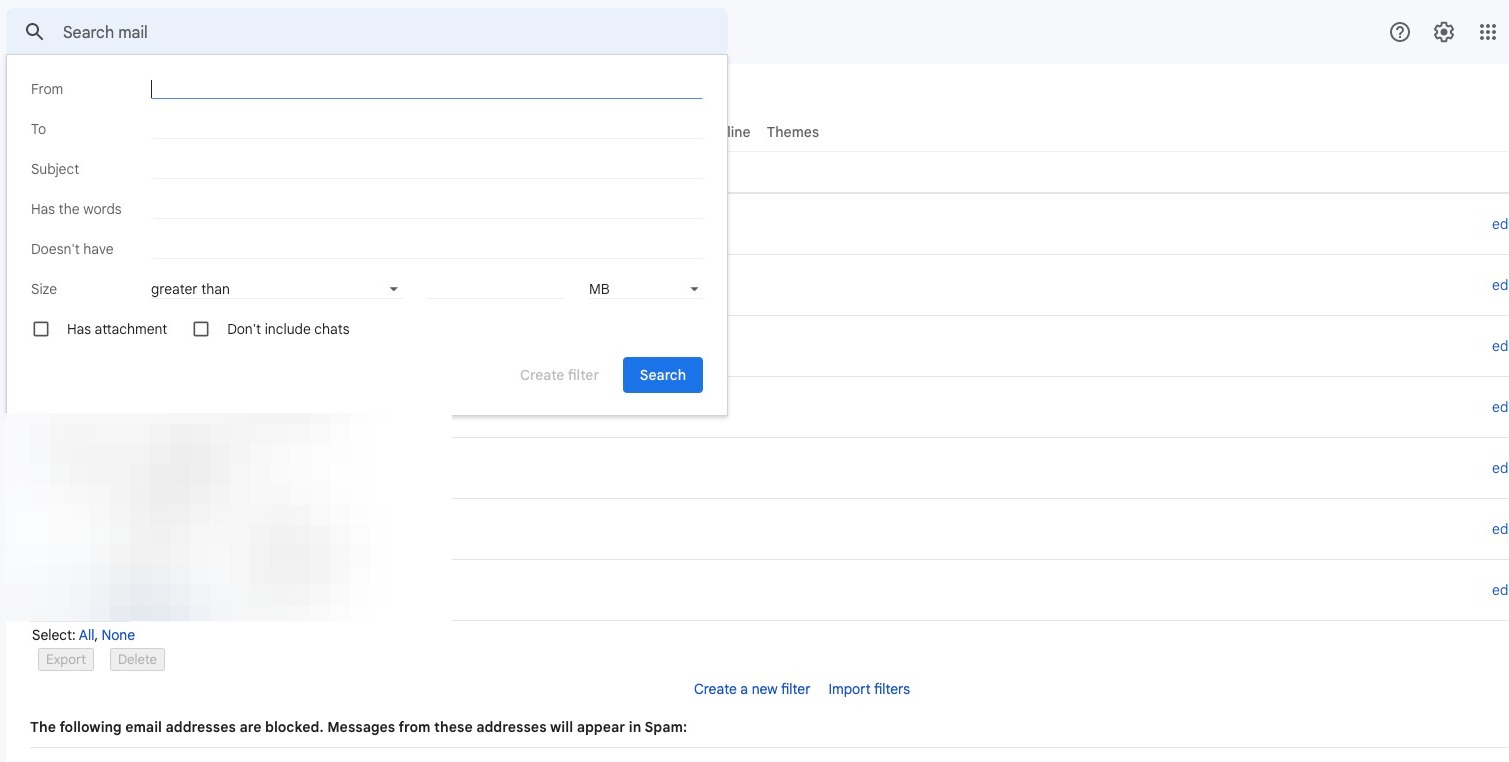
Step 7
Enter the senders email address.
Step 8
Click the address that appears.
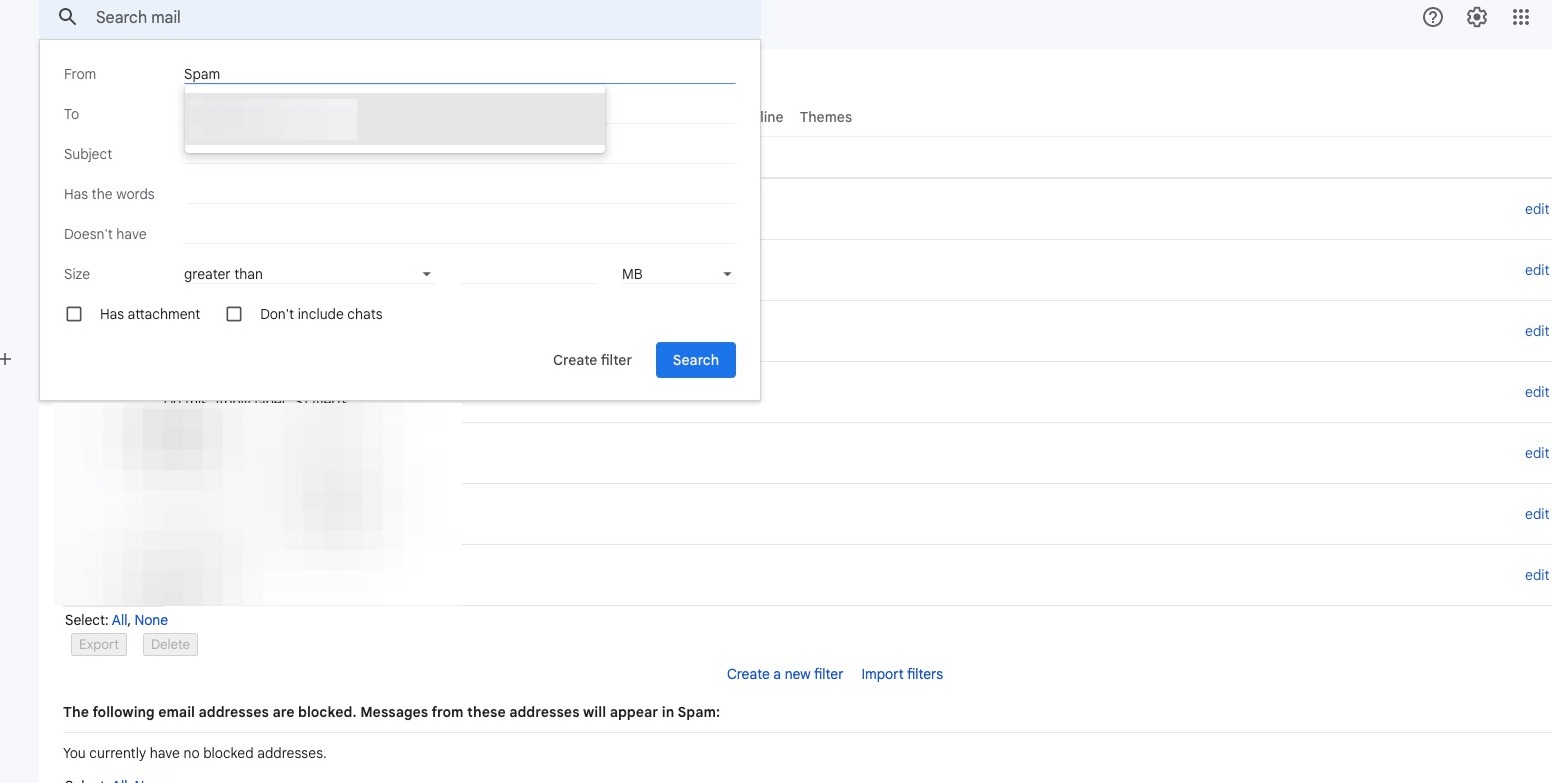
Step 9
Click the "Subject" field.
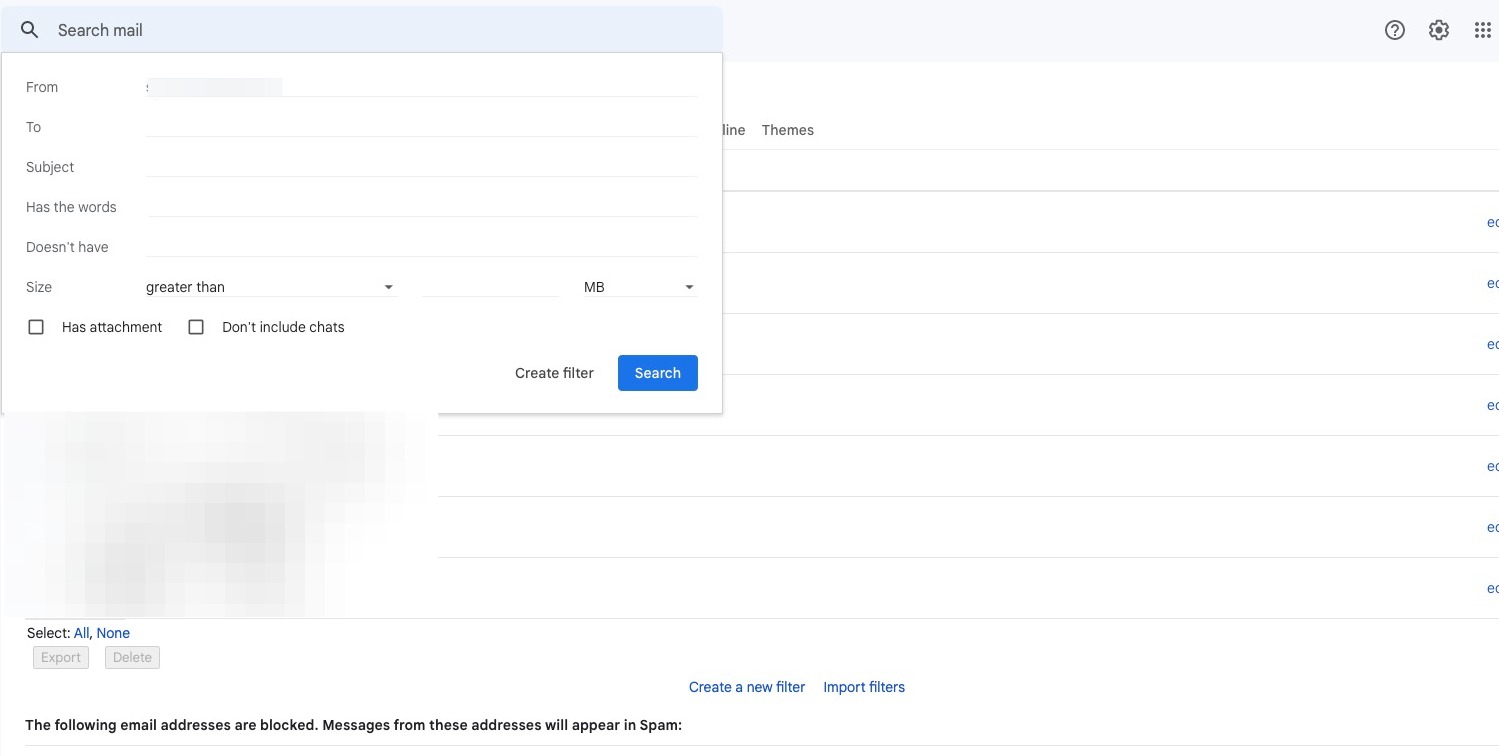
Step 10
Type the subject or title of the unwanted emails.
Step 11
Click "Create filter"
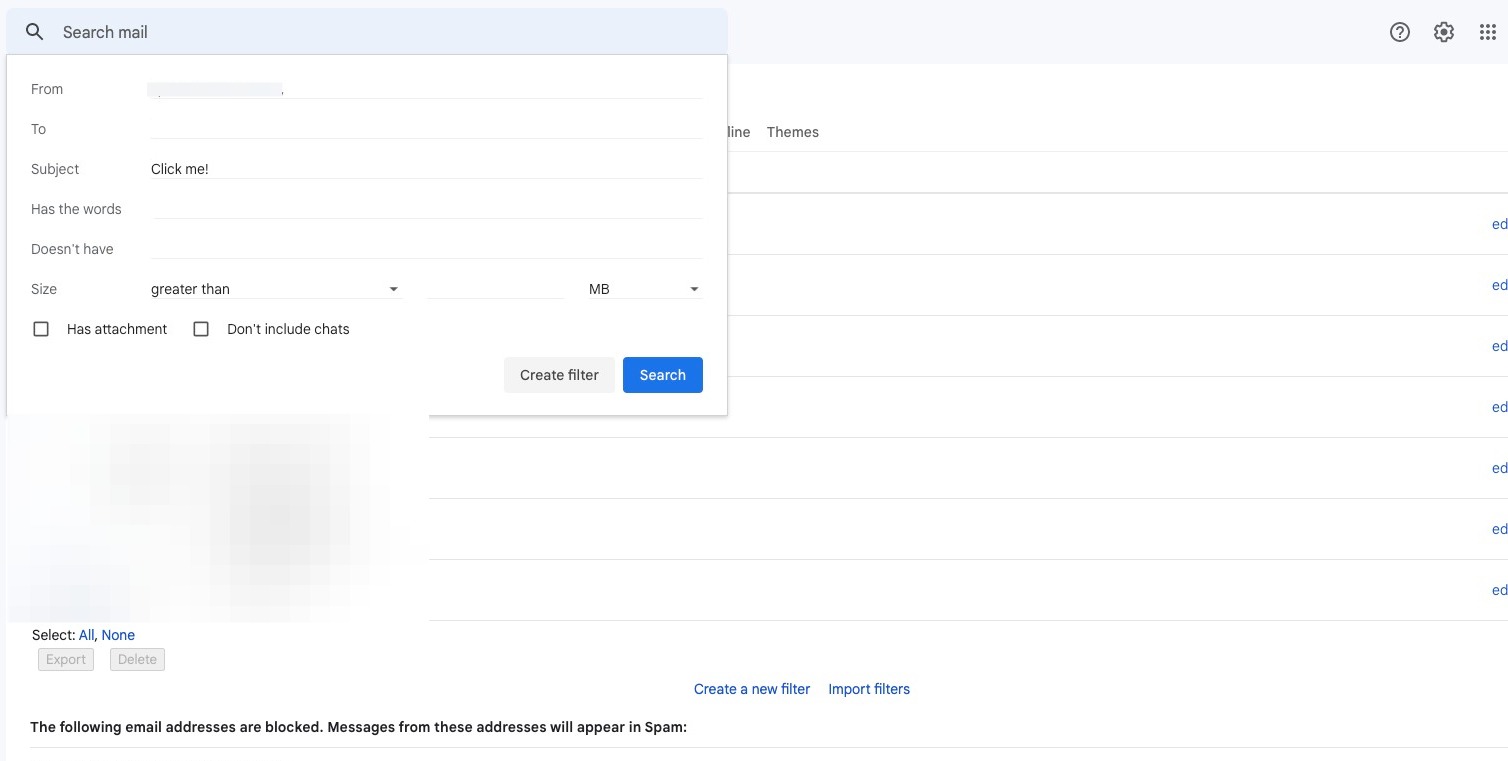
Step 12
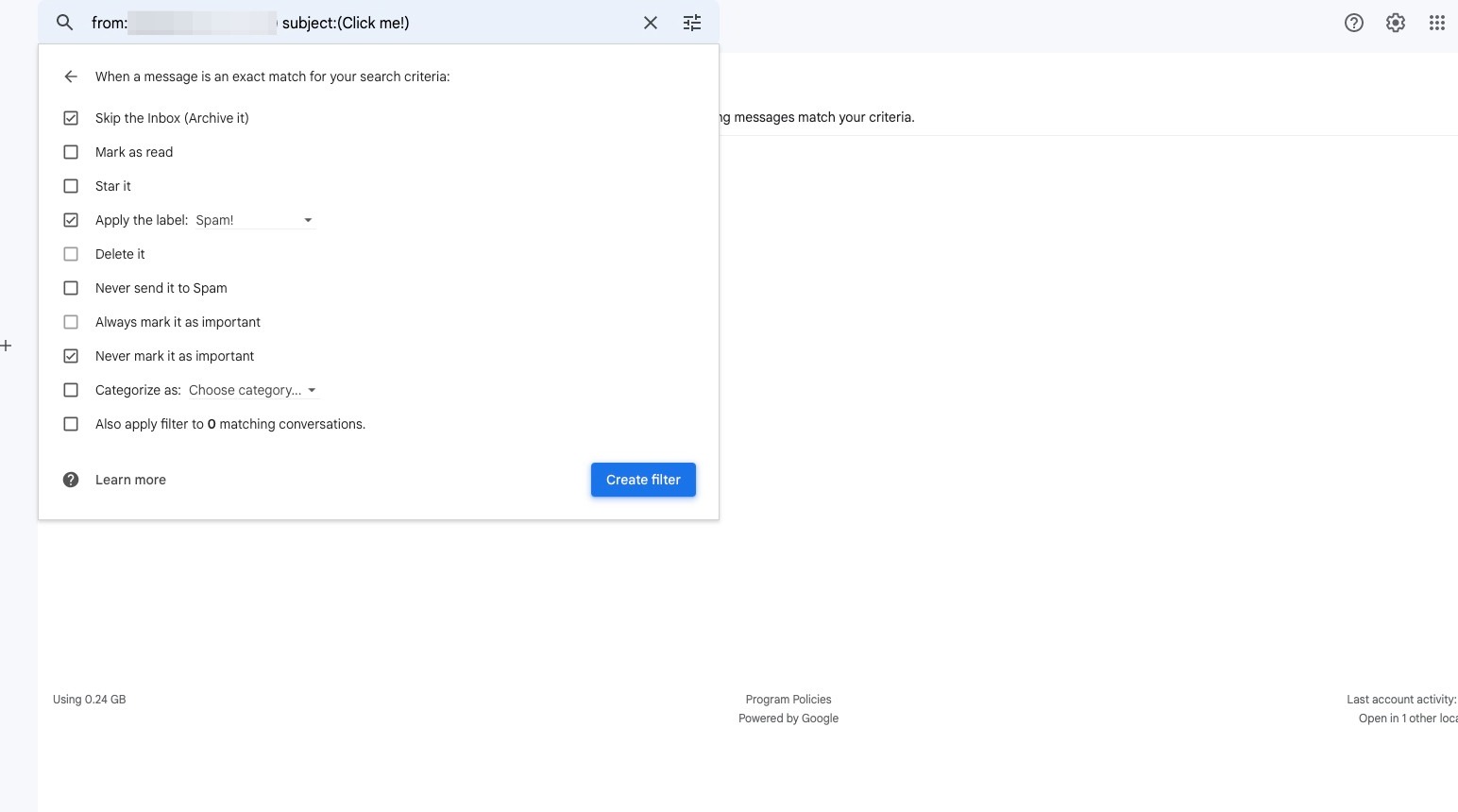
Click "Skip the Inbox (Archive it)"
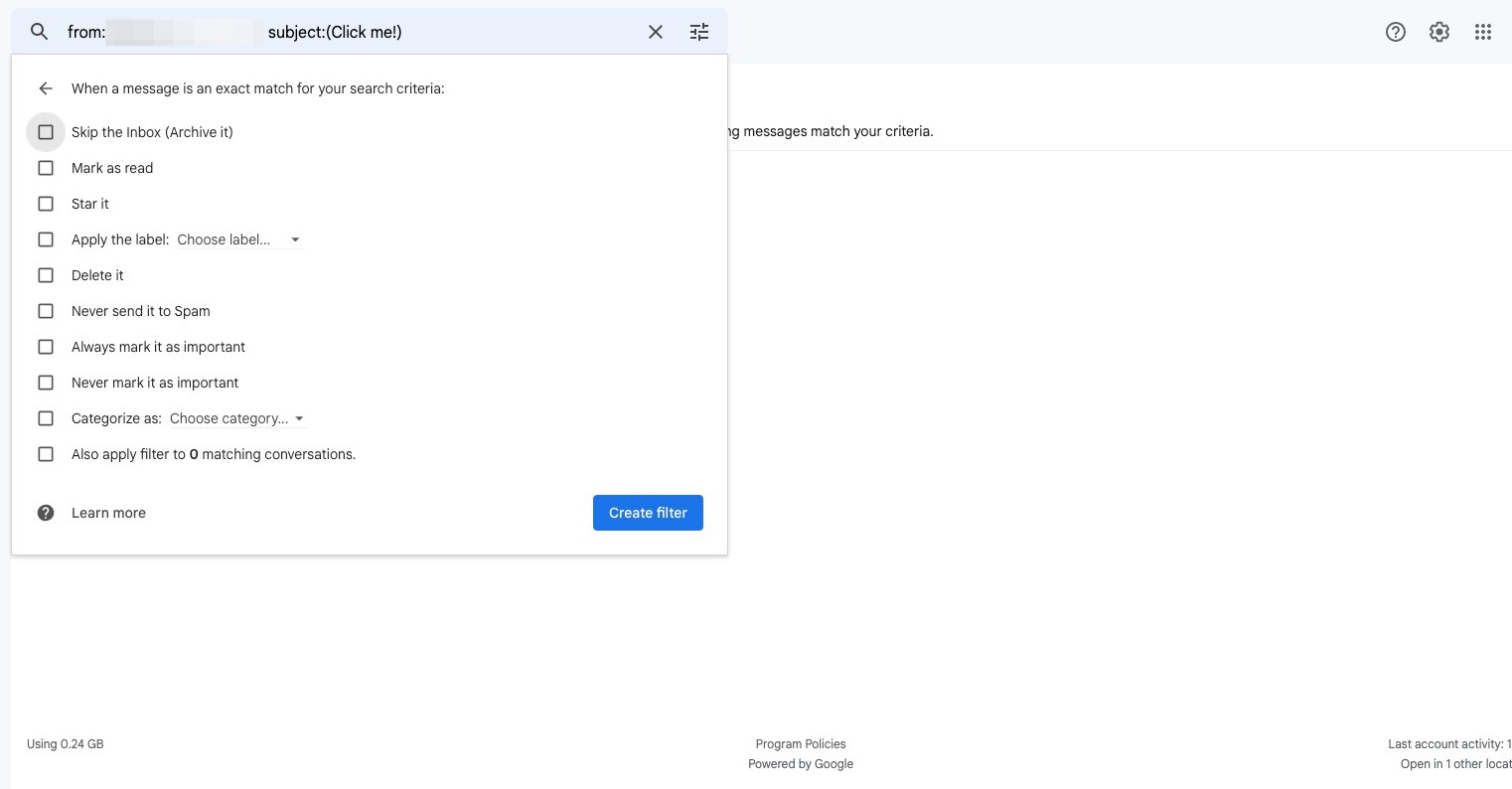
Step 13
Click "Apply the label:"
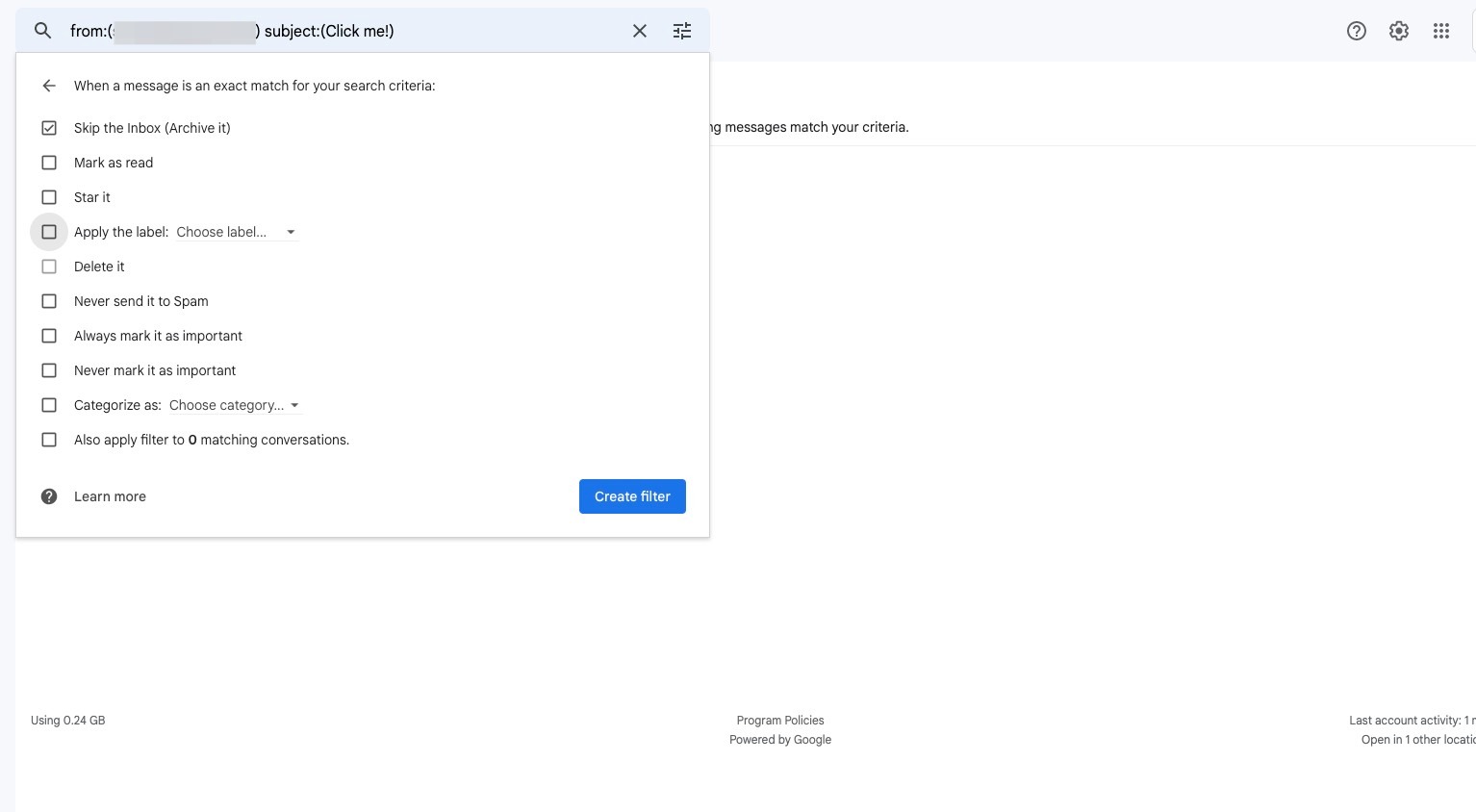
Step 14
Click "Choose label..."
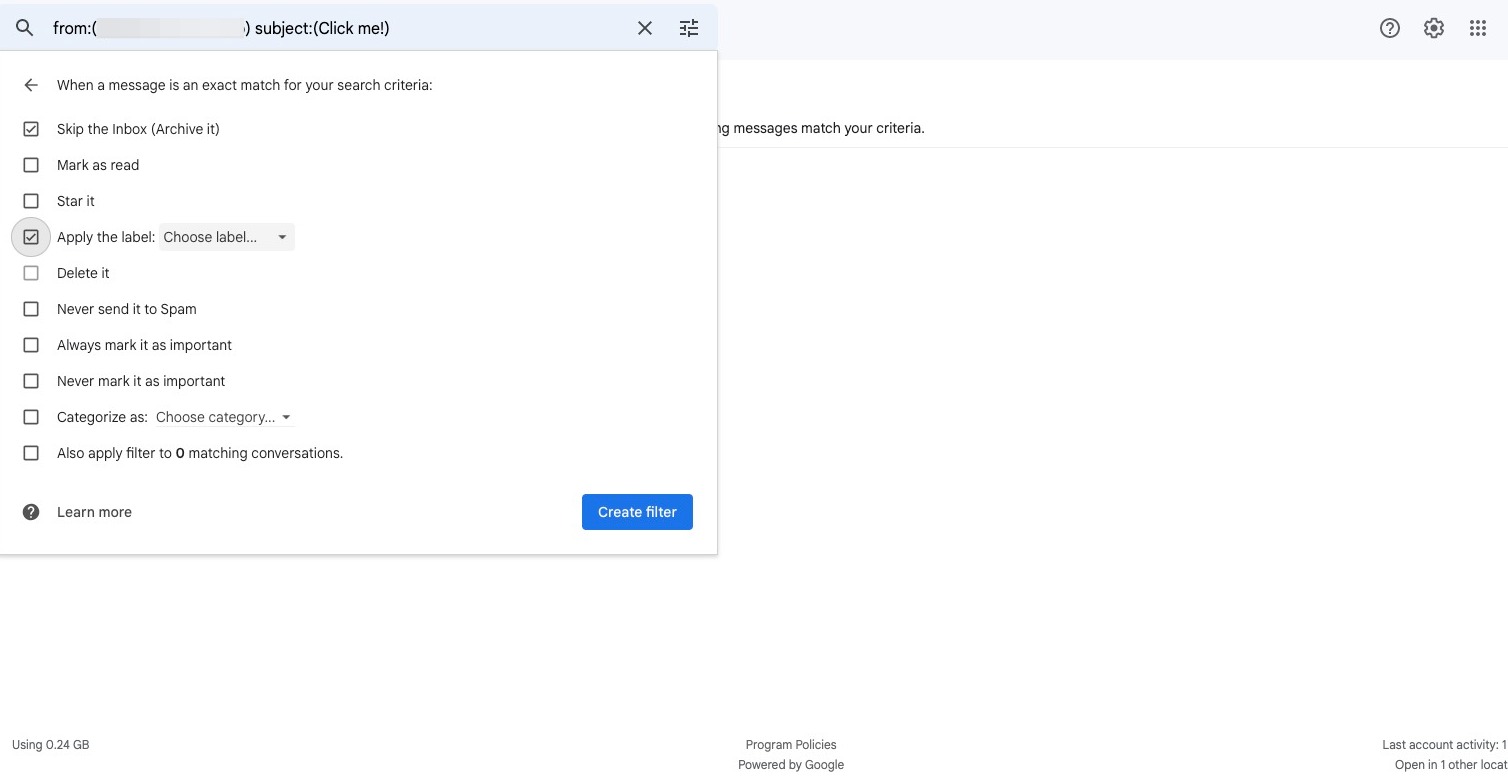
Step 15
Click "New label..."
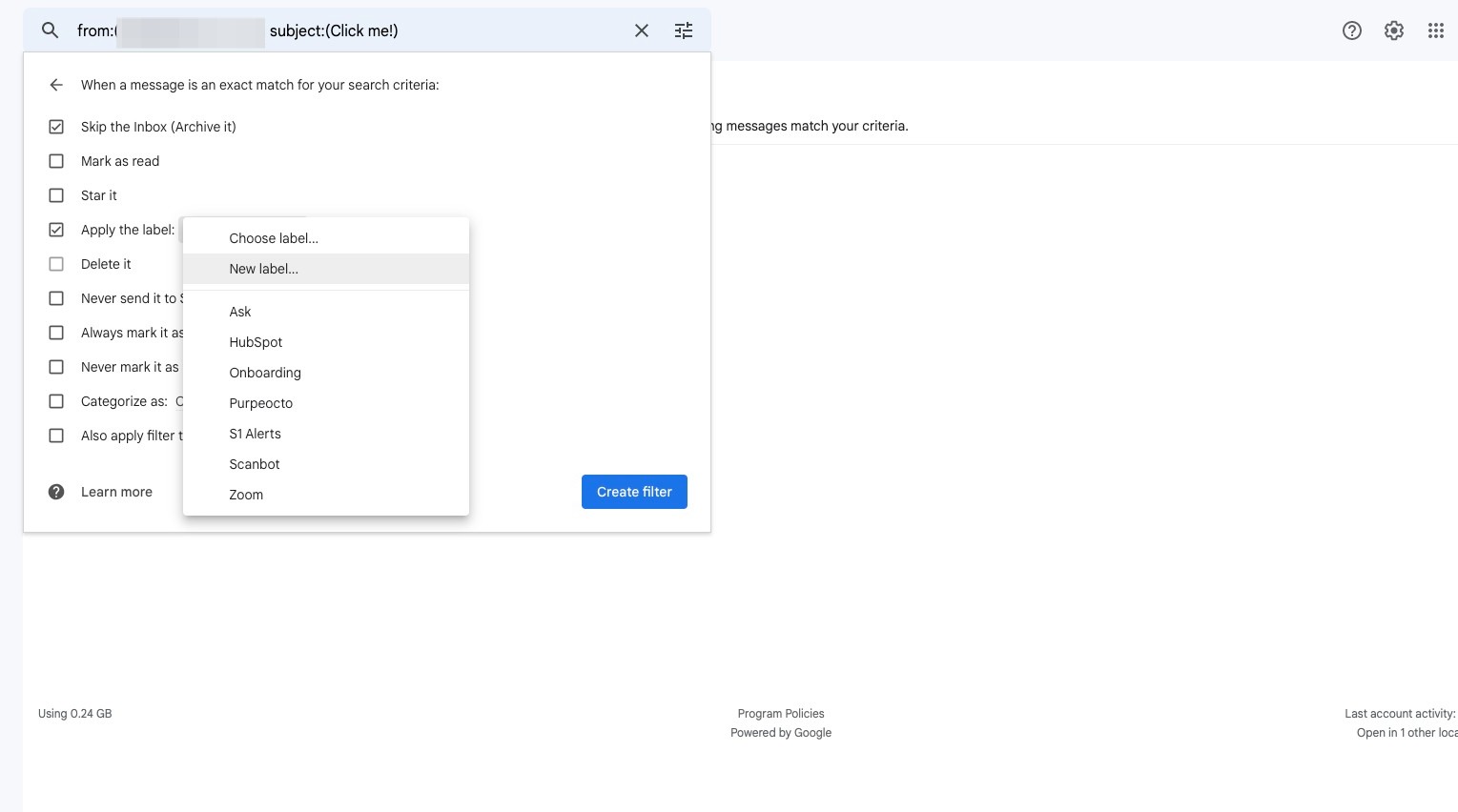
Step 16
Enter a name that you can easily identify.
Step 17
Click "Create"
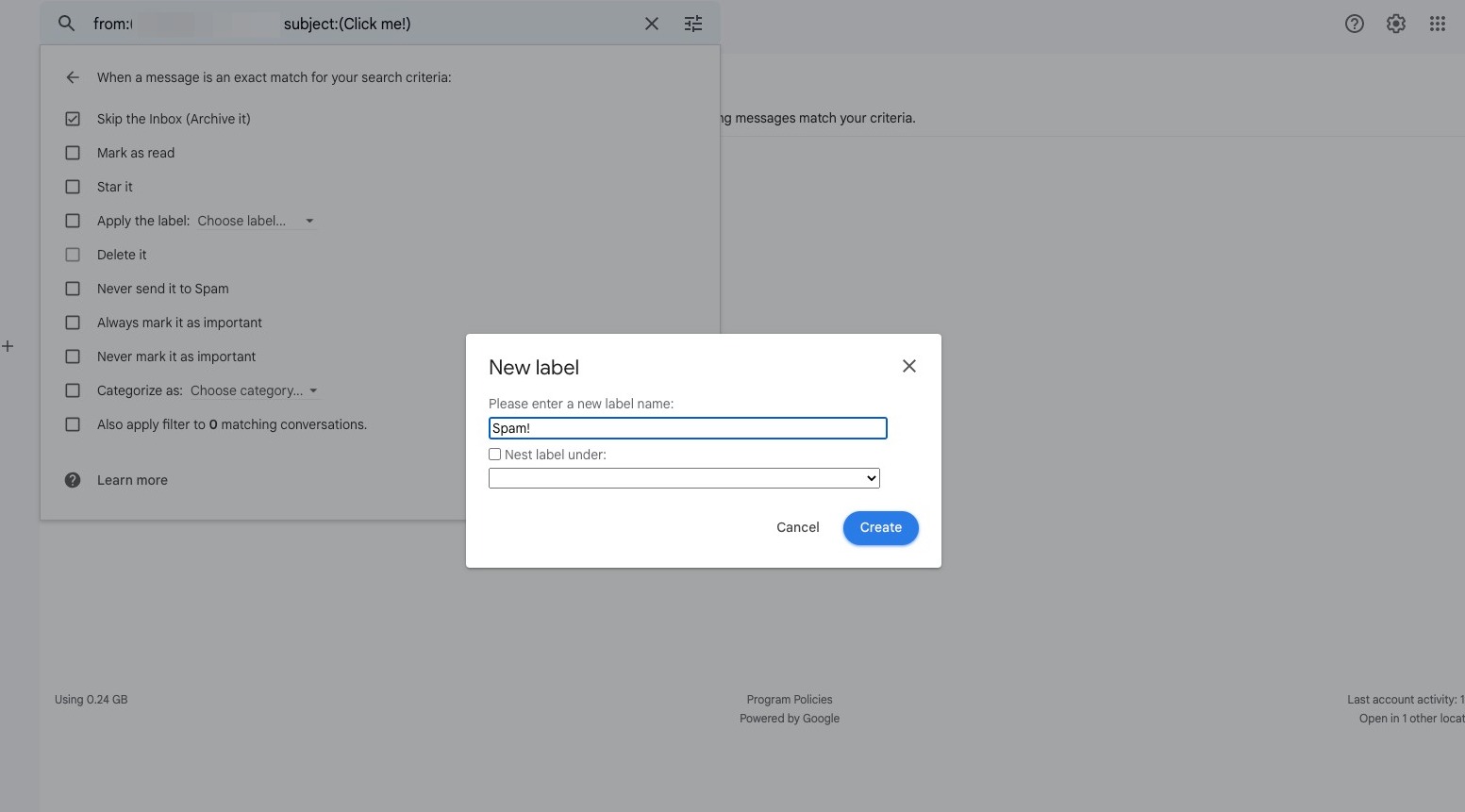
Step 18
Click "Create filter"
Creating Filters in Yahoo
Step 19
Navigate to [https://mail.yahoo.com/d/folders/1](https://mail.yahoo.com/d/folders/1)
Step 20
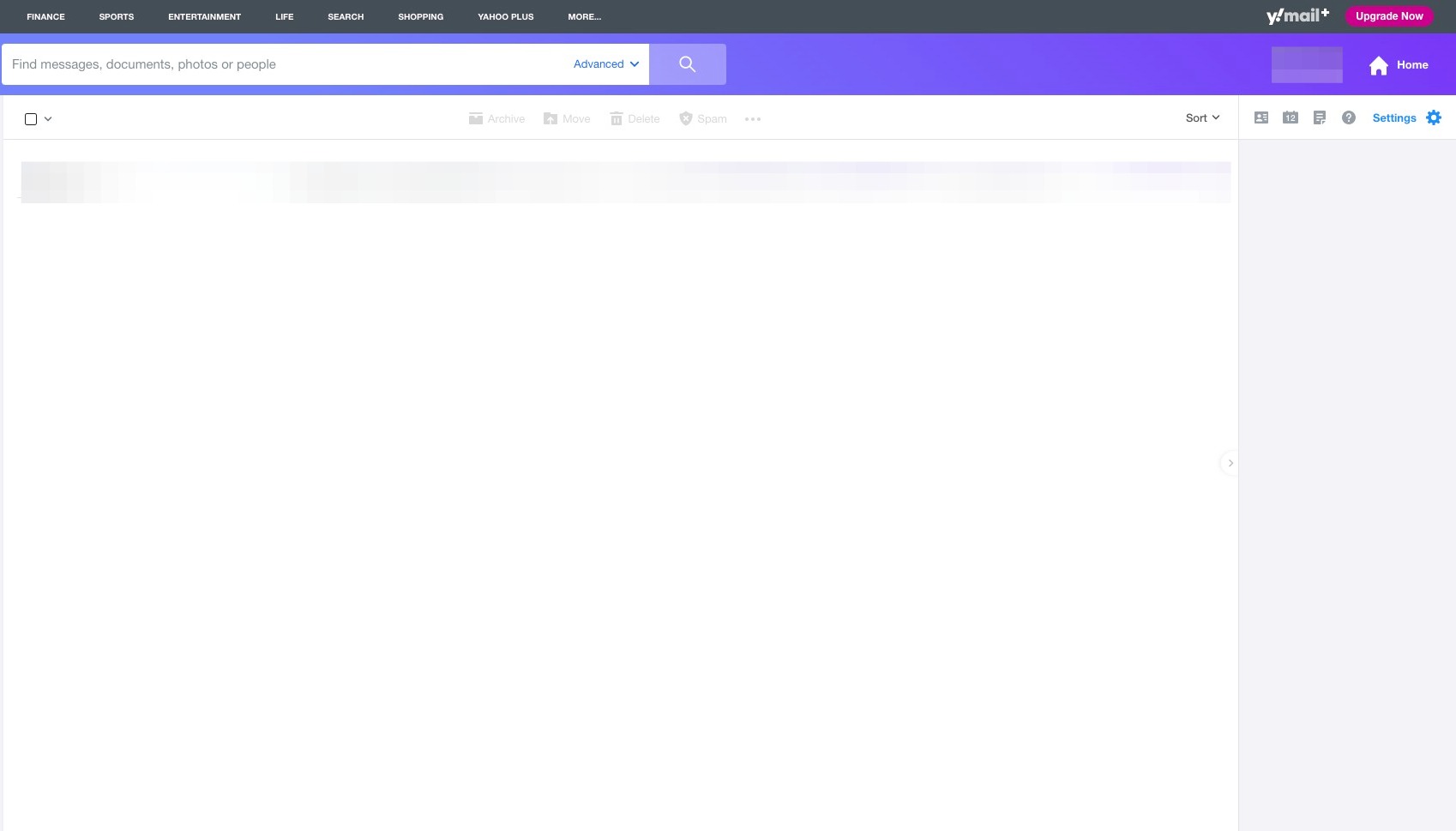
Click "Settings" in the top right corner.
Step 21
Click "More Settings"
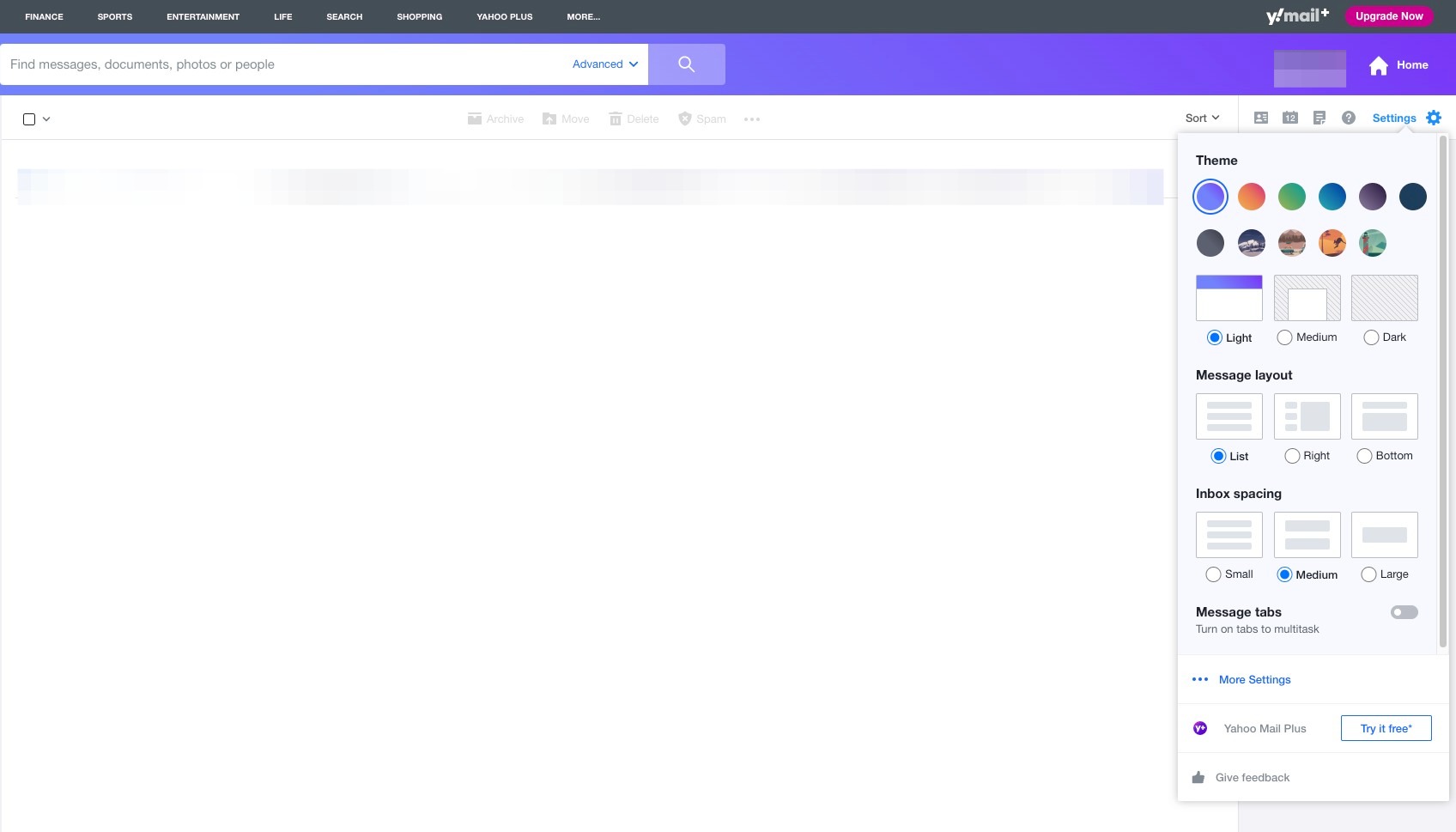
Step 22
Click "Filters"
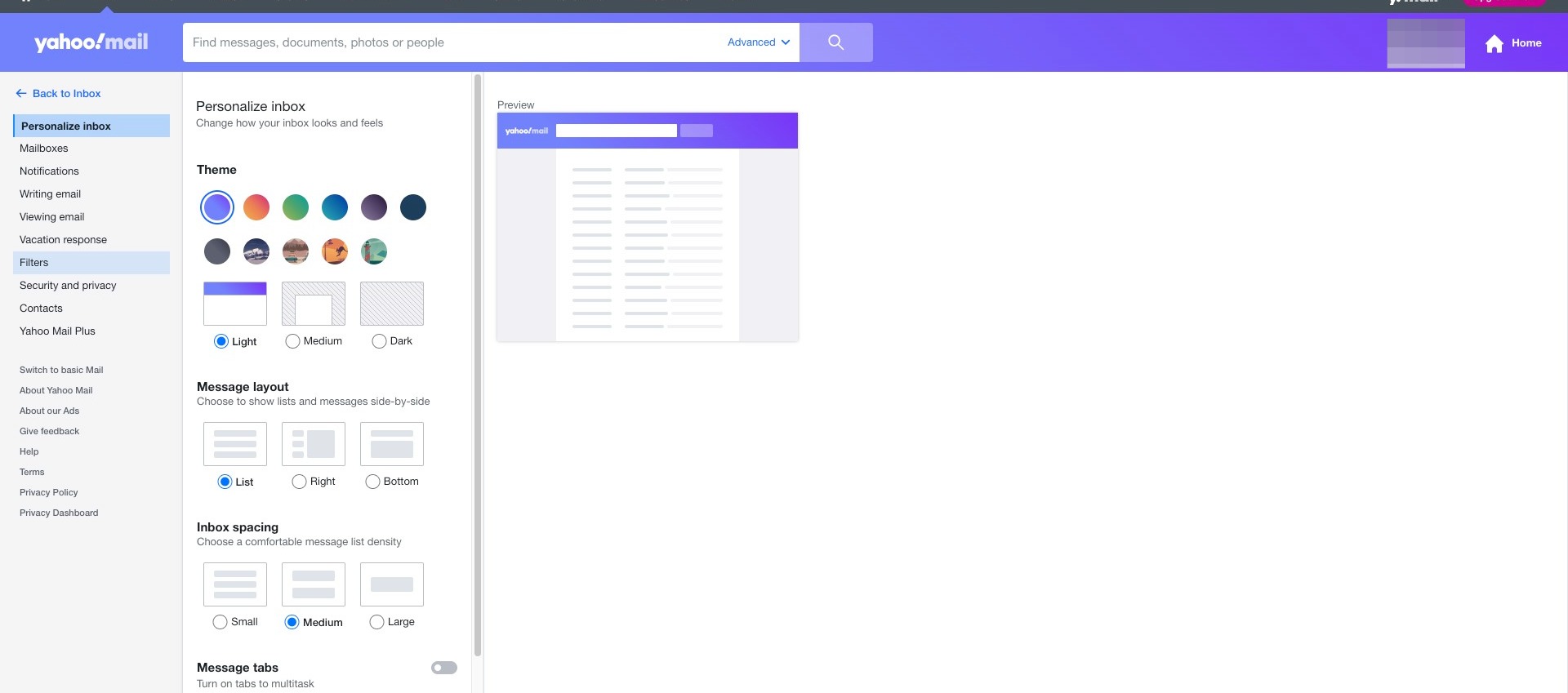
Step 23
Click "Add new filters"
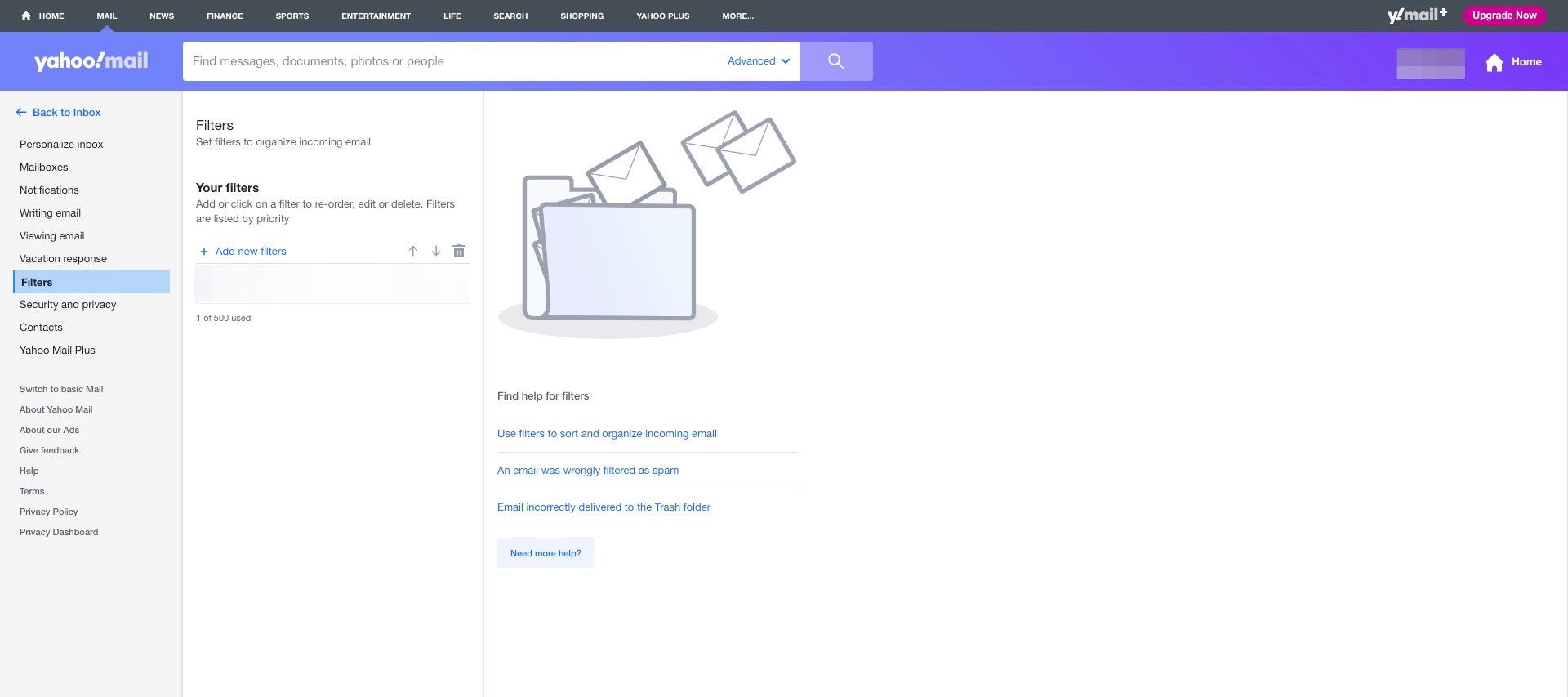
Step 24
Click the "Type a filter name" field.
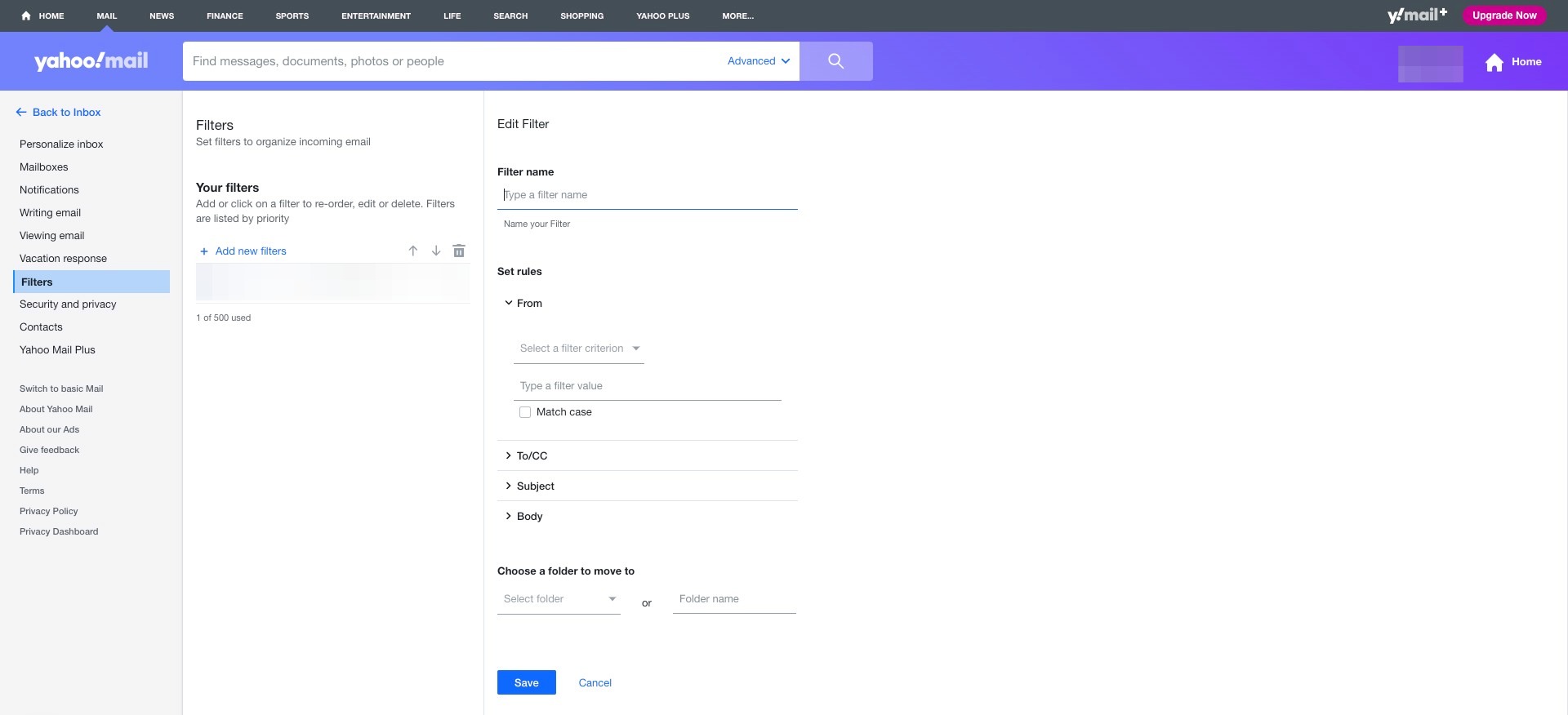
Step 25
Enter a memorable filter name.
Step 26
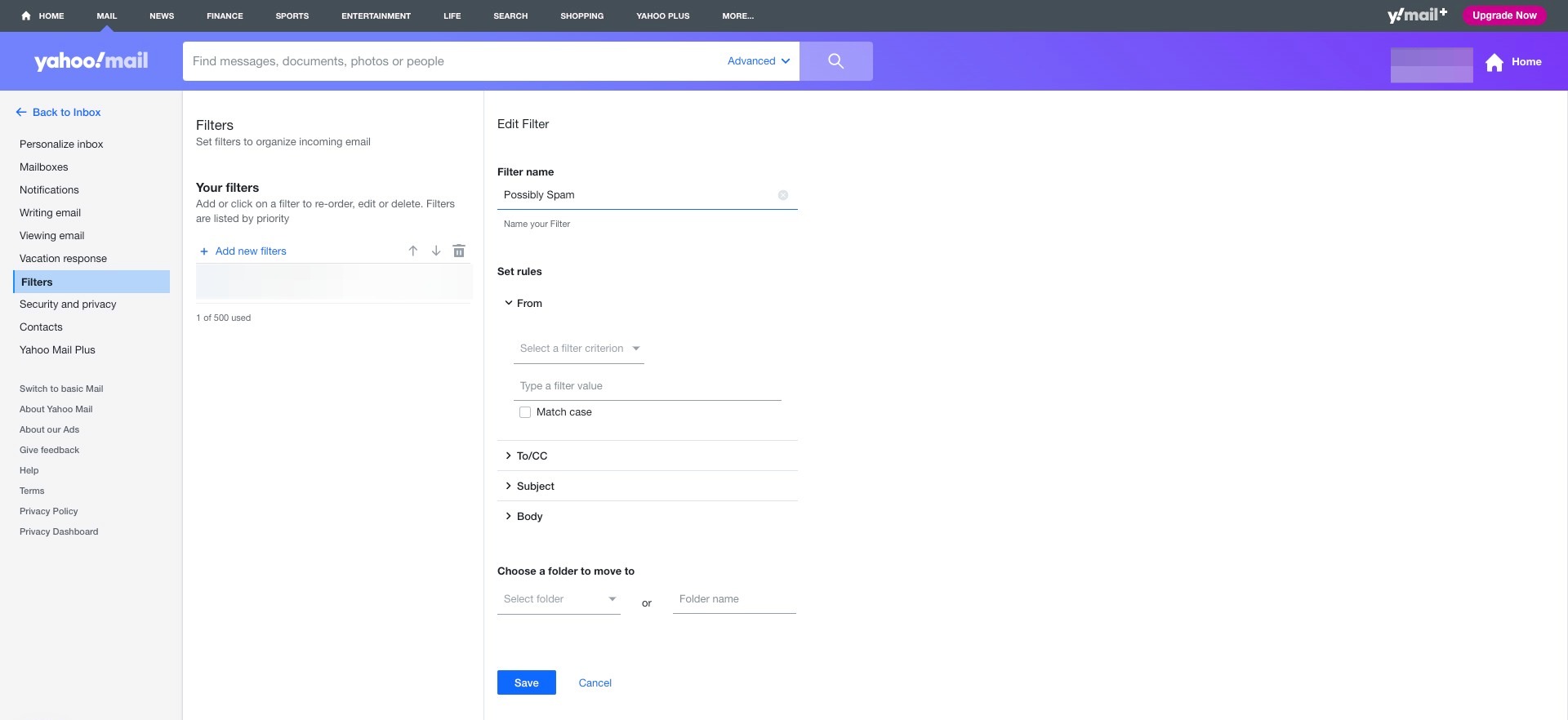
Click "Select a filter criterion"
Step 27
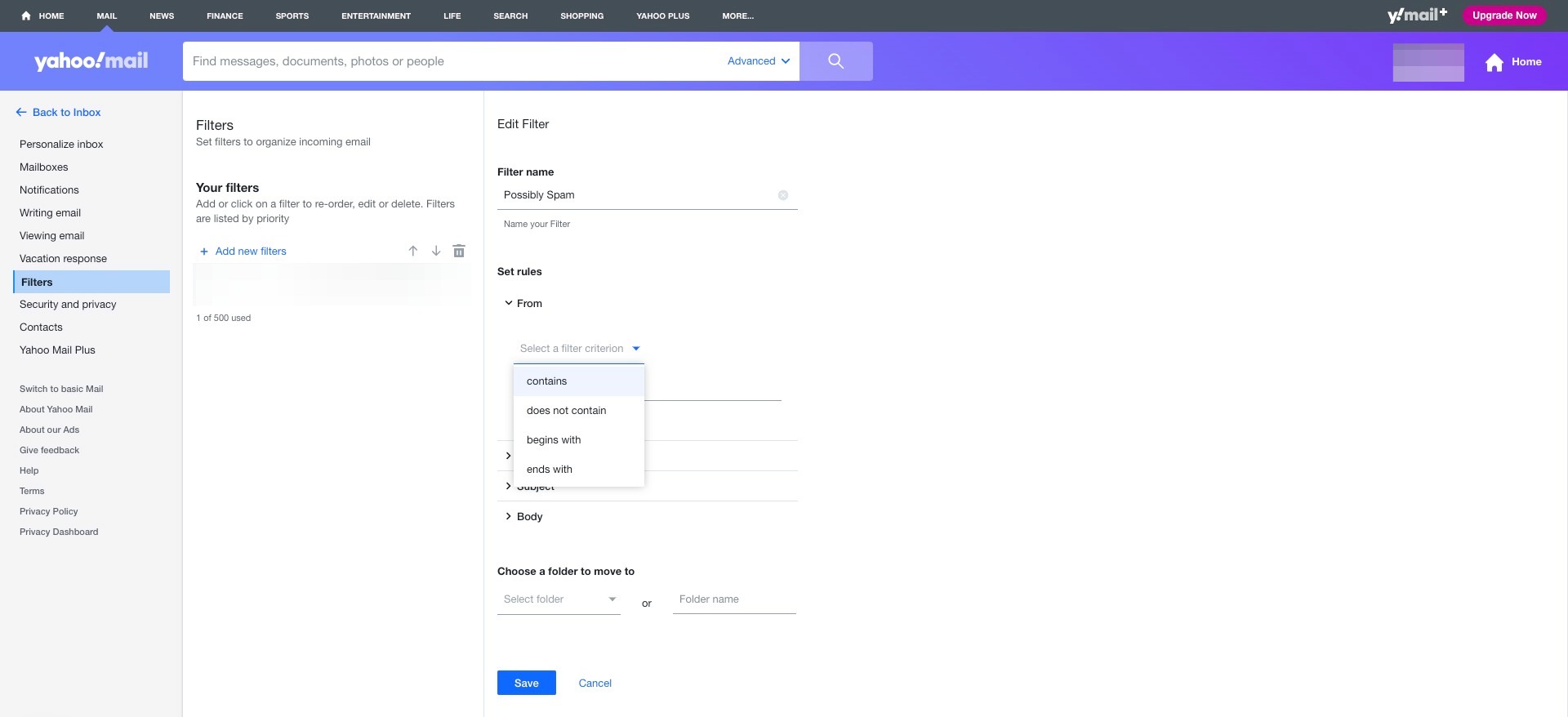
Click "contains"
Step 28
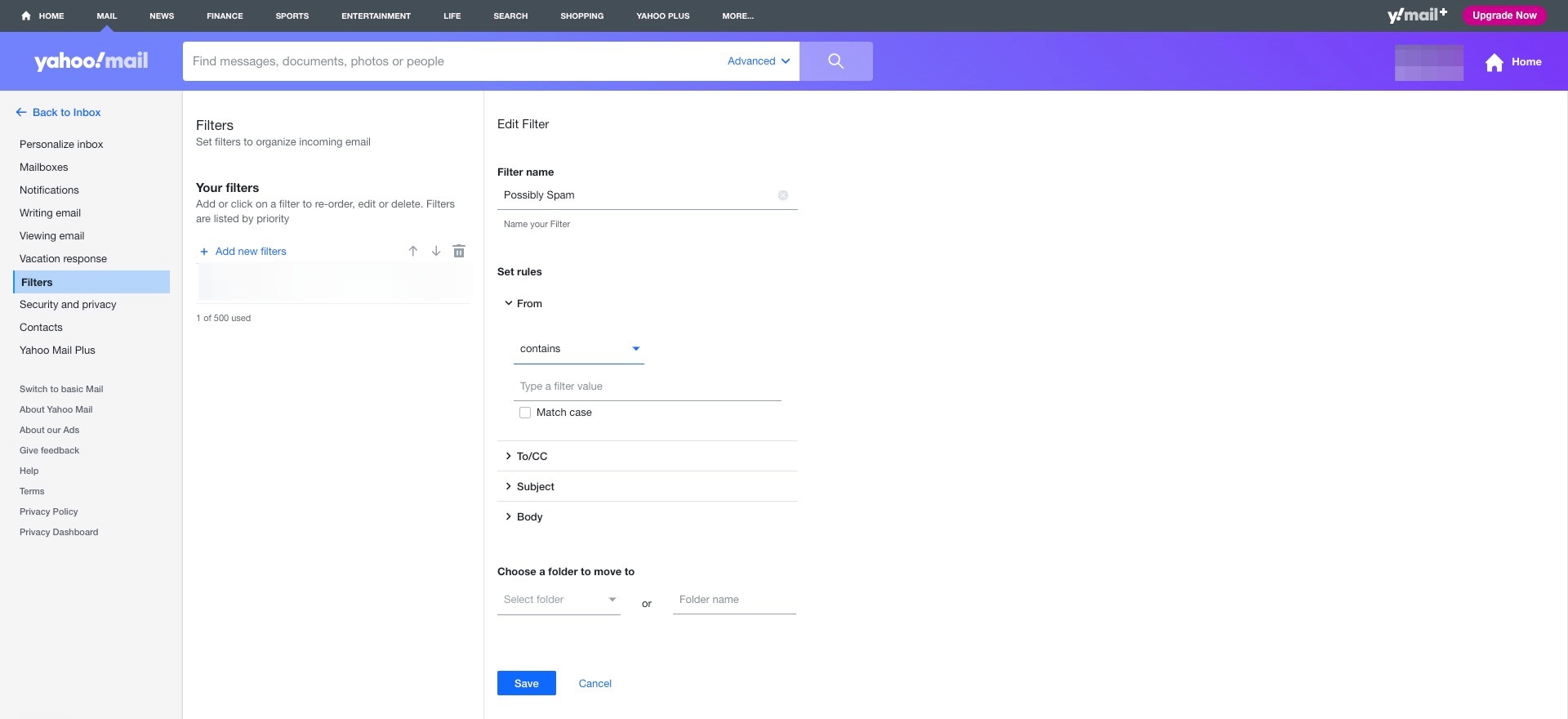
Click the "Type a filter value" field.
Step 29
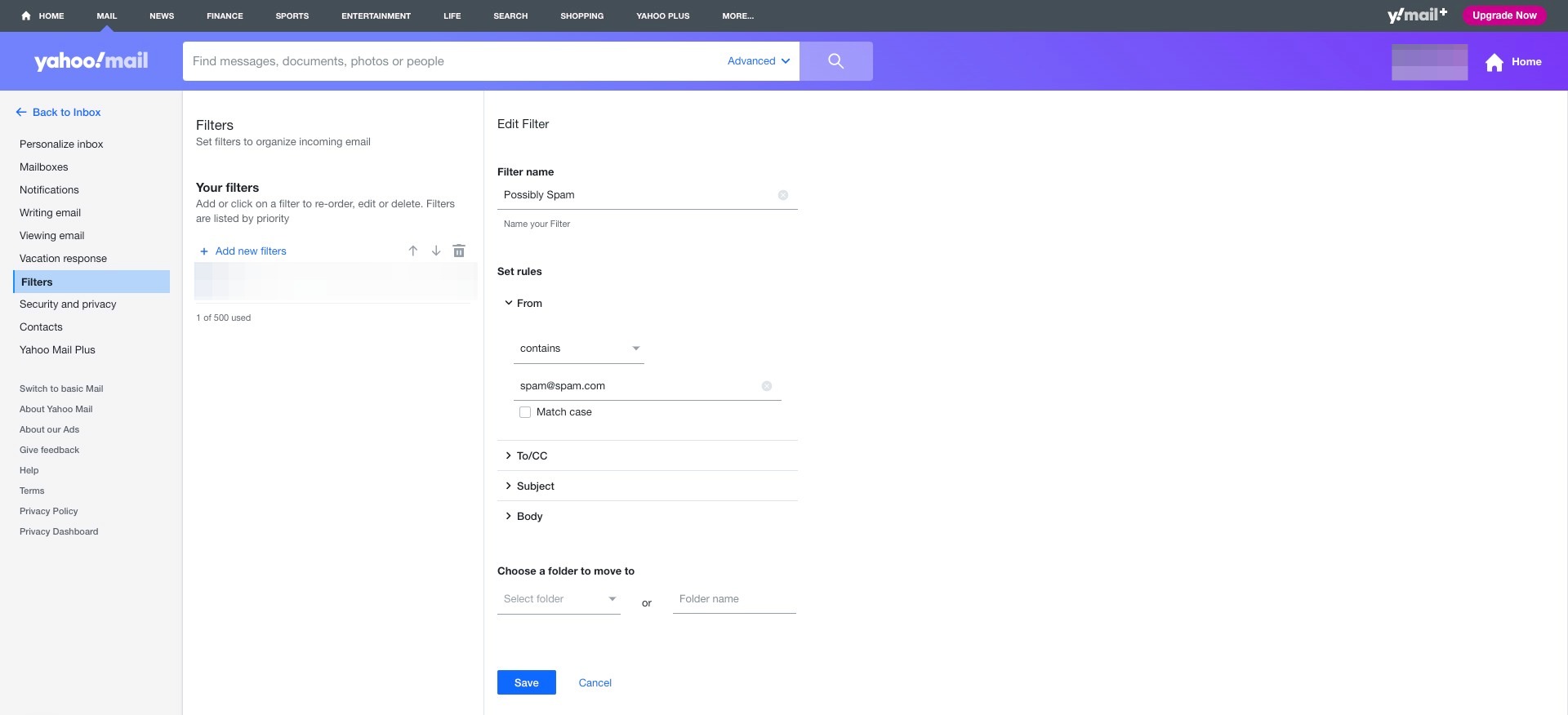
Type the senders email address.
Step 30
Click "Subject"
Step 31
Click "Select a filter criterion"
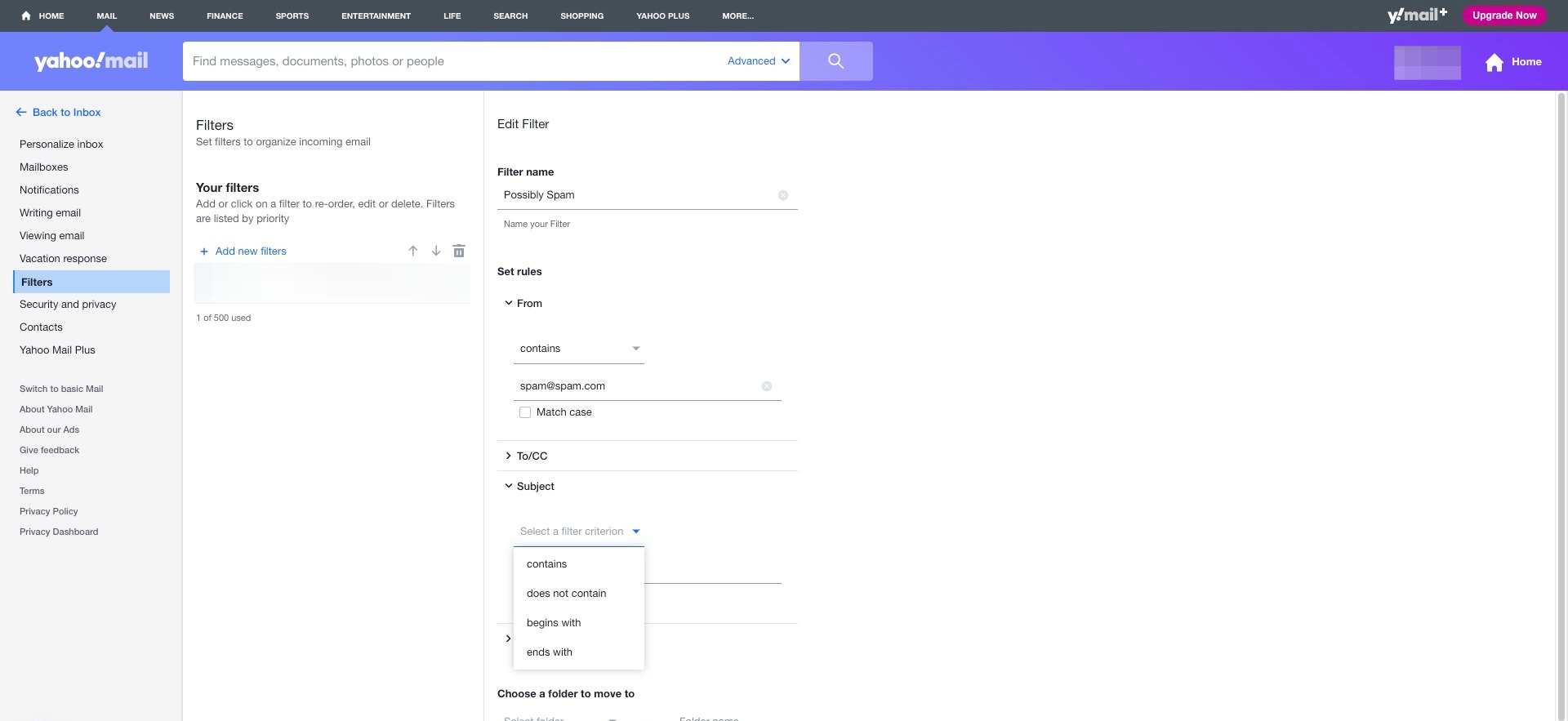
Step 32
Click "contains"
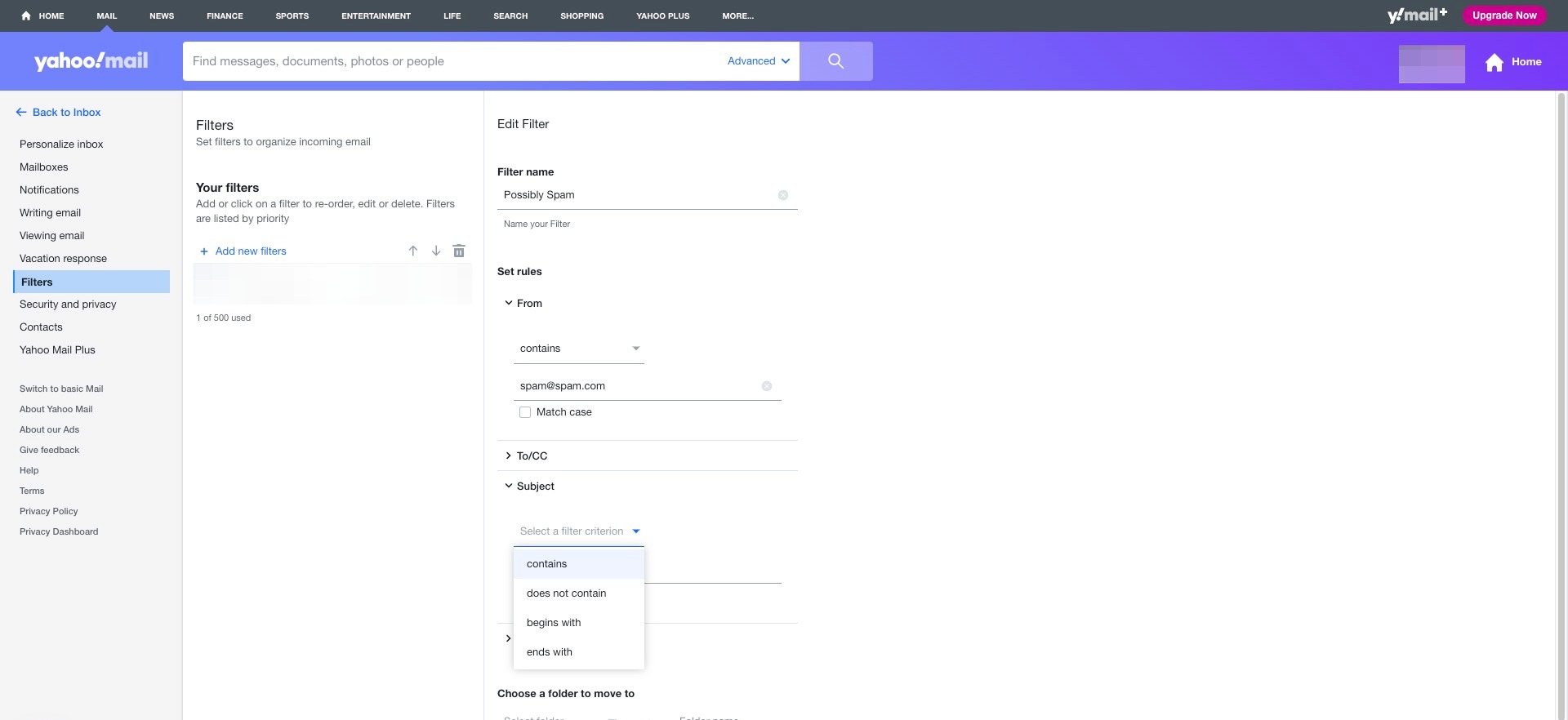
Step 33
Click the "Type a filter value" field.
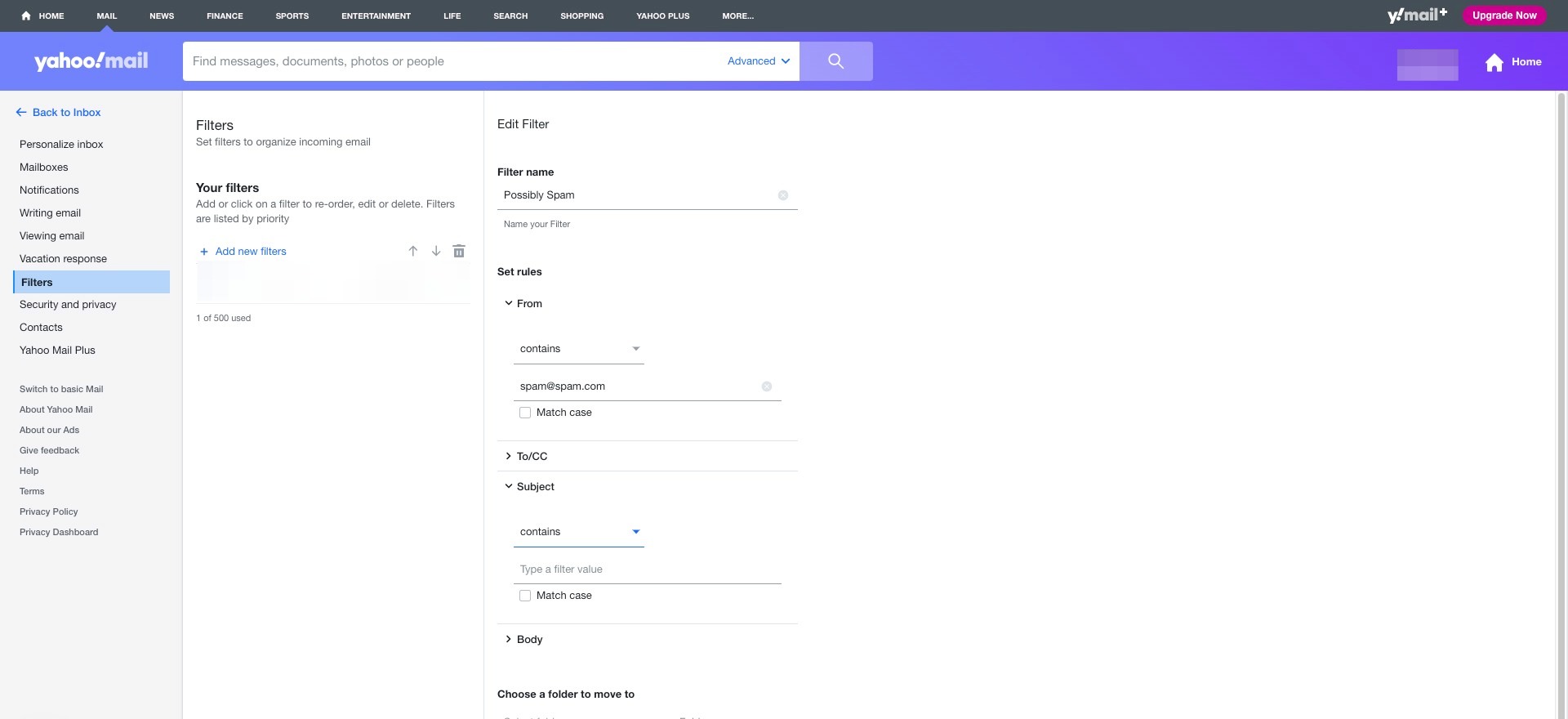
Step 34
Type the subject or title of the unwanted emails.
Step 35
Click the "Folder name" field.
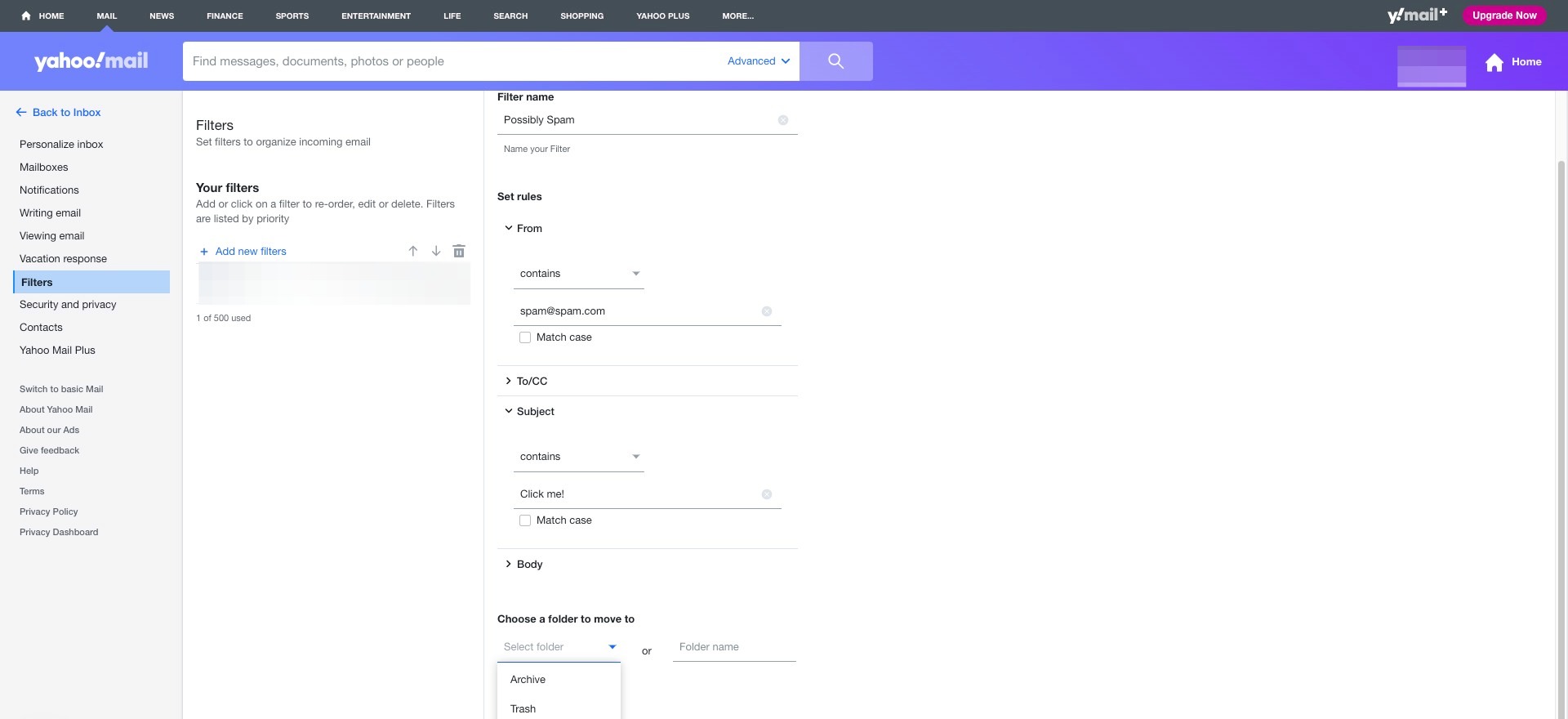
Step 36
Enter a name that you can easily identify.
Step 37
Click "Save"
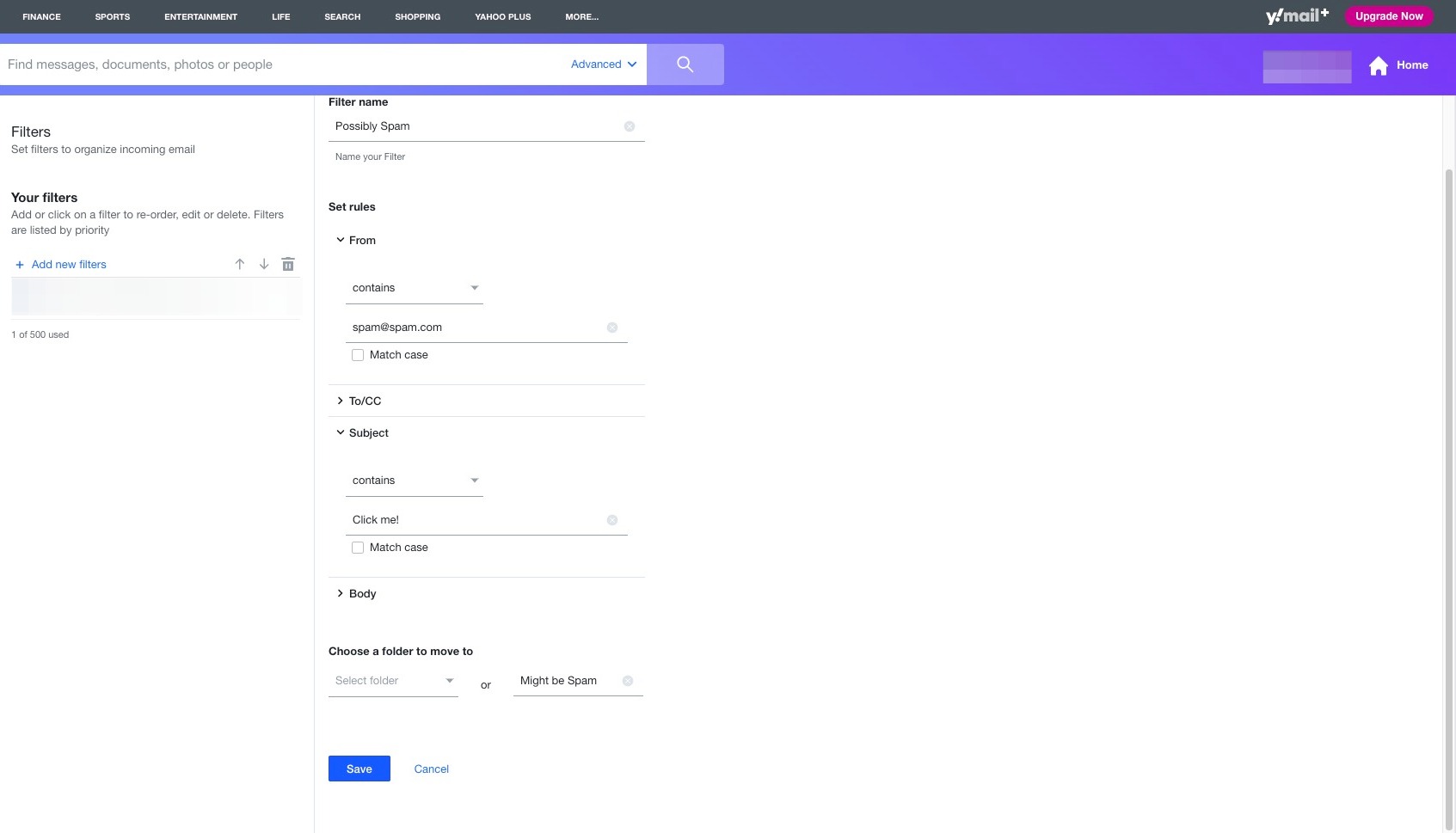
Creating Filters in Microsoft
Step 38
Navigate to [https://outlook.live.com/mail/0/](https://outlook.live.com/mail/0/)
Step 39
Click the "Settings" icon in the top right.
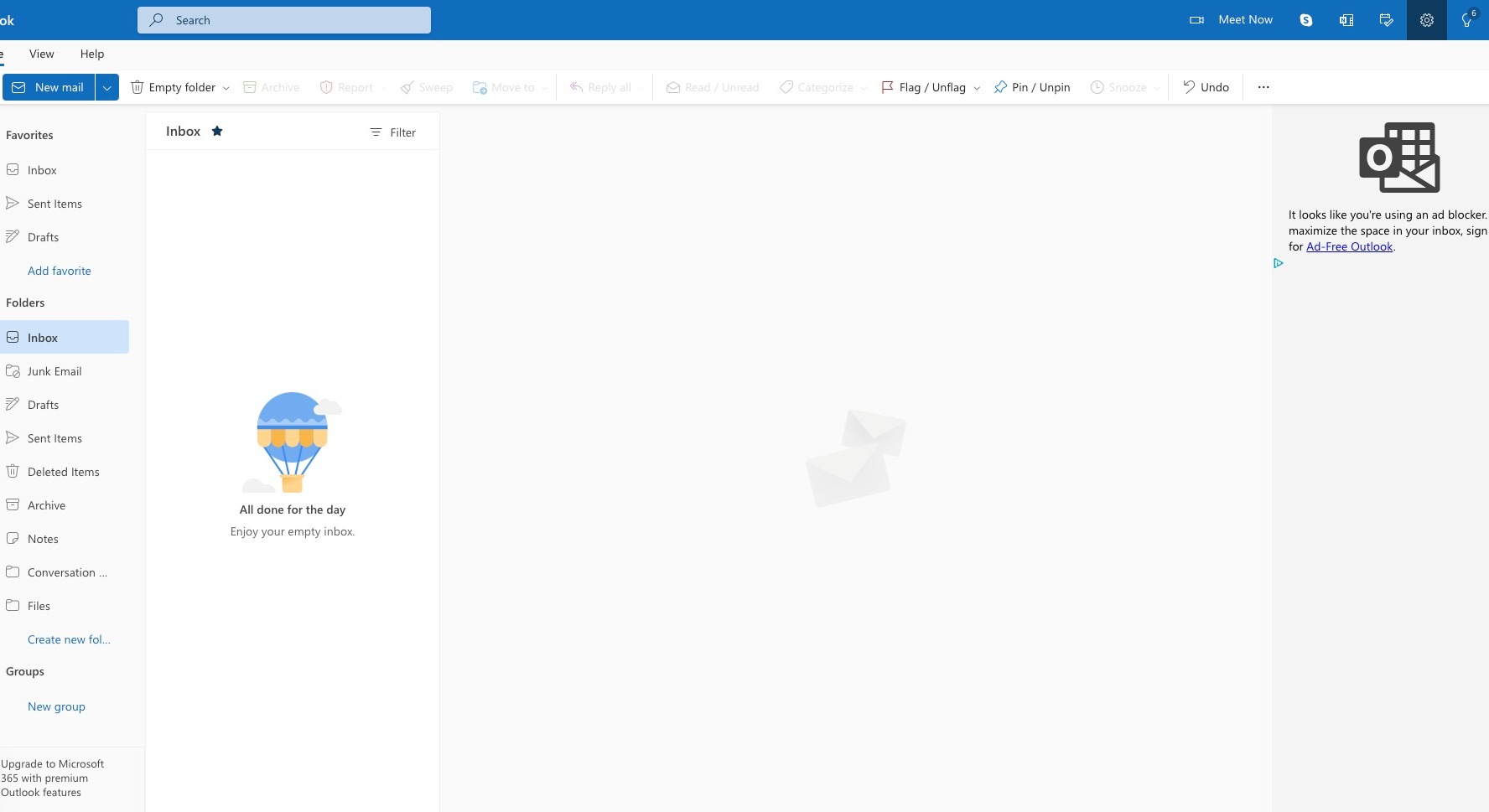
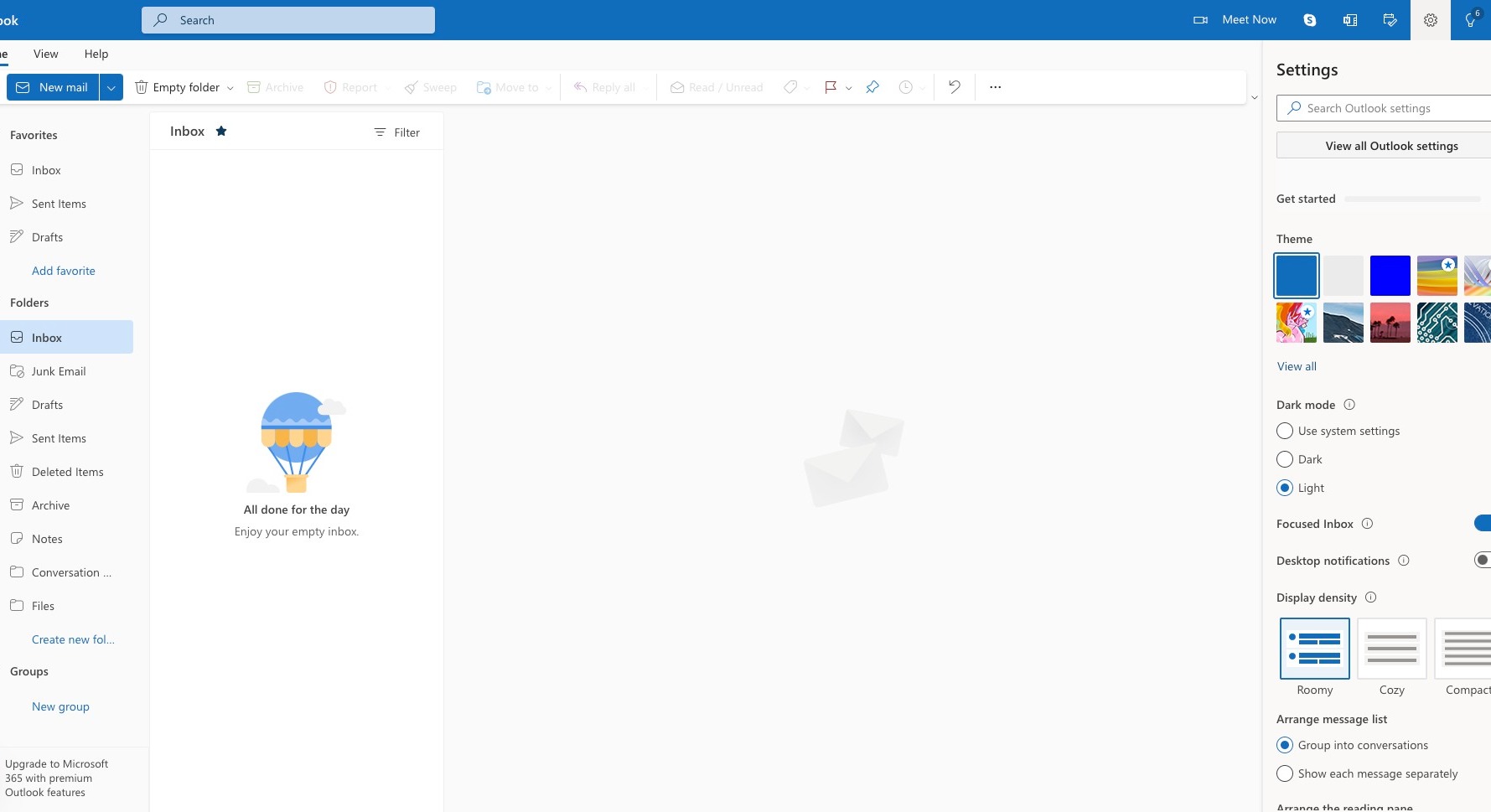
Step 40
Click "View all Outlook settings"
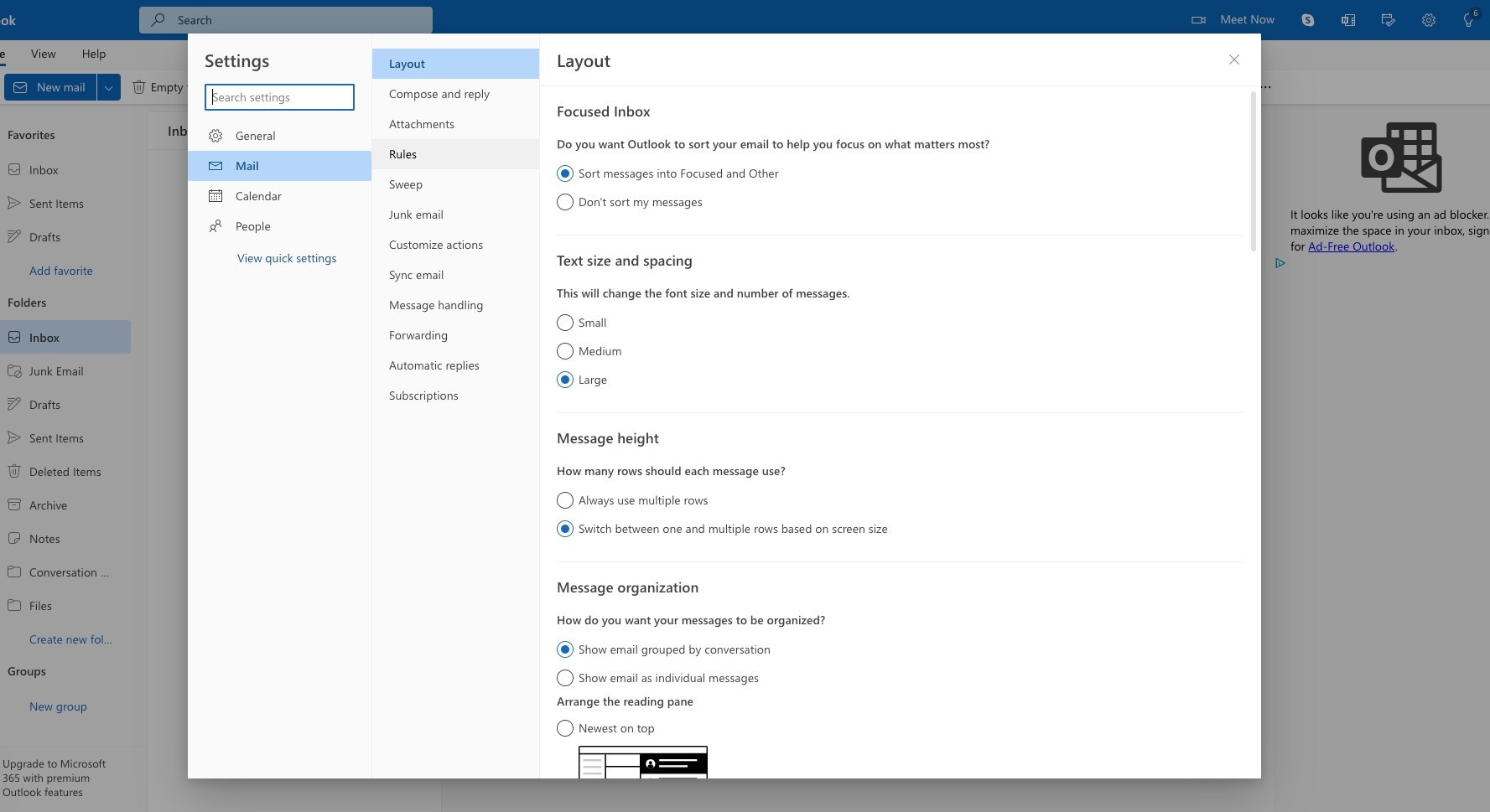
Step 41
Click "Rules"
Step 42
Click "Add new rule"
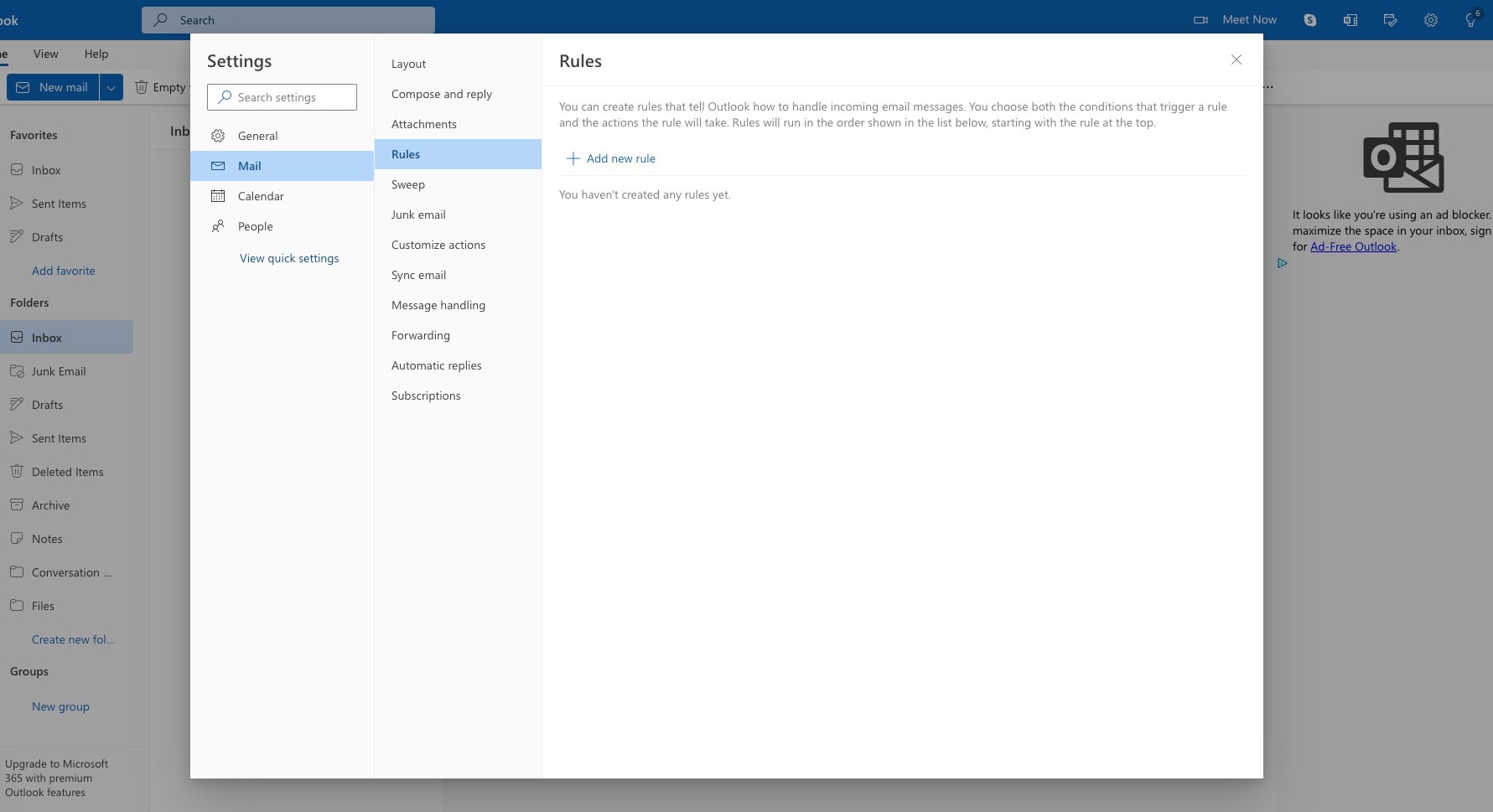
Step 43
Click the "Name your rule" field.
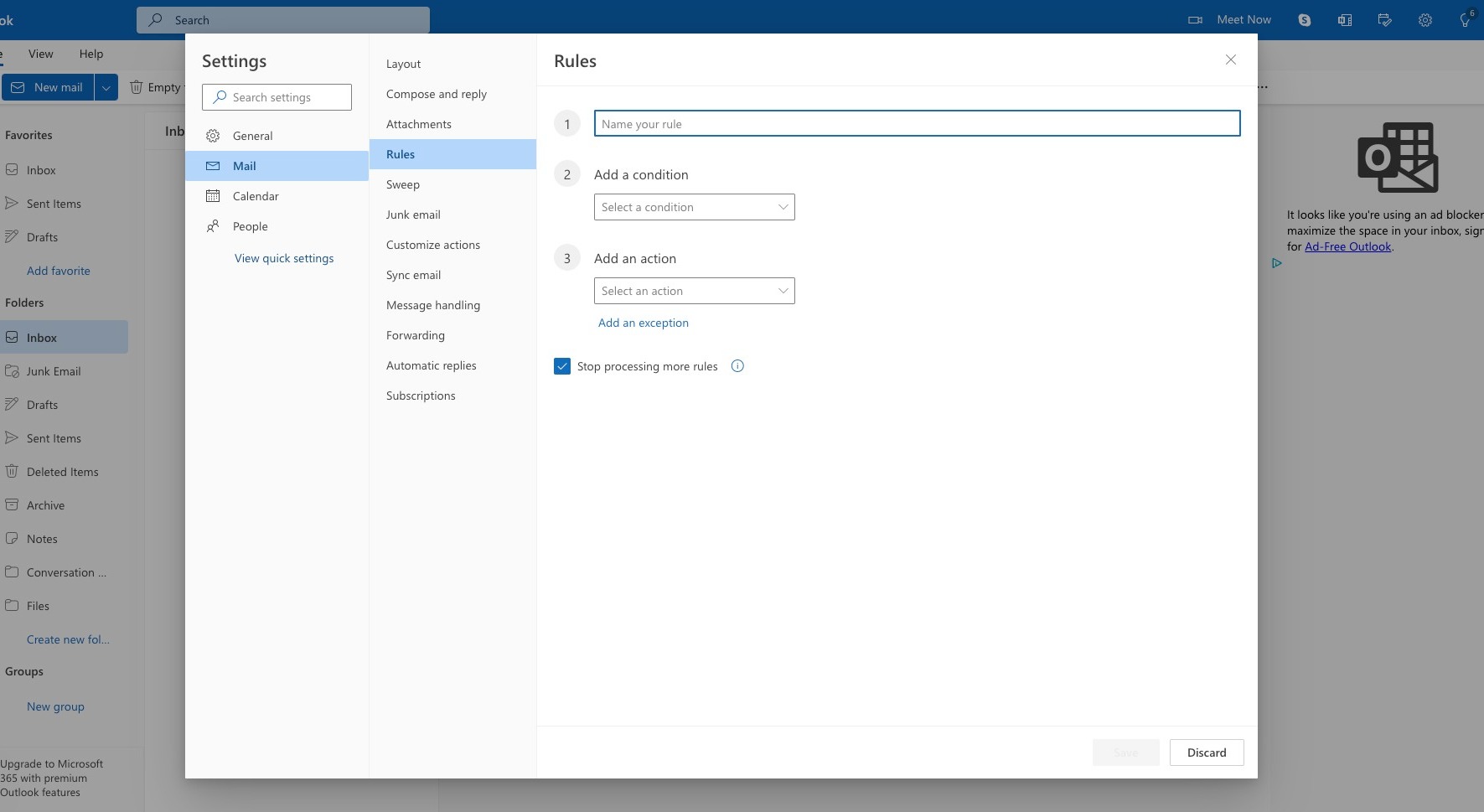
Step 44
Enter a memorable filter name.
Step 45
Click "Select a condition"
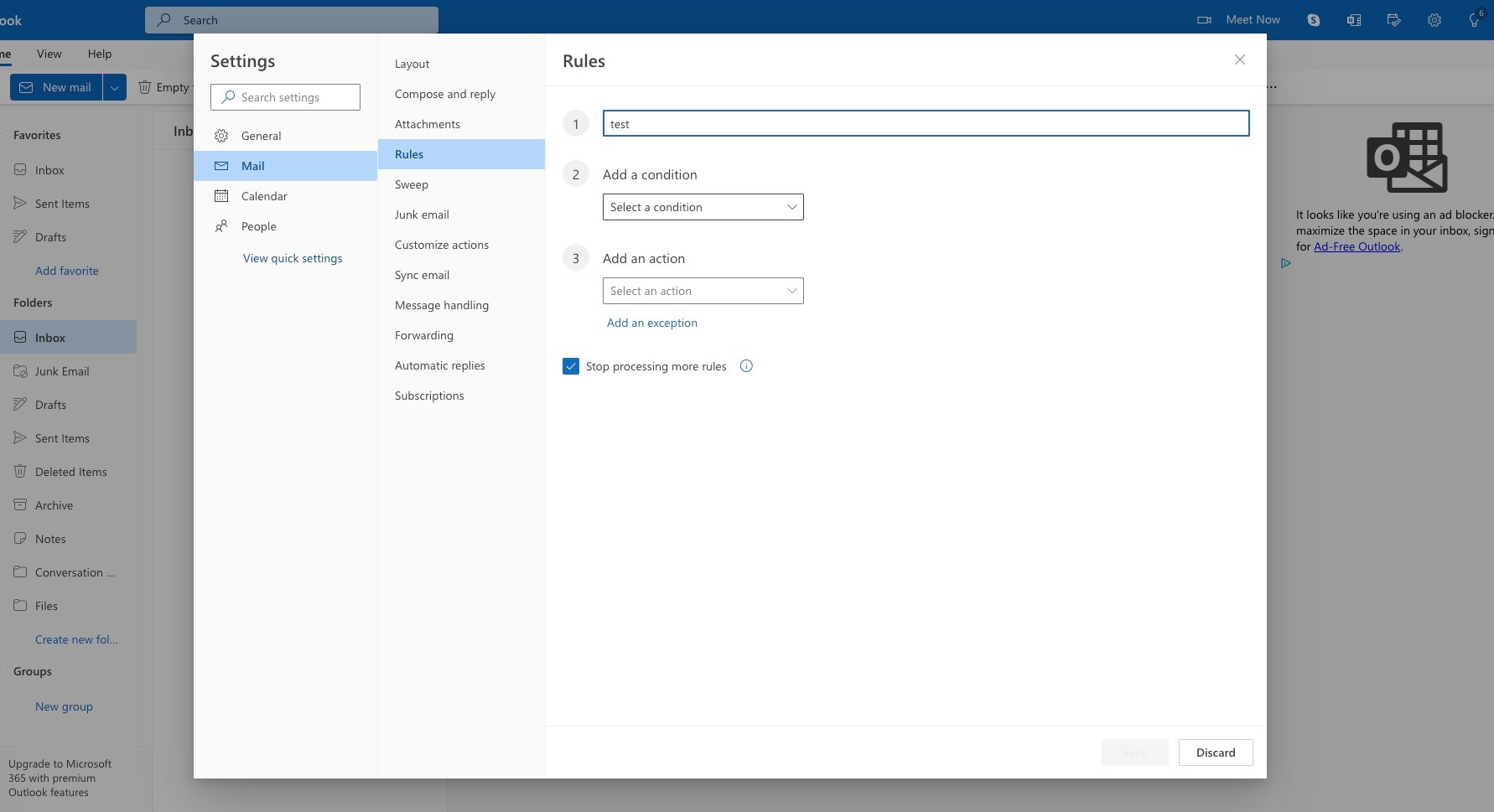
Step 46
You can use any of these settings to create an inbox rule! Pick the ones that will allow you to filter the most accurately.
Step 47
Click "From"
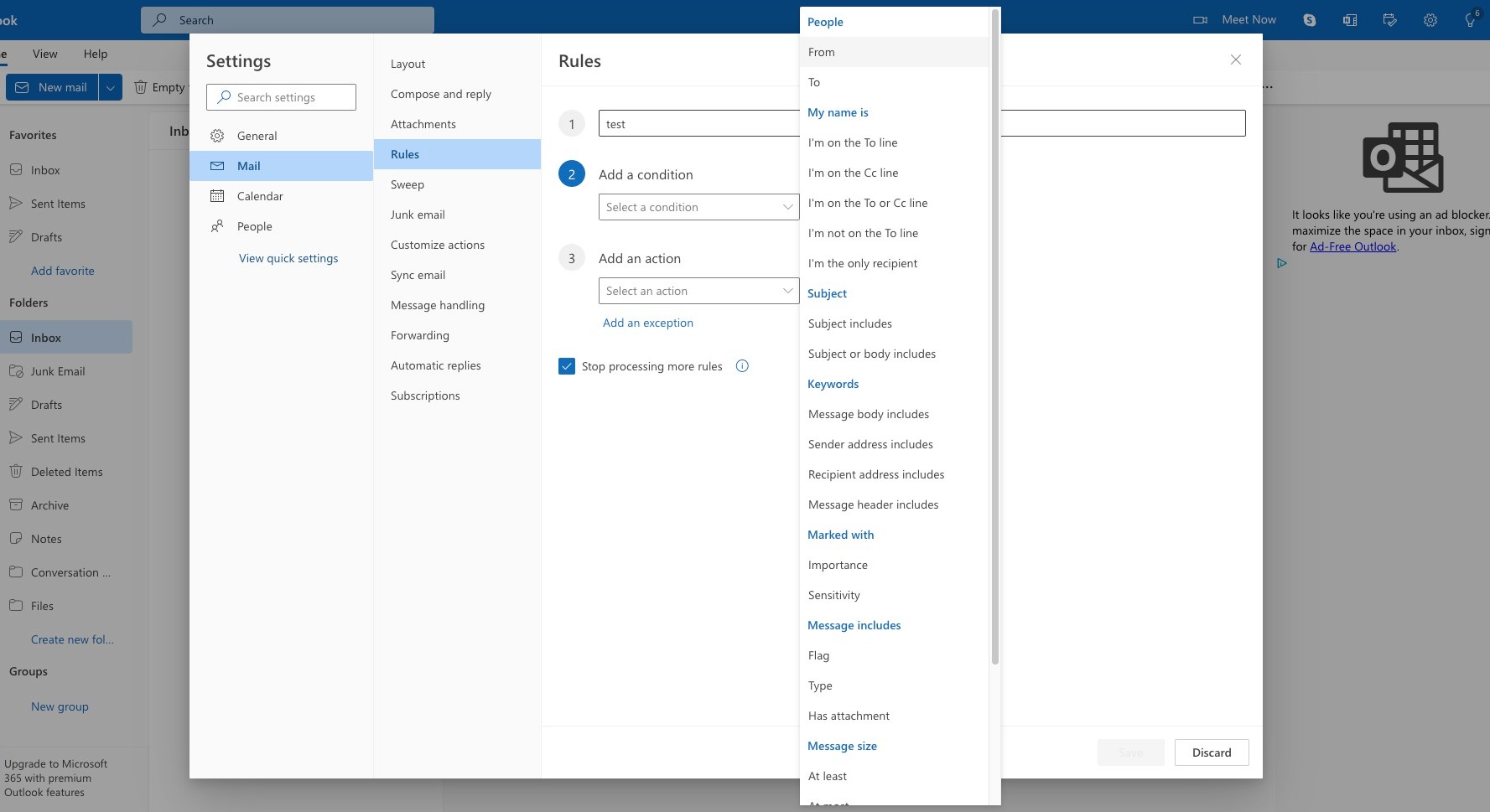
Step 48
Click "Select senders for this condition"
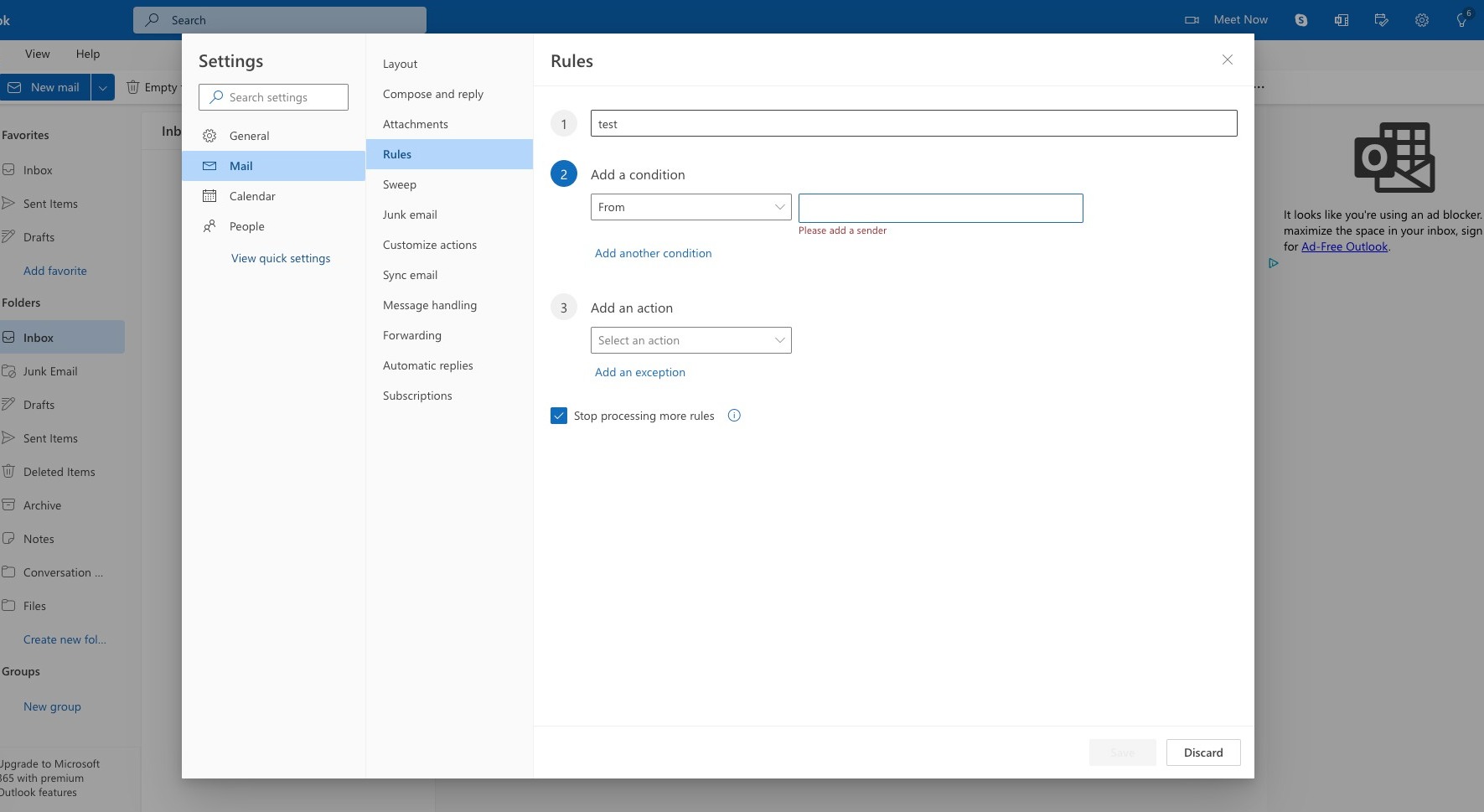
Step 49
Enter the senders email address.
Step 50
Click "Use this address"
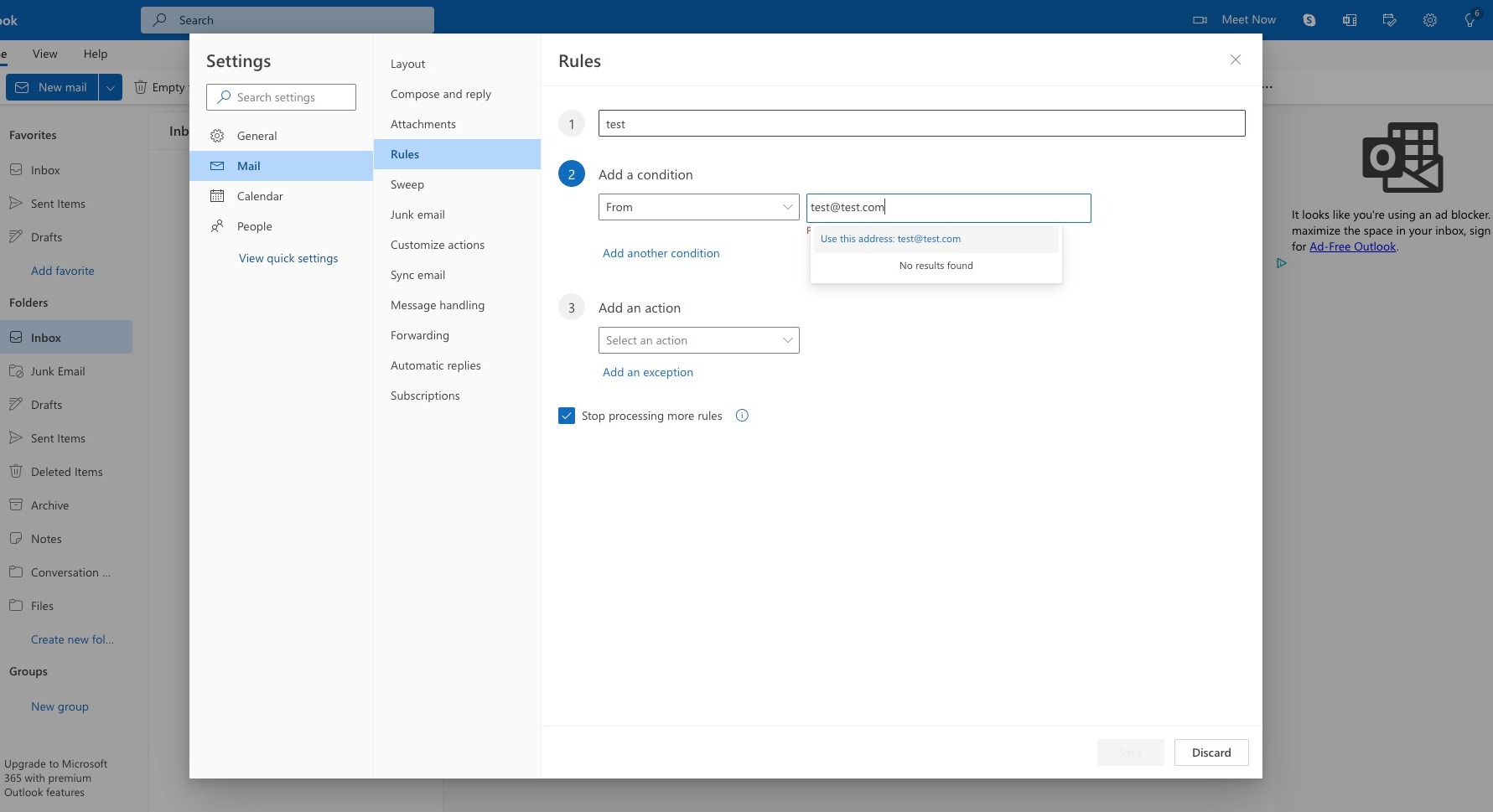
Step 51
Click "Add another condition"
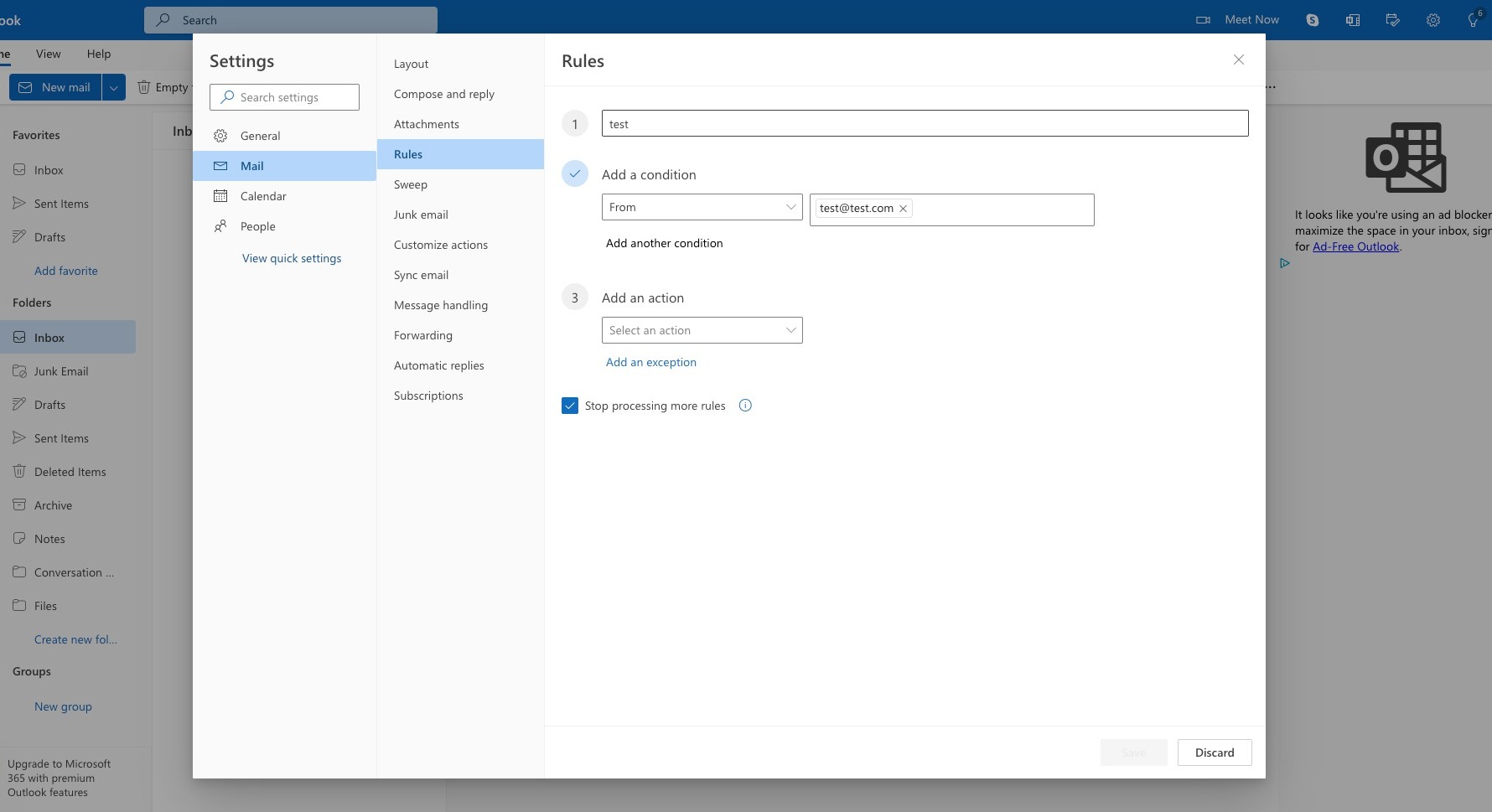
Step 52
Click "And..."
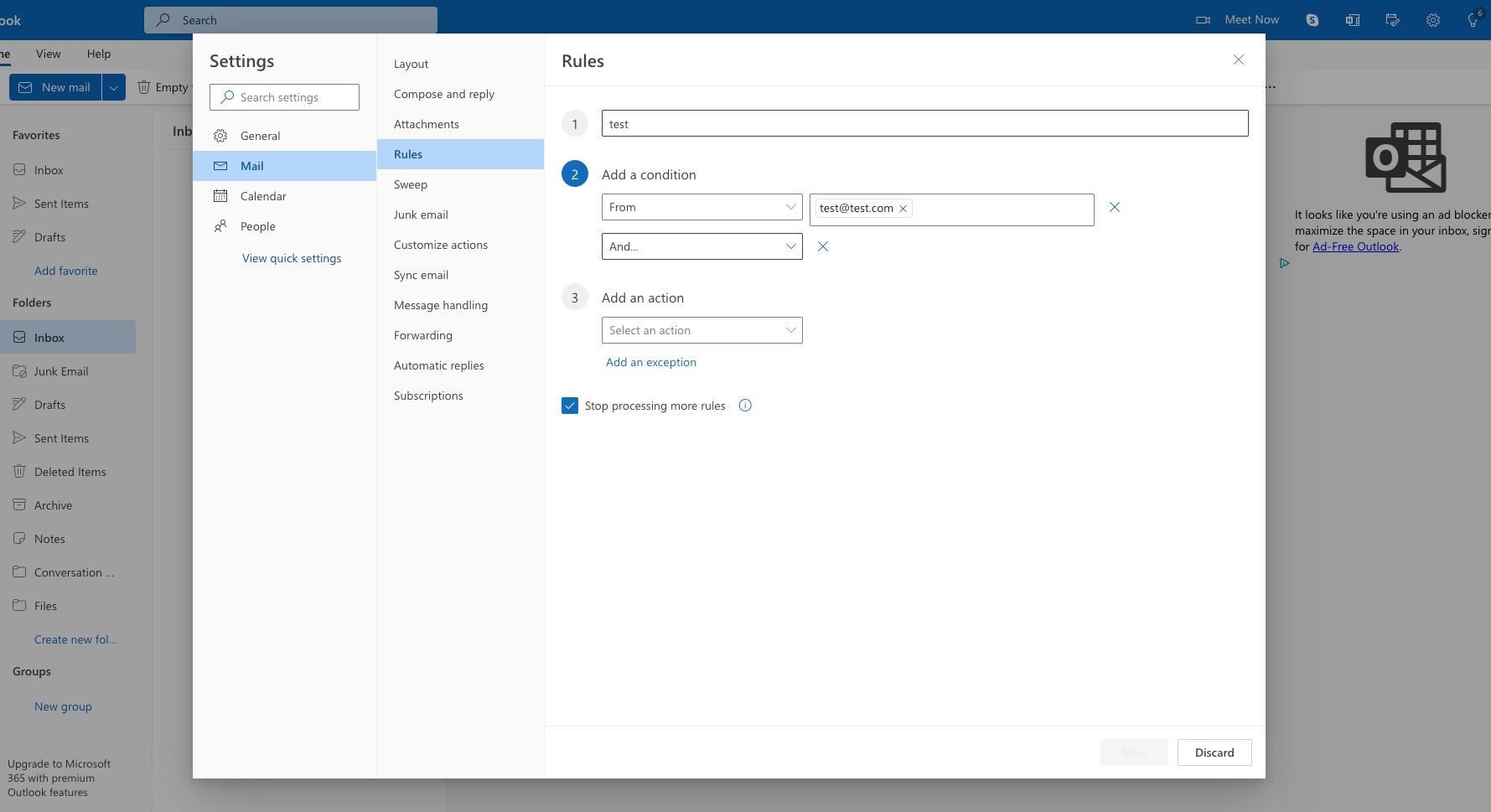
Step 53
Click "Subject includes"
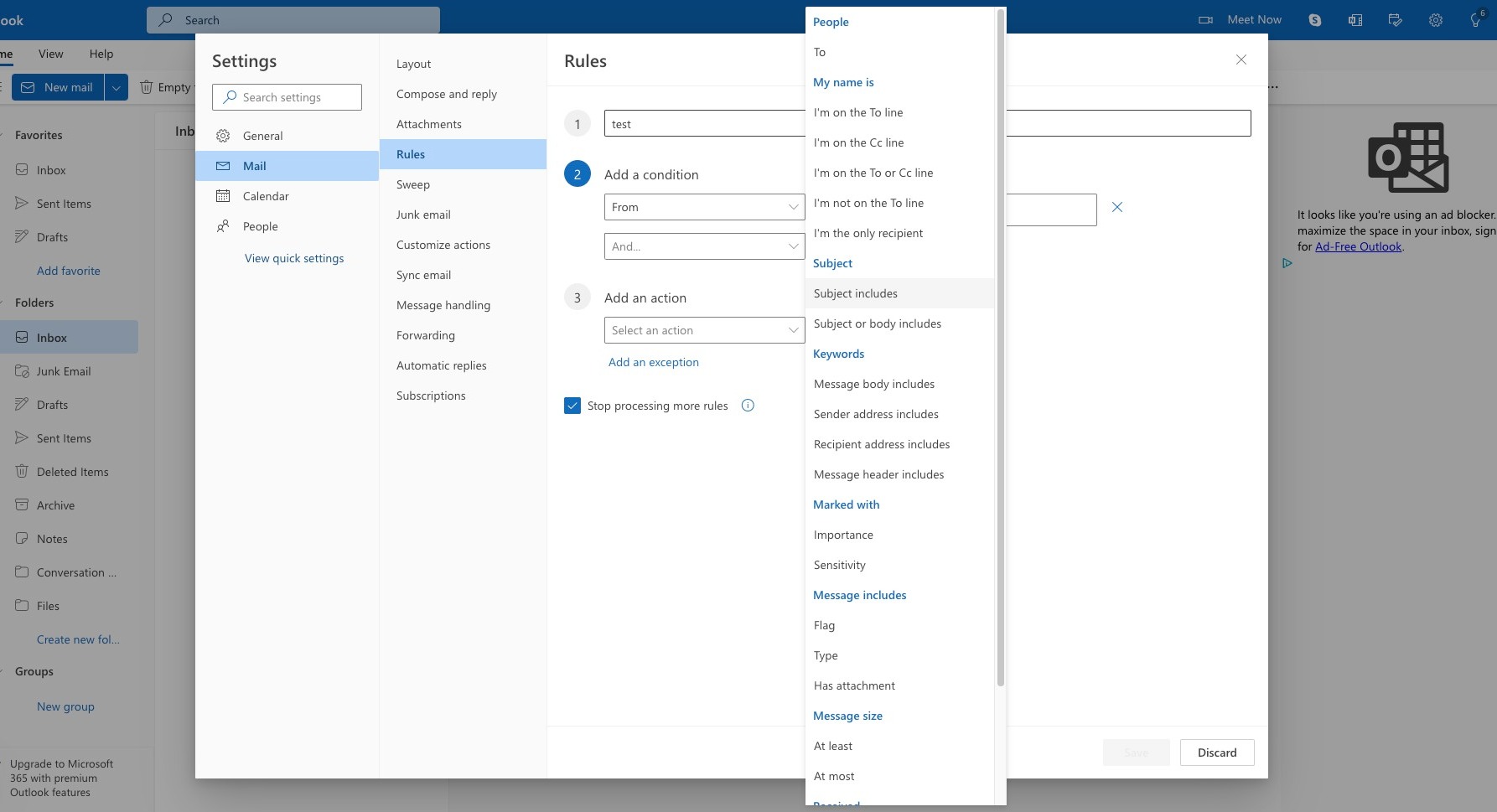
Step 54
Click the "Enter words to look for" field.
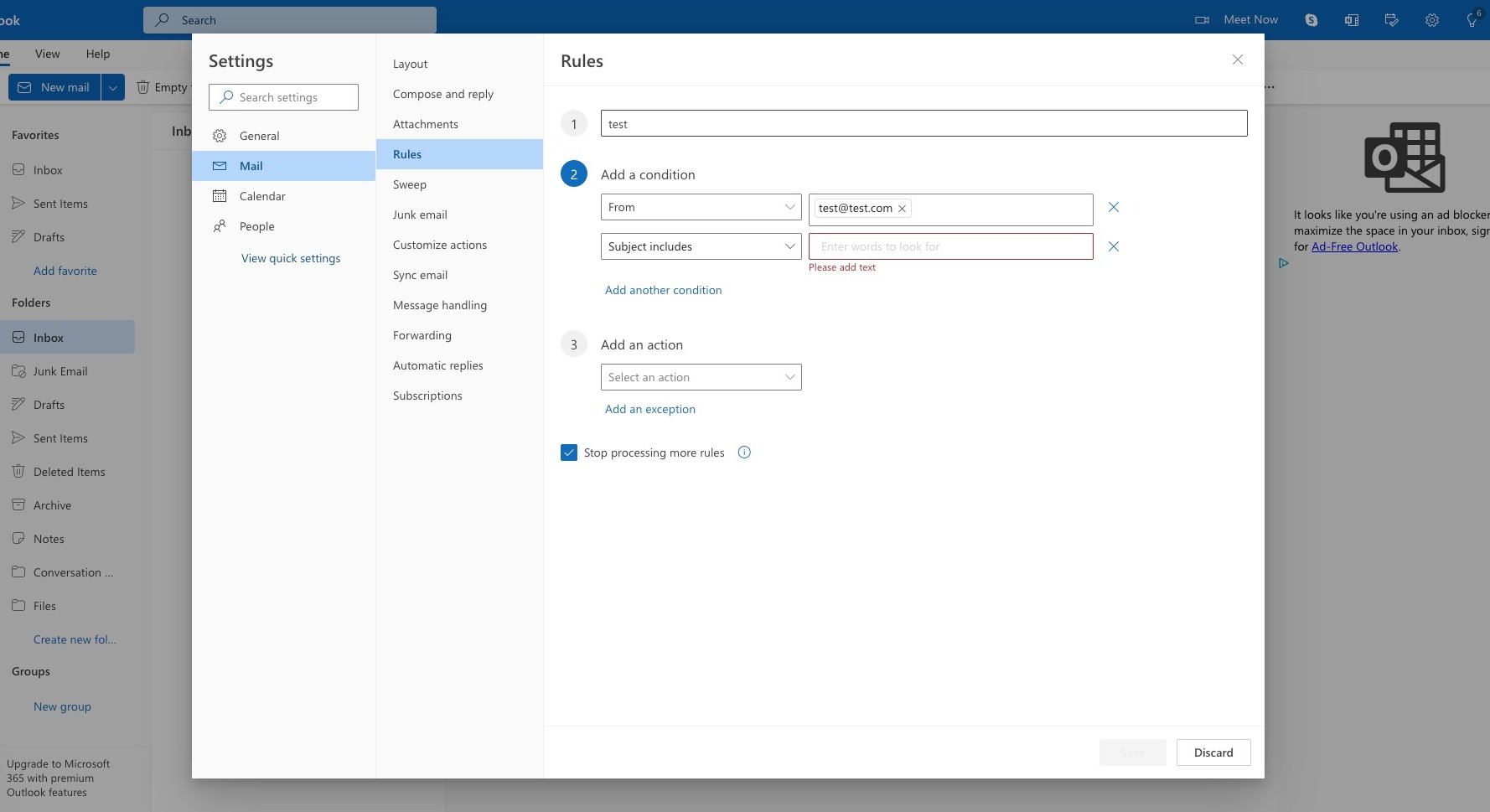
Step 55
Enter the Subject field that the spam is using.
Step 56
Click "Select an action"
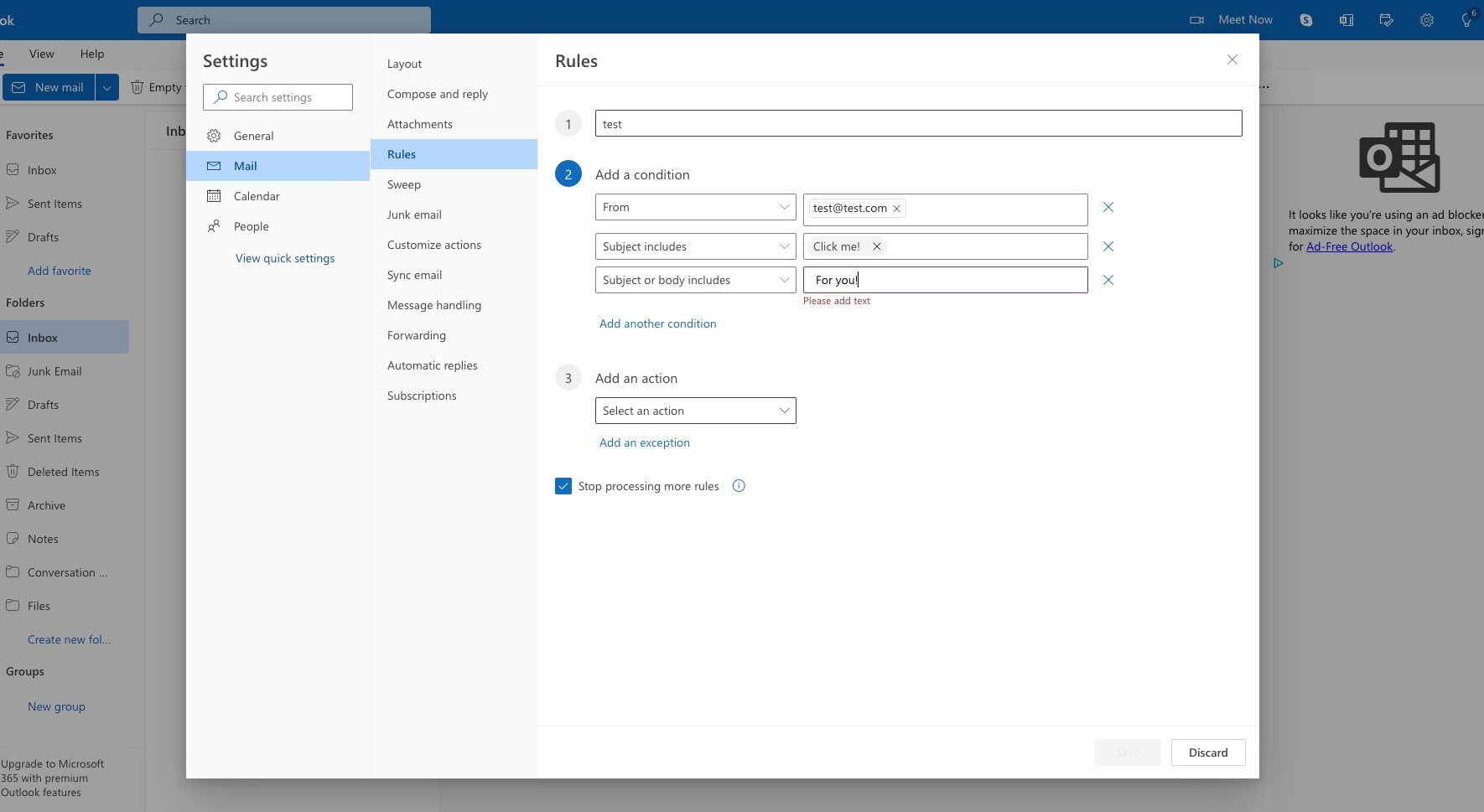
Step 57
Click "Categorize"
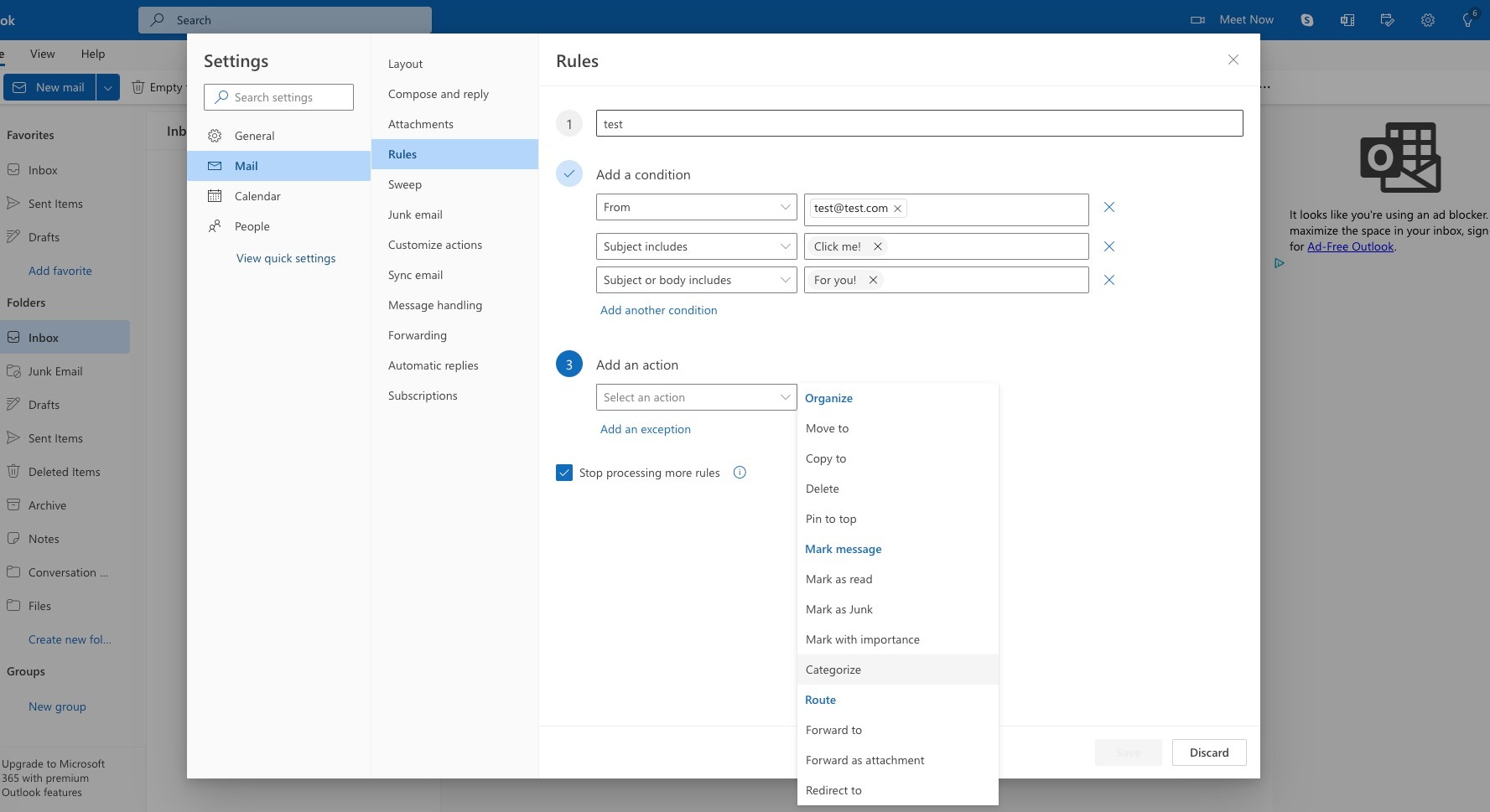
Step 58
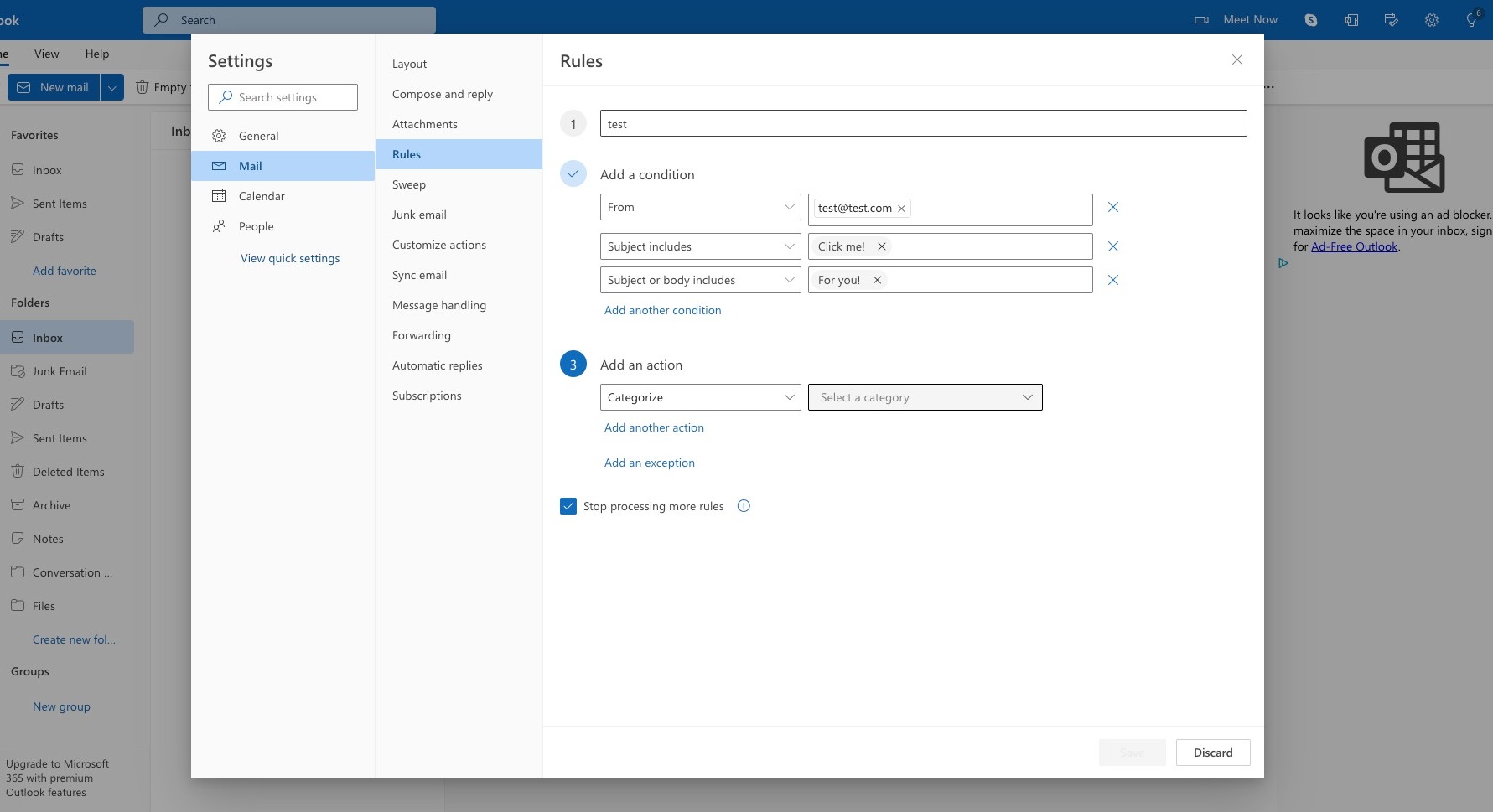
Click "Select a category"
Step 59
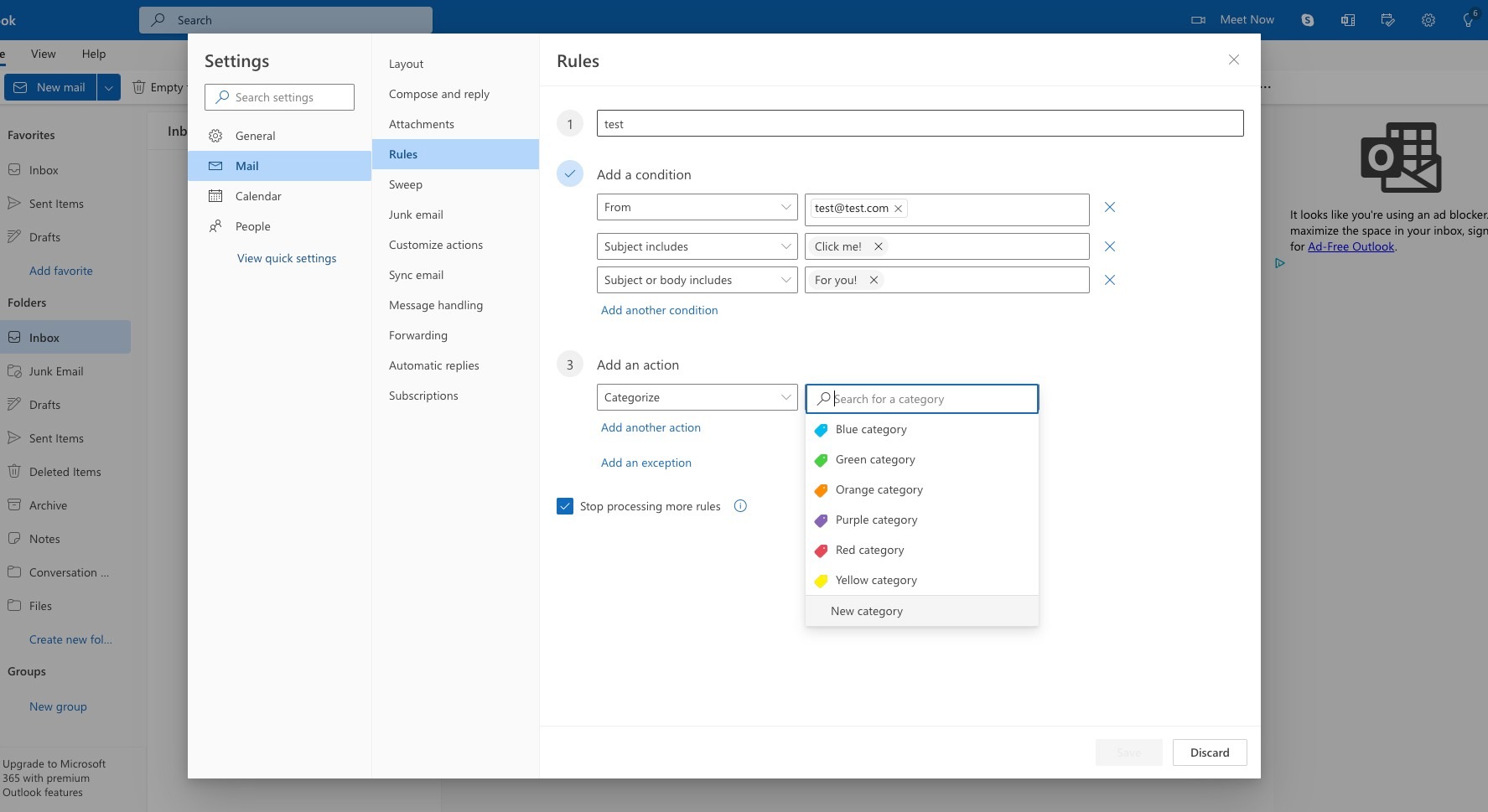
Click "New category"
Step 60
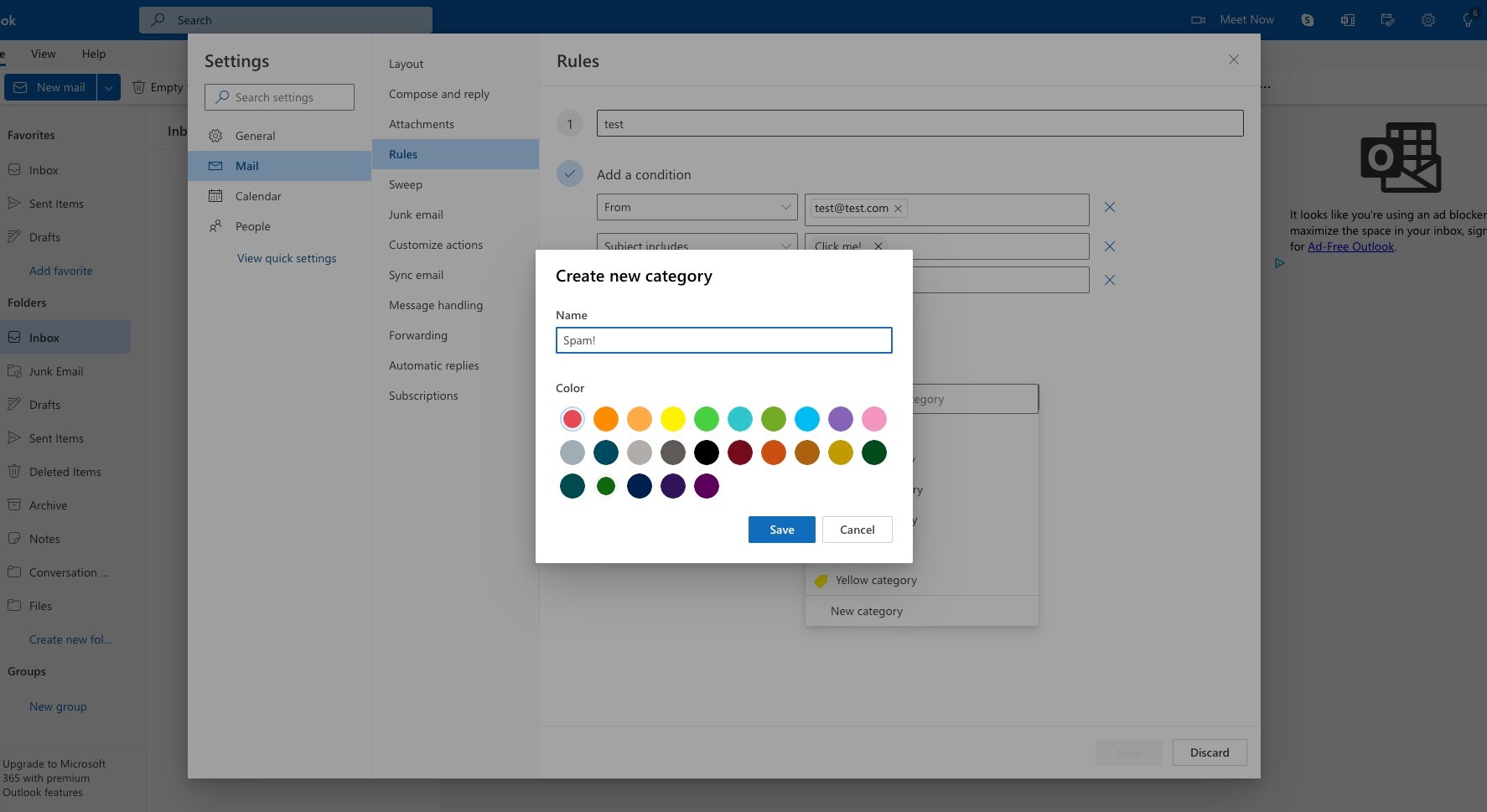
Enter a name that you can easily identify.
Step 61
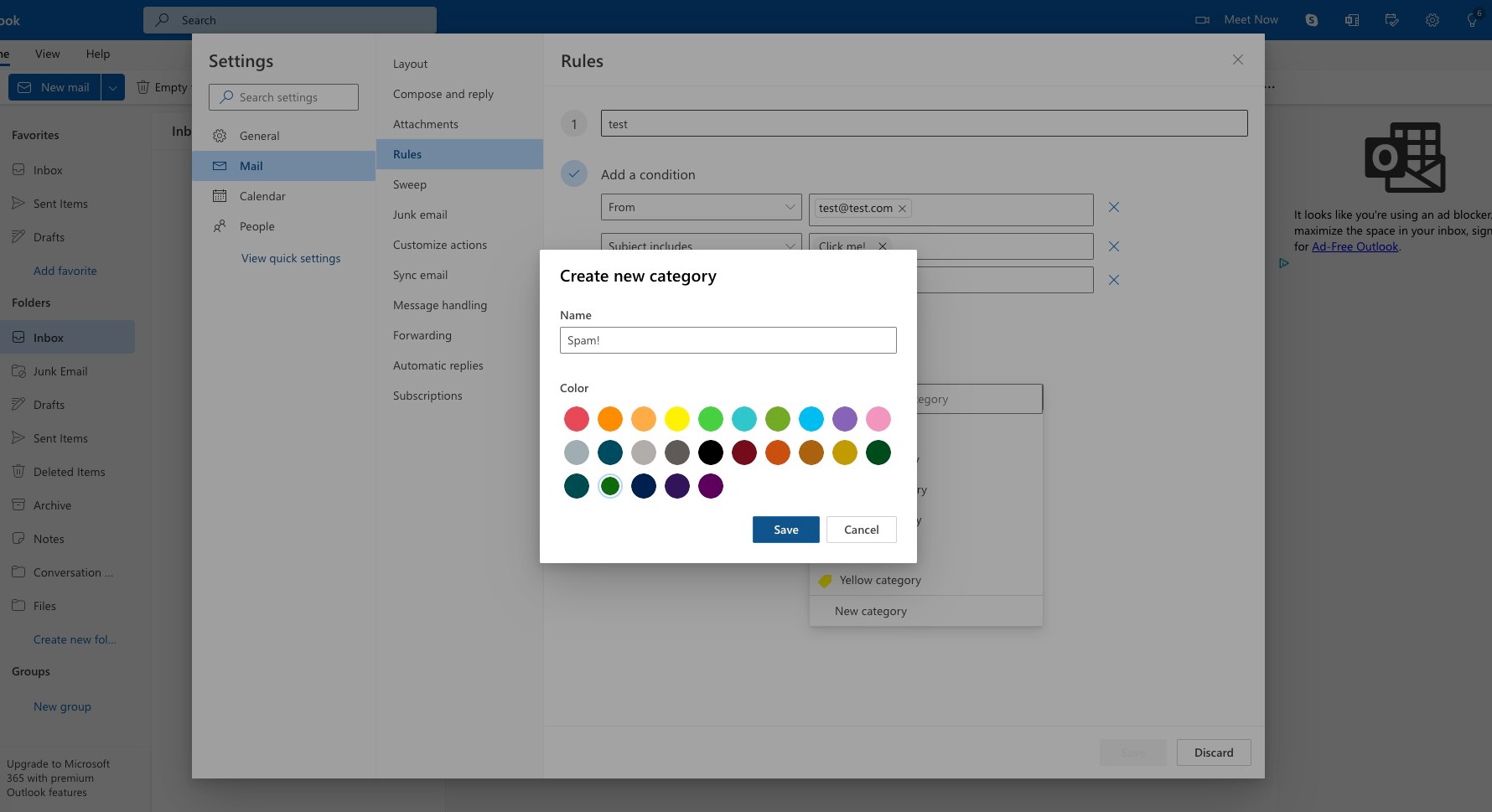
Click a color you'd like.
Step 62
Click "Save"
Step 63
Click "Run rule now"
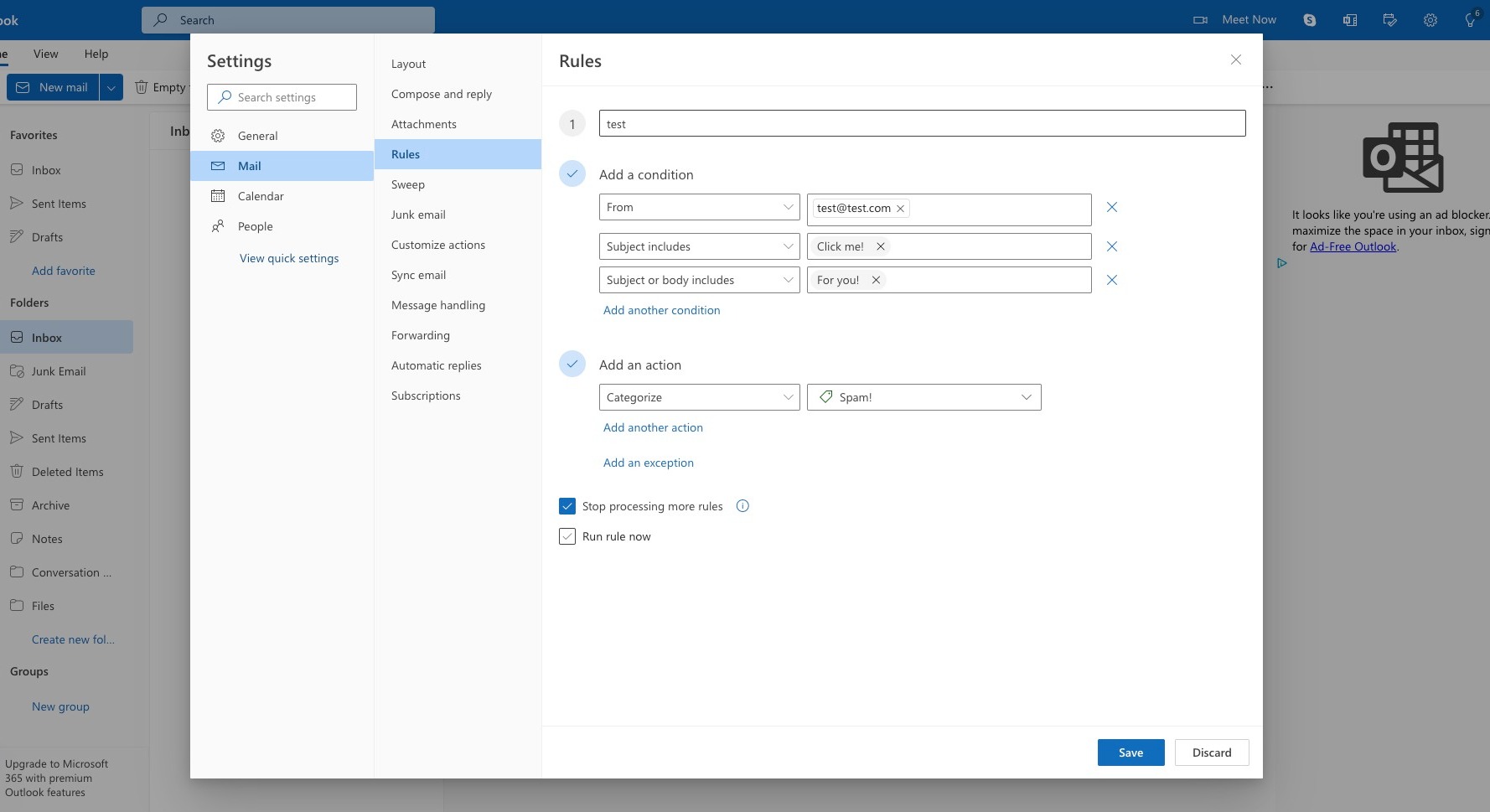
Step 64
Click "Save"