Snapchat Hardening Guide
Finding Privacy & Security Settings and Where to Find Your Personal Information
Step 1
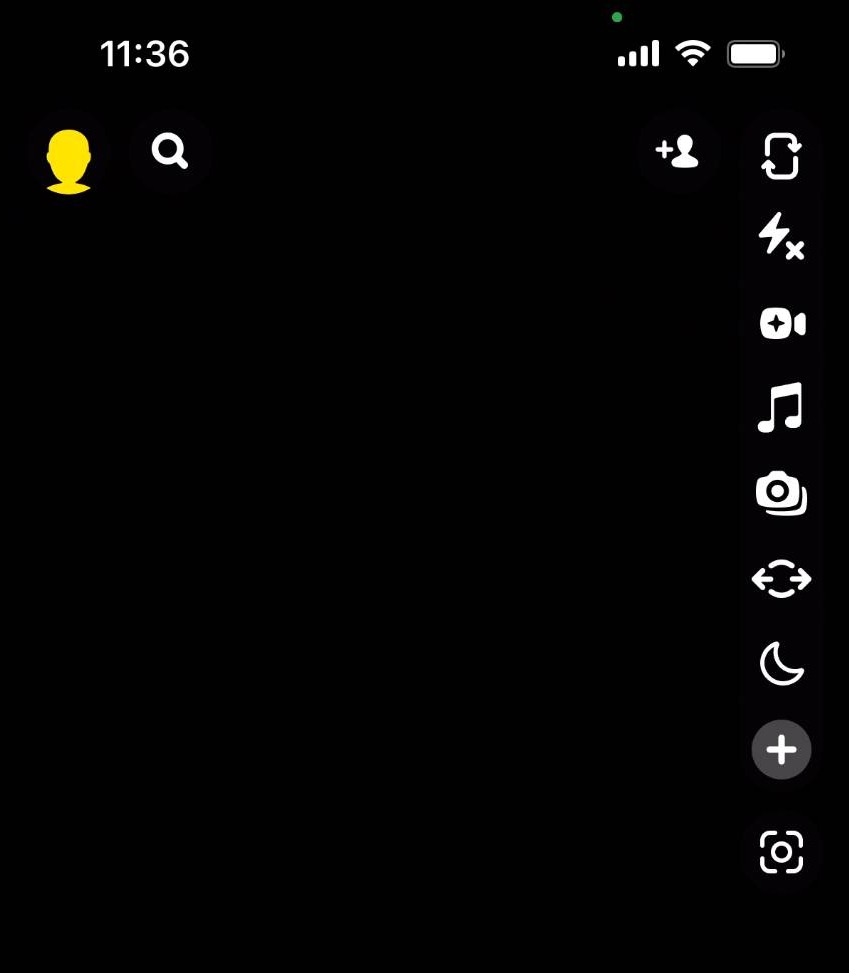
Click your profile icon at the top left corner of the app
Step 2
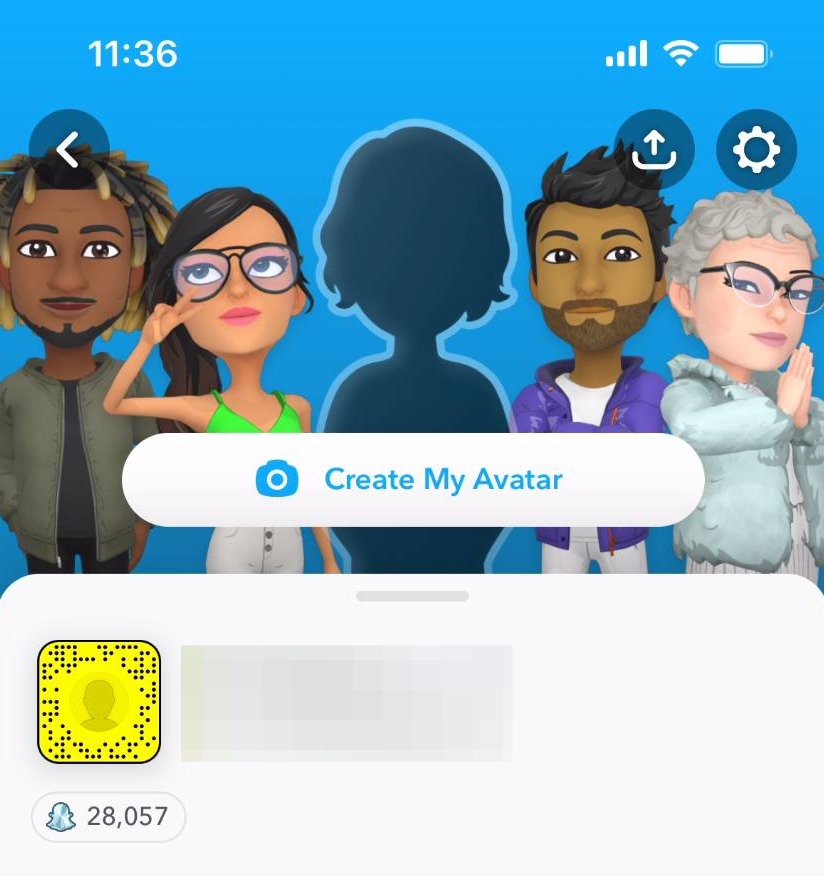
Click the settings icon
Step 3
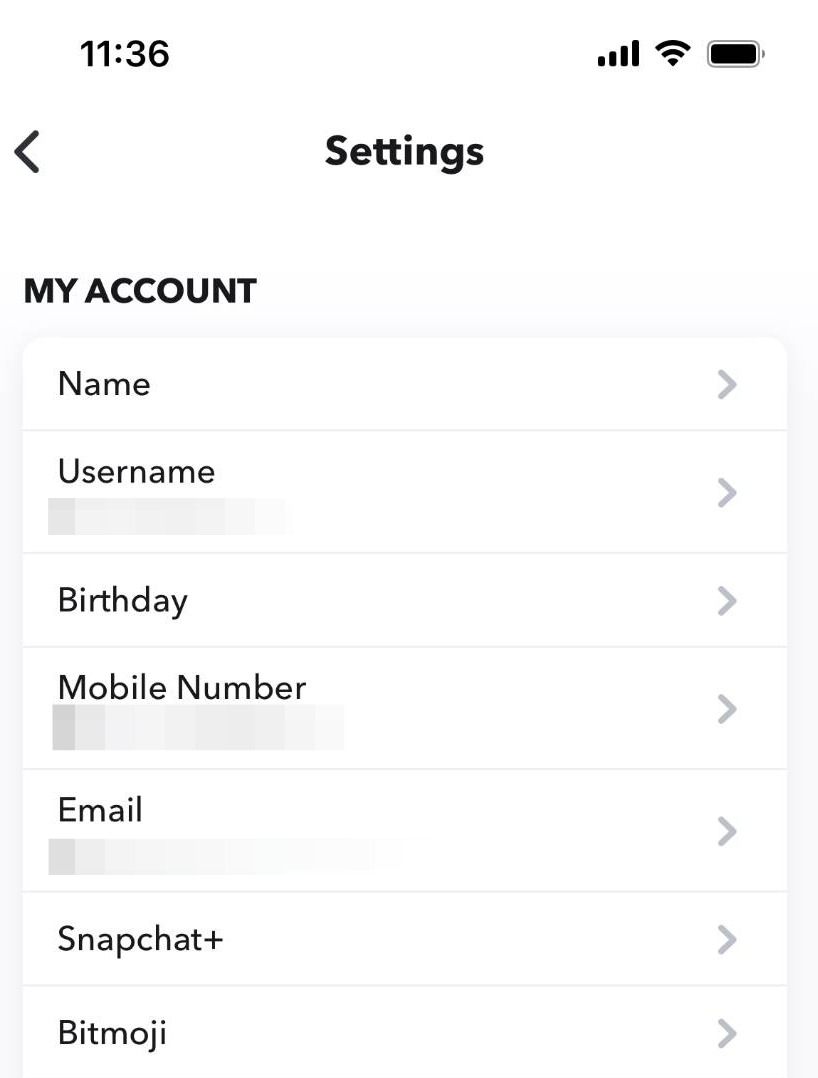
In the settings page, you will see all of your personal information. This is also where your privacy and security controls will be found
How to Update Your Password
Step 4
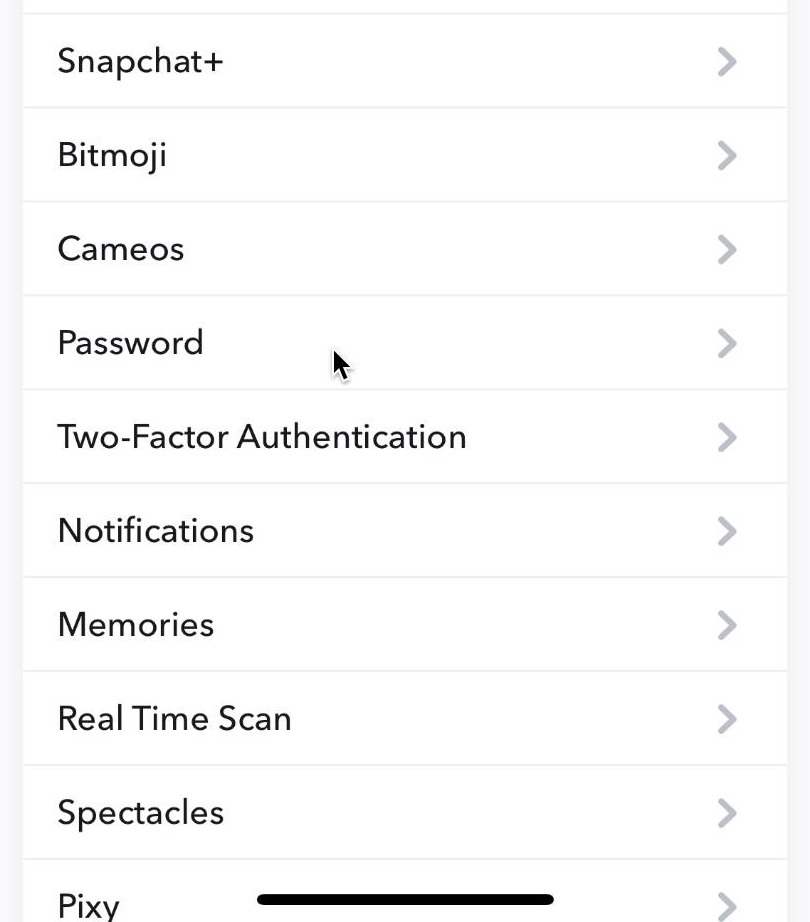
Go back to the settings page
Step 5
Click password
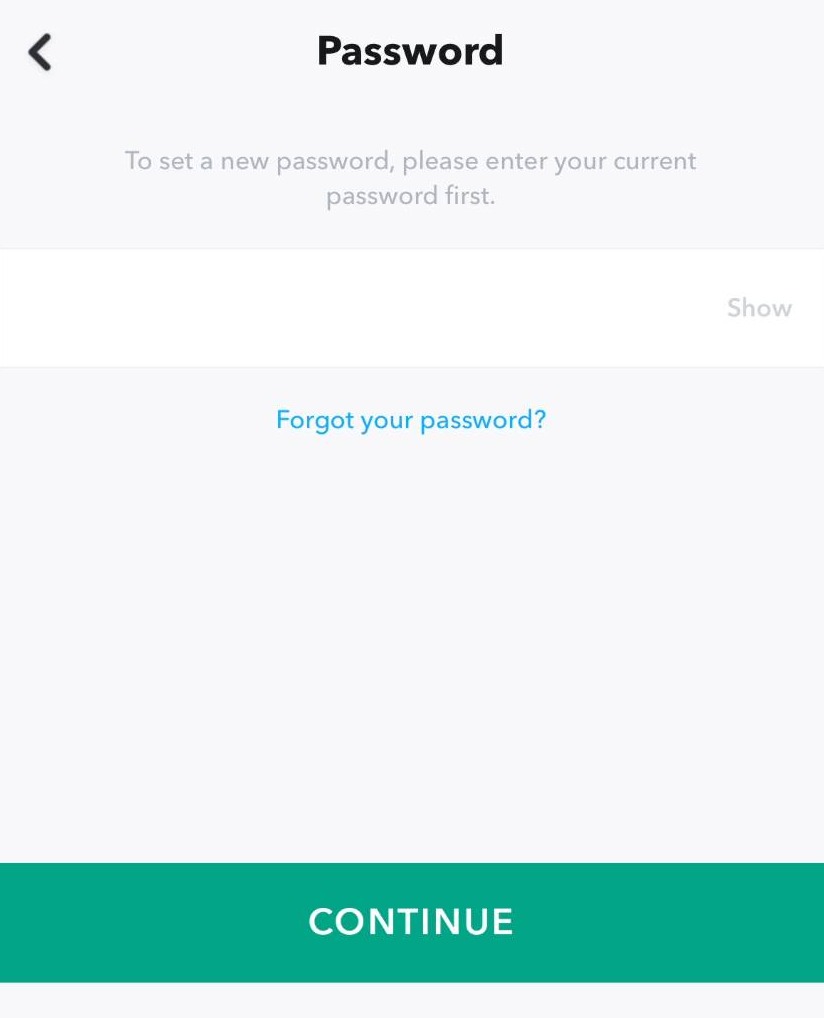
Step 6
Enter your old password and click continue
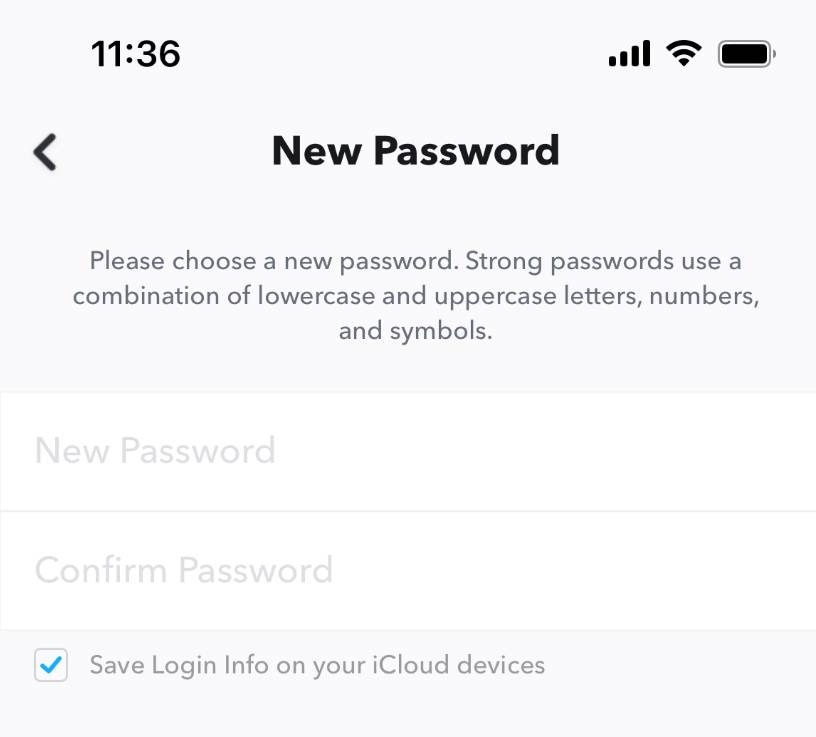
Step 7
Enter and confirm your new password
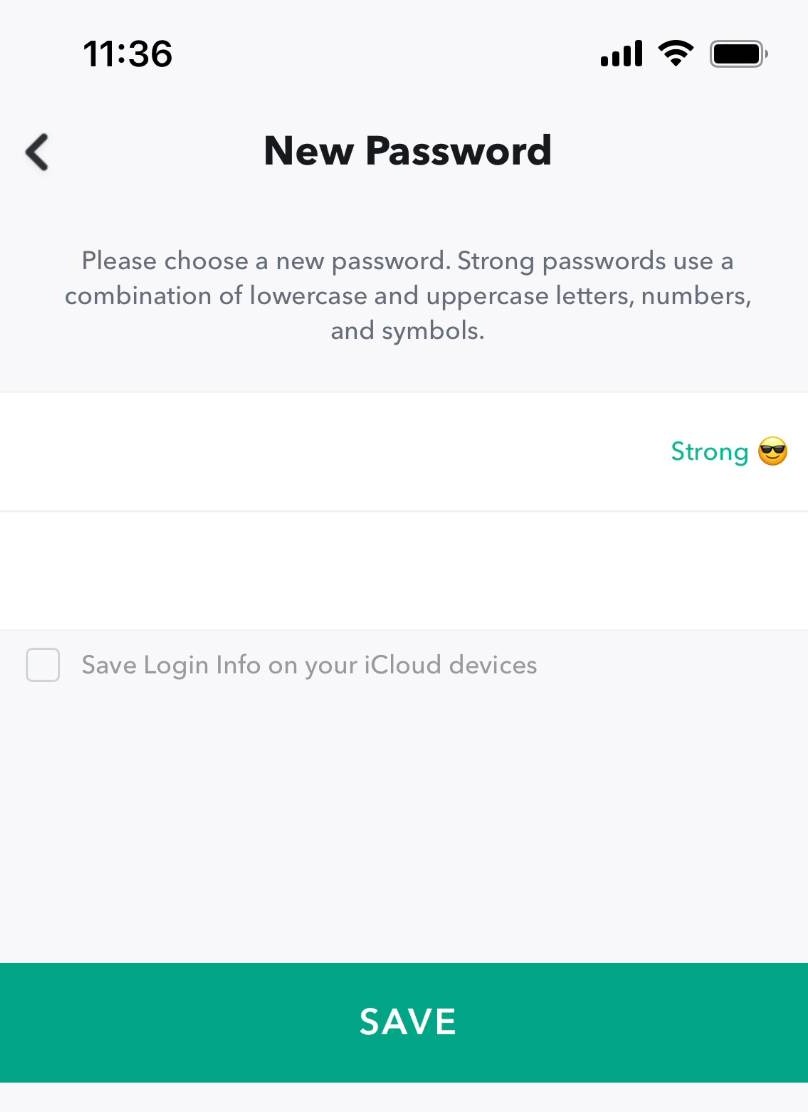
Step 8
Then click save
Step 9
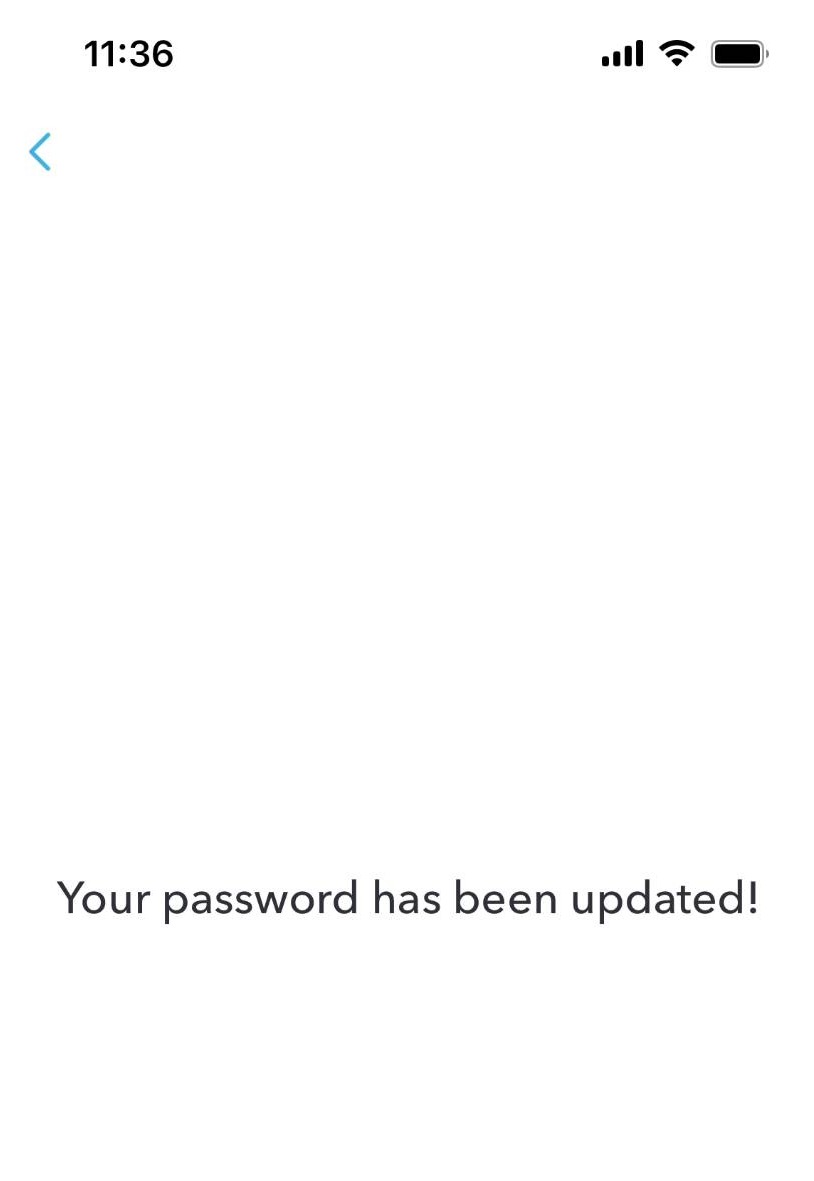
You will see this screen when the process has been completed
Enabling Two-Factor Authentication
Step 10
Go back to the settings page
Step 11
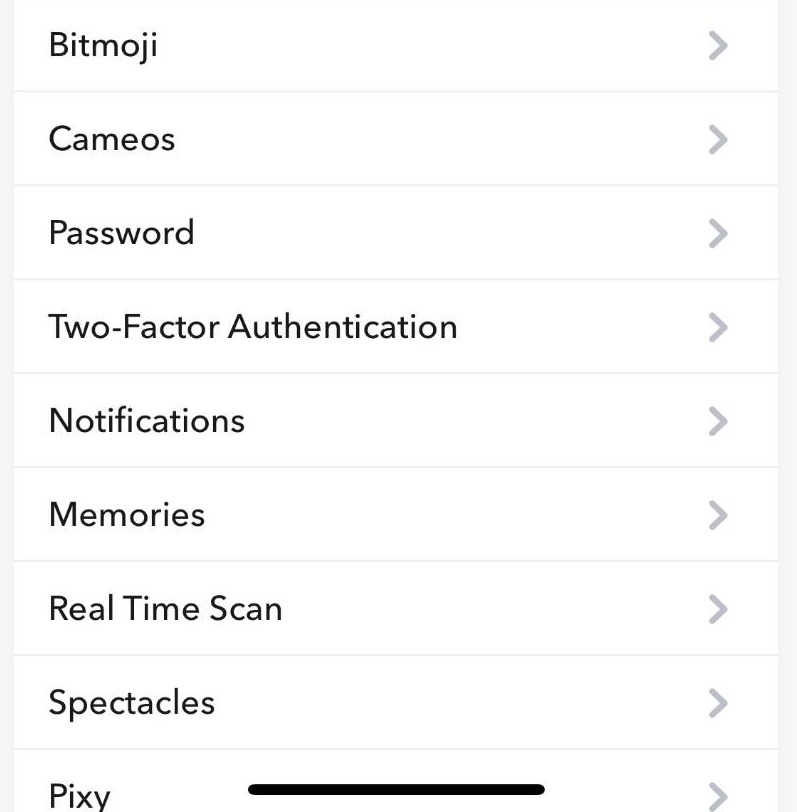
Click two-factor authentication
Step 12
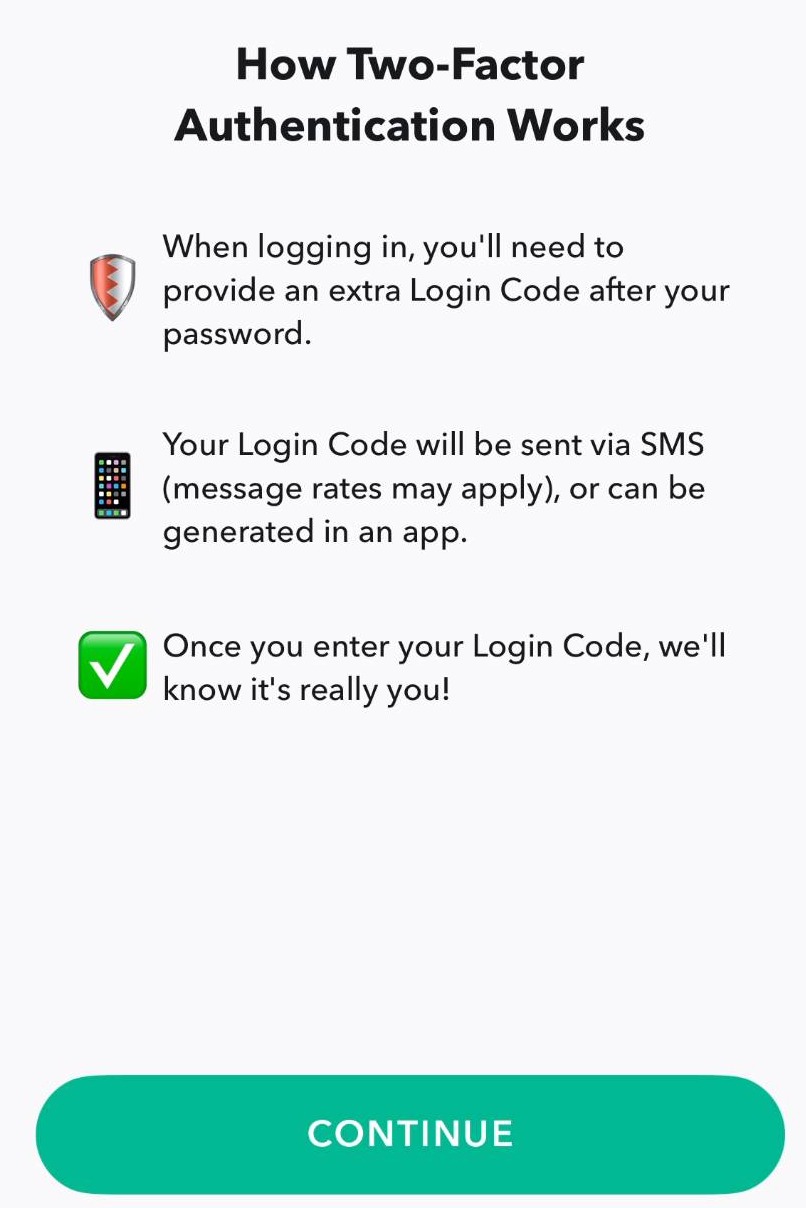
Click continue
Step 13
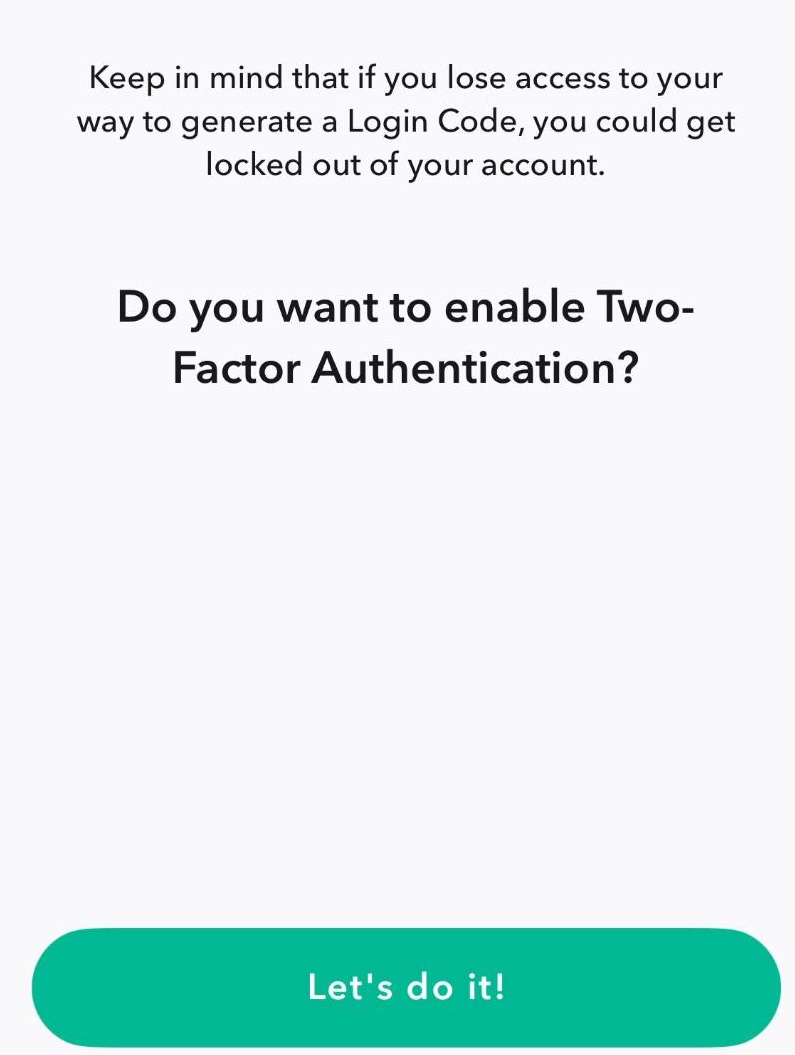
Click this button after reading the warning
Step 14
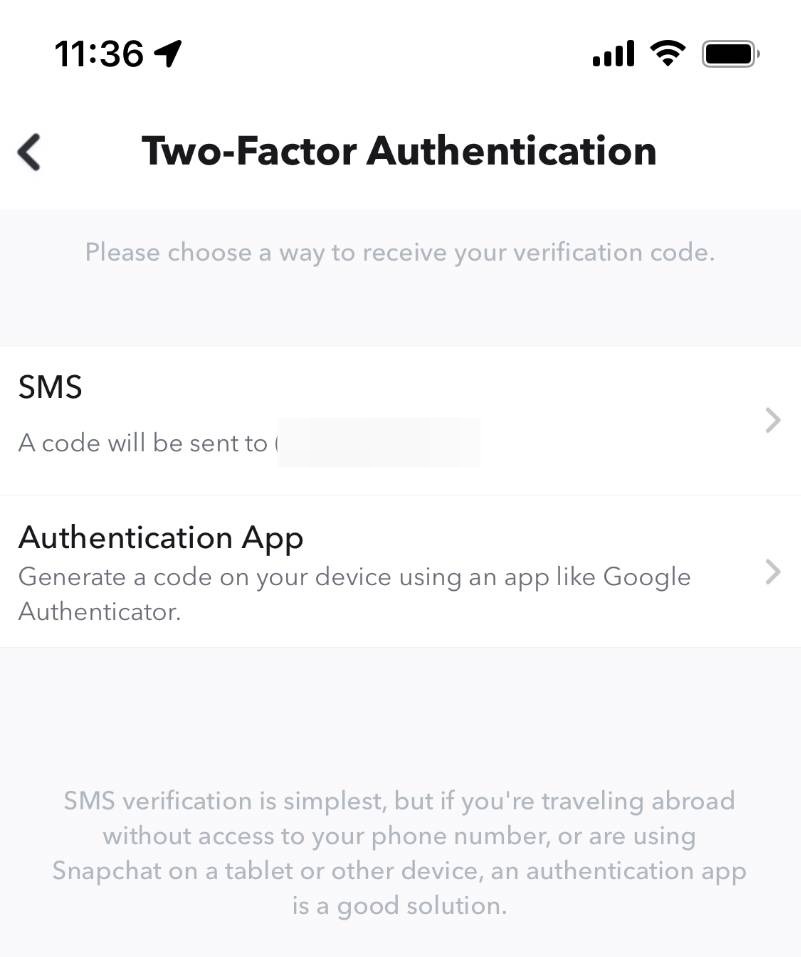
Choose your authentication method of choice. BlackCloak recommends using an authentication app
Step 15
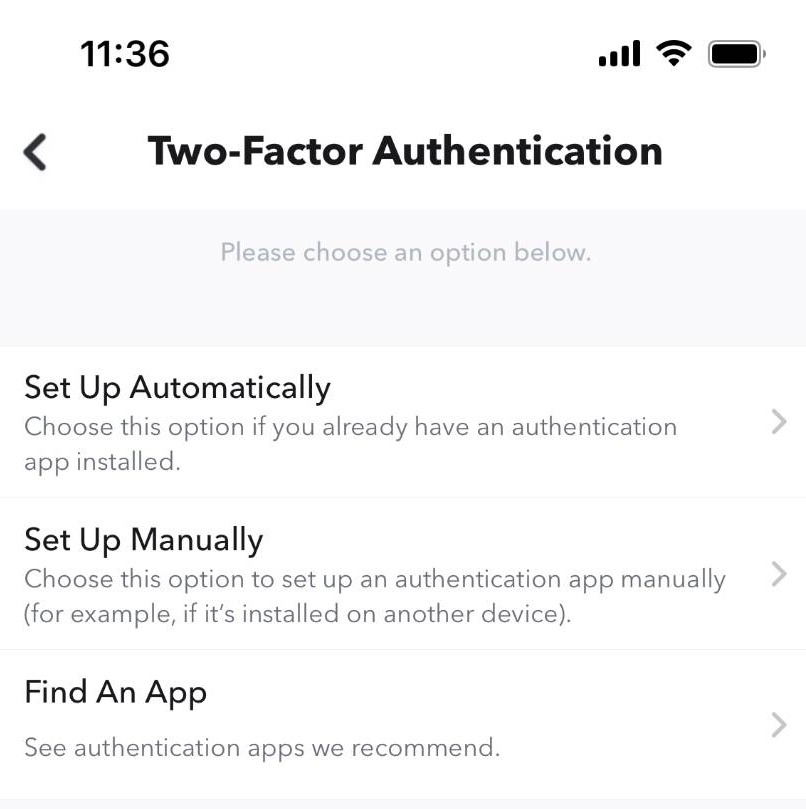
Click set up manually
Step 16
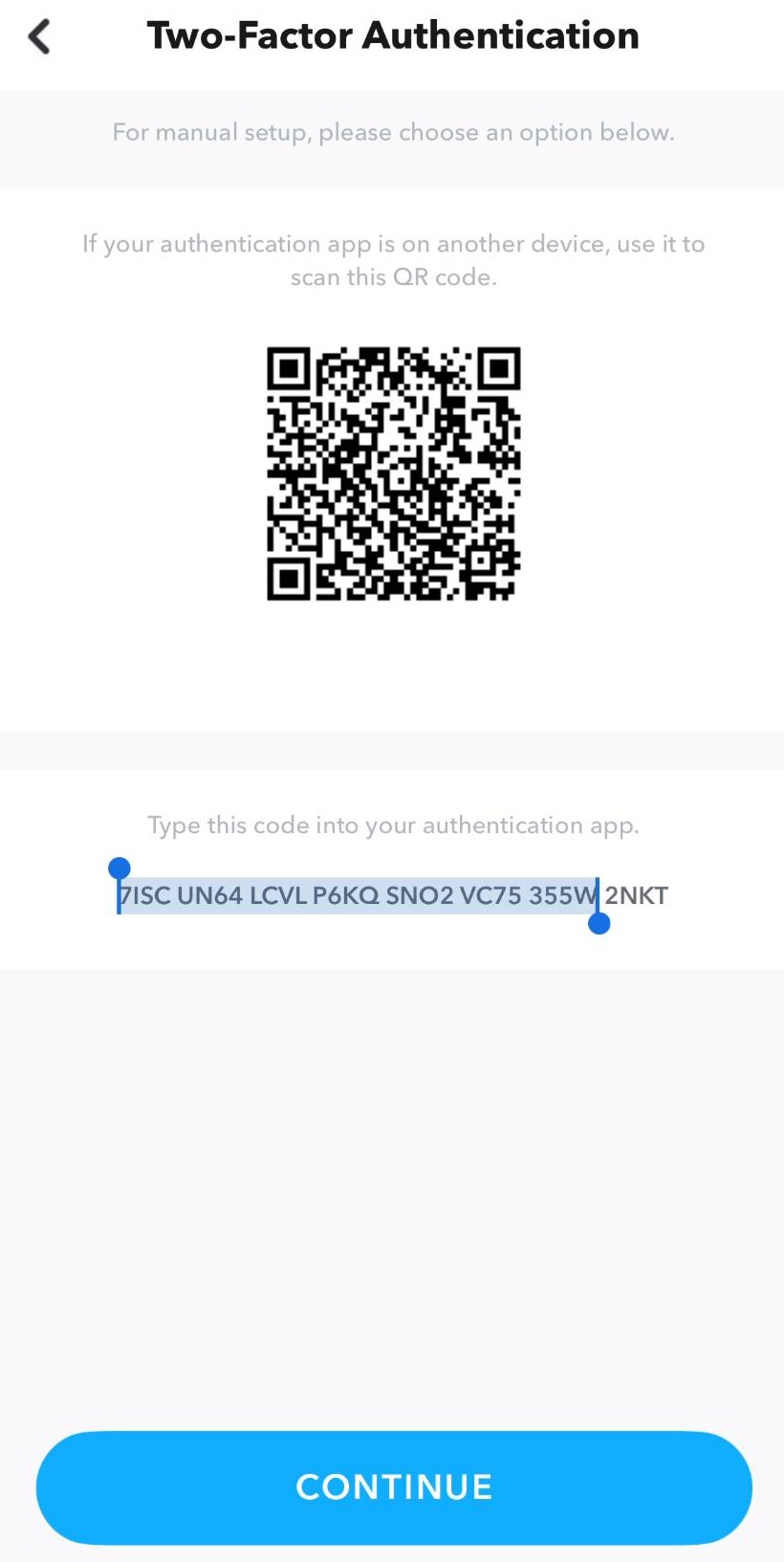
Scan the QR code or enter the key into your authentication app and click continue
Step 17
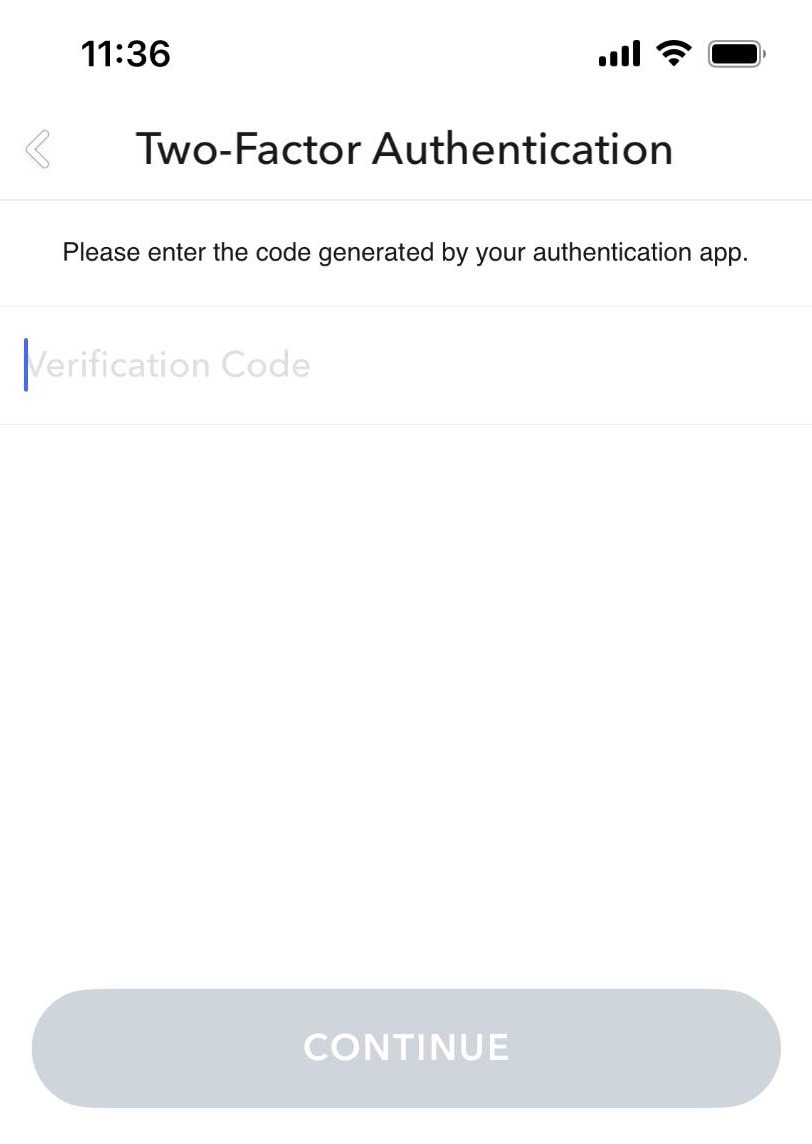
Enter the six digit code generated from your authentication app. Click continue to finish the process
Adjusting Profile Privacy Settings
Step 18
Go back to the settings page
Step 19
Under privacy controls, click contact me
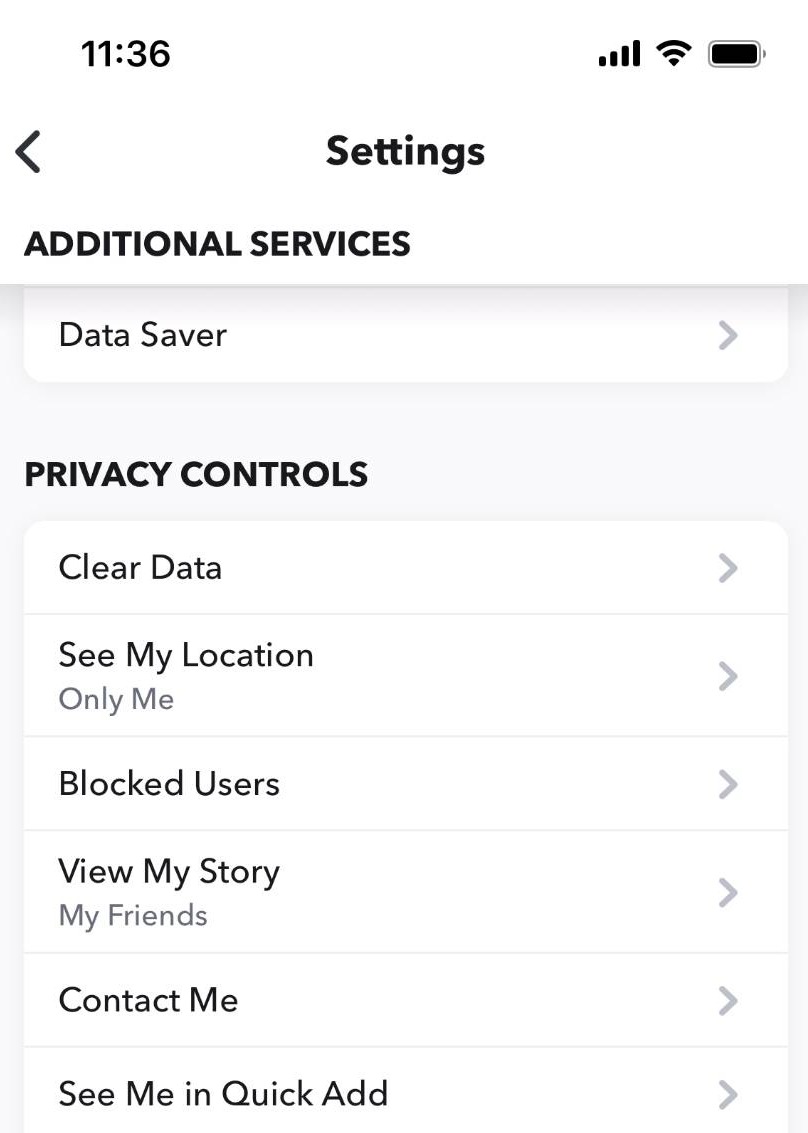
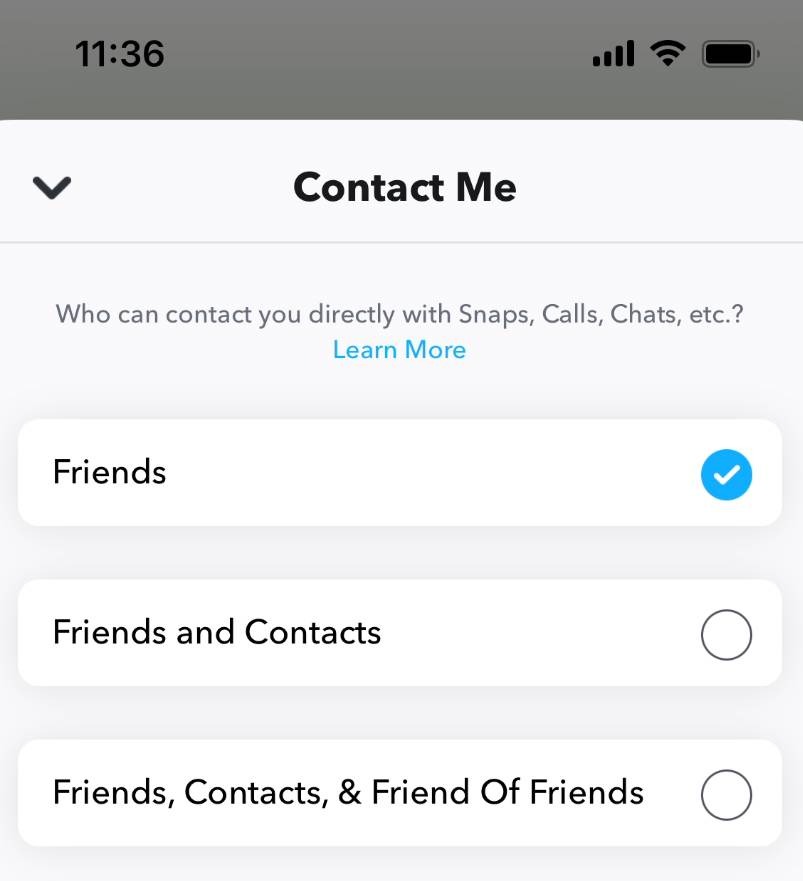
Step 20
On this page, you can choose who can contact you directly
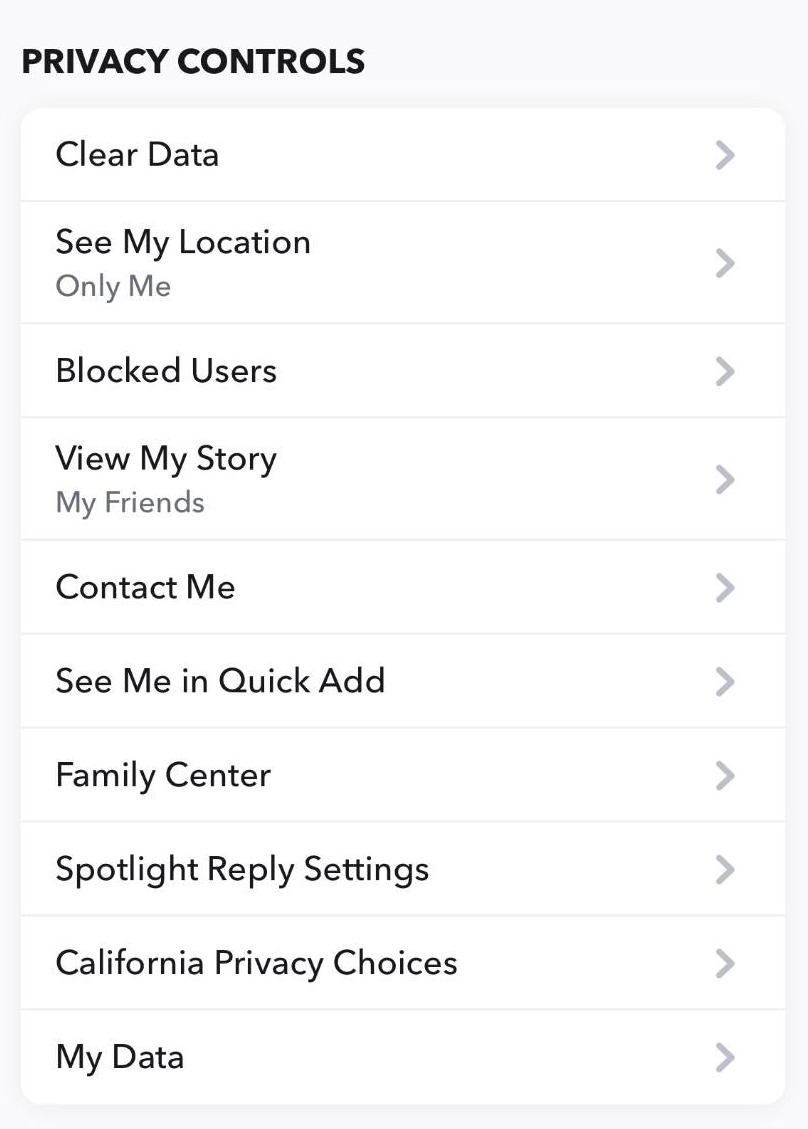
Step 21
Back on the settings page, click see me in quick add
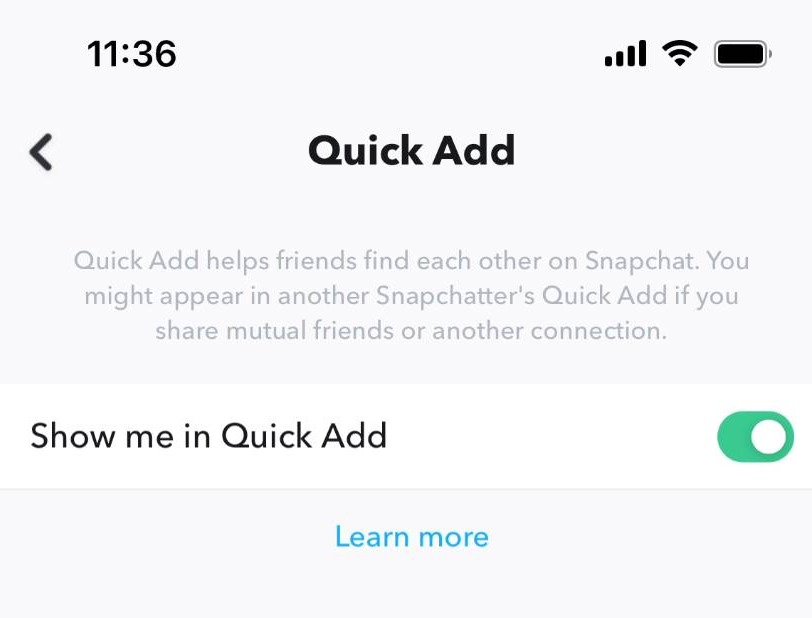
Step 22
Here, you can choose whether other people can find you on Snapchat through mutual friends or other connections
Step 23
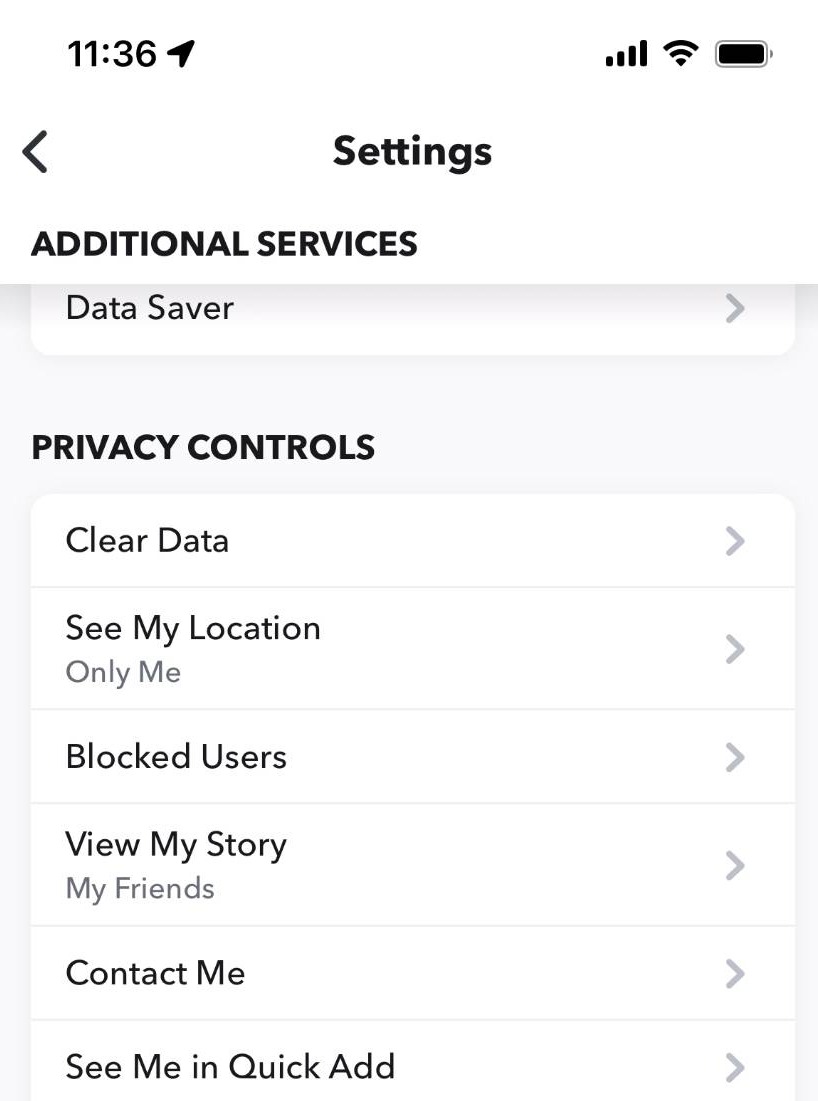
Back on the settings page, click view my story
Step 24
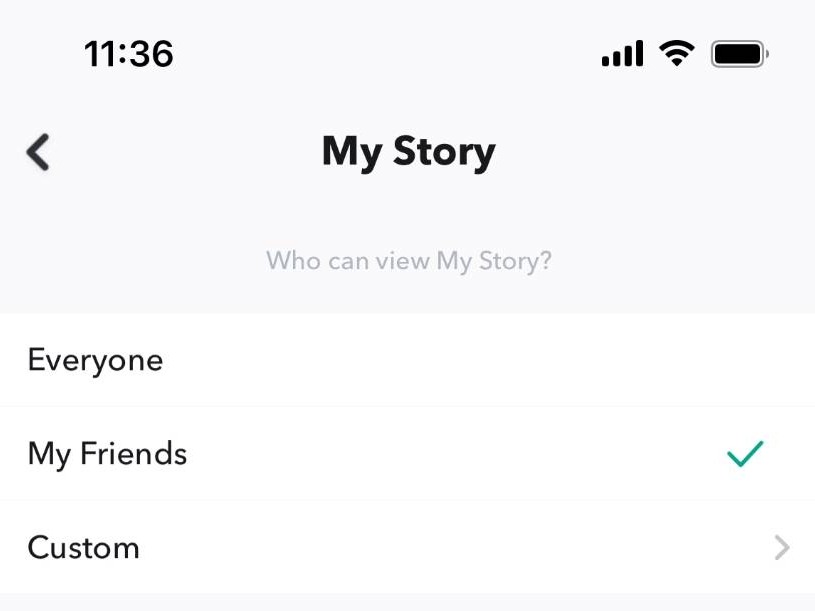
Here, you can choose who can view any stories you posst
Adjusting Location Settings
Step 25
Go back to the settings page
Step 26
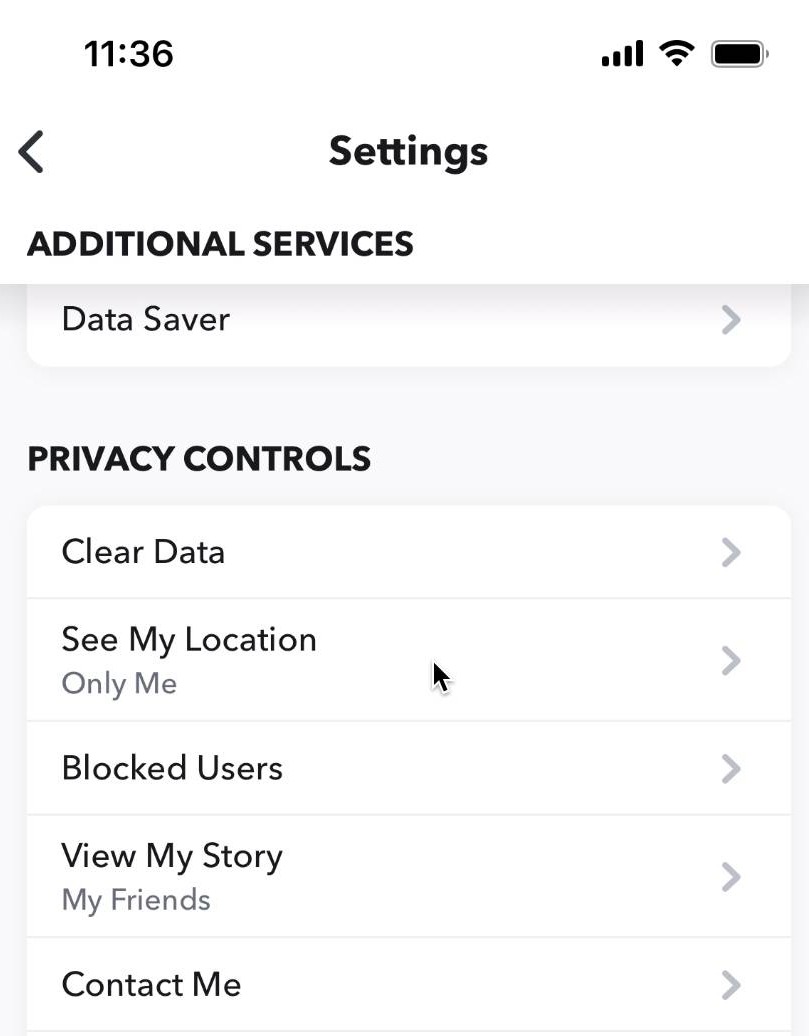
Under privacy controls, click see my location
Step 27
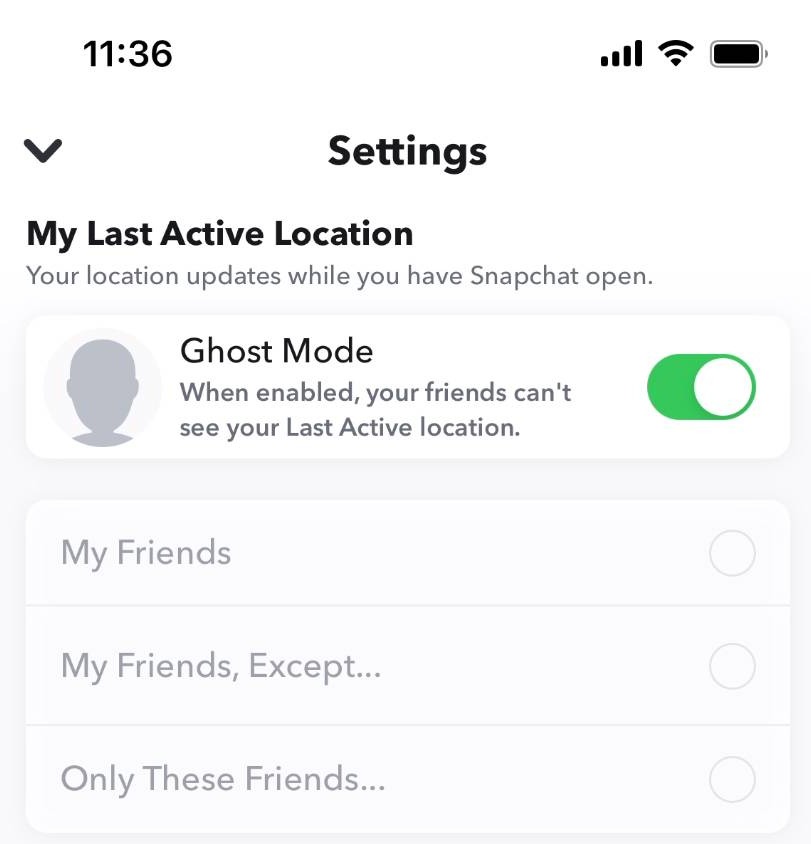
Click here to turn off ghost mode. When ghost mode is enabled, friends cannot see your last active location
Step 28
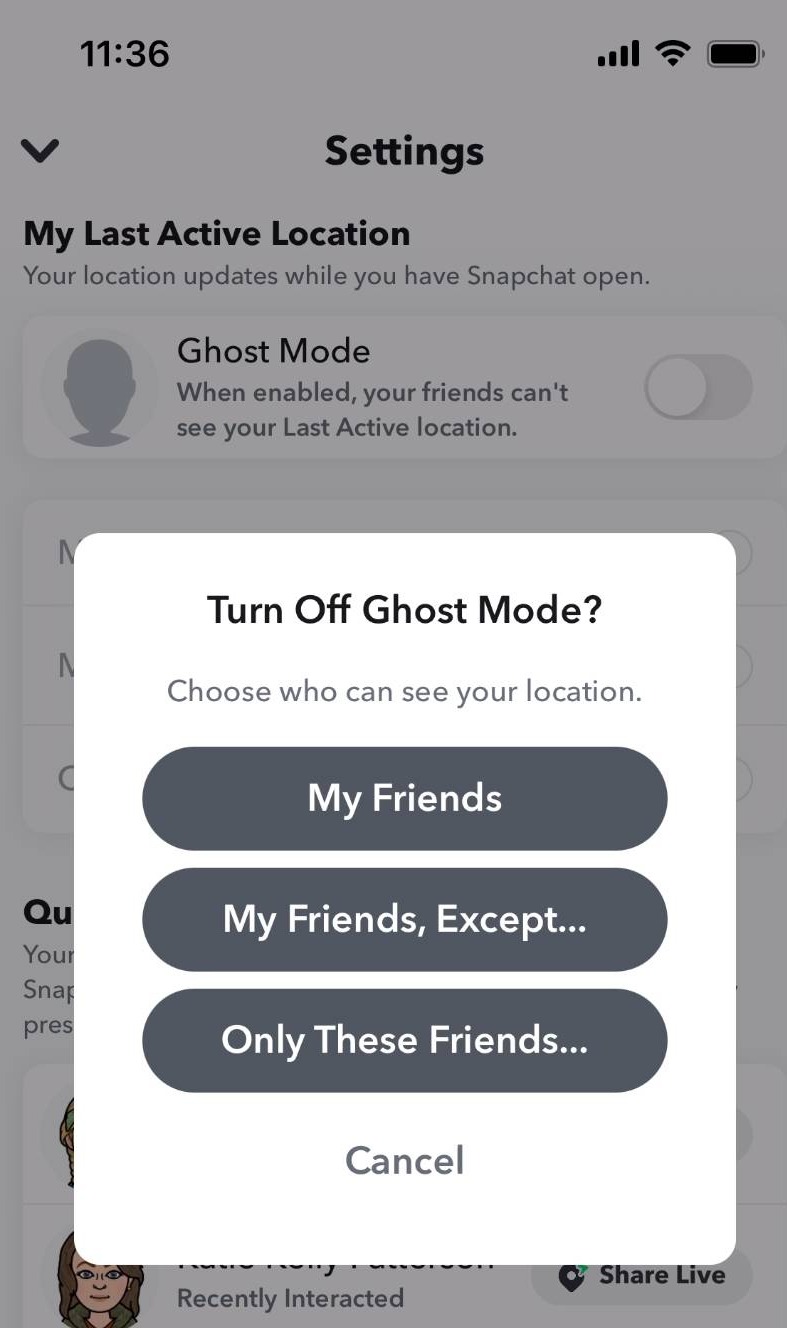
If you decide to turn ghost mode off, you can choose who can see your location
Step 29
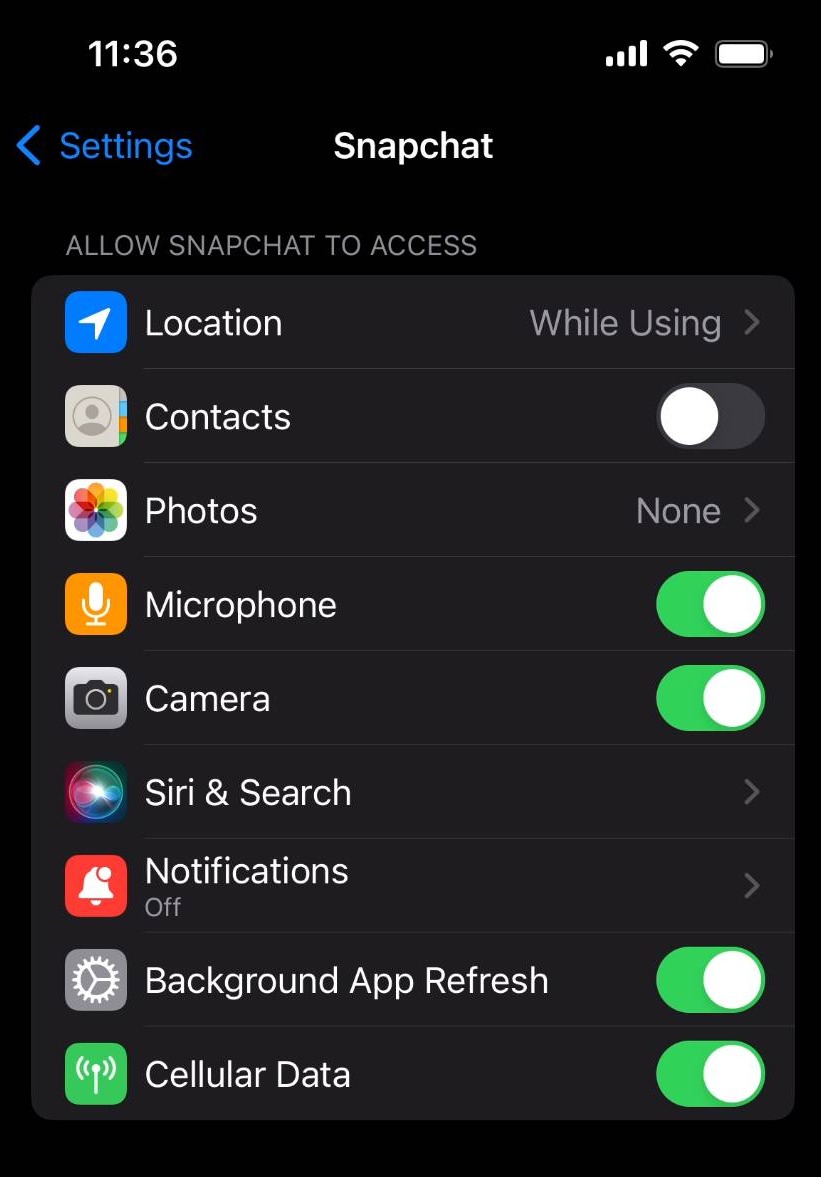
Additionally, you can search Snapchat in your phone's settings and click location
Step 30
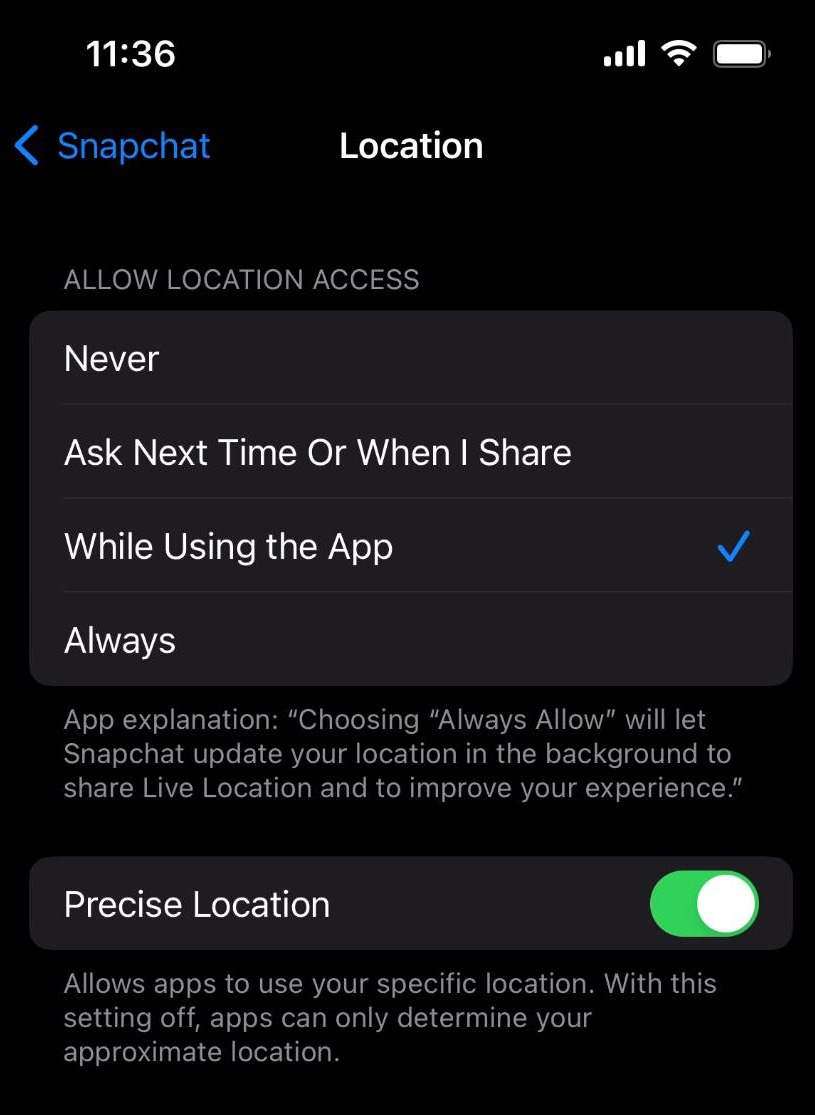
Here, you can choose when Snapchat can access your location
Adjusting Ad Preferences
Step 31
Go back to the settings page
Step 32
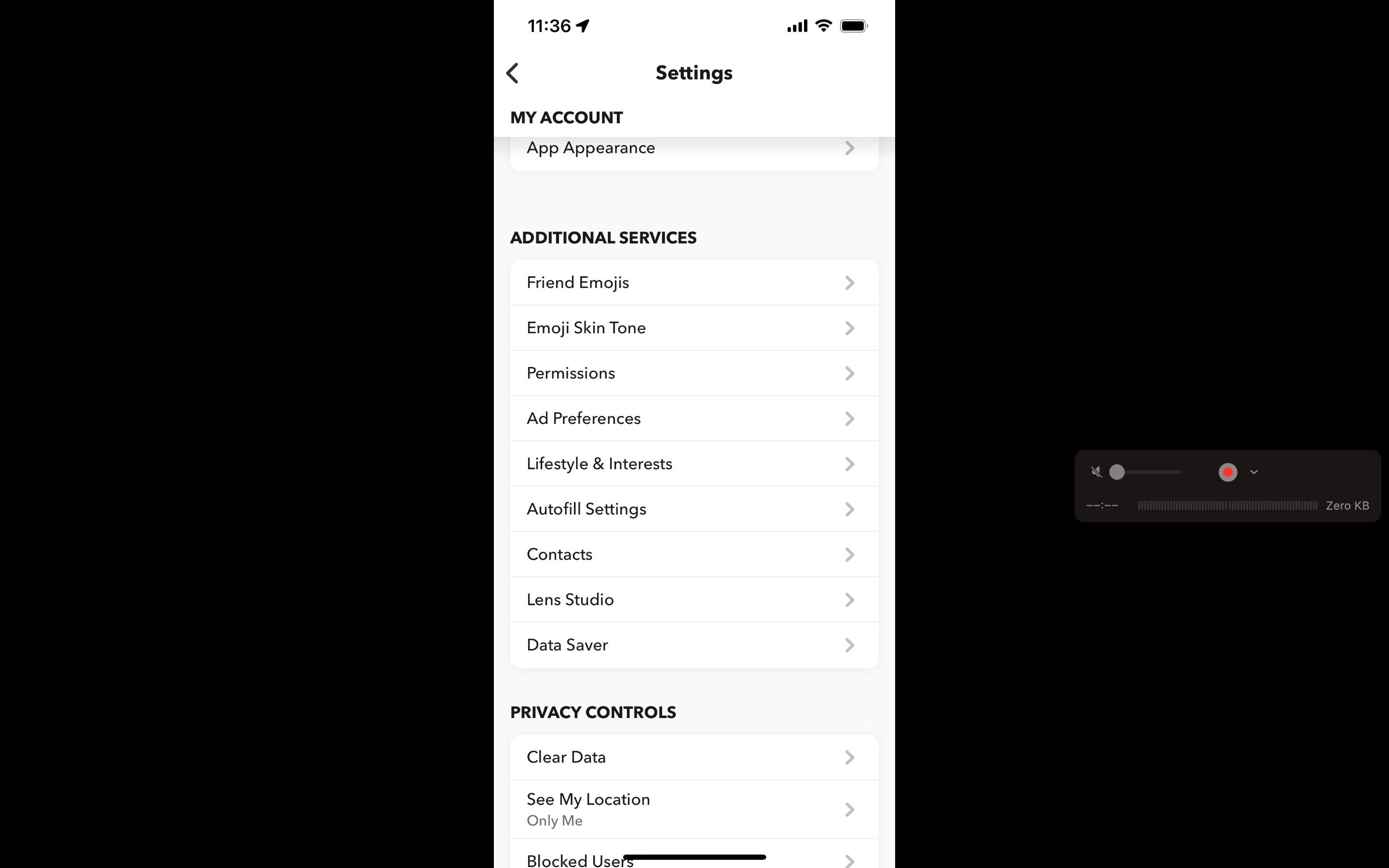
Under additional services, click ad prefences
Step 33
Here, you'll have the option to turn off three different forms of targeted advertising. The first is based off audience lists Snapchat receives from advertisers
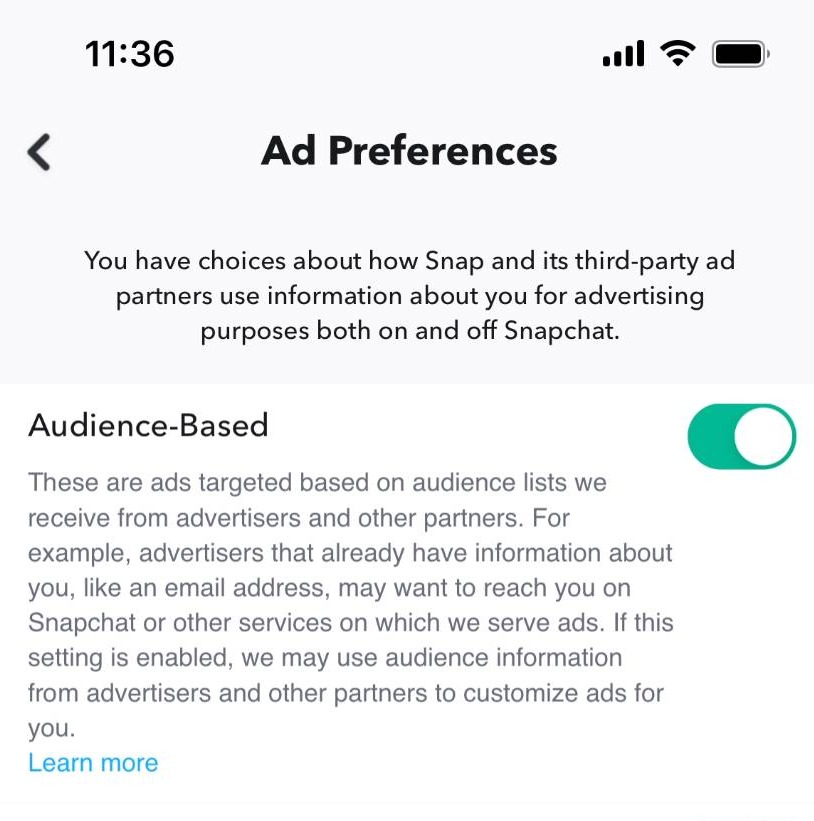
Step 34
The second is based off of your activity off Snapchat or on other services where Snapchat serves ads
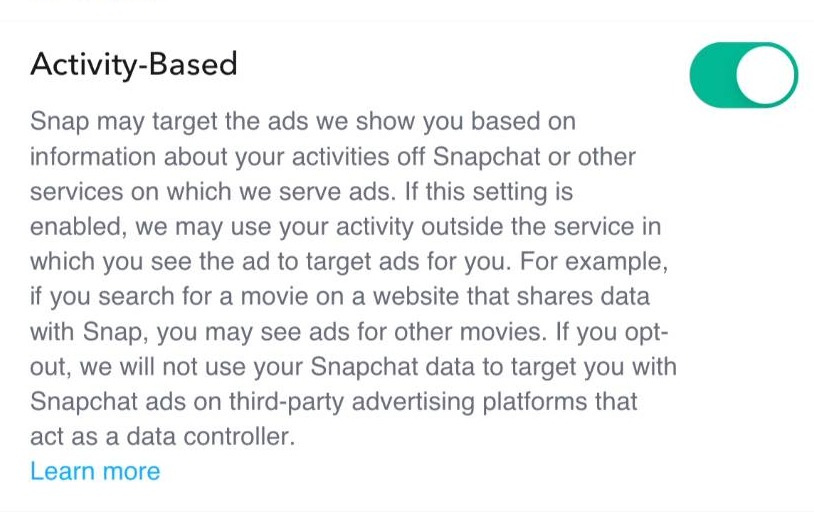
Step 35
The last one whether you want Snapchat to serve ads from third-party ad networks
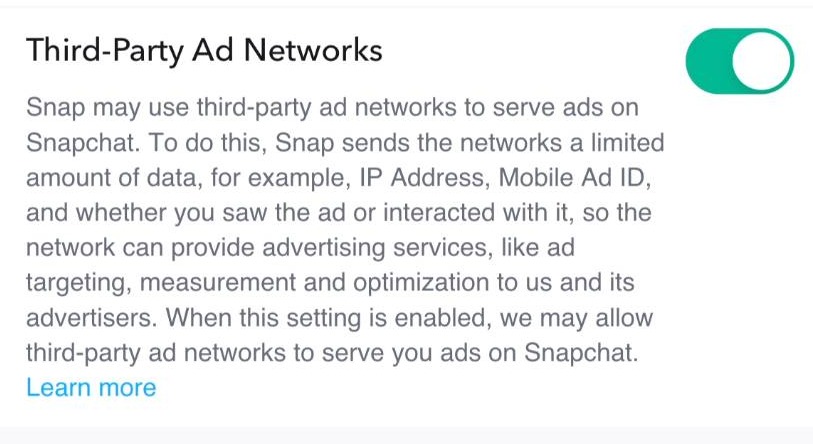
Adjusting Permission Settings
Step 36
Go back to the settings page
Step 37
Under additional services, click permissions
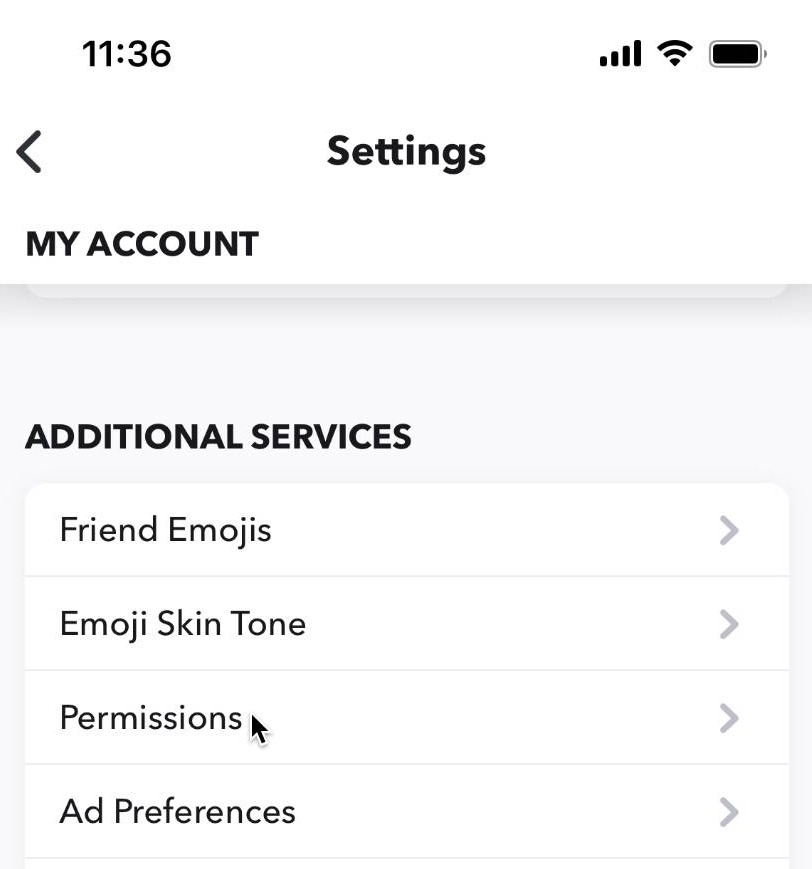
Step 38
Here, you can see whether Snapchat has permission to access your location, camera, microphone and to send you notification
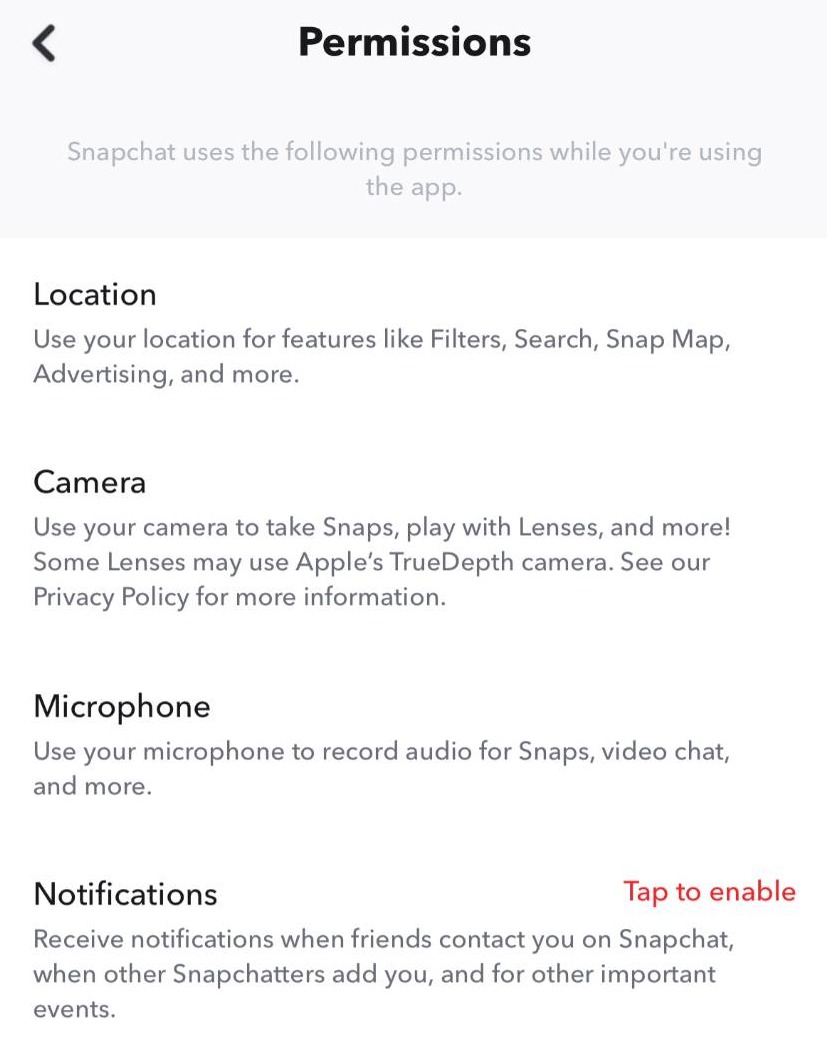
Step 39
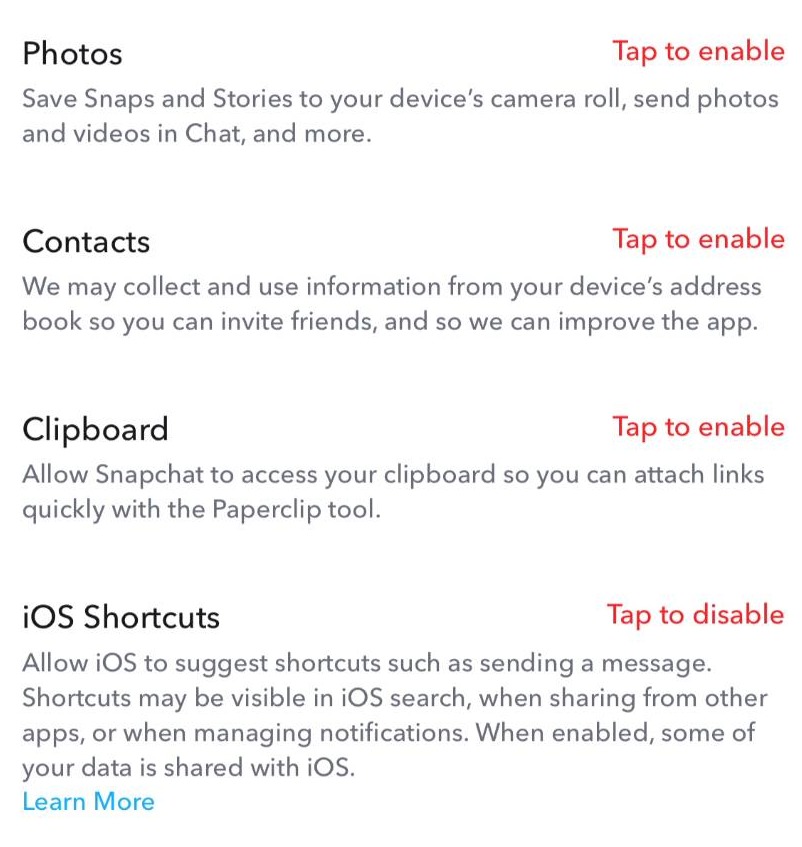
You can also see whether Snapchat has permission to access your photos, contacts, clipboard and iOS shortcuts