
Impersonation Protection: How to Build and Use Your circle of trust
Step-by-step instructions for inviting someone into your circle of trust and confirming requests day to day
This article covers inviting someone to your circle of trust and using it once they've accepted. For an overview of what circle of trust is and why it matters, see “Impersonation Protection: Understanding Your circle of trust.”
Circle of trust is included with the paid Impersonation Protection add-on. If you already have Impersonation Protection, you already have circle of trust. Check your App profile or ask your BlackCloak account team if you're not sure whether it's on your plan.
How to Add Someone to Your circle of trust
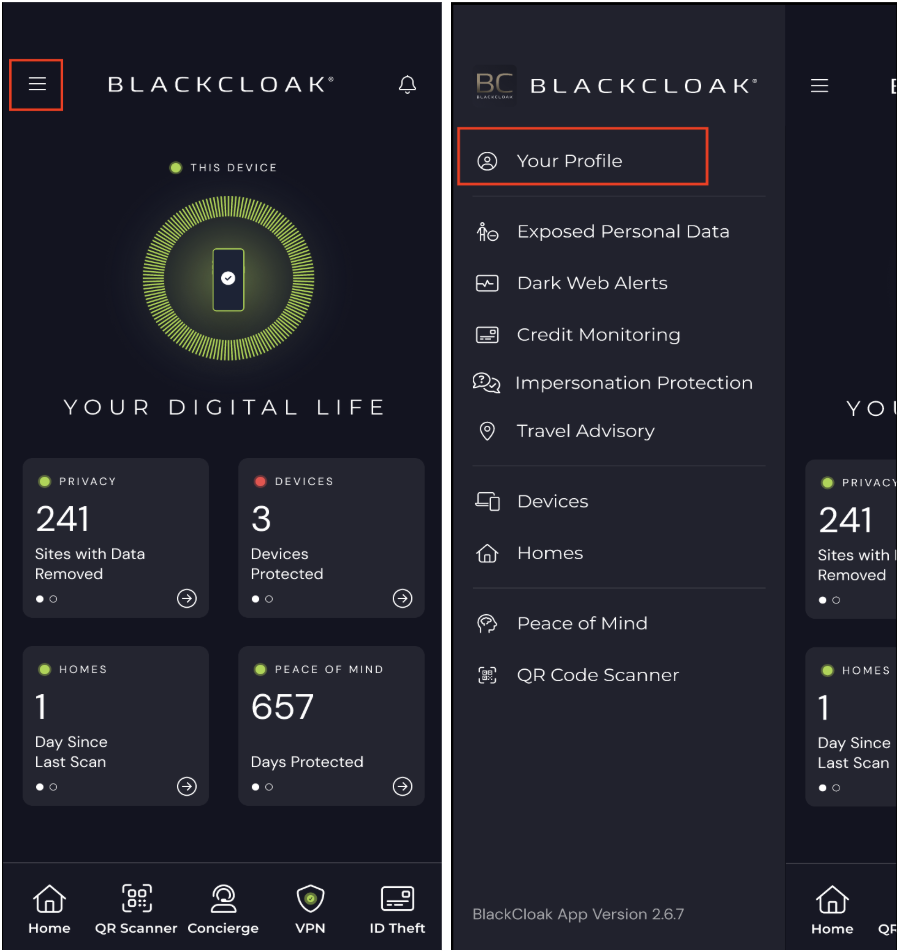
Open the BlackCloak app.
Tap the three-line menu icon in the top corner and select Your Profile.
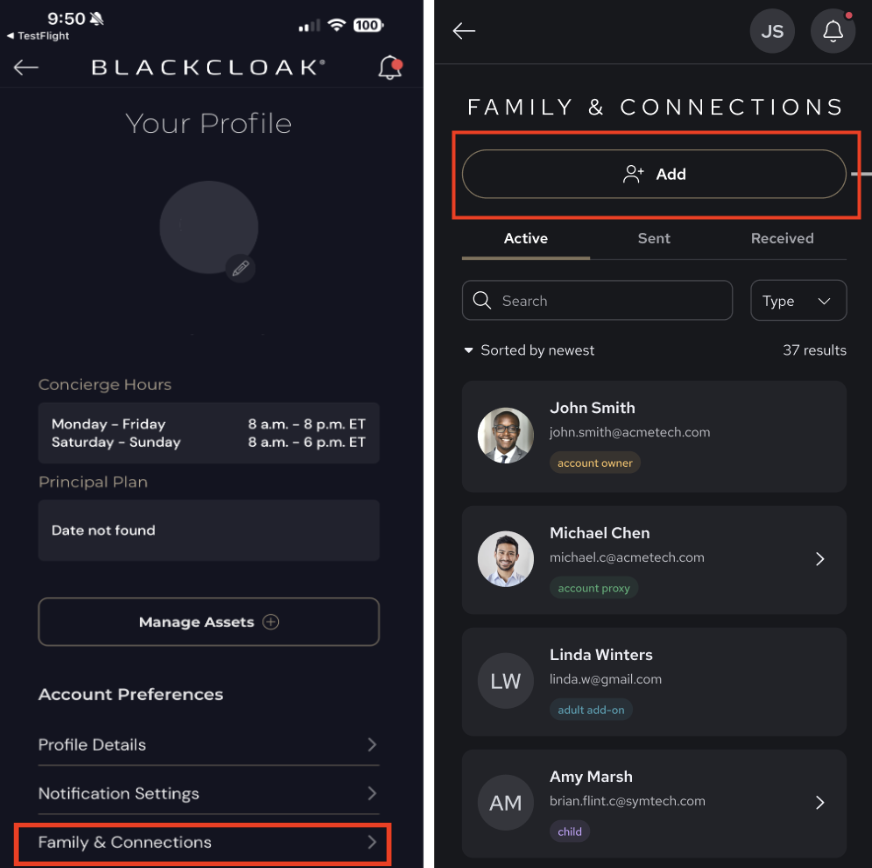
Choose Family & Connections, then tap Add.
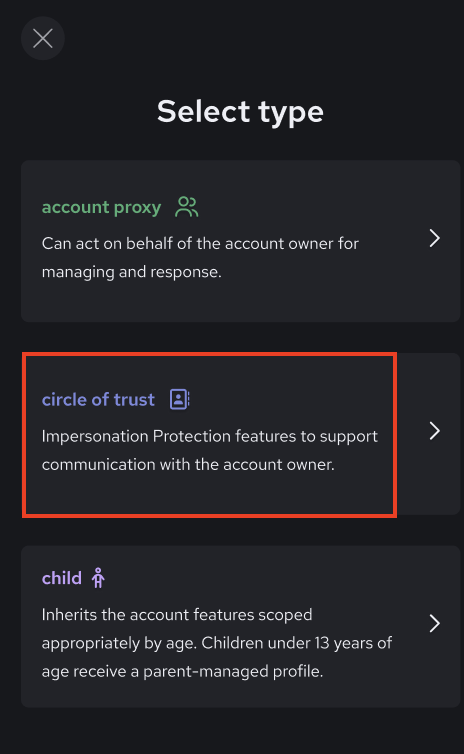
Select circle of trust as the connection type.
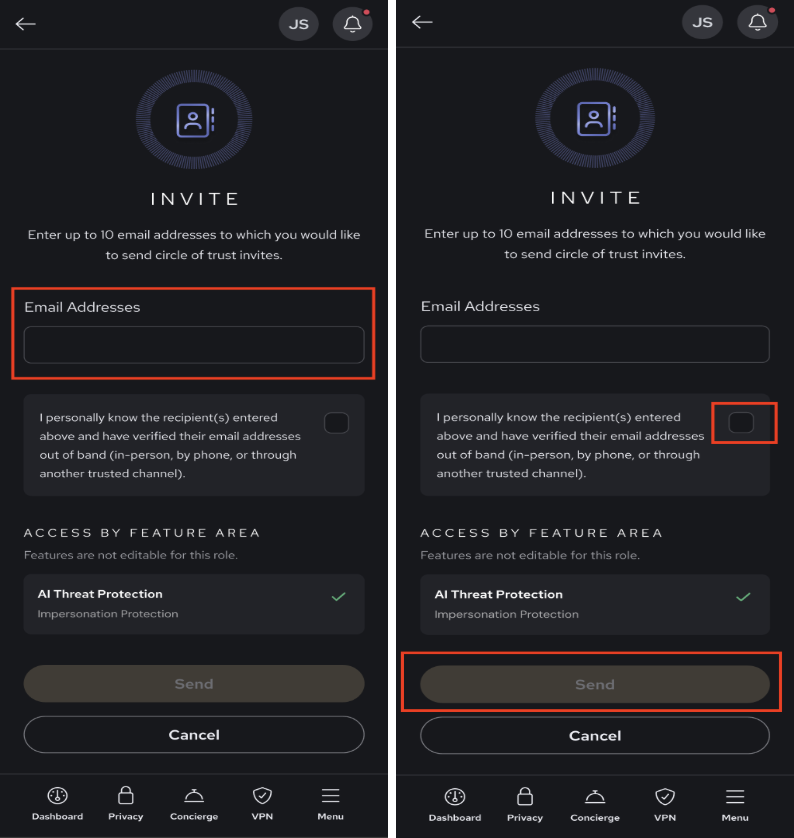
Enter the person's email address (you can invite several people at once), then review the warning that appears and check the box to confirm you're inviting the right person. Only after confirming their details are correct, tap Send.
What happens next depends on whether the person already uses BlackCloak:
Already a BlackCloak member, but not part of your family or organization? The recipient will get an email and a push notification in the app they already have. They tap Accept Invitation and the connection is active right away, with no new install needed.
Already part of your family or organization? The invite won't go through. You're already connected, so a separate circle of trust invitation isn't needed.
New to BlackCloak? The recipient will get an email with a link to download the app and a one-time code. Setup takes about two minutes: install the app, enter the code, and confirm a few details (name, Face ID/biometrics, notifications).
Invitations expire after 72 hours. If your invitee misses it, you can resend it from the app.
This landing page will be shared with them via the invite email to assist their set up and potential questions: blackcloak.io/join-circle-of-trust.
Sending and Responding to a Confirmation Request
To send a request:
Open the BlackCloak app.
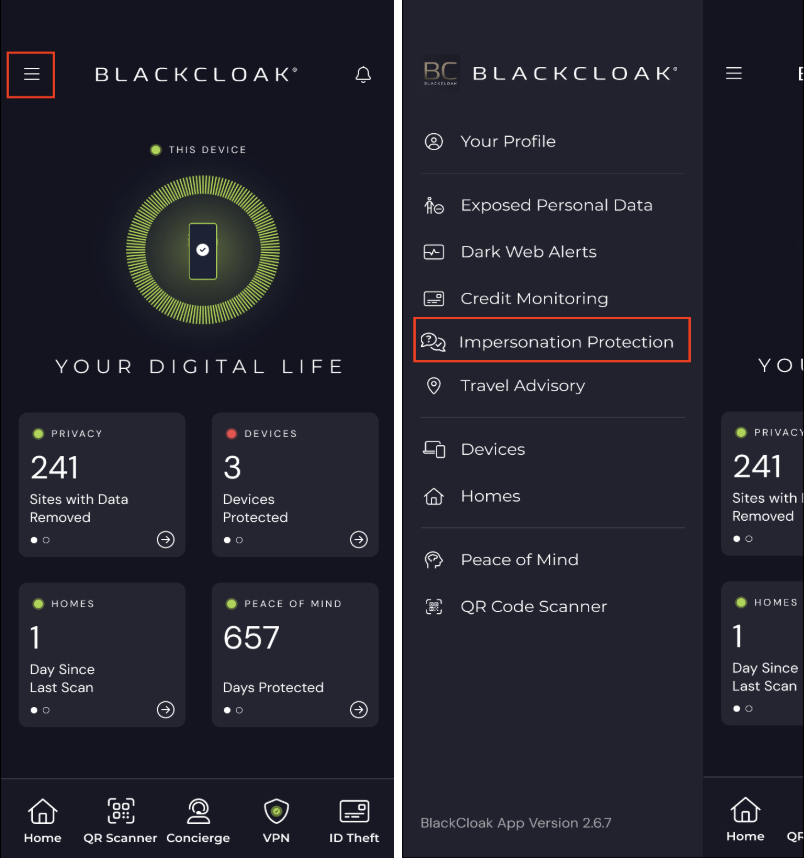
Tap the three-line menu icon in the top corner and select Impersonation Protection to open the dashboard.
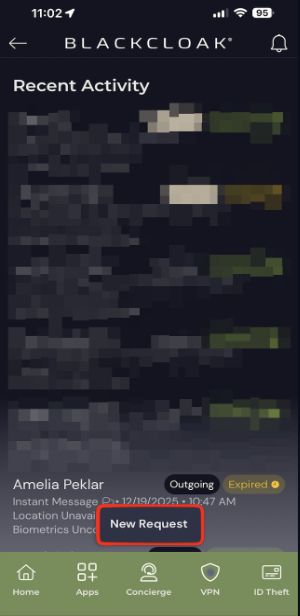
Tap New Request from the Impersonation Protection screen.
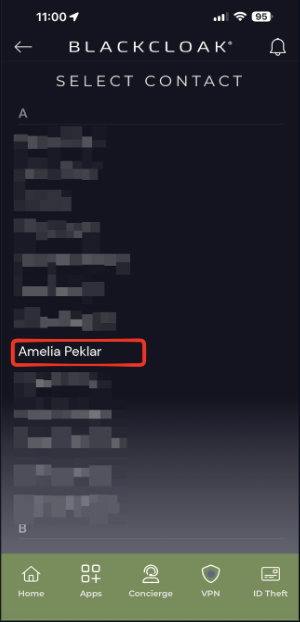
Select the circle of trust connection you want to confirm.
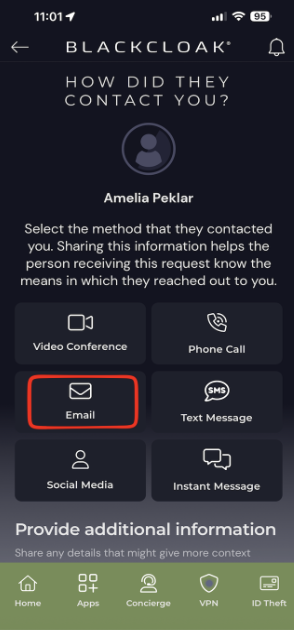
Choose how they originally contacted you (phone call, text, email, video call, social media, or another instant message).
Add a few details about what they asked for (for example: “Did you ask me for a $10,000 wire transfer from Chase Bank?” or “Did you ask me to send the password for our shared account?”)
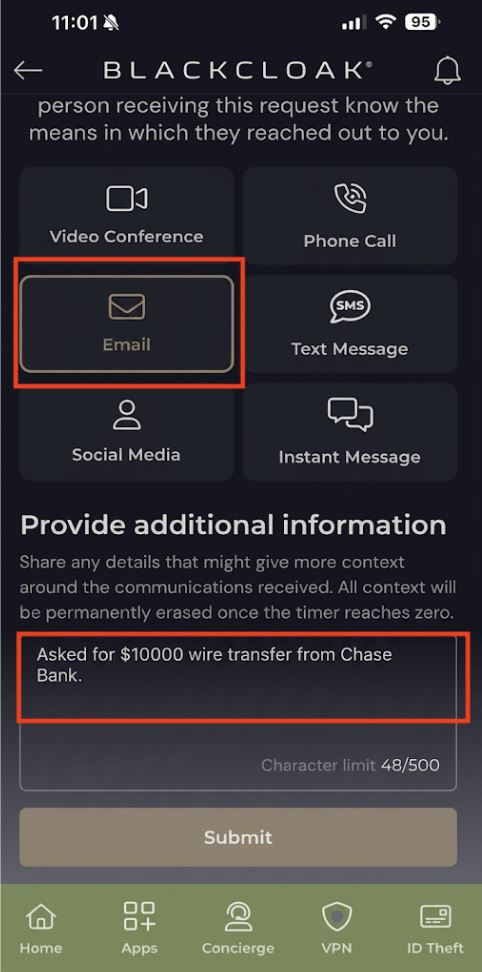
Tap Submit. Your connection has 30 minutes to respond.
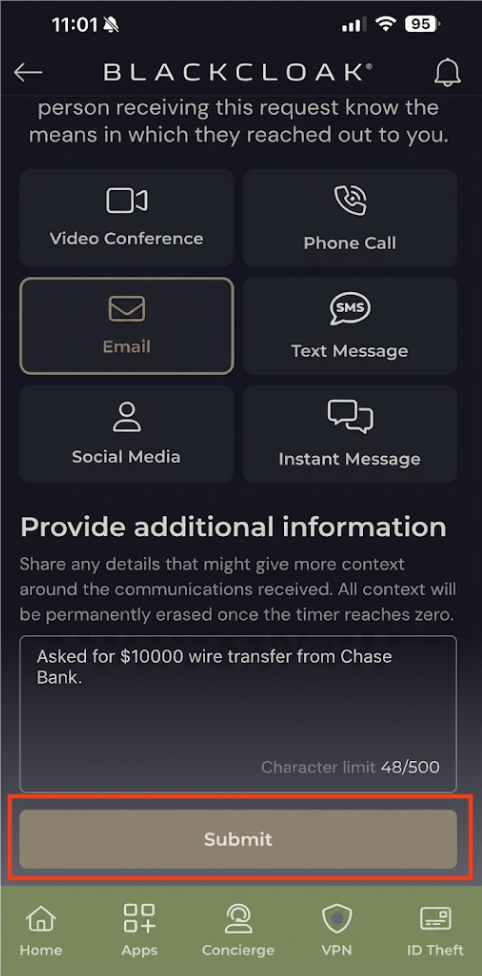
Reading the result:
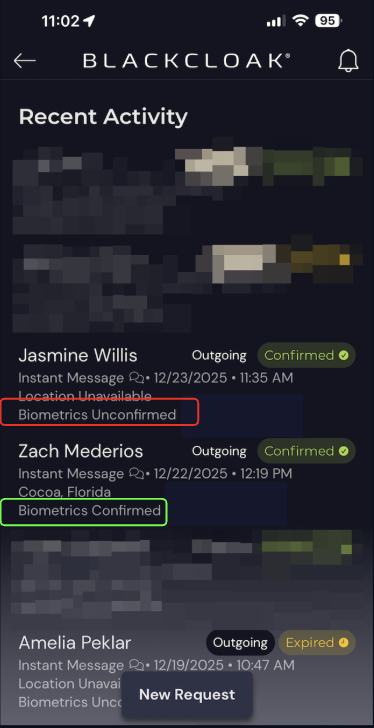
Confirmed by Device: the other person completed the confirmation on their own device. You can treat the communication as legitimate and proceed as normal.
Unconfirmed: the other person couldn't complete the confirmation, denied it, or the request expired. Treat the original message as suspicious: stop, don't share money or personal information, and contact your Concierge team right away.
Real-Life Situations Where circle of trust Helps
Send a confirmation request any time something feels off with someone in your circle of trust, for example:
A video call where something seems off, like the person not showing their face, using a static image, or acting differently than usual.
An urgent money request from someone claiming to be a family member or friend, especially one that pressures you to act quickly.
A security alert or email urging you to click a link and reset a password. The site may look legitimate but be a convincing fake.
A threatening message demanding immediate action, like paying a fee or sharing personal information to avoid an account being disabled.
A request to wire money or transfer funds tied to an unexpected invoice, business need, or personal emergency.
A request to buy gift cards and send the codes, often framed as urgent or as part of a reward.
If any of these happen and the person is in your circle of trust, don't act on the request first. Send a confirmation request instead.
FAQs
Can I invite someone by text instead of email? Not yet. Invitations go out by email today. If the person already has a BlackCloak account, they'll also get a push notification.
Is there a cost for the person I invite? No. It's free for anyone you invite
Can my invitee be in more than one member's circle of trust? Yes. They can accept invitations from multiple people and see all of those connections from one login, and each one stays separate and private.
What happens if I remove someone from my circle of trust? The connection ends right away for both of you. Your past confirmation history stays on record, but you'd need to send a new invitation to reconnect.
What should I do if a confirmation comes back Not Confirmed? Stop. Don't act on the original request, don't share money or personal information, and contact your BlackCloak Concierge team immediately.
Where can I see my confirmation history? In your account activity log, alongside your other BlackCloak account activity.
Need Help? Our Concierge team is here for you. If you have any questions or need assistance, email ask@blackcloak.io, or open the Concierge or Support tab in the app to book time for personalized support. |