Adding Assets to the BlackCloak Mobile Application
Step 1
By adding digital and physical assets to the BlackCloak mobile app, you can manage your data at any time
Step 2
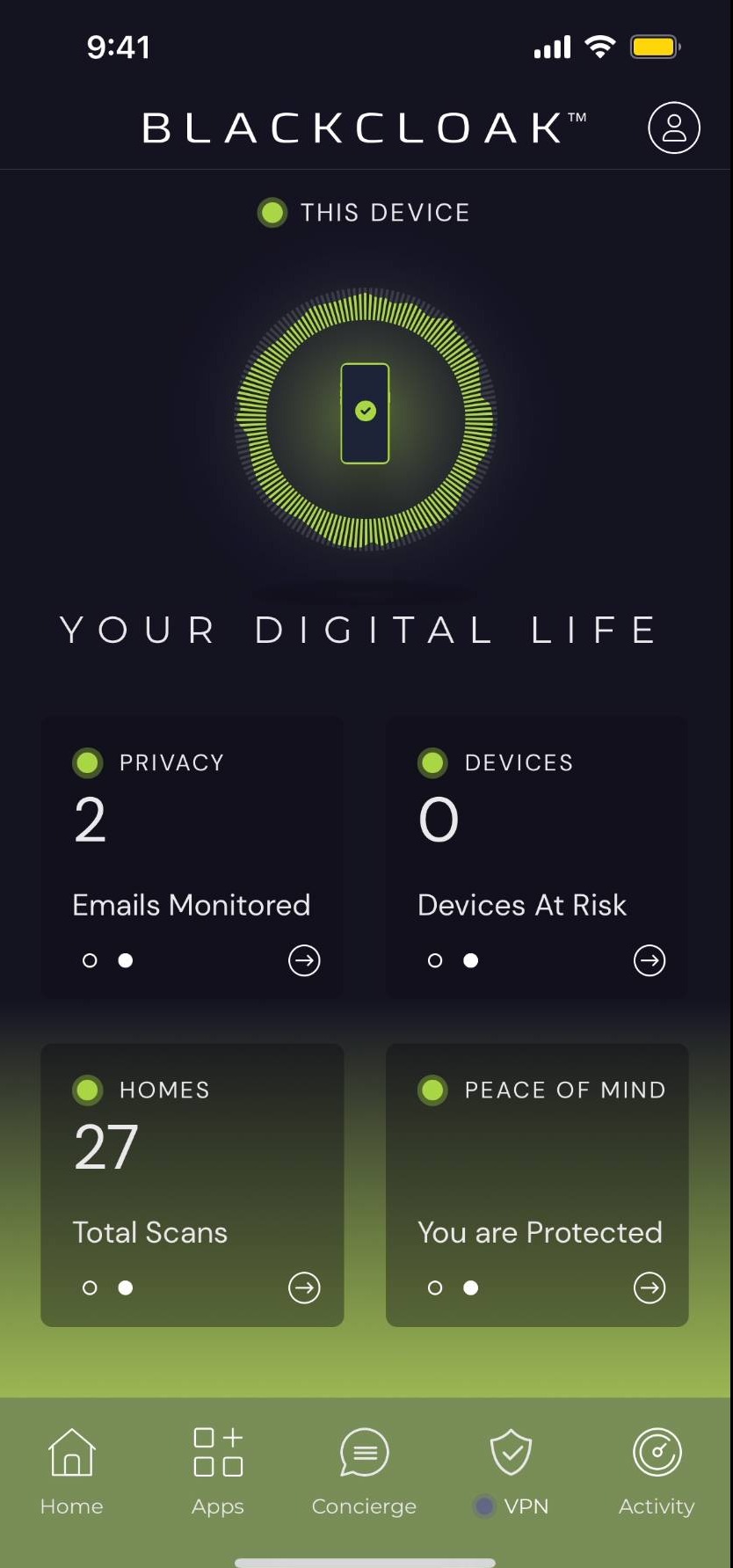
To add assets in your BlackCloak mobile application, start by clicking your profile icon at the top right corner of the screen
Step 3
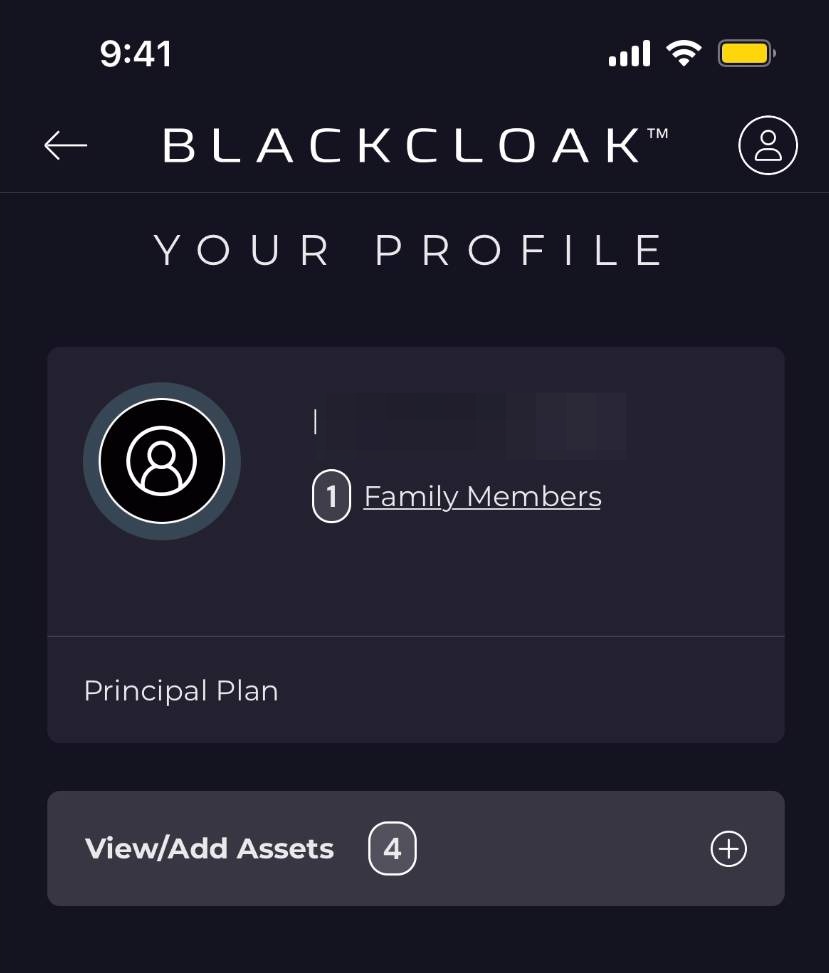
Click View/Add Assets
Step 4
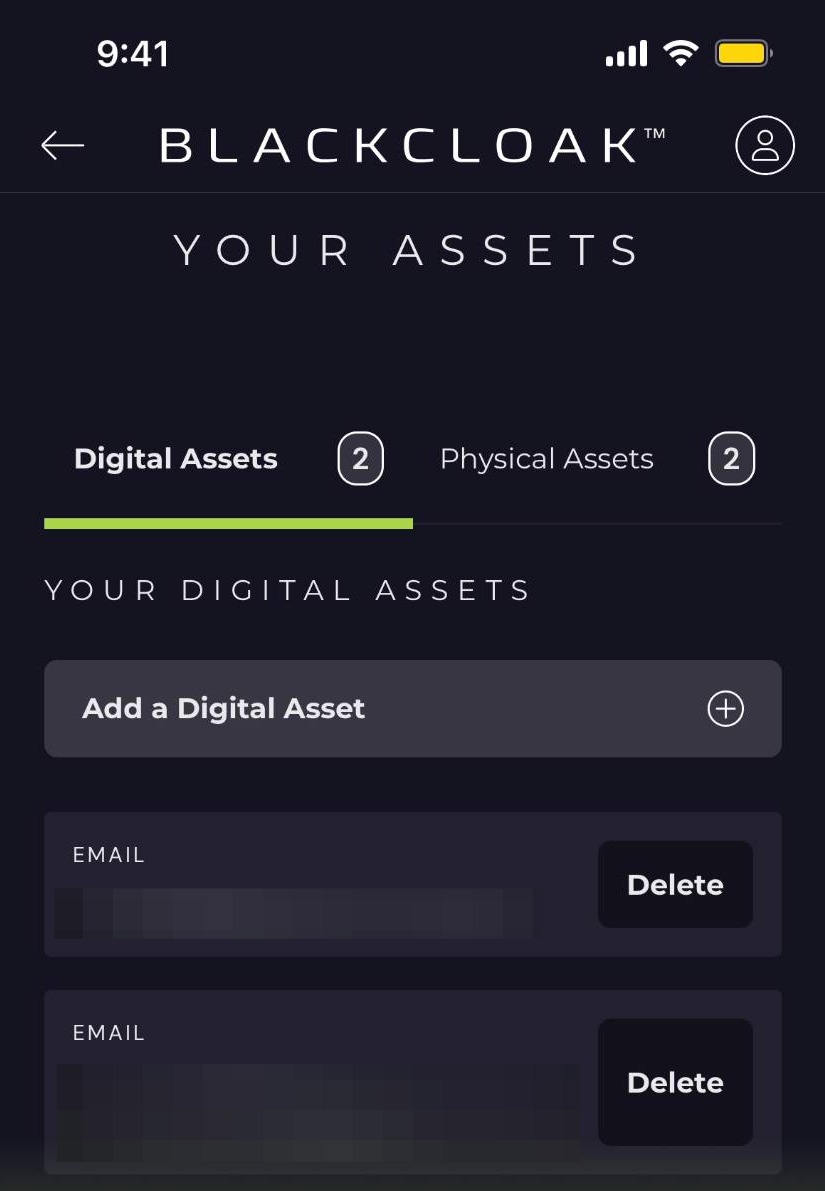
First, click Add a Digital Asset
Step 5
Add your email here
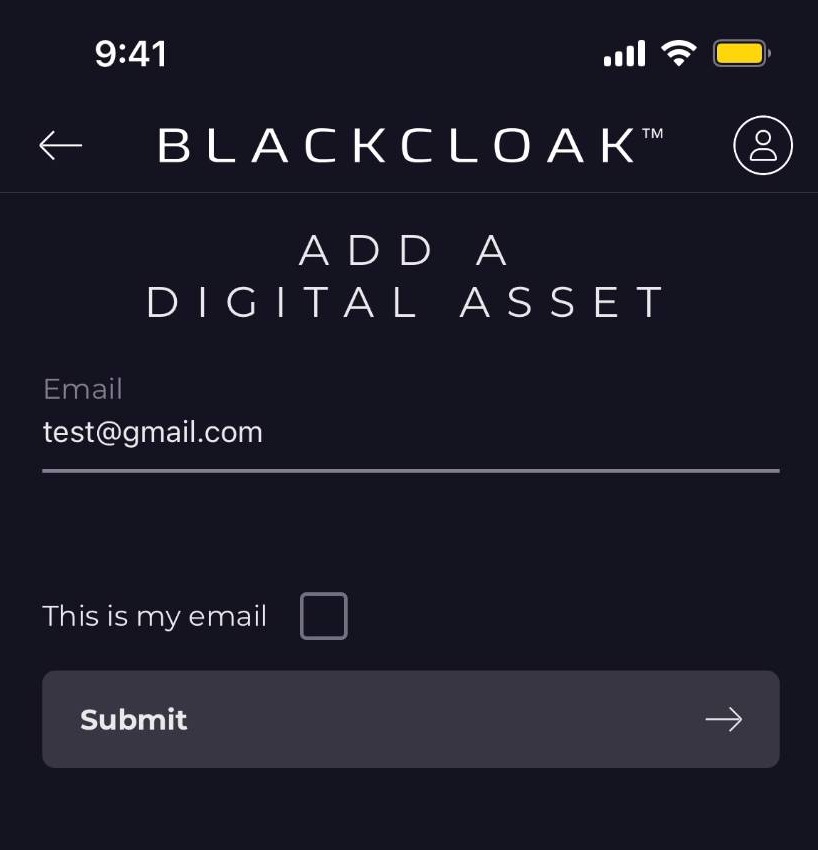
Step 6
Click "this is my email" to verify that you are the owner of this address
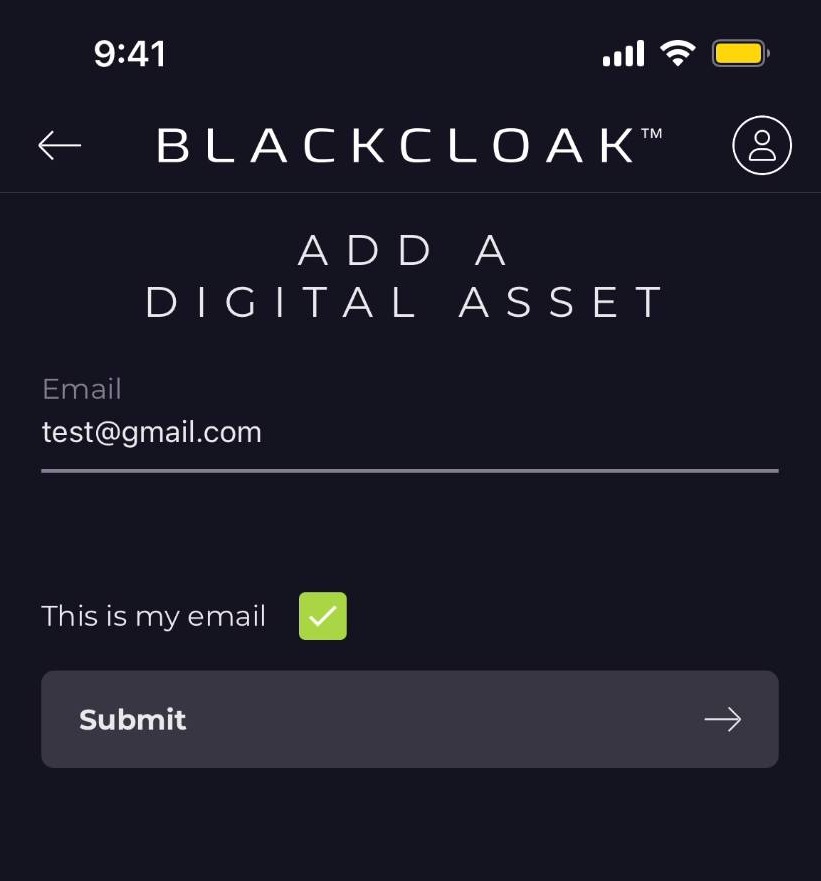
Step 7
Then, click submit
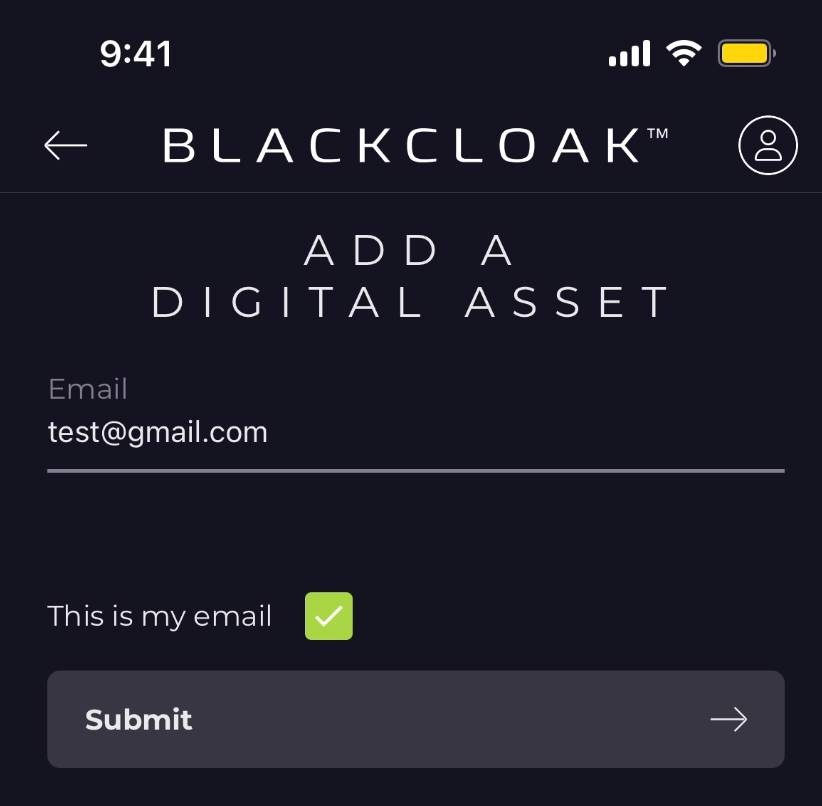
Step 8
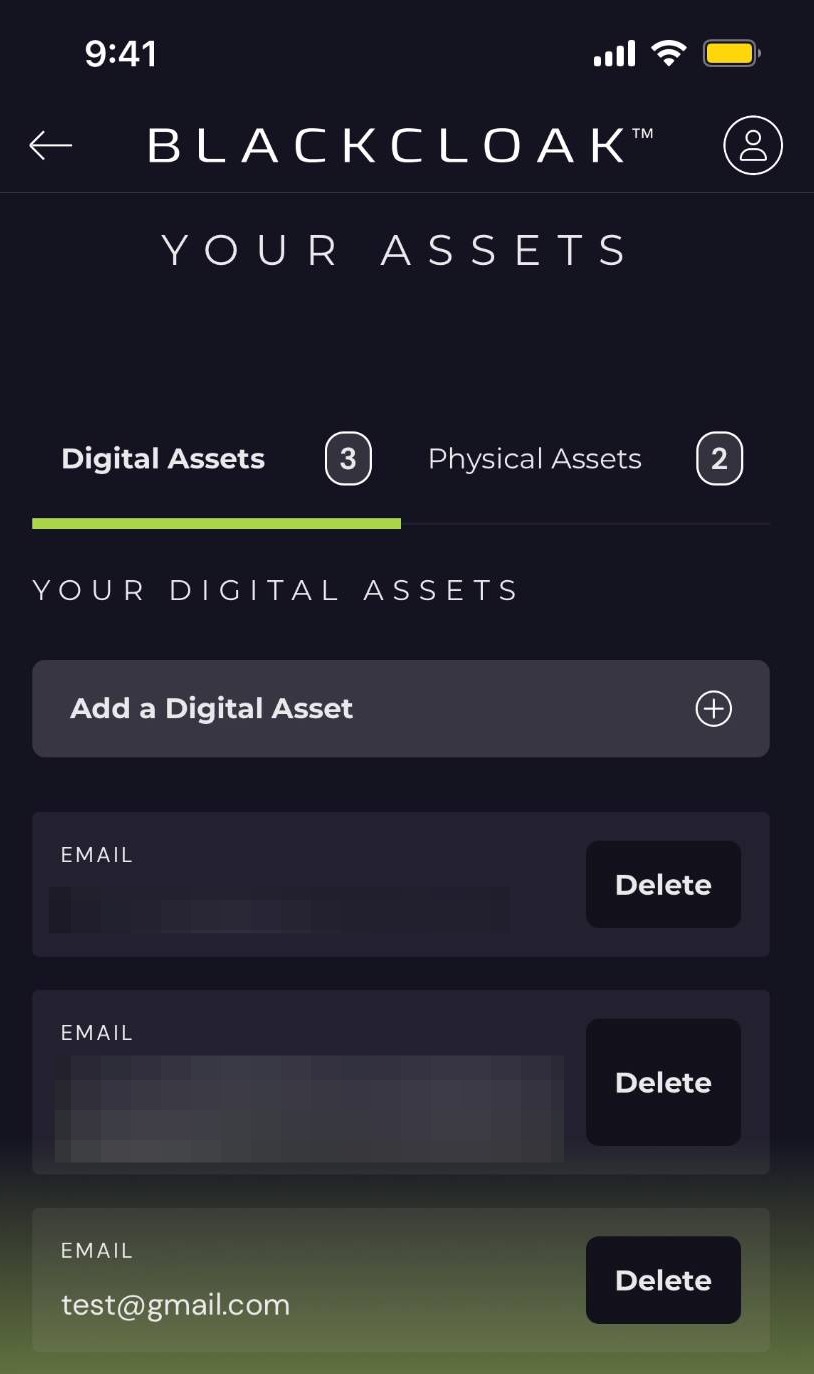
If you no longer want an email address tied to your mobile app, click delete to have it removed
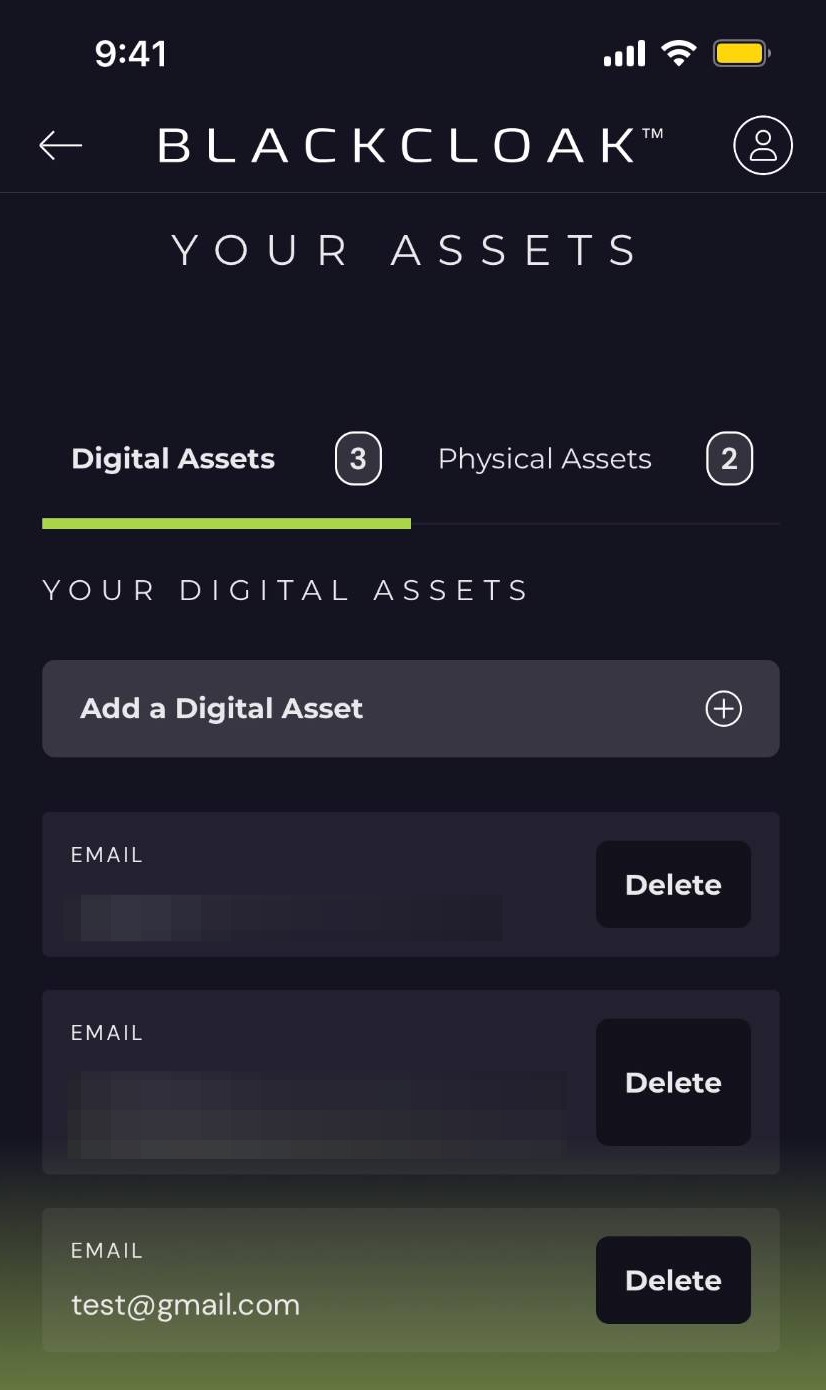
Step 9
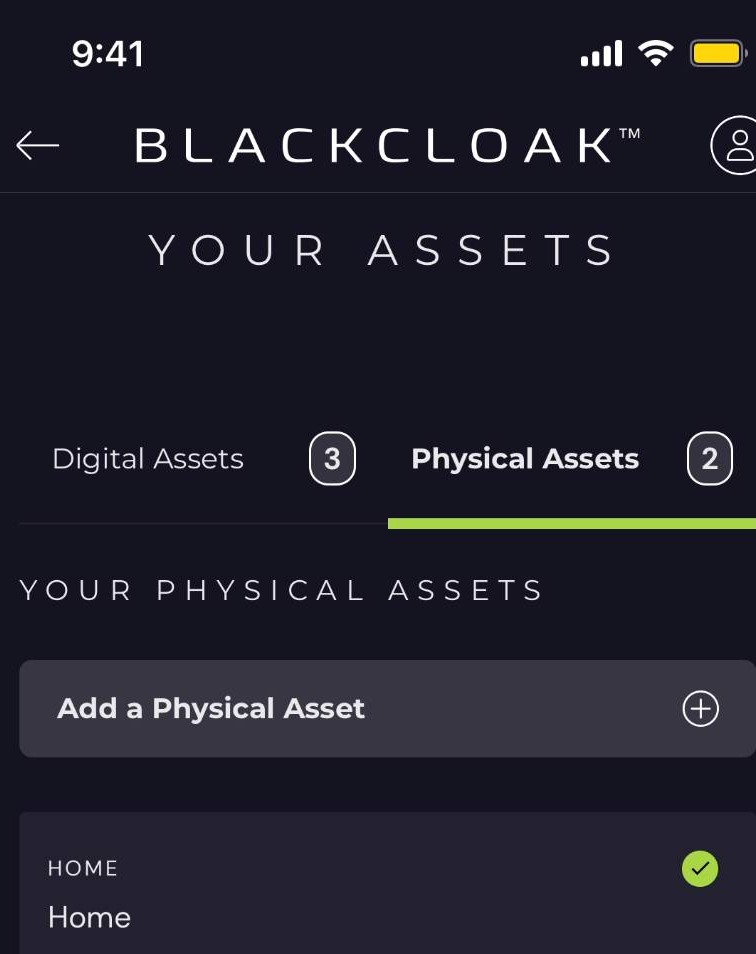
Next, let's click physical assets
Step 10
Click add a physical asset
Step 11
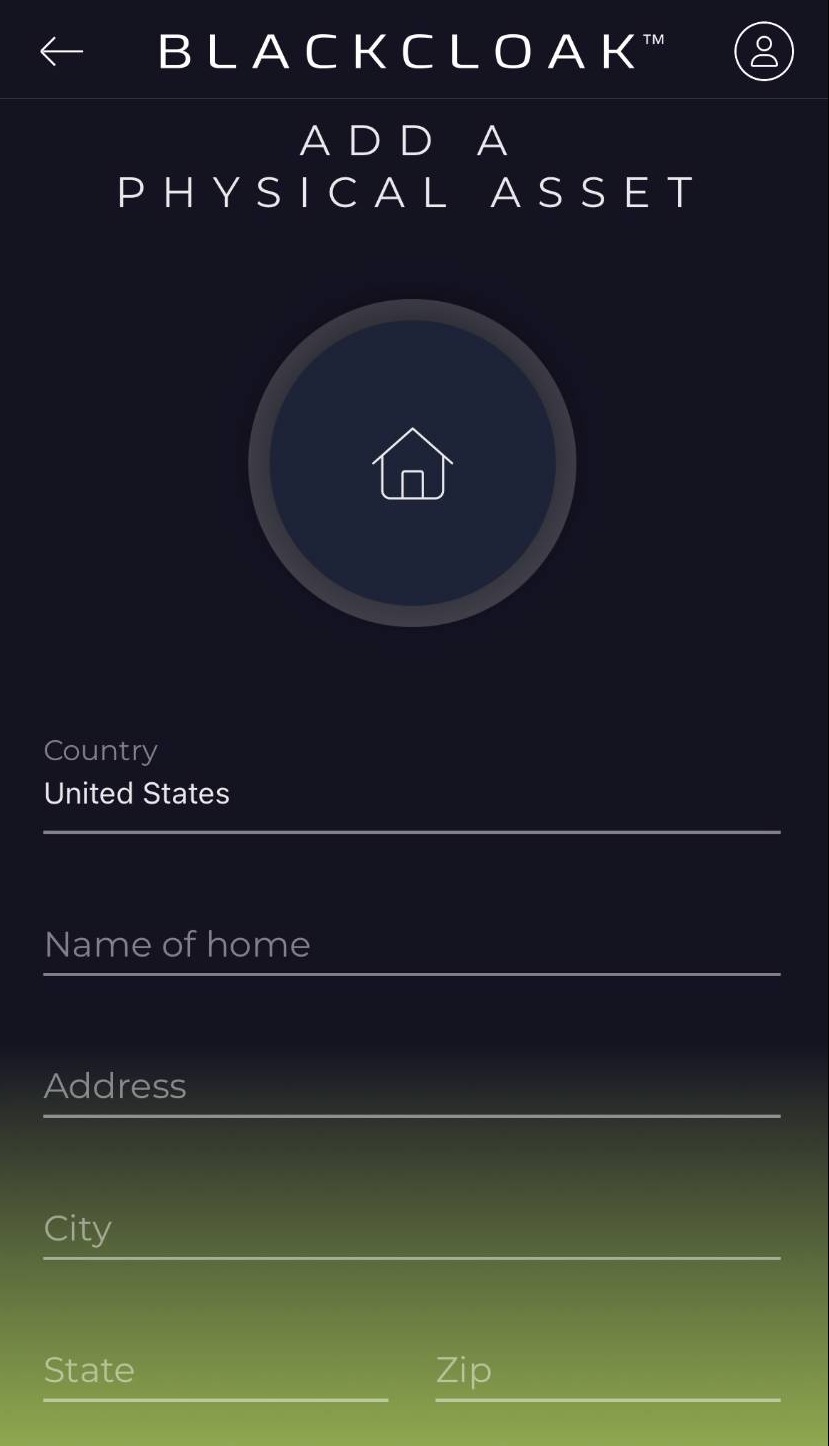
On the next screen, enter your home address. You can give any particular home its own name to differentiate it from any others you own
Step 12
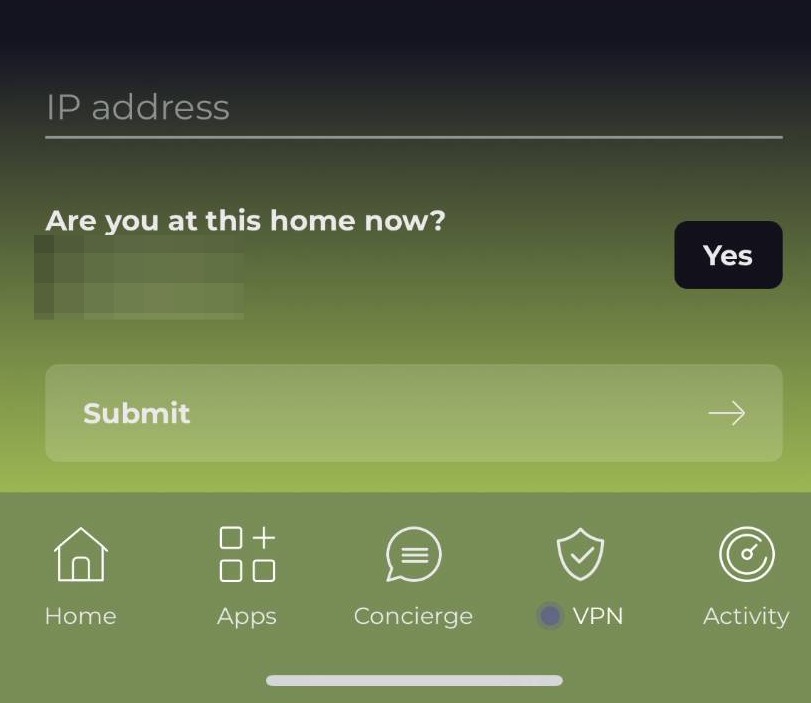
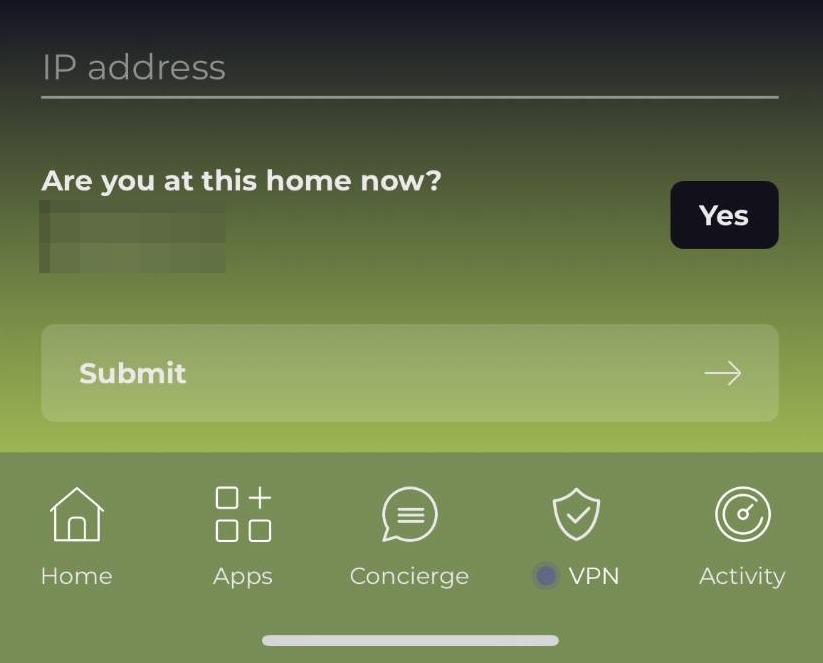
At the bottom, you will see the Wi-Fi network you are connected to, as well as the IP address. If this is your home network, click yes
Step 13
Once you are done, click submit
Step 14
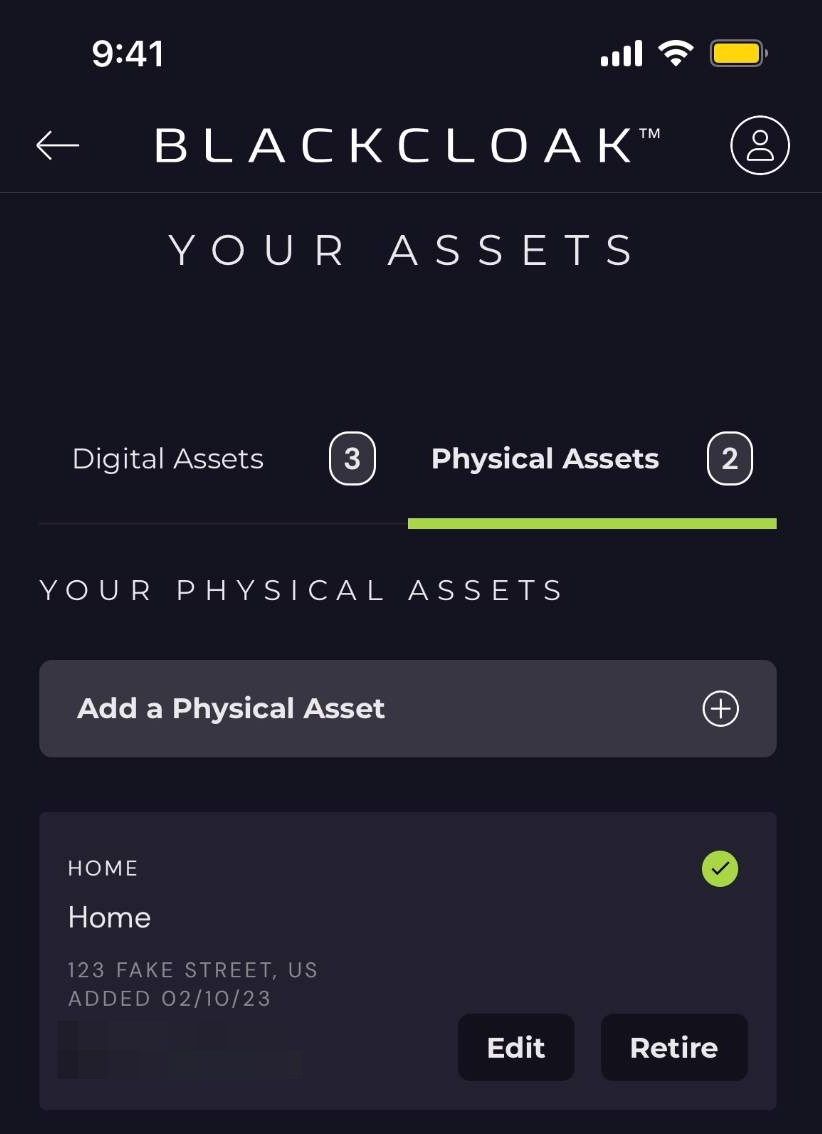
If you need to make changes to any addresses, click edit next to the address you wish to adjust
Step 15
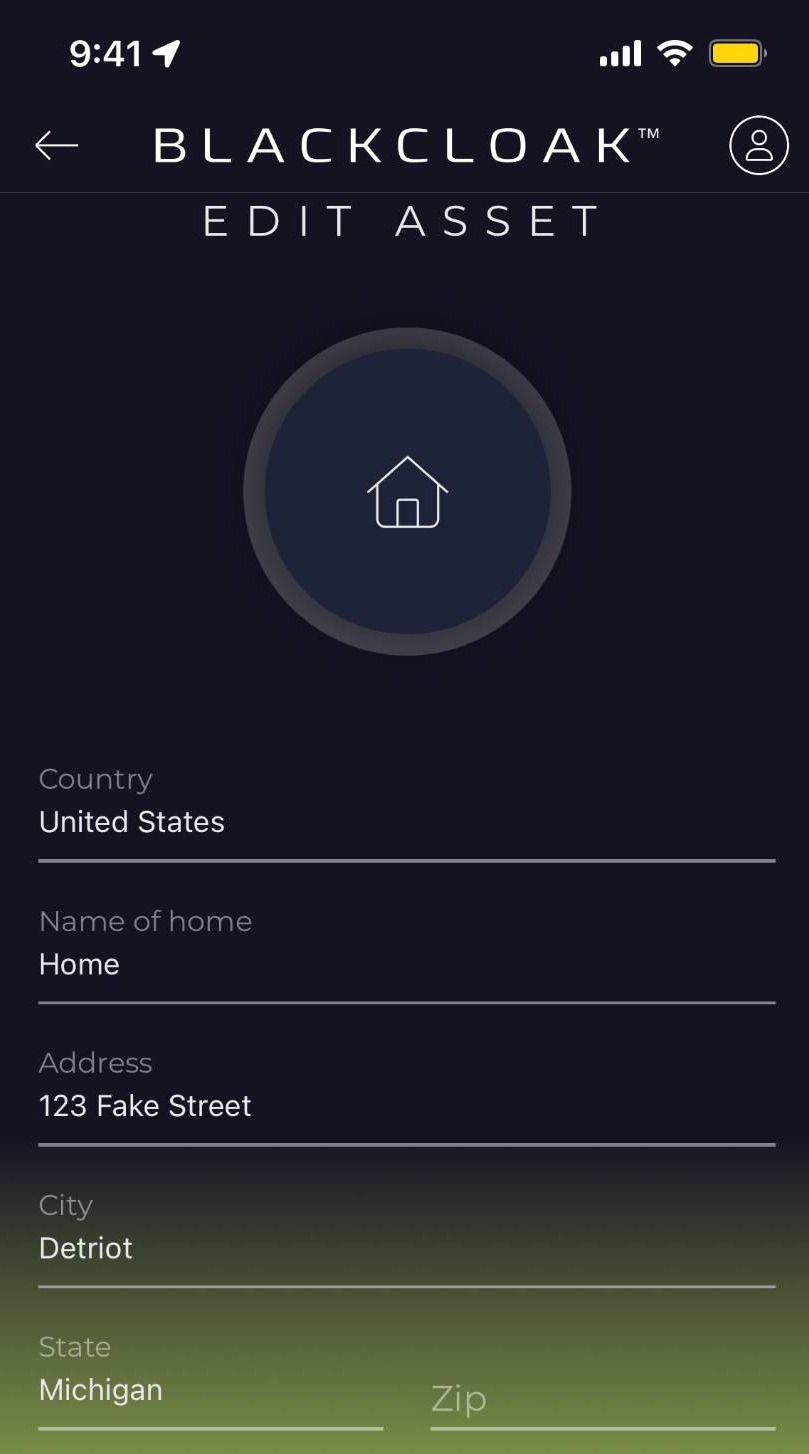
Make any changes you need to and hit submit once you are done
Step 16
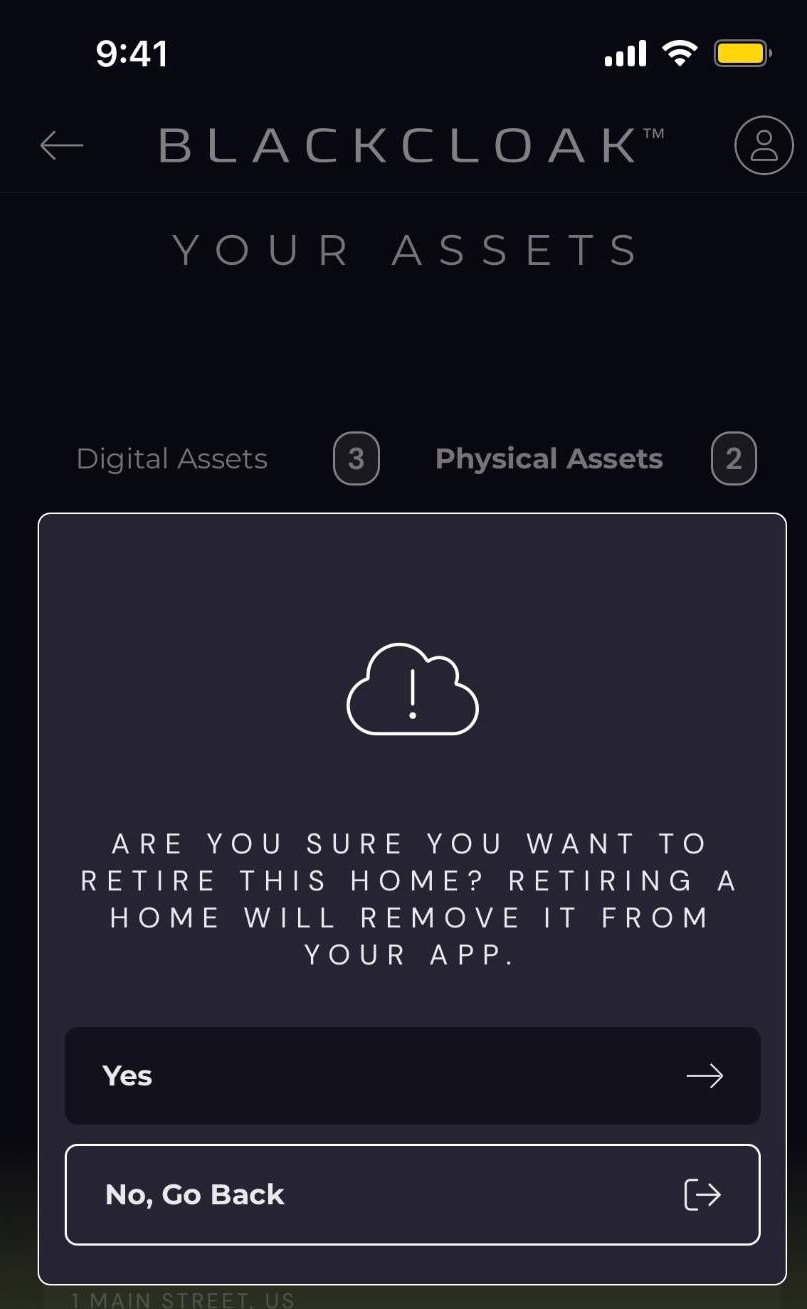
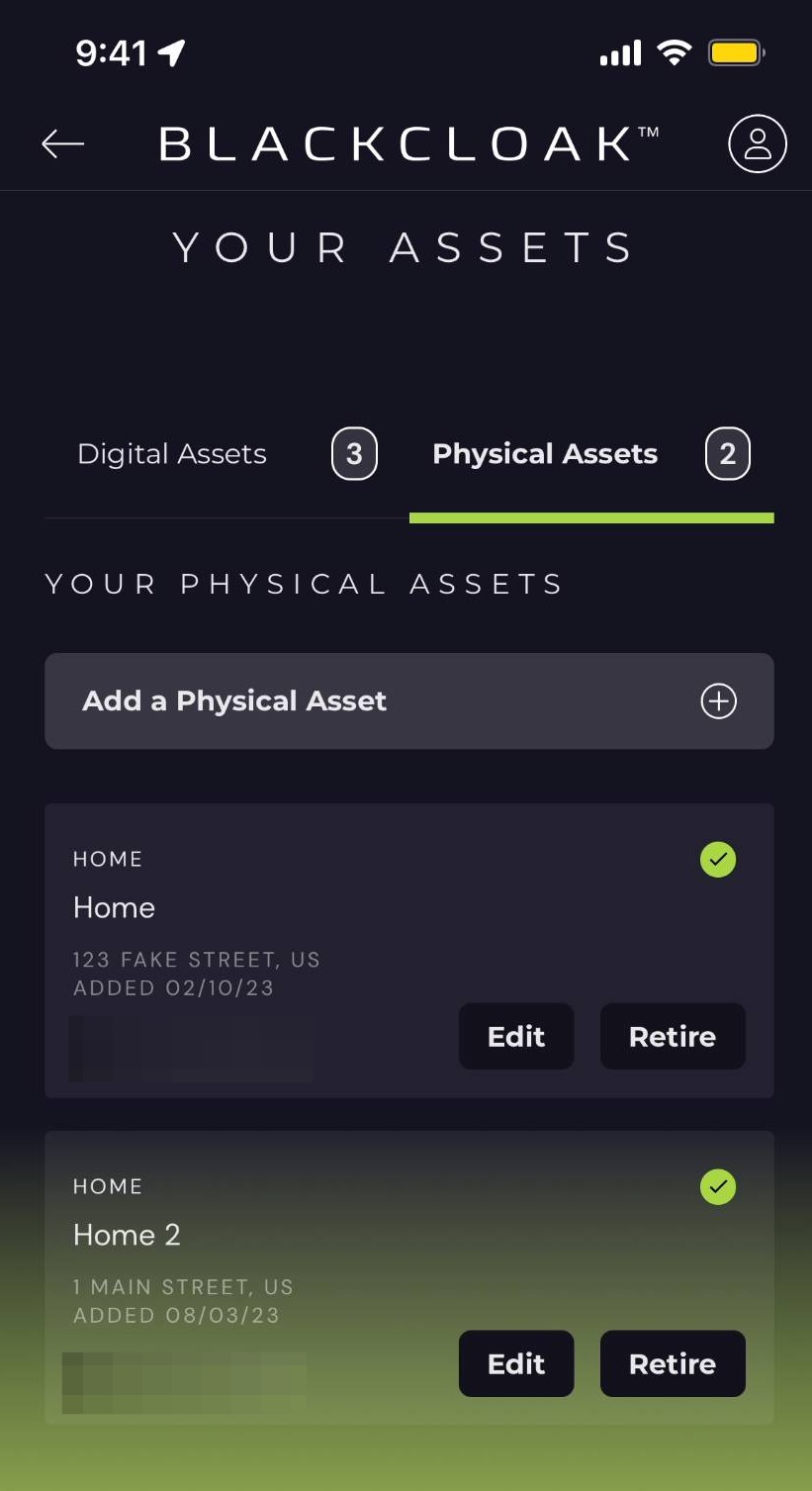
If you want to remove an address from your app, click retire
Step 17
Click yes to remove the address from the app