
Common Reasons Why Your Device May Be Amber
Below is a list of the top reasons a mobile device or computer may display ORANGE in the BlackCloak App.
MOBILE DEVICES
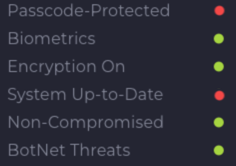
System Up-to-Date- If this status is displaying RED, it is likely that you need to update the Operating System version for your mobile device.
Click here for our guide on how to update/upgrade your device.
Non-Compromised- If this status is displaying RED, it is likely that you've turned off the passcode protection feature on your device.
Click here for our guide on how to enable a passcode for your device.
COMPUTER
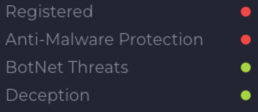
Registered- If this status is displaying RED, it is because the BlackCloak app hasn't heard from the device recently. This can occur if you've not used your device for a period of time or if you've been logged out of the app.
Click here for our guide on how to log into the BlackCloak application. Logging back into the app or turning on your computer after it's been offline will usually resolve the RED status.
Anti-Malware Protection- If this status is displaying RED, it is because the BlackCloak protection software hasn't heard from the device recently. This typically occurs if you've not used your device for a period of time. Alternatively, if you have been actively using the computer, if could mean there is an issue that should be review with our Concierge Support team
Turn On An Offline Device - Turning on your computer after it's been offline will usually resolve the RED status.
Actively Using Computer - Schedule a Concierge Session with the team through the app or Schedule through our Concierge Portal to have your computer protection reviewed.
Remember You May Tap on the Device Within the App For More Details.
Computer
Mobile
WHAT DO ALL OF THE COLORS MEAN?
To understand what all of the colors mean click here.